Access Developer 48
Copy Records Without Specifying Indexed Fields
Welcome
Welcome to Microsoft Access Developer Level 48, brought to you by Access Learning Zone. I'm your instructor, Richard Rost.
In this class, we're tackling the challenge of copying records in Microsoft Access without specifying field names. We'll build a comprehensive function that simplifies this task, making the process table and field agnostic.
First, we'll explore manual copying, then address the broken duplicate record macro. We'll convert this into functional VBA code, eliminating the hassle of field naming. We'll identify primary key fields, field attributes, and index uniqueness, creating a versatile copy records function.
Resources
Topics Covered
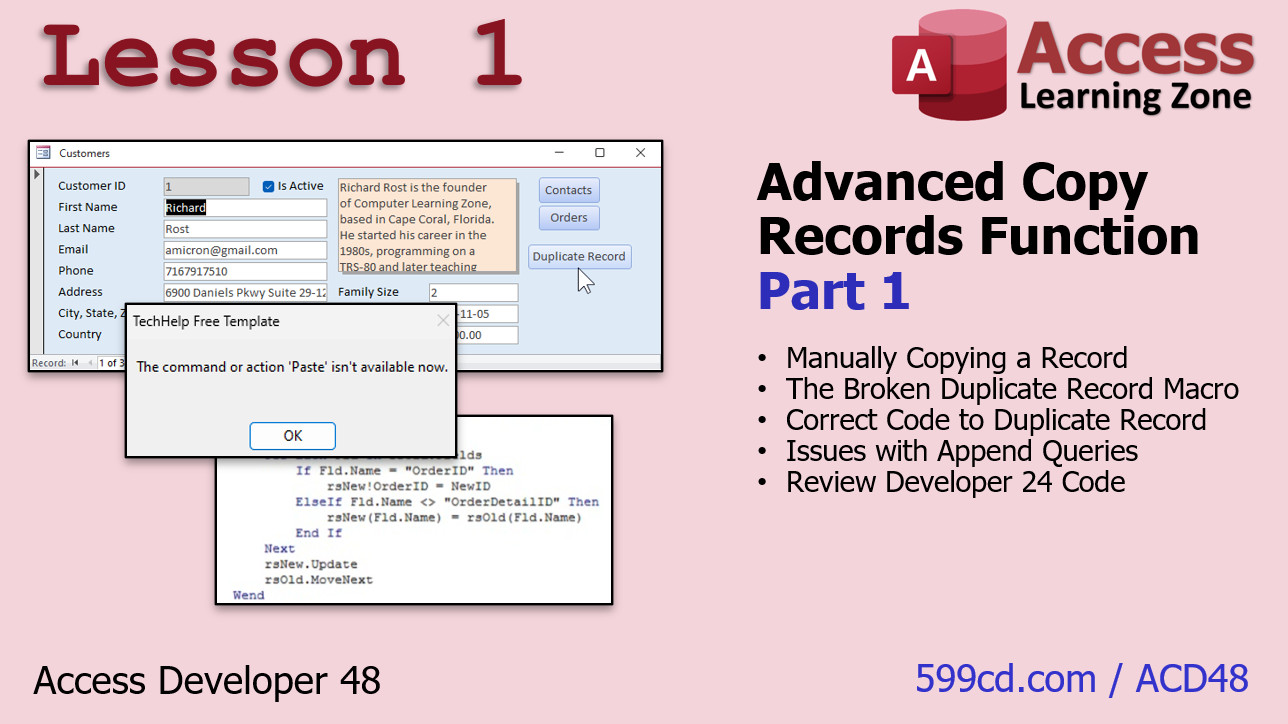
In Lesson 1, In we'll discuss the reasons for building the Advanced Copy Records function. We'll quickly cover manually copying a record, then look at fixing a broken duplicate record macro by converting it to VBA with just one line of code. We'll also address issues with append queries and the need to know all field names individually. Additionally, we'll review Developer 24's code on looping through fields, which still requires knowing field names. This lesson will clarify the need for the function we're developing.
In Lesson 2, we will learn how to create a subroutine to copy records, excluding the primary key, using VBA. We'll learn to set up record sets, and loop through fields while seamlessly updating and refreshing the record list in your form.

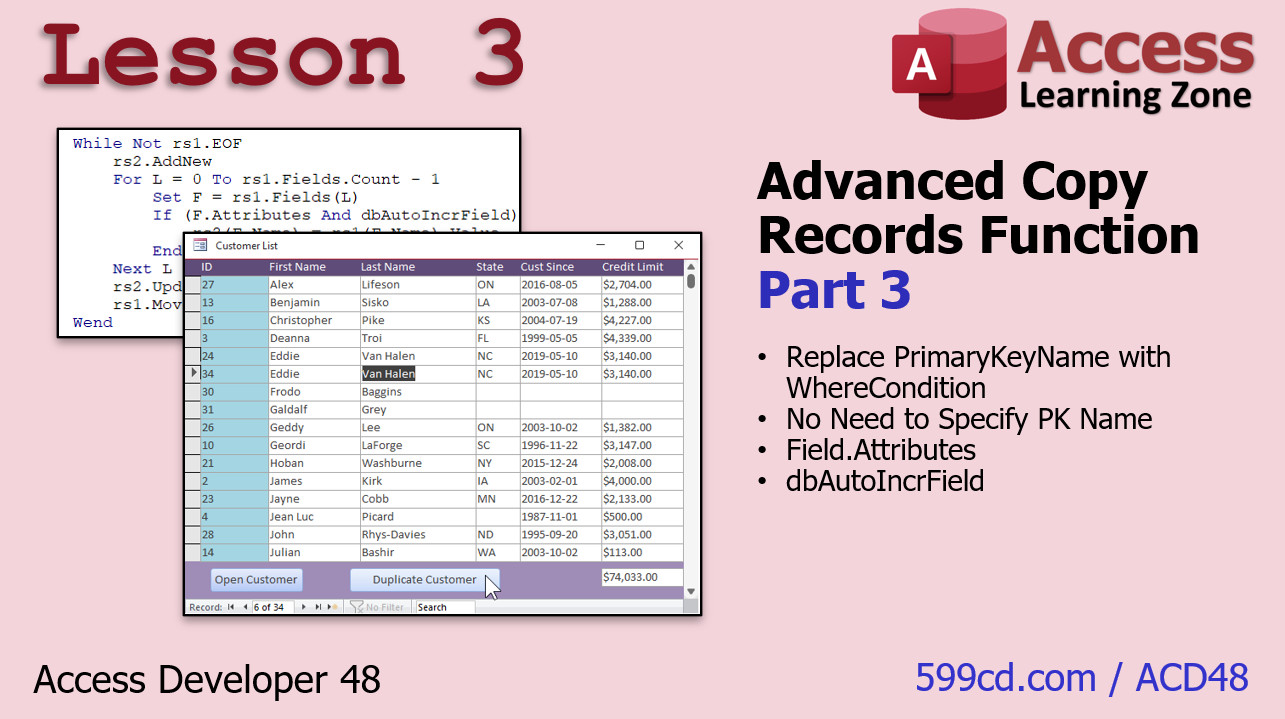
In Lesson 3, we will learn how to streamline our database operations by replacing primary key specifications with a simple WHERE condition. I'll show you how to identify AutoNumber fields using field attributes and perform bitwise operations effectively. We'll also address common issues with compact repair in Access.
In Lesson 4, we will llearn how to list all table indexes, identify their unique properties, and write a function to determine if a specific field, like an email address, is unique (indexed with no duplicates). We'll explore programmatically checking composite keys and use helper functions to assist in simplifying these advanced database tasks.

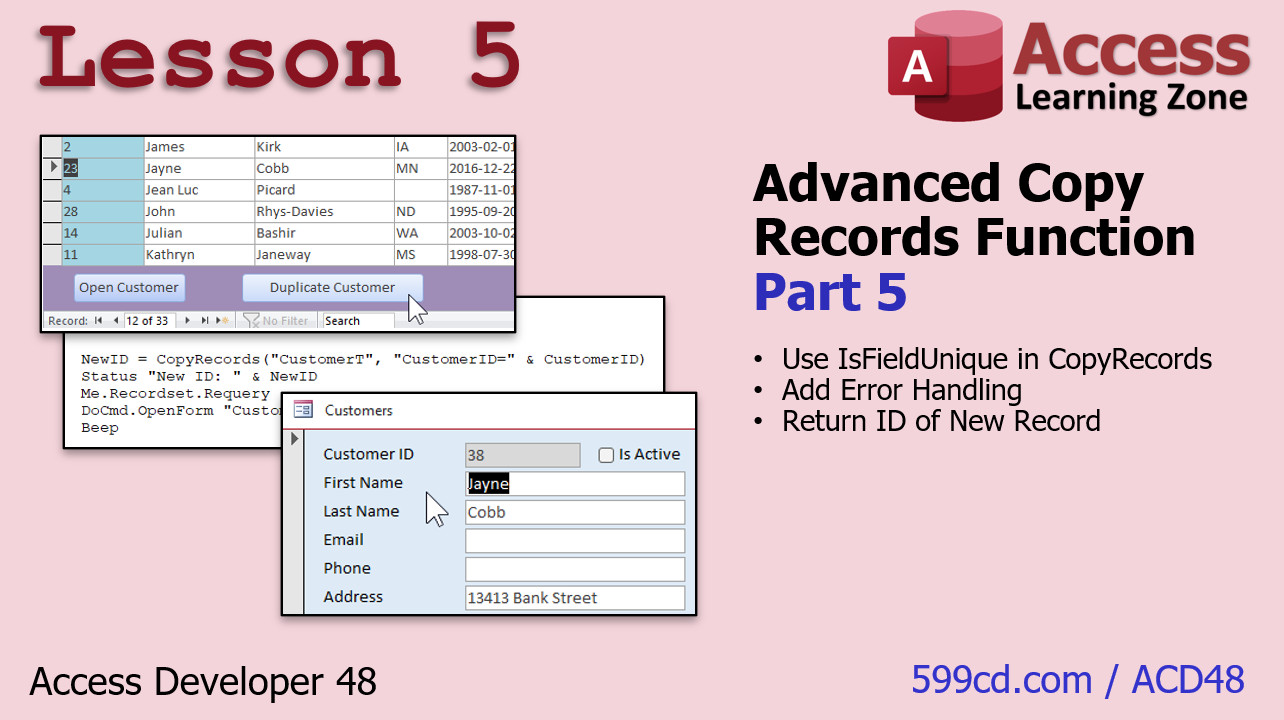
In Lesson 5, we will learn how to integrate the is field unique function into your copy records subroutine, effectively transforming it into a function. We'll cover error handling, identify the primary key, and enable the new function to return the ID of newly created records.
Enroll Today
Enroll now so that you watch these lessons, learn with us, post questions, and more!

Questions?
Please feel free to post your questions or comments below. If you are not sure as to whether or not this product will meet your needs, I'd rather help you before you buy it. Remember, all sales are final. Thank you.
Keywords
microsoft access, access 2016, access 2019, access 2021, access 365, ms access, #msaccess, #microsoftaccess, #help, #howto, #tutorial, #instruction, #learn, #lesson, #training, #database, copy records function, indexed fields Access, unique constraints Access, skip primary key Access, auto number fields, composite keys Access, IsFieldUnique function, list table indexes Access, identify auto numbers, duplicate records prevention Access, return new record ID Access, handle composite indexes, field attributes Access, dbAutoIncrField attribute, mark fields as unique, Access primary key handling, tabledef object Access, avoid duplicates Access, Access new record ID function, field uniqueness Access, handle indexed fields Access, Access advanced copy function, multiple record sets Access
More InformationTranscript In today's class, we are going to build a function that will allow you to copy one or more records from any table without having to specify field names.
I have been contacted many times that trying to duplicate a record is a pain. First of all, there is a macro option for it and it is broken. It does not work. We will talk about that in lesson one.
Unless you want to manually copy and paste records yourself, it is a pain if you have any fields that are indexed no duplicates, whether it is your auto number field or any other field like email address. If it is indexed no duplicates, copying it, whether it is with VB code or SQL, is a pain unless you specify the entire list of fields from the table, which no one wants to do. If you make changes in the future, if you add fields, change fields, or delete fields, you have to update all your code. We are going to write a function where you do not have to do that. I like to call it table and field agnostic. It does not care.
This class follows Access Developer 47. I strongly recommend you take all my classes in order, not because I am trying to sell more lessons, but because they really are designed to follow one after the other. My course is best taken in order. All the beginner lessons, expert, advanced developer, Developer 1. Obviously intro to VBA, some other ones that are important, Developer 15, where I cover error handling, which we are going to do a lot of today, Developer 16, record sets, definitely take this one, and in 24, we cover the fields collection, which we are going to be using today. In 26, we cover table defs. These are all things that I am going to be using a lot of today.
Plus, we have a bunch of new stuff coming up today, including the indexes collection, which is pretty cool. Like I always say, do not skip levels because you are going to miss stuff.
This class is recorded with Microsoft Access as part of a 365 subscription, which I strongly recommend. It is currently 2025 January. If you are using the retail version, this is roughly equivalent to Access 2024. However, the lessons covered today should work with any version going back to probably 2007 or so. I am not sure exactly when they broke that macro that I talked about earlier, but this is the version you need.
If you have any questions regarding the material covered in today's class, scroll down to the bottom of the page that you are on and post your questions there. Also, take a minute to read through any other questions that have been posted as your answer may have already been answered. Make sure you slam that red subscribe button so you will get notified if any other questions are posted or answers to your questions. Be sure to check out my Access forums. I have an awesome group of moderators. They rock. I get a lot of questions about anything Access related posted there.
Now let's take a closer look at what is covered in today's class.
In lesson one, we are going to cover the background behind why we want to build the advanced copy records function. We will see how to manually copy a record. That is a beginner task, but we are going to go over it real quick. Then we are going to learn about the broken duplicate record macro. There is a macro item that just does not work. It used to work years ago. It does not work anymore. Then we will take that macro and convert it over to VBA code. I will show you how to fix it with, of course, one line of code.
Then we will talk about issues with append queries and how you can use them to copy records. Again, you have to know all of the fields that you want to copy individually, which is a pain. We will review Developer 24's code where I did show you how to loop through the fields, but again, you still have to know the field names. We will talk about all of that in lesson one, and that will explain why we are building this function.
In lesson two, we are going to start writing the copy record subroutine. We are going to loop through all of the fields and then we are going to avoid the specified primary key, but we are going to specify it first. In the next lesson, we will learn how to not specify it.
In lesson three, we are going to get rid of having to specify what the primary key field name is. We are just going to replace it with a basic where condition. We are going to learn about the field attributes and the auto increment field attribute, which basically means this field is an auto number. Now we can detect the auto number, the primary key, instead of having to tell what it is.
In lesson four, we are going to start off by writing a function to list all of the table indexes in a table's table def so we can see what the index fields are. Then we will determine what the fields in each index are. Knowing this information, we can write a function to determine if a specific field is unique. I can say, is the email address unique? In other words, is it index no duplicates? That is what we are going to do in this lesson.
In lesson five, we are going to take that is field unique function and put it inside our copy records function, which we are going to make a function now, so that we can check all the fields before we copy them and make sure they are not index no duplicates. We are going to add some error handling and then we are going to turn copy records into a function and return the value of the newly created record so we can do stuff with it, like open up the form to that new record. Cool stuff. Intro In this lesson, you will learn how to build a function in Microsoft Access that allows you to easily copy one or more records from any table without having to specify field names, making it flexible and easy to maintain. We will explore the limitations of the built-in duplicate record macro, discuss issues with append queries and indexing, and review previous code examples. You will see how to create a field-agnostic copy routine, handle primary keys and auto number fields, work with table indexes, determine if a field is unique, and return the value of the new record with proper error handling. This is Access Developer 48. Quiz Q1. What is the main goal of the function being built in this class?
A. To copy one or more records from any table without needing to list field names
B. To merge two different tables into one
C. To import data from Excel into Access
D. To create backup copies of an entire database
Q2. What is a major problem with manually duplicating records in Access when dealing with fields indexed as "no duplicates"?
A. You might copy the wrong field types
B. It causes Access to crash
C. It creates records with duplicate data in unique fields, which is not allowed
D. It automatically updates all field values to blank
Q3. What is said about the built-in macro option for duplicating records in Access?
A. It works perfectly with all fields
B. It only works in Access 2003
C. It is broken and does not work in recent versions
D. It requires special permissions to use
Q4. Why is manually specifying all field names in code or SQL to copy records problematic?
A. It is less secure
B. It can be time-consuming to type, and breaks when table structure changes
C. It makes the database run slower
D. It causes forms to close unexpectedly
Q5. What course is recommended as a prerequisite due to its coverage of error handling, which is important for this lesson?
A. Developer 24
B. Developer 15
C. Developer 26
D. Developer 16
Q6. Which VBA/Access topic covered in Developer 24 is mentioned as relevant for today's class?
A. Advanced Macros
B. The Fields Collection and looping through fields
C. Query Design
D. Table Relationships
Q7. What new feature or object will be covered in this class that has not been emphasized before?
A. The Ribbon interface customization
B. The indexes collection
C. The Reports group
D. The Security settings
Q8. The class demonstrates creating a copy records function that is described as:
A. Macro-only
B. Table and field agnostic
C. Only for forms
D. Run exclusively by queries
Q9. When copying records, what must you avoid copying to prevent errors in tables with unique indexes?
A. Attachment fields
B. Memo fields
C. Fields that are indexed with no duplicates, such as auto number primary keys or unique emails
D. Image fields
Q10. In lesson three, what attribute is used to detect auto number fields?
A. The calculated field property
B. The memo field type
C. The auto increment field attribute
D. The hyperlink property
Q11. In lesson four, what is the purpose of writing a function to list all table indexes?
A. To determine if a field is a lookup field
B. To track changes in table structure
C. To identify which fields are unique or have constraints
D. To count the number of records in a table
Q12. What is the key benefit of the final function built in this class?
A. It can backup any table automatically
B. It will return the value of the newly created record for further operations
C. It encrypts copied data
D. It emails the copied record
Answers: 1-A; 2-C; 3-C; 4-B; 5-B; 6-B; 7-B; 8-B; 9-C; 10-C; 11-C; 12-B
DISCLAIMER: Quiz questions are AI generated. If you find any that are wrong, don't make sense, or aren't related to the video topic at hand, then please post a comment and let me know. Thanks. Summary Today's video from Access Learning Zone focuses on building a function in Microsoft Access that will let you copy one or more records from any table without needing to specify the field names. Many people have reached out to me over the years about how frustrating it can be to duplicate a record. Of course, Access has a built-in macro option for this, but it simply does not work properly anymore. We will discuss why that is in the first lesson.
Trying to copy records becomes especially problematic if you have fields that are set as indexed with no duplicates allowed. The classic example is the auto number primary key, but it applies to other fields as well, such as email addresses. Whenever you attempt to duplicate these records, either with VBA or SQL, it requires you to list out all the field names. That approach is cumbersome, and if the table structure changes - if you add, remove, or modify fields - you would need to update your code to match. The function we will build in this class will eliminate that need. It will work regardless of which table or fields you are working with. I like to describe this function as table and field agnostic since it does not care about the specifics.
This course follows after Access Developer 47. I recommend taking all my lessons in sequence, not for the sake of selling more courses, but because each one builds on previous material. My curriculum is designed to be learned in order, starting from the beginner series, moving to expert, advanced, and then the developer courses. Some especially relevant lessons to review before this one include the intro to VBA, Developer 15 where I go into error handling - which we will use a lot today - Developer 16 on record sets, Developer 24 covering the fields collection, and Developer 26 on table defs. All of these topics come together in today's lesson.
In addition, there is some new material in this class. We will look at the indexes collection in detail, which is a powerful feature in Access. As I often remind everyone, do not skip lessons or levels or you will miss key concepts.
This class was recorded using Microsoft Access as part of a Microsoft 365 subscription, which is what I recommend using. The recording is from January 2025, so if you use the retail 2024 version, it should be the same. The concepts in today's lesson should work in any version of Access going back as far as 2007. I believe the macro feature stopped working correctly around then.
If you have any questions about the topics covered in today's class, just scroll to the bottom of the page and post them there. Please also take a few moments to read through existing questions, as your answer may already be there. Make sure you subscribe to stay updated when new questions or answers are posted. Take a look at my Access forums as well. I have an excellent team of moderators and a very active community if you want to discuss anything related to Access.
Here is a quick overview of what we will cover today:
Lesson one looks at the background behind why we need an advanced copy records function. I will show you how to manually copy a record in Access as a refresher. Then, we will look more closely at the broken duplicate record macro and how it fails to solve this problem. From there, I will show you how it can be converted into VBA code and fixed using a simple tweak. We will also discuss append queries and how, while they can be used to copy records, you still have to manually identify all relevant fields each time. We will review some code from Developer 24 where I showed how to loop through fields, but again, that method still requires specifying field names. All these limitations will highlight the reason for creating the function we focus on in this course.
Lesson two will guide you through starting the new copy record subroutine. You will learn how to loop through each field, ignoring the primary key by specifying it up front. In the following lesson, we will make this even more flexible by removing the need to specify the primary key name at all.
In lesson three, we will take the next step and eliminate the need to specify which field is the primary key. Instead, we will use a simple where condition to select the record. Here you will also learn about field attributes, including how to detect an auto increment (auto number) field, which allows us to automatically find the primary key.
Lesson four will teach you how to create a function that can list all indexes for any table using the table defs. You will be able to see exactly which fields are indexed and determine the fields involved in each index. With this information, you can then build a function to check if a particular field is unique, meaning it is indexed with no duplicates allowed. For instance, you could ask whether an email address field enforces uniqueness.
In lesson five, that function you just built to check field uniqueness will be integrated into your copy records function. We will convert what we have so far into a function and ensure it checks each field before copying, skipping any that are indexed with no duplicates. Error handling will be improved, and finally, the copy records routine will be able to return the value of the newly created record. This allows for actions such as opening a form that displays the newly duplicated data.
You can find a complete video tutorial with step-by-step instructions on everything discussed here on my website at the link below. Live long and prosper, my friends. Topic List Background on copying records in Access tables
Manual process of copying a record
Reviewing the broken duplicate record macro
Converting the macro into VBA code
Fixing the macro with a single line of code
Issues with append queries for record duplication
Limitations of requiring explicit field names
Review of looping through fields using VBA
Overview of why a field-agnostic copy function is needed
Starting the copy record subroutine
Looping through all fields in a record
Specifying and avoiding the primary key during copy
Eliminating the need to specify the primary key
Using WHERE conditions for record selection
Understanding field attributes in Access
Detecting auto increment (AutoNumber) fields
Identifying a table's indexes using the Indexes collection
Listing fields within each table index
Determining if a field is indexed as no duplicates (unique)
Creating a function to check field uniqueness
Integrating uniqueness check into the copy function
Implementing error handling in the function
Turning the copy process into a VBA function
Returning the new record's value after copying Primary Topics Access VBA, copying records, field-agnostic code, primary keys, auto increment fields, table indexes, unique constraints, error handling, function design
Secondary Topics append queries, record sets, fields collection, tabledefs, forums, lesson prerequisites
|




