Whole Months 2
By Richard Rost

 20 months ago
Calculate Full Months Between Dates in Access Part 2
In this tutorial, we will learn how to create a custom VBA function to calculate the number of whole months between two dates in Microsoft Access. Building on part one, where we used a query with a calculated field, part two focuses on the developer side with a more efficient, reusable solution using a global VBA function. Detailed steps guide you through setting up the function, understanding parameters, and testing it within your database, enhancing functionality across multiple queries and forms. This approach not only simplifies calculations but also streamlines database management. This is part 2.
Members
There is no extended cut, but here is the file download:
Silver Members and up get access to view Extended Cut videos, when available. Gold Members can download the files from class plus get access to the Code Vault. If you're not a member, Join Today!
Prerequisites
Links
Recommended Courses
Keywords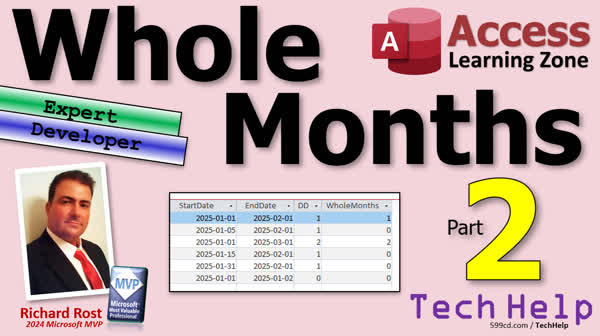
TechHelp Access, VBA developer tutorial, custom VBA function, calculate whole months, global module tutorial, public function VBA, date diff function, subtract in VBA, VBA compiler, query enhancement, IntelliSense VBA, calculated fields VBA, database function usage, month calculation, date functions tutorial, gold member code vault, date time functions guide, if then statement tutorial, create module VBA, VBA editor tips, use global functions, debug compile VBA
 Subscribe to Whole Months 2
Get notifications when this page is updated
More InformationTranscript Today is part two of my whole month's series, part two of two, where I teach you how to calculate a whole month instead of just part of a month. Yesterday in part one, we learned how to do it just in a query with a calculated field, and it'll also work in a formal report. But it's a little bit cumbersome if you want to use it in multiple places. So today in part two is the developer portion. Let me change this whole amount. Let me get up here and we'll take this and we'll right click and bring it to front there. That looks better.
This is the developer one. Today we're going to do the same thing, but we're going to make a custom VBA function out of it. Before we get started, if you don't know how to program in VBA and you want to learn, don't be scared. Go watch this video. It's about 20 minutes long. It'll teach you everything you need to know to get started. You'll need to know how to write an if, then, statement, which is basically like the if function that we learned about in part one. It's the same thing pretty much. And finally, you'll need to know how to create your own custom function. Watch this video. I'll show you how to do that. These are all free videos. They're on my YouTube channel and on my website. Go watch them and then come on back.
Here we are back in the video from yesterday. And like I mentioned yesterday, it works, but it's a little cumbersome. If I want to do this in multiple places on my database, a couple of different queries, maybe a form or two. I have to remember all this. It'd be nice to make a function that's just called whole months. I'm going to copy this and use it as a template to make a custom function. I'm going to hit OK here. Let's close this down and save changes. Sure. Let's go to a global module out here. Global modules this way. Everybody in the database can use it. We're not limited to just a single form or a report.
I have a global module. If you don't have one, click on create and then module over here. Don't click on class module. That's a whole different beast. I already have one, so I'm just going to open this up. Here comes my VBA editor. I'm going to get rid of some stuff here and make it a little smaller. Let's come down to the bottom. Whatever you got going on in there. Now I'm just going to paste in that thing that I brought in from the query. I'm going to put a comment in front of it like that so the compiler ignores it. But we can look at this and use this as kind of like a template of what we're going to do.
We need a public function, which means the whole database can use it again. We're going to call it whole months. It's going to take two parameters in: start date as a date and end date as a date. The function itself is going to return a number of whole months. So we're thinking whole numbers. I'm thinking long integers, as long. Just like this, it's going to start off with the date diff. So I can just copy it right from there. Copy. And I'm going to come down here and say whole months. That's the name of my function. The value I'm returning equals that to start with. We've got the number of whole months there with just the month.
Now I have to subtract that extra one here. What does this say if you read it out loud? It basically says if the day of end date is less than the day of start date, then my value that I need is a one. Otherwise, the value that I need is a zero. Now you can ignore the zero and just say if the day of end date is less than the day of start date, set whole months equal to whole months minus one. That's a whole lot easier to write. So if the day of end date is less than the day of start date, then whole months equals whole months minus one. I tend to try to type all in caps, although I see I capitalized that B there. But that's OK. Because I like to make sure I don't capitalize anything because when I hit enter, the compiler fixes them for where the VBA editor fixes it for me. See, it camel cases everything. ED, SD. And that way I can just visually look and make sure it understands and knows what all these values are. Whole months, obviously, is the name of the function. These are functions. Start date is a parameter. End date is a parameter. And it does this because I got "option explicit" set there. So I have to declare all of these things. If I just type in here something in it and I made a mistake, whole months equals whole month plus one. If I press enter, notice that second whole month didn't capitalize itself because the compiler has no idea what this is, the VBA editor, someone's beaming in. That's just one of those little tricks.
So that's it. There's your function. That's all you got to do. Now we can test it right here if you want to by using the immediate window. View and then immediate. You can use the immediate window to basically call these functions. So I'm going to go question mark, whole months, and just give it a couple dates. If you're going to give it actual dates, make sure you put them inside these things. The hashtags. So let's go one, two. And if you don't specify a year, it'll just use the current year. Now let's go to three and enter. And that's a one. That's good. What if I say 124? I'm back here in the end of the line. Press enter again. And it's a zero. Look at that. Working good.
The function works. Let's close this, save it, debug compile once in a while. Make sure you don't have any compiler errors anywhere else. We can close the VBA editor. Now we can go into our query or anywhere in the database if you want to. Whoops, not this guy. Let's go back into that query we made before. Date queue. Design view. And now instead of that whole thing, we can actually use the whole months function. I'm going to rename this to WM, just to avoid naming conflicts. And I'm going to make the new one. I'm going to zoom in again, shift F2. I'm going to make the new one WM2, whole months 2 with a function. And this will be whole months between start date and end date. See how much easier that is to just be able to say, give me whole months instead of having to know that whole formula? Hit OK. Run it. And there you go. It should get the same result as the previous one. And you can use that anywhere else in your database that you want. You can use it in a form.
Let's say you want to know the number of whole months since this customer sense field. I'm just going to repurpose credit limit here. Let's get rid of credit limit. I'll call this months. And instead of credit limit, we'll come in here. I'm going to name this whole months. I'll just call it whole M because I don't want a naming conflict. And this will be equal to the whole months. See how it comes up in my IntelliSense now because it's a global function. It will do customer sense, which is a field comma. And then we'll do today's date as the end date. So that's the whole months since the customer sense. How many whole months have they been a customer? I'll zoom in so you can see that better. Equals my whole months function from customer sense, which is a field to today's date. And I like to make these gray for the calculated field, just like this guy here. Something the user can't edit. I like to make gray just like that. Save it. Close it. Close it. Open it. Boom. Oh, and it's still a format. It is currency. Let's change that. That's an easy fix. Format. Get rid of currency. Boom. Goodbye. One more time. Save it. Save it. Close it. Open it. Boom.
831 months. Let's put a date in there that makes more sense. Let's go with today's February 12, 2025. I'll just put two one in there. And that's zero months. Zero whole months. What if I go one one? That's one whole month. How about 2024? 6 1. And that's eight months. Is that right? Yep. That's right. Because January would have been... Yeah. December would have been 12 months. January 1st is... I'm sorry. Six months. January 1st is seven months. February 1st would have been eight months. And today is February 12th. So it's eight whole months. So it looks like it's working. You can put future dates in here if you want to as well. If I put 2027 in there, it just gives you a negative number. It's 28 months to go.
A few more things before I let you go. If you're a gold member, you'll find the whole months in the code vault. It's right there. You just hit the copy button and you can paste it into your thing. If you want to learn more about dates and times and all those related functions, I start covering them in my comprehensive guide to access functions. Starting with the date time functions part one, where I literally go through all the different date time functions. We figure out things like inside of the range, outside of date range, you name it. If it has to deal with dates, I cover it in 27. I think 28 is part two. Date add, date diff, date serial, ordinals for second, third, calculating an exact age. That kind of stuff. What's in 29? Where we got it? Then we go into aggregate functions, not just date functions. 27, 28. If you work with dates a lot, this is for you.
I also have this thing called the date time seminar, which is all that plus a whole lot more. We cover all kinds of stuff, calculating the number of workdays between two dates, just like the Excel network days function. Creating reminder pop-ups, a holiday exclusion table. If you want to put in there what days you aren't working, you can factor that into your calculations, recurring appointments, you name it. Again, it's all in here. It's like Ragoo. Which one is that? Ragoo or Prago? I think it's Prago. It's in there. It's got mushrooms, parses. It's in there. So this is all lots and lots of date time stuff. Check it out.
Did you have some fun? Did you learn something? Post some comments down below. Make sure you smash that like button. And if you're not subscribed, get subscribed. That is going to be your TechHelp video for today. I hope you learned something. Live long and prosper my friends. I will see you next time.
TOPICS:
Creating a custom VBA function
Using a global module in VBA
Defining a public function in VBA
Passing parameters to a VBA function
Returning values from a VBA function
Using DateDiff function in VBA
Subtracting values in VBA
Debugging VBA code
Testing functions using the immediate window
Integrating VBA function in a query
Handling date input in VBA
Using IntelliSense with VBA functions
Formatting and customizing database fields
COMMERCIAL:
In today's video, we're continuing with part two of our series on calculating whole months. We'll expand on what we learned in part one by creating a custom VBA function that you can use throughout your Access database. I'll walk you through setting up the 'WholeMonths' function to accept two dates and return the number of complete months between them. You'll also learn how to use the immediate window for testing your function, and how to implement this feature in queries and forms. If you're just getting started with VBA, don't worry - this video has links to resources that'll help you. You'll find the complete video on my YouTube channel and on my website at the link shown. Live long and prosper my friends. Intro In this video, we'll continue working in Microsoft Access as I show you how to create a custom VBA function to calculate the number of whole months between two dates. You'll learn how to set up a global module, define a public function with parameters, use the DateDiff function in VBA, test your code using the immediate window, and integrate your new function into queries and forms for easier reuse throughout your database. This is part 2. Quiz Q1. What is the main purpose of creating a custom VBA function in this video?
A. To simplify the process of calculating whole months across multiple database objects
B. To replace existing VBA functions with new ones
C. To make forms more visually appealing
D. To reduce the overall size of the database
Q2. What does the custom VBA function "whole months" return?
A. The exact number of days between two dates
B. The number of partial months between two dates
C. The number of whole months between two dates
D. The difference in years between two dates
Q3. What is required to create a new module in VBA according to the video?
A. Use a class module to create functions
B. Click on Create and then Module, not Class Module
C. Use macros instead of VBA
D. Open a new project instead of a module
Q4. How does the video suggest you verify that the function named "whole months" is working correctly?
A. By running a SQL query
B. By manually counting the months
C. By using the immediate window in the VBA editor
D. By checking the date in Excel
Q5. What is one suggested use of the "whole months" function within a database form?
A. To calculate the customer's credit limit
B. To determine the number of whole months a customer has been active
C. To format dates in a new way
D. To generate a summary report
Q6. How does the video suggest dealing with the issue of future dates in the "whole months" function?
A. It causes an error and needs fixing
B. It automatically ignores future dates
C. It returns a negative number representing months until the future date
D. It converts future dates to the current date
Answers: 1-A; 2-C; 3-B; 4-C; 5-B; 6-C.
DISCLAIMER: Quiz questions are AI generated. If you find any that are wrong, don't make sense, or aren't related to the video topic at hand, then please post a comment and let me know. Thanks. Summary Today's TechHelp tutorial from Access Learning Zone is the second part of a series focused on calculating entire months, rather than partial ones, in Microsoft Access. In part one, we explored how to achieve this using a query with a calculated field, which could also be applied in formal reports. While effective, this method can be cumbersome when needed in multiple areas of your database. Today, in part two, we will develop a custom VBA function to streamline this process.
If you're unfamiliar with VBA programming and wish to learn, there are introductory videos available that will guide you through the basics, such as writing If-Then statements and creating your own custom functions. These resources are freely accessible on my YouTube channel and website.
Returning to the point where we left off, the previous method works but becomes tedious when applied across different areas of the database, such as several queries or forms. To simplify, we're going to create a custom function named 'WholeMonths' that can be used anywhere in the database. We'll begin by creating a global module, which allows database-wide access, rather than being restricted to a specific form or report.
In this global module, we will write a function named 'WholeMonths', which takes two parameters: 'StartDate' and 'EndDate', both as date types. The function will return the number of whole months as a long integer. We start by utilizing the DateDiff function and then adjust the result by subtracting one if the day of the 'EndDate' is less than that of the 'StartDate'. This adjustment is written in simpler terms to ensure clarity.
After completing the function, it can be tested using the Immediate Window in the VBA editor by inputting dates to verify its accuracy. Once confirmed, the function can be implemented in the query, replacing previous cumbersome expressions with a simple call to 'WholeMonths'.
This function can also be applied to forms. For example, you can calculate the number of whole months since a customer start date, utilizing today's date as the endpoint in the function call. Adjust the display and format settings accordingly to ensure user-friendly outputs.
For those interested in further expanding their knowledge on date and time functions, various resources are available, like my comprehensive guide to Access functions, which delves into numerous date-related functions across several parts. Additionally, the DateTime Seminar covers a wide range of topics, including advanced calculations and functions similar to Excel's network days, along with handling holidays and recurring events.
I hope you gained valuable insights from this tutorial. For a complete video guide with step-by-step instructions on everything discussed, visit my website at the link below. Live long and prosper, my friends. Topic List Creating a custom VBA function
Using a global module in VBA
Defining a public function in VBA
Passing parameters to a VBA function
Returning values from a VBA function
Using DateDiff function in VBA
Subtracting values in VBA
Debugging VBA code
Testing functions using the immediate window
Integrating VBA function in a query
Handling date input in VBA
Using IntelliSense with VBA functions
Formatting and customizing database fields Primary Topics VBA function creation, Access global module, date calculations, DateDiff usage, public functions, function parameters, reusing code in queries and forms, debugging and testing VBA.
Secondary Topics using Immediate Window, field formatting, IntelliSense, error prevention with Option Explicit.
|




