Default Country
By Richard Rost

 18 months ago
Set Default Country & Update Empty Entries in Access In this Microsoft Access tutorial, you'll learn how to modify the TechHelp free template to set the default country to USA for new records in the customer table. I'll guide you through updating existing records with null values for the country to USA, provided they already have a state specified. You'll see how to use an update query to efficiently change these records without affecting those with unknown countries. This simple yet effective technique helps streamline your database setup while maintaining clarity for US-based entries. PrerequisitesLinksRecommended Courses
Keywords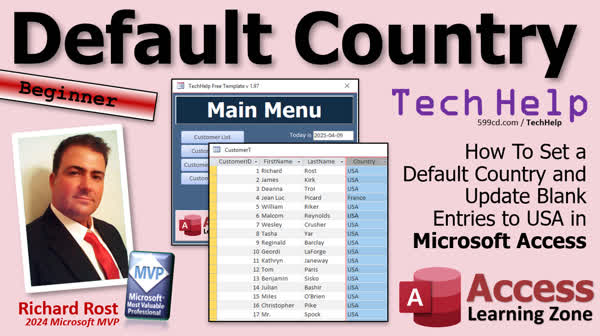 TechHelp Access, TechHelp free template, update query, default value USA, country field, modify blank country, replace null with USA, customer table update, action queries, query tutorial, update existing records, Access Learning Zone, simple database changes, update null check, Access Expert 13 class, set default via query
More InformationTranscript Today's video is going to be about modifying the TechHelp free template, which is a database that I use in most of my TechHelp videos, because I've decided to make the country field default to USA and not leave it blank. I'll explain why in just a moment. We're going to update the default value for new records. That's easy in the customer table. Then we're going to go through the customer table data that exists in there already, and we're going to update null values to USA as long as they already have a state, because there are some people in there where you don't know what their country is. Those are the ones we want to leave null. Null means I don't know. We'll get into it in just a second.
I have decided to make a change to how I'm storing data in my TechHelp free template, which is a database that I use for many of my videos here at Access Learning Zone. What I'm doing now is I'm leaving the country blank for any customer that's from the United States. I see I've got France in here. I've been doing this for years for my own database, but I was recently putting together another lesson and I realized, you know what, blank is not good. As blank or null as it is in database terms, null says I don't know.
Look at these last couple of records. I put in here the guys from Lord of the Rings, right, Frodo Gandalf Legolas, and the Shire. I don't know what their country is. I probably could figure it out from the books, but you know what I'm saying. But everybody else in here, I do know New York, Ohio. I think it's a bad idea to leave these blank if it's the United States.
The best method is to use a country table and a state table so the user can pick from a list as I've covered in many of my different videos. However, the purpose of the TechHelp free template is to keep it simple and easy for beginners also, so I don't want to make it too complicated with too many relationships. I just wanted to let everybody know that I'm making a change. I'm going to start putting USA in here for United States. I'm going to make that the default value in the customer field. So the default for the country is going to be USA.
Now I have to change everybody that's in there that's currently null, but I've got some down here that I don't want to. The easiest thing for me to do at this point, since most of these people are from the United States except for the ones at the end, I'm going to say if the country is currently null and there's something in the state field, then we're going to make the country USA.
How do we do that? We'll use an update query. So I'm going to go up to create query design. I'm going to bring in the customer table. We're really only looking at the country field and the state field. In order to change the country, it's got to be null and the state has to be not null. Is not null is what you put there. If I run this now without making any changes, I'll see the ones I want to change. Countries and states, those blank states at the bottom are not in there. You can see my new default values popping in too.
Now, looking at these records and yes, these are the ones I want to change, it's safe to make this and turn it into an update query. So query design, update. What are we updating country to? This is really easy: USA. If it was a field name, make sure you put it in brackets because it doesn't always get it right away. If I wanted to update it to, let's say, address and I just type in address, see, it puts it inside quotes. You have to be careful with that. If you want to make it a field name, make sure you put it inside brackets. It's one of those times when you need the brackets or you can pick from a list. Sometimes it puts a list up for you. It didn't make it go, but it's not now. I want this just to be USA.
Now I'm going to run the query. Nothing appears to happen because I have my warnings turned off. You might get a pop-up that says, you have about to change 15 records. What do you want to do? If I take a look at my customer table now, you can see I've got USA as the default. I'm going to leave it USA though. United States is just more characters. It's always more space in the database. Again, like I said, the best way to do it is a relational table, but I want to keep this simple for beginners.
I'm not going to save this query in here because again, I'm trying to keep this uncluttered. I've got just what we need in here. Now I can update this. We're now up to version 1.96 or 1.97. Little minor modification. I want to post a video for it so all of you that are following along know exactly what's going on. There you go.
Change the background color just a little bit every time I make a minor change. Let's go to let's go dark. Yeah, there we go. Make that later. Save it, close it, open it. There we go. There's version 1.97.
If you would like to learn more about update queries, go check out this video. Normally, I cover update queries in my expert class. They're one of the action queries. Action queries include update append queries where you can add data to tables like that's great for keeping logs or audit trails, delete queries, and of course, make table queries can make hold new tables out of your query data. Those are all covered in my Microsoft Access Expert 13 class. I'll also include a link to that down below.
TOPICS:
Modifying the default value in the customer table
Updating existing country null values to USA
Using an update query in Access
Criteria for updating fields in Access
Running an update query in Access
Setting default value in a field
Importance of setting default values
Keeping database design simple for beginners
COMMERCIAL:
In today's video, we're going to discuss how to modify the TechHelp free template database by setting the default country field to 'USA' instead of leaving it blank. I'll walk you through updating the default value for new records and demonstrate how to use an update query to insert 'USA' for existing records when a state is present. We'll talk about the importance of avoiding null values and keeping the template simple for beginners. You'll also get tips on default settings and action queries, like update and make-table queries, helpful for keeping your database streamlined. You'll find the complete video on my YouTube channel and on my website at the link shown. Live long and prosper my friends. Intro In this video, we will talk about how to modify the TechHelp free template database in Microsoft Access to set the default country field to USA instead of leaving it blank. I will show you how to update the default value for new records, and how to use an update query to fill in USA for existing records with a state but no country set. We will discuss why it is important to avoid null values, cover criteria for update queries, and offer tips on keeping your database simple for beginners. Quiz Q1. What change is being made to the TechHelp free template regarding the country field?
A. The country field will be left blank for all records
B. The country field's default value will be set to "USA"
C. The country field will now require a value for all customers
D. The country field will use a dropdown menu for selection
Q2. What does a null value in the database generally signify?
A. The field has been intentionally left blank
B. The user made an error while entering data
C. The information is unknown or not applicable
D. It indicates a placeholder value
Q3. Which records will be updated to "USA" in the customer table?
A. Only those with a non-null country and state
B. All records regardless of existing values
C. Records with a null country and non-null state
D. Records with a null country and state
Q4. What tool is used to update the country field for existing records?
A. Append query
B. Make-table query
C. Delete query
D. Update query
Q5. Why does the presenter prefer using "USA" instead of "United States" for the default country value?
A. "USA" is more visually appealing
B. "USA" is shorter and saves space in the database
C. "USA" is more precise than "United States"
D. "USA" avoids conflicts with relational tables
Q6. Why is a relational table not used for the country and state fields in the TechHelp free template?
A. It is too complex and not suitable for beginners
B. Relational tables are obsolete in the latest databases
C. It requires advanced coding skills to implement
D. It's not compatible with the database software being used
Q7. How can you ensure a field name is recognized by the query when updating values?
A. Place the field name in quotes
B. Use special characters before and after the field name
C. Include the field name inside brackets
D. Write the field name in uppercase
Q8. What are some of the action queries discussed in the video?
A. Select, lone, and summarize queries
B. Update, append, delete, and make-table queries
C. Fetch, remove, and create-table queries
D. Modify, add, and summary queries
Answers: 1-B; 2-C; 3-C; 4-D; 5-B; 6-A; 7-C; 8-B
DISCLAIMER: Quiz questions are AI generated. If you find any that are wrong, don't make sense, or aren't related to the video topic at hand, then please post a comment and let me know. Thanks. Summary Today's TechHelp tutorial from Access Learning Zone focuses on modifying the TechHelp free template database, a resource I regularly use in my videos. I've decided to set the country field's default value to "USA" rather than leaving it blank, and I'll explain the rationale shortly. We'll update new records with this default and address existing records, ensuring that null values in the country field are replaced with "USA" only if a state is already specified.
Previously, I left the country field blank for customers from the United States. However, while preparing another lesson, I realized that using null to indicate "unknown" might not be the best approach. For example, fictional records like characters from "Lord of the Rings" leave their country uncertain, while others like those from New York or Ohio clearly should not be left blank if they are from the US.
Although I recommend using separate tables for countries and states for comprehensive data management, the goal of the TechHelp template is to remain accessible and straightforward for beginners. Hence, I'm adopting a default value of "USA" for the country field in my database.
To update existing records where the country is null and a state is provided, an update query is appropriate. In the query, we bring in the customer table and focus on the country and state fields. The criteria ensure that the country field is updated to "USA" only if it's currently null and the state is not null. You can run the query and verify that it correctly updates the desired records.
Be cautious with field names in queries; use brackets to prevent misinterpretation. When updating the country, ensure the value is set to "USA" and not a field name. Once the update query is executed, verify the changes in the customer table where "USA" now appears as the default.
I've opted for "USA" to save space, though you might consider a relational table for a more advanced setup. After completing this update, the template version progresses to 1.97, reflecting minor changes that include altering the background color. Though I won't save this query to keep the database tidy, this update aligns with maintaining a simple template for new users.
For those interested in further learning, especially about update queries, my Microsoft Access Expert 13 class covers action queries in detail, including update, append, delete, and make-table queries. Links to these resources can be found on my website.
Live long and prosper, my friends. Topic List Modifying the default value in the customer table
Updating existing country null values to USA
Using an update query in Access
Criteria for updating fields in Access
Running an update query in Access
Setting default value in a field
Importance of setting default values
Keeping database design simple for beginners Primary Topics Access default field values, update queries, handling null values, customer table modification, criteria-based data update, beginner database design
Secondary Topics action queries, best practices, version management
|





