Online Database
By Richard Rost

 3 months ago
Online SQL Database: Access Your Data From Anywhere
Today we'll explore how to use your Microsoft Access database online by connecting it to SQL Server, making it accessible from anywhere with an internet connection. We will discuss the reasons for putting your Access database online, the pros and cons of this approach, what you need to get started, and what your users will need to connect. We will also cover important topics like security, backups, reliability, and the differences between local Access databases and online solutions.
Links
Keywords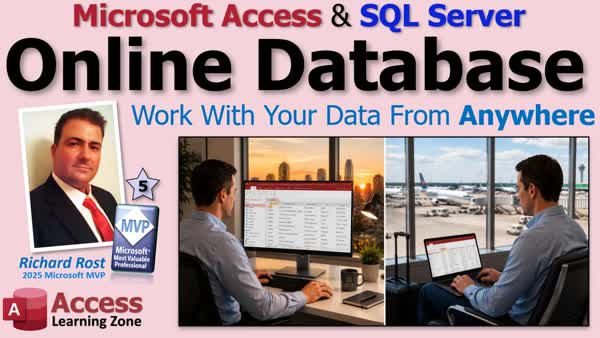
TechHelp Access, SQL Server online, Access database hosting, remote database access, connect Access to SQL Server, pass-through query, online database pros cons, Winhost, Access runtime, web app for Access database, database security, concurrent users, Access front end SQL back end
More InformationTranscript I wish you could use your Microsoft Access database from anywhere in the world instead of being stuck in one office. Welcome to another TechHelp video brought to you by Access Learning Zone. I am your instructor Richard Rost.
Today, we are going to talk about hosting your Microsoft Access database online with SQL Server. If you have employees working remotely, multiple office locations, or you simply want access to your data while you are at the airport, this approach lets everyone connect to the same database over the internet.
This video is lesson one from my complete SQL Server Online Seminar. In the full seminar, I show you everything from setting up your server to migrating your Access data, to connecting the front end, optimizing performance, securing the database, and even building a simple web app so people can access your data from a browser. If you would like to follow the entire process from start to finish, there is a link in the description below.
Alright, let's get started.
In lesson one, we are going to discuss why you would want to connect your Access database to an online SQL Server. We will talk about the pros and cons. Then we will discuss what you need to get started and what they will need to connect to your database.
Why do you want to connect to SQL Server online? If you have ever wanted to use your database in multiple locations, that is reason enough. If you have people working from home, that is another good reason. If you want to allow different people to travel and still have access to the database on the road, there are lots of reasons why you want to have your data online.
People anywhere can access your Access database if they have an internet connection. Remember, the Access runtime is free, so as long as they have a Windows PC, they can install the free Access runtime.
In addition, you can connect to your database from other platforms. I am going to talk about today using Microsoft Access, of course, and creating a simple web-based interface where you can just use a web browser to view your data. But you can also connect to your database using Excel VBA, an Android app if you know how to do that, even a Mac. There are lots of different ways you can connect to your data once the data is stored online.
Let's talk about the pros and cons of working with online data.
The con is that large data sets can take a long time to download. If you have a customer table with 50,000 records in it, and you are going to run reports on that, that information can take a long time to transfer to your computer if you pull down all 50,000 records, for example.
However, a pro is also speed. If you optimize your database correctly using something called a pass-through query, then those queries can be performed on the server. The server can process it and send only the data that you need.
Now, for those of you who have been using Access for a while, if you are going to take your old Access database and upgrade it to what we are doing today with SQL Server, it may involve some redesign. You may have to rethink the way you run your large reports and your big queries, or some of your forms. You might not want to pull down all of these records. Have Access process the information on the server using a pass-through query, and we will talk a lot about pass-through queries in the next couple of lessons.
Next is accessibility. The pro is anyone anywhere in the world can view and edit your database. The con is anyone anywhere in the world can view, edit, and delete your data. So make sure you keep your password safe. I am going to be spending a lot of time, three lessons in fact, based on security, securing your data, making sure people cannot get into it.
Personally, I find even having your data online in SQL Server is still more secure than having it on your network in an Access back end. If all you are doing right now is you have got a split database on your network, and you have got a file share set up with an Access back end, what you are going to be doing today is more secure, because you cannot get into that database without the password.
If you give Access users the ability to edit data, you have to give them full control over that share. They have to have read-write access to that file share. Not so with SQL Server. So you will actually find that this type of setup is actually more secure than just a split Access database.
Safety. Pro, your data is stored outside your office, so if the place burns down, your data is already backed up offline. One is what happens if their data center goes up in flames. So make sure you back up your data regularly. I am going to talk about this in one of the upcoming lessons.
But you can do manual backups whenever you want to, using the SQL Administrator tool I am going to show you. But they also have backup services for a couple of dollars a month. They will back up your database every night, and I strongly recommend that. We will talk more about backups in a bit.
Reliability. If your local server goes down, you can still access your database online. I have had it happen many times where people say, well, the server that we have on the network is down. So we have got to move the database somewhere else, restore from backups, but it does not. That can shut you down for a day or two.
The con is in the case of an online database. If your internet connection goes down, now everybody in the office is also offline. It is usually easier to fix your internet connection problem or have a backup for that. For example, I am just me here in the office, I work for myself. But if my Comcast internet goes down, I can use my phone as a Wi-Fi hotspot, and then I am back up online.
Whereas if the server machine that I have my database on goes down, then I have to either restore the backup to my local hard drive and try to install SQL Server there. So it is actually easier to deal with the fact that if your internet connection goes down, you can easily get a backup for that.
And if you have business class internet, I know a lot of providers also have cell backup for that. For example, if you have cable or the old T1 line or that kind of stuff for your internet connection in your office, they have cellular backup options for that as well in case a truck hits your lines coming into your building or something.
Or you could just fire up your phone and get on that way with your web portal. I am sure I have had to do that too.
Management. If you have an SQL Server in your office, you have to manage it, install updates, and take care of security patches. This way your SQL Server, the machine is actually managed and maintained by the IT professionals at your ISP. They handle taking care of it.
A con is you do have less control over the server. There are some things you cannot do to that server. Generally speaking, you should not really need to do most of that stuff. There is some really advanced stuff you cannot do. But personally, I am happy having them worry about it.
I used to manage my own web server back in the late 90s, early 2000s. I had my own box. I had a buddy of mine who had a server farm in his office because he did basically internet type stuff. So I just rented server space from him. I had to maintain Windows Server and my SQL Server. I had to install security fixes and patches and upgrades. And I still got hacked.
I had the US Air Force show up at my house one day and they said, Mr. Rost, your server has been implicated in a denial of service attack on the Pentagon. I am like, what? Turns out hackers from overseas got into my server. And I was fairly up to date with my patches.
Bottom line is this way the security and all that stuff is maintained and the SQL Server is updated by the people at your internet provider. You do not have to worry about that.
Some other stuff. SQL Server can handle many more concurrent users than a back-end Access database. You can have 500 people from all over the world working on your database with their Access front ends and your SQL Server back end.
Whereas, if they are all in the same office, that is going to be predicated by your internet speed. If you are using a slow internet connection, that is going to dictate how many users you can have online at one time. But on your typical LAN, on your normal Access back end setup where you have Access as your front end connecting to your back-end tables on a server, I realistically would not have more than 20 people at a time using that database. Even 10 sometimes is cutting it, depending on the speed of your LAN, on the speed of your network.
But usually, 20 is about my cut off. If someone says they have 100 users, you are going to need SQL Server. I am sure we have all run into this before if you are using a split solution.
You do not have to kick users out of the database to make changes on the back end. Obviously, if you add fields to a table, they are going to have to close their database, get your update. You are going to send them a new front end or at least relink the tables. We will talk about all this in a bit. But you can still do maintenance changes on the back end without having to kick everybody out. So your database is online 24-7, even while you are working on it.
If you make changes to a table, if you add some fields, delete some fields, whatever, you can do that while people are using the database and then make changes to your front end and when you are finished, just distribute your front end.
Con, SQL Server does not support attachments or multi-valued fields. Hyperlinks will get converted to text. But that is not really a con because if you have taken any of my other classes, I do not like attachments and I never use multi-valued fields. So it is not really a con. But I just wanted to mention that in case your database relies on attachments, big no-no. I have seen attachments corrupt databases. Do not store files, pictures, or any of that stuff in your database. I have dozens of other lessons on that stuff.
If you have any questions, post them below in the comment section and I will point you to the right place.
So what do you need to get started?
All you need is Microsoft Access. Just one user license. I recommend a Microsoft 365 subscription so you have the latest and greatest and the best and all the patches and bug fixes and all that stuff. If you are using the retail version 2016, 2019, that is just fine too.
Bottom line is you only need one license. The person developing the database, building it, making changes to the design of the database is the only person that actually needs a full copy of Microsoft Access.
You need Windows-based hosting with SQL Server. I recommend Winhost.com. You are my personal recommendation. I am going to spend a whole lesson showing you how to set up an account on Winhost, configure your server, set up your database server. If you want my recommendation, go with Winhost.
I will not support any problems or questions you have regarding other ISPs. I just left GoDaddy. I do not like GoDaddy anymore. My server, I was with them for over 10 years. My server ran, at first it was great, but toward the end, my server was running really slow. They were trying to blame it on my coding, which I know is solid. Their support is awful. They would take days to get back to me sometimes, or you cannot email a technician. Whereas at Winhost, everything is beautiful. I copied the same website over to Winhost and it ran beautifully.
So GoDaddy was full of bleep. Winhost's service technicians get back to me right away, like within minutes of emailing them.
You need SQL Server to use this class. MySQL is the number two competitor. It is OK. You can use it with Access. I do not support it. I do not use it myself. So do not ask me questions about it.
And yes, I believe they also have an SQL Server available for Linux web hosting. But again, I do not recommend it. Windows hosting SQL Server is inexpensive. We are going to talk about that in the next class. But that is what I recommend.
Finally, you need a web page editor if you want to connect to your database using the web. I recommend a program called Edit Plus. Again, I will talk about this a little bit later on. You can use Front Page, Expression Web, whatever web designer you use. I will show you how to use ASP Active Server Pages to connect to your database online. So you can create a portal for your users to view and edit data online. I am going to show you how to connect to it and view the data. But I have other classes, my ASP class, to teach you how to make editing forms and all that kind of stuff.
What do they need? What do your end users need? All they need, well, first of all, it costs them nothing to get into your data now. All you need is Microsoft Access runtime edition. I have a whole other separate set of lessons on this. I will put links down below. It is free. All they have to do is download the runtime edition and install it. Then they are good to go. That is it.
You do not have to have a paid copy of Microsoft Access to use an Access database, even an online one. So people tell me, well, I want to use Microsoft Access, but it is cost prohibitive. I have 250 users. No. Only one person in your office needs a paid copy of Access, the person doing the database development.
Everybody else, the end users can use the free copy. And it is the same exact thing, you just cannot edit the database, which is what you want anyway. You do not want your end users editing your database.
But if you have someone in accounting who wants to write their own queries, or design their own data entry form, then they will need a paid copy of Access. It is inexpensive. Get them a Microsoft 365 subscription. It is a couple bucks a month.
Or if they only need the ability to quickly look up a customer record or look up a sales history, you can build them a web portal in ASP, which I am going to show you a little later on.
And that is it. No extra cost. Access is actually a powerful and inexpensive solution for working with data online.
Now that we have that under our belt, we are going to go ahead and get started setting up a Winhost account in the next lesson. Then I will show you how to install SQL Server Management Studio and connect to your database. Then we will actually take an Access database and upload it to SQL Server and connect to it. So get ready. Here we go. Intro Today we'll explore how to use your Microsoft Access database online by connecting it to SQL Server, making it accessible from anywhere with an internet connection. We will discuss the reasons for putting your Access database online, the pros and cons of this approach, what you need to get started, and what your users will need to connect. We will also cover important topics like security, backups, reliability, and the differences between local Access databases and online solutions. Quiz Q1. What is the main reason to host your Access database online with SQL Server?
A. To allow users to access and edit the database from anywhere with an internet connection
B. To store files and pictures inside the database
C. To eliminate the need for a database server
D. To prevent remote users from logging in
Q2. What is one advantage of using a pass-through query with SQL Server and Access?
A. The query runs on the SQL Server and sends back only the needed results
B. Every record is downloaded to the client regardless of query
C. It prevents remote access to data
D. Pass-through queries are only for importing data
Q3. Which of the following is considered a security benefit of using SQL Server online rather than a shared Access back-end file?
A. Users do not need read-write access to the shared file
B. It eliminates the need for passwords completely
C. All users must use the same administrator account
D. The back-end file is accessible by anyone on the same network
Q4. What is a limitation of using SQL Server as a back end for your Access database?
A. SQL Server does not support attachments or multi-valued fields
B. You cannot back up your database
C. Reports cannot be run in Access anymore
D. Hyperlinks are not supported at all
Q5. What do end users need in order to connect to your Access database linked to SQL Server?
A. The free Microsoft Access runtime edition
B. A license for SQL Server
C. A copy of Visual Studio
D. Only a web browser; Access is not needed
Q6. What is a risk associated with having your database online and accessible over the internet?
A. Anyone anywhere with the credentials can access and potentially delete data
B. No one can access the database at all
C. SQL Server does not allow any connections outside your network
D. The backend is only available for web browsing, not Access
Q7. What is an important recommendation for backing up an online SQL Server database?
A. Use the backup services provided by your host or make regular manual backups
B. Back up your Access file weekly to your C: drive
C. Do not back up the database, since hosts never lose data
D. Only rely on local backups, not online ones
Q8. What is a management benefit of having your SQL Server hosted by an ISP like Winhost?
A. The hosting provider handles server maintenance and security patches
B. You have unrestricted control over the server operating system
C. Access must be installed on the SQL Server itself
D. You must manually apply all security updates
Q9. Which of the following statements is true about the number of concurrent users that SQL Server can handle compared to an Access back-end file?
A. SQL Server can handle hundreds of users, whereas Access back-end is limited to around 20
B. Both SQL Server and Access back-end have no practical user limits
C. Access back-end files can handle more users than SQL Server
D. SQL Server is limited to just 5 users at a time
Q10. If your internet connection fails while using an online SQL Server database, what is a recommended way to regain access quickly?
A. Use your phone as a Wi-Fi hotspot to get back online
B. Try restoring Access backend to your hard drive immediately
C. Wait for the ISP to automatically fix the SQL Server
D. Reboot the SQL Server machine in your office
Q11. What does the Access runtime edition NOT allow end users to do?
A. Make design changes to forms and queries
B. View and enter data in forms
C. Run reports and execute queries
D. Connect to the SQL Server-hosted data
Q12. Which of the following is TRUE regarding attachments and multi-valued fields in SQL Server?
A. SQL Server does not support attachments or multi-valued fields, and they should not be used
B. SQL Server supports attachments but not multi-valued fields
C. Multi-valued fields are recommended for performance in SQL Server
D. You should store all files and images inside your SQL Server database
Q13. What does the instructor recommend as a web host for running SQL Server-based Access solutions?
A. Winhost
B. GoDaddy
C. Any Linux-based hosting provider
D. MySQL web hosting
Q14. For users that only need to view data briefly or lookup information, what is a cost-effective solution suggested in the video?
A. Build a web portal using ASP for browser-based access
B. Purchase an Access license for every user
C. Require users to learn SQL
D. Use only Excel spreadsheets
Q15. If you want to make design changes to your database (for example, add fields to a table), what do you need to do for your Access users?
A. Users must close and reopen their front-end after you update and relink the tables
B. No changes are needed for end users at any time
C. They must all purchase SQL Server licenses
D. Only the SQL Server database needs updating, users can keep working without interruption
Answers: 1-A; 2-A; 3-A; 4-A; 5-A; 6-A; 7-A; 8-A; 9-A; 10-A; 11-A; 12-A; 13-A; 14-A; 15-A
DISCLAIMER: Quiz questions are AI generated. If you find any that are wrong, don't make sense, or aren't related to the video topic at hand, then please post a comment and let me know. Thanks. Summary Today's video from Access Learning Zone focuses on how you can use your Microsoft Access database from anywhere in the world instead of being limited to the office. I am your instructor, Richard Rost.
We are going to take a look at how to host a Microsoft Access database online using SQL Server. This is an ideal solution if you have remote employees, multiple office locations, or you want access to your data while traveling. With this method, everyone connects to the same shared data over the internet, regardless of where they are.
This lesson is part of my comprehensive SQL Server Online Seminar. In the complete seminar, I cover the entire process in detail - from setting up the server, migrating your Access data, connecting your front end, optimizing performance, securing your database, and even building a basic web application for browser-based access. If you want to learn everything from start to finish, check out the link below for the full seminar.
Let's start by examining why you might want to connect your Access database to an online SQL Server. The biggest reason is flexibility. When your database is online, you are no longer tied to one physical location. Remote workers, traveling staff, and employees at different offices can all work with the same up-to-date data.
Anyone with internet access and a Windows PC can use the free Access runtime to connect to your database. Besides Microsoft Access itself, your online SQL Server database can be accessed from other platforms as well. You can use Excel VBA, develop an Android app, or even connect from a Mac if you have the know-how. Once your data is online, you gain a lot of flexibility regarding how and where it is accessed.
Now, let's consider the pros and cons of working with an online SQL Server back end.
One of the main disadvantages occurs when handling large datasets. For example, if you have a customer table with 50,000 records and you try to download all of it at once, that transfer could take some time. However, a key benefit is that with proper optimization, specifically using pass-through queries, most of the heavy lifting can happen on the server. That means you only retrieve the data you actually need, instead of pulling everything down locally.
If you have been using Access for a while, you may need to redesign certain aspects of your database when moving to SQL Server. Large reports, complex queries, and some forms might need to be rethought so they do not try to download too many records at once. Pass-through queries are an important topic for working efficiently with SQL Server, and we will cover them in future lessons.
Another benefit is accessibility. You and your team can view and edit your database from anywhere, but this also brings risk. If your credentials are compromised, someone could potentially access, edit, or delete your data from anywhere as well. This makes security critically important, and I dedicate several lessons to securing your database and managing access.
Despite the risks, having your database online in SQL Server is generally more secure than hosting an Access back end on your own office network. A standard split Access database setup often means users must have read-write access to your shared files, which can be a security concern. With SQL Server, users cannot just dig into your data files. As long as your passwords are protected and regular security practices are followed, your data is safer this way.
Another advantage is safeguarding your data against disasters like a fire in the office. Since your data lives on an external server, a local catastrophe will not mean losing everything. However, it is still essential to maintain regular backups, both manual and automated. Many hosting services offer nightly backups for a small fee, and I strongly recommend taking advantage of that.
If your office server fails, using an online solution means you can keep functioning since your data is hosted elsewhere. However, a downside is that if your internet connection drops, no one in the office can work with the database until you are back online. Fortunately, internet connections can be restored quickly, and there are backup solutions such as using a phone as a hotspot or cellular backup (for those with business-class service). Compared to restoring a physical server, regaining internet connectivity is usually much easier.
One of the headaches of maintaining an internal SQL Server is the time and expertise required for management, updates, and security patches. When you use a hosted SQL Server solution, the provider's IT professionals handle server upkeep. Although you relinquish some control over advanced server settings, most users will not need to access these anyway. Personally, I am glad to let the host handle server management - it is one less thing to worry about, and professional support is often much better and more responsive.
It is worth mentioning that I have used various hosting services over the years, and my current preference is Winhost.com due to their quality of service and responsive support. While other ISPs exist, my experience has been best with Winhost, and I will show you how to set up your account in one of the upcoming lessons.
Hosting your database in SQL Server also gives you much more capacity for concurrent users than an Access back-end file share. With SQL Server, hundreds of users can interact with the data from all over the world. By contrast, a shared Access back end on a local network begins to struggle with more than 10 to 20 users due to network limitations.
You can also perform back-end maintenance and make table changes without locking out all your users. When you do make changes like adding or deleting fields, users will need to relink tables or get a refreshed front end, but you no longer need to disconnect everyone just to perform general back-end updates.
A few limitations should be noted: SQL Server does not support Access attachments or multi-valued fields, and hyperlinks are converted to plain text. This is not much of a loss in my opinion, since I avoid using attachments and multi-valued fields due to potential performance and corruption issues. I always recommend storing files and images outside your database.
To get started, you only need a single full Microsoft Access license, preferably through Microsoft 365 so you always have the latest version. Only the developer or designer of the database requires a full paid copy. Everyone else who simply uses the database can get by with the free Access runtime. This keeps overall costs low even for large organizations.
You will also need Windows-based hosting with SQL Server. As mentioned before, I recommend Winhost. I do not provide support for issues with other ISPs, and my experiences with providers like GoDaddy have not been positive. Winhost offers much better performance and quick support.
Although MySQL is another option, this course is specifically focused on SQL Server. SQL Server is affordable and easy to use in a Windows hosting environment.
If you plan to build a web portal so users can access information through a browser, you will need a basic web page editor. I recommend Edit Plus, but you can use whichever HTML or web design tool you are comfortable with. I will demonstrate how to use ASP to connect your Access front end to your SQL Server database and show you how to set up basic web access.
For your end users, all they need is the free Microsoft Access runtime edition, which is easily downloadable and does not require a paid license. Only those who want to design their own queries or forms need a full copy of Access, which is available as a low-cost subscription. If a user only needs to look up information like customer records or sales history, you can create a simple web portal instead of providing database access directly.
In short, Access remains one of the most powerful and cost-effective ways to work with data online. With only one license needed for development and free access for all other users, you can manage costs while providing a flexible, robust solution.
Next, we will step through the process of creating a Winhost account, installing SQL Server Management Studio, and connecting your Access front end to SQL Server. Then we will walk through uploading your Access database and setting up the connections. So get ready to make your Access database available online.
You can find a complete video tutorial with step-by-step instructions on everything discussed here on my website at the link below. Live long and prosper, my friends. Topic List Connecting Microsoft Access to online SQL Server
Reasons to host Access database online
Pros and cons of using SQL Server with Access
Remote access to Access databases
Accessing databases from multiple locations
Using Access runtime for remote users
Connecting to SQL Server from different platforms
Speed considerations with large data sets
Optimizing queries with pass-through queries
Security benefits of SQL Server vs Access back end
Risks and precautions for online data access
Data backup options for SQL Server
Reliability of online databases vs local servers
Managing SQL Server hosting vs on-premises servers
Concurrent user handling with SQL Server
Limitations of SQL Server with attachments and multi-valued fields
Requirements to get started: Access and SQL Server hosting
Recommended hosting providers for SQL Server
Using free Access runtime for end users
Cost and licensing considerations for Access users Article If you have ever felt limited by only being able to use your Microsoft Access database in one office, putting your database online using SQL Server is a great solution. This setup allows you and your team to access your Access database from anywhere in the world, whether you are working remotely, traveling, or have multiple office locations. You can connect from home, hotels, airports, or any place with an internet connection. Once you move your database online, everyone can connect to the same up-to-date data from wherever they are.
The main idea is to use your tried-and-true Access database as the "front end," but instead of storing your data in local Access tables, you store it on an online SQL Server. Access connects to this server over the internet. This gives you the flexibility to work from outside the office while still using all the forms, reports, and tools you know in Access.
There are a lot of advantages to moving your Access database online. First, this makes your data available anywhere. The Access runtime is free, so your remote users can just install it on any Windows PC and open your database. Once your data is on SQL Server, you are not even limited to Access anymore. You can connect to your data using Excel, web applications, or other platforms that support SQL Server. Even a simple web browser can be set up to view your data with the right configuration.
You will want to think about both pros and cons before making the move. One challenge is that very large tables can be slow to download if you are not careful. If you have a customers table with tens of thousands of records and you try to pull them all at once, it can be slow over the internet. Fortunately, you can optimize this using something called a pass-through query. This is a type of query in Access that sends commands directly to the SQL Server. The server processes the request, and only the results you need are sent back. This can make everything much faster, because you are not dragging your whole database across the internet.
If you are used to working with a split Access database on your network, you will probably need to rethink some of your forms, queries, and reports before putting everything on SQL Server. It is not a good idea to load huge sets of records at once anymore. Instead, you want to filter your data on the server and only bring back what you need. This keeps things fast and efficient.
Another major benefit is accessibility. Anyone in the world with permission and an internet connection can view and edit your database online. But with greater access comes greater responsibility when it comes to security. If you are putting your data online, you must keep your database passwords safe. You have to be careful who gets access, what kind of access they get, and confirm that your setup is secure. The good news is that even with these risks, SQL Server is generally more secure than simply sharing an Access file on your local network. Normally, Access users need full control over your file share to be able to edit data, but with SQL Server, access is controlled at the server level using secure credentials.
Storing your data online means it is not tied to your physical office. If an emergency happens at your location, such as fire or other disaster, your data is safe as long as the hosting provider is unaffected. Of course, you still need to think about backups. Some hosting companies offer automated backup services for a small fee, but you can also do manual backups using SQL Server tools. It is important to have backups in place just in case the remote server has issues too.
Reliability is another advantage. If your office server goes down, you could be offline for quite a while if you need to restore from backups or fix hardware. But when your database is hosted online, you rely on your internet connection. If your office internet dies, you might be offline temporarily, but it is often much faster to get back online by using a secondary connection, like a phone hotspot, than to fix a local server. Many businesses use internet services with built-in backup options that automatically switch to cellular if the main line fails.
Another plus is that you do not need to manage your own Windows or SQL Server anymore. The hosting company takes care of updates, security patches, and performance maintenance. You do give up a little control, but for most people, the convenience and peace of mind from letting professionals handle it is well worth it. Managing your own server is time-consuming, and you are on the hook for any issues.
You will also find that SQL Server handles many more users at the same time than a regular Access back end. With an Access-only solution, you might max out at about twenty simultaneous users before things slow down or get unreliable. SQL Server can handle hundreds of users in different locations, assuming your internet connection can keep up.
Another nice feature is that you do not have to kick everyone out of the database to make changes to your tables. For example, if you add a field to a table on the back end, users can keep working in their own copies of the Access front end while you update the server. Once you are done, you can update the front end and send the new version out. There is no need for everyone to stop working at once.
It is also good to know that SQL Server does not support Access-specific features like attachment fields or multi-valued fields. Hyperlinks get converted to plain text. As a best practice, you should avoid these features anyway, as they can cause problems and lead to database corruption. It is better to store files outside your database and link to them from your tables.
To get started, all you need as a developer is a copy of Microsoft Access installed on your Windows PC, since only the person building or changing the database needs the full version. For day-to-day use by others, your users only need the free Access runtime edition, which they can download and install at no cost. They can then use the database you build without being able to change its design. This helps protect your database from accidental changes.
For the hosting environment, you need Windows-based web hosting that includes SQL Server. This is available from many providers. It is best to use a host that specializes in Windows hosting so you have access to all the necessary tools and good support.
If you want to let people access the data using a web browser, you will need a text editor to create simple web pages that connect to your database. You can use any web editor you like, and there are classes and tutorials available to guide you in creating those web interfaces.
Once you are set up, you and your users do not need to buy additional Access licenses. Only the person developing the database pays for Access, and the users just download the free runtime. If someone wants to design custom queries or forms, then they will need their own paid license, but most users just need to access or enter data.
When you are ready to move your database online, the next steps are to sign up with a hosting provider, configure your SQL Server, install the management tools, and upload your Access tables to SQL Server. Then you will connect your Access front end to the SQL Server back end. For optimizing performance, you will use pass-through queries and be mindful of only pulling down the data you actually need.
This approach lets you keep all your Access interface features and reports, but unlocks the power and flexibility of accessing your data from anywhere. With proper setup and attention to security and backups, it is a cost-effective way to take your Access database online and open your business up to remote work and broader collaboration. Primary Topics
Access online hosting, SQL Server back end, remote access, pros and cons, security, performance, requirements
Secondary Topics
backups, web-based interfaces, database redesign, maintenance, user licensing
|





