Active Content
By Richard Rost

 4 months ago
Fix The Active Content in This File Is Blocked Error
In this lesson, we will cover what the "active content in this file is blocked" error means in Microsoft Access, why it occurs, and how to safely resolve it. We will discuss the differences between the blocked active content message, the red security risk banner, and the yellow enable content warning. I will show you how to unblock files, enable content, and recommend using trusted locations for ongoing use. We will also touch on issues you might face if your computer is managed by an IT department and offer advice on best security practices when working with Access databases.
Hakim from Detroit, Michigan (a Silver Member) asks: How do I fix the "active content in this file is blocked" error in Microsoft Access when a database emailed to me does not function properly?
Links
Keywords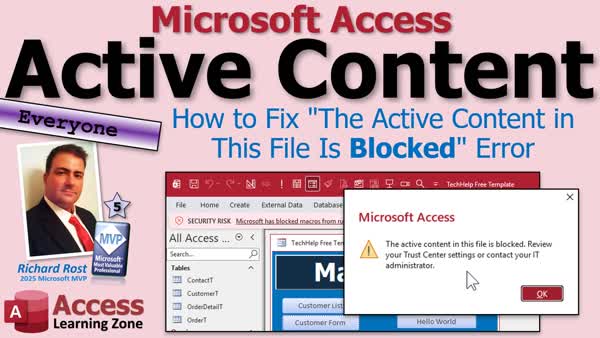
TechHelp Access, active content in this file is blocked, enable content, security risk warning, unblock database, mark of the web, trust center settings, trusted locations, blocked macros, database security warning, disable VBA macros, file properties unblock
 Subscribe to Active Content
Get notifications when this page is updated
More InformationTranscript Hey, have you ever opened your Microsoft Access database only to get the message "the active content in this file is blocked"? And suddenly none of your buttons work? Don't worry, your database is probably just fine.
Welcome to another TechHelp video brought to you by Access Learning Zone. I am your instructor, Richard Rost. Today, we are going to talk about the "active content in this file is blocked" error in Microsoft Access. We will talk about what causes it, the safest way to fix it, and we will also look at the difference between this message, the security risk warning bar, and the yellow enable content message. So you know exactly what is happening and you can get your database working again.
Today's question comes from Hakim in Detroit, Michigan, one of my Silver members. He says, "How do I fix the 'active content in this file is blocked' error in Microsoft Access? A coworker emailed me a database to use and when I opened it, none of the buttons worked. Is this database broken or is there something I need to do before I can use it?"
So let us talk about it.
If you are seeing this pop up, do not panic. It does not mean your database is corrupted or damaged or infected with a virus or any of that stuff. In fact, if it is one of my databases, or one from someone else you know and trust, it is probably perfectly fine. If it is one of my databases, if you got it from my website, I can guarantee it is fine because I am the only one that can upload stuff there.
Now what Microsoft Access is doing here is simply protecting you. It is saying, "Hey, this database contains active content," which means it contains code that can actually do things. Before I let that code run, I want to make sure you trust where this file came from.
After you click OK, you will usually still be able to open up the database and you can browse through the tables, look at your data, maybe even run some simple queries. But you will probably notice that things do not quite work right. Buttons do not do anything. Startup forms do not start up. VBA code will not run. Macros will not run. Basically, anything that relies on code has been disabled until you tell Access the file is safe.
Active content is Microsoft's term for anything inside your database that can execute or do something automatically. The biggest example is VBA code, Visual Basic for Applications, but it also includes macros, startup routines that run when the database opens, the code behind your command buttons, and other automation features that make your database more than just a collection of tables.
For beginners out there, the tables hold the data, but the active content is the intelligence that works with that data. It is the program part of your Access database. It is the part of your database that responds when you click a button, opens forms automatically, validates information, prints reports, sends emails, and that kind of stuff.
When Access blocks active content, it is not blocking your data, it is just blocking the parts of the database that can potentially execute code.
Why is it blocked?
When Windows detects that a file came from the internet, from an email attachment, or some other untrusted location, it quietly attaches a security tag called Mark of the Web. Access sees that tag and says, "Well, before I let this database run any code, I want to make sure the user actually trusts it." And this is not Microsoft trying to make your life difficult. It is actually protecting you from someone emailing you a database that looks harmless, but secretly runs malicious code as soon as you open it.
Most of the time, if it is a database you download from someone you trust, like one of my databases, it is perfectly safe, but Access does not know that, so it plays it safe.
After you click OK on the pop-up, you may notice another warning waiting for you at the top of the Access window. It is the red security risk banner, and it is basically Access reminding you that it still does not trust the database.
At this point, you can usually open forms, browse tables, look at your data, and stuff like that, but the active content is still disabled. So that is why your buttons do not work, your startup code does not run, and anything that depends on VBA or macros is still blocked. If you are wondering why the database opens, but seems broken, this little red warning bar is your clue.
Depending on how the database was blocked, you may see this message, the yellow security warning bar, or sometimes you get both of them. If you know the database is safe, simply click "Enable Content." That tells Access, yes, I trust this database, go ahead and run the code. Your buttons should immediately start working, your startup code can execute, and everything should behave normally.
Just remember, depending on where the file came from, you may have to do this again the next time you open it.
If this is a database you are going to keep using, there is a better solution. Close the database, right click the file in Windows Explorer, choose Properties, and look near the bottom of the General tab. You will see an "Unblock" check box. Check it, click Apply, and then hit OK. This removes the mark of the web from the file. In other words, Windows no longer considers it an untrusted internet download, so Access will not block the active content anymore, and the next time you open it, you will usually skip that first warning altogether.
Let me show you. Let me go to my website real quick and grab my TechHelp free template. I am going to click on here to download this. Here is the download file, and I put it in a not trusted folder. We will talk about trusted folders in just a minute.
Let us extract this, so I am going to right click and go to "Extract All" and this little pop up comes up here. We are going to extract it. Now I have got another folder inside that folder that has got the blank templates in it.
When I open up one of them, like this blank.accdb, you can see, oh, there is the warning message. It says "active content in the file is blocked." Let us hit OK.
The first thing you will see is the security risk. Microsoft has blocked a macro from running because the source of this file is untrusted. If you click learn more, it just takes you to Microsoft's website, but nothing works now. If you click the buttons and stuff in here, nothing works.
What you have to do is right click on the file, come down to Properties, it is off the bottom of the screen there, but it says "Properties," click Properties, and then you will get this dialog. You will see right down here, Security, it says, "This file came from another computer and might be blocked to help protect this computer." Click Unblock and hit Apply.
Now you have just removed the mark of the web, which tells your system that it was downloaded from the internet, or emailed to you from your sketchy cousin who you do not trust.
Now when you open up this database, you might still get that, but now it gives you the yellow security warning. It says the active content has been disabled because it does not still fully trust this, but now if you click Enable Content, now you can. I do not think the asset does stuff now, it just says "hello world," but the active code works. And if it has got a startup macro or whatever, that will run.
Open this up and now it should work. Sometimes that yellow bar persists; sometimes it comes back again, but normally this is now considered a trusted file.
Same thing with this other database. You right click, go to Properties, remove that mark of the web right there, hit Apply. Now this TechHelp free template, when you open this guy, it will tell you right here "not trusted." It knows. My database knows, because in the macro, there is an AutoExec macro that will still run and you can use this to determine if your database is running in a trusted folder. And again, we will talk more about trusted folders in a minute, but all you have to do now is enable the content and now it works and all the buttons will work.
So what is all this trusted locations, trusted folder stuff that I keep talking about?
This is the solution I recommend if you regularly work with Access databases, as I assume most of you do. Instead of unblocking these files one at a time, you create a trusted location or a trusted folder. It is under File - Options - Trust Center - Trust Center Settings - Trusted Locations. I have a whole separate video that explains how to do it. There it is right there. I will put a link to it down below and there is the link right there.
Now any database that is stored in that folder will automatically be treated as trusted so you will not have to keep dealing with these security warnings over and over again. I have been using trusted locations for years because they are simple, safe, and easy to manage, and if you regularly download my sample databases, this is definitely the approach I would recommend.
Keep in mind though, you sometimes may still have to right click Properties and remove that mark of the web on newly downloaded files, but after that, if they are in trusted locations, everything should work just fine.
Now what if it is still not working?
If you have tried everything we have covered and the warnings still will not go away, there is a good chance the problem is not you. If you are using a work computer, a school computer, or any computer managed by an IT department, they may have locked down these settings through group policy. In that case, you may not even be able to change the trust center settings yourself. Unfortunately, there is nothing you can do yourself if the group policy is enforcing these settings.
If that is the case, you are going to have to talk to your lovely IT department and let them know what is happening. We all love dealing with the IT department. I was a consultant for many years and after a while I stopped working with large corporations because I did not want to have to deal with IT departments. I only dealt with small companies where I was the IT department.
One word of caution: do not solve this problem by simply turning off Access security or enabling every macro globally. Those security features exist for a reason. Only trust databases that come from people or organizations you know. If somebody emails you a database called "the best database 2026" and you were not expecting it, then do not enable content on it. It is just common sense.
One word on virus scanners. I am not a big fan of virus scanners, third party virus scanners that I turn off all the time. I get rid of those when I see them. Windows Defender is usually good enough to catch most malicious stuff, but still use common sense. Do not download stuff from sketchy websites. You will make the penguin worried and we do not want to worry our penguins. They have enough to deal with right now.
So the biggest takeaway today is that message is not telling you your database is broken. It is simply telling you that Access has temporarily disabled the code until you decide the file is safe. For databases you trust regularly, trusted locations are usually the best long-term solution. As always, only enable active content for databases that come from sources you trust like me.
Once you know what that message actually means, it is a lot less scary and it is usually a security setting, not a broken database.
So there you go, that is what the "active content in this file is blocked" error means and how to deal with it. If you have any problems, issues, or questions, post them down below in the comments.
That is going to do it for your TechHelp video for today. I hope you learned something.
Live long and prosper, my friends. I will see you next time. Intro In this lesson, we will cover what the "active content in this file is blocked" error means in Microsoft Access, why it occurs, and how to safely resolve it. We will discuss the differences between the blocked active content message, the red security risk banner, and the yellow enable content warning. I will show you how to unblock files, enable content, and recommend using trusted locations for ongoing use. We will also touch on issues you might face if your computer is managed by an IT department and offer advice on best security practices when working with Access databases. Quiz Q1. What does the "active content in this file is blocked" message in Microsoft Access mean?
A. Access has temporarily disabled code and automation features in your database for security reasons.
B. Your database is corrupted and unsafe to use.
C. The data tables in your database have been deleted.
D. You need to reinstall Microsoft Access for the database to function properly.
Q2. Which of the following is considered "active content" in an Access database?
A. VBA code, macros, and startup routines
B. Plain data in the tables only
C. Only queries that use SUM or COUNT functions
D. Only reports and print layouts
Q3. What is the Mark of the Web?
A. A security tag Windows adds to downloaded or emailed files to mark them as potentially unsafe
B. A hidden virus found in Access databases
C. An Access feature that validates passwords
D. A special compact/repair tool for Access files
Q4. What usually happens to a database with blocked active content after you open it in Access?
A. You can browse tables, but buttons, macros, and code will not work
B. You cannot open any part of the database at all
C. Only reports can be accessed
D. All features work normally after you close the warning
Q5. What should you do if you trust the source of your Access database and want to enable all its features?
A. Click "Enable Content" on the security warning bar
B. Call Microsoft support to unlock it
C. Change your Windows password
D. Immediately delete the file
Q6. What is the recommended way to permanently fix the warning for trusted databases you use regularly?
A. Add the folder to Access's Trusted Locations in the Trust Center
B. Convert your database to Excel format
C. Edit the registry manually
D. Email the database to yourself again
Q7. What step should you take after downloading an Access database from the internet if you want to use it fully?
A. Right click the file, go to Properties, and check the 'Unblock' box
B. Double-click the file and ignore warnings
C. Change the file extension to .txt
D. Print out the database structure
Q8. If after unblocking and enabling content the warning still appears, what might be causing it?
A. Group policy restrictions set by your organization's IT department
B. A hardware problem with your computer
C. Internet connection issues
D. Too much data in your tables
Q9. Why should you avoid globally disabling all Access security features or enabling all macros?
A. It exposes you to potential malicious code that could harm your computer
B. It automatically deletes your tables
C. It prevents you from opening any database
D. It slows down Access performance
Q10. Which of the following actions is NOT recommended for dealing with "active content is blocked" messages?
A. Trusting databases from unknown or untrusted sources
B. Using Trusted Locations for your own known databases
C. Unblocking files in Properties after downloading
D. Enabling content for databases you know are safe
Answers: 1-A; 2-A; 3-A; 4-A; 5-A; 6-A; 7-A; 8-A; 9-A; 10-A.
DISCLAIMER: Quiz questions are AI generated. If you find any that are wrong, don't make sense, or aren't related to the video topic at hand, then please post a comment and let me know. Thanks. Summary Today's video from Access Learning Zone focuses on the "active content in this file is blocked" message that appears in Microsoft Access. If you have ever opened a database and found that none of the buttons work, you are likely experiencing this exact issue. Do not worry - your database is probably just fine.
When you see this message, it does not mean your database is broken, infected, or corrupted. Instead, Access has just taken some protective measures. When it detects that the file came from a potentially untrusted source, such as an email attachment or a download from the internet, it blocks any "active content" from running until you manually grant permission. Active content can include VBA code, macros, startup routines, and anything else in your database that does more than just store data. These are the elements that make your Access file interactive and intelligent, such as command buttons, automated forms, information validation, and tasks like emailing reports.
So, why does Access block active content? This is mainly because of security. Any file that has been downloaded or received from an unknown source is tagged in Windows with something called the Mark of the Web. Access recognizes this tag and, for your safety, blocks all code execution until you explicitly confirm that you trust the file. This helps protect you from malicious code that could otherwise run automatically as soon as you open the database.
After you acknowledge the warning, you can usually view tables and perhaps run some simple queries, but none of the VBA code or macros will work. Anything that relies on programming or automation stays disabled. That means command buttons will not respond, startup forms might not launch, and automated processes simply will not run.
You might also see a red or yellow security banner across the top of the Access window, reminding you that the database is still in a restricted state. If you know the file is safe - for example, if you downloaded it from my website or received it from a trusted colleague - you can click "Enable Content." Access will then allow the code to run, and your database should function normally again. Keep in mind, however, that if you open the file from an untrusted location again in the future, you may need to repeat this process.
For databases you use often, there is an even better solution than clicking "Enable Content" every time. Instead, remove the Mark of the Web. To do this, close the database, right click the file in Windows Explorer, select Properties, and check the "Unblock" box at the bottom of the General tab. After you apply this change, Windows will no longer treat the file as a potential risk, so Access will not block the active content the next time you open it.
If you are working with Access databases regularly, I recommend setting up a trusted location for your Access files. In the Access application, you can go to File, then Options, find the Trust Center, go into Trust Center Settings, and choose Trusted Locations. Add a folder here, and any database you store in that folder will be trusted automatically. This way, you will not need to keep enabling content or unblocking files for every new database you add. If you download many sample or template databases, this is definitely the way to go.
Remember, sometimes even after unblocking the file and storing it in a trusted location, Access might still ask for permission to run active content. If this happens, it is possible that your computer is controlled by your employer or school IT department, and they have enforced stricter security policies through group policy. In those cases, you may not be able to change these settings yourself. You will need to reach out to your IT department to request help.
One final piece of advice: never disable security measures globally or allow all macros to run automatically. These barriers are in place to keep you safe. Only trust and enable content for databases you know are from reliable sources. If you receive an unexpected file in your email or download something from an unknown website, be cautious. Use common sense and be careful with files you are not sure of.
Regarding virus scanners, I find that the protection built into Windows is usually sufficient for most threats. Still, practicing good habits and being careful with your files provides the best protection.
To sum up, if you see the "active content in this file is blocked" warning, it is just Access temporarily disabling automation features for your safety. For files you regularly use, trust the folder you keep them in using the Trusted Locations feature. Only enable active content from people or organizations that you absolutely trust.
If you want to watch a full tutorial with step-by-step instructions on everything covered here, you can find it on my website at the link below. Live long and prosper, my friends. Topic List What causes the "active content in this file is blocked" error
Difference between active content errors and other security warnings
Understanding Access's active content protections
What is "active content" in Access databases
Code and features disabled when content is blocked
How files are tagged as untrusted (Mark of the Web)
How to tell if your Access database is blocked
Enabling content using the yellow security bar
Removing "Mark of the Web" by unblocking in Properties
Demonstration: Downloading and unblocking a database
Explanation of Access trusted locations and trusted folders
How to add a trusted location in Access
Why IT policies may prevent enabling content
Security best practices with Access files
Potential issues with virus scanners and Access security Article Have you ever tried opening your Microsoft Access database and been greeted with a message saying "the active content in this file is blocked"? Suddenly, none of your buttons work and nothing seems to function properly. The good news is that your database is probably just fine. Access is simply protecting you, and the solution is usually quick and easy once you understand what is happening.
When you see this error, it does not mean your database is corrupted, broken, or infected. What is really happening is that Microsoft Access has detected that your database contains something called "active content." This typically means there is code inside your database - like VBA (Visual Basic for Applications) routines, macros, or startup automation. These features make your database interactive and allow it to respond when you click buttons, open forms automatically, validate information, generate reports, and perform other advanced tasks.
Active content is what makes an Access database more than just a collection of tables. It is the intelligence or program part of your database. However, because active content can also be used for malicious purposes, Access takes precautions when opening files from outside sources.
When you receive a database from the internet, as an email attachment, or from any place that Windows considers untrusted, Windows quietly tags that file with something called the Mark of the Web. This tells Access to be careful before letting any code inside the database run. That first pop up - the message about active content being blocked - is just Access warning you that it is not going to run any code until you say it is safe to do so.
Usually, after clicking OK on the message, you will notice another warning at the top of the Access window. Often it is a red or yellow security risk bar that tells you some features have been disabled for your safety. This is another reminder that parts of your database are locked until you indicate you trust the file. Usually, you will still be able to browse tables and look at your data, but code, macros, and any automation will not work. That is why your buttons or startup forms do nothing.
If you know where your database came from and you trust it - for example, if you downloaded it from a reputable website or got it from a colleague you trust - then telling Access it is okay to run the code is easy. You should see a button labeled "Enable Content" in the warning bar. Click it, and Access will unlock the active content. Your buttons, forms, and macros will start working again just as you expect.
There is a further step you can take so you do not have to keep enabling content every time you open the file. Close the database, then in Windows Explorer, right click on the database file and select Properties. Look for a checkbox near the bottom of the General tab that says "Unblock." Check it, click Apply, and then OK. This action removes the Mark of the Web from the file. Next time you open the database, Access should no longer block the active content.
Sometimes, even after unblocking, you may still see the yellow security warning. In this case, you just need to click Enable Content one time and Access remembers your preference, at least until the file is moved or re-downloaded.
If you regularly work with Access databases, there is a more effective long-term solution called trusted locations. In Access, go to File, then Options, open the Trust Center, go to Trust Center Settings, and then Trusted Locations. Here, you can add a folder on your computer as a safe zone. Any Access database placed in this folder will be automatically trusted, and you will not see those warning messages every time you open a new database. This setup is especially helpful if you often use sample files or share databases with your coworkers.
Sometimes, even when you follow all these steps, you might find that Access still will not let you enable active content. If you are on a company or school computer, your IT department may have set up security measures that prevent you from changing these settings. In this case, you will have to work with your IT team if you need to trust a specific database. There is no way around these restrictions if your organization manages those policies.
One word of caution: do not disable all security in Access or globally enable every macro. These protections exist for a reason. Only trust and unblock files that come from sources you know and trust. Never enable content on a database from an unknown or suspicious source.
To sum up, the "active content in this file is blocked" message in Access is not an indication of a broken or infected database. It is simply a security feature intended to protect your data and your computer. If you receive a database from a source you trust, enable content, or better yet, unblock it or move it into a trusted folder. That way, Access will let your database operate as intended, and you can keep your workflow moving smoothly.
By understanding how and why Access blocks active content, you can make informed decisions, keep your databases secure, and work without frustrating interruptions. Primary Topics
active content blocking, Microsoft Access security warnings, mark of the web, enabling content, trusted locations, unblocking files, VBA code and macros
Secondary Topics
IT restrictions, recommended safety practices, virus scanner advice
|




