Database Read Only
By Richard Rost

 3 months ago
Fix Read Only Access Database Error Causes and Fixes In this lesson, we will discuss why your Microsoft Access database might open in read only mode, what that means, and the most common reasons for this issue. We will walk through troubleshooting steps, including checking how the database was opened, file and folder permissions, lock files, sharing settings, and the difference between ACCDB and ACCDE files. I will show you how to resolve these problems, as well as mention additional steps like compact and repair, dealing with linked tables, and importing objects into a new database if necessary. Melissa from Boise, Idaho (a Gold Member) asks: How do I fix my Microsoft Access database when it suddenly opens in read-only mode? I was updating some customer records yesterday, but today I can't save any changes. I don't know if I clicked something by accident or if there's something wrong with the database. Is there an easy way to figure out what's causing it? Links
Keywords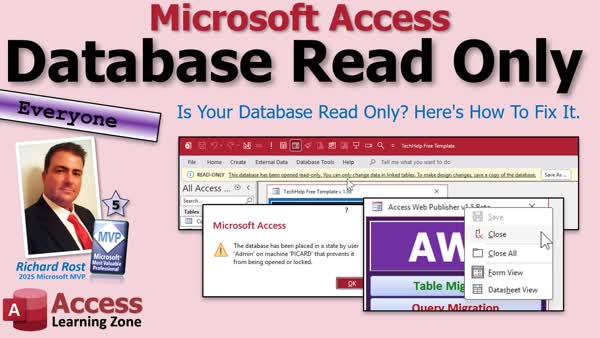 TechHelp Access, database read only fix, read only mode, accdb file permissions, lock file accdb, laccdb file, folder permissions, accde file edit, exclusive mode, linked tables issues, compact and repair, unblock file warning, relink tables, stale lock file
More InformationTranscript Never open your Microsoft Access database only to discover it is suddenly read only and you cannot save any changes. Do not panic, it is usually an easy fix.
Welcome to another TechHelp video brought to you by Access Learning Zone. I am your instructor Richard Rost. Today we are going to talk about why your Microsoft Access Database might be opening in read only mode, what that actually means, and the common reasons why it happens. We will go through the causes one by one and show you exactly how to get your database working normally again.
Today's question comes from Melissa in Boise, Idaho, one of my Gold Members. Melissa asks, How do I fix my Microsoft Access Database when it suddenly opens in read only mode? I was updating some customer records yesterday but today I cannot save any changes. I do not know if I clicked something by accident or if there is something wrong with the database. Is there an easy way to figure out what is causing it?
Well Melissa, let's take a look at what that means and what it could be from.
Alright, so what does read only mean? It simply means that Access has decided it is not going to let you make changes. The important question is why.
Sometimes Windows has marked the file read only, sometimes another user has the database open, sometimes Access cannot create the little lock file it needs, and sometimes you are working with an ACCDE file that is intentionally locked down. There is also a big difference between not being able to change any data in the database versus not being able to make any design changes in the database. We will talk about that too.
The good news is that most of these problems are very easy to fix once you know what is causing them. So let's walk through the most common causes one by one, starting with the easiest things to check first and then we will go to some weirder ones.
The first question is: did you open it in read only mode? Before we start checking Windows settings or blaming the database, let's make sure Access itself is not doing exactly what you asked it to do.
Most people simply double-click on an Access database in File Explorer or they have a shortcut on their desktop and that is perfectly fine. But if you use File > Open and you browse and pick a file this way, you will see next to the Open button there is a little drop down and there are some options in here. There is Open, which opens the database normally if you just click the Open button, but then there is Open Read Only. This lets you look around but you cannot save any design changes or modify the data. It is easy to accidentally click the wrong one. One time I went to try to open exclusive and I accidentally hit read only and I could not figure out why I could not do anything and then I was like oh, duh. What are these other ones? Open Exclusive opens the database for you so no one else can use it while you have it open. Developers often use this when making design changes to backend database files. Open Exclusive Read Only just combines both of those restrictions. Before you start doing any weird troubleshooting just make sure you are not in read only mode. That is the easy solution.
The next thing to check is the database file itself. In File Explorer, wherever you have your database file sitting, you want to make sure first of all that your database has an ACCDB extension. We will talk about ACCDEs in a minute but find your database file, not the shortcut, the actual database file itself.
Right-click on it and go to Properties. Now it is way down on the bottom of this list but there is Properties on here so pick Properties and you get this window.
First off, if you see this security warning: "This file came from another computer and might be blocked" unblock it. I just downloaded a copy of this and hit Apply. That was yesterday's video, about the security warnings and the blocked content. Go watch this video if you want to learn more about that.
What we care about right now is near the bottom of the General tab you will see an Attributes section. It says Read Only. If this box is checked, clear it, and then hit Apply. That could mean that someone made this file read only - could have been you, could have been your grandma, could have been someone else on your network, who knows.
Another thing to test: if you cannot do that, copy this to another local location, like copy this file to your desktop. Copy here and then try working with this file. See if this one is read only or not. If you can make this one not read only and you can work with this one but not the other one, it might be a folder permission problem.
That brings up the next issue: check the folder. This is one of the most common causes, especially for databases stored on a network drive.
When Access opens the database it does not just read the database file, it also creates a tiny little helper in the same folder. This file has the same name as your database but it is named .LACCDB or .LDB if you are still using one of the really old versions. If I open up "TechHelp" here, you will see an .LACCDB file got created. That is the lock file. It is a little file, it is a text file that Access uses to keep track of different things - who is using the database, which records are being edited, and so on.
Here is the important part: if Access does not have permission to create or update the lock file, it will open your database in read only mode. So do not just check the database, you have to check the folder that contains it. You have to have read-write permission - full read-write permission - to that folder.
Here is the folder. Right-click, go to Properties, again it is down off the bottom of the screen there but it says Properties.
This brings up a good point here, and I should mention this: this is a shortcut to a folder. You want to actually open file location. That will bring you to the actual target folder and that finds it here - and yes I have a Rush lyrics database, do not judge me. Here is the actual folder that contains that database. Again, right-click, come down to Properties - yes, way down on the bottom of the list there - Properties, and here are the properties for that actual folder. You will see that I am on the General tab and it does not say "shortcut."
Now, this is a triple state check box if you are familiar with those - we have those in Access too - yes, no, or null. Right now it is set to null. There is no yes with a check bar and no. I wish they would make that a different color or something. This can confuse people sometimes. The third state, the null state, usually means "it depends." For folders, Windows does not really use the read only attribute the same way it does for files. A check mark on a file means the file is marked read only but for folders the little dash usually means that some files or subfolders may have the attribute set or Windows might be using the attribute internally. That does not mean that the file itself is write-protected, and when you check this, if you check this and hit Apply, it applies that setting to all the files and folders under it.
If you click Apply, for example, it gives you this option here: apply changes to this folder, the subfolders, and the files. You often do not get an option to change that one there too but that is a whole different class. What I am trying to say is make sure that the folder that it is in at least has the little dash there or it is off and not checked on. You want to make sure you have read-write permissions to this folder, and if you are working with a company network, you may need to ask your IT department to verify the folder permissions. It is not enough to have read permission to this folder; you have to have full read-write so you can create that lock file.
That is one of the security problems with Microsoft Access - anybody who has rights to use the database file, the back end especially, has full rights to that folder, so they can do anything they want to that file. It is more of a trusted setup solution, so be careful. That is why we want SQL Server for sensitive data.
Next up: is someone else using the database in exclusive mode? If your database is stored on a shared network, that is a possibility.
Normally that is not a problem. Access is designed so multiple people can work with the data at the same time, and that is actually one of its strengths. You get to have 6, 10, 15, 20 people working with the same database as long as they are just working with the data. The problem happens when someone opens the database in exclusive mode instead of shared mode. Exclusive mode tells Access "I am the only one allowed in here," and everyone else who tries to open the database may find themselves locked out or stuck in read only mode.
It could also be that if you have multiple people on your network that have design access, they can make changes to the designs of forms and reports and so on. If someone has a form in design mode, then that could prevent other people from opening the database. I run into that myself - it is just me here but I have three computers - and, yes, sometimes I share database files even though I know I should not, but I am the only one working on them, and I am like, "Oh crap, I have this one open on Spock and I am trying to open it on Picard and I have it in design mode over here so I cannot open it over here." It is a pain. So just make sure no one else has it open exclusively or is designing something.
It is not always a copy of Access either - sometimes another program might have the database open. One example could be an Excel workbook that is connected to your Access database. Another could be backup software or even a virus scanner that is scanning the file. Also, cloud sync services like OneDrive, Google Drive, Dropbox - those can interfere with Access by temporarily locking the file while they are syncing it, and that is why we do not use Microsoft Access with file sharing services. No, no, no.
You can back up your files there, sure - zip up your Access database and drop it in your OneDrive or your Dropbox folder. Do not run your Access database out of one of these folders. Watch this video for more information.
If you are not doing any of that stuff and you are the only person using the database and it is stored on your own computer, then that is probably not the problem, but a shared database definitely makes it worth asking everyone you know, "Hey, you got the database open? How about you? You got the database open? We need to close it."
Now, if that does not work, it could be that something else is left behind after an Access crash, and this could be a stuck lock file. This is kind of rare but I have seen it happen a few times - it has happened to me once or twice. Remember that little lock file we talked about before - the .LACCDB file? Normally Access creates it when the database opens and then deletes it automatically when the last person closes the database, but computers are not perfect, networks are not perfect, Access, as much as I love it, is not perfect - it is like me, I love me, but I am not perfect (well, most days). If Access crashes, or Windows locks up, or your computer loses power, or somebody force-quits the program (which I have had to do a few times), that little lock file can get left behind even though nobody is actually using the database anymore. So when Access sees that file, it may assume another user still has the database open, and that can lead to read only mode or other messages saying the database is already in use.
The fix is usually simple but there is one very important rule: first, make sure - make absolutely sure - that everyone is out of the database. Even if one person still has it open, deleting that lock file can cause some problems. Once you are certain nobody is using the database, look in the same folder as the database for that little file, that .LACCDB or .LDB file. If it is still there, you can safely delete it. It is hidden, so you may have to turn hidden files on - in File Explorer go to View > Show > Hidden Items and you will see it. I leave it on usually. If you are sure no one else is using the database, then you can safely delete it and then try opening the database again.
Next up, here is one that a lot of people do not know - surprisingly, it catches a lot of people by surprise. Take a look at the file extension on your database. If it ends with .ACCDB, that is a normal, editable Access database. You can change tables, queries, forms, reports, VBA code, everything in the database assuming you have permission. If it ends with .ACCDE, that is basically a compiled version of the database. Developers create .ACCDE files - encrypted files or "execute only" files, I have seen both. This way they can distribute their application to users - everything works, but you cannot open forms or reports in design view and you cannot edit the VBA code. That is not a bug - that is exactly what an .ACCDE file is supposed to do.
You cannot see design view. Here is an .ACCDE file that I released. Double-click on this, open it up, and if you are in here you cannot right-click and hit design view on anything and you cannot get into the code editor. Everything is blank, Project Explorer is blank, you cannot get into modules, the project is unviewable, you cannot see anything in here. That is an .ACCDE file.
If you are a developer and you want to distribute your database to other people, you can make it an .ACCDE so they cannot make design changes or see your code. If you are developing for a multi-user network, I recommend giving your users an .ACCDE file if they have no business making design changes to the database. It works all the same, you can still work with records and edit data and all that stuff, you just cannot change the design of the database. If you are trying to make design changes and your database is an .ACCDE, the only real solution is to get the original .ACCDB file from whoever developed the application. Yes, there are some services out there that can reverse compile them - we will not get into that today.
If you are just trying to edit the data, then an .ACCDE should not stop you. If you cannot edit the records, then the problem is probably something else we have already discussed - this deals with design changes to the database.
If you have made it this far and your database still is opening in read only mode, do not give up just yet. There are a few more things we can try.
First, try Compact and Repair. This cleans up the database, removes unused space, and can fix minor corruption problems. I have a whole separate video on Compact and Repair - what it does, how to do it. Of course, I recommend you make a good backup of your database first before you start doing things to it.
If your database came from another computer or the internet, make sure it is stored in a trusted location. Here is a video on that. If your database uses linked tables, remember that the problem might not be with the front end at all. If Access cannot reach the linked tables or you do not have permission to the folder on the server where the linked tables live, then the database might behave unexpectedly. If you do not know what linked tables are, go watch my split database video.
Here is a linked table, and if you hover over it, you will see where it is linked to: Z:\599CDpaymentT.ACCDB. If you do not have access to that folder at the moment, then this table will not open. So you have to make sure you have that - you may need to relink your table. First thing I do is go to File Explorer and see if you can browse to that folder and see that file there, make sure the file exists, and that you have read-write access to that folder, and if you do, if the database is there, you might need to relink the table.
If you suspect the database itself has become damaged, you can create a blank new Access database and then import all of the objects into it, because sometimes it is the database file container itself that gets corrupted. Make a blank new database file and just import all the objects one at a time, I recommend, and then see if that works. Always, always, always make a backup. There is a reason why I made this big obnoxious slide - you should have a nightly backup running, monthly backup, nightly, all that. It is much easier to restore yesterday's backup than it is to recover a badly corrupted database.
To wrap up with a simple checklist you can follow anytime Access opens in read only mode:
First, make sure you did not accidentally open it read only.
Check the file itself, make sure it is not marked read only in Windows and that if it came from another computer or an email attachment, see if Windows has it blocked. I also did not mention your virus scanner might have blocked it somehow. I do not like third party virus scanners; I only like what comes with Windows (Defender or Windows Security now, or whatever). I have seen third party virus scanners cause problems with Access all the time.
Check the folder - remember Access needs permission to create its lock file so the folder has to be writable.
If you are on a network, make sure no one else has the database open exclusively.
Look for a stale lock file - a previous .LACCDB file that was left behind.
Verify you are working with a .ACCDB and not a .ACCDE file.
Try a Compact and Repair if necessary.
Try bringing stuff into a new database file.
If you are still having issues run down my troubleshooter on this page - it is a video you can watch - and I try to list these in the order in which I think that they are the most relevant.
Reboot your computer, restart Access, restart all your databases, restart Office, reboot the computer - just go down this list if the stuff that I mentioned in this video is not helping.
The biggest takeaway today is that read only does not usually mean your database is broken; most of the time it is Access protecting your data or Windows preventing Access from doing what it needs to do.
If you found today's video helpful make sure you like and subscribe and post a comment down below and let me know what ended up causing your read only problem, or if you have ever run into one that was not on my list I want to know.
That is going to do it for your TechHelp video for today, brought to you by Access Learning Zone. I hope you learned something. Live long and prosper my friends. I will see you next time.
If you enjoyed this video, hit that thumbs up button right now and give me a like. Also, be sure to subscribe to my channel which is completely free, and make sure you click that bell icon and select all to receive notifications whenever I post a new video.
If you are new to Microsoft Access, check out my Access Beginner Level 1 course. It is over four hours long and it covers all the basics like tables, queries, forms and reports. It is a great place to start and it is also completely free.
Members of my channel get extended cut videos, sample databases, access to my Code Vault, and full training classes every month. Click the Join button for details.
Thanks for watching. I am Richard Rost with AccessLearningZone.com. Live long and prosper my friends. I will see you next time. Intro In this lesson, we will discuss why your Microsoft Access database might open in read only mode, what that means, and the most common reasons for this issue. We will walk through troubleshooting steps, including checking how the database was opened, file and folder permissions, lock files, sharing settings, and the difference between ACCDB and ACCDE files. I will show you how to resolve these problems, as well as mention additional steps like compact and repair, dealing with linked tables, and importing objects into a new database if necessary. Quiz Q1. What is one of the most common reasons an Access database might open in read only mode?
A. The folder containing the database does not have write permissions.
B. You are using a 64-bit version of Access.
C. You have too many queries running at once.
D. The database menu is hidden.
Q2. What does it mean if the Access database file is marked as read only in Windows?
A. You are not allowed to view the contents of the file.
B. You cannot make any changes to the file or its data.
C. You can edit forms but not data.
D. The database will not open at all.
Q3. What special file does Access create in the same folder as the database to manage record locking?
A. .LACCDB
B. .TMP
C. .LOCK
D. .BACKUP
Q4. What should you do before deleting an orphaned .LACCDB lock file?
A. Ensure no one has the database open.
B. Delete the database file first.
C. Change the database extension to .ACCDE.
D. Uninstall Microsoft Access.
Q5. If your database file has the extension .ACCDE, what can you not do?
A. Make design changes to forms, reports, or code.
B. Edit table data.
C. Create queries.
D. Import new tables.
Q6. What is a quick way to check if you accidentally opened the database in read only mode from within Access?
A. Look at the Open options in the File menu.
B. Check the task manager.
C. Refresh the datasheet view.
D. Restart the computer.
Q7. If you can work with a copy of the database on your desktop but not with the original on the network, what might be the cause?
A. Folder permissions issue on the network.
B. File corruption on your desktop.
C. Wrong Access version installed.
D. The file extension is missing.
Q8. What is one reason you should not run your Access database directly from a cloud sync folder like OneDrive or Dropbox?
A. File sync services can lock the database and cause read only issues.
B. Access databases cannot be stored on hard drives.
C. Cloud folders do not allow .ACCDB files.
D. Access databases lose data when synced.
Q9. What is Compact and Repair primarily used for?
A. Fixing minor corruption and reducing database file size.
B. Adding new records to a table.
C. Increasing security settings.
D. Linking tables to external data.
Q10. What should you do if your database becomes seriously corrupted and previous steps did not work?
A. Create a new blank database and import all objects from the damaged database.
B. Change all users' permissions to read only.
C. Save the database as an .ACCDE file.
D. Only use the backup as a read only reference.
Q11. If a linked table points to a backend database on a network location and you cannot open it, what is the first thing you should check?
A. Make sure you can access the target folder and have permission.
B. Rename the backend file extension.
C. Compact and repair the frontend.
D. Export the table as Excel.
Q12. If you want other users to edit data but not modify the design of your database, what should you give them?
A. An .ACCDE file.
B. An .ACCDB file.
C. The original VBA code.
D. A .TXT export.
Q13. What attribute should you check in File Explorer to ensure the database file itself is not set to read only?
A. Read Only checkbox under Properties.
B. Hidden attribute.
C. Last accessed date.
D. Encryption status.
Q14. What should you always do before making major repairs or imports to your database?
A. Make a backup.
B. Sign out of your Windows account.
C. Change your screen resolution.
D. Install new fonts.
Q15. What might cause Access to think the database is still in use, leading to read only mode?
A. A leftover .LACCDB file from a previous crash.
B. Unsaved queries.
C. Too few records in tables.
D. An expired Microsoft Office subscription.
Answers: 1-A; 2-B; 3-A; 4-A; 5-A; 6-A; 7-A; 8-A; 9-A; 10-A; 11-A; 12-A; 13-A; 14-A; 15-A
DISCLAIMER: Quiz questions are AI generated. If you find any that are wrong, don't make sense, or aren't related to the video topic at hand, then please post a comment and let me know. Thanks. Summary Today's video from Access Learning Zone focuses on a common problem Access users face: opening a Microsoft Access database only to find it is suddenly in read only mode and you are unable to save changes. I want to reassure you right away that this usually does not mean your database is ruined. In fact, most of the time, it is a straightforward issue with a quick fix.
Let us begin by understanding what "read only" actually means in Microsoft Access. When Access opens a database in read only mode, it simply will not let you make updates. The key question is: why is this happening?
Some of the most common reasons are as follows. Sometimes, Windows marks the database file as read only. Other times, another user might have the file open, Access cannot create its required lock file, or perhaps you are working with an ACCDE file which by design is locked down. There is also a distinction to be made between being unable to edit data and being unable to make design changes. We will work through these causes one by one, starting with the easiest things to check.
First, ask yourself if you might have accidentally opened the file in read only mode. For most users, double-clicking the database in File Explorer opens it in the normal mode. However, if you use the Open dialog within Access, there are different opening options in the dropdown next to the Open button, including "Open Read Only." It is surprisingly easy to click this by mistake, so check that this was not the issue before you start any deeper troubleshooting.
Next, you need to confirm the properties of the file in Windows. Locate your actual database file (not a shortcut), make sure it is an ACCDB file, and examine its Properties. Near the bottom of the General tab, look for the Read Only attribute. If this box is checked, uncheck it and apply the change. Sometimes files become read only by accident or because they were downloaded or copied from another location. If unchecking the box does not work, try copying the file to a different folder or your desktop and see if the copy is still marked read only. If the issue goes away, the problem might be related to folder permissions.
That leads us to another very frequent problem: the folder in which your database resides. Every time Access opens a database, it tries to create a small lock file with the same name as your database but ending in .LACCDB (or .LDB for older files). This lock file helps Access manage who is editing records. If Access is unable to create or update that lock file, it will default to opening your database in read only mode. So, check that you have full read and write permissions to the folder containing your database. If you are on a company network, you may need assistance from your IT department to adjust these settings. Just having read access will not be enough - you need full permission so Access can write to the folder.
A related issue is if someone else is using the database in exclusive mode. Access is designed for multiple users to access the same data, but if someone opens the file exclusively, no one else can make changes. Similarly, if another user is editing a database object in design view, this can also lock others out. Even another program - such as Excel connecting to Access, backup software, or syncing through services like OneDrive or Dropbox - can lock the file. This is often a subtle source of trouble, especially with cloud-sharing folders, and I recommend not running Access databases from cloud-sync locations. Use them for backups, but not for daily use.
Occasionally, after a crash, a leftover lock file (.LACCDB or .LDB) might be left in the database folder. Normally, Access deletes this lock file automatically when the database is closed. If it remains due to a crash or system problem, Access will think someone still has the database open and will refuse to allow changes. The solution is to make absolutely sure no one has the database open, then delete the leftover lock file. Be careful, because if anyone is still connected, removing the lock file can cause problems.
Now, check your file extension. If your file ends in .ACCDB, you are working with a normal Access database, which should allow both design and data changes (with appropriate permissions). If it ends in .ACCDE, you are dealing with a compiled database. Developers distribute .ACCDE files to prevent users from making design modifications. If you need to alter forms, reports, or VBA code, you will have to go back to the original .ACCDB version. With .ACCDE files, you can still edit data, but not the design.
If none of the steps above resolves your problem, there are still a few things to try. Running a Compact and Repair can clean up the database and fix some minor corruption issues. Always make a backup before doing this. Also, if your database originated from another computer or has been emailed to you, make sure it is located in a trusted folder in Windows.
If your database contains linked tables, keep in mind that access issues might actually be with the backend database, not the front end. If you do not have access to the folder where the backend lives, Access might react by restricting edits or failing to connect. Make sure the linked backend file exists, check your permissions, and if necessary, relink your tables.
In rare cases, the database container itself may become corrupted. If this happens, create a new blank Access database and import all objects from the original. Import objects one at a time to minimize corruption risks, and always work with a backup.
To summarize, here is a checklist you should follow if your Access database opens in read only mode:
- Confirm you did not open it read only by mistake.
- Check the file properties in Windows and ensure it is not marked read only.
- Make sure the Windows folder containing your database is writable.
- Ensure no one else is using the database in exclusive mode or in design view.
- Look for and remove any stale lock files after verifying everyone has closed the database.
- Check whether you are using a .ACCDE file which restricts design changes.
- Run Compact and Repair if necessary.
- Consider importing your objects into a new database if corruption is suspected.
- If none of these methods solve the problem, restart Access, your computer, and check for any interfering software.
The main point I want you to take away is that Access using read only mode is usually a simple security protection, not an indicator of database failure.
If you are interested in more detailed, step-by-step instructions on everything I have covered here, you can find a complete video tutorial on my website at the link below. Live long and prosper, my friends. Topic List What does "read only" mean in Microsoft Access
Common reasons Access opens in read only mode
Accidentally opening Access database in read only mode
Access "Open", "Open Read Only", and "Open Exclusive" options
Checking if the database file is marked read only in Windows
How to unblock a database file downloaded from another computer
Copying the database file to test for permission issues
Checking folder permissions for Access databases
Understanding and managing the .LACCDB lock file
Ensuring full read-write permissions on the database folder
Exclusive mode vs shared mode in Access
Multiple users and Access database design changes
Other programs and cloud sync locking Access databases
Stale lock file after an Access crash
Manually deleting a leftover lock file
The difference between .ACCDB and .ACCDE files
What you can and cannot do in an .ACCDE file
Using Compact and Repair to fix minor corruption
Trusted locations and security block issues
Troubleshooting linked tables permissions and connections
Importing objects into a new database to fix corruption
Access read only problem troubleshooting checklist Article If you have ever opened your Microsoft Access database and found that it is suddenly in read only mode and you cannot save any changes, do not panic. This is a common problem and usually there is an easy solution. Let us talk through why this happens, what it means, and how you can fix it so you can get back to work.
When Access opens your database in read only mode, it simply means that you are not allowed to make changes. The important part is to figure out why this is happening. Some of the most common causes include the file being marked as read only by Windows, someone else having the database open, Access being unable to create the lock file it needs, or you are working with a special type of file that is meant to be locked down. These are usually easy things to check, so let us go through them one by one.
Start by making sure you did not open the database in read only mode by accident. If you double click your Access database in File Explorer or use a shortcut on your desktop, it should open normally. But if you use File > Open inside Access, look for a drop down menu next to the Open button. There are several ways to open a file here, including Open, Open Read Only, and others. If you choose Open Read Only, you will not be able to save any changes. It is easy to click the wrong option by accident, so check this first before you try anything more complicated.
Next, check the database file itself in Windows File Explorer. Find your database file (not a shortcut, but the actual file) and right click on it, then select Properties. At the bottom of the General tab, look for an Attributes section and see if Read Only is checked. If it is, clear it and press Apply. Sometimes files end up being marked read only by accident or by someone else on your network.
If you cannot change this setting, or if the database works fine when you copy it to a different location like your desktop, the problem might be with the folder where the file is stored. Access needs to be able to create and update a lock file in the same folder as your database, so you must have full read and write access to that folder. Right click on the folder, choose Properties, and check your permissions. If you are using a network location at your company, you may need help from your IT department to make sure you have adequate permissions. Without the ability to write to the folder, Access cannot create the lock file it needs and will put you in read only mode.
Speaking of the lock file, when Access opens a database, it creates a small file in the same folder as your database with the same name but ending in .laccdb or .ldb. This file is used by Access to track who is using the database and which records are being edited. If Access cannot create or update this file, you will not be able to make changes in your database. That is why the folder needs to be writable.
Another possible reason for read only mode is that someone else has opened the database in exclusive mode. With Access databases stored on a network share, multiple people can normally work with the data at the same time. If someone opens the database in exclusive mode, however, it tells Access to block others from making changes. If you or someone else has done this, everyone else will get locked out of making changes and may end up in read only mode. Also, if someone has a form or other object in design mode, it can sometimes cause others to have problems accessing the database. It is worth making sure that no one else is editing the database when you see this problem.
Other programs can also lock your database file. For example, if you have an Excel file connected to your Access database, or if backup software or even an antivirus program is scanning or using the database, that might lock you out. Cloud sync programs like OneDrive, Google Drive, or Dropbox can also temporarily lock the database while they sync files, which is why it is not recommended to run Access databases directly out of synced folders. If you need to back up your database, copy it to these folders, but do not work directly from them.
Sometimes, especially after Access or Windows crashes, a stray lock file (.laccdb or .ldb) can get left behind even though nobody is really using the database anymore. If this file is present, Access may think the database is in use and open it in read only mode. You can fix this by making sure everyone is out of the database, then looking for the lock file in the same folder as your database. If you find it and are sure no one has the database open, you can delete the lock file safely. You may have to enable viewing hidden files in File Explorer to see it.
Next, check the file extension of your Access database. If your file ends in .accdb, it is a normal editable database and, as long as you have the right permissions, you can edit tables, queries, forms, reports, and code. If the file extension ends in .accde, the database is a compiled version, and it is intentionally locked down so you cannot make design changes or view the underlying code. This is normal behavior for .accde files and is often used by developers to distribute their Access applications to users who should not be making design changes. If you need to make design changes, you will have to find the original .accdb file.
If you have checked all of these things and your database still opens in read only mode, there are a few more things you can try. First, run Compact and Repair Database from within Access. This removes unused space and can often clean up minor database corruption. Always make a backup of your database before doing this, just in case.
If your database came from another computer or was downloaded as an email attachment, make sure it is not blocked by Windows. In the file properties, look for a message that says the file is blocked because it came from another computer, and if so, click Unblock and apply the changes.
If your database front end uses linked tables that connect to backend databases, remember that you need permission to access the folder where the backend file is stored. If Access cannot reach the backend file or you do not have permission to the folder, you will not be able to use the linked tables, and the database might behave oddly. You may need to relink your tables or check the network folder permissions.
If you suspect that your database file itself has become corrupted, create a new blank Access database and import all your objects into it from the old file. Sometimes the database container can become damaged, and starting fresh is the simplest solution.
As a simple checklist, here are the key points to check if your Access database opens in read only mode. Make sure you or anyone else did not open it in read only mode by accident. Confirm that the file itself is not marked read only in the file properties and is not blocked by Windows or a virus scanner. Check the folder permissions and ensure you have full read write access to allow Access to create the lock file. Make sure no one else has the file open in exclusive mode and there are no stale lock files left behind from previous crashes. Verify you are working with a standard .accdb file and not a locked .accde file. Try Compact and Repair, or import your data into a new database if necessary. Always make backups before making any major changes, as restoring a backup is usually easier than trying to fix a badly corrupted file.
The main point to remember is that when Access puts your database in read only mode, it is often doing so to protect your data or because Windows is preventing Access from doing what it needs. Most of the time, this is easy to fix once you know what to look for. By following these practical troubleshooting steps, you should be able to get your database back to normal and save your changes again. Primary Topics Access read only mode, file properties, folder permissions, lock files, user access modes, .ACCDE vs .ACCDB, network database sharing, compact and repair, linked tables
Secondary Topics security warnings, virus scanners, backup practices, network issues
|





