Property Size
By Richard Rost

 23 days ago
Larger Font for Easier Property Sheet Text Reading In this lesson, I will show you how to increase the Property Sheet font size in Microsoft Access through the Options settings, making form and report design properties easier to read. We will also discuss restarting the database after changing the setting and using the Windows Magnifier as a temporary way to zoom in while working in Design View. Richard from Reno, Nevada (a Gold Member) asks: Is there any way to make the property sheet font bigger, or am I stuck squinting at it forever? Links
Keywords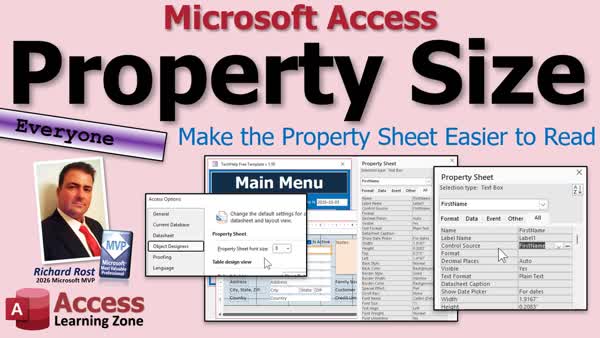 TechHelp Access, Access property sheet font size, property sheet text bigger, Object Designers options, property sheet readability, Access design view, Access form view zoom, Windows Magnifier, Windows key plus, high resolution monitor, Stream Deck zoom shortcuts
 Subscribe to Property Size
Get notifications when this page is updated
More InformationTranscript Are you tired of squinting at the little tiny text in the Microsoft Access property sheet? Well, I got some good news for you today. Microsoft is finally giving us a way to make that bigger. And as someone who's getting older myself, and I only got one good working eye, I appreciate this one.
Welcome to another TechHelp video brought to you by Access Learning Zone. I am your instructor, Richard Rost. Today, I'm going to show you how to make this property sheet text bigger so you don't have to squint at it so much.
Today's question comes from Richard in Reno, Nevada. Cool name. One of my Gold members, Richard says, "I'm getting older, and my eyesight isn't what it used to be. When I'm designing forms and reports in Access, I can barely read the tiny text in the property sheet anymore. Is there any way to make the property sheet font bigger, or am I stuck squinting at it forever?"
Well, Richard, you're in luck. Microsoft recently added a setting that lets you change the font size in the property sheet. The old default was eight point, which is pretty small, especially on a high-resolution monitor. I bumped mine up to 12 point, and I like it a lot better. And I'm sure you guys watching my videos will appreciate it too.
So, let's take a look at how to change it. Here I am in a TechHelp free template. This is a free database you can grab off my website if you want to, but you can do this in any database that you want.
What you're going to do is come over here, go to File, and then down to Options. Then you're going to go to Object Designers, and here's the Property Sheet Font Size. This is the new guy. Drop that down. I'm going to pick 12 point. That's what I like. Hit OK.
It's going to yell, "Yeah, you got to close and reopen your database." Yep. Okay. Shut it down, open it back up again, and now we're going to go in here and do some Design View, and then bring up the Property Sheet. Oh, look at that. That's so much better. So much easier to see.
Now we're still waiting for something. We're still waiting for Design View zooming. They added Form View zooming, which I love. You can open up a form and use it like your Control-Scroll Wheel on your mouse and zoom in. That's really nice.
Although I would love it if they made the form bigger. It looks really good in Tab Document View, but I use overlapping windows. So you got to resize the window then too.
But in the meantime, when you're designing, if this is really tiny, like I have a hard time getting these exactly where I want them because it's really tiny, you can also use the Windows Magnifier. It's built right into Windows. You press the Windows key and plus to turn the Magnifier on and zoom in.
So, Windows key plus. And I see. I don't know how well that's going to show up in the video. Now you can see how it's... And I have to hit the button on my mouse to turn down the mouse sensitivity. Otherwise, the mouse just zooms around.
And then to zoom back out, it's the Windows key and minus. And I put those on. I have a Stream Deck, one of these guys. I love my Stream Deck. And you just put the buttons for the Windows zooming on that. You click one button to zoom in, one button to zoom out. You don't got to remember all these keyboard combinations.
I'll put a link down below. Click on yes, it's my affiliate link on Amazon. I'll get like three cents if you buy one, but they're really cool. And I don't advertise any products that I don't personally use myself. I love my Stream Deck.
But yeah, there you go. That's a nice little quick tip for today, a little fast tip. And hopefully, someday soon, I'll be making another fast tip telling you that we got the zoom in Design View. We're waiting on that myself.
But that's going to do it for today's TechHelp video. I hope you learned something. Live long and prosper, my friends. I'll see you next time. Intro In this lesson, I will show you how to increase the Property Sheet font size in Microsoft Access through the Options settings, making form and report design properties easier to read. We will also discuss restarting the database after changing the setting and using the Windows Magnifier as a temporary way to zoom in while working in Design View. Quiz Q1. Where in Access Options can you change the Property Sheet Font Size?
A. Object Designers
B. Current Database
C. Customize Ribbon
D. Trust Center
Q2. What does changing the Property Sheet Font Size affect?
A. The text displayed in the Property Sheet
B. The font used in all form controls
C. The font used in report headers
D. The font used in table datasheets
Q3. What must you do after changing the Property Sheet Font Size setting?
A. Close and reopen the database
B. Reinstall Access
C. Compact and repair the database
D. Convert all forms to reports
Q4. Which font size did the instructor choose for the Property Sheet?
A. 6 point
B. 8 point
C. 10 point
D. 12 point
Q5. What Windows feature can help magnify an area while designing a form or report?
A. Windows Magnifier
B. Disk Cleanup
C. Task Manager
D. Snipping Tool
Q6. What keyboard shortcut turns on Windows Magnifier and zooms in?
A. Windows key plus
B. Ctrl plus
C. Alt plus
D. Shift plus
Q7. What keyboard shortcut zooms out in Windows Magnifier?
A. Windows key minus
B. Ctrl minus
C. Alt minus
D. Shift minus
Q8. What design-related zoom feature is the instructor still waiting for Access to add?
A. Zooming in Design View
B. Zooming in Datasheet View
C. Zooming the Navigation Pane
D. Zooming the VBA editor
Answers: 1-A; 2-A; 3-A; 4-D; 5-A; 6-A; 7-A; 8-A
DISCLAIMER: Quiz questions are AI generated. If you find any that are wrong, don't make sense, or aren't related to the video topic at hand, then please post a comment and let me know. Thanks. Summary Today's video from Access Learning Zone covers a new Microsoft Access setting that allows you to increase the font size used in the Property Sheet. This is especially helpful if you find the default text too small to read comfortably while designing forms, reports, and other database objects.
Microsoft recently added a Property Sheet Font Size setting to Access. The old default size was 8 point, which can be difficult to read, particularly on high-resolution monitors. I personally prefer using 12 point because it makes the Property Sheet much easier to see without taking up an unreasonable amount of space.
To change this setting, open Access and go to File, then Options. In the Access Options window, select Object Designers from the list on the left. You will find a setting labeled Property Sheet Font Size. Select the size that works best for you, such as 12 point, and then save the setting.
Access will notify you that you need to close and reopen the database before the change takes effect. After reopening the database, open a form or report in Design View and display the Property Sheet. The larger font size should now be applied, making the names of properties and their settings much easier to read.
This is a welcome improvement, although I would still like Microsoft to add zooming directly to Design View. Access already provides zooming in Form View. For example, you can use Ctrl with the mouse wheel to zoom in and out while viewing a form. This is very useful, although those of us who use overlapping windows may still need to resize the form window itself as well.
Until Design View zooming becomes available, the Windows Magnifier is a useful alternative. Windows includes this accessibility tool, and you can activate it by pressing the Windows key and plus sign. This enlarges part or all of the screen, allowing you to work more comfortably when positioning controls or reading small details in Design View. Press the Windows key and minus sign to reduce the magnification again.
If you use a Stream Deck or another programmable keypad, you can assign buttons for the Windows Magnifier shortcuts. That makes it easy to zoom in and out without having to remember or press the keyboard combinations each time. I use a Stream Deck myself and find it very useful for common commands and shortcuts.
Increasing the Property Sheet font size is a small change, but it can make a big difference when you spend a lot of time designing Access forms and reports.
You can find a complete video tutorial with step-by-step instructions on everything discussed here on my website at the link below. Live long and prosper, my friends. Topic List Changing the Access Property Sheet font size
Reopening Access to apply font size changes
Using Windows Magnifier in Access Design View Article If the text in the Microsoft Access Property Sheet is difficult to read, you can increase its font size through Access Options. This is especially helpful when working on high-resolution displays or if you simply prefer larger, clearer text while designing forms and reports.
To change the Property Sheet font size, open any Access database and select File, then Options. In the Access Options window, choose Object Designers from the list on the left. Look for the Property Sheet Font Size setting. Choose a larger size from the drop-down list, such as 12 point, and click OK.
Access will notify you that you must close and reopen the database before the change takes effect. After reopening it, open a form or report in Design View and display the Property Sheet. The labels, settings, and values in the Property Sheet should now be noticeably easier to read.
This setting affects the Property Sheet used when designing Access objects, including forms, reports, and controls. It does not resize the controls on your form or report, and it does not change the font used by your database users. It only changes the font size of the design-time Property Sheet interface.
If other parts of the Design View window are still too small, Windows Magnifier can help. Press the Windows key and the plus key to turn on Magnifier and zoom in. Press the Windows key and the minus key to zoom back out. This can be useful for closely positioning controls or reviewing small design details.
Increasing the Property Sheet font size is a simple change, but it can make form and report design much more comfortable and reduce eye strain. Primary Topics Access Property Sheet font size, Access Options, Object Designers settings, form design readability, report design readability Secondary Topics database restart requirement, Windows Magnifier, Form View zooming, Design View zoom limitation, Stream Deck shortcuts |




