Duplicate Pairs
By Richard Rost

 21 days ago
Prevent Duplicate Combinations in Multiple Fields In this lesson, we will prevent duplicate pairs in Microsoft Access by creating a unique multi-field index. I will show you how to keep an AutoNumber primary key while enforcing a rule that prevents the same customer and class combination from being entered twice. We will also discuss common indexing mistakes, required fields, existing duplicate data, and how to determine which fields belong in a composite key. Maya from Cedar Falls, Iowa (a Gold Member) asks: How can I prevent the same employee from being registered for the same training session twice without blocking legitimate registrations? MembersThere is no extended cut, but here is the file download: Silver Members and up get access to view Extended Cut videos, when available. Gold Members can download the files from class plus get access to the Code Vault. If you're not a member, Join Today!
PrerequisitesLinksRecommended Courses
Keywords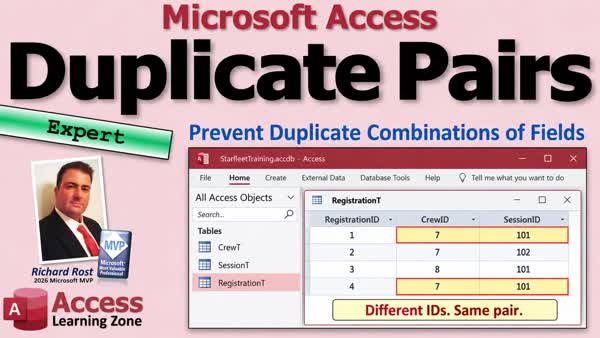 TechHelp Access, composite key Access, unique multi-field index, prevent duplicate combinations, unique index multiple fields, AutoNumber primary key, indexed no duplicates, required fields, Find Duplicates query, custom duplicate error message
More InformationTranscript Your table gives every record its own number, so why can somebody still sign up for the same class twice?
And why does trying to block duplicates suddenly stop perfectly valid records too?
Welcome to another TechHelp video brought to you by Access Learning Zone.
I'm your instructor, Richard Rost.
In this video, we're going to prevent duplicate combinations of fields.
Whether it's an employee in a training session, a product in an order, or an item in a warehouse, each value can appear more than once. It's the combination that has to be unique.
We'll look at what that means, avoid a couple of common mistakes, and then set it up in Access without any programming.
Today's question comes from Maya in Cedar Falls, Iowa, one of my Gold members.
Maya says, "I'd track staff training in Access. One employee can attend several sessions, and each session can have several employees. Sometimes we accidentally register the same employee for the same session twice. Every record already has its own AutoNumber. How can I stop that duplicate combination without blocking legitimate registrations?"
Well, your AutoNumbers are doing their job, but we need to check something different. We need to tell Access that these two fields form one rule.
The answer is a unique multi-field index.
An index is something Access maintains for your table. When we make it unique, Access won't accept two records with the same indexed values. When that one index contains multiple fields, it checks their combination.
Here, for example, Crew ID and Session ID belong to one index called Crew Session. With Unique set to Yes, Crew ID can repeat, Session ID can repeat, but the same pair can't repeat.
That's the answer in a nutshell.
You don't need VBA, and you don't need to replace your AutoNumbers.
Notice the index name is written once, with the second field directly beneath it. That blank space under the index name matters.
We'll set this up together in just a few minutes.
All right, so let's show an example with some actual records.
For running training for our Starfleet crew, crew member 7 is Tavaar, and crew member 8 is Marin.
Session 101 is Shuttle Safety, and session 102 is Transporter Basics.
The first record puts Tavaar in Shuttle Safety.
The second puts Tavaar in Transporter Basics.
One officer can take two different sessions.
The third puts Marin in Shuttle Safety, and that class can have more than one officer.
But now look at the fourth record: 7 and 101 again. That's Tavaar in the same session for a second time.
Now, the Registration ID is different. That's the primary key. It's happy, but our business rule isn't.
So unless you're allowing a student to register for the same session again, maybe he failed. Maybe he's Vulcan. Obviously, he's going to pass Shuttle Safety. You never know.
But if you've got that rule set up, that's called a composite key, then the table won't allow it.
And here's the mistake that catches people.
They set Crew ID to be indexed, Yes, with No Duplicates.
So now Tavaar can only appear once in the entire registration table. That would mean one class for the rest of the officer's career.
Starfleet probably wants a little more continuing education than that.
And you'd have the same problem if you made Session ID indexed, No Duplicates.
So instead, the individual fields themselves have duplicates. We put both fields into one unique index.
Now, composite key just means that it's made from multiple parts. A composite key uses multiple fields together.
A composite primary key uses those fields together as the table's primary key.
Now, that's a valid design choice, but we're not doing that here.
We're keeping the Registration ID as our AutoNumber primary key. We'll add a separate unique composite index on Crew ID and Session ID.
And that gives us a simple ID for referring to one registration and a separate rule that protects the pair.
Now, this works with more than two fields, too. The important question is what exactly counts as a duplicate in your application?
If you're assigning crew duties on missions, Tavaar can be assigned to navigation on mission 501 and then navigation again on mission 502.
If we make only Crew ID and Duty ID unique, we block that legitimate second mission.
So the real rule here is Crew ID, Duty ID, and Mission ID together.
The same officer doing the same duty on the same mission should appear once.
Use the mission as a different new valid combination.
Now, before you turn this rule on in an existing database, first make a backup and work in your test copy.
Always make backups first.
Now, if duplicate combinations already exist, Access won't let you finish creating the unique index until those conflicts are resolved.
Also, decide whether all parts of the combination must be filled in.
For a registration, we would need both an officer and a session.
That will set Required to Yes on both numeric ID fields.
And that handles missing fields separately.
Don't assume a unique index alone means every field is required.
All right, so before we get started today, if indexing itself is new to you, watch my indexing video first that explains the basic choices you'll see in table design.
You should, of course, also be comfortable opening a table in Design View and switching back to Datasheet View.
No VBA is required for today's walkthrough.
And let's see how this works in Access.
All right, so here I am in my TechHelp Free Template.
This is a free database.
You can grab a copy off my website if you want to.
And in here, I've got a customer table. We'll use this for our customers, for our people registering.
And let's set up another table to keep track of, let's say, classes.
All right, so Create and then Table Design.
We'll call it a Class ID and then a Description.
Real easy.
You can put more information in here. Anything about the class you want to track.
Save this as my Class Table.
Class T.
Primary key. Yep.
All right, let's put a couple of classes in here.
What do we got?
We got Shuttle Safety and Transporter Basics.
Let's say we just got those two.
All right, save it.
Now we'll need another table to track their registration.
So the sessions, let's call it.
So Create, Table Design.
We got a Session ID.
We'll have a Customer ID. That's our number foreign key, and also a Class ID. It's another number foreign key.
Now, in here, you'll put any other information about this particular session.
It meets on Wednesdays at 6 p.m.
The instructor is whomever.
All the other information that has to do with this particular session of this class.
But I'll save this as my Session Table.
Now, in here, we can put a customer and a class.
That's basically one registration in this session.
But there's nothing to prevent duplicates.
Now, like I mentioned a minute ago, you want to index these for lookups, to make things faster.
So Index down here says Yes, Duplicates Are Okay.
So you can have multiple customers, you can have multiple classes.
You can't have multiple Session IDs.
That's Index No Duplicate.
That's your primary key.
But we want to make sure that this combination of the two of these fields is unique.
That's going to be our composite key.
So we're going to come up here to Indexes.
Now, here's your primary key.
All right, that down here says Unique Yes, Primary Yes.
Here is your Customer ID and your Class ID.
Those are the individual indexes.
Now, what we're going to also do is come down here and create a new index.
That's the combination of the two of those.
I like to name it like this: Customer X Class.
It's the combination of those two things.
Now, right here, we're going to put Customer ID, and right below it, we're going to put Class ID.
Customer and Class.
Now, right here in this top row, we're going to change Unique to Yes.
Every value in this index, the combination of those two fields, has to be unique.
Now, close it, save it, close that, close that, and let's come back into our Session Table.
All right.
So let's say we got Customer 1 in Class 1, no problem.
Customer 2 in Class 1, no problem.
Customer 2, Class 1, no problem.
Two and two, again, no problem.
Those are all unique indexes.
Now, if I try to put Customer 1 in Class 2, not allowed.
Changes you requested to the table were not successful because they would create duplicate values in the index, primary key, or relationship.
So you can't do it.
And that is a composite key.
It prevents duplicates between those two fields.
So you got to hit Escape a couple times.
There you go.
Get away from that, or change it.
Change it to something else.
So that's the whole idea: define what makes a duplicate, put those fields together in one unique index, keep the AutoNumber, if that's your table design, and require the participating values when the business rule needs them.
And most importantly, test both sides.
The duplicate pair should fail, but the same student in the same class, different session, should all still work.
All right.
Blocking everything isn't success.
We want to block the mistake while allowing the real work.
All right.
If you already got duplicate data, go to my Find Duplicates video, and that'll help you locate and review it.
Finding existing duplicates and preventing new ones are related jobs, but they aren't the same job.
So that'll help you find the duplicates you got in your table already.
And if your rule is more flexible, take a look at Duplicate Check.
That's about warning when a check number repeats, but it will allow a deliberate repeat.
So that's an interesting one, too.
And if you want to learn more in Access Beginner Level 4, I cover field properties, required indexing, and database maintenance.
That's a place to strengthen those basics.
And in Access Developer Level 36, we go over composite keys in more detail, including how to make your own custom error message.
So you don't get that Access-generated unhelpful error message that pops up when they violate the composite key rule that we saw a few minutes ago.
So there you go.
Now you know how to avoid duplicate pairs in your Access databases, also known as setting up a composite key.
And that's going to be your TechHelp video for today.
I hope you learned something.
Live long and prosper, my friends.
I'll see you next time. Intro In this lesson, we will prevent duplicate pairs in Microsoft Access by creating a unique multi-field index. I will show you how to keep an AutoNumber primary key while enforcing a rule that prevents the same customer and class combination from being entered twice. We will also discuss common indexing mistakes, required fields, existing duplicate data, and how to determine which fields belong in a composite key. Quiz Q1. Why does an AutoNumber primary key not prevent the same employee from being registered for the same class twice?
A. Each duplicate registration still receives a different AutoNumber value
B. AutoNumbers only work in forms, not tables
C. AutoNumbers cannot be used with foreign keys
D. Primary keys only work when there are exactly two fields
Q2. What does a unique multi-field index enforce?
A. Each individual field value can appear only once
B. The combination of values across the indexed fields must be unique
C. Every record must have an AutoNumber primary key
D. All text fields must contain different descriptions
Q3. In a registration table, which fields would normally be included in a unique composite index to prevent duplicate registrations?
A. Registration ID and Class Description
B. Customer ID and Class ID
C. Customer Name and Registration ID
D. Class Description and Registration ID
Q4. What would happen if Customer ID alone were indexed with "No Duplicates" in a registration table?
A. A customer could register for only one class
B. A class could have only one customer
C. Access would automatically create a new customer record
D. Duplicate class names would be allowed
Q5. What is meant by a composite key?
A. A key made from multiple fields together
B. A key that is automatically generated by Access
C. A key that can only contain text fields
D. A key used only for sorting records
Q6. Why might a developer keep an AutoNumber primary key while also adding a unique composite index?
A. The AutoNumber identifies each individual record, while the composite index enforces a business rule
B. Access requires every table to have two primary keys
C. A composite index cannot contain numeric fields
D. AutoNumbers are needed to make duplicate records acceptable
Q7. In the Access Indexes window, how do you add more than one field to the same index?
A. Give each field a different index name
B. Enter the index name for the first field, then leave the index name blank for the next field
C. Make each field a primary key
D. Set both fields to "No" under Indexed
Q8. Which setting must be enabled on a composite index to block duplicate combinations?
A. Required = Yes
B. Primary = Yes
C. Unique = Yes
D. Allow Zero Length = No
Q9. If an employee can perform the same duty on different missions, which combination should be unique to prevent duplicate duty assignments on the same mission?
A. Employee ID and Duty ID
B. Employee ID, Duty ID, and Mission ID
C. Duty ID and Mission ID only
D. Employee ID and Mission ID only
Q10. What should you do before creating a unique index in an existing table that may already contain duplicate combinations?
A. Delete the primary key
B. Make a backup and resolve existing duplicate combinations
C. Convert all fields to text
D. Turn off indexing for every field
Q11. Does a unique composite index automatically ensure that all fields in the combination contain a value?
A. Yes, unique indexes automatically make all indexed fields required
B. No, set Required to Yes on fields that must be filled in
C. Yes, but only for AutoNumber fields
D. No, because indexes cannot include required fields
Q12. What is the difference between finding duplicates and preventing duplicates?
A. Finding duplicates reviews existing data, while preventing duplicates stops future duplicate entries
B. Finding duplicates deletes records, while preventing duplicates creates records
C. They are the same feature in Access
D. Preventing duplicates only works in queries
Answers: 1-A; 2-B; 3-B; 4-A; 5-A; 6-A; 7-B; 8-C; 9-B; 10-B; 11-B; 12-A
DISCLAIMER: Quiz questions are AI generated. If you find any that are wrong, don't make sense, or aren't related to the video topic at hand, then please post a comment and let me know. Thanks. Summary Today's video from Access Learning Zone explains how to prevent duplicate combinations of fields in Microsoft Access.
A table can have an AutoNumber primary key, yet still allow duplicate business records. This is because an AutoNumber only guarantees that each individual record has its own unique ID. It does not prevent two records from containing the same values in other fields.
For example, suppose you track employee training registrations. One employee can attend many classes, and each class can have many employees. A RegistrationID AutoNumber field can uniquely identify every registration record, but it will not stop someone from accidentally registering the same employee for the same class twice.
To prevent that kind of duplicate, you need to identify the fields that together define a unique record. In this case, the combination of EmployeeID and ClassID should be unique. An employee should be allowed to register for multiple classes, and a class should be allowed to contain multiple employees. However, the same employee should not be registered for the same class more than once.
This is accomplished with a unique multi-field index, sometimes called a composite index. A composite index contains more than one field, and Access checks the combined values of those fields.
For example, if EmployeeID and ClassID are part of the same unique index, Access will allow records such as:
Employee 7, Class 101
Employee 7, Class 102
Employee 8, Class 101
Each of those combinations is valid because the employee and class pairing is different.
However, if you attempt to enter Employee 7, Class 101 a second time, Access will reject it because that exact combination already exists.
This is different from setting either field individually to Indexed: Yes (No Duplicates). If you set EmployeeID to No Duplicates, each employee could appear only once in the entire registration table. That would prevent an employee from taking more than one class. Likewise, if you set ClassID to No Duplicates, each class could have only one employee.
Those are not the rules we want. We want duplicates allowed in each individual field, but not in the combination of both fields.
A composite key simply means a key made from multiple fields. In some databases, those multiple fields may be used together as the primary key. That is called a composite primary key.
In this example, however, I recommend keeping the AutoNumber RegistrationID as the table's primary key. This gives every registration record a simple identifier that can be used in relationships, forms, reports, and other tables. Then, add a separate unique composite index on EmployeeID and ClassID to enforce the business rule.
This approach gives you both benefits. You retain a simple AutoNumber primary key, and you prevent duplicate employee-class registrations.
The same concept applies to many other situations. You might need to prevent duplicate combinations involving a product and an order, an item and a warehouse location, a customer and a service appointment, or an employee and a work assignment.
The important part is deciding exactly what counts as a duplicate in your application.
For example, suppose you assign crew members to duties on missions. A crew member may be assigned to Navigation on Mission 501 and then assigned to Navigation again on Mission 502. If you make only CrewID and DutyID unique, Access would incorrectly block that second valid assignment.
In that situation, the correct unique combination would be CrewID, DutyID, and MissionID. The same crew member can perform the same duty on different missions, but should not be assigned to the same duty twice on the same mission.
Before creating a unique multi-field index in an existing database, make a backup and work with a test copy whenever possible. If duplicate combinations already exist in the table, Access will not let you create the unique index until you find and resolve those duplicates.
You should also decide whether every field in the combination is required. In a training registration table, both EmployeeID and ClassID should normally be required. A registration without an employee or without a class is incomplete. Set the Required property to Yes for those fields when your business rules require values.
Do not assume that a unique index automatically makes fields required. Required fields and unique field combinations are separate rules. Required prevents missing values, while a unique composite index prevents repeated combinations.
To create the composite index in Access, open the registration table in Design View. Your table should have a primary key such as RegistrationID, along with numeric foreign key fields such as EmployeeID and ClassID.
It is generally a good idea to index individual foreign key fields to improve lookup and join performance. Those individual indexes should allow duplicates because multiple records can legitimately use the same employee or class.
Then open the Indexes window from the table design tools. Create a new index and give it a meaningful name, such as EmployeeClass.
Enter EmployeeID as the first field in that index. On the row immediately below it, leave the index name blank and enter ClassID as the next field. Leaving the index name blank on the second row tells Access that both fields belong to the same index.
Set the Unique property for that index to Yes. This tells Access that the EmployeeID and ClassID combination must not be repeated.
Save the table design after creating the index.
Once the index is in place, Access will allow one employee to register for different classes, and it will allow multiple employees to register for the same class. However, it will reject any attempt to create a second registration with the exact same EmployeeID and ClassID values.
You may receive an Access-generated message explaining that the change would create duplicate values in an index, primary key, or relationship. That message is not especially user-friendly, but it confirms that the unique composite index is working correctly.
In a more advanced database, you can create custom error handling to show a clearer message to the user. For example, you could tell the user that the employee is already registered for that class. However, no VBA programming is required to create the unique multi-field index itself.
Be sure to test both sides of the rule. Confirm that entering the same employee and same class twice is blocked. Then confirm that the same employee can still register for a different class, and that another employee can register for the same class.
The goal is not to block all repeated values. The goal is to block only the duplicate combination that violates your business rule while still allowing legitimate records.
If your table already contains duplicate combinations, use a Find Duplicates query to locate and review them. Finding existing duplicate data and preventing future duplicates are related tasks, but they are not the same thing.
You may also have situations where you want to warn users about a possible duplicate without actually blocking the record. For example, a duplicate check number might be unusual but still valid under certain circumstances. In that case, a warning system may be more appropriate than a unique index.
If you want to learn more about Access fundamentals, including field properties, Required settings, indexing, and database maintenance, those topics are covered in Access Beginner Level 4. Composite keys and custom error messages are covered in more detail in Access Developer Level 36.
You can find a complete video tutorial with step-by-step instructions on everything discussed here on my website at the link below. Live long and prosper, my friends. Topic List Why AutoNumber keys do not prevent duplicates
Unique multi-field indexes in Access
Composite keys and composite primary keys
Avoiding No Duplicates on individual fields
Creating a unique composite index in Table Design
Setting required fields for composite rules
Resolving existing duplicate combinations
Testing valid and duplicate field combinations Article An AutoNumber primary key gives each record a unique identity, but it does not prevent duplicate business data. For example, two registration records can have different Registration IDs while still representing the same employee registered for the same training session twice.
This happens because a primary key only checks the primary key field. If Registration ID is an AutoNumber, Access guarantees that no two records receive the same Registration ID. It does not automatically know that Employee ID and Session ID should not appear together more than once.
To prevent that kind of duplicate, create a unique multi-field index. This is sometimes called a composite unique index. It tells Access that the combination of two or more fields must be unique, even though each individual field is allowed to repeat.
For a training registration table, a typical design might include RegistrationID as the AutoNumber primary key, EmployeeID as a foreign key, and SessionID as another foreign key. One employee can appear in many registration records because they can attend many sessions. One session can appear in many registration records because many employees can attend it. However, the same EmployeeID and SessionID combination should normally appear only once.
The unique index should include EmployeeID and SessionID together. With this rule in place, Access allows Employee 7 to register for Session 101 and Session 102. It also allows Employee 8 to register for Session 101. What it will not allow is a second record containing Employee 7 and Session 101.
Do not set either field individually to Indexed: Yes (No Duplicates). If EmployeeID is individually set to disallow duplicates, Access would allow each employee to appear only once in the entire registration table. That would prevent an employee from taking more than one class. If SessionID is individually set to disallow duplicates, Access would allow only one employee to register for each session. Neither rule reflects the actual business requirement.
Instead, leave the individual foreign key fields indexed in a way that allows duplicates if appropriate, then create one additional index that contains both fields. In Table Design View, open the Indexes window. Create a new index name, such as EmployeeSession. On the first row, enter the index name and select EmployeeID as the field. On the row immediately below it, leave the index name blank and select SessionID as the field. Set the Unique property to Yes for the first row of that index.
Leaving the index name blank on the second row is important. It tells Access that both fields belong to the same index. If you give the second field a different index name, Access treats it as a separate index instead of part of the same combination.
You can keep your AutoNumber primary key while adding this unique composite index. This is often useful because the AutoNumber provides a simple value for identifying and relating to one registration record, while the composite unique index enforces the business rule that an employee cannot be registered for the same session more than once.
The exact fields in the index must match what your application considers a duplicate. For example, suppose employees can perform duties on different missions. An employee may legitimately perform Navigation duty on Mission 501 and perform Navigation again on Mission 502. In that case, an index on EmployeeID and DutyID alone would be too restrictive. The correct unique combination would be EmployeeID, DutyID, and MissionID. The same employee can perform the same duty on different missions, but should not have the same duty assigned twice for the same mission.
This is also important when distinguishing a course from a specific offering of that course. An employee may be allowed to take the same course again in a later session. If so, do not create a unique index on EmployeeID and ClassID alone. That would prevent the employee from taking the same class a second time, even if it is offered on a different date or in a different session. Instead, use EmployeeID and SessionID, where each specific class offering has its own SessionID.
Before creating a unique index in an existing table, make a backup of the database and check for duplicate records. Access cannot create the unique index if duplicate combinations already exist. You must review those records and decide whether to delete, merge, correct, or otherwise resolve them before applying the rule.
A unique index also does not automatically require values in every field. If every registration must have an employee and a session, set the Required property to Yes for both EmployeeID and SessionID. This handles missing values separately from duplicate values. The unique index prevents duplicate combinations, while the Required property prevents incomplete records.
After setting up the index, test both valid and invalid entries. Confirm that an employee can register for different sessions, that multiple employees can register for the same session, and that entering the same employee and session combination a second time produces an error. The goal is not simply to block records. The goal is to block the specific duplicate that violates your business rule while allowing legitimate records to be entered normally. Primary Topics unique composite indexes, duplicate field combinations, AutoNumber primary keys, multi-field indexes, Access table design, required fields, business rules Secondary Topics individual field indexing, foreign key indexing, composite keys versus composite primary keys, existing duplicate cleanup, index error behavior |






