RegEx
By Richard Rost

 27 hours ago
Getting Started with VBA Regular Expressions In this lesson, we will introduce regular expressions, or regex, in Microsoft Access VBA. I will show you how to check whether text contains digits using a traditional character-by-character loop, then use a regex pattern to perform the same test. We will also walk through validating a simple five-digit ZIP code with pattern anchors, character ranges, and repetition rules. Caleb from Victoria, British Columbia (a Platinum Member) asks: I import customer notes into Access, and I need to check whether the text contains a number. I can loop through every character, but I keep hearing about regular expressions. What are they, and how would I use one to check a five-digit ZIP code? MembersIn the extended cut, we will learn how to use Execute to extract numbers from text, find multiple matches with the Global setting, and use IgnoreCase to search for words regardless of capitalization. Silver Members and up get access to view Extended Cut videos, when available. Gold Members can download the files from class plus get access to the Code Vault. If you're not a member, Join Today!
PrerequisitesLinksRecommended Courses
Keywords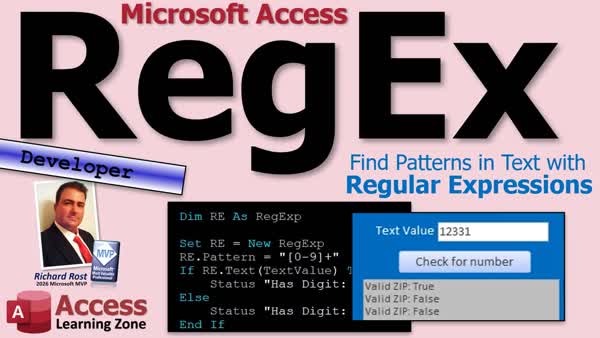 TechHelp Access, regular expressions in Access VBA, VBA RegExp, regex pattern matching, VBScript.RegExp, RegExp Test method, validate five digit ZIP code, regex digit search, extract numbers from text, RegExp Execute method, Global property, IgnoreCase property
 Subscribe to RegEx
Get notifications when this page is updated
More InformationTranscript Have you ever had a piece of text in your Access database and you needed to find out whether there was a number somewhere in it? Maybe it's an order number buried in a note. Maybe you want to know whether somebody entered a five-digit ZIP code.
You can write a loop and check the characters one at a time. I've done plenty of that myself. But today I want to show you another tool you can use for jobs like that. They're called regular expressions, or regex for short.
Welcome to another TechHelp video brought to you by Access Learning Zone. I'm your instructor, Richard Rost.
We're going to start with what a regular expression actually is. Then I'll show you a small example in Microsoft Access VBA. And we'll do it with a regular loop first. Then we'll describe the same test with a pattern, a regex pattern.
Today's question comes from Caleb in Victoria, British Columbia, Canada, one of my platinum members. Caleb says, "I import customer notes into Access and I need to check whether the text contains a number. I can loop through every character, but I keep hearing about regular expressions. What are they? And how do I use one to check a five-digit ZIP code?"
Well, that's a good question. Let's start with the kind of search we're asking Access to do.
Let's say the text says, "Customer 12345 placed order 987." And if I ask you to find the word customer, that's a pretty straightforward search. I already know the exact word.
But what if I ask whether or not there are any digits in there? I don't know which digits, and I don't know where they begin. So that's a totally different kind of question.
Think about the problem with a ZIP code, a product code, an invoice reference. So, looking for something that has a regular shape. And we could keep adding combinations of Mid, InStr, Left, Right, and looping. And those are still perfectly valid tools, but a regular expression gives us another way to describe the shape we're looking for.
A regular expression is a pattern for matching text. Instead of telling VBA how to inspect every character, we give it a pattern. We give a pattern to the regular expression engine and let it look for a match.
For example, square bracket 0 through 9 means any one digit. Add a plus sign, and now it means one or more digits in a row.
Now VBA still runs the code, but regex is the tool we're calling from that code. So today we're going to ask a simple yes-or-no question. Can this pattern be found in this text? That's the idea in a nutshell.
And if that's all you needed, there you go. Stick around, and we'll make it work in an actual Access form.
Now, taking a look at some other examples, ABC, for example, what's that? The pattern ABC looks for those letters. That's literal text. Those exact letters.
Now replace it with square bracket 0-9, close square bracket, and the brackets describe a choice of characters. Brackets mean a choice of characters, and the range means any digit from 0 through 9. That doesn't mean the number 90. It means one character chosen from that range.
And the plus sign applies to the thing immediately before it. You're going to find there's lots of weird rules with regular expressions. That's one of them.
So this pattern means one or more digits together. In our customer and order example, we describe two groups of digits.
Now, for this lesson, we only care whether a match exists. Getting those actual values back is the next step. And we're going to do that in the extended cut for the members.
Now, some patterns look like somebody dropped a keyboard down the stairs. And you don't have to start with those. There's a lot of crazy ones out there.
Start with the small rule that you understand, test it, and add one piece when you need it. That's exactly what we're going to do here.
Now, before we use regex, let's solve the problem the familiar way. We'll start at the first character. Look at it. Is it a number? No. All right, so then we'll move to the next character. Is that a number? No, it's an I. So we keep moving to the next character.
If we find a digit, now we've answered the question. We can stop looking. If we reach the end of the line without finding one, then the answer is false.
And there's nothing wrong with that loop. It lets us decide exactly what happens at each step.
Now the regex version describes the matching rule instead. As the rule grows, it can be a useful way to keep the text matching part together.
Now, it isn't a reason to replace every InStr, Replace, Mid, Left, or Right in your database. So use the tool that fits the job. This one can handle some pretty complex jobs, though.
All right, before we get to the code, if you've never done any coding, if you've never done any VBA programming before, go watch this video first, Intro to VBA. It teaches you everything you need to know to get started in about 20 minutes.
You'll need to know what variables are. You should know how to create an If-Then statement. You should be somewhat familiar with string functions, Left, Right, Mid, all those good things. You should know how to use the IsNumeric function, which can tell you if an entire string is numeric, which is similar to what we're doing today.
We're going to see if there is a number anywhere in a string. IsNumeric tells you if the entire string is numeric. So if someone types in 12345, that is numeric. But if they type in 12345A, then that's not numeric.
I'm going to use my little status box function to display results in a status box. Everybody always asks me, "What's this Status function?" Go watch this if you've never seen it before.
And you should know how to make a While loop. And if you don't know how to do any of this stuff, go watch these videos first. They're on my website, they're on my YouTube channel. They're all free. Go watch them and then come on back.
All right, here I am in my TechHelp free template. This is a free database you can grab off my website if you want a copy.
Now, on this main menu, I've got a text box here. It's got today's date in it. We're going to repurpose this. We are going to call this MyTextValue. Text value.
Let's change the box itself. So its name is TextValue, no space. And I'm going to get rid of that Control Source and the Format. So it's just an empty text box that you could put some text in.
And we're going to make this button, instead of Hello World, Check for Number, or Digit, or whatever you want to call it. So we're going to put some value in here, and then we're going to check to see if there's a number in what you just typed in. Simple enough.
All right, so what's the old-school way to do this? Well, we're going to right-click, go to Build Event. That's going to bring up my Code Builder.
Let me resize this. And yes, my Code Builder is in dark mode. We've got a whole separate set of videos on using dark mode if you want to go figure that out.
So, right down here, we need a couple variables. We need a loop variable so we can loop through every character in the string. So, Dim x As Long.
We're going to need to check each character in the string. So we're going to put that in s As String.
And I'm going to make a Boolean to tell whether or not we found a digit. We'll call it HasDigit As Boolean. And once that gets turned to True, we can exit out of our loop.
All right, we'll start the loop off. x = 1. I was looking at the s. You ever do that? You ever look at something and then you say something else? I was looking at the s on the screen and I said s = 1. I do that all the time.
All right, so we're going to loop through all of the individual characters in that TextValue field. And yeah, I'm not going to go over all the edge cases here. Yes, you should check to see if it's Null and all that stuff. First, we're just going to assume that your users are paying attention and following directions.
While x is less than or equal to the length of TextValue, and we haven't found that digit yet. So, And Not HasDigit.
So loop through every character in this string until either you reach the end of the string or we find a digit. Because once we find a digit, we're done. No sense keeping looping through it. There's 10 million characters in here.
Now, I always like to put together the pieces of bread on the outside of the sandwich before I put the meat and cheese in the middle, or the peanut butter and jelly, or whatever. Oh man, now I'm hungry.
All right, so let's put our loop incrementer in here. x = x + 1. We don't want any endless loops today.
And then Wend. And then we're done with our loop. But now we've got to put the filling in the middle here.
All right, what are we doing inside the loop? Well, s = Mid(TextValue, x, 1). Of the TextValue string, go across x characters and bring me back one character.
So it'll give you the first character, and the next loop it gives you the second character, and the next loop it gives you the third character, all the way to the end.
Now, if IsNumeric(s), then we're done. HasDigit = True, and that will drop us out of the loop.
And now we'll just say:
Status "HasDigit: " & HasDigit
And yeah, we should probably initialize it. Booleans get initialized to False by default in VBA, but it's always good to initialize your variables. So, HasDigit = False. We'll make sure it starts at False.
Long is usually defaulted to zero, but we default ours to one. Strings default to an empty string, but we don't need to worry about that because we're just setting it right here to begin with.
So this should do the job. Debug Compile once in a while.
All right. Close it. Close it. Save it. Let's open it up.
And see, I almost pushed the button. We've got to put something in here. Bada da da da. Bunch of characters. Check for a number. Nope.
All right. Let's do a bit of a number on the end. Yep, got it.
Remember, this comes in backwards. How about just a couple of numbers? Yep. Okay. So as it finds a number, it exits out.
If you've got a really, really long string, a couple paragraphs with a number in it, it'll still return a True.
And if there is no number in it, let's make sure. Oh, wait. Did I get rid of it? Let me see. Oh. Oh no, it's still in there. See, there it is. Way at the end. I didn't delete it. I thought I deleted it. My zoom box is way zoomed in.
There we go. All right. Let's get rid of it. Hit OK, and then check. And it's False. Okay, we're good.
So our traditional old-school loop works just fine. And there's nothing wrong with that. And in fact, if you're doing something that's simple, then there's no reason for regular expressions.
But again, let me teach you something new, because this is just the most basic, simplest example I could think of to teach you guys regular expressions. It's the mostest simplest.
All right, so let's see how we do this with a regular expression.
But before we do, hit that Like button. Go ahead, hit it. Right now, go click the little thumbs-up thingy. Go ahead and hit it.
And if you're not subscribed, go ahead and subscribe. It helps other people find my channel. And it lets YouTube know that you think this video is valuable. So I appreciate it. The next person that finds this will appreciate it. Everybody will appreciate it.
So go ahead and hit Like and Subscribe.
All right, so where were we? Let's come back into here.
Now, I'm going to keep this around so you guys have this code. So the gold members have it when they download the database.
So we're just going to take this whole thing, and I am going to, actually, I just copied the whole subroutine, copy and paste. And then I'm going to REM all of that out with the little REM button. I've got a whole video on how to put the comment block button in there. Go look for that on my website.
So we're going to delete all of this. Goodbye.
Now, the next two lines that you type in are going to depend on what version of Access you have. If you've got a newer version of Access, you've got Access 365 subscription and you're keeping it updated, then you'll type this in:
Dim RE As RegExp
See that? If you don't see that in the IntelliSense, then you've got the older version. Not a problem. I'm going to teach you what to do in just a minute.
And then come down here and go:
Set RE = New RegExp
Yeah, if you've got the older versions of Access, you're going to type this in a little bit longer. It's:
Dim RE As Object
And then:
Set RE = CreateObject("VBScript.RegExp")
Now, Microsoft added regular expressions directly to VBA in August of 2025, starting with Office version 2508. Before that, regular expressions were part of VBScript, which is an external library, and they're deprecating VBScript, so they added it directly into Microsoft Office.
Now, that doesn't necessarily mean you have to be using Microsoft 365. If you've got the full retail version of 2019, 2021, or 2024 that has been updated to a newer build, you may still have this feature.
But if you're running one of the older volume license or corporate versions, then you probably don't have it. So it's really more about which Office build you've got rather than which year is on the box.
I know it's weird with all these versions and all this stuff. I get it.
And if you've got the newer version, you can use the code on the left. If you've got the older version, you use the code on the right. If this doesn't show up in your IntelliSense, you probably have to use this.
That's pretty much all. This is the only difference.
And that's it. The rest of the code we're going to cover is exactly the same. It's just how you declare the regular expression object.
All right. So once you've got the regular expression object set up, you're going to say:
RE.Pattern =
Now, what pattern are you looking for? We're looking for that thing I showed you a minute ago. So inside a quote, we're going to put bracket 0 through 9, close bracket, and then a plus.
That says find any digit 0 through 9 and any number of them. It doesn't matter. In other words, we're not just looking for one. We're looking anywhere here. You can find it a number.
Now, we want to check and see if that test is True for the string we're looking for. So:
If RE.Test(TextValue) Then
That's it. Really:
Status "HasDigit is True"
Otherwise:
Status "HasDigit is False"
Yeah, you can write this shorter. We could say Status and then this thing here. I get it, but this is easier to read. I'm all about readability.
Yes, I know we can compress this into a few lines, but that's not a big deal.
And then, of course, what's my rule? If you set it, you've got to forget it. So:
Set RE = Nothing
We clean up our objects when we're done with them, most of the time.
Debug Compile. And oh, I typed in Text. See, this is why we Debug Compile, folks. I was just about to say, and if this doesn't compile, then you don't have this newer version. Or you typed something in wrong like me. That's a good, good example there.
Test, not Text. Test. We're doing a test of this text. So I see why I messed it up now. Little slip there. I was thinking text and I typed in text. My fingers were just a step ahead of my brain.
All right. One more try. Debug Compile. It doesn't compile now, you might need to use the old version. That's what I was going to say. And then I saw, wait a minute, wrong thing.
Let's go ahead and test it. Save changes, yes.
And here we go. Put a bunch of text in. False. Stick a number in there, and it's True. Put a couple numbers in there, and it's still True.
See? It's just a different way of going about how we search.
Now, this pattern can get insanely crazy. I've seen some patterns that are stupid long. Let me give you one more good example.
Let's say you're trying to find a ZIP code. Just a simple U.S. five-digit ZIP code. I'm not going about all the Canadian and UK. You guys all can deal with your own. And yes, I've seen regular expressions for all of those different types of postal codes, too.
We'll just do a simple five-digit U.S. ZIP code.
So let's say we want to see if this field, whatever the user types in, is a valid ZIP code. Here's the regular expression:
^[0-9]{5}$
That is a U.S. ZIP code. Let's break it down.
The little caret symbol says the match has to start at the beginning of the string. Can't have anything before it. We're testing the whole string starting at the beginning.
Next, we know this one already. 0-9. Any single digit from 0 to 9.
Now, the number in the curly braces means we want exactly five digits, not four, not six, five. Five digits only.
And the dollar sign means the match has to end at the end of the string. You can't have anything after it.
So it's got to be exactly five digits, 0-9, from the beginning to the ending of the string.
Yeah, and it could take you a long, long time to memorize all of these different ways and how these things go together and what all the codes are. There's lots of them. I probably only know half of them myself.
But you, like everything, you learn the ones you need. And then the ones you use repeatedly, you'll just remember.
And honestly, this is something you can ask AI. And it's really good at telling you, "Hey, I need a regular expression pattern for a Canadian ZIP code." And there you go.
But you understand how to use regular expressions. That's what I'm trying to teach you. I'm not trying to teach you things you can just look up.
It's like you don't have to memorize the whole dictionary if you've got a dictionary. You can look it up in the dictionary. But you know how to use a dictionary. You know how to use the card catalog. Remember those? Remember card catalogs? Boy, I'm old.
So now, after this video, you're going to understand what regular expressions are and how to use them. Getting the pattern, that's something you can look up. And that's something that AI is really good with.
All right. So now, instead of HasDigit, we can say ValidZip. Save it. Debug Compile should still compile.
All right. Now, is that a valid ZIP code? Nope. Is that a valid ZIP code? Nope. How about 1, 2, 3, 4? Or 1, 2, 3, 3? Nope. 1, 2, 3, 3, 1, 1? Nope. All right. 1, 2, 3, 1. Ah, there we go. It passes.
Five digits. Five digits only from the beginning to the ending of the string.
Now, keep in mind, this only checks whether that pattern is matched. It doesn't tell us whether that ZIP code actually exists.
If that's a valid ZIP code, you'll have to have something else if you really need to check that. This just tells you whether you have five numbers in this text string from the beginning to the end. It's five digits only.
0, 0, 0, 0, 0 will still pass the test. If you need to actually check to see if that's a real ZIP code, you'll need a ZIP code lookup table.
All right. So there you go. That's your introduction to regular expressions in Microsoft Access.
We've learned how to use patterns to search for numbers in text, how to check whether something matches a particular format, and how to validate something like a five-digit ZIP code. And that's really just the beginning of what regular expressions can do.
Now, in today's extended cut for the members, we're going to take this a little further.
So far, we've just been using Test to tell us whether a pattern matches something or not, True or False. But what if we want to actually get the matching value back?
Well, in the extended cut, we'll learn how to use Execute to extract numbers from text, how to find multiple matches using the Global setting, and how to use IgnoreCase to search for words regardless of capitalization.
So instead of just knowing that a customer note contains a number, we can actually pull that number out and use it.
Silver members and up get access to all of my extended cut TechHelp videos, not just this one, all of them. And gold members can download these databases, and everybody gets some free training, and it's just a happy family.
So click that blue Join button to learn more. I've got hundreds of extended cut videos available, covering all kinds of different Microsoft Access topics.
And if you really want to learn more about regular expressions, I just released Microsoft Access Developer Level 65, where I spend an entire class working with them. It's over an hour of additional material.
Let's take a quick look.
In lesson one, we go over what we covered here, along with the material from the extended cut, so everybody has the same foundation.
In lesson two, we take that code and turn it into a reusable VBA function set that we can use to test patterns, extract matching values, and return multiple results.
In lesson three, we build our own library of regular expression patterns, so we don't have to memorize all that crazy syntax. We also learn how to replace text and clean up messy imported phone numbers.
In lesson four, we get into capture groups, which let us take pieces of text apart and rearrange them. I'll show you how to find phone numbers buried inside customer notes and automatically reformat them without changing the surrounding text.
And finally, in lesson five, we put everything together with a really useful business example. We build a function that finds invoice numbers buried inside customer notes, even when they're written in different formats. And it pulls out just the invoice numbers while ignoring all the other numbers in the text.
This is where regular expressions really start getting powerful.
So if you work a lot with imported data, customer notes, or any kind of messy text in your Access databases, I think you're going to find regular expressions extremely useful.
You can learn more about Access Developer 65 at the link shown. I'll put a link down below or drop a comment if you have any questions.
So that's going to do it for today's TechHelp video. If you learned something, give me a thumbs up. Make sure you subscribe. Leave me a comment down below. Let me know if you've used regular expressions before, or if this is your first time seeing them, and what you're going to do with them. And if you like this or not.
So I hope you learned something. Live long and prosper, my friends. I'll see you next time. And members, I'll see you in the extended cut.
If you enjoyed this video, hit that thumbs-up button right now and give me a like.
Also, be sure to subscribe to my channel, which is completely free. And make sure you click that bell icon and select All to receive notifications whenever I post a new video.
If you're new to Microsoft Access, check out my Access Beginner Level One course. It's over four hours long, and it covers all the basics, like tables, queries, forms, and reports. It's a great place to start, and it's also completely free.
Members of my channel get extended cut videos, sample databases, access to my Code Vault, and full training classes every month. Click the Join button for details.
Thanks for watching. I'm Richard Rost with accesslearningzone.com. Live long and prosper, my friends. I'll see you next time. Intro In this lesson, we will introduce regular expressions, or regex, in Microsoft Access VBA. I will show you how to check whether text contains digits using a traditional character-by-character loop, then use a regex pattern to perform the same test. We will also walk through validating a simple five-digit ZIP code with pattern anchors, character ranges, and repetition rules. Quiz Q1. What is a regular expression primarily used for in VBA?
A. Describing a pattern to match within text
B. Creating new Access tables automatically
C. Converting all text to uppercase
D. Calculating numeric totals
Q2. What does the regex pattern "[0-9]" match?
A. The literal text "0-9"
B. Any one digit from 0 through 9
C. Any number with exactly nine digits
D. Any character except a digit
Q3. What does the plus sign mean in the regex pattern "[0-9]+"?
A. Match zero or more digits
B. Match exactly one digit
C. Match one or more consecutive digits
D. Add the digits together
Q4. Which method is used to determine whether a regex pattern exists in a text string?
A. RE.Test
B. RE.Execute
C. RE.Replace
D. RE.Pattern
Q5. What is the primary difference between using a character-by-character loop and using regex?
A. A loop can only inspect numbers, while regex can only inspect letters
B. A loop manually checks characters, while regex describes the desired text pattern
C. Regex cannot be used in VBA
D. Regex always returns the matching value automatically
Q6. In a traditional VBA loop that checks for a digit, why might the loop stop early?
A. It reaches the first space in the text
B. It finds a letter
C. It finds a digit and has answered the question
D. It converts the text to a number
Q7. What does the caret symbol "^" mean at the beginning of a regex pattern?
A. The match must begin at the start of the string
B. The match must contain a space
C. The pattern is case insensitive
D. The match must end at the end of the string
Q8. What does the dollar sign "$" mean at the end of a regex pattern?
A. The pattern must contain currency
B. The match must end at the end of the string
C. The text must begin with a number
D. The pattern should find multiple matches
Q9. What does the regex pattern "^[0-9]{5}$" validate?
A. A string containing at least five digits anywhere
B. A string with exactly five digits and nothing else
C. A string with five letters followed by a digit
D. A string containing a valid real-world ZIP code
Q10. What do the curly braces in "[0-9]{5}" mean?
A. Match any five characters
B. Match five separate number groups
C. Match exactly five occurrences of the preceding pattern
D. Match digits only at the end of text
Q11. Why would "00000" pass the pattern "^[0-9]{5}$"?
A. Regex verifies that it is an active ZIP code
B. Regex only checks that the text contains exactly five digits
C. Regex automatically converts it to a valid address
D. Regex rejects ZIP codes beginning with zero
Q12. If you need to confirm that a five-digit ZIP code actually exists, what should you use in addition to regex?
A. A ZIP code lookup table
B. The Mid function
C. The Replace function
D. A Boolean variable
Q13. What is the purpose of setting a regex object to Nothing after using it?
A. To clear the text box on the form
B. To delete the regex pattern permanently
C. To clean up the object reference
D. To make all future tests return False
Q14. Which regex feature would you use when you want to retrieve matching values instead of only getting True or False?
A. Execute
B. Pattern
C. IsNumeric
D. Debug.Compile
Answers: 1-A; 2-B; 3-C; 4-A; 5-B; 6-C; 7-A; 8-B; 9-B; 10-C; 11-B; 12-A; 13-C; 14-A
DISCLAIMER: Quiz questions are AI generated. If you find any that are wrong, don't make sense, or aren't related to the video topic at hand, then please post a comment and let me know. Thanks. Summary Today's video from Access Learning Zone introduces regular expressions, commonly called regex, and shows how they can be used in Microsoft Access VBA to search for text patterns.
A common situation is importing customer notes, comments, or other text into an Access database and needing to determine whether a number appears somewhere in that text. For example, you might need to know whether a note contains an order number, invoice number, product code, or ZIP code.
You can certainly solve this problem with traditional VBA tools. You can loop through each character in a string, use Mid to retrieve one character at a time, and use IsNumeric to determine whether that character is a digit. This is a perfectly valid approach, especially for simple tasks.
However, regular expressions provide another way to describe the kind of text you are looking for.
A regular expression is a pattern used to match text. Instead of writing detailed VBA code that inspects every character yourself, you provide a pattern to a regex engine. The engine then determines whether the text matches that pattern.
For example, the pattern [0-9] means any single digit from 0 through 9. Adding a plus sign, as in [0-9]+, means one or more digits in a row. This pattern would find a sequence of digits anywhere in a larger block of text.
If a customer note says "Customer 12345 placed order 987," a pattern such as [0-9]+ can identify that the text contains digits. At this stage, we are only asking a yes-or-no question: does a match exist somewhere in the text?
A literal pattern such as ABC looks for those exact letters. Square brackets define a set or range of acceptable characters. Therefore, [0-9] does not mean the number ninety. It means one character that can be any digit from zero to nine.
The plus sign applies to the item immediately before it. In the case of [0-9]+, it applies to the digit range and means that one or more consecutive digits are allowed.
Before using regex, it is useful to understand the traditional VBA approach. You can create a loop that starts at the first character in a text box, retrieves that character with Mid, and checks it using IsNumeric. If the character is numeric, you set a Boolean variable such as HasDigit to True and exit the loop. If the loop reaches the end of the text without finding a number, the result remains False.
This method gives you complete control over how every character is examined. There is nothing wrong with it, and I do not recommend replacing every use of InStr, Replace, Mid, Left, or Right in your database with regex. Use the tool that best fits the problem.
Regular expressions become especially useful as the matching rule becomes more complicated. Rather than spreading text-matching logic across multiple loops and string functions, you can often keep the rule together in a single pattern.
To work with regular expressions in newer versions of Access and Office, you can use the RegExp object directly in VBA. Microsoft added built-in regex support beginning with Office version 2508, released in August 2025.
If you have a current Microsoft 365 installation or another updated retail version of Office, the RegExp object may be available directly in VBA. If it appears in IntelliSense, you can use it normally.
Older versions of Access may not have direct RegExp support. In those versions, regular expressions are still available through the older VBScript.RegExp object. The main difference is how the regex object is declared and created. Once the object is set up, the remaining pattern, testing, and matching logic works the same way.
To check whether text contains any digits, create a regular expression object and assign the pattern [0-9]+. Then use the Test method against the text you want to examine. The Test method returns True if the pattern is found and False if it is not.
For example, text containing only letters would return False. Text containing one digit or several digits would return True. The digits can appear at the beginning, middle, or end of the text because the pattern is not restricted to a particular position.
When you are finished using an object in VBA, it is generally good practice to release it by setting the object variable to Nothing.
One very useful application of regex is validating a simple five-digit United States ZIP code. A five-digit ZIP code must contain exactly five digits, with nothing before it and nothing after it.
The caret character, ^, indicates the beginning of the string. The dollar sign, $, indicates the end of the string. Curly braces specify an exact number of repetitions.
A ZIP code pattern can therefore require the text to begin with a digit, contain exactly five digits, and end immediately after the fifth digit. This prevents values such as four digits, six digits, letters mixed with digits, or text containing a ZIP code along with other characters from passing the test.
This type of test verifies only the format. It does not confirm that the ZIP code actually exists. For example, 00000 may match a five-digit pattern even if it is not a ZIP code you want to accept. If you need to verify that a ZIP code is real, you should compare it against a ZIP code lookup table.
Regular expressions can become very complicated, and some patterns can look intimidating. You do not need to memorize every regex symbol and rule. Start with small patterns that you understand, test them carefully, and add to them as needed.
You can also use documentation, reference materials, or AI tools to help construct a pattern for a specific requirement. The important part is understanding what regular expressions are, how patterns work, and how to use those patterns in your Access VBA code.
Also, in today's Extended Cut, we will go beyond simply testing whether a match exists. I will show you how to use the Execute method to retrieve matching values from text, how to find multiple matches with the Global setting, and how to use IgnoreCase to find words regardless of capitalization.
This allows you to do more than determine whether a customer note contains a number. You can actually extract the number and use it elsewhere in your database.
Regular expressions are particularly useful when working with imported data, customer notes, unstructured comments, phone numbers, invoice references, product codes, and other messy text fields.
You can find a complete video tutorial with step-by-step instructions on everything discussed here on my website at the link below. Live long and prosper, my friends. Topic List Introduction to regular expressions in VBA
Regex patterns for matching text
Character ranges and the plus quantifier
Looping through text to find digits
Using IsNumeric to test individual characters
Creating and testing a RegExp object
Checking text with the Test method
Regex pattern for one or more digits
Validating five-digit ZIP code format
Using anchors for full-string matching
Using curly braces for exact digit counts Article Regular expressions, often called regex, are a way to search, validate, and extract text based on patterns rather than exact words. They are especially useful when you know the shape of the information you want to find, but you do not know its exact value or where it appears in a larger piece of text.
For example, suppose a customer note says, "Customer 12345 placed order 987." Searching for the word "Customer" is simple because you know the exact text you are looking for. Searching for a number is different. You may not know which number appears, how many digits it has, or where it is located in the note. A regular expression lets you describe that kind of pattern.
A basic regex pattern can look for any digit. The expression [0-9] means any one character from 0 through 9. Adding a plus sign, as in [0-9]+, means one or more digits in a row. This pattern would find 12345 and 987 in the example customer note.
In Access VBA, you can accomplish the same task without regex by checking a string one character at a time. You would start at the first character, examine it, and determine whether it is numeric. If it is not numeric, move to the next character and continue until you either find a digit or reach the end of the text. Once a digit is found, you can stop because the answer is yes.
That traditional loop is perfectly valid. It is easy to understand and gives you detailed control over what happens at each step. For simple tasks, it may be all you need.
Regex provides another approach. Instead of writing code to inspect every individual character yourself, you create a regular expression object, give it a pattern, and ask whether that pattern can be found in the text. The regex engine handles the character-by-character searching internally.
To check whether text contains at least one number, the code would create a regular expression object, assign the pattern [0-9]+, and test the contents of the text box or field. If the test succeeds, the text contains one or more consecutive digits. If it fails, there are no digits in the text.
The regular expression test operation returns a simple True or False result. This is useful when you only need to know whether a pattern exists. For example, you might use it to determine whether an imported note contains an order number, whether an address contains a house number, or whether a comment includes a numeric reference.
Regex is also useful for validating that an entire value follows a specific format. A common example is a five-digit US ZIP code. The pattern ^[0-9]{5}$ means the value must begin with a digit, contain exactly five digits, and end immediately after the fifth digit.
The caret character, ^, means the match must begin at the start of the text. The [0-9] portion means any digit. The {5} portion means exactly five occurrences of the preceding pattern. The dollar sign, $, means the match must end at the end of the text.
As a result, a value such as 12345 passes the test. A value with four digits fails. A value with six digits fails. A value such as ZIP 12345 fails because the pattern requires the entire value to be exactly five digits.
This kind of validation checks format only. It does not confirm that the ZIP code actually exists. For example, 00000 may pass the five-digit pattern even if it is not a ZIP code you want to accept. If you need to verify that a ZIP code is real, you should compare it against a ZIP code lookup table or another authoritative source.
Regular expressions can become much more complex than these simple examples. They can search for phone numbers, invoice references, product codes, email-like patterns, dates, repeated spaces, and many other forms of structured text. They can also extract matching values rather than simply returning True or False.
For example, instead of merely determining that a note contains a number, you can use regex to retrieve the number itself. You can also search for multiple matches in the same text, such as finding every number in a customer note. Other settings can allow matching words regardless of capitalization.
The important thing is not to replace every text function in Access with regex. Functions such as InStr, Left, Right, Mid, Replace, and simple loops are still useful and often easier for straightforward tasks. Regex is most valuable when you need to describe a pattern, validate a format, or search for text that follows rules rather than matching exact known text.
When working with regex, start with small patterns that you understand. Test them against realistic examples. Add complexity only when necessary. You do not need to memorize every regex symbol, but you should understand the basic idea: a regular expression describes the structure of text you want to find. Primary Topics regular expressions, Access VBA, text pattern matching, detecting digits in strings, RegExp object, regex Test method, five-digit ZIP validation Secondary Topics Mid function, IsNumeric function, While loops, Boolean flags, regex anchors, character classes, quantifiers, VBA object cleanup |




