Navigation Pane
By Richard Rost

 59 minutes ago Find Missing Tables Forms and Reports In this lesson, we will learn how to use the Navigation Pane in Microsoft Access to locate tables, queries, forms, reports, and other database objects. We will walk through showing or hiding the pane, clearing searches, changing object groupings, expanding collapsed sections, finding hidden objects, resizing the pane, and using custom groups to organize objects. We will also clarify the difference between the Navigation Pane, navigation forms, and record navigation buttons. Paige from Sacramento, California (a Silver Member) asks: I opened my Access database this morning, and several tables and reports that I know were there yesterday aren't showing in the list on the left side anymore. I can still see a few forms, and they still have data in them, but I'm afraid I accidentally deleted something important. How can I find out whether those objects are really gone? MembersIn the extended cut, we will learn how to use VBA to save and load different Navigation Pane configurations, including custom groups and user-profile-based navigation layouts. Silver Members and up get access to view Extended Cut videos, when available. Gold Members can download the files from class plus get access to the Code Vault. If you're not a member, Join Today!
LinksRecommended Courses
Keywords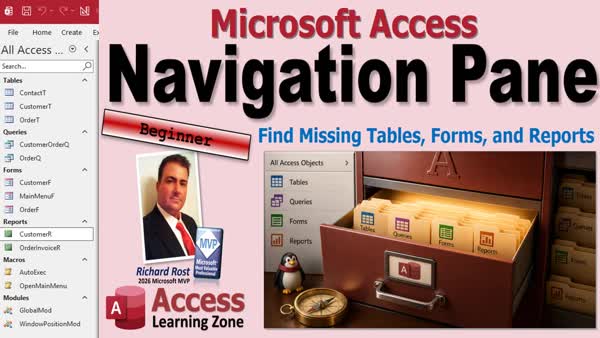 TechHelp Access, Access navigation pane missing, show hidden objects, F11 navigation pane, navigation pane search, navigation pane groups, custom navigation groups, navigation options, hidden database objects, collapsed navigation pane, navigation form vs navigation pane, object type grouping
More InformationTranscript Your tables and forms were right there yesterday. Today they seem to be gone. Now, before you panic, your navigation pane might just be hiding them.
Welcome to another TechHelp video brought to you by Access Learning Zone. I'm your instructor, Richard Rost.
Today, we're going to talk about the navigation pane in Microsoft Access. This guy, the navigation pane right over here on the left. This is the list of tables, queries, forms, reports, and other database objects that normally appears along the left side of the Access window.
Now, this one's for beginners, so we're going to keep it nice and simple. But don't worry, members, I got some advanced VBA stuff coming up for you in the extended cut. I'm going to show you how to save and load navigation profiles using VBA, but we'll talk about that one later.
But for everybody else, we're going to learn what we're looking at, how to find what we need, and what to check when something seems to disappear. No programming required.
Now, you can think of your database like a filing cabinet or a card catalog. The navigation pane is the drawer label and the folder list, and it can help you locate the things that are in the cabinet or in the card catalog. Remember those card catalogs? You guys old enough to remember those card catalogs in libraries? I do, when I was a kid.
Anyways, the navigation pane isn't the customer data itself, and it isn't the screen your users necessarily have to work with every day. In fact, I try to keep my users out of the navigation pane, but for you, the developer, it's a place where Access helps you locate the pieces that make up your database.
And sometimes it might seem like you can't find something that you were sure was there yesterday. Let's take a look at today's question.
Paige from Sacramento, California, one of my Silver members, wrote to me and said, "I opened my Access database this morning, and several tables and reports that I know were there yesterday aren't showing in the list on the left side anymore. I can still see a few forms, and they still have data in them, but I'm afraid I accidentally deleted something important. How can I find out whether those objects are really gone?"
Well, Paige, don't panic just yet, because in many cases the objects are still in the database, but Access is displaying only part of the list. So let's take a look at what might be going on.
All right, so the navigation pane is this thing over here on the left side of the database where you can find all your tables, queries, forms, and lions and bears, oh my. And you can do all kinds of things in here. You can hide certain groups. You can search for stuff if you get lots of items in here. And yes, it's easy to accidentally hide stuff.
It's actually really difficult to delete something. If you go to delete a table, Access is going to throw it in your face: "Are you absolutely sure you want to delete this?" So it's more than likely that you accidentally hid it.
And I've seen this come up many times. You opened your database yesterday, all your tables and forms were right there, and today you see only forms. Or maybe you have a skinny little strip down the side instead of the whole list, because it's easy to accidentally do that. And then you don't know what's going on.
All you got to do is click on this little button right there, and it pops it back up again.
Or maybe the list is there, but the customer table is missing. Now, before you assume you deleted something, let's take a look at how Access is actually displaying that list.
Imagine going into an office and finding that somebody closed the filing cabinet drawer. Your paperwork might still be exactly where you left it. You just can't see it right now because the drawer is closed. The navigation pane works almost the same way.
Now, objects can also be renamed or deleted. And you might even open the wrong copy of the database. But checking the display is a much better first step than rebuilding a table or assuming you have to restore from a backup.
The good news is that most navigation pane problems are not really database problems. They're viewing problems. And once you know the few controls that are involved, this becomes quick and calm troubleshooting instead of a reason to reach for the Tylenol.
Now, in a nutshell, the navigation pane is where you find and open the objects in your database. F11 normally shows or hides the pane. And that's the keyboard shortcut for what I just showed you before, this little guy here.
Because F11 will also hide that navigation pane. F11 again brings it back up.
Now, if the pane is visible but an object seems to be missing, clear the search bar and check which group you're displaying. Those are the first things I'd check.
Sometimes people accidentally put, like, a C in here and don't realize it. And now I'm only seeing objects that have the letter C in them. Or maybe even something like CU. And now what's going on?
So hit this little button right here to clear that, and now your objects might show up again. So that's another troubleshooting step.
A filtered list can make a perfectly good database look like half of it's missing. If you haven't changed anything in the database, you've only changed what you're looking at.
So show the pane, clear the search, and then check the groups, too. There's groups in here: tables, queries, forms. Sometimes you can accidentally click these little buttons, and that'll hide that group, or at least collapse the group. This might look like your forms are missing, but they're all sitting right there.
Now, Access uses the word navigation in several places, and this confuses a lot of beginners.
The navigation pane is the object list we've been discussing. It contains all your tables, queries, forms, reports, and the other database objects over on the left.
A second thing called a navigation form, this thing. A navigation form is an actual form that someone builds for users. It usually has buttons, customers, orders, and so on, that take you to different areas of the database, open different forms and reports, for example. Think of that like the application's menu screen.
I got a whole separate video on how to build navigation forms. You'll find a link down below.
Now, the third navigation something you might hear are the navigation buttons. Actually, those are on the bottom of a form or a table or a query, and those allow you to move between records. First, next, previous, last, and so on.
So if someone tells you their navigation disappeared, you need to know which one of the three things they're talking about. If you're assisting other users and they say, "I lost my navigation," well, what did you mean? Did you lose your navigation buttons, your navigation form, or your navigation pane?
Same general word, completely different parts of Access. And, of course, getting the name right makes it much easier to find the correct thing. Otherwise, you could spend 10 minutes with them trying to fix their steering wheel when the problem was really the radio. And yes, I've done the equivalent of that with a computer more than once.
All right. Now, with the navigation pane, as we already talked about, you can use the little buttons to make it bigger or smaller, to collapse it, basically, or F11.
You can also click and drag that border, that little edge. This little guy right here, just click on that and drag it left and right. And sometimes people do this with it, or like that, and don't realize it, and they're like, "Why is it just little icons here?" Well, that's because you made it really small.
So click the edge right there and click and drag and make it a little bit bigger. And then you can see it all.
Also, keep in mind that if you're using a laptop, F11 might not respond unless you also press the function key, the little FN key on your laptop.
Now, there's a menu at the top of the navigation pane that controls how the list is organized. That's right here. Drop this little button down here. It says "All Access Objects." See that?
Now, in here, the default method, which is what I prefer, is Object Type. Object Type groups these by object. Here's all your tables. Here's all your queries, your forms, your reports, and so on. Tables go together, queries go together, blah, blah, blah.
Now, this is usually the easiest arrangement for beginners to understand.
Now, there are other views in here. For example, Tables and Related Views. This, for example, will show all of the customer tables stuffed together, and it isn't always perfect.
For example, you can see there's Order F here, even though orders are down here. And that's because the customer table data is used in the order form. So one of the reasons that I particularly like this type of grouping.
Another option up here is Created Date. That lists them in the order in which they were created. In my years and years of doing this, I've never really needed this view. So if you need it, there you go.
But there's also Modified Date. And Modified Date will show you things you've modified recently. And so that can sometimes be handy. Like, what was I working on yesterday? Oh, okay. I was working on the Global Module yesterday. I was working on the Contact Table yesterday.
If you right-click on these objects, by the way, and go to Table Properties, you'll also see Created and Modified in here. Now, these aren't exactly perfect, but they're usually close enough.
You can also display things by object type. For example, here's all your forms. And then you'll see all the different object types on here: tables, queries, reports, and so on. Go to Queries. There's a list of all your queries.
I'm going to go back to All Access Objects, and there's everybody.
Now, when your database grows and you get lots of objects, searching is often easier than scrolling. And I showed you earlier how people accidentally search without realizing it. But you can use that search box to really help you find stuff.
For example, typing in the word customer helps you find the Customer Table, the Customer Q, the Customer F, and so on. If I come up here and put in CUST, there's all my customer stuff. And that's why I try to name my objects by what's included in them. Write Customer Order Query, for example.
Now remember, here you're searching through database objects, not records in your tables. You can't find Joe Smith this way. But if you're trying to find your order form, you just type in order, and oh, look, there's your order form. See?
And, of course, remember to clear this when you're done. Otherwise, you'll think stuff's missing again.
Now yes, it's possible to hide these objects. If you have something in here and you're sure it's in here, let's say you know the customer table is there. If you open up the customer form, you still got customer records, but you can't find the customer table, it's possible that it's hidden.
Yes, you can hide these objects. If you have a database where you share it with multiple people, maybe someone else hid it, maybe you hid it from yourself. I've done that before. I've actually hidden tables on myself.
We're going to come up top here where it says All Access Objects, right-click, and go to Navigation Options. And right here you'll see Show Hidden Objects. Click that box on, hit OK. Now anything that was hidden, or technically is still hidden, will now show up.
Now, can you hide these things yourself? Absolutely. Let's say you don't want someone finding the Order Q. Right-click, go to Object Properties, go to Hidden, and then hit OK. And look at that. Now it's kind of grayed out.
Now, why is it grayed out and not just hidden? Well, because we turned that option on. So again, come back up here, right-click, Navigation Options, turn off Show Hidden Objects, and then hit OK. And look, Order Q is now gone. It's still there. It's still in the database. You just can't see it.
Same thing. I've seen people do with their customer table. Right-click Table Properties. You can hide it. It doesn't show up over here, but if you open up the Customer Form, you still see customers. The table is still in the database. It's just that you don't see it there.
So how do you find that stuff again? Right-click, Navigation Options, Show Hidden Objects, hit OK. And now you'll see them again. They'll be grayed out.
Hey, real quick, if you like this stuff while you're clicking on stuff in your Access database, go click on that like and subscribe button. It helps me. It helps the channel. It helps more people find my videos. And I'll love you forever. So thanks.
All right, let's talk about custom groups. Maybe you don't want to see everything: tables, queries, forms, reports. Maybe you want to have stuff organized by the department that needs it. Have all the management stuff in one spot. Have all the accounting stuff in one spot, all the warehouse stuff in one spot. Or set up custom groups by users. You can do that, too.
That's what this custom grouping is for. Let me show you how that works.
So drop this down and go to Custom. Now you got Custom Group 1 and you got Unassigned Objects. All these things are unassigned because we haven't put them in a group yet.
Well, first let's call this group something. Let's rename this group. Let's call this Front Office. Now all the stuff that the front office people need goes in here. Maybe they need the Customer Form and they need the Customer Report. That's all they need.
How about the sales team? Let's make them a group. How do we make another group? Well, right-click up top here, Navigation Options again. Now over here, you can see there's some groups. Let's click on Custom. So we're in that design, Custom. Go to Add Group, and let's call this Sales.
Hit OK, and now we've got a Sales group. Now we can put the order stuff in the Sales group. Say Order Invoice. You could put the tables in there. I usually don't because I don't let my users interact with tables. But if you want to put the tables in there, you can, too.
And now just hide the Unassigned Objects, the stuff that you don't really care about. And here's your Front Office stuff. Here's your Sales stuff. You can set up as many of these groups as you want. Just go to right-click, Navigation Options, Custom, Add a Group, and there you go.
You can even turn that off. And now when I hit OK, you won't see it. Now we're still seeing it because we've got hidden stuff turned on. Watch this: right-click, Navigation Options, Hide Hidden Objects, and look at that. It goes away.
And that's what your user is going to see if you don't want to make them their own custom main menu, for example. But for beginners, this is a fantastic option. Now you're just seeing the stuff that you care about.
Now, in the extended cut for the members, I'm actually going to show you some VBA you can use to save different configurations here. So you can save and load them based on whatever configuration you want, based on the user profile. However you want to, you can save it, set up custom groups, load them back in, have multiple ones you can pick from.
That's all going to be covered in the extended cut for the members. Silver members and up get access to all of my extended cut videos. So if you're interested in more information, click that blue Join button right now.
All right. So, as a review, next time your navigation pane looks different, you'll know where to start now.
Hit F11 if the whole navigation pane is hidden. Clear the search bar. Check the category and group you're viewing. Expand any collapsed headings. And if you still can't find the object, look for hidden objects. Turn hidden objects on. And, of course, make sure you're in the right database file.
I've done that, too. I keep multiple copies of some databases, like my TechHelp database, the one that I'm using in class. This guy. I got multiple copies of this thing floating around for different classes that I'm teaching. And sometimes I open the wrong one. You might do that, too.
And keep in mind, by the way, I have to mention this: when you hide those objects, when you hide stuff over here, that's not really security. Anybody who knows Access can easily come back in here and find them. So don't think just because you hid it that it's safe. Just be aware of that.
Hiding the navigation pane can make your application easier to use, but it isn't security. A hidden object is still an object that exists in the database.
For more information on building navigation forms, check out this video. I also have this one on building custom main menus. I prefer this myself. I don't like Access's built-in navigation forms. I like to build my own, of course.
And if you want to learn some more tips about securing your database and how to do things like properly hiding the navigation pane so people can't find it, go watch my Simple Security video. And if you want to set a custom startup form, this is the video to watch.
And if you're an absolute beginner and you're new to Access, make sure you watch my Access Beginner 1 class. It's four hours long. It's on YouTube. It's free. It's absolutely free. It's on my website. Lots of tips and tricks in here to get you started. So check it out.
And, of course, all these videos that I mentioned are absolutely free. You'll find links to them down below.
So there you go. Now you know all about the navigation pane. So go navigate. Go forth and navigate, my friends.
That's going to do it. I hope you learned something. Live long and prosper. I'll see you next time.
And members, I'll see you in the extended cut. Intro In this lesson, we will learn how to use the Navigation Pane in Microsoft Access to locate tables, queries, forms, reports, and other database objects. We will walk through showing or hiding the pane, clearing searches, changing object groupings, expanding collapsed sections, finding hidden objects, resizing the pane, and using custom groups to organize objects. We will also clarify the difference between the Navigation Pane, navigation forms, and record navigation buttons. Quiz Q1. What is the main purpose of the Navigation Pane in Microsoft Access?
A. To locate and open database objects such as tables, queries, forms, and reports
B. To store backup copies of the database
C. To enter records directly into every table at once
D. To permanently secure database objects from users
Q2. What keyboard shortcut normally shows or hides the Navigation Pane?
A. F5
B. F11
C. Ctrl+N
D. Alt+F4
Q3. If the Navigation Pane is visible but some objects seem to be missing, what should you check first?
A. Clear the search box and check the current group or category
B. Rebuild all missing tables from scratch
C. Compact and repair the database immediately
D. Delete all forms and reopen the database
Q4. What can happen if text was accidentally entered in the Navigation Pane search box?
A. Access deletes objects that do not match the text
B. Access displays only objects whose names match the search text
C. Access converts matching objects into hidden objects
D. Access searches for matching records inside tables
Q5. What does the Navigation Pane search box search?
A. Record values inside tables
B. Text inside form controls
C. Names of database objects
D. User names and passwords
Q6. Which Navigation Pane category is generally easiest for beginners because it groups objects by tables, queries, forms, and reports?
A. Object Type
B. Created Date
C. Modified Date
D. Tables and Related Views
Q7. Which Navigation Pane view can be useful for finding objects you worked on recently?
A. Object Type
B. Modified Date
C. Custom
D. Hidden Objects
Q8. What is a Navigation Form in Access?
A. A form designed as an application menu that opens other forms or reports
B. The list of database objects on the left side of Access
C. The buttons at the bottom of a table used to move between records
D. A special form that automatically creates backups
Q9. What are navigation buttons?
A. Buttons that move between records, such as first, previous, next, and last
B. Buttons that hide database tables from users
C. Buttons that sort the Navigation Pane by date
D. Buttons that create custom groups in the Navigation Pane
Q10. If the Navigation Pane has been made extremely narrow, what should you do?
A. Drag its border to make it wider
B. Delete and recreate the Navigation Pane
C. Rename all database objects
D. Turn on hidden objects
Q11. How can you display objects that were marked as hidden?
A. Right-click the Navigation Pane heading, open Navigation Options, and enable Show Hidden Objects
B. Press Delete while holding Shift
C. Open every form in Design View
D. Use the search box to type the word "hidden"
Q12. When hidden objects are displayed in the Navigation Pane, how do they normally appear?
A. Grayed out
B. Red and locked
C. Bold and underlined
D. Completely deleted
Q13. What is the purpose of custom groups in the Navigation Pane?
A. To organize objects into categories such as Front Office, Sales, or Accounting
B. To encrypt selected tables
C. To automatically create relationships between tables
D. To convert reports into forms
Q14. What should you do if you cannot find an object after checking the pane, search box, groups, and hidden objects?
A. Verify that you opened the correct database file
B. Assume the object was permanently deleted
C. Delete the database and restore Windows
D. Rename every form in the database
Q15. Why is hiding objects in the Navigation Pane not real security?
A. Users who know Access can enable hidden objects and see them
B. Hidden objects are automatically copied to another database
C. Hidden objects cannot be opened by forms or queries
D. Hiding objects permanently removes their data
Answers: 1-A; 2-B; 3-A; 4-B; 5-C; 6-A; 7-B; 8-A; 9-A; 10-A; 11-A; 12-A; 13-A; 14-A; 15-A
DISCLAIMER: Quiz questions are AI generated. If you find any that are wrong, don't make sense, or aren't related to the video topic at hand, then please post a comment and let me know. Thanks. Summary Today's video from Access Learning Zone covers the Navigation Pane in Microsoft Access. The Navigation Pane is the panel normally displayed along the left side of the Access window. It contains the tables, queries, forms, reports, macros, modules, and other objects that make up your database.
This is a beginner-level lesson, so I am going to focus on understanding what the Navigation Pane does, how to locate database objects, and what to check when an object appears to have disappeared. No programming is required for the main lesson.
Also, in today's Extended Cut, we will work with VBA to save and load Navigation Pane profiles. This can be useful if you want different Navigation Pane configurations for different users or different situations.
You can think of your database as a filing cabinet. The data is stored inside the folders, while the Navigation Pane is like the list of folders and drawer labels that helps you find what you need. The Navigation Pane is not the data itself, and it is not necessarily the interface that your users should work with every day. In fact, I generally prefer to keep regular users out of the Navigation Pane and provide them with forms, menus, and custom navigation screens instead.
For developers and database administrators, however, the Navigation Pane is an important tool for locating and opening the components of a database.
Sometimes you may open a database and find that tables, queries, forms, or reports that were visible yesterday no longer appear in the Navigation Pane. Before assuming that you accidentally deleted something, remember that Access may simply be displaying only part of the object list.
Deleting an object in Access usually requires confirmation. If you try to delete a table, for example, Access will normally ask you to confirm that you really want to remove it. Because of that, it is much more common for an object to be hidden, filtered out, collapsed inside a group, or simply not visible because you opened a different copy of the database.
The first thing to check is whether the entire Navigation Pane is hidden. You can press F11 to show or hide the Navigation Pane. If you are using a laptop, you may need to hold down the Fn key while pressing F11, depending on how your keyboard is configured.
The Navigation Pane can also be collapsed into a narrow strip along the left side of the Access window. If that happens, expand it again using the pane controls or by dragging its right border to make it wider. It is easy to accidentally resize the pane so narrowly that only icons or a very small portion of the object list is visible.
If the Navigation Pane is visible but some objects appear to be missing, the next thing to check is the search box. The search box filters the list of database objects based on the text you enter. For example, if you type "C" or "CU" into the search box, Access may display only objects whose names contain those letters. This can make it look like most of your database has disappeared.
To restore the full object list, clear the search box. Remember that the Navigation Pane search feature searches object names, not the records stored inside tables. You cannot use it to search for a customer named Joe Smith, for example. However, you can use it to locate objects such as Customer Table, Customer Form, Customer Query, Order Form, or Invoice Report.
Using meaningful object names makes this feature much more useful. If you consistently name related objects with a common word, such as Customer, Order, Product, or Invoice, you can quickly find everything associated with that topic.
You should also check the grouping and category settings for the Navigation Pane. Access can organize objects in several ways. The most common and beginner-friendly setting is Object Type. In this view, all tables are grouped together, all queries are grouped together, all forms are grouped together, and all reports are grouped together.
This is generally the arrangement I prefer because it is easy to understand. If you need a table, look under Tables. If you need a form, look under Forms. If you need a report, look under Reports.
Access also includes other organizational views. For example, the Tables and Related Views category may group forms, queries, and reports around particular tables. This can sometimes be useful, but it can also place objects in locations that may not be immediately obvious. A form related to customers might appear associated with the Customer table even if the form also displays orders or other related information.
Another available category is Created Date, which lists objects based on when they were created. I have rarely found that view especially useful, but it is available if you need it.
Modified Date can be more helpful. This view organizes objects according to when they were last modified. If you are trying to remember what you worked on yesterday, this category can help you locate recently edited tables, forms, reports, queries, or modules.
You can also view the Created and Modified dates for individual objects through their properties. These dates are not always perfect, but they are often useful enough to help you identify recently changed objects.
Within any Navigation Pane category, individual groups can be collapsed. For example, the Forms group may be collapsed, making it appear as though all forms have disappeared. Expanding the group heading will show the objects again. The same applies to Tables, Queries, Reports, Macros, Modules, and other object types.
There are several different uses of the word "navigation" in Microsoft Access, and this often causes confusion for beginners.
The Navigation Pane is the object list on the left side of the Access window. It contains tables, queries, forms, reports, and other database objects.
A navigation form is an actual form that you build for your users. It may contain buttons or tabs that open customer forms, order forms, reports, and other parts of the database. A navigation form is more like an application menu or control panel.
Navigation buttons are the record controls that often appear at the bottom of a form, table, or query. These buttons let you move to the first record, previous record, next record, last record, or a new blank record.
If someone says that their navigation disappeared, you need to determine exactly what they mean. They may be referring to the Navigation Pane, a navigation form, or the record navigation buttons. These are completely different features, even though they use similar terminology.
Another possibility is that an object has been hidden. Access allows tables, queries, forms, reports, and other objects to be marked as hidden. This can be useful for keeping support objects, temporary queries, developer tools, and other items out of the normal object list.
For example, you might have a Customer Table that supplies data to a Customer Form. The form can still work normally even if the table is hidden from the Navigation Pane. If you can open a form and see the expected data, but you cannot locate the underlying table, query, or report, that object may simply be hidden.
To display hidden objects, open the Navigation Options for the Navigation Pane and enable the option to show hidden objects. Hidden objects will then appear in a faded or grayed-out appearance. This indicates that the object still exists but is marked as hidden.
You can hide an object by opening its properties and setting its Hidden property. Once hidden objects are no longer being displayed in the Navigation Pane options, that object will disappear from the normal list again. The object has not been deleted. It is simply not currently visible.
Keep in mind that hiding an object is not security. Anyone who knows how to use Access can turn on the display of hidden objects and locate them. Hiding objects can make the database easier to use and reduce clutter, but it does not protect sensitive data or prevent knowledgeable users from accessing database objects.
If you need real security, you must use appropriate database security techniques, user permissions where applicable, file-level protection, application design, and other measures. Do not rely on hidden objects as a security feature.
The Navigation Pane also supports custom groups. Instead of organizing objects only by type, you can organize them by department, user role, project area, or business function.
For example, you might create a Front Office group containing the Customer Form and Customer Report. You could create a Sales group containing the Order Form, Invoice Report, and other sales-related objects. You might also create separate groups for Accounting, Warehouse, Management, Support, or other departments.
After creating custom groups, you can assign database objects to those groups and hide the Unassigned Objects group if you do not want users to see everything else in the database.
Custom groups can be a useful beginner-friendly alternative to building a full custom menu system. They allow you to present users with a smaller, more focused list of objects without requiring them to browse through every table, query, form, and report in the database.
That said, I generally prefer building custom main menus and forms for users rather than giving them direct access to the Navigation Pane. A well-designed main menu gives users a cleaner and more controlled interface while reducing the chance that they will accidentally open, modify, or delete database objects.
As a quick troubleshooting checklist, if your Navigation Pane looks different or appears to be missing objects, check the following items:
Press F11 to make sure the Navigation Pane itself is visible.
Make sure the pane has not been collapsed or resized too narrowly.
Clear the Navigation Pane search box.
Check the current category and grouping option.
Expand any collapsed groups such as Tables, Queries, Forms, or Reports.
Enable the display of hidden objects.
Make sure you opened the correct database file.
Opening the wrong copy of a database is more common than many people realize. If you maintain backup copies, training copies, development copies, or archived versions of your database, it is easy to open the wrong file and then wonder why recent changes or certain objects are missing.
Also, in today's Extended Cut, I will show you how to use VBA to save and restore different Navigation Pane configurations. You will be able to work with multiple profiles and load the appropriate Navigation Pane setup based on user preferences, user roles, or other conditions in your application.
If you want to learn more, I also have separate lessons covering navigation forms, custom main menus, simple database security, hiding the Navigation Pane more effectively, and setting a custom startup form. If you are new to Access, I also recommend starting with my Access Beginner 1 class, which provides a broad introduction to working with Microsoft Access.
You can find a complete video tutorial with step-by-step instructions on everything discussed here on my website at the link below. Live long and prosper, my friends. Topic List Navigation pane purpose and database objects
Showing and hiding the navigation pane with F11
Resizing and expanding the navigation pane
Clearing navigation pane search filters
Expanding collapsed object groups
Navigation pane views and object grouping
Finding objects with the search box
Showing and hiding hidden database objects
Understanding navigation panes, forms, and buttons
Creating custom navigation pane groups
Assigning objects to custom groups
Why hidden objects are not database security Article The Navigation Pane in Microsoft Access is the panel on the left side of the database window that lists your database objects. This includes tables, queries, forms, reports, macros, and modules. It is primarily a tool for you, the database developer or designer, to locate and open the parts that make up your database.
If objects that were visible yesterday seem to be gone today, do not assume they were deleted. In many cases, Access is simply showing a filtered, collapsed, hidden, or different view of the same database objects.
The first thing to check is whether the entire Navigation Pane is hidden. Press F11 to show or hide it. On some laptops, you may need to press Fn+F11. You can also use the small button near the top of the pane to collapse or expand it.
Sometimes the Navigation Pane is technically open, but it has been resized so narrowly that you can only see small icons or a thin strip. Move the mouse to the right edge of the pane until the resize pointer appears, then click and drag the edge to the right to make the pane wider again.
If the pane is visible but specific objects appear to be missing, check the search box near the top of the pane. The search box filters the object list by name. For example, if someone typed CUST, Access may show only objects with names containing that text, such as Customer Table, Customer Form, or Customer Query. Everything else is still in the database, but it is temporarily excluded from the visible list. Clear the search box using the clear button next to it.
The Navigation Pane can also display database objects in different categories. The category menu near the top of the pane often displays All Access Objects. This is usually the simplest view because it organizes objects by type. Tables appear together, queries appear together, forms appear together, and reports appear together.
Other available views may organize objects by created date, modified date, related tables, or custom categories. The Modified Date view can be useful when you are trying to remember what you worked on recently. However, if you are a beginner and cannot find an object, switching back to All Access Objects is usually the easiest place to start.
Within a category, individual object groups can be collapsed. For example, the Forms group may be closed, making it look as though all forms are missing. Click the group heading to expand it and display the objects inside.
It is important to understand that Access uses the word navigation for several different things. The Navigation Pane is the object list on the left side of the Access window. A navigation form is a form that you build as a menu for users, often with tabs, buttons, or links that open other forms and reports. Navigation buttons are the record controls at the bottom of a table, query, or form that let you move to the first, previous, next, or last record. These are completely different features, so identifying which kind of navigation is missing will help you troubleshoot the correct problem.
The search box in the Navigation Pane searches object names, not table data. If you search for Customer, you may find the Customer Table, Customer Form, Customer Report, and Customer Query. You will not find an individual customer named Joe Smith through this search box. To find records, you must open the appropriate table, query, or form and search within the data.
Objects can also be hidden. Hiding an object removes it from the normal Navigation Pane display, but it does not delete the object or its data. For example, a Customer Table may be hidden while a Customer Form still works normally. The form can continue using the hidden table as its record source.
To check for hidden objects, right-click near the top of the Navigation Pane and choose Navigation Options. Enable the option to show hidden objects. Hidden items will then appear in the list, usually grayed out. If you want an object to be visible normally again, open its object properties and clear its Hidden setting.
You can hide an object by right-clicking it, opening its properties, and selecting the Hidden option. This can help reduce clutter, especially for supporting queries, temporary tables, technical objects, or objects that ordinary users should not open directly.
However, hidden objects are not secure. Anyone familiar with Access can enable the option to show hidden objects and view them. Hiding objects is useful for organization and simplifying the user experience, but it should not be treated as protection for sensitive data.
For larger databases, you can create custom Navigation Pane groups. Instead of showing everything by object type, you can organize objects by purpose, department, or user role. For example, you might create a Front Office group that contains the Customer Form and Customer Report, and a Sales group that contains order-related forms and reports.
To create custom groups, select the Custom category from the Navigation Pane category menu. Then open Navigation Options and add or rename groups. You can drag objects from the unassigned list into the groups you create. This can be useful when you want a simplified object list without building a full custom menu system.
For example, a front office employee may only need access to customer-related forms and reports, while a sales employee may need order entry and invoice forms. Custom groups can present only the relevant objects to each type of user. You can also collapse or hide the Unassigned Objects group so that technical tables, queries, and development objects are less visible.
In more advanced databases, you can use VBA to save and restore Navigation Pane layouts or profiles. The code would not need to change the underlying database objects. Instead, it could remember which Navigation Pane category, groups, and display settings should be used for a particular user or role. When the database opens, the code could load the appropriate profile so that different users see different Navigation Pane arrangements. This is useful for organizing a shared database, but it still should not be considered a security system by itself.
When objects seem to be missing, use a calm troubleshooting process. First, press F11 to make sure the Navigation Pane is visible. Next, clear the search box. Check that you are viewing the expected category, preferably All Access Objects if you are unsure. Expand any collapsed object groups. Then enable hidden objects in Navigation Options. Finally, make sure you opened the correct database file, especially if you keep backup copies, test copies, or multiple versions of the same database in different folders.
Most Navigation Pane problems are display problems rather than database problems. The objects are often still present, but Access is showing only part of the list. Once you know how to show the pane, clear filters, change categories, expand groups, and display hidden objects, these situations become quick to diagnose. Primary Topics Access Navigation Pane, showing and hiding the pane, F11 shortcut, search filtering, object grouping and categories, collapsed groups, hidden database objects, custom Navigation Pane groups, distinguishing navigation features Secondary Topics resizing the Navigation Pane, laptop Fn key with F11, created date and modified date views, opening the wrong database copy, hidden objects are not security |