|
||||||
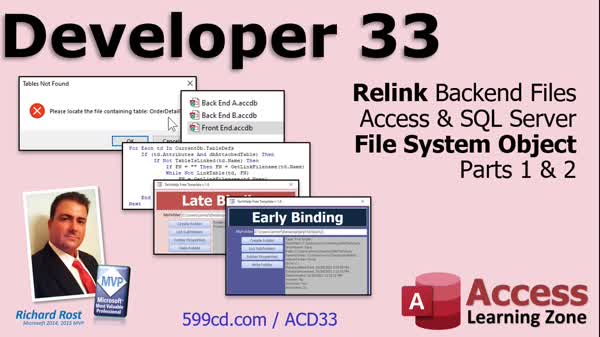
Access Developer 33Relink Tables, ODBC, File System Object, FoldersWelcome to Access Developer 33. In this course you will learn how to relink back-end files in your front-end Access database, whether your data is stored in Access or SQL Server, and manage connections using the Linked Table Manager and VBA. We will discuss how to handle one or multiple back-end files, automate relinking, manage ODBC connections, and begin working with the File System Object for file and folder operations, including creating folders, getting folder properties, and setting folder attributes. Some lessons also build on previous Developer courses and basic file I/O concepts. Lessons
Database FilesLinks
Resources
Lesson SummaryWelcome! Relink Files & Use File System Object - Welcome to Microsoft Access Developer Level 33. In this course we will cover how to relink back-end files in your front-end Access database, whether using Access or SQL Server, including handling one or multiple back-end files. We will talk about using the Link Table Manager, automating relinking with VBA, and managing ODBC connections. We will also begin working with File System Object for file I/O, covering topics such as early versus late binding, creating folders, getting folder properties, looping through subfolders, and changing folder attributes. Some lessons build on previous Developer courses and basic file I/O concepts.
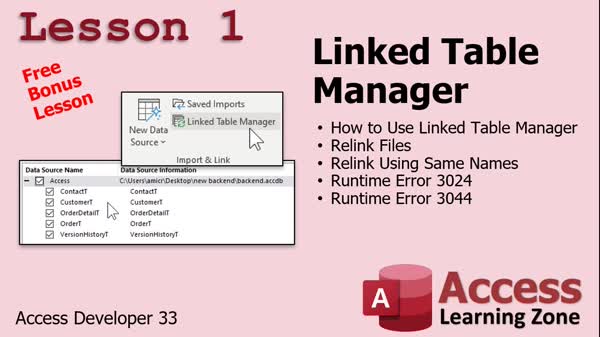
Lesson 1: Relink Tables After Moving Files - In Lesson 1, we will walk through how to use the Linked Table Manager in Microsoft Access to relink your tables when your back end database files have been moved or renamed. I will demonstrate how to identify when tables need to be relinked, how to locate the missing data source, and how to use the Linked Table Manager to connect your front end to the new back end file location. We will also discuss common errors you might encounter if Access cannot find your back end database and explain the options in the Linked Table Manager dialog.
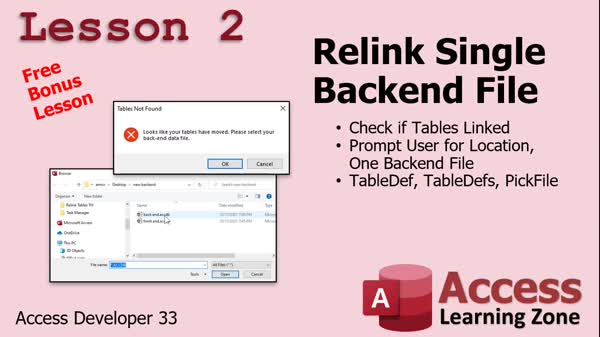
Lesson 2: Auto Relink Tables with VBA - In Lesson 2, we will learn how to use VBA to automatically relink to a single backend file in Microsoft Access. I will show you how to set up a system table, check for its existence on startup, and use error handling to prompt the user to locate a moved backend file. We will walk through creating a global module to automate table relinking, skip system tables, and ensure the links are updated without relying on the Linked Table Manager. We will also briefly discuss considerations for handling multiple backend files, which will be covered in a later lesson.
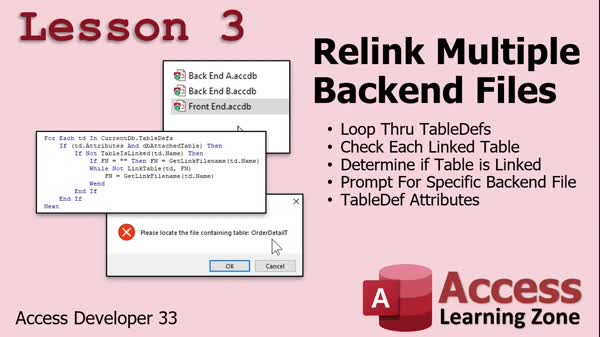
Lesson 3: Auto-Relink Multiple DB Tables - In Lesson 3, we will walk through how to relink multiple backend files in an Access database by looping through all table definitions, checking if each linked table is accessible, and prompting the user to select the correct backend file if any links are broken. We'll discuss differentiating between local attached tables and system tables, abstracting the code into separate functions for checking links, getting file names, and relinking tables, and demonstrate the process with examples using databases split across multiple backend files. This approach makes it easier to manage databases with several backends.
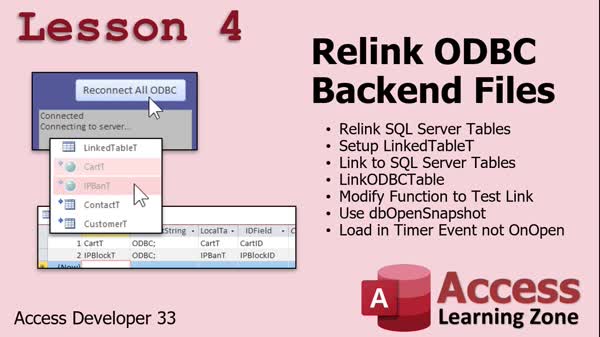
Lesson 4: Auto-Relink ODBC & SQL Tables - In Lesson 4, we will learn how to automatically relink ODBC tables in Access, including those connected to SQL Server. I will walk you through creating a table to store ODBC connection settings and show how to use VBA to loop through these connections and relink the tables when necessary. We will discuss handling connection strings, setting primary keys for updateable tables, hiding linked tables for security, and updating the links both manually with a button and automatically when the database loads. We will also talk about common issues such as read-only tables and best practices for managing ODBC connections.
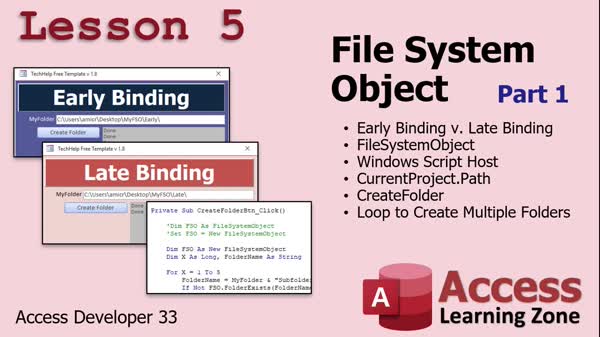
Lesson 5: File System Object & Binding - In Lesson 5, we return to file.io concepts and begin working with the File System Object in Access. We will discuss early binding versus late binding, set up references to the File System Object library, and review how to determine your database folder using CurrentProject.Path. I will show you how to create folders using the CreateFolder command, as well as how to loop to generate multiple subfolders. We will compare early and late binding approaches and walk through setting up both methods, emphasizing best practices and compatibility considerations for file and folder operations in Access.
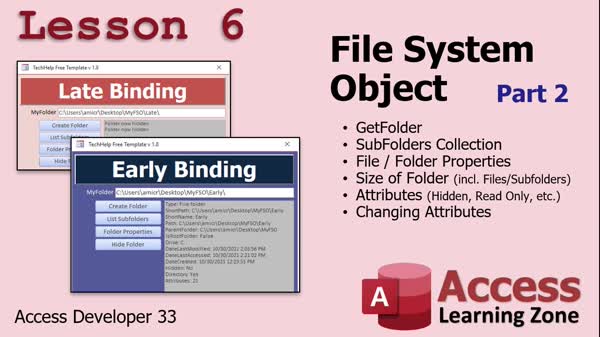
Lesson 6: List Subfolders & Edit Properties - In Lesson 6, we continue working with the file system object, focusing on the get folder command to obtain a reference to a folder and access its properties and collections, such as listing subfolders. We will walk through accessing file and folder properties like date created, date last accessed, and size, and discuss folder attributes such as hidden, system, and read-only, including how to modify those attributes. I will also explain the differences between early and late binding for the file system object and show how to view and change folder properties in both approaches.
Lesson 7: Folder Properties & Subfolders - In this course we learned how to work with the File System Object in Access, including using the GetFolder command to obtain folder references, accessing folder and file properties like size and dates, looping through subfolders, and managing attributes such as hidden or read-only. We covered both early and late binding methods, discussed working with folder collections and properties, demonstrated changing attributes, and explained formatting outputs. We also previewed what is coming next with upcoming lessons focusing on copying, moving, and deleting folders and files, working with text streams, exporting data, and using File Dialog and object export features.
NavigationKeywordsrelink tables, linked table manager, VBA relink, backend database, ODBC connection, SQL Server linked tables, file system object, early binding, late binding, create folders, subfolders, folder properties, folder attributes, get folder
More InformationTranscriptWelcome to Microsoft Access Developer Level 33 brought to you by AccessLearningZone.com. I am your instructor, Richard Rost. Today's class will teach you how to relink your back-end files into a front-end, whether it's with Microsoft Access, SQL Server Online, one or multiple back-end files. You name it. Then we will start working with the File System Object, getting back into our File I.O. lessons. This will be Parts 1 and 2 of that. Of course, this is the 33rd level of my Developer courses. I recommend you have taken all my beginner, expert, and other developer courses. I am going to add Developer 30 and 31 for the other File I.O. lessons where we talk about basic VB file I.O. It's good to know that stuff before you get into the File System Object material, which is a little more advanced. I recommend you do not skip levels. In fact, I recommend it so much, I wrote a whole article about it, so go read that page. I will be using an Access 365 subscription. It is currently October of 2021, so it is roughly equivalent to Microsoft Access 2019. The File System Object topics, and most of the code that I am going to be covering in today's class, have worked all the way back to Access 2000, I am pretty sure. If you have questions, just scroll down the page and post them at the bottom. I will be sure to answer them as soon as I can. Or you can post your general Access questions in the forum. It is not only me, but all my other advanced developer students. I love them very much, and they help me out a lot by answering questions as well. Be sure to check out my kind of almost daily video podcast about Access that covers all the weird stuff: TechHelp. In fact, some of the videos in today's class were taken from some of my TechHelp videos as well. So there is lots of good stuff in there. Let's take a closer look at what we are going to be covering in today's class. In lesson one, we are going to learn how to use the Link Table Manager to relink your tables, just in case your back-end database files have been moved or renamed. In lesson two, we will learn how to use VBA to automatically relink to the back-end file. It will prompt you and say, hey, looks like your file has moved, where is it? Browse to the file, select it, and then Access will relink to it automatically. This method will be good for relinking to a single back-end file. In lesson three, we will cover multiple files. We are going to loop through all of the tables in the database, find out if they are attached tables or not, check to make sure they are attached, and if not, prompt the user where to put the back-end file, and then continue on. So you can have multiple back-end files and reattach them using the methods in lesson three. In lesson four, we will learn how to automatically relink ODBC back-end files, including those to SQL Server. In lesson five, we are returning to file IO. We are going to start working with the File System Object. We are going to learn about early binding versus late binding, the File System Object library, the Windows Script Host, and the CurrentProject.Path command, which we have talked about before, but that is how you figure out what folder your Access database is located in. Then we will learn how to create a folder with the CreateFolder command, and we will learn how to loop to create multiple subfolders. In lesson six, we are continuing with the File System Object. We will learn about the GetFolder command, where we can get an object reference to a folder, then we can access all of its properties and collections, such as its Subfolders collection, and get a list of all the subfolders under a folder. We will learn about file and folder properties, things like DateCreated, DateLastAccessed, and all that stuff. The size of the folder is very handy, where you can get a byte size of all the files and folders under a folder. That is really huge. Then we will learn about the attributes, like hidden, system, read-only, and so on, and how to change those attributes. That is all in lesson six. IntroIn lesson 33 of my Microsoft Access Developer series, you will learn how to relink your back-end database files to your front-end using the Link Table Manager and VBA, including handling single and multiple back-end files as well as ODBC connections like SQL Server. We will also start working with the File System Object, exploring topics such as early vs. late binding, creating folders and subfolders, using GetFolder to work with folder properties, and accessing file and folder details like size, dates, and attributes. QuizQ1. What is the primary focus of Developer Level 33 in this Access course? A. Building basic tables and forms B. Learning to relink back-end files and working with the File System Object C. Designing reports and queries D. Creating Access macros Q2. What tool is introduced in lesson one to help relink tables after the back-end files have been moved? A. Table Analyzer B. Table Design View C. Link Table Manager D. Compact and Repair Utility Q3. Which method does lesson two teach for relinking to a single back-end file using VBA? A. Manually editing the database path in the options B. Having VBA automatically prompt the user to locate the back-end file C. Copying and pasting table objects D. Using an Excel macro Q4. In lesson three, what is the primary advantage of looping through all tables in the database? A. You can count the tables quickly B. You can delete unused tables C. You can find and relink multiple back-end files efficiently D. You can export all tables to Excel Q5. What type of back-end files is lesson four focused on relinking automatically? A. Microsoft Excel files B. CSV flat files C. ODBC back-end files, including SQL Server D. XML files Q6. What component are lessons five and six centered around for advanced file handling in VBA? A. File Conversion Toolkit B. File System Object C. Access SQL Editor D. VBA Forms Library Q7. Which of the following is NOT a topic mentioned under the File System Object lessons? A. Creating a folder with CreateFolder B. Getting a list of subfolders C. Generating PDF reports D. Checking and changing file or folder attributes Q8. What is the significance of the CurrentProject.Path command mentioned in the lessons? A. It deletes the current folder B. It tells you the folder where your Access database is located C. It compresses your database D. It displays the size of all folders Q9. Which properties of files and folders are mentioned as useful in lesson six? A. DateCreated, DateLastAccessed, size, and attributes B. Page orientation and color depth C. Username and password properties D. Encryption and checksum Q10. What is recommended before starting this Developer Level 33 course? A. Skipping straight to Developer 33 is fine B. Only developer levels need to be completed C. Completing all Beginner, Expert, and prior Developer levels including File I.O. lessons D. Reading the latest Microsoft Access blog Answers: 1-B; 2-C; 3-B; 4-C; 5-C; 6-B; 7-C; 8-B; 9-A; 10-C DISCLAIMER: Quiz questions are AI generated. If you find any that are wrong, don't make sense, or aren't related to the video topic at hand, then please post a comment and let me know. Thanks. SummaryToday's video from Access Learning Zone covers the material found in Microsoft Access Developer Level 33. My name is Richard Rost, and I'll be your instructor as we explore several advanced Access topics. In this class, I'll show you how to relink your back-end files to a front-end database, regardless of whether you are using Microsoft Access, SQL Server Online, one back-end file, or multiple back-end files. This process is essential when your data files have been moved or renamed, or if you are working in a multi-file environment. We'll then turn our attention to the File System Object and pick up our file input/output lessons. This segment will be spread over Parts 1 and 2, providing a solid foundation for managing files and folders using VBA. Since this is the 33rd level in the Developer series, I strongly recommend you complete all of the Beginner, Expert, and prior Developer classes first, especially Developer 30 and 31 where we focus on basic Visual Basic file I/O. These previous lessons provide a necessary base before advancing into the File System Object material covered in this course. Skipping levels can leave gaps in your understanding, and I feel strongly enough about this that I have written an article on the topic, which you should read before proceeding. For this course, I am using Microsoft Access 365 as of October 2021, which is functionally similar to Access 2019. The techniques and code examples concerning the File System Object have proven reliable even in versions dating back to Access 2000. If you have any questions as you go through this class, feel free to post them at the bottom of the class page. I'll respond as soon as possible. You're also welcome to ask general Access questions in the forum, where many other advanced developer students contribute their experience as well. For more frequent updates and to learn about various unusual or advanced Access topics, I also host a near-daily video podcast called TechHelp. Some sections of today's course are drawn from past TechHelp episodes, offering even more valuable content. Here's how today's class is structured: In lesson one, we focus on the Link Table Manager, a tool built in to Access which allows you to relink your tables if the back-end database file has been moved or renamed. Lesson two introduces using VBA code to automatically relink to a back-end file. If the file's location has changed, an on-screen prompt will ask you to browse and select the new file. Access will then relink the tables for you automatically. This approach is ideal when you only have a single back-end file. In lesson three, we address situations with multiple back-end files. You'll learn how to loop through all tables, check which are attached, and verify their links. If tables are not properly attached, the user will be prompted for the new back-end file locations. This method enables you to manage multiple back-end files seamlessly. Lesson four expands the scope to include tables linked via ODBC, such as those connected to SQL Server. You'll see how to automate the relinking process for these back-end files as well. Beginning in lesson five, we return to file I/O and start working with the File System Object. Topics include understanding early binding and late binding, setting up the File System Object library and the Windows Script Host. We'll also review the CurrentProject.Path command, which lets you determine the directory in which your Access database resides. You'll learn to create new folders using CreateFolder, and how to loop through code to generate multiple subfolders. Lesson six continues with the File System Object, focusing on the GetFolder command. This enables you to get a reference to a folder object so you can access its properties and collections, such as the Subfolders collection, letting you list all subfolders under a particular folder. We'll explore the various properties available for files and folders, like DateCreated and DateLastAccessed, and how to determine the overall size of a folder, which can be very useful. You'll also learn about file and folder attributes, such as hidden, system, and read-only, and methods to change these settings. To see a complete video tutorial with step-by-step instructions on everything discussed here, visit my website at the link below. Live long and prosper, my friends. Topic ListUsing Link Table Manager to relink tables Relinking tables with VBA for a single back-end file Looping through tables to handle multiple back-end files Prompting users to locate missing back-end files Automatically relinking ODBC and SQL Server back-end files Introduction to File System Object in VBA Early binding versus late binding for File System Object Using the Windows Script Host library Using CurrentProject.Path to find database folder Creating folders with File System Object Looping to create multiple subfolders Using GetFolder to reference folders Accessing Subfolders collection of a folder Retrieving file and folder properties Getting folder and file sizes in bytes Modifying and reading file and folder attributes Primary TopicsAccess back-end relinking, Link Table Manager, VBA automated relinking, ODBC relinking, File System Object basics, early vs late binding, folder and file properties Secondary TopicsWindows Script Host, Access object model commands, folder creation, subfolder enumeration |
||||||||||||||||||||||||||||||||||||||||||
|
| |||
| Keywords: relink tables, linked table manager, VBA relink, backend database, ODBC connection, SQL Server linked tables, file system object, early binding, late binding, create folders, subfolders, folder properties, folder attributes, get folder PermaLink How To Relink Tables, Manage ODBC Connections, and Use File System Object for File IO in Microsoft Access |