A-Z Jump Buttons
By Richard Rost

 2 years ago
Creating Jump-to-Record Buttons in Microsoft Access In this Microsoft Access tutorial, I will show you how to create buttons or labels on a continuous form to jump to records starting with specific letters. This technique enhances navigation in large datasets, and we'll explore sorting these records dynamically upon button clicks, ensuring easy and efficient data management. Dana from Arlington, Virginia (a Platinum Member) asks: I've got a big, long customer list, and I'm using a continuous form to view them all. Is there a quick way to make a button to jump to a specific letter in the alphabet, like maybe A through Z buttons or something? I've seen them on websites. Can you do this in Access too, instead of having to use this find box? MembersThere is no extended cut, but here is the database download: Silver Members and up get access to view Extended Cut videos, when available. Gold Members can download the files from class plus get access to the Code Vault. If you're not a member, Join Today!
PrerequisitesLinksRecommended Courses
Keywords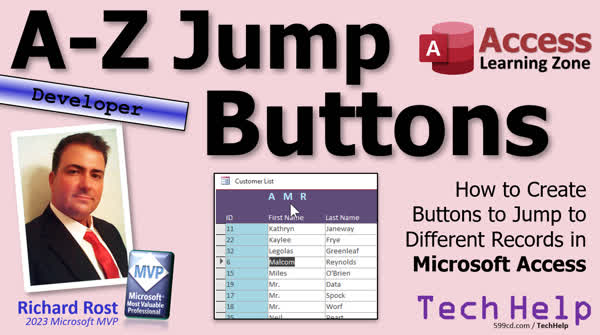 TechHelp Access, record navigation buttons,alphabetical record jumps,Access form buttons,dynamic record sorting,Access VBA tutorial,on-click event VBA,custom navigation Access,sort records by name,Access database tutorial,Access UI customization,record sorting on button click,Access dynamic sorting,DoCmd.FindRecord, DoCmd.GoToControl
More InformationTranscript Today I'm going to show you how to make little buttons or little labels or whatever you want to jump between the different records in your, let's say, customer table by the first letter of their name. So you click on the M button, it jumps to the first M customer and so on. All right, you want to go to A, click A, it takes you up to the A's, takes you to the M's, takes you to the R's. Same, just like that. I just did these three. You can do as many as you want.
Today's question comes from Dana in Arlington, Virginia, one of my Platinum members, but I get asked this all the time. In fact, someone just posted in my forums today about a similar question. So a lot of times that's when the video gets made is when I start seeing the same questions over and over again, and I don't already have a video for it. So Dana says, "I've got a big, long customer list and I'm using a continuous form to view them all. Is there a quick way to make a button to jump to a specific letter in the alphabet, like maybe A through Z buttons or something? I've seen them on websites. Can you do this in Access too, instead of having to use this Find box, the Control-F Find box?"
Well, yeah, Dana. Let me show you how to do it. And yes, for those of you who are regular viewers, my voice is a little hoarse today. Sorry about that. Before we get started, this is going to be a developer level video, but don't panic. We only need like two lines of code, right, to do what we need to do. But if you haven't watched my intro to VBA video, go watch this first. It will teach you everything you need to know to get started in about 20 minutes. Also, go watch my video on the on-click event that we're going to use in today's video.
All right, so here I am, in my TechHelp free template. This is a free database. You can download a copy off my website if you'd like to. And on here, I've got a customer list. I've only got 30 or so customers, but we can pretend we've got, you know, 30,000 customers in here.
Now, the first thing you're going to want to do is you're going to want to make sure that this list is sorted somehow. Whether it's first name, last name, doesn't matter. But let's come in here. I'm going to sort by first name, okay? And now we can make a button to jump to whatever particular letter we want to pick.
And also, real quick, what I'm going to do is go into design view and go to the form's properties and make sure that order by on load is set to yes. This way it'll keep that sort the next time I open up the form. Now, the user can change this. So, toward the end of the video, I'm going to show you how to re-sort it when you click on your button.
But let's make the buttons first. Put them wherever you want. You can put them up top. You can put them on the bottom. I'm going to put them up top up here. I'm going to move these labels down. And you can use buttons. You can use labels. I like to use labels.
All right. Copy, paste, and we'll just make a couple of different labels here. I'll make one for A, like you saw a minute ago. And let's make them bigger. All right. 16 point, bold, maybe light blue, whatever. All right. So there's my A label.
All right. You can come over here and give it a good name. You don't have to do it. A label or whatever. All right, we'll do A, and then we'll do M, and then we'll do, let's go to R. All right, so this will be the R label, or the M label, and the R label.
Do you have to name them? No, you don't have to name them, but it's better if you do. Long run, long run, or else Alex will come to your house and yell at you.
All right, so let's start with the code for the A button. Click on the A button, come over here to Events and find the On Click event. This will happen whenever you click on that label. Hit the dot, dot, dot button. That will open up your VB editor and you can right away see that you're in the A label click, instead of label 52 click or whatever.
All right, so what we're going to do is we're going to have Access move to the first name field. Let's pretend we're sorting on the first name. First name field and then we're going to issue a find record command to find the first letter that starts, the first customer that starts with A. So we're going to do command dot go to control What's the name of the control first name?
Alright, so now the focus is sitting on the first name field. Now we're going to find a record that starts with letter A, so it's do command dot find a record. I got a bunch of parameters here, in fact, let me slide this over you can see all these parameters. There's a lot of them. You just got to know what they all do. They're not that hard.
All right, find what? What are you looking for? I'm looking for the letter A, comma. Now the match is either the entire field has to be this value, or it could be anywhere in this value. The A could be any character or it has to be at the start. I like that one. Let's have it so that it's going to start with that letter. Makes sense. It's what we're trying to find. Okay, comma. Match case, does it matter if it's uppercase or lowercase? Nah, I'll say false, that's a true false value.
All right, next up, search direction. Which direction do you want to search? Up from the current location, down from the current location, or search the entire list? Let's go search the entire list, AC search all, comma, search as formatted, as that string is formatted. This really doesn't matter for this one because we're searching for letters and or numbers. I'll put false in here as well. Only current field. You want to search in all of the fields, first name, last name, address, whatever, or just the current field. I want just the current field. And then finally, find first. You want to find the first record or find the next record? I want to find the first one. I want to jump to the first A person, so I'll say true.
All right. That's another one of my notes for the Access team. I wish they'd put in there what these types are like if that's a true false value, a Boolean, and put the default value in there too.
All right. So that should do it right there. That's all we need. Go to the right field and then find the record. Okay. Save it. Throw in a debug compile for good measure.
All right. Let's go over to our database. We move this out of the way just a little bit. Let's close this. Open it back up again, hit the A and okay, I'm already sitting on A, it's Alex's first. Let's slide down a little bit. Pretend I'm down here on Malcolm Reynolds. I'll hit A and there we go. It jumped right up there. That's nice. All right, that's working.
All right, let's do M. All right, back to design view. Find the M on click event right there. Okay, I'm down a little further. Let me move this up so you can see it. Right down here in the M click.
Now you know what? You know what? I don't want to... You could copy this code and paste it in here, but I don't like having duplicates of the same code everywhere. Right? If I do that, now I've got here. Now if I want to make a change. If I've got 26 of these, or 36 with all the numbers, if I want to make a change to how this works, I've got to change it in 36 different places. So I don't want to do that.
All right, we're going to make one subroutine that's going to handle all of this. So I'm going to get rid of that. Let's come up here. I'm going to say private sub. We're going to call it jumpTo. All right, and it's going to take one bit of information. Let's say S as a string. So we're going to send to it, some value S, which is the letter that we're jumping to. So now we're going to take all of this code here, we're going to cut that out, and we're going to paste it in here. And now all we have to do is change this from an actual letter A. We're not looking for the letter A anymore, we're looking for S, whatever is sent into this subroutine. Make sense?
Now I can come down here and say jump to A. I can come down here and say jump to M. This will send the M up to the jump to code. It does the same thing. Ready, save it, debug compile. Always good to throw in a debug compile. Doesn't hurt, doesn't take much time. Close it, open it, ready, M right there a back up to A and they're cute, let's do R.
Now we can take this one step further and I have a whole separate video on this, we can make this an event handler function right change it from a sub to a function now normally functions return a value but they don't always have to. But if you want to do this trick, you've got to make it a function.
Now get rid of the label click here, we don't need it there. Get rid of it down here, we don't need it there. Now watch what you can do. Since this is now a function, I can come over here, go to A, on click I can say in here equals jump to A, just like that. I'll zoom in so you can see it better. Equals jump to A, just like that. It'll call that function with that value and do the thing. Do the same thing with M. Instead of that, you put an M in here, though. And then for R, you come in here, and you put an R in there. This is a neat little trick. I was an Access developer for years before they added this trick. And then when I read about it, I'm like, what? Because then you've got to, it avoids having 26 or more little tiny subroutines in your code. It makes this a whole lot more difficult to read.
OK, save it, close it, open it. Let's go to R. Boom. Let's go to M. Boom. A. See? Isn't that cute? And now you've just got to add whatever letters you want in here. If you've got lots and lots of people, add more. You could also do this with a combo box if you want. Make a combo box, a value list combo box, and put all the letters in that. And they can just pick a letter, boom, it'll jump. You don't have to have individual labels like this or buttons. You could do it in a list box. You could do it in a combo box. You could put a text field there if you really wanted to and just have them type in what they're searching for.
Now I mentioned earlier that if your user comes in here and puts a sort on, now you kind of broke your buttons right? Because if I click M, it's going to go to the first M, but now all the M's aren't together. So what we're going to do is in our code, we're going to set what the sort is at that point.
All right, so come back to your code. And right here before we even do anything, we're going to say me.orderBy equals, what do you want to order it by? Let's go first name, comma, last name. All right, that way all the last names are in order after the first names. If you've got three Marys, you'll get Mary whatever. And then don't forget to make sure it's on. Me.orderBy on equals true, because you can turn sort on and off. So that sets the order by, turns it on, and then runs your code.
And now, if I hit my R, it fixes the sort and then goes to R. M. See, I sort it by any other field, customer, sense. If I hit M, it fixes the sort and then jumps right there. See that? See how cute? Isn't that nice and easy?
If you like learning this stuff, stop by my website. I've got tons of developer lessons available. I think I'm up to developer 45 now, so we're doing customizing the ribbon. Lots of cool stuff.
But that's gonna do it for today folks. I'm off to make some tea and get some throat lozenges. That's gonna be your TechHelp video for today. I hope you learned something. Live long and prosper, my friends. I'll see you next time.
TOPICS:
Creating alphabetical navigation buttons in Access
Sorting a customer list in Access
Ensuring persistent sorting with "Order By On Load"
Designing interface elements in Access forms
Adding on-click events to labels in Access
Writing VBA code to jump to the first record starting with a specific letter
Using the Access command to find a record
Setting up subroutines to avoid duplicate code in VBA
Converting VBA subroutines to function for event handling
Directly linking on-click events to functions in Access
Debugging and compiling VBA code in Access
Implementing dynamic sorting in Access via VBA
Using controls like combo boxes or list boxes for navigation Intro In this video, I will show you how to set up A-Z jump buttons in Microsoft Access, allowing you to quickly navigate your customer list by the first letter of a name. You will learn how to create and place labels or buttons on your form, use on-click events, write simple VBA code to move to the first record starting with a specific letter, and ensure your list stays properly sorted even after users change the sort order. I'll also demonstrate how to streamline your code using subroutines and functions and share tips on alternative controls like combo boxes for navigation. Quiz Q1. What is the primary function of the buttons or labels described in the video?
A. To jump between different records in a customer table based on the first letter of customer names
B. To delete records from a customer database
C. To create new customer records
D. To update customer information
Q2. What type of form did Dana from Arlington use to view her customer list?
A. Continuous form
B. Single form
C. Datasheet form
D. Split form
Q3. Before creating buttons to jump to a specific letter, what should be set for the customer list?
A. The list should be sorted by a field, such as first name or last name
B. The list should be filtered to show only new customers
C. A specific font size should be applied to the customer names
D. The list should be grouped by customer state
Q4. What is critical to set in the form's properties to maintain sorting order on load?
A. Order by on load should be set to 'yes'
B. Record source should be set to 'dynamic'
C. Allow additions must be disabled
D. Navigation buttons should be enabled
Q5. How did the instructor suggest handling code reusability for multiple buttons in Access?
A. By copying the same code into each button's click event
B. By creating a private subroutine to handle jumps to specific letters
C. By using a public function to redirect all button clicks
D. By linking each button to an external script file
Q6. What VBA command is used to find a record that starts with a specific letter?
A. DoCmd.GotoRecord
B. DoCmd.RunCommand
C. DoCmd.FindRecord
D. DoCmd.OpenTable
Q7. When re-sorting the list upon button click, what property must be set to ensure sorting is applied?
A. Me.OrderByOn must be set to true
B. Me.Filter must be applied
C. Me.RecordSource must be redefined
D. Me.AllowEdits must be set to false
Q8. Which event handler type was suggested to simplify assigning actions to button clicks?
A. A sub
B. A macro
C. A function
D. A query
Q9. What alternate method to buttons did the instructor mention for jumping to a record by letter?
A. Creating a report
B. Using a combo box or list box
C. Establishing a new form
D. Implementing a toggle button
Q10. What does the 'OrderBy on load' property do when set to 'yes'?
A. It allows records to be deleted on form load
B. It keeps the previous session's record open
C. It retains the sort order of records each time the form is opened
D. It orders records alphabetically without user input
Answers: 1-A; 2-A; 3-A; 4-A; 5-B; 6-C; 7-A; 8-C; 9-B; 10-C
DISCLAIMER: Quiz questions are AI generated. If you find any that are wrong, don't make sense, or aren't related to the video topic at hand, then please post a comment and let me know. Thanks. Summary Today's TechHelp tutorial from Access Learning Zone focuses on creating a user-friendly way to navigate large customer lists in Microsoft Access by using letter-based buttons or labels. This setup allows users to quickly jump to records based on the first letter of a customer's name, much like the alphabet navigation often seen on websites.
The motivation for this tutorial comes from a recurring question I receive from students and forum members. Dana, one of my Platinum members, recently asked if there's a quick way to jump to customers starting with a specific letter in a continuous Access form without using the standard Find box. Many users want a more intuitive button, such as one button for each letter of the alphabet, that can take you right to the names you want.
To answer this, I'll walk you through the process. Before we begin, let me stress that while this is a developer-level lesson, the code involved is simple and should not intimidate beginners. If you are new to VBA, I recommend watching my Introduction to VBA and my tutorial on using the On Click event in Access forms.
Imagine you're working with my TechHelp free template, which is available for download from my website. In this example, the customer list only contains about 30 records, but the techniques described work equally well for much larger datasets.
The first essential step is to make sure your form's data is sorted in a consistent manner, for example by first name or last name. Head into design view, adjust the sort order (I'm sorting by first name in this case), and then ensure that the form remembers this sort each time it opens. To do that, set "Order By On Load" to Yes in the form's properties. It's worth noting that users can change sorting at runtime, so I will later show you how to enforce the sort each time a letter button is used.
To create the alphabetical buttons, you can use either command buttons or labels. Personally, I prefer labels for a cleaner look. Place them wherever you want on the form, such as the top, and adjust their appearance to suit your application's style. Name your labels according to their corresponding letters for better code readability and maintenance, though it isn't strictly required.
Next, let's focus on the programming. Set up an On Click event for each label. The desired functionality is for Access to search for the first record where the selected field (first name, in this example) starts with the chosen letter. You do this by moving the focus to the relevant field and using Access's FindRecord command with the appropriate parameters — specifying the letter, setting it to match only at the beginning of the field, not worrying about case sensitivity, searching all records, considering only the current field, and always jumping to the first match.
If you copy and paste this code into multiple event handlers (one for each letter), you will end up with a lot of duplicate code. This makes future updates tedious, as you'll have to revise the code in possibly dozens of places. To keep things more maintainable, create a single subroutine that accepts a letter as a parameter, then call this subroutine from each label's On Click event, passing in the relevant letter.
However, there's an even cleaner way. By converting your subroutine into a function, you can call it directly from the property sheet of each label or button using an expression like =jumpTo("A") for the A label. This avoids cluttering your module with a separate subroutine for each letter, leaving your code easy to read and maintain.
Some users might prefer not to use labels or buttons at all, and that's fine too. You can use a combo box or list box containing all the letters of the alphabet, and allow users to pick a letter to jump to. You could even use a text box where users type the desired starting letter — the technique is flexible.
One important consideration is that if a user changes the sort order after opening the form, your navigation buttons may no longer point to the desired records. To prevent this, add code to reapply the correct sort (for example, by first name and then last name) every time one of these letter buttons is activated. This ensures consistent navigation regardless of how users have previously sorted the records.
Finally, frequent debugging and compiling of your code is good practice to avoid hidden errors.
This technique provides a robust and user-friendly way to move through large datasets by letter. It's efficient, prevents code duplication, and can be extended or modified to fit many different scenarios.
You can find a complete video tutorial with step-by-step instructions on everything discussed here on my website at the link below. Live long and prosper, my friends. Topic List Creating alphabetical navigation buttons in Access forms
Sorting a customer list by first name
Setting the Order By On Load property for forms
Designing and placing label controls for navigation
Assigning On Click events to labels
Writing VBA to move focus to a specific field
Using DoCmd.FindRecord to locate records by first letter
Understanding FindRecord parameters for matching criteria
Writing a reusable subroutine to jump to a letter
Refactoring code to use a single subroutine for multiple buttons
Converting a subroutine to a function for direct event handling
Assigning functions to On Click events with parameters
Automatically reapplying sorting in VBA before searching
Using combo boxes for alphabetical navigation
Using list boxes for jumping to specific records Primary Topics Access forms navigation, alphabetical navigation buttons, VBA event handling, record search, dynamic sorting, continuous forms, label/button controls Secondary Topics code modularity, using combo/list boxes for navigation, user interface design in Access |






