Calculate Age
By Richard Rost

 6 years ago
How to Properly Calculate Age from Date of Birth
In this Microsoft Access tutorial, I will teach THE CORRECT WAY to calculate someone's age. I've seen a ton of WRONG tutorials out there that just use DateDiff. No! That's not correct. DateDiff only looks at whole years. If the person's birthday hasn't passed for this year, they will show as older than they are.
Jimmy from Amherst NY (a Silver Member) asks: I saw a tip on YouTube a few days ago that showed how to calculate someone's age using DateDiff, however if I type in my birthday which is in December, and it’s currently November, the calculation is not right! I need an accurate formula for determining age. I run a nightclub and obviously we don't want to serve alcohol 20 year olds!
Members
I'll show you an even better way to calculate age using an advanced formula. The method I show in the free video is 99.9% accurate. The formula in the Extended Cut is 100% accurate.
Silver Members and up get access to view Extended Cut videos, when available. Gold Members can download the files from class plus get access to the Code Vault. If you're not a member, Join Today!
Methods
- The "good enough" 99.91% accurate method is:
Int((Date()-[DOB])/365.2425)
- For the 100% accurate method, see the Extended Cut (above) - Silver Members
- The 100% accurate method can also be found in the Code Vault - Gold Members
- For confirmation of my testing methods, see Age Part 2
Pre-Requisites
Links
 Keywords Keywords
ms access calculating age from date of birth, calculate current age using date of birth, how to calculate age in ms access, calculating age in access
 Subscribe to Calculate Age
Get notifications when this page is updated
More InformationTranscript Welcome to another TechHelp video brought to you by AccessLearningZone.com. I am your instructor Richard Rost. In today's video, I am going to show you how to properly calculate someone's age.
Today's question comes from Jimmy from Amherst, New York, one of my silver members. Jimmy says, "I saw a tip on YouTube a few days ago that showed how to calculate someone's age using date diff. However, if I type in my birthday, which is in December and it's currently November, the calculation is not right. I need an accurate formula for determining age. I run a nightclub and obviously we don't want to serve alcohol to 20 year olds."
Jimmy, you are absolutely right and I will say you did not find this tip on my YouTube channel because I know how to calculate age correctly. In fact, after you emailed me, I went on YouTube and I actually even did a Google search and I found lesson after lesson, video after video of people showing how to calculate age wrong.
It's one of the problems with YouTube and Google with their search placements. You can have a tutorial that is completely incorrect and still get good search placement. The top three answers that I found were all wrong. You cannot use date diff by itself to calculate age. Date diff only looks at the piece of the date that you give it. So if you tell it to find the difference in years, it just looks at the year. If you tell it 2000 to 2020, you are getting a 20. It does not matter where the birthday falls inside that year. Let me show you how it works and how to do it correctly.
I am going to start off with my blank template. If you do not have a copy of this, you can grab it from my website. It is absolutely free. You will find a link down in the description below. Or you can close the main menu. Let's create a table that has two date fields in it.
I will just throw an ID in because I always do. Let's put in date one, that will be a date/time, and we will put in date two just so I can show you how this works. We will call this my dateT. Primary key, yes. Let's open and put some dates in here.
Today's date is November 16th, 2020, so I am going to just fill that in here in date two. That will substitute for today's date. I want to be able to show it to you a couple of different ways.
Let's say someone was born on 11/15/2000, then another person on 11/16/2000, another person on 11/17/2000, and another on 12/1/2000. Alright, we have a couple of different people here. Let's save this. Let's go over to a query now where we can do our calculations.
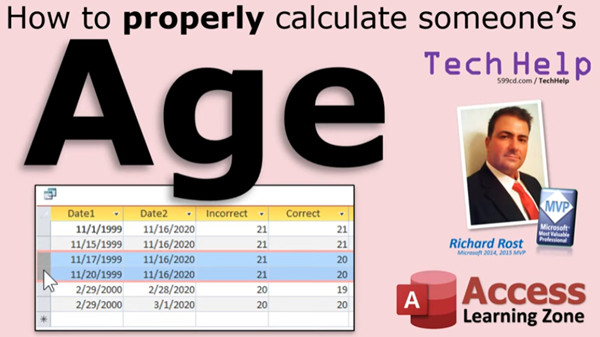
As you can see just by looking at it, this person and this person should both be 20 years old because they are born in 2000 and their birthday has passed or is today. These two people's birthdays have not passed yet. This person's birthday is tomorrow and this person's birthday does not come until December 1st, so these people should still show up as 19.
Let's set up a query and do some calculations. Go to Query Design, over to your dateT, bring in date one and date two. Now, this is how everybody else on YouTube shows how to calculate age and it's incorrect.
I am going to call it "Incorrect:" and they use the date diff function. I have other videos on date diff if you have never used it before. I will post some links down below in the description to some different videos on date diff that explain it in more detail.
Basically, date diff takes the difference between two dates in whatever interval you specify: days, months, quarters, weeks, years. It's really pretty powerful. I am going to use years, which is "yyyy" - you put that inside quotes.
Let me zoom in so you can see it better. That's where we specify our interval, the year, then the first date (date one), then the second date (date two). Those are my two fields. You can put actual dates in here if you want to, like 1/1/2020, but you have to make sure you put dates inside of those little hashtags. Or you can use a function like Date to return today's date. For the purposes of this demonstration, I am going to use my two fields that I put in the table. So date one and date two, and Access puts brackets around them because they are fields.
I will save this as my dateQ (control S), and let's give it a run. There you can see everybody is 20 and these people should not be 20. That's because date diff only looks at the year. It does not take into consideration the day or the month.
With this calculation, Jimmy, your doorman will be letting in 20 year olds all night instead of 21 year olds.
I think the reason why a lot of so-called Access experts think that you should use date diff is because there is a slightly different date diff function in Excel and that does work. Let me show you.
Here I am in my old friend Excel. I use Excel every day but I have not done a video in it in quite some time. Let's put the same data that we have in our Access database here in our spreadsheet.
Let's copy and paste it. Go to Access, select these two columns, copy (control C), switch over to Excel and paste. There it is. Widen these columns so I can see everything. The date format is slightly different but that is okay; it has the same information in it.
Now, date diff in Excel works a little differently, so I will put the "Age" here. It's going to be =DATEDIF(), a little different. The order of the parameters is different too: date1, date2, and the interval is just "y," not "yyyy" like in Access.
There's 20, and if I autofill this down, you can see it is correct. Date diff in Excel does properly show you their age. It takes into consideration the entire date. I think that's why a lot of people who know Excel and kind of know Access get it confused.
Access VBA uses a different function. So how do I calculate this correctly?
There are two ways you can do it. One is using some simple math and I will show you the math in just a second. The second way is more accurate but it involves a much more complicated formula and I will show that in the extended cut for the members. The way I am going to show you right now works 99.99 percent of the time. I think it will give you an error once out of 5,000 years, which for average, everyday databases should work just fine. Let me show you.
Let's go into our dateQ again. Now this calculation takes into consideration that Access stores dates where a value of 1 equals 1 day. What we are going to do is subtract date one from date two and then divide it by the number of days in a year.
Let me show you how that works. We are going to do it in steps so you get it. Let me shrink that down. So, "Correct:" - if I subtract one date from another, here is what it looks like.
I am going to say date two minus date one. If I take a look at what that gives me, that gives me the difference in the number of days. There are 7,306 days between this date and that date.
Now, to get years, simply take that calculation and divide it by how many days are in a year. Normally, 365, but we also have to take into consideration leap years, so .25. If you really want to be exact, it's .2425. That's the exact number that our calendar uses for calculating the number of days in a year, because there are some crazy rules. Centuries are not leap years unless it is divisible by 400, which is why the year 2000 was a leap year, etc. Just remember that number.
If you can't remember that, just remember 365 and a quarter, that's close enough. That will work 9 times out of 10, good enough. But if you want a really good number, 365.2425, use that. Actually, after doing a little research, the real number is 365.24219. Our calendar does not use that exactly, that's why they sneak in leap seconds every now and then.
Okay, enough of that. So let's see what this gives us. That is the correct number of years between this date and this date. Notice how it's not quite 20 for some. Their birthday has not quite approached yet. That is a very exacting number.
In order to convert that to their age, all we do is chop off the decimal place. We do not want to round it. Do not use the round function because that will round up and their birthday has not passed yet. To chop off the decimal place, use the int function. Put that whole thing inside of int. There you go. That is their correct age.
Like I said, this will work. I did some research on this. It is valid for most days for thousands of years. That should work. As I said, there is another function I will show the members in the extended cut that, if you need an exact date and cannot absolutely be wrong and need to be 100 percent correct, I will show you that. But this will work for most people's databases just fine. I have been using this for years.
Let me zoom in on it so you can see a good image of it there. There you go. That is how you do it.
Instead of two dates, if you want to use today's date, just come in here and get rid of date two and put the actual Date function there if you want to be "as of now." Let's assume date one is their actual date of birth.
Do not use the Now function. Now goes to the second. Date goes to today's date at midnight, which legally is when their birthday kicks in and they become the next year.
Let's see what this gives us. Today's date is the 16th of November.
That formula will show you how to calculate someone's age 99.9999 percent of the time correctly. However, if for whatever purpose you are doing a legal database or need 100 percent accuracy, there is a much better but much more difficult function that I can show you to calculate age perfectly every single time. It is a lot more complex and involves date diff and date serial, and I will cover that in the extended cut for members.
How do you become a member? Click on the join button below the video. Silver members and up will get access to all of my extended cut TechHelp videos, live video and chat sessions, and other perks.
After you click the join button, you will see a list of all the different membership levels that are available, each with its own special perks. But do not worry, these TechHelp videos are going to keep coming. As long as you keep watching them, I will keep making more and they will always be free. Intro In this video, I will show you how to accurately calculate someone's age in Microsoft Access, using the right formula to avoid common mistakes found in most tutorials online. We'll compare the use of the DateDiff function in both Microsoft Access and Microsoft Excel, explain why Access handles this calculation differently, and walk through a method that works for almost every situation. You'll learn how to set up your table and queries, understand the pitfalls of incorrect methods, and see step-by-step how to generate a reliable age calculation for your database. Quiz Q1. Why is using the DateDiff function in Access alone not an accurate way to calculate someone's age?
A. It only considers the year part of the date, not the month or day.
B. It includes leap years automatically.
C. It calculates the number of days correctly.
D. It always rounds down to the nearest year.
Q2. In Access, how does the DateDiff function process the difference between two dates when using "yyyy" as the interval?
A. Only checks if the date has passed in terms of months.
B. Returns the difference in years, regardless of month or day.
C. Calculates the exact age in years, months, and days.
D. Returns the total number of days between the two dates.
Q3. How does the DateDiff function in Excel differ from that in Access when calculating age?
A. Both return the exact same results for age calculation.
B. Excel's DATEDIF considers the entire date while Access's DateDiff does not.
C. Excel's DATEDIF only works with days, not years.
D. There is no DateDiff function in Excel.
Q4. What is the formula in Access to accurately calculate age, according to the video?
A. Use DateDiff with "yyyy" and round the result.
B. Subtract the birthdate from the current date, divide by 365.2425, and use the Int function to remove decimals.
C. Subtract the year of the birthdate from the year of today's date and round up.
D. Use the Now function to subtract from the birthdate and round to the nearest integer.
Q5. Why should the Int function be used instead of the Round function when calculating age using the math method?
A. Int truncates the decimal to avoid counting a not-yet-passed birthday.
B. Round is not available in Access.
C. Int returns the current month.
D. Round is more accurate than Int.
Q6. What is the significance of dividing by 365.2425 when calculating age from the number of days?
A. It precisely accounts for leap years in the Gregorian calendar.
B. It is just a random number for approximation.
C. It is the average number of days in a month.
D. It accounts for daylight saving time changes.
Q7. What will happen if you round the result instead of chopping off the decimal when calculating age?
A. It will correctly calculate the age in all cases.
B. It may count people as being a year older before their actual birthday.
C. It will ignore leap years.
D. It won't have any effect.
Q8. Which function should you use to get today's date in Access when calculating age?
A. Now
B. Today
C. Date
D. CurrentDate
Q9. Why is it not recommended to use the Now function instead of Date when calculating age in Access?
A. Now also includes the current time, which can affect calculations.
B. Now does not return the correct year.
C. Now excludes leap years.
D. Now is only available in Excel.
Q10. If you need 100 percent accuracy in calculating age for legal or critical purposes, what is suggested?
A. Use a more complex formula involving DateDiff and DateSerial.
B. Use DateDiff by itself.
C. Use the subtraction and division method only.
D. Rely on Excel only.
Answers: 1-A; 2-B; 3-B; 4-B; 5-A; 6-A; 7-B; 8-C; 9-A; 10-A
DISCLAIMER: Quiz questions are AI generated. If you find any that are wrong, don't make sense, or aren't related to the video topic at hand, then please post a comment and let me know. Thanks. Summary Today's video from Access Learning Zone covers how to properly calculate a person's age in Microsoft Access. This is a very important skill, particularly for situations where you need to verify someone's age, like in the example Jimmy brought up: running a nightclub and ensuring 20 year olds are not served alcohol.
Jimmy sent in an excellent question after finding an age calculation tip on YouTube using DateDiff, but noticed it gave the wrong results. Specifically, if someone's birthday is in December and today is in November, the calculation would still show them as a year older than they actually are. As he pointed out, that's not good if you're trying to follow the law.
He correctly observed that the tip was flawed, and as I explained, you did not get that tip from my channel. In fact, when I searched for tutorials on this, I saw that most of the top videos and articles out there show it incorrectly. That's a problem with platforms like YouTube and Google: even the most visible tutorials are often giving out the wrong information, especially with Access.
So let's address why using DateDiff on its own in Access is not the right tool for this job. DateDiff, when asked for the number of years between two dates, simply subtracts the year numbers from each other. For example, it will say it's 20 years from 2000 to 2020, regardless of whether the birthday has already occurred this year or not. It completely ignores the month and day and only looks at the year value, which leads to the error Jimmy found: people who have not had their birthday yet this year will be considered a year older than they are.
To illustrate this, I set up a simple table in Access with two date fields: one representing the birth date and one representing today's date. When we enter dates for people born on November 15, November 16, November 17, and December 1, all in the year 2000, and then compare those to November 16, 2020, you can clearly see that only those whose birthdays have passed (or is today) should show as 20. The rest should still be 19.
The common mistake, as I demonstrated, is to use DateDiff in a query with "yyyy" as the interval between the two date fields. This method, which many videos recommend, gives the wrong answer because it doesn't care about the specific month and day.
The reason for this confusion is that Excel's version of the DATEDIF function is more accurate for this scenario. In Excel, entering these dates and running the DATEDIF function will properly calculate ages because Excel evaluates the complete date, including month and day. Many Access users assume Access will do the same thing, but its DateDiff function is not as precise when it comes to age calculation.
So, what is the correct way to calculate age in Access? There are basically two approaches. The first uses a bit of math and works 99.99 percent of the time, which will be just fine for almost every business use. The second method is completely foolproof but involves a much more complex formula. I cover that advanced method in the extended cut for members.
For most users, the math-based approach is more than sufficient. Here's how it works. Access stores dates as numbers, where one whole unit is one day. To find the difference in years, subtract the birthdate from today's date (or any two dates you are comparing). This gives you the difference in days. Then, divide that by the number of days in a year. For general use, you can divide by 365.25 to account for leap years. For even more accuracy, divide by 365.2425, which better matches our calendar system.
If you want the result to always drop the decimal, do not use the round function – always use the integer (Int) function. This ensures you get the whole number of years completed (their current age), and you do not round up prematurely. The person does not turn the next year older until the actual calendar day arrives.
Instead of using two specific dates, you can just use the Date function to use today's date for the calculation. Avoid using the Now function, as it brings in the current date and exact time. The Date function returns today's date at midnight, which is generally what you want for an age calculation.
This formula will give you accurate ages 99.99 percent of the time, which is good enough for most applications. If you need absolute precision, for example in a database with legal requirements, there is a more advanced approach using DateDiff combined with DateSerial, which I share in the extended cut for members.
If you are interested in that or want to access other advanced content, you can become a member by joining through my website. There are different membership levels with various perks, but remember that my free TechHelp videos will continue as long as there's interest. You can always find plenty of tutorials at no cost.
You can find a complete video tutorial with step-by-step instructions on everything discussed here on my website at the link below. Live long and prosper, my friends. Topic List Explanation of DateDiff function in Access
Demonstration of DateDiff calculation error for age
Building a sample table to store dates in Access
Entering and viewing sample birthdates and current dates
Setting up a query to calculate ages in Access
Comparison between Access DateDiff and Excel DATEDIF
Correct formula for age calculation in Access using date math
Subtracting dates to get days difference in Access
Dividing by 365.2425 to account for leap years
Using the Int function to truncate decimals for age
Inserting the Date() function for current date calculations
Explanation of why not to use the Now() function for age
Discussion of accuracy and limitations of the provided formula Primary Topics age calculation, Microsoft Access queries, DateDiff function, date math, precision in date calculations
Secondary Topics Excel DATEDIF differences, leap years, INT function, legal accuracy considerations
|




