|
||||||
Date OnlyBy Richard Rost
 5 years ago
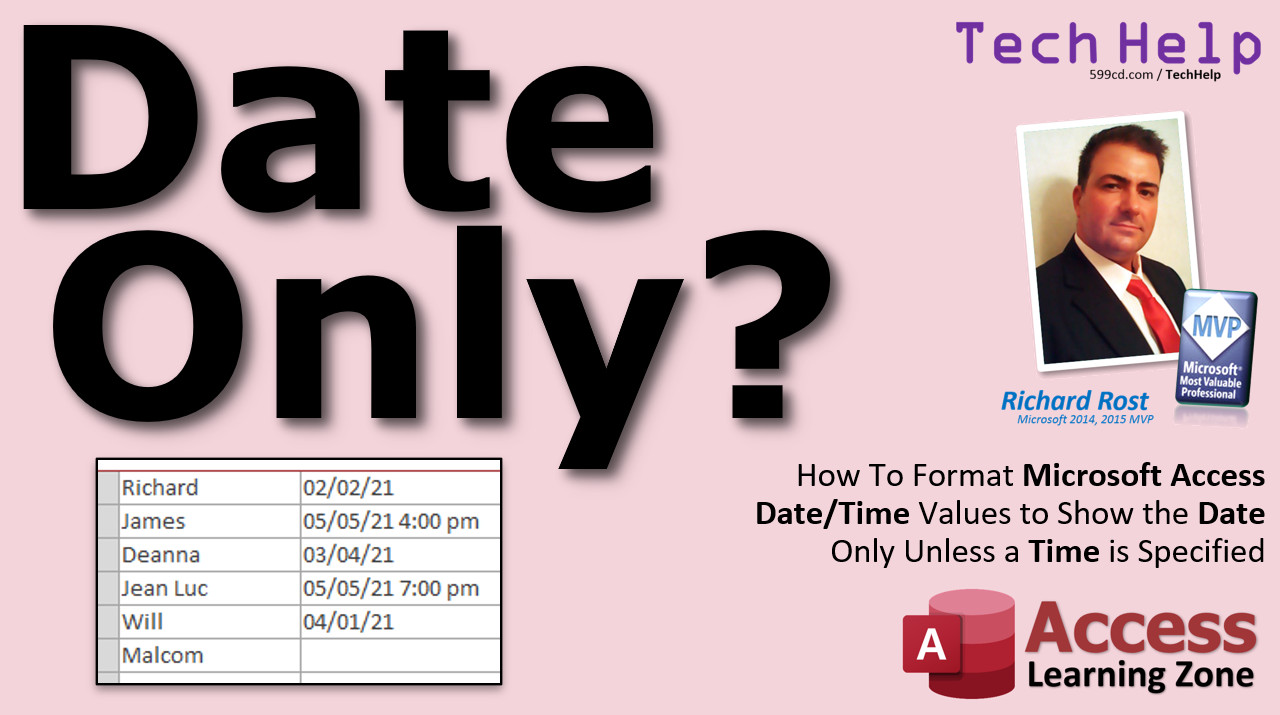
Format Date Values to Show Time Only if Specified In this video, I'll show you how to format a list of date/time values so that they will show a time if needed, or just show the date value if the time portion is midnight. Corinne from Henderson, Nevada (a Platinum Member) asks: I built a database where I have a form that shows upcoming appointments and tasks. Some of the appointments have times, which I want to see. However most of items are just tasks that can be done any time that day. If I format the field to show times, they all show up as being at midnight, which doesn't look good. Is there any way to hide the time portion of the date if it's at midnight? Plus, I want to see just hour and minute, not seconds. General Date works, but it shows seconds, and capital AM/PM. I'd like lowercase, if possible. MembersSilver Members will see how to format a single form date/time field to show the date only unless a time is specified. We'll use a little VBA, the OnCurrent and AfterUpdate events. Gold Members and up will get a special Double-Extended Cut video. You will see how to format the date/time fields in a continuous form!
Silver Members and up get access to view Extended Cut videos, when available. Gold Members can download the files from class plus get access to the Code Vault. If you're not a member, Join Today!
Links
Keywordsmicrosoft access, ms access, ms access tutorial, #msaccess, #microsoftaccess, #help, #howto, #tutorial, #learn, #lesson, #training, #database, format a date and time field, date/time format, DateOnly function, date without time, datevalue
More InformationTranscriptWelcome to another TechHelp video brought to you by AccessLearningZone.com. I am your instructor Richard Rost. In today's video, I am going to show you how to format a Microsoft Access Date Time value so it will show just a date if it's only a date, or date time if there is a time specified and we do not want to see midnight. For example, if you look at the screen there, you can see we've got February 1, 1994, just the date. The next one is February 1, 2003, at 2 pm. We will do this without using the general date format, which is kind of ugly because it shows seconds and the capital PM there. We will do all that in today's video. Today's question comes from Corinne from Henderson, Nevada, one of my platinum members. Corinne says: I built a database where I have a form that shows upcoming appointments and tasks. Some of the appointments have times which I want to see. However, most of the items are just tasks that can be done at any time of the day. If I format the field to show times, they all show up as being at midnight which does not look good. Is there any way to hide the time portion of the date if it's at midnight? Plus, I want to see just the hour and minute, not seconds. General date works but it shows seconds and a capital PM; I'd like lowercase if possible. Well, you've got a lot in there Corinne. The general date does work, but like you said, it shows the seconds portion, which for most appointment calendars and so like that you do not necessarily need to see seconds. And, of course, the PM is capitalized. We can easily fix that to lowercase. But the other part is the tricky part. It's showing a time with just hour and minute, or just a date. So we will see how we can get that done. Before we get started today, I have two prerequisites for you. You should know how to use the IIf function, immediate if, and you should know how to create calculated query fields. There are two links right there. I will put them down below in the description. You can click on them, but watch those first, then come back and watch this video. You have to know how to do those things. So go on. Get out of here. Go. Here I am in my TechHelp free template. This is a free download off my website, and you can grab a copy if you want to. I will put a link down below in the link section. In my database, I have a couple of different fields I can use here. I have the date time field, the order date in my order table. I have also got the customer since field, which is here in my customer table. Let's use this one. Let's use customer since. We will just pretend that this is an appointment date. For some of these, we will put times in here. Let's say I will put 2 pm on that one. Then I will put 5 pm on this one down here. As you can see, what you normally get at the table level is called the general date format. The general date says show me just a date if it's only a date. But if there is a time, show me that whole time format which is hours, minutes, seconds, capital AM and PM. What Corinne wants is she wants just the 2 pm here, or 2 o'clock pm, or 5, let's put 5:30 pm in there. That's not super easy to do, but we can get around that. We will figure it out. Let's go make a query. Save changes to that. Yes. Create, query design. Let's bring in my customer table, and I will bring in customer ID, first name, and let's go find that customer since field right there, and run it. There we go. You can see it's still general date. The first thing I want to do is figure out if this is a date only or if it's a date with a time, and we can use the DateValue function to split that apart, to pull only the date value part out. Let's go in here, and let's make a calculated query field. If you have not done that yet, go watch my video on calculated query fields. I will put a link down below. We'll call this field date only, and I will make this equal to the DateValue of customer since, just like that. I will zoom in better so you can see it. Date only - this is a calculated field. That's what we are going to call it. Use the DateValue function of customer since. When I run this now, this field here shows me just dates. Obviously, if this is null, we are going to get an error over there. So we are going to hide any null value. Customer since, we only want to see these if this is not null. Obviously, it would not be in your appointment calendar if there is no date on it. Now, I can check to see if this is a date only or a date with a time by simply comparing these two. If they are equal, that means that this is only a date. If they are not equal, then it's got a time. Knowing that, I can use the IIf function. Again, if you have not watched my IIf function video, go watch that. Based on that value, I can either format it as a date or format it as a date with a time. But first, a real quick word from my sponsor. That's me. If you want to learn more about formatting for dates, pick up my Access Beginner Level 3 class. It covers all the field properties, the format property, all that different stuff. That's Access Beginner Level 3. I will put a link down below. Let's come in here, design view. Next field. I want to zoom in for this one. Hit F2. This is going to be called date with time. It is going to be: IIf(DateOnly = [CustomerSince], Format([CustomerSince],"mm/dd/yy"), Format([CustomerSince],"mm/dd/yy h:nn am/pm")) That shows a single digit hour if it's like five o'clock or double if it needs both of them. NN always shows two digits, so it's 5:01. And then lowercase, am/pm. Close that up. Close that up. That is the closing parenthesis for the format, closing parenthesis for the IIf function. Hit OK. Let's see what we have. There we go. It is formatted. Now, we can see that dates have just dates. Dates with times have both there in the format that Corinne wants to see. The only problem we have now is this is not editable. This is a calculated field. If I come in here and try to change it, I am tapping on the keyboard and nothing is happening. If we wanted to display this on a form, a little more work is needed. I will cover that in the extended cut for the members. Here it is, extended cut for the members. I will show you how to format a form on the fly, so as you move from record to record, the format changes just like that. It is fully editable. You can change that right in place. I will also show you how to do it with just hours, like here, for example: one o'clock has no minutes. I personally do not like the way that looks, but I will show you how to do it anyway. This is all covered in the extended cut for the members. Silver members and up get access to all of my extended cut videos. There is also an additional extended cut and extended extended cut for the gold members, where I show you how to do the same thing, but instead of using a single form, we'll change the format on the fly for a continuous form, so each row has its own unique format. How is that possible? You will have to become a gold member to find out. How do you become a member? Click the join button below the video. After you click the join button, you will see a list of all the different types of membership levels that are available. Silver members and up will get access to all of the extended cut TechHelp videos, live video and chat sessions, and more. Gold members get access to a download folder containing all the sample databases that I build in my TechHelp videos, plus my code vault where I keep tons of different functions that I use. Platinum members get all the previous perks plus access to my full beginner courses and some of my expert courses. These are the full-length courses found on my website and not just for Access. I also teach Word, Excel, Visual Basic, ASP, and lots more. But do not worry, these free TechHelp videos are going to keep coming. As long as you keep watching them, I will keep making more. If you liked this video, please give me a thumbs up and feel free to post any comments that you have. I do read them all. Make sure you subscribe to my channel, which is completely free, and click the bell icon and select all to receive notifications when new videos are posted. Click on the show more link below the video to find additional resources and links. You will see a list of other videos, additional information related to the current topic, free lessons, and lots more. YouTube no longer sends out email notifications when new videos are posted, so if you would like to get an email every time I post a new video, click on the link to join my mailing list. If you have not yet tried my free Access Level 1 course, check it out now. It covers all the basics of building databases with Access. It's over three hours long; you can find it on my website or on my YouTube channel. If you like Level 1, Level 2 is just one dollar. It is also free for all members of my YouTube channel at any level. Want to have your question answered in a video just like this one? Visit my TechHelp page and you can send me your question there. Click here to watch my free Access Beginner Level 1 course, more of my TechHelp videos, or to subscribe to my channel. Thanks for watching this video from AccessLearningZone.com. IntroIn this video, I will show you how to format Date/Time values in Microsoft Access so that fields display only the date if there is no time specified, or show the date and time if a time is present, while hiding midnight and eliminating seconds. We will use the IIf and DateValue functions in a calculated query field to achieve a cleaner look than the standard General Date format, and I will demonstrate how to create conditional formatting for dates and times right in your Access queries. QuizQ1. What is the main goal of the formatting technique shown in the video? A. To display both the date and time only when time is specified, hiding "midnight" times B. To always display time in uppercase format C. To always hide the date and show only the time D. To show seconds and milliseconds in all date fields Q2. What is the problem when using the built-in General Date format for appointments that have no specified time? A. It shows the time as 8 am B. It always displays the date in month/day/year format C. It displays a time of midnight, which is undesirable D. It rounds all times to the nearest hour Q3. What is the IIf function primarily used for in this video? A. To count the number of appointments B. To choose between formatting as date only or date time based on the presence of a time C. To import data from Excel D. To sort data by date and time Q4. What prerequisite knowledge does the instructor recommend before watching this lesson? A. How to print from Access B. How to use the IIf function and how to create calculated query fields C. How to mail merge with Word D. How to backup a database Q5. Which function is used to extract just the date portion from a Date Time value? A. TimePart B. DateValue C. DateSerial D. Now Q6. When formatting times, why is 'nn' used in the Format function instead of 'mm'? A. 'nn' is used for seconds B. 'nn' is used for the hour C. 'nn' is used for minutes, and 'mm' is for months D. 'nn' is used for months Q7. What is a limitation of displaying the formatted result as a calculated query field? A. It can only be used in tables B. It is not editable directly in the query results C. It automatically updates all fields D. It supports only one format Q8. How does the technique determine whether a DateTime value has only a date or also a time? A. It checks if the seconds equal zero B. It compares the original value with its DateValue; if equal, there is no time C. It checks if the text is uppercase D. It checks for an AM/PM suffix Q9. What characterizes the custom format string "mm dd yy h:nn am pm" demonstrated in the video? A. Shows two-digit months, days, and years, single-digit hour, two-digit minutes, and lowercase am/pm B. Always displays seconds and uppercase AM/PM C. Hides days and shows only hours and minutes D. Shows only short dates Q10. According to the video, where might a user need to do additional work if they want the formatted date or time field to be editable on a form? A. Use macros instead B. Additional work is needed because calculated fields are not directly editable; the solution for forms is covered in the extended cut C. Use a different data type D. Add a button to refresh the field Answers: 1-A; 2-C; 3-B; 4-B; 5-B; 6-C; 7-B; 8-B; 9-A; 10-B DISCLAIMER: Quiz questions are AI generated. If you find any that are wrong, don't make sense, or aren't related to the video topic at hand, then please post a comment and let me know. Thanks. SummaryToday's video from Access Learning Zone covers how to format Date Time values in Microsoft Access so that the display changes based on whether a time is specified. Specifically, I am going to show you how to present just the date when no time is entered, or both date and time if a specific time is provided, while avoiding the appearance of midnight for date-only entries. This question comes from a viewer who has a database with a form listing upcoming appointments and tasks. Some appointments have specific times, but most tasks do not. By default, Access will show times as midnight when the field only contains a date, which is not desirable. The goal is to hide the time portion if it is midnight and to display hour and minute only when time is entered, using a lowercase 'pm' instead of the capitalized format that Access usually provides. First, let me clarify a few prerequisites. To follow along, you should be familiar with the IIf function and know how to create calculated fields in queries. If you are not yet comfortable with those, check out my lessons on these topics before continuing. Within my demonstration database, you will see fields that store date and time values, such as 'CustomerSince' in the customer table. Some records have only a date, while others include specific times like 2:00 pm or 5:30 pm. Access typically uses the general date format, which always includes seconds and a capital 'AM' or 'PM'. Our objective is to improve upon this by showing only what's needed in each case. To determine whether a value includes only a date or both date and time, I use the DateValue function. By creating a calculated field in the query, I can extract just the date part. If the date-only result is the same as the original field, there is no specific time included. If not, there is a time component. Based on this comparison, we can use the IIf function to conditionally format the output. When there is only a date, we display just the date. When there is a time, we display the date with hour and minute, in lowercase, and without seconds. I also mention that if you want a deeper understanding of date formatting and other properties in Access, my Access Beginner Level 3 course covers these topics in detail. One limitation is that the calculated output in the query is not directly editable. If you want this kind of formatting in a form and want users to be able to edit the values, that requires additional steps. In the extended cut for members, I show how to enable fully editable formatting so the form adjusts its display from record to record. I also demonstrate how to display just the hour if there are no minutes entered, even though that is not my preferred look. For gold members, I provide further techniques to make each row in a continuous form show a unique format on the fly. If you are interested in these extended lessons, you can join the channel at different levels for more in-depth content, access to downloads, the code vault, and my full-length courses on Access and other Microsoft Office products. These free TechHelp videos will continue as long as they are useful to viewers, and I always appreciate your comments and feedback. Consider subscribing to the channel for free updates, and check out the additional resources and links I provide on my website. If you want to get email updates for new videos, you can join my mailing list. My free Access Level 1 course is also available and provides a comprehensive introduction to building Access databases. If you have a question you would like to see answered in a future video, visit the TechHelp page on my website and submit it there. You can find a complete video tutorial with step-by-step instructions on everything discussed here on my website at the link below. Live long and prosper, my friends. Topic ListFormatting a DateTime value to show only date or date and time Using the DateValue function to extract the date portion Creating calculated query fields in Access Comparing DateTime and DateValue to detect midnight times Using the IIf function to select different formats Formatting dates with the Format function in Access Customizing time display to show hours and minutes only Displaying lowercase am/pm in formatted times Handling null values in date/time fields Making non-editable calculated fields in queries Primary TopicsMicrosoft Access, DateTime formatting, queries, calculated fields, IIf function, Format function, DateValue function Secondary Topicsform formatting, field editability, membership content, Access Beginner Level 3 class |
||||||||||||||||||||||||
|
| |||
| Keywords: TechHelp Access midnight format a date and time field, date/time format, DateOnly function, date without time, datevalue, timevalue PermaLink Display Date Only in Microsoft Access |