Duplicate Record Macro Broken
By Richard Rost

 21 months ago
Fix Duplicate Record Macro Error in MS Access
In this Microsoft Access tutorial, I will show you how to fix the "Paste isn't available now" error when using the duplicate record macro button, especially on Windows 11. We will troubleshoot the issue and correct it with a simple VBA code adjustment to introduce a necessary timing delay.
Leah from Pflugerville, Texas (a Gold Member) asks: I'm following along with your video from three years ago about creating a duplicate record button using the button wizard in Microsoft Access. However, when I try it now, I get an error saying "The command or action 'Paste' isn't available now." Did something change, or am I missing something?
Members
There is no extended cut, but here is the file download:
Silver Members and up get access to view Extended Cut videos, when available. Gold Members can download the files from class plus get access to the Code Vault. If you're not a member, Join Today!
Prerequisites
Links
Recommended Courses
Keywords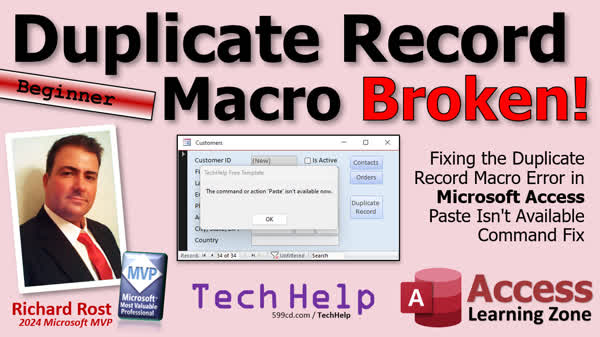
TechHelp Access, Duplicate Record Macro Error, Paste Isn't Available Command, VBA Timing Issue Fix, Convert Macro to VBA, Windows 11 Access Bug, Macro to VBA Conversion, DoEvents VBA Function, Microsoft Access Error Solutions, Indexed Fields No Duplicates, Access Button Wizard Issue
More InformationTranscript Today, we're going to talk about the broken macro button. If you've tried to make that duplicate record macro button, it's broken. It's not working anymore for some people, not for everybody. We'll talk about why in just a minute and how to fix it.
Today's question comes from Lee in Flugerville, Texas, one of my gold members. Lee says, "I'm following along with your video from three years ago about creating a duplicate record button using the button wizard in Microsoft Access. However, when I try it now, I get an error saying the command or action paste isn't available now. Did something change, or am I missing something?"
Well, this is a known problem that's been going back to at least 2014. I Googled this, and people have been having problems with it on and off. It especially seems to not work on Windows 11.
A few years ago, when I did my previous video, I walked you through exactly how to create this button, and it worked just fine. I was probably using Windows 10 back then because I just upgraded not too long ago. But now that I've upgraded my systems to Windows 11, it's broken for me now too. I adjusted a Windows update on one of my laptops just to see, and I did an Office update too, and it's still broken. This is a problem Microsoft needs to fix.
Let me walk you through the problem, and then I'll teach you how to solve it. That's what you've got me for: to teach you how to fix these things.
First of all, if you haven't watched this video, go watch it first. Even though I have this tagged as a beginner video because the original one was beginner, this will require one line of VBA code to fix it. But you don't need to know VBA. I'm just going to show you exactly where to put the line of VBA code. So don't panic. You don't need to be a VBA developer to do this. But you're going to have to put one line of VBA code in a spot. I'll teach you how to do that in just a second.
So here I am in my TechHelp free template. This is a free database. You can grab a copy off my website if you want to. Let's go to the customer form. I'm going to right-click, go to design view, and let's add the duplicate record button here. It's under form design. Go to the command buttons, drop it down here. It's under record operations, duplicate record. Next, the text is fine. Whatever you want to put in there, it doesn't matter. Command 30. Let's call this duplicate record button BTN and then hit finish.
There's our duplicate record button right there. Save it. Close it. Open it. Click it. You get that error message. The command or paste isn't available now. What happens is when you create this button, the button wizard makes a macro. You can see it by right-clicking on it and going to build event. The macro editor opens up. Now I'm not a big fan of the macro editor. I don't use it much. I'm going to turn off this action catalog over here.
You can see the steps that it takes. First are the error handlers; if there's an error, go to the next line. Then it says macro command copy. Then it's run command, go to a new record. Then it's select the record and then paste. This is just more error handling down here.
The problem is it's a timing issue on your computer. Windows 10 didn't seem to have this timing issue. Windows 11 does. Basically, it's not going to the new record fast enough before there's a paste. That's why it's saying paste isn't available yet. It's just a difference in the way that Windows 11 handles the event timing. What we have to do is introduce a tiny little pause in there before it tries to paste. We can use one command to do that. I'll show you how.
First, we're going to convert this macro over to VBA code, and there's an automatic way to do it. We're going to go up the form design. Actually, I'm going to warn you first before we do this: back up your database first. Back up, back up, and back up again. You should have an automated nightly backup. Back everything up.
And specifically, before we do this, I want to back up this form too. Whenever I know I'm going to make a major change to a form, I back up just that form. Here's my customer form. I'm going to go copy, paste, control C, control V. I like to call it customer F - backup. I know it violates my naming rules, but we're never going to use this in code or anything. We're never going to refer to this. It's just a backup to have in the database, just in case. So if I mess this guy up, I've got this copy sitting right next to it. And I don't call it copy of, so it sits right next to this one.
So we backed up our form. We're good. Now we're going to go back into the form, go back to form design. On the form design tab, there's a little button over there. It says convert forms macros to Visual Basic. Now, this is going to take all of the macros in this form. If you have more of them, it'll convert all of them over to Visual Basic. So click on that. These options are fine. If you want to leave them on or off, it doesn't really matter, and then hit convert. What that's going to do is it's going to convert all the macro code to VB.
Now, if you right-click on that button and go to build event, it brings up this scary-looking thing. Don't worry about it. It's not scary. This is the Visual Basic editor. If you do want to learn more about VBA, go watch this video. It's free. It's 20 minutes long and will teach you everything you need to know to program in VBA to get started.
But you don't have to. I'm going to show you what to do right now. I know a lot of people have told me, "Hey, I love Access. I love building stuff. I just don't want to be a programmer." That's fine. We'll turn off this template. If you see this panel here, just close it. And I'm going to resize my window just a little bit.
Right here, you can see what the cursor is: we're inside the duplicate record button click. This was button code. This was a macro, and now it's button code, or now it's VBA code. These are all the same commands you had in the macro. What I want you to find is this one here: this is AC command paste. This is where we have to add the delay right in front of that. So click right at the beginning of that line. Press enter. Come back up to that spot there, and you're going to type this in: do events. It's one word: do events, just like that.
And then, when you move your mouse off, it should capitalize the D in the E, do events. Now save it, control S. We're going to save that. We're going to close the Visual Basic editor window. Close this. Now go back into your form and hit duplicate record. Boom. And there I go. It works. We're on record 34 now. It's literally just that little tiny timing issue.
There is no way to insert that pause or a do events command as a macro. That's another thing, Sammy. We should put this on a list for Microsoft. Why is there no way to do a do events in a macro? I tried a bunch of different commands. You can't refresh it. You can't insert a beep. There's no way to insert that tiny little pause there. In fact, they should have a command in the macro editor to insert an actual sleep command, like you want a half-second or a full-second sleep to pause the macro. That should be in the editor. Put that on the list. Sammy and I have a whole big giant list of stuff to give to Microsoft. Hopefully, I'll see someone at the MVP conference in March. I'll be able to hand it to them and say here, fix this stuff.
Now there's another problem that exists at this point, but it's going to happen even if the button works the other way, that some of these fields in here, like this email address, are indexed. I have it indexed with no duplicates. So if I try to leave the record now or close the form, it says you can't do it because you've got duplicate values in the index, primary key, or relationship because I've got the email address set as indexed with no duplicates. That is because in my database, I don't want two people with the same email address. Everyone's got to have their own unique email address. If you want to learn more about that, go watch this video.
So essentially, what you'd have to do at this point is either delete the email address or put a different one in. Now, there are options to copy the record and only copy specific fields. I actually cover that in the extended cut for this, for my original duplicate record video. So if you're a member, you can go watch that, and I'll show you how to copy it except for certain fields, like the email address.
Also, two other courses that I can recommend that have things related to this: in Access Developer 24, I copy another very popular question of how do you copy orders with their details? How do you copy a record with all of its related records? If you want to make a copy of an invoice, for example, or you want to take a quotation and turn it into an invoice while leaving the original quotation, this lesson will teach you how to copy the order and all of the related details at the same time. Yes, that does require some VBA code.
I also just yesterday, in fact, released this one: Access Developer 48, where we create what I call a table-agnostic copy routine. It's a function where you can say, here's the table and the record or records that I want to copy, make a copy of, and it will just skip over anything that's indexed with no duplicates. That's a great one too because normally, you have to specify the list of fields. You typically say, "I want to copy first name, last name, email, phone." This one just says copy everything except the fields that you can't. That's in Access Developer 48.
But like I've always said, you don't have to have VBA programming knowledge to build great Microsoft Access databases. You can do a lot with just what's built into it, including the macros. However, every now and then, one of the macros or buttons throws up an error like this and doesn't work. So it's not on you, Lee. It's not your fault. This stopped working when it worked before. If you Google this problem, you'll see lots and lots of people complaining about it.
So here's the video, and that, my friends, is going to be your TechHelp video for today. Hope you learned something. Live long and prosper, my friends. I'll see you next time.
TOPICS:
Creating a duplicate record button in Access
Error with command or action paste
Using VBA to fix a broken Access macro
Converting Access macros to VBA
Handling timing issues in Windows 11
Adding a DoEvents command in VBA
Backing up Access forms before changes
Working with the Visual Basic editor in Access
Handling indexed fields with no duplicates
Using Access Developer courses to learn more
Table-agnostic copy routine in Access Developer 48
COMMERCIAL:
In today's video, we're tackling the broken duplicate record macro button in Microsoft Access. Many of you have encountered this issue, especially with Windows 11, where the command or action paste isn't available anymore. You'll learn why this happens and how to fix it using one simple line of VBA code. You don't need to be a programmer - I'll guide you step by step on where to put this code to resolve the timing issue causing the problem. Plus, we'll back up your forms to keep your database secure. Find the complete video on my YouTube channel and on my website at the link shown. Live long and prosper, my friends. Intro In this video, we'll talk about the issue with the duplicate record macro button no longer working correctly in Microsoft Access, especially for users on Windows 11 who see the paste command error. I'll explain why this is happening and show you how to fix it by converting the macro to VBA and adding a simple DoEvents command. We'll cover how to safely back up your forms before making changes, walk through the Visual Basic editor, and touch on handling indexed fields with no duplicates. This is a straightforward fix that doesn't require any VBA programming experience. Quiz Q1. What is the main issue discussed in the video tutorial regarding the macro button in Microsoft Access?
A. The macro button has stopped creating new records.
B. The macro button is causing a duplication of every record.
C. The macro button is broken and gives an error message saying the command or action paste isn't available.
D. The macro button causes the application to crash immediately.
Q2. According to the tutorial, why does the macro button not work properly in Windows 11?
A. Windows 11 has security features that block macro execution.
B. Windows 11 handles event timing differently, causing a paste command to execute before it's ready.
C. Windows 11 has compatibility issues with older versions of Access.
D. Windows 11 automatically disables macros by default.
Q3. What is the suggested fix for the macro button issue mentioned in the tutorial?
A. Reinstall Microsoft Access to restore defaults.
B. Add a 'pause command' in the macro editor to avoid timing issues.
C. Convert the macro to VBA code and insert a "DoEvents" command before the paste command.
D. Use a different macro editor to create new macros.
Q4. What precaution does the video suggest before converting macros to VBA code?
A. Ensure all running applications are closed.
B. Update Microsoft Access to the latest version.
C. Back up your database and specifically the form you are modifying.
D. Disable all other macros to prevent interference.
Q5. Why can't a "DoEvents" command be added directly in the macro editor according to the video?
A. Microsoft Access macros do not support timing or pause commands.
B. "DoEvents" is only available in Windows 10.
C. Adding commands to the macro editor requires advanced developer permissions.
D. The macro editor lacks the capability to execute any VBA-related functions.
Q6. What is one potential problem with duplicate records that is mentioned in the video?
A. Duplicate records can cause the database to become corrupt.
B. Duplicate records can result in a lack of record visibility.
C. Duplicate records may violate field constraints such as unique indexing.
D. Duplicate records can lead to an increase in storage costs.
Q7. What additional video courses are mentioned that relate to handling record copies in Access?
A. Access Basics 101 and Access Advanced Techniques
B. Access Developer 24 for copying orders with details and Access Developer 48 for a table-agnostic copy routine
C. Access Macro Mastery and Access VBA Basics
D. Access Reporting Excellence and Access Database Security
Answers: 1-C; 2-B; 3-C; 4-C; 5-A; 6-C; 7-B.
DISCLAIMER: Quiz questions are AI generated. If you find any that are wrong, don't make sense, or aren't related to the video topic at hand, then please post a comment and let me know. Thanks. Summary Today's TechHelp tutorial from the Access Learning Zone is about addressing the issue with the broken duplicate record macro button. If you're following along with an older tutorial to create a duplicate record button in Microsoft Access using the button wizard, you might find it doesn't work anymore for some users. This problem has been ongoing since at least 2014, and it seems especially problematic on Windows 11.
A question from one of our members mentions encountering an error stating that the command or action paste isn't available now when trying to use this feature. This issue is attributed to changes in how Windows 11 processes event timing, causing the macro not to execute as it should. Previously, when using Windows 10, the macro functioned correctly, but after upgrading to Windows 11, this error started occurring.
Let me guide you through identifying and fixing this problem. The solution involves modifying the macro with a single line of VBA code to introduce a slight delay before the paste action, which will resolve the timing issue. Don't worry if you're not familiar with VBA; I'll explain exactly where this line needs to go.
First, ensure you've backed up your database, particularly the form you're working on. This involves copying the form in question to have a safety net in case anything goes wrong during the process. Once you've done that, you'll need to convert the macro into VBA. This conversion can be easily done through the form design options in Microsoft Access.
After converting the macro into VBA, open the Visual Basic editor and locate the line where the paste command is executed. Add the line "DoEvents" just before this command to introduce the necessary delay that resolves the issue. Once this adjustment is made, save your changes and test the button again on your form. You should find that everything is now functioning correctly.
Be aware that if you've got fields indexed with no duplicates, like an email address, you might encounter another issue if you try to duplicate a record with identical data in one of these fields. You can either clear these fields or provide unique values before saving the record. I cover more advanced methods for selectively copying fields in my extended tutorials.
For those interested in more complex tasks such as copying a record along with its related data, I have lessons available in Access Developer courses. These cover copying orders with details and creating table-agnostic copy routines.
Remember, even without in-depth knowledge of VBA, you can still create useful and powerful Microsoft Access applications. Occasionally, technical changes might require a quick fix like this one, but it's manageable, and you're not alone in encountering these issues.
For a complete video tutorial with step-by-step instructions on this process, please visit my website at the link below. Live long and prosper, my friends. Topic List Creating a duplicate record button in Access
Error with command or action paste
Using VBA to fix a broken Access macro
Converting Access macros to VBA
Handling timing issues in Windows 11
Adding a DoEvents command in VBA
Backing up Access forms before changes
Working with the Visual Basic editor in Access
Handling indexed fields with no duplicates
Using Access Developer courses to learn more
Table-agnostic copy routine in Access Developer 48 Primary Topics duplicate record macro, Microsoft Access, macro errors, Windows 11 compatibility, VBA conversion, DoEvents timing fix, backing up forms, macro vs VBA, indexed fields issues
Secondary Topics copying specific fields, table-agnostic copy routine, related records duplication, Access Developer courses
|






