Distribute Text
By Richard Rost

 20 months ago
Align Text Evenly in Microsoft Access Forms & Reports
In this Microsoft Access tutorial, I will show you how to use the Distribute Text Alignment property to create evenly spaced text across columns in forms and reports, and address the issue of awkward spacing on the last line. Learn how to utilize non-breaking spaces to improve text alignment.
Richard from Cleveland, Utah (a Platinum Member) asks: Hi, I have a long text field where I've set the text alignment to distribute, and it's working well except for the last line. If the last line only has a few words, it appears awkward with a character, followed by many spaces, and then another character. I want to distribute all the text except for the last line. Is this possible?
Members
In the regular extended cut, I will show you how to programmatically turn scroll bars on and off within text boxes, allowing you to see their appearance in reports without switching views. We'll also create buttons to easily insert and remove non-breaking space characters, streamlining the process for users. And we have a special Gold Member extended cut where I'll show you my solution to automatically add these non-breaking spaces with VBA code. Cool stuff.
Silver Members and up get access to view Extended Cut videos, when available. Gold Members can download the files from class plus get access to the Code Vault. If you're not a member, Join Today!
Prerequisites
Character To Insert
- CHR(160) which is ALT-0160
Keywords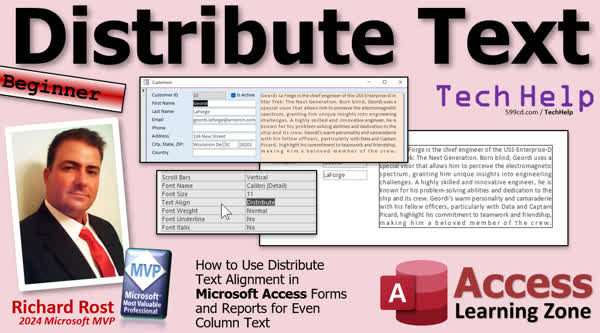
TechHelp Access, Distribute Text Alignment, Microsoft Access Forms, Microsoft Access Reports, Even Column Text, Non-breaking Space Character, Character Code 160, Numeric Keypad Shortcuts, Adjusting Last Line Alignment, Formatting Text in Access, Alt Key Shortcut, Remove Trailing Spaces, Microsoft Access Properties
More InformationTranscript Welcome to another TechHelp video brought to you by Access LearningZone.com. I'm your instructor, Richard Rost. Today, I'm going to teach you about the Distribute Text Alignment Property, how to get your text in your reports and your forms to look like newspaper columns, where the text goes to the left and the right side. We're going to talk about that troublesome little last line and how it doesn't always look right.
Today's question comes from Richard in Cleveland, Utah, one of my platinum members. Cool name, Richard. It always reminds me when I meet another Richard, I go Richard, Richard. Kind of like that scene from Spies Like Us. Doctor. Doctor. Doctor. Doctor. Doctor. Doctor. Doctor. Doctor. Doctor. Doctor. Doctor. Doctor. Doctor. Doctor. Doctor. Doctor. Doctor. Doctor. Doctor. Doctor. Doctor. Doctor. Doctor. And, Doctor.
Anyways, Richard says he has a long text field where he's set the text alignment to Distribute and it's working well except for the last line. If the last line only has a few words, it appears awkward with a character followed by many, many spaces. How do we fix this? You can see the example that Richard posted in the forums on my website. That last line is stretched way out too much. How do we fix that?
Well first, for all the beginners out there who don't know how to do this with the Distribute Text, let me show you how to do it real quick. A lot of people don't even know this is possible. It's easy to do in Word. Let me show you how to do it in Access. It's pretty easy too.
First, the prerequisite for you: If you haven't watched my customer report video, go watch this. It's just basically taking the customer form and making a report out of it. But we've got this nice big text box here we can play with. We're going to use this today.
Alright, so here I am in my TechHelp free template. This is a free database you can get off my website if you want to. And on here, I've got a customer form. For the purposes of class, let's make this notes field really, really big. In fact, I'm going to get rid of some stuff and make that really big so we can see all the text. Alright, save that. Close it. Open it back up again. Alright, we can see that. We've got some text here and some text here. Yeah, we need more on the bottom. Some of these are just a little bit too long. I'm going to make it a little bit bigger here. Let's see what we can do. I'm going to have to be shorter, but that's okay. I want to be able to see the whole thing on the screen. Let's see. Not still too big. You know what we'll do? We'll fix it. We'll just do right there. Alrighty. Goodbye. I want to see everybody on the screen.
Now, to make this appear as if it's distributed across, just go to Design View, open up the properties for this notes box. On the Format tab, you're going to find Text Align. It's right there. The default is General. And we're going to drop that down. You've got left, center, right, and distribute. That's the one that aligns both of the columns. You can see notes by itself. The last line always gets stretched way out. This one doesn't look too bad. That one's not that bad either. Let's find one that's bad. That one's getting there. Yeah, see? Now, if you've only got a little bit, like if we put just constants in here, you don't notice it when you're just looking at it. But if we do this and come back, you've got to be off that field. There you go. See? The same thing happens in Reports too. If you go to the customer report in design view, come in here. Open this guy up. Go to the format property, text align, change it to distribute. Then close it, save it, open it. Hey, that's a perfect example right there. Look at this one.
So how do we fix it? You'd think you could come in here and put a bunch of spaces, space, space, space, space, space, space, space, space, space. But unfortunately, when you do that, it doesn't do anything because Access will trim any trailing spaces off of a text field. Any text box at all. If I put a bunch of spaces in here and go off of it and then back on it, it trims it. There's no way to turn that off that I know of. If you know of a way, let me know because I researched it. I played with it for a while. There's no way to get it so that it leaves trailing spaces. This is actually a big problem in one of my developer classes where I teach you how to do what's called a search as you type where search results are updated with every character you press because if you press a space and you've got to refresh another box, it messes things up.
So how do we fix this? The solution, the easy solution is to add something called a non-breaking space character in there. Now, you could add something like an underscore or something like that. If you add enough of them, you can see as you add more, it starts to distribute that line better. It's looking normal now, more. That's what you want, but you don't want to see that underline either. So what you want in here is a character that's not a space because you don't want it to get trimmed off, but you also don't want to see it. To do that, we can use something called a non-breaking space.
Now, a non-breaking space is not a key on your keyboard that you can press, but you can get it by using the alt key and typing in a number. So here's what we're going to do. I'm going to start over here at my last name first. I'm going to put one here first. Hold down the alt key and then on your numeric keypad, type in 0, 1, 6, 0 and then let the alt key go. And look at that. Wait, someone's beaming in, hold on. It was a flrmingy with a bunch of stumbles. Anyways, notice, look at that. I got a little tiny space there, but it's not really a space. It's a special character that looks like a space. If I click off of it and then back on it again, look at that. It's still there because it's alt 160. It's character code 160. And again, hold down the alt key and then 0, 1, 6, 0, let it go. Now I've got two non-breaking spaces there. Let's get rid of those. Back, back. Now if I come over here, I could do the same thing. Hold down the alt key 0, 1, 6, 0, let it go. Now I've got a non-breaking space there. I don't want to have to keep doing that, alt 0, 1, 6, 0. So now that you've got one, you can copy and paste it.
So I'm going to go shift left arrow that will select that character, or you can use the mouse if you really want to come in here and just click and drag. Now copy paste, control C, control V, and you can just hold the control V down and it'll paste a bunch of those in there. And now if I leave that field, look at that. It looks a lot more normal than it was before. See? Click in here. Paste, paste, paste, paste, paste, paste, paste, paste. And there. That's not too bad. That's the only way that I believe in. If you've posted this in the forum about a week ago, I played with this for a couple of hours to try to figure out a better solution than this, but this is the best thing I can think of.
If you've got a better solution, I want to hear about it. Now the thing is, this is going to change with each different one. So you have to come down here and do the same thing. Put a bunch of them in here. It's still on my clipboard. So paste, paste, paste, paste, paste, paste, paste, paste. If you have a report, the width of that box will determine how it looks. So you want to make sure that whatever you're printing is exactly the same as the one in your form. In fact, what I would do is I would get this laid out exactly the way you want it. Copy that, or at least note the width. You can find the width property right there. 4.45A3. Just copy that to your clipboard. Then come back to your form and make sure this guy is the same width. Here's the width property. So it's exactly the same width. This way, what you see here is what you'll get on the form. The height doesn't matter. The height's fine. It's the character width. You want to make sure this guy is the same width as the other guy. If you come in here and do that, this looks good now. You can see I got all those characters in there. Probably don't even need that many. Maybe a few less. It looks like that. And now if I go to the report, it should look this. Oh, no, it's not. It's slightly different. Oh, margins. We got margins, too. This guy has the scroll bar margin in here. You got to take that into consideration, too. Yeah, margins are set to zero. You got padding in here, too. You can set the padding to zero. And you can turn off the scroll bars if you want. If you want to make sure it's identical, turn that off. Let's see what we get now. Yeah, see, now it looks exactly like it looks in the report.
So that's up to you. Of course, you're going to lose your scroll bar. You could do with VBA code to turn the scroll bars on when you go into the box and things like that. That's a lot more advanced though. If you guys really want to see it, let me know. I can do a video on it. If you do have a long box, even without a scroll bar, you can still click in here and use your scroll wheel on the mouse for the arrow keys.
Now, in the extended cut for the members, I'm going to show you how to turn those scroll bars on and off. When you go in the box, it'll turn the scroll bars on. When you leave the box, it'll turn them off. That way, you can see exactly what it's going to look like in the printed report without having to switch to the report. I'll show you how to do that. Then we're going to make buttons down here to add that character 160, so you don't have to teach your users to go alt 0 160 because you're going to forget. I forget. I wouldn't remember that if it's not something that I do every day. So we're going to make a button to do it and then we'll put that in there for you. Wherever the cursor is, it'll slap that in there. And we'll make a button to remove them because if you want to make changes and you add more text in here and stuff, the number of spaces at the bottom might not be right. So you might want to remove them and then re-add them based on the new text.
Then we're going to do a special gold member bonus where I'm going to show you how to have the database calculate the number of spaces that you need automatically. That took me a while to figure out. But that's all going to be covered in the extended cut for the members. Silver members and up get access to all of my regular extended cut videos and everybody gets some free training every month. There's lots of reasons why you should join. You should smash that join button now and sign up.
But that is going to be your TechHelp video for today. Hope you learned something. Live long and prosper my friends. I'll see you next time.
TOPICS:
Distribute Text Alignment Property in Access
Fixing stretched last line issue
Using non-breaking space characters
Alt key shortcut for non-breaking space
Copy-pasting non-breaking spaces
Adjusting width to match form and report
Setting margins and padding to zero
Managing scroll bars in text boxes
Button to insert non-breaking spaces
Button to remove non-breaking spaces
Automatic calculation of needed spaces
COMMERCIAL:
In today's video, we're learning about the Distribute Text Alignment Property in Access, focusing on how to make your reports and forms look like newspaper columns with justified text on both sides. We'll tackle the common issue of awkward last lines with excessive spaces and show you how to use a non-breaking space to align text more naturally. You'll also learn how to match form and report layouts exactly, including tips on managing scroll bars and margins. For members, there's bonus content on automating space calculations. You'll find the complete video on my YouTube channel and on my website at the link shown. Live long and prosper my friends. Intro In this video, we will look at the Distribute Text Alignment Property in Microsoft Access and how to use it to make your text fields appear neatly justified, similar to newspaper columns. I will show you how to apply distributed alignment in forms and reports, address the issue of stretched out last lines, and use non-breaking space characters to fix awkward spacing. We'll also cover how to match the width of your text boxes between forms and reports, and discuss adjusting margins and padding for best results. Quiz Q1. What is the main purpose of the Distribute Text Alignment Property in Access?
A. To make text appear in bold and italics
B. To allow dynamic text size changes
C. To align text to both the left and right sides like newspaper columns
D. To change text color based on conditions
Q2. What is a common problem when using the Distribute Text Alignment Property for long text fields?
A. Text does not realign when printed
B. The last line of text appears stretched out when it is short
C. Text appears only on the right side
D. The first line is always indented
Q3. How does Access handle trailing spaces in text fields?
A. Access automatically converts them to underscores
B. Access leaves them unchanged, allowing manual adjustments
C. Access trims them and removes any trailing spaces
D. Access expands them into full lines for formatting consistency
Q4. What solution is provided for dealing with awkwardly stretched last lines in Access?
A. Inserting underscores manually
B. Decreasing the text field width
C. Using non-breaking space characters
D. Adding extra paragraphs for spacing
Q5. How can you insert a non-breaking space character in Access?
A. Press Alt + 0 + 1 + 6 + 0 on the numeric keypad
B. Press Ctrl + Shift + Space
C. Use the Insert Special Character menu
D. Type a double space quickly
Q6. Why would you want to ensure that the width of a text box in a form matches the one in a report?
A. To eliminate the need for scroll bars
B. To ensure visual consistency between the form and printed report
C. To prevent text from being cut off in the form view
D. To allow for automatic alignment adjustments during database updates
Q7. What might be a reason to turn off scroll bars in an Access form according to the video?
A. To increase scrolling speed with the mouse
B. To improve print layout consistency with the report
C. To disable manual entry in certain fields
D. To simplify the form's user interface for newcomers
Q8. What additional feature does the extended cut of the video promise to show members?
A. How to add colors to the text
B. How to turn scroll bars on and off programmatically
C. How to set text fields to auto-update with web data
D. How to automate text size adjustments based on screen resolution
Answers: 1-C; 2-B; 3-C; 4-C; 5-A; 6-B; 7-B; 8-B
DISCLAIMER: Quiz questions are AI generated. If you find any that are wrong, don't make sense, or aren't related to the video topic at hand, then please post a comment and let me know. Thanks. Summary Today's TechHelp tutorial from Access Learning Zone covers the Distribute Text Alignment Property in Microsoft Access. I'm Richard Rost, your instructor, and I'll guide you on aligning text in reports and forms to resemble newspaper columns, with text justified to both sides. We'll specifically address a common issue with the final line, which often appears awkwardly spaced.
This inquiry comes from a platinum member, Richard, who has a long text field aligned using the Distribute property. The alignment works well, except when the last line of text contains only a few words, resulting in excessive spacing. I'll demonstrate how to address this issue effectively.
For those who are new to this: adjusting text to distribute evenly is a feature many aren't aware is available in Access. It's an easier task in Word, but equally feasible in Access.
Let's start. If you're unfamiliar, I'd recommend reviewing my customer report video, which explains how to transform a form into a report. Using a suitably large text box, as shown, we can display and manipulate text effectively.
I've set up a demo using my TechHelp free template database, which you can download from my website. For demonstration purposes, I've expanded a notes field to illustrate text distribution clearly. By entering Design View and modifying the text properties, you can opt for the Text Align setting under Format. The default option is General, but for newspaper-style columns, choose the Distribute option.
In practical use, the last line might still stretch across, creating large gaps. Adding spaces manually won't resolve this, as Access trims any trailing spaces by default.
So how do we fix this spacing issue? One solution is to insert a non-breaking space—a character that Access won't trim. Although not a standard key on your keyboard, you can insert this by holding the Alt key and typing '0160' on the numeric keypad. This character behaves like a space but remains unaffected by Access's trimming.
Once you've entered a non-breaking space, it can be copied and pasted as many times as needed. This approach can make those awkward lines appear more uniform, offering a simple, albeit manual, solution.
To maintain consistency in both forms and reports, ensure that the dimensions of your text areas match. Aligning the widths helps maintain the appearance across different views.
For those looking to automate or enhance their forms further, I'll offer additional insights in the extended members-only video. I'll demonstrate how to enable and disable scroll bars dynamically and create buttons for inserting and removing non-breaking spaces, streamlining the process for users.
In a special feature for gold members, I'll cover automatic calculation of space needs, saving you from manual adjustments. It took some exploring, but it's an efficient addition to any Access toolkit.
For a complete instructional video with detailed, step-by-step guidance on these techniques, please visit my website at the link below. Thank you for joining me today. Live long and prosper, my friends. Topic List Distribute Text Alignment Property in Access
Fixing stretched last line issue
Using non-breaking space characters
Alt key shortcut for non-breaking space
Copy-pasting non-breaking spaces
Adjusting width to match form and report
Setting margins and padding to zero
Managing scroll bars in text boxes
Button to insert non-breaking spaces
Button to remove non-breaking spaces
Automatic calculation of needed spaces Primary Topics Distribute Text Alignment Property, Access forms, Access reports, text alignment issues, non-breaking space characters, matching form/report layout, margins and padding adjustments, scroll bar management Secondary Topics Alt key shortcuts, user interface customization |







