F, C, or K Part 2
By Richard Rost

 2 years ago
Temperature Conversion Tool for Access, Part 2 In this Microsoft Access tutorial, I'm going to teach you how to enter temperature readings in any scale, whether it's Fahrenheit, Celsius, or Kelvin, and be able to convert between all three at the same time. In Part 2 we are building the query to perform all of the conversion calculations using the Switch function. PrerequisitesLinksRecommended CoursesUp Next
Keywords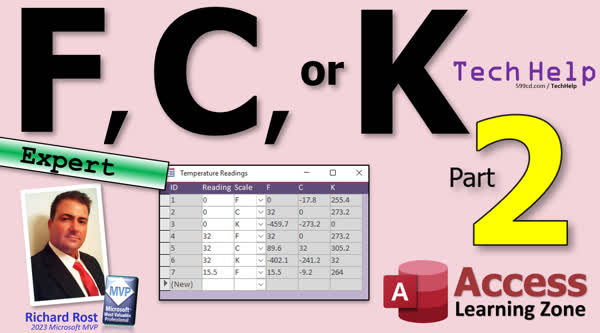 TechHelp Access, Temperature conversion, Access Switch function, Fahrenheit to Celsius, Celsius to Kelvin, Kelvin to Fahrenheit, convert temperature scales, temperature query Access, Access conditional statements, Access temp scale, Access temperature equations, Access video tutorial part 2
More InformationTranscript Today is part two of my FC or K video, otherwise known as the Fahrenheit, Celsius, or Kelvin video, where we can enter one reading, specify the scale, and we'll get all three values there.
This, of course, is part two. So what does that mean? If you haven't watched part one yet, go watch that first and then come on back. There's a link, there's a little QR code. I'll wait for you.
We now join the program already in progress.
Alright, so we left off here with our reading table where we have the value and the scale. Now it's time to make a query where we can calculate the others.
In the first Fahrenheit Celsius video, we went over the equations of how to get from Celsius to Fahrenheit and vice versa. Kelvin is basically on the same degree unit scale as Celsius. You just subtract 273.15. Scientists figured out that absolute zero is negative 273.15 degrees Celsius. So to get to Kelvin, that's easy. To get from Fahrenheit to Kelvin, you basically convert to Celsius and then subtract. So it's real easy.
Just like last time, let's create a query. Query Design. Let's bring in the reading table and we can close these down here. Bring in that star.
Now I'm going to go over here and start off with the temperature in Celsius. Regardless of what the scale is, we're just going to display all three. If you give me Celsius, I'm still going to show you Celsius. It's just going to be the same thing.
We'll use Switch because it's better than having to use nested If functions.
I'm going to zoom in. I have found when writing complicated functions like this, it's easier to break it up into multiple lines and write it almost like you're writing Visual Basic code for those of you who know what programming is, because it's just easier to read and write than it is to try to put it all together on one big long line like you have to in Excel.
We're going to start off with tempC. If I can type today, tempC. This is going to be equal to Switch, and whatever is going inside the Switch function will be like this, but I'm going to break it up. Just trust me. You'll see how easy this is to read. You can even put a couple of spaces in here to make it easier.
What's the first Switch condition? What's the first If statement? Basically, if tempScale is Fahrenheit, then, what's the value going to be? The Fahrenheit calculation, and I'm basically taking this from the last video, is going to be Round. We want to round it. (Value - 32) * 5 / 9. I'm going to round all of that to one decimal place.
That's the first Switch condition. Now, put a comma after it. Next Switch condition. Same thing, if tempScale equals Celsius, then this is literally just going to be tempValue because we're giving it Celsius and returning Celsius.
Comma, and what's the last one? If tempScale equals Kelvin, then we're going to round tempValue minus 273.15 to one value. If you want to round Celsius itself, you can, that's up to you.
You can see how much easier this is to read than the other way. I'm going to copy this to my clipboard and watch this. If you hit OK, then click off of it, and then come back to it again, Access rewrites it like that. It gets rid of all your fancy spacing because it doesn't care. That's what it really wants. I just think it's easier to write it the other way first. I wish it would save that, but who is keeping that list of stuff for the dev team? Tammy, is that you? Are you keeping the list? Put that on the list. If you put something in here in the query designer, keep the SQL format the way I left it.
If we run this now, there we go. Check to make sure it's correct. If we give it zero Kelvin, that's negative 273 Celsius. If I give it zero Celsius, oh, we got nothing in there. We have to take a look at what's going on here. I have something written wrong. That shouldn't have done that. Let's take a look, what did I do? Let's take a peek. It's tempScale. We'll see, tempScale. Oh, tempScale. That's the problem. Not tempScale, tempValue. Right. That's why I put a C there. Okay, sometimes I'm talking to you guys and I'm not paying attention.
Looks much better.
Let's save this while we're at it. This will be my ReadingQ.
Let's do Fahrenheit next. Come in here, zoom in. I'm going to paste in the stuff from Celsius that I put in the clipboard. We're going to make tempF.
Now if we're Fahrenheit, then all we need is tempValue. That's what was in my clipboard.
I'm going to stick it up here. And I'm going to cut that out too.
So tempC, we're going to put in here: Round(tempValue * 9 / 5 + 32, 1). There's my conversion.
To convert the Kelvin is actually a little trickier. I'm just going to copy and paste it because I already have it in my clipboard in my little notepad here. You're basically converting the Celsius and then subtracting 273.15. That's the formula there. It's basically the same thing as over there.
Alright, hit OK. Let's save it. Take a peek. Make sure that's working. Zero Fahrenheit. Zero Celsius is 32. Zero Kelvin is minus 459.7. Fahrenheit looks about right.
Last up is Kelvin. Once again, you get the point at this stage. I'm just going to copy and paste it from my notepad instead of making you sit here watching me type.
Temperature K. If it's Fahrenheit, there's the equation. Basically, it's converted to Celsius and then add 273. Celsius, and then Kelvin is just the same.
Run it. There we go. Looks about right. Anybody want to check my math, go for it. I spot-checked a few of these with Google. It looked good.
Alright, so we got our table built. We got our query built. In the next part, part three, we're going to build a little form where we can pick the scale right here, have a little combo box, and all that good stuff. That's coming up in part three.
Tune in tomorrow, same bat time, same bat channel. Members, you can watch it right now because I'm fixing to record it in just a few minutes.
That is going to be your TechHelp video for today. I hope you learned something, folks.
Live long and prosper. I'll see you tomorrow. Intro In this video, we continue working in Microsoft Access to build a query that converts temperature values between Fahrenheit, Celsius, and Kelvin scales. I will show you how to use the Switch function to calculate and display all three temperature values based on a single entry, covering the specific formulas needed for each conversion and demonstrating how to set up and test the query in your database. This is part 2. Quiz Q1. What is the main purpose of the query being created in this tutorial?
A. To display temperature values in all three scales: Fahrenheit, Celsius, and Kelvin
B. To import data from an external source
C. To automate form creation in Access
D. To only display Celsius values regardless of input
Q2. In the Switch function used for the Celsius calculation, which input scale requires converting the value using (Value - 32) * 5 / 9?
A. Fahrenheit
B. Kelvin
C. Celsius
D. Rankine
Q3. Why does the instructor prefer using the Switch function instead of nested If functions for this calculation?
A. Switch is easier to read and write than nested If statements
B. Switch allows for importing more tables
C. Switch is faster than If statements
D. Switch is required in SQL queries
Q4. How do you convert a temperature from Kelvin to Celsius, according to the tutorial?
A. Subtract 273.15 from the Kelvin value
B. Add 273.15 to the Kelvin value
C. Multiply the Kelvin value by 9/5 and add 32
D. Subtract 32 and then multiply by 5/9
Q5. How is the formula for converting Fahrenheit to Celsius typically rounded in the tutorial?
A. Rounded to one decimal place
B. Rounded to the nearest whole number
C. Not rounded at all
D. Rounded to two decimal places
Q6. When displaying Celsius in the query, what value is shown if the input scale is already Celsius?
A. The input value itself
B. The converted Fahrenheit value
C. The converted Kelvin value
D. Zero
Q7. What is absolute zero in degrees Celsius, as explained in the video?
A. -273.15
B. -100
C. 0
D. 273.15
Q8. What step is suggested if you make a mistake with naming fields or variables in your query?
A. Double-check and correct the names in the formula
B. Ignore the error
C. Restart the entire project
D. Delete the table
Q9. According to the video, what happens when you format your Switch function with spaces and line breaks in Access' expression builder?
A. Access removes the formatting and condenses everything to one line
B. Access keeps your formatting for readability
C. Spaces cause the function to return an error
D. The function will not run unless you remove the spaces manually
Q10. What is the next topic to be covered in part three of the series?
A. Creating a form with a combo box to select the temperature scale
B. Adding more temperature units to the conversion
C. Exporting data from the query to Excel
D. Importing additional readings from a CSV file
Answers: 1-A; 2-A; 3-A; 4-A; 5-A; 6-A; 7-A; 8-A; 9-A; 10-A
DISCLAIMER: Quiz questions are AI generated. If you find any that are wrong, don't make sense, or aren't related to the video topic at hand, then please post a comment and let me know. Thanks. Summary Today's TechHelp tutorial from Access Learning Zone continues our project for converting temperatures between Fahrenheit, Celsius, and Kelvin. In the first part, we set up a system in Microsoft Access where you could enter a temperature reading, choose the scale, and have Access automatically calculate the corresponding values in the other two scales.
This is part two of that series. If you missed the first part, I recommend watching that before proceeding, as it covers the basics, including the equations to convert between Celsius and Fahrenheit.
Picking up where we left off, we already have a table in place with fields for the temperature value and the scale. The next step is to build a query that calculates all three temperature values, regardless of which scale was entered.
In our initial video, we looked at how to convert back and forth between Celsius and Fahrenheit. Adding Kelvin to the mix is straightforward since the size of one degree is the same as a degree Celsius; the only difference is the zero point. Absolute zero is at -273.15 degrees Celsius, so to convert Celsius to Kelvin, you simply add 273.15. To go from Fahrenheit to Kelvin, you first convert to Celsius, and then add 273.15.
Now, let's construct a query in the Access Query Designer. Bring in the reading table. For clarity and easier troubleshooting, I find it helpful to write out complex calculations over several lines, almost as you would in VBA, rather than trying to squeeze everything into a single line as you might have to do in Excel.
We'll start with calculating the Celsius value for each record, no matter what scale is entered. Even if the value was entered as Celsius, we'll display it for consistency. I recommend using the Switch function in Access rather than multiple nested IIf statements. This makes your logic much easier to follow and maintain.
The conditions are set up like this: if the scale is Fahrenheit, apply the conversion formula for Fahrenheit to Celsius, rounding the result to one decimal place. If the scale is already Celsius, simply use the entered value. If the scale is Kelvin, subtract 273.15 from the value, again rounding appropriately.
Once you've written and entered the formula, you might notice that Access automatically rewrites the expression to fit its preferred format, stripping out any extra spaces or line breaks you may have used to make it more readable. Unfortunately, Access does not retain your customized formatting in the query designer, something I often wish would change.
After testing the query, be sure your results match standard values. For example, an input of zero Kelvin should yield negative 273.1 Celsius. If you discover any empty results or errors, double-check your field names for typos. A small mistake, like misnaming a field or mixing up which variable to use, can create unexpected blank results.
Save the query at this point. Now you can move forward to setting up the calculations for Fahrenheit. The approach is similar. Use the formula for Celsius to Fahrenheit if coming from that scale, and for values already in Fahrenheit, just use the entered value. The conversion from Celsius or Kelvin uses the standard conversion formulas. Again, test to be sure the query returns correct values, such as zero Celsius equating to 32 Fahrenheit.
Lastly, do the same for Kelvin. These calculations basically use the conversions we already discussed, either by adding or subtracting 273.15 where appropriate, or converting from Celsius or Fahrenheit as needed.
When you're done, your query should provide the temperature in all three scales for each reading in your table. As always, check a few results against a reference such as a search engine or conversion charts to verify that your math is correct.
With the table and query in place, the next part of this series will focus on building a user-friendly form in Access. This form will let you select the input scale with a combo box and view all the corresponding temperature values instantly.
Stay tuned for part three, where we dive into form design and automation. If you're a member, that video is available right now.
For complete step-by-step instructions on everything we covered today, you can find a full video walk-through on my website at the link below.
Live long and prosper, my friends. Topic List Creating a query to calculate all three temperature scales
Using the Switch function in Access queries
Writing multi-line calculations in the query designer
Converting Fahrenheit to Celsius and Kelvin in a query
Converting Celsius to Fahrenheit and Kelvin in a query
Converting Kelvin to Celsius and Fahrenheit in a query
Rounding calculated temperature values
Testing temperature conversion formulas in Access queries
Naming and saving the query for temperature readings Primary Topics Access query design, temperature conversion formulas, Switch function, calculated fields, Fahrenheit to Celsius, Celsius to Kelvin, Kelvin to Celsius, rounding results
Secondary Topics troubleshooting errors, best practices for formatting formulas, saving queries
|





