F, C, or K
By Richard Rost

 2 years ago
Temperature Conversion Tool for Microsoft Access
In this Microsoft Access tutorial, I'm going to teach you how to enter temperature readings in any scale, whether it's Fahrenheit, Celsius, or Kelvin, and be able to convert between all three at the same time.
Daisy from Atlanta, Georgia (a Platinum Member) asks: I loved your lesson on converting between Fahrenheit and Celsius, but that assumes you're always getting readings in one or the other. In my lab, we can sometimes get temperatures in any of the three scales (F, C, or K), and we have to be able to convert to the other ones. So, is there a way to have it so the user specifies the scale when they add the value to the table?
Prerequisites
Links
Up Next
Keywords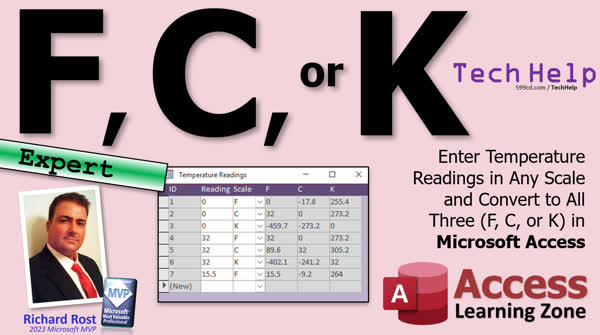
TechHelp Access, temperature conversion, enter temperature scale, Celsius to Fahrenheit, Fahrenheit to Kelvin, Kelvin to Celsius, convert temperature Access, lab temperature management, Access temperature database, specify temperature scale Access, temp value field, temperature conversion form, combo box selection, Access switch function, temperature unit conversion, Access form tutorial, Access sample database
 Subscribe to F, C, or K
Get notifications when this page is updated
More InformationTranscript In today's video, we're going to talk about temperature conversions again. This time, we're going to allow the user to enter the temperature and specify any scale they want: either Fahrenheit, Celsius, or Kelvin.
And yes, I realize what this title slide looks like at a quick glance. It wasn't intentional. This question comes from Daisy in Atlanta, Georgia, one of my Platinum members.
Daisy says, I love your lesson on converting between Fahrenheit and Celsius, but that assumes you're always getting readings in one or the other. In my lab, we can sometimes get temperatures in any of the three scales, and we have to be able to convert them to the others. So is there a way to have it so the user specifies the scale when they add the value to the table?
Yes, of course, Daisy. There are lots of ways you can do it. I prefer putting the value in a separate field from the scale. I've seen a lot of times where people try to do it like "32F" in the same field, like a short text field, and that just causes problems.
So let me show you how to set it up the right way, the way that I like to do it. Of course, there are a million ways to do it. I can just show you how to put the legal pieces together and you can rearrange them however you want.
Before we get started, let's talk prerequisites. If you haven't watched the original Fahrenheit to Celsius video, go watch that first. I cover a lot of stuff in there that I'm not going to repeat today. Also, go watch my video on the Switch function. This is an alternative to nested IF functions. We're going to use this to say, if the scale is Fahrenheit, use this equation; if it's Celsius, use this equation; if it's Kelvin, use this equation. It's easier to use Switch than it is to use multiple nested IF functions. So definitely go watch this video.
Also, go watch this video on making a value list combo box. We're going to make one of these so the user can drop it down and pick F, C, or K, right inside a form. These are all free videos. They're on my website and on my YouTube channel. You'll find links down below. Click on them, go watch those, and come on back.
I consider this to be an Expert-level video. What does that mean? Well, I've got multiple levels for my courses. I've got Beginner, which is for when you don't know a whole lot and you just started learning Access. Then I've got Expert, which is the next level, for people who have been using it a while. When you pass the basics, you're getting into functions, formulas, things with moving parts, molecular structures, and atomic weight. Then after that, I've got Developer, which is VBA coding and all that stuff. This is Expert. It kind of falls in the middle. We're going to use some cool functions and stuff in this class.
Before we get started, I've got a little trivia for you. I love trivia. I'm a trivia nerd. One thing I just learned recently: Kelvin is not measured in degrees. It's just Kelvin. You don't say "30 degrees Kelvin." It's just 30 Kelvin. I always get that wrong.
A few people posted this in comments on the other video. The only temperature that's the same between Fahrenheit and Celsius is negative 40. It's the same on both scales. I've known this all my life. I'm originally from Buffalo, New York. I spent a lot of time up in Toronto. I was up in Toronto at one point when it was negative 40. It was so cold, my car wouldn't start. That was fun.
This is a quote I believe is from Neil deGrasse Tyson. I should probably look it up, but I'm lazy. He said basically, Fahrenheit is a scale that's based on humans. Zero to 100 means a human will find zero pretty cold and 100 pretty hot. Celsius is based on water - how water behaves. It freezes at zero and boils at 100. Then Kelvin is based on molecules, where zero (absolute zero) is no molecular motion. I thought that was pretty cool.
I love whoever came up with this meme. This is all over the internet. Fahrenheit: zero is really cold outside, 100 is really hot outside. Celsius: fairly cold outside, dead at 100. Then Kelvin: zero dead, 100 dead. I love this one.
One more bit of trivia and I'm done. This was originally named Centigrade, from the Latin 'centum' meaning 100, from the inventor Anders Celsius, in 1742. Good old PowerPoint slide failed me there. It was an inverse scale at first. 100 was actually colder than zero. After his death, scientists flipped it because it just wasn't intuitive. Then, in 1948, it was officially renamed Celsius in his honor. Today it is the most commonly used system in the world with the notable exception of here in the United States because we're dumb. Yeah, I said it. Celsius is what we should use. So is the metric system. The old system is dumb. Come on USA, get with the rest of the world.
One more thing. I actually asked ChatGPT if there were any other scales. While I was putting this together, I was like, is there anything else we want to convert to? But no, not really. Temperatures are pretty much Fahrenheit, Celsius, Kelvin, and in scientific communities, there are some other ones. Here they are. You can read up on these. I didn't know Newton made his own scale. That's pretty cool. What didn't Newton do? Newton was amazing.
Oh, and I used ChatGPT to generate this picture. Of course, leave it up to ChatGPT to get the number of fingers wrong. Look at that. One, two, three, four, five fingers. And there's going to be a thumb under there somewhere. Their image generation with Dall-E is looking really good. I mean, that's amazing, but they still can't get fingers right. And they still can't get text right. So the AIs are closing in on perfection, but they still have a little way to go.
All right. This is my sample database that I built. This is what we're going to have when finished. You type in the reading value, pick the scale, and you'll get the three conversions for you there. So if I put in negative 40 and I put in Fahrenheit, I get those calculations automatically. We're going to be building this in today's video.
But let's start with a blank copy of my TechHelp free template. This is a free database you can get a copy of off my website if you want to. And just like the last video, let's create a table. Yeah, I probably should have copied it from the other one, but it takes two seconds.
ReadingID, that's my AutoNumber. Here I'm going to go with TempValue. I'm not going to just call it "temp" because sometimes people might confuse that with temporary. They might end up with "temperature." "Temperature" is a long word to type out. I think TempValue is good. I like to keep my variable names and my field names short, but not too short. They still need to be meaningful. Don't use just "Value." "Value" by itself is a keyword or a reserved word. You don't want to use just "Value." So I think TempValue works out just fine.
This will be a Number. Again, just like last time, I am going to make this a Double, and I explained why last time. I'm going to get rid of the default value. I don't want a default value. I'm going to make Required: Yes. That way, they have to type it in or they can't put in the record.
I talk about this a lot more in my video where I talk about required properties. With databases that have normal information, like first name, last name, address, phone number, I try not to make things required because employees will generally just put in garbage if something is required. But in a particular case like this, where there are literally two values - a temperature and the scale - it's required. You have to have it.
Next, we're going to make the scale. It's going to be the temperature scale. Again, you could just use the word "Scale" here, but I'm going to stay consistent and make TempValue and TempScale.
This is going to be short text. There are a lot of different ways you can do this. You could make a separate temperature scale table. You've got record one, two, and three: Celsius, Fahrenheit, Kelvin. In situations where there's a possibility in the near future of adding more items or deleting items, then yes, I would definitely make this a related record. But I think in today's society, those three options are pretty much it, and I can't see another temperature scale coming along in the future.
It's not something like shipping method. You've got UPS, FedEx, United States Postal Service. I could see another player coming along. We've already got Amazon Delivery, you've got DHL. So that's a situation where you would want to have a related table for it. For this, I don't see it changing in my lifetime. So I'm just going to make it a letter. You literally store an F, C, or K in the table.
There really isn't much of a difference whether this value is numeric or text. Honestly, it actually makes some of the programming easier because you can refer to F or C or K in the equations instead of having to go back to the table and figure out, OK, what is this? Number one, two, three. Those IDs can change, so this actually makes it easier by storing the F, C, or K here.
Again, don't put this in one field because then you have to make sure the user enters it right and you have to make sure the right character is a letter. Use two separate fields. I say this in my Access Beginner 1 class: it's easier to make multiple fields and put stuff together later than it is to try to separate stuff.
Consider an address, for example. You've got address, street, city, zip code, country. Some people even break up the street address into the number, street, and street type like avenue, whatever. It's much easier if you need all of that detail to make all those separate fields than to try to make it one field and break it apart later. Same with name: first name, middle name, last name. It's much easier if those are three separate fields. If you want to put them together, you just concatenate them, than it is to try to pull those apart. Anyways, I digress.
Now, this is one of those rare instances where I'm going to use field size. I don't use this much because there really is no major benefit to limiting the field size unless, in this case, you literally only want one and only one piece of text in there. One character, that's it. You can't put in two.
We're going to force the users to have to pick from a combo box. But if you want to put a validation rule in here to make sure that this is either an F, C, or K and nothing else, we can do it with a validation rule. What would that be? I'm going to zoom in here, Shift+F2. It's going to look like this: in ("F","C","K"). See how that looks? That's a validation rule. That means that your answer, whatever your data that's going into this field, has to be in this list: F, C, or K. That's it. No other options are allowed. It's not case-sensitive, which really doesn't matter.
If you want, if the users are entering stuff in lower case and you want to force it to display with a capital, you can always UCase it later. That's not a big deal. As far as the data is concerned in the table, upper or lower case is irrelevant.
If you want to put some validation text in here, you can. Must be F, C, or K. Whatever you want it to say. I have a whole separate video on validation rules. You can go watch that if you want to learn more. You'll find a link down below.
That's it for this table. Let's save it. I'll call this my ReadingT, primary key, sure. Again, if you want to add other fields in here, like a timestamp, notes, and who took the reading and all that, that's up to you. This is all we need for class to get done what we're trying to get done.
Let's put some data in it. We've got the value and the scale. I always put some temporary data in when I'm building a database because it's easier to build forms and queries and things like that if you've got some sample data in here.
So I'll put in 0 F, 0 C, and 0 K. Those are some good benchmarks. How about 100 F, 100 C, 100 K? Then maybe some stuff in the middle, like 75 Fahrenheit, 20 Celsius, and 50 Kelvin.
Looks good. Save it. Close it. Now we are all ready and set to build our query, which we will do in tomorrow's video. So tune in tomorrow, same bat time, same bat channel, for part two. Members can watch it very soon, not right now, because I haven't posted it yet, unless you're watching this in the future. So, yeah, very soon. I'm going to be recording it in just a few minutes.
But that is going to be your TechHelp video for today. I hope you learned something.
Live long and prosper, my friends. I'll see you next time. See you tomorrow. Intro In this video, we'll talk about how to set up a Microsoft Access database to let users enter temperature readings in Fahrenheit, Celsius, or Kelvin, and store the value and scale in separate fields for easier data management and conversion. We'll cover how to properly design your table fields, apply validation rules to allow only F, C, or K, and discuss best practices for handling temperature scales. You'll also learn how to set up a value list combo box for the scale selection to make data entry easier. Quiz Q1. What was the main focus of the video tutorial?
A. Creating a database for recording humidity values
B. Converting temperature values between Fahrenheit, Celsius, and Kelvin based on user input
C. Programming VBA for data import in Access
D. Creating a new temperature scale for lab use
Q2. What is the recommended way to store temperature value and scale in a database according to the video?
A. Together as one field, like "32F"
B. In two separate fields: one for the value and one for the scale
C. Store only the value and automatically assume the scale
D. Store everything as a note
Q3. Why is it not recommended to store the value and scale together in one field such as "32F"?
A. Databases do not allow storing letters and numbers together
B. It makes searching and programming more difficult
C. Users prefer to type more characters
D. It is better for security reasons
Q4. Which temperature scales are the primary focus of this video?
A. Fahrenheit, Celsius, Kelvin
B. Fahrenheit, Celsius, Réaumur
C. Rankine, Celsius, Kelvin
D. Newton, Fahrenheit, Celsius
Q5. What Access feature is used so users can pick the temperature scale easily on a form?
A. Command button
B. Value list combo box
C. Hyperlink field
D. Date picker
Q6. What is the benefit mentioned in the video of storing "F", "C", or "K" as text in the TempScale field?
A. It improves database performance significantly
B. It makes it easier to write conversion equations directly
C. Text fields are always faster to process
D. It allows for more decimal places
Q7. What is the main reason for using a validation rule like in ("F","C","K") in the TempScale field?
A. To speed up data entry
B. To ensure only valid temperature scales are entered
C. To prevent negative values
D. To require users to enter temperatures in Kelvin only
Q8. According to the video, when building a database table for this purpose, what is a good practice regarding required fields?
A. Make all fields optional, let users decide
B. Only make TempValue and TempScale required, since both are essential
C. Never use required fields
D. Make every possible field required, including notes
Q9. Which of the following statements about the Kelvin scale is correct, according to the video?
A. Kelvin is measured in degrees, like the others
B. Kelvin starts at zero, meaning no molecular motion
C. Kelvin is rarely used in laboratory settings
D. Kelvin is only used in weather forecasts
Q10. Why does the presenter prefer shorter but still meaningful field names like TempValue instead of just Value or Temperature?
A. Shorter names are more fun to type
B. "Value" is a reserved word and "Temperature" is unnecessarily long
C. Longer field names are not allowed in Access
D. It saves database storage space
Q11. What humorous observation is made about the Fahrenheit and Celsius scales?
A. They are identical in all respects
B. The only value that is the same for both is -40
C. They both boil water at 212
D. Celsius is used exclusively in the USA
Q12. Why is a separate related table for temperature scales NOT created in this example?
A. Because new scales are frequently invented
B. Because the three main options are unlikely to change
C. Because it simplifies the forms
D. Because Access does not support related tables
Q13. What is discussed as a general principle for designing database fields?
A. Combine as much information as possible into single fields
B. Always break up components into multiple fields and concatenate later if needed
C. Use as few fields as possible for simplicity
D. Always use numbers for everything
Q14. What is a reason given for not using required properties for standard information like names or addresses?
A. Makes entering data faster
B. Employees may enter garbage data if fields are required
C. Required properties improve database security
D. Required fields increase storage space
Q15. What does the field size property help control in the TempScale field?
A. The number of decimal places allowed
B. The amount of temperature values recorded
C. That only one character is stored for the scale
D. That scale names are always in capital letters
Answers: 1-B; 2-B; 3-B; 4-A; 5-B; 6-B; 7-B; 8-B; 9-B; 10-B; 11-B; 12-B; 13-B; 14-B; 15-C
DISCLAIMER: Quiz questions are AI generated. If you find any that are wrong, don't make sense, or aren't related to the video topic at hand, then please post a comment and let me know. Thanks. Summary Today's TechHelp tutorial from Access Learning Zone is all about building a Microsoft Access database that allows users to enter temperature values and specify the scale they are using: Fahrenheit, Celsius, or Kelvin. This comes from a question by a Platinum member named Daisy, who works in a lab setting where temperature readings might come in any of those three scales. The main goal is to design a system where users can specify the scale along with their measurement and have Access handle conversions cleanly.
First, let me emphasize a key point I always stress: it is best to separate the value itself from the scale. While it may be tempting to store something like "32F" in a single short text field, that quickly leads to complications. The cleaner, more manageable way is to have independent fields for the numeric value and for the scale.
If you have not yet watched my lessons on converting between Fahrenheit and Celsius, or my video about the Switch function, I recommend doing so. The Switch function is especially useful as a cleaner alternative to deeply nested IIf functions, allowing you to write calculations that depend on which scale is being entered. Also, I have another video showing how to make value list combo boxes, which let the user select their choice of scale from a drop-down list. All of those resources are free and are linked on my site and YouTube channel.
This topic belongs at the Expert level. For context, my Access tutorials start with Beginner topics for new users, then move into the Expert category with more complex features and database design, and finally reach Developer level for VBA programming. In this lesson, we are using functions and combinations of features that fit solidly in the Expert range.
Before getting to the technical content, let me share a few bits of trivia. One thing that often catches people is that Kelvin is not measured in degrees. You simply say "30 Kelvin," unlike "30 degrees Celsius." Another interesting point: the only temperature that is the same value in both Fahrenheit and Celsius is negative 40. It comes from personal experience – years ago, my car would not start when it was that cold in Toronto.
A comment I recall, possibly from Neil deGrasse Tyson, is that Fahrenheit is tied to the human experience, while Celsius is based on the physical properties of water, and Kelvin is the scientific choice, rooted in the bare activity of molecules at absolute zero. There is also a funny meme about how the meaning of "zero" and "100" changes in each scale.
Historically, Celsius was known as "Centigrade," created by Anders Celsius in the 18th century, and initially, the scale was actually reversed—100 was cold, zero was hot. After his death, that was changed to the standard we know today. The official renaming to Celsius came in 1948. Despite its worldwide use, the United States continues to stick with Fahrenheit and the Imperial system, which I see as odd in the modern age.
If you are curious about other obscure temperature scales, there are some lesser-known ones used in scientific circles, like Newton or Réaumur, though we will not need them for practical purposes here.
As for fun with AI tools, I used ChatGPT to check for alternate temperature scales and also to generate an image for this lesson. While the image quality is improving, AI tools still cannot get hands and fingers quite right – and the same holds for rendering text in images.
Let me explain how to set up the database. Start by creating a table for your temperature readings. Use an AutoNumber field as the primary key, then a numeric field called TempValue for the temperature itself. I avoided calling it simply "Temp" since that might get confused with "temporary," and while "Temperature" is clear, it is a bit unwieldy. TempValue strikes a good balance. Do not use "Value" by itself, as it is a reserved word in Access.
Set TempValue as a Number field with the Double type and make it a required field. Users need to enter a value for each temperature; otherwise, there is no record to save. If you want more detail on why and how to use the Required property, I have a full video that covers it for various real-world scenarios.
Next, add a field for the scale. I suggest naming it TempScale to keep IDs and field names consistent. This should be a short text field, and since there are only three practical choices (F for Fahrenheit, C for Celsius, K for Kelvin), you can simply store a single-character entry here. While it is possible to build a related table of temperature scales, in this specific case it is unlikely new temperature scales will be added or removed in the foreseeable future, making a lookup table unnecessary.
Often, storing a simple code (like F, C, or K) as text can make queries and programming logic easier, since you can match directly on these codes rather than IDs. If you instead use numeric IDs, you would have to look up which number matches each scale, which just adds complexity.
Importantly, do not combine the measurement and scale in a single field. Parsing and validating split fields is always harder than keeping each piece of data separate. The same applies to addresses and names – splitting street, city, and zip into separate fields pays off later when you need to sort or search on one part. Always store atomic pieces of information separately.
In this case, since you only want one character for the scale, you can set the Field Size property to 1. To ensure only approved entries (F, C, K) are allowed, set a Validation Rule to in ("F","C","K") and provide some helpful validation text, such as "Must be F, C, or K." If you want the display to always be uppercase, you can use UCase in your queries or forms, but the actual storage in the table does not care about case.
With these two fields set, save the table, calling it something like ReadingT. If you want to record extra information, feel free to add more fields such as timestamps or notes, but for this lesson, the basics are all we need.
Once the table is prepared, enter some test values to make form and query building easier. For example, try adding readings for 0 F, 0 C, and 0 K. Then try 100 F, 100 C, 100 K, and a few mid-range values like 75 Fahrenheit, 20 Celsius, and 50 Kelvin.
With that, you have the basic structure ready. In the next lesson, we will build a query to handle the conversions, so check back for part two soon. Members will have access as soon as it is posted.
If you want a complete video tutorial with all of the step-by-step instructions covered here, visit my website at the link below.
Live long and prosper, my friends. Topic List Setting up a table for temperature readings
Choosing appropriate field names for temperature data
Creating a TempValue field with Double data type
Enforcing required fields in Access tables
Creating a TempScale field with Short Text data type
Storing scale values as F, C, or K
Deciding against a separate temperature scale lookup table
Setting field size to limit TempScale to one character
Adding a validation rule to TempScale for F, C, or K
Adding validation text to guide data entry
Populating the table with sample temperature data Primary Topics Access table design, temperature scales, user input validation, data modeling, field structuring, combo box setup, validation rules Secondary Topics best practices for field naming, use of Switch function, database normalization considerations, trivia about temperature scales |




