Open Date Picker
By Richard Rost

 4 years ago
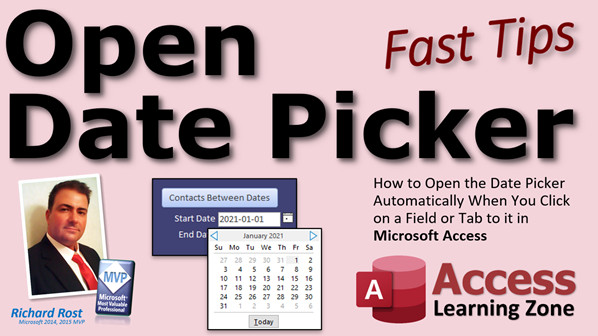
How to Open Date Picker Automatically in Access
In this Microsoft Access tutorial, I'm going to teach you how to make sure your Date Picker is on, how to insert the current date and time in a field with a keyboard shortcut, how to open the Date Picker dialog with a keyboard shortcut, and then with VBA we'll learn how to open the Date Picker automatically when you tab to a text box, and also how to programmatically turn the Date Picker option on or off.
Abby from Madera, California (a Platinum Member) asks: Is there any way that I can have the date picker pop up automatically when a user tabs to or clicks on a field? It's not always evident to my users (some of whom seriously need training) that they can click on the date picker box.
Pre-Requisite
Recommended Courses
Links
Topics
- Make Sure Show Date Picker is On
- Today's Date: Ctrl-;
- Current Time: Ctrl-Shift-;
- Keyboard Shortcut: Alt-DownArrow
- On Got Focus Event
- VBA DoCmd.RunCommand acCmdShowDatePicker
- TextBox.ShowDatePicker = True
Keywords
access 2016, access 2019, access 2021, access 365, microsoft access, ms access, ms access tutorial, #msaccess, #microsoftaccess, #help, #howto, #tutorial, #learn, #lesson, #training, #database, #fasttips, Show Date picker from VBA or keyboard shortcut, TextBox ShowDatePicker, Open datepicker automatically on textbox selection, Show Date Picker, access always show date picker, ms access date picker not showing, access query parameter date picker, ms access time picker, insert current date, insert current time
More InformationTranscript Welcome to another Fast Tips video brought to you by AccessLearningZone.com. I am your instructor, Richard Rost.
In today's video, we're going to talk about the Open Date Picker dialog. Even if you think you know what this thing is, I'm going to show you some cool tricks. For example, how to have that date picker automatically open when you tab to or click on a field.
Today's question comes from Abby in Madera, California, one of my Platinum members. Abby says, is there any way that I can have the date picker pop up automatically when a user tabs to or clicks on a field? It's not always evident to my users, some of whom seriously need training, that they can click on the date picker box.
First of all, Abby, if you need training, you have come to the right place. I've got lots of beginner lessons that you could put your people through. The best way to learn how to use Access is to spend a little time building a little database. Even if you don't want them building your database or working on it, if they learn a little bit of Access to build their own, maybe like I used to build a baseball card database when I was younger, just something for fun. Teach them Access that way.
One of the things I've been kicking around in my brain for the past couple of years is whether or not to build a course that's dedicated to teaching users how to work with Access databases to show them the different things like clicking on the date picker box or filtering, sorting, that kind of stuff. If you're interested, anybody watching, if you're interested in that kind of a video for your users to get familiar with just using an Access database, post a comment down below and let me know about it. If enough people are interested, I'll definitely put something together.
Getting to the date picker boxes, if you don't know how to use date criteria in your queries, go watch this video. It's free. It's on my YouTube channel. It's on my website. Go watch this so you understand how to make a query that pulls up records between two dates. We're going to use this in today's class. If you don't know how to do that, go watch that video and come on back.
Here I am in my TechHelp free template. This is a free database. You can download a copy from my website if you'd like to. You'll find a link down below. Right here, I've got a "To Date" text box, which we're going to use for our date criteria: start date and end date. We're going to make two of these.
I've got a contact table, which has all the contacts in my database. If you haven't watched my previous videos, a customer, obviously, is a person. A contact is anytime we talk to that customer, we track what we talked about, for example, called for a job, called for interviews, fought some clingsons, and so on. So that's what all these contacts are.
Let's say we want to make a query that shows all the contacts in the system between two dates. You could use a parameter query, like I showed you in the other date criteria video. Or you could use a form that has a start date and end date field on it. That's also one of the prerequisites of the other video I showed you.
Let's make this guy the start date. I'll change the label so it says "Start Date." I want to change the name of this text box. Instead of "Current Date," we'll make this "Start Date." I don't want to have a control source equals date. That puts today's date in there, but it's always that; if it's the control source, it's bound to that. You can't change it. However, what you can do is go to the data tab and give it a default value. A default value says I'm going to start with this, but you can change it if you want to.
Let's make this 2021-January first. Yes, I use the ISO date standard: year, month, day. If you want to learn more about that, there's a video for you.
Let's copy this guy. Copy, paste, Ctrl+C, Ctrl+V. We'll make the next one here the "End Date." I'll change the box over here. Go to "All" and go up to the top here and we'll change it from "Text 16" to "End Date." Everything's the same. Let's go back to "Data" and we'll change this to 2022. There are all kinds of tricks you could do to put the current first day of last year and last day, first year, all that kind of stuff. I've got videos for all that on my website.
Save this and I'll reopen the main menu. I have a little button here on my quick launch toolbar while it does that. It's this guy down here. There you go. You can see I have two dates, my start date and my end date.
If I click on one of these fields, nothing happens. The first thing I want you to check is to make sure that the property for "Show Date Picker" is set to "On" because you should see the little date picker thingy over here. It looks like a little calendar button. Go to Design View. I'm going to select both of these. Go to Format and find "Show Date Picker."
Mine is set to "Never." That could be what's confusing your users; they might not have the button available. If you upgraded from an older version of Access or if whoever built your database didn't set this property on, it normally does turn on for date values. But there are a lot of reasons why it might not be active.
Change that setting, save it, close it, open it back up, click there, and there's the little date picker button. They may or may not have that on in their database. One of my little frustrations is that I wish Microsoft would give you the option to have the little date picker appear over the text box, because if you have continuous forms, sometimes this shows up over the next field, which is kind of annoying. I think I posted it on their suggestions form, but I'm not sure.
A couple of keyboard shortcuts: If you don't know these already, if you press Ctrl+semicolon, it puts today's date in there just like Excel. If you press Ctrl+Shift+semicolon or Ctrl+colon, it puts the time in there. If you want both together, it's Ctrl+semicolon, space, Ctrl+Shift+semicolon. There you go. You get both of them together. You can see it's all in the same field, but the field isn't wide enough.
A lot of people surprisingly don't know that trick.
Here's another keyboard trick. When you're on a date field, if you press Alt+down arrow, it opens up the date picker. If you don't want to have to stop to grab your mouse, you can use the arrow keys to move around and pick a date, then press Enter. Shift+Tab to go to the previous one, Alt+down arrow, move around, pick the date you want, then press Enter. There you go.
That's Alt+down arrow. That's the same for a combo box, by the way. If you have a combo box on one of your forms like this one up here, Alt+down arrow opens that guy up. Ctrl+F4 closes a form. Alt+F4 closes down all of Access. Don't do that one.
I started doing a series on keyboard shortcuts for Access, but very few people seem to watch those or comment on them, so I stopped doing them. If you want to see them, post some comments and let me know. I'm also working on one of those keyboard cheat sheets. You've seen them for Word and Excel and I've seen a couple for Access, but they're kind of cheesy. They don't really give you the stuff that actual people who use Access use. They're just a bunch of shortcuts thrown together. I'm working on one. If you have any suggestions, send them to me.
That's all the keyboard shortcut stuff and settings.
But you say, "Rick, you told me you were going to show me how to have this open automatically." In order to do this, we need a little teeny tiny bit of VBA coding. Don't panic if you've never done any VBA before. It's very simple Visual Basic programming. Most things you can do that are super cool like this stuff is one line of code, maybe two. It's just knowing the right spot to put that one line of code in. I'm going to show you that.
If you've never done any VBA coding before, go watch this video. It's about 20 minutes long. It teaches all the basics, everything you need to know to get started.
What we're going to do is go into design view here. On each of these, we're going to do one at a time. For each of these, go to the Event tab, and I want you to find the "On Got Focus" event. That fires when this field gets the focus. In other words, when you either tab to it or click on it, when you go to this field. When you enter this field, I want to say enter, but there's also an "On Enter" event, which is slightly different, but just "On Got Focus" is fine. When this field gets the focus, this event's going to run.
Click on the button. That'll open up your VBA window, your VBA editor. Here I am in the Start Date "Got Focus" event. Right here, I need one line of code. What is that one line of code? This is what you have to know, and it's my job to teach it to you. Ready? Here we go. One line of code:
DoCmd.RunCommand
It shows up in a little bit; let's just see it there. Hit tab, space. It's a big long list of all these commands in here. Here it is:
acCmdShowDatePicker
There it is, right there. That's it. In other words, when this text box gets focus, when you tab to it, or when you click on it, it's going to run the command Show Date Picker. It's acCmdShowDatePicker. That's all you have to know.
I'm going to copy this and put it in the other field. Copy this, Ctrl+C. Come back over here. Go to the End Date. Click on "On Got Focus" ... and then paste that in there. So you get the same thing in two spots.
Save it, Ctrl+S, close it, and reopen it.
Ready? I'm just going to click on Start Date. Click. There it is. I'll hit Escape so it closes it. Then I'll hit Tab, and it popped open the one for End Date. It does that as soon as it gets the focus, whether you tab to it or click on it, and the little guy appears. Take it over with the arrow keys and press Enter, and there it is.
If for any reason you want to disable this thing, like maybe once you pick the two dates you want to prevent this thing from showing up, you can enable and disable it in code. You can do that like this. Let's use this Hello World button here. We'll call this "Disable." Right click, "Build Event." I'll get rid of my status command that's in here, ignore that. I'll come in here and I'll put in:
StartDate.ShowDatePicker = False
Or you can do True.
Save it, close it. Let's open it back up again.
Now look, normally it's got the Show Date Picker. See that? Disable. It just turned it off. If I click on this now, the command or action Show Date Picker isn't available. In other words, you can't use it. So if you want to disable it for whatever reason, you'll also have to make sure you come in your code here and turn it off at this level too. You could say something along the lines of: if that, then do that. In other words, if the Show Date Picker property is true, it's ok to show it.
Save it, close it. Try it again now. Click on it. Click. There it is. I'll disable it, and now when I click on it, nothing happens because that code is saying, we're going to check to see if Show Date Picker is true; if not, then it just exits out. If it is true, it'll show the date picker.
There's all kinds of stuff you can do here, depending on how you want your form to operate. I cover lots more cool stuff like this in my Access developer lessons. I've currently got 40 different levels of Access developer training for VBA and all kinds of cool stuff.
If you want an alternative to the boring date picker that Access has built in, I've created my own. I've got a fully customizable form right here. It's not a separate control. It's all built straight in Access. You can customize the colors. It'll show you the current date. It'll show you the date you've selected. You can go back and forth through the years and months. You can call this from any form and return your value to any form, so you can use it throughout your database.
Likewise, the same package also includes a time picker. I've got an analog clock here and you can customize the colors. I've got some digital time pickers here too. You can go up and down like you do military time. You can do all this stuff. This is my Access Date Time Picker template. You can find out more information here at this page. I'll put a link down below that you can click on if you want to learn more information.
That has been your Fast Tip for today. I hope you learned something and we'll see you next time.
How do you become a member? Click on the Join button below the video. After you click the Join button, you'll see a list of all the different membership levels that are available, each with its own special perks.
Remember, as a Silver member, you'll get access to all of my extended cut TechHelp videos, one free beginner class each month and more. Gold members get access to download all of the sample databases that I build in my TechHelp videos, plus my code vault where I keep tons of different functions that I use. You'll also get a higher priority if you decide to submit any TechHelp questions to me, and you'll get one free expert class each month after you finish the beginner series.
Platinum members get all the previous perks, plus even higher priority for TechHelp questions, access to all of my full beginner courses for every subject, and one free developer class each month after you finish the expert classes. These are the full-length courses found on my website, not just for Access too. I also teach Word, Excel, Visual Basic, and lots more.
You can now become a Diamond Sponsor and have your name or company name listed on a sponsors page that will be shown in each video as long as you sponsor. You'll get a shout out in the video and a link to your website or product in the text below the video and on my website.
But don't worry, these free TechHelp videos are going to keep coming. As long as you keep watching them, I'll keep making more and they'll always be free. Intro In this video, we will talk about how to make the Date Picker dialog automatically open when you tab to or click on a date field in Microsoft Access. I will show you how to adjust the "Show Date Picker" property, use handy keyboard shortcuts for working with date fields, and add a simple line of VBA code to trigger the Date Picker. I will also cover how you can enable or disable this feature with code to better control your form's behavior. Quiz Q1. What is the main topic of the video?
A. How to set up user accounts in Access
B. How to automate the Date Picker dialog in Access forms
C. How to build reports in Access
D. How to secure a database in Access
Q2. What property must be set to make the Date Picker visible for date fields?
A. Visible
B. Locked
C. Show Date Picker
D. Enable Editing
Q3. Why might users not see the Date Picker button in their database forms?
A. The table is not related
B. The Show Date Picker property is set to Never
C. The database is in Read-only mode
D. The computer's clock is wrong
Q4. Which keyboard shortcut enters today's date into a date field in Access?
A. Ctrl+Shift+semicolon
B. Alt+Down Arrow
C. Ctrl+semicolon
D. Ctrl+T
Q5. What does the Alt+Down Arrow keyboard shortcut do in an Access date field?
A. Closes the form
B. Opens the Date Picker dialog
C. Moves to the next record
D. Selects all text in the field
Q6. Which event should be used in VBA to automatically open the Date Picker when a user tabs to or clicks a date field?
A. On Enter
B. On Click
C. On Got Focus
D. On Lost Focus
Q7. What single line of VBA code is used to open the Date Picker dialog?
A. DoCmd.OpenForm "DatePicker"
B. Me.DatePicker = True
C. DoCmd.RunCommand acCmdShowDatePicker
D. Application.ShowCalendar
Q8. How can you programmatically disable the Date Picker for a field using VBA?
A. Set Field.Visible = False
B. Set Field.ShowDatePicker = False
C. Set Field.Locked = True
D. Set Field.Enabled = False
Q9. What is one potential drawback of how the built-in Date Picker appears in continuous forms?
A. It only displays Sunday
B. It can cover up the next field in the form
C. It cannot be used with queries
D. It deletes data when used
Q10. What alternative to the Access built-in Date Picker is offered by the instructor?
A. A third-party ActiveX control
B. A fully customizable Access form for picking dates and times
C. A downloadable Excel add-in
D. Using Microsoft Outlook's calendar
Q11. What should you use if you want a Date Picker that lets you customize colors and view both current and selected dates?
A. Built-in Access Date Picker only
B. The TechHelp Access Date Time Picker template
C. Windows Calendar app
D. VBA InputBox
Q12. What is the advantage of setting a default value for Start Date and End Date fields on a form?
A. Fields become read-only
B. Fields are automatically cleared on form open
C. Users see a starting value which they can modify
D. It encrypts the field data
Q13. If you want the Date Picker not to show after certain conditions are met, how should you handle this in VBA?
A. Set the form's Visible property to No
B. Check if ShowDatePicker is True before running acCmdShowDatePicker
C. Delete the Date Picker control
D. Lock the entire form
Q14. What level of Access member gets access to download all sample databases, code vault, and a free expert class each month?
A. Silver
B. Gold
C. Platinum
D. Diamond Sponsor
Q15. What is the on-screen tip to help Access users unfamiliar with using forms and controls?
A. Make a dedicated training course to show users basic tasks like clicking the Date Picker box
B. Write detailed instructions on paper
C. Remove all advanced controls
D. Send users to Microsoft Support
Answers: 1-B; 2-C; 3-B; 4-C; 5-B; 6-C; 7-C; 8-B; 9-B; 10-B; 11-B; 12-C; 13-B; 14-B; 15-A
DISCLAIMER: Quiz questions are AI generated. If you find any that are wrong, don't make sense, or aren't related to the video topic at hand, then please post a comment and let me know. Thanks. Summary Today's video from Access Learning Zone covers using the Open Date Picker dialog in Microsoft Access, with some helpful enhancements you might not know about yet. I want to show you some ways to make the date picker automatically appear when a user tabs to or clicks on a date field. This is especially useful if you have users who may not realize that the date picker is available or how to access it.
The original question today comes from Abby, who asked how to have the date picker pop up automatically for users when they focus on a date field. Many users might not realize that they can click the date picker button, so making it appear automatically can make your forms more intuitive.
To address this, let me first mention that the best way for users to learn Access is to actually build databases themselves, even if just for practice. If you have people on your team who need some basic Access training, I have plenty of beginner lessons that you can use. Sometimes building something simple, like a hobby database, can make a big difference in understanding how Access works.
I've also considered putting together a course specifically for end-users who just need to know the basics of navigating and interacting with an Access database, like how to use the date picker or apply filters and sorts. If that sounds interesting, leave a comment and let me know. If enough people are interested, I'll go ahead and create a course like that.
Now, getting to the practical part, if you need a refresher on how to use date criteria in your queries, I have a free video on that topic you should watch before tackling this one. It explains how to set up queries using dates so you can pull up records between two dates.
Let me walk you through the typical setup. In my TechHelp free template (which you can download from my website), I have a simple form with a "Start Date" and "End Date" text box. These unbound text boxes are used to collect the criteria for filtering contacts between two dates. Setting up the default value for each date box is simple. For example, you can set the default to January 1, 2021, using the ISO date format, which I always recommend (year-month-day). I have a separate video all about that format too.
Once you have your two date fields, make sure the "Show Date Picker" property is set appropriately. In Design View, check the Format tab for each text box and look for "Show Date Picker." It should be set to "For Dates" or "Always," rather than "Never." Sometimes, when you upgrade databases or use older templates, this property might get turned off, which can be confusing for your users. Fixing that ensures the calendar button will be visible beside your date fields.
One small frustration is that Access's date picker sometimes covers up adjacent fields when you use continuous forms, and there's no built-in way to change how or where it appears. Maybe Microsoft will fix that in the future.
There are also some handy keyboard shortcuts you and your users should know about. Pressing Ctrl+semicolon in a date field inserts today's date, just like in Excel. Ctrl+Shift+semicolon or Ctrl+colon will put the current time in the field. You can combine them for both date and time in the same field. Alt+down arrow opens the date picker without using your mouse, and you can then use the arrow keys to pick a date. These shortcuts also work for combo boxes and can really speed up data entry.
If you would like to see more keyboard shortcut videos or want a cheat sheet, let me know. I started putting one together, but I want it to have practical tips, not just the same old lists you find everywhere.
Now, to answer Abby's main question about automatically opening the date picker when a user focuses on a field, you will need a little VBA, but it's straightforward. Even if you've never worked with Visual Basic for Applications before, don't worry. I have a beginner VBA video that explains all the essentials.
The solution involves using the "On Got Focus" event for your date fields. This event triggers whenever the user either clicks into or tabs into the field. In the event handler, you add a specific VBA command that tells Access to open the date picker as soon as the field gets focus. You just need to do this for each date field where you want the picker to appear automatically.
You can also programmatically enable or disable the date picker for a given field. For example, you might want to prevent it from showing up after users have selected both dates or under certain conditions. This is easily accomplished by toggling the field's ShowDatePicker property via code.
If the built-in Access date picker is too limited for your needs, I've developed my own fully customizable date picker form. It's built entirely within Access so you can modify how it looks, how it works, and even use it for time selection. You can use this custom date picker in any form throughout your database. More information about this template is available on my website.
If you are interested in learning more about Access development, I offer a wide range of Access developer lessons covering VBA, form design, and much more.
Lastly, for those asking about membership options, different levels are available, each with their own perks like access to extended cut videos, sample databases, exclusive code repositories, and much more.
As always, these free TechHelp videos will continue as long as you keep watching and submitting questions. You can find a complete video tutorial with step-by-step instructions on everything discussed here on my website at the link below.
Live long and prosper, my friends. Topic List How to enable the date picker for text boxes in Access
Setting default values for date fields in Access forms
Copying and configuring start date and end date fields
Using the Show Date Picker property in Access
Keyboard shortcuts for date entry in Access forms
Using Alt+Down Arrow to open the date picker with the keyboard
Adding VBA to automatically open the date picker on focus
Placing VBA in the On Got Focus event for text boxes
Disabling the date picker using VBA code
Conditionally checking the Show Date Picker property in code Primary Topics Access date picker, form controls, VBA, Show Date Picker property, keyboard shortcuts, enabling/disabling controls, Access queries Secondary Topics custom date picker alternatives, user training suggestions, control source vs default value, template usage |





