|
||||||

|
|
||||||
|
Purge Image GalleryBy Richard Rost
 5 years ago
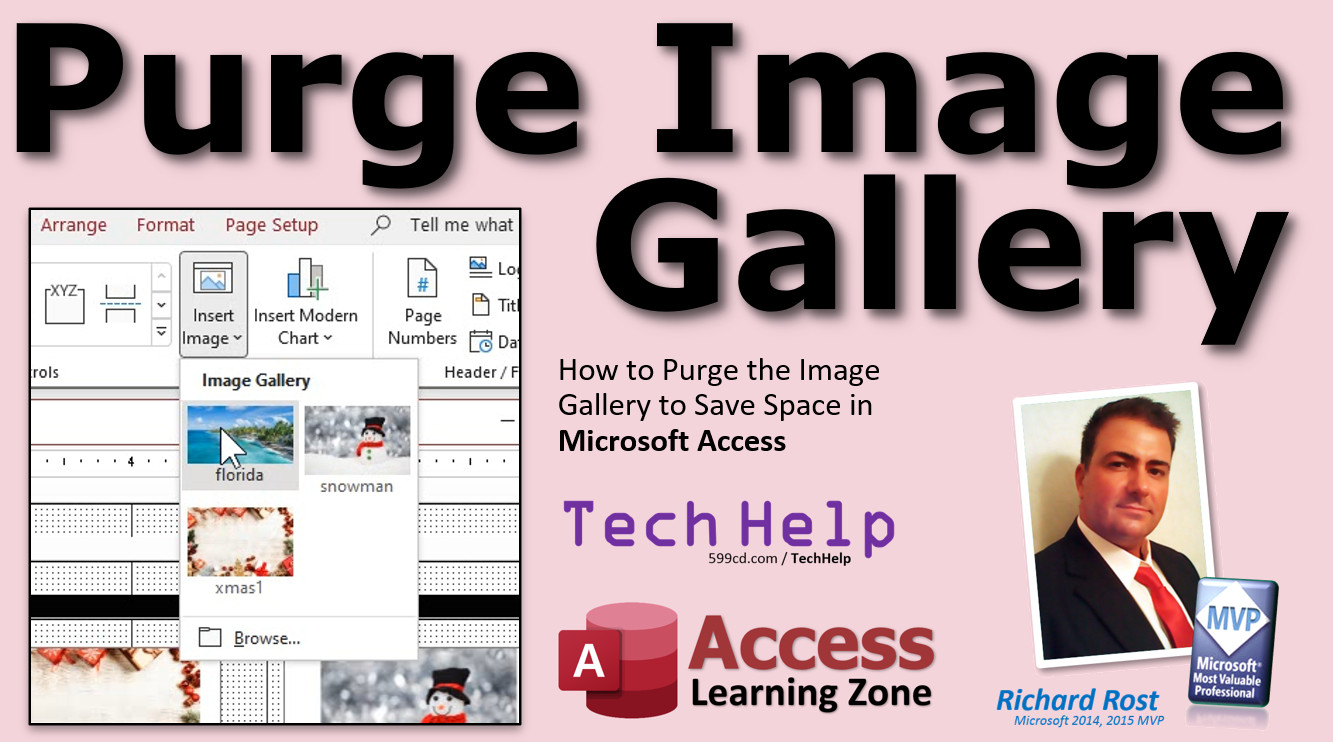
How to Purge the Image Gallery to Save Space In this video, I'll teach you what the Image Gallery is in Microsoft Access. I'll show you how images get stored in there, how they take up needless space in your database, and how to delete them. Liana from Newport Beach, California (a Platinum Member) asks: I've been doing what you said in your Images video and not storing pictures in my database. However, before I learned your technique, I did have some pretty big pictures in my reports. I've since deleted them and even after compacting and repairing my database, the file size is still huge. I'm approaching the 2 GB maximum. I feel like these pictures are still in here. Help! MembersMembers will learn a technique to purge the Image Gallery in VBA.
Silver Members and up get access to view Extended Cut videos, when available. Gold Members can download the files from class plus get access to the Code Vault. If you're not a member, Join Today!
Links
Keywordsmicrosoft access, ms access, ms access tutorial, #msaccess, #microsoftaccess, #help, #howto, #tutorial, #learn, #lesson, #training, #database, purge embedded images, clear the image gallery, clean up image gallery, image deletion, purge resources, remove embedded images, remove hidden information, compact and repair
More InformationTranscriptWelcome to another TechHelp video brought to you by AccessLearningZone.com. I am your instructor, Richard Rost. In today's video, I'm going to teach you how to purge the image gallery to save space in your Microsoft Access databases. Today's question comes from Liana in Newport Beach, California, one of my Platinum members. Liana says, I've been doing what you said in your images video and not storing pictures in my database. Good. However, before I learned your technique, I did have some pretty big pictures in my reports. I've since deleted them and even after compacting and repairing my database, the file size is still huge. I'm approaching the 2Gb maximum. I feel like these pictures are still in there. Help. Well, it's good that you took the big pictures out of your database, but they still might be stored in something called the image gallery. Let me show you what I mean. Before we get started, the rest of you, if you haven't seen my images video yet, go watch it. It's free. It's on my website. There's the link. It's also on my YouTube channel. I'll put a link down below in the description video. Go watch this first so you know the proper way to display images in your Access databases. So go watch it and then come back. I'll wait. Let's take a look at a database I've got here. I've named it Purge Resources. Notice that it's 908 kilobytes in size. It's nice and tiny. Let's open this guy up and put in some images into a report. I have a blank report right here. Let's go to Design View. We're going to insert image and then browse. I just finished my holiday greeting card video, so I have a bunch of these images around. They're not very big; they're pretty small images. Let's see, they're like 200K, 30K, 300K. They're not huge. Let's put them inside of here. There's one. I'll drop it right there. Let's drop another one. Now, wait a minute. As soon as I click on Insert Image, look at that. This thing called the Image Gallery appears. That's interesting. Let's browse again. Let's drop another image in. Let's go with the Christmas one. Okay, it overwrote that one because if you click on an image and then go to the Image Gallery, it does it. Oh, look at that. Now there are two of them in the Image Gallery. What's going on here? Let's change the pack to that one. Let's drop it in as a new one. Click off of it and drop Image 1 in there. Okay, good. Here we go. Let's put a third one in. Insert Image, browse. One more. Let's do the Stone Man. Okay, drop it there. You can see there are three images that I dropped on the one report. You might have multiple reports in your database with lots of different images on them. This also sometimes happens if you put them on forms or if you put them in table data. If you ever use this insert image, look at that - Access stores this stuff in the Image Gallery for you. This is so you can use the same image on multiple reports or multiple forms without Access having to save a copy of it on each report. If you have five different reports for product catalogs or whatever, Access doesn't have to store five copies of this Stone Man. But it still saves one of them in the Image Gallery. Now let's do this. Let's save this guy. Let's close the database. We're up to 1.6 kilobytes. That's not much, but these are tiny images. Imagine if you have some high resolution graphics in there that are 20, 30, 40 megs apiece, 100 megs, whatever. So my database is already almost doubled in size from just three little teeny tiny images. Let's open this up. Let's compact the database. Compact and repair. Let's go take a look at the size. We saved a little bit of space, not much. Let's delete those images from the report now. I'm back in here. In fact, I'll just delete the whole report. Delete. I'm not appropriately deleted. Yeah, sure. Let's go on. Let's compact and repair again. It's already new. Sometimes you get that. Let's close this guy down and reopen him. Notice my file size is still the same. Open it back up. Can I compact and repair? Let's go check the file size. We saved... Oh, no. We're back to 1508. What's going on? Well, those images are still saved in the database. Let's go to that image gallery again. Just any old report or form. Go back to your image gallery. There they are. They're saved in your database. As we know, we don't want to save images in our database. Access is not designed for that. It doesn't do well with saving images. So we need to get these out of the image gallery. How do you do it? Right click, delete. Now it's gone. Right click, delete. One more time. Right click, delete. Now the image gallery is empty. One more compact and repair. Database tools, compact and repair. Shut it down. Now we're back down to a nice tiny size. It's actually even smaller than it was before. That's the image gallery. Again, Access is trying to do you a favor. It's saving any image that you insert with the insert image method like that. It's going to save it in the image gallery for you. It thinks it's doing a good job. I had the same problem when I built my holiday cards database. I was like, why is this thing 18 megs all of a sudden? Well, it's because I put all these different greeting cards in there when the real way to store them is to store them in the folder and refer to them. But it's easy to put that first one in there using that insert image and then it gets saved in the image gallery. Once you put your image control on your report or your form, you can then delete that image out of the image gallery. You won't see it on the form in design mode, but that's okay. You don't need to. Your code will put it in there because it's bound to a table, or you can put it in there with some VBA code. Is there a way to purge that image gallery automatically? Yes. There is a little bit of VBA code that you can put in your database and just click one button, and it automatically empties out that image gallery. How do you do that? I'll show you that in the extended cut for the members. How do you become a member? Click on the join button below the video. After you click the join button, you'll see a list of all the different membership levels that are available, each with its own special perks. Silver members and up will get access to all of my extended cut TechHelp videos, one free beginner class each month, and more. Gold members get access to download all of the sample databases that I build in my TechHelp videos, plus my code vault where I keep tons of different functions that I use. You'll also get a higher priority if you decide to submit any TechHelp questions to me, and you'll get one free expert class each month after you finish the beginner series. Platinum members get all the previous perks, plus even higher priority for TechHelp questions, access to all of my full beginner courses for every subject, and one free developer class each month after you finish the expert classes. These are the full-length courses found on my website, not just for Access, too. I also teach Word, Excel, Visual Basic, and lots more. You can now become a Diamond sponsor and have your name or company name listed on a sponsors page that will be shown in each video as long as you are a sponsor. You'll get a shout out in the video and a link to your website or product in the text below the video and on my website. Don't worry, these free TechHelp videos are going to keep coming. As long as you keep watching them, I'll keep making more, and they'll always be free. IntroIn this video, I will show you how to purge the image gallery in Microsoft Access to reduce your database file size and free up space. We will talk about how images added to reports or forms can remain stored in the image gallery even after you delete them, and why compacting and repairing the database does not always remove them. I will demonstrate step-by-step how to manually clear these unused images from the gallery so your database stays as small as possible. QuizQ1. What is the main reason the database in the video became very large in file size? A. Large images were stored using the insert image feature B. Too many forms were created C. Excessive use of VBA code D. A high number of tables Q2. What is the Microsoft Access Image Gallery used for? A. To store macros B. To hold images for use across multiple reports and forms C. To save queries for later use D. To manage database users Q3. What happens when you remove images from reports but do not delete them from the image gallery? A. The images are deleted from the database permanently B. The images remain stored in the database, taking up space C. The database automatically compresses the images D. The database prevents you from saving changes Q4. Which is NOT recommended for storing images in a Microsoft Access database, according to the video? A. Storing images in external folders and referencing them B. Storing images inside the database using the insert image method C. Using file paths to refer to image locations D. Programmatically loading images at runtime Q5. After deleting images from the image gallery and running compact and repair, what effect does this have on the database? A. The database size decreases B. The images are converted to thumbnails C. The database creates backup copies of the images D. The file size remains the same Q6. Why does Access store images in the image gallery by default when you use Insert Image? A. To prevent image duplication across forms and reports B. To improve image resolution automatically C. To protect the images from deletion D. To convert them to external links Q7. What can users do after inserting images with Insert Image and placing them on reports or forms to reduce database size? A. Delete the images from the image gallery B. Rename the images in the gallery C. Move the images to a different table D. Compress the images in Access Q8. What is one advantage of being a Gold member on AccessLearningZone.com? A. Access to all extended cut TechHelp videos and the code vault B. Ability to edit the main Access website C. Free access to Microsoft Office license D. Unlimited free consultations Q9. Which database maintenance step was demonstrated to reduce file size after purging the image gallery? A. Compact and Repair B. Reindexing tables C. Backing up the database D. Importing new data Q10. How can someone automate purging the image gallery, as mentioned in the video? A. Using VBA code provided in the extended cut B. Running a built-in wizard C. Using the Access startup options D. Deleting all reports and forms Answers: 1-A; 2-B; 3-B; 4-B; 5-A; 6-A; 7-A; 8-A; 9-A; 10-A DISCLAIMER: Quiz questions are AI generated. If you find any that are wrong, don't make sense, or aren't related to the video topic at hand, then please post a comment and let me know. Thanks. SummaryToday's video from Access Learning Zone covers how to purge the image gallery to save space in your Microsoft Access databases. One of my Platinum members, Liana from Newport Beach, has a question that's common among Access users. She has followed my advice from a previous video and stopped storing pictures directly inside her database. However, before making this change, she had added some large images to her reports. Even after deleting them and running a compact and repair on her database, the file size remains very large and is getting close to the 2GB limit. She suspects that these images are still lingering somewhere in her database. It's great that Liana deleted the images from the reports, but there's another place these images could be hiding - the Access image gallery. When you insert images into reports or forms using the Insert Image feature, Access stores them in the image gallery. This is intended to allow you to use the same image across multiple reports or forms without duplicating the file for each one. However, this also means that even after you remove the images from individual reports or forms, they can remain stored in the image gallery and continue to take up space in your database. To illustrate this, I created a small database called Purge Resources. Initially, it was less than a megabyte in size. After adding a few small images to a report, the database size nearly doubled. This effect is much more dramatic with larger images, and can quickly push your database toward the file size limit if you are not careful. Even deleting the reports containing the images does not immediately free up the space, because the image gallery continues to retain those files. Compacting and repairing the database will make only a small difference, if any, as long as those images are still present in the image gallery. To truly remove these images and recover the space, you must manually delete the images from the image gallery. The process is straightforward. Open any report or form in design view, access the image gallery, and right-click on each image you want to remove, selecting Delete. Once you have removed all unused images, you should compact and repair the database again to reclaim the disk space. Access's image gallery feature is meant to be helpful, ensuring images are stored once and can be reused across multiple database objects. However, it can also lead to unexpectedly large database files if you are not vigilant about clearing out unused images after making changes. I encountered this same problem myself when working on my holiday cards database. It quickly became unwieldy as I added many images. The proper way to display images in Access is to store them outside of the database in a folder and reference them from there, rather than embedding them directly in the database. This results in a much more manageable file size. After you add your image controls to your forms and reports, you can safely delete the images from the gallery. The image may disappear from design view, but that's fine if your code or a data binding will display the correct image at runtime. For those who want an automated solution, there is a bit of VBA code available that allows you to clear the image gallery with the click of a button. In the Extended Cut for members, I will demonstrate how to implement and use this code. If you are interested in accessing extended cut videos with additional lessons like this, consider becoming a member. Silver members and above get access to all extended cut TechHelp videos, plus a free beginner class each month. Gold members can download all sample databases and get access to the code vault, along with higher priority for TechHelp submissions and a free expert class after completing the beginner series. Platinum members receive all these perks and more, including top-priority TechHelp questions, access to all my full beginner courses for every subject, and one free developer class each month after finishing the expert classes. I want to assure everyone that my free TechHelp videos will continue to be available. As long as you keep watching, I'll keep making them, and they will always be free. You can find a complete video tutorial with step-by-step instructions on everything discussed here on my website at the link below. Live long and prosper, my friends. Topic ListPurge images from the Access image gallery Understand how images are stored in the image gallery Check database file size after inserting images Insert images onto reports using the image gallery Delete images from reports and observe file size changes Compact and repair an Access database Manually remove images from the image gallery Understand why Access retains images after deletion Proper method to keep database file size small by removing images Primary TopicsMicrosoft Access, image gallery, database file size, deleting images, compact and repair Secondary Topicsstoring images outside database, VBA automation (mentioned), Access reports, Access forms |
||||||||||||||||||||
|
| |||
| Keywords: TechHelp Access purge embedded images, clear the image gallery, clean up image gallery, image deletion, purge resources, remove embedded images, remove hidden information, compact and repair PermaLink Purge Image Gallery in Microsoft Access |