Too Many Tables
By Richard Rost

 4 years ago
Too Many Tables for Similar Types of Data
In this video, I'll show you how to consolidate your different types of data into few tables. Don't create tables for every different "type" of person or business you deal with when one would suffice.
Henry from Everett, Washington (a Platinum Member) asks: I've been building my database following your lessons. I run a travel agency. I've got tables set up for airlines, hotels, restaurants, and rental car companies. I also have a table for my customers who book trips through me. Sometimes I also have to invoice a hotel or a restaurant for package deals we set up. Would I also make a separate table for those invoices? I'd also like to track all of the contacts between any of my people and these companies or my customers. Do I need separate contact tables for each of these too? I'm really confused.
Members
Members will learn how to create a single button to open up whichever specific extended info form that customer type requires, and if there isn't one, the button disappears. Oooh... Ahhh... Magic!
Silver Members and up get access to view Extended Cut videos, when available. Gold Members can download the files from class plus get access to the Code Vault. If you're not a member, Join Today!
 Suggested Course Suggested Course
Links
Keywords
microsoft access, ms access, ms access tutorial, #msaccess, #microsoftaccess, #help, #howto, #tutorial, #learn, #lesson, #training, #database, one-to-one relationship, Table Relationships, what tables do i need, tables for multiple customer types, too many tables, max tables, max fields
More InformationTranscript Welcome to another TechHelp video brought to you by AccessLearningZone.com. I am your instructor, Richard Rost.
In today's video, I am going to show you how to deal with the problem of having too many tables. We are going to learn how to consolidate data that should be in one table. You have multiple tables set up and it really all should be in one, so we are going to talk about that in this video.
Today's question comes from Henry in Everett, Washington, one of my Platinum members. Henry says, "I've been building my database following your lessons. I run a travel agency. I've got tables set up for airlines, hotels, restaurants, and rental car companies. I also have a table for my customers who book trips through me. Sometimes I also have to invoice a hotel or a restaurant for package deals we set up. Would I also make a separate table for those invoices? In other words, an invoice for the customers and an invoice table for the hotels and restaurants. I'd also like to track all the contacts between any of my people and these companies for my customers. Do I need separate contact tables for each of these too? I'm really confused."
Henry, I get it. You are not alone. One of the biggest problems that people have, especially people learning relational databases and Access as beginners, is what tables do you need to put in your database?
I always say in my beginner lessons you need to have a table for each type of thing. People sometimes misunderstand what I mean by that. By a thing, I do not necessarily mean a hotel or type of company is a thing or a restaurant is a thing. What I mean is a thing as far as the logical entities in your database.
All of these types of people and companies can be put together in one table. One of the common mistakes I see is that with a lot of my business customers, for example, they will have a table set up for residential customers and a table set up for commercial customers. The thinking is that they have a lot of different fields that they have to track. Companies have to have this information stored, whereas residential customers might have to have this different set of fields.
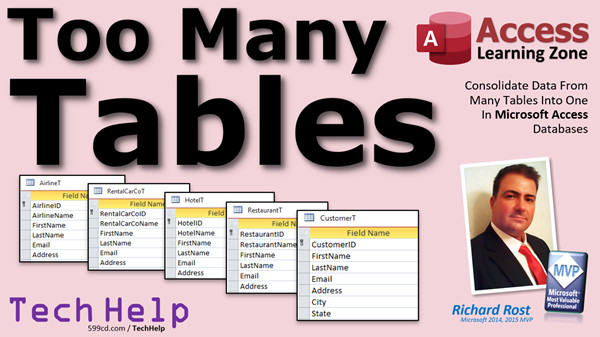
Henry, this is what you have set up in your database. You have an airline table, a rental car company table, a hotel table, a restaurant table, and a standard customer table. Your rationalization is that all these different types of customers have different fields you need to track. The airline table has stuff specific to the airline industry. Rental car companies have stuff specific to them that you have to know about. Restaurants, you want to know what hours they are open, for example.
Now the problem you are going to run into when it comes to things like tracking orders: you have an order ID, you have a customer ID. Now do you have to put a different ID in for the airlines, for the rental customers, for the hotels? You have only got one customer ID field there. Do we put multiple different ID fields in the order table to track all of those or do we set up multiple order tables: an airline order table, a rental car order table? No, that becomes insane. Then you have to do the same thing for contacts and you have to do the same thing for any other related tables. You end up with 16 tables where you should have three.
What I suggest you do is to set up a single customer table. Remember, customer is your entity. In fact, in my ABCD database, I call it an entity, but you can call it customer, you can call it whatever you want to call it. Even though it is an airline and they do not buy things from you, it is only good to call them whatever you want but basically the customer has a whole bunch of similar fields: first name, last name, email address. All of these things, all these fields are the same between all these different types of entities. It makes it easier to form relationships with the other tables: orders, contacts, those kinds of things, all your reports. If all of these entities are stored in the same table, it makes it easier to manage.
Now, how do we tell them apart? If we do not have a separate table for airlines versus restaurants, how do we tell them apart? We use a customer type table. We will set up a list that has airline, rental car, hotel, and we will give each customer a customer type ID. You will see how this works in just a few minutes.
Although most of these entity types do have a lot of the same fields, they may have some stuff that is different. They may have a few things that are specific to their industry, a couple of fields. If it is only a couple fields, two, three, four, fine, put them inside the customer table. That is okay. Remember, Access does not really waste space like it used to in the old days, so if you have a whole bunch of fields that are only unique to airlines, for example, it is okay. Having all those empty blank fields for the rest of your customers really is not going to hurt you that much.
You can, if you want to, set up a separate table for just specific airline stuff. That is okay because the main company information is going to be in your customer table. If you have specific other stuff about a restaurant, for example, such as what hours they are open, what days they are open, what foods they serve, that kind of stuff, put that in a separate table. That is fine.
Our goal here is not necessarily, when I say too many tables, I do not mean that your database has a large count of tables. That is not what I am talking about. What I am talking about is you want to have a small logical number of entities in your database. It is a lot easier to build your database this way than it is to join multiple tables together.
There is something called a union query. If you do have your database set up like this, where you have got airlines, hotels, and restaurants, and they are all very similar but slightly different, and you have already got your database built this way, you can do something called a union query where you can smash those three tables together in one query to do reporting and stuff. It is not as easy as just building the database my way in the first place. If you want to learn more about union queries, I will put a link down below. You can click on that and watch that video.
Before we get started building with the database, there are three videos I want you to go watch first: Relationships, Relational Combo Boxes, and Getting a Value from an Open Form. If you have not watched these three videos yet, please do. You will need to know this stuff to understand what I am going to cover in just a few minutes when we get to the database.
Go watch this material, then you can pause this, go watch that, and then come back. The links are all down below. Go down below the video, you will find more links down there. Right-click on that link, open it in a new tab or a new window in your browser. Watch those and then come back here. I will wait for you.
Okay, so let us see how this works in the database here. I am inside the TechHelp free template. It is a free database you can download off my website if you want to, or you can build it in whatever database you want.
Now you can see I have got one customer table. In my customer table, it has got all the fields that most entities are going to have: first name, last name of your contact. You could put a company name in here if you want to. Email address. If you want multiple addresses, that is fine. Remember my rule: up to three is okay, like phone numbers, home phone, work phone, cell phone. If you need more than three, that should go in a separate table.
Basically, you want to put all the fields that are the same between all those different types of entities in your customer table. Now what I am going to do is insert a row here. I am going to put a customer type ID in there. This is going to be a foreign key. It is going to relate over to a customer type table that we do not have yet. This is going to be an autonumber in that other table.
I wanted you to watch that Relationships video. Now let us go set up the customer type table. I will save this. By the way, make sure this is a number of type long integer. We learn that in the Relationships video.
Create Table Design. We are going to set up our customer type ID. That is our autonumber. A description, short text. Whatever other information you want to put in here about this particular customer type. It could be a sort index, whatever you want to put in here. That is good enough for me. Customer type table. Primary key, yes. Let us update it.
Right-click, Datasheet View, and put our regular types of customers in here. So we will put in here, airline, rental car company, hotel, restaurant, whatever else you want in there. Save it.
Let us come back to our customer form now. In here, we will track what kind of customer this is. This is where that relational combo box comes into play. I will make some extra room up top, right about here. We will put it right there.
Go to Form Design, Toolbox, find our combo box, drop it right there. Want a combo box to get the values from a table or query. Which table are we getting our values from? The customer type table that we just created. You want to bring over both of those fields. You want the first one to be the ID, that is what we are saving in our customer table, the second one is the field we are going to be displaying right next. What field do you want to sort by? Let us sort by description.
That is what it is going to look like. Our key column is hidden. Store that value in the customer type ID field of the customer table. That is what that means. What label would you like? Customer Type.
That is how we can differentiate our different types of customers. We do not have to have a separate table for each one of them.
We will use a little format painter like that, bring this guy back up here like so. Save it, close it. Now when I open up my customers, I can give each one of them a customer type. Let us say I am a rental car company, James Kirk is a hotel, and so on. An airline, other airline.
That data gets stored in the customer type field.
Let us say your default type of customer is a regular client. We can set our default value to be one in the customer table design view. We have got the form, but we have got to close this. You cannot modify the table design structure if a form based on that table is already open.
Design view, customer type. Set that default value to one. When I create a new customer, it is going to get that default value. Same plan.
But Rick, you say, my airlines, I have to have some special information about the airline. I did not go too deeply into Henry's database to know exactly what kinds of fields he wants to store about the airlines. If there are a couple fields that are unique to airlines, just put them in the customer table, that is fine. No one is going to care.
But you could set up an extended table for the information that is specific to that type of business. We will set up something called a one-to-one relationship. Here is how this is going to look.
Let us say we have to set up a specific table for just airlines and then another specific table for restaurants.
Create, table design. We will call this our airline table. This will be just specific information for our clients for our customer type airline. We can call this airline ID if you want to, that will be our autonumber for this table. This is going to relate back to a customer, though, so customer ID, and that will be a foreign key.
Then you put the information here specific to that airline that you want to know. Maybe home airport, maybe a special code. I am just picking fields here. More airport stuff.
Save this as your airline T.
Now, for your airlines and your airlines only, you will fill this information in, and you will link it to that customer ID.
Let us set up a form. I have got my single form here already set up from the blank template. I am going to copy and paste that. This will be my airline F. Design view. I will bind this form. Go to Data, go to airline.
Go to Add Existing Fields. Bring over these fields from that table. Use the format painter to make it look good. Format the airline ID.
Now, the customer ID is going to be related back to the customer ID on the customer form. The only way to get to this form is going to be through the customer form. You can hide the customer ID. We do not necessarily need to see it here, but I am going to leave it just so you can see how it works. Line these up like that. Left align these.
There is my airline F.
Now what we are going to do is say, this form has to get its value for the customer ID from whoever is open on the customer form. That is why I wanted you to watch that Getting a Value from an Open Form. The form is Customer F, that is the name of this form, Customer F, Customer ID. For the customer ID, I am going to put in its default value: =Forms!CustomerF!CustomerID. That means that this form has to be linked to this guy, so we are going to open it from this form, and we are not going to let you go anywhere while this form is open. So we are going to set this form to modal. Go to Other and turn Modal on. That means while you are open, you have to close this form before you can go anywhere else.
Okay, so I set the default value. Close this. Now I need a way to open that form, so we are going to make a button here to open that form. You can use the button wizard for this. It is really easy to do with VBA, but I will try to stick to the wizards for now.
Form operations, open a form, next. What form are we opening? We are opening the airline form, next. We are going to open the form and find specific data to display, next. We are going to link customer ID in the customer form to the customer ID in the airline form to the same and then match them up. Then hit next, and then we are going to put text down here, airline info or whatever you want to put on there. Next. Give the button a meaningful name, airline button, and then finish.
Here is the airline info button. Not all your customers are going to need that button, only the airlines. In the extended cut, I will show you how to hide that button if the customer type is not airline. We will cover that in the extended cut.
Close this. Save changes, yes.
Open up the customer form. Let us find an airline. There is an airline. Let us enter in the airline info for Deanna Troy, Deanna Troy Air. Click, and there is the airline form.
When you open up a modal form, the navigation pane snaps shut. That is by design. When you build a database and you give it to your end users, you are going to disable that navigation pane anyway. It will look like that, it will look normal. Move this where you want it and save it.
Now notice it is a modal form, so you can not get behind it. You can not click on stuff behind it. You can click things like filter.
Now I can come in here and put the home airport, say YYZ, special code, whatever for airline stuff, and so on.
If you want this to be a one-to-many relationship where you could have multiple records in here, that is fine, leave these buttons and stuff on. For example, for your hotels and restaurants, you might want to have the different hours, the different days of the week, you might have seven records in here for each day of the week. Whatever you want to do.
But if you only want this to be one and only one record, then you can just get rid of these navigation buttons down here. Design view, go to Format, turn off the navigation buttons. Just like that, and now you will only have the option to put one and only one record in here.
If you turn the scroll bar off, you will not see that either. The record selector on the left is up to you if you want the user to be able to delete stuff or not. The record selector is right there. If you want to be able to delete that record, if not, set that to no too.
Close that, and now when you click the button, there you go, there is your airline info. If you would rather have it next to it, you can make this a subform if you want to.
If I go to another airline, let us find another airline, record error, click, come over here. You can add the one record, but we turned off the navigation button so we can not add more than one. When we report, it is Buffalo. Special code is, say, 776. More airport stuff is "hi there". If I hit tab, the tab goes to a new record. We have to disable that too.
One more thing we have to take into consideration is the tab cycle. That is under Other, I think. Instead of all records, change that cycle to current record. That way when you tab, tab, tab, and you pass the last record, it will loop back to the top of the same record. It will not jump to another one.
Let us try that again: tab, tab, tab, tab, tab, tab, tab, tab, tab. That is how you can force it to only be one record.
Now you can see how we have got a separate table here that has the information specific to airlines. You can repeat this for the other customer types if you want. You can not click back here to close that, and then click back here. That is by design.
For hotels, you can make a hotel button. In the extended cut, I will show you how to make this a little more elegant. You can see how the data is stored in here now.
The benefit is all of these customer types, whether it is a hotel, whether it is a restaurant, whether it is a rental car, they will all integrate with the rest of your database. You do not have to worry about having a separate table for orders from airlines, orders from restaurants. Contacts work the same for everybody, orders work the same for everybody. You will see everybody in the list.
The point I am trying to make is all of these types of organizations should all be in the same table.
If you have extra extended information, that is okay. In fact, you could just make this instead of just an airline table, make this an extended info table and put all the different fields in there for all the different stuff. Then just open up a separate form and change the form. If you do not want multiple tables for this stuff, you can put it all in the same table and just make different forms for the different types of customers that you have. It is totally up to you.
What I am trying to drive home is if your database is integrated based on the customer, and the customer relates to all the other tables (orders, contacts, whatever), then that is what you want to have the bulk of your information in. If hotels and restaurants or commercial customers and residential customers are mostly the same, then just put them in the same table.
That is pretty much it.
I cover a lot more about this kind of stuff in my Access Expert Level 4 class. We do a whole bunch with setting up different types of tables and one-to-one relationships, for example. We do this thing called a customer extended form, where you might have general customer information like name, address, phone number, email, and so on, but you might have some other stuff like gender, what kinds of services they get from you, and these are all different option buttons and things. You know what level package of services they have. All kinds of different stuff that I cover in Access Expert Level 4.
You will find that on my website. I will put a link down below you can click on.
If you want to learn more, in the extended cut for the members, I will show you how to make this a lot more elegant. For example, when you pick a customer type, whether it is airline or rental car company or whatever, if they have an extended info form, then that little button will appear that says "Extra Info." You click on the button and the specific form that you need to fill out pops up. If it is an airline, you get the airline form. If it is a hotel, you get the hotel form. If they do not have an extra form, like maybe rental car companies do not have a form, that button goes away.
So it is like this: airline, airline form. For someone else, hotel, hotel form. For someone else, rental car company, button goes away.
That is pretty cool. A little bit of VBA, maybe six lines altogether. It is really cool stuff.
Silver members and up get access to all of my extended cut videos. There are over 250 of them now, so there are hours and hours of material to watch for becoming a member.
Gold members can download these databases that I build in these videos and get access to my code vault, which is all kinds of cool stuff.
How do you become a member? Click on the join button below the video. After you click the join button, you will see a list of all the different membership levels available, each with its own special perks.
Silver members and up get access to all of my extended cut TechHelp videos, one free beginner class each month, and more.
Gold members get access to download all of the sample databases that I build in my TechHelp videos, plus my code vault, where I keep tons of different functions that I use. You will also get higher priority if you decide to submit any TechHelp questions to me, and you will get one free expert class each month after you finish the beginner series.
Platinum members get all the previous perks plus even higher priority for TechHelp questions, access to all of my full beginner courses for every subject, and one free developer class each month after you finish the expert classes. These are the full length courses found on my website - not just for Access. I also teach Word, Excel, Visual Basic, and more.
You can now become a diamond sponsor and have your name or company name listed on a sponsors page. You will be shown in each video as long as you are a sponsor. You will get a shout out in the video and a link to your website or product in the text below the video and on my website.
Do not worry, these free TechHelp videos are going to keep coming. As long as you keep watching them, I will keep making more, and they will always be free. Intro In this video, I will show you how to handle the common issue of having too many similar tables in your Microsoft Access database. We will talk about how to consolidate different types of entities like customers, airlines, hotels, restaurants, and rental car companies into a single table using a customer type system, making your database easier to manage and maintain. I will also show you how to set up related tables for fields unique to certain types, use relational combo boxes, set default values, and create one-to-one relationships for extended info, all using real-world examples based on a travel agency database. Quiz Q1. What is the main problem discussed in this TechHelp video?
A. How to consolidate data that should be in one table instead of using multiple similar tables
B. How to increase the number of tables for better organization
C. How to create advanced macros in Access
D. How to add images to forms in Access
Q2. According to Richard, what does "a table for each type of thing" really mean in Access database design?
A. One table for each company name in your database
B. One table for each physical building in your business
C. One table for each logical entity, like customers or orders, not subtypes
D. One table for every field that is different between records
Q3. What is an example of a common beginner mistake in Access, as mentioned in the video?
A. Not using enough tables for different entities
B. Creating separate tables for each subtype, like residential and commercial customers
C. Always making every table one-to-one relationships
D. Using only one query for all reporting needs
Q4. What does Richard recommend regarding orders and contacts for different customer types?
A. Create separate order and contact tables for each customer type
B. Use multiple customer ID fields in orders to track different types
C. Use a single orders and contacts table related to a unified customer table
D. Avoid tracking orders and contacts entirely
Q5. How should you differentiate between types like airline, hotel, and restaurant in your database?
A. By making separate tables for each type
B. By using a customer type ID field in the customer table linked to a customer type table
C. By coloring entries differently on forms
D. By maintaining manual lists outside Access
Q6. If an entity type has a few unique fields, what does Richard suggest?
A. Always create a new table for the unique fields, no matter how few
B. Add those fields directly into the customer table
C. Do not track the unique information at all
D. Only use those fields for reporting purposes
Q7. In the event that an entity type (like airline) needs a lot of specific fields, what is a good solution?
A. Ignore those needs and stick to a single table
B. Add all possible fields to the customer table regardless of type
C. Make an additional table for just the airline-specific data and relate it to the customer table
D. Use duplicate customer records for each type
Q8. What is the benefit of storing all related company types in one unified customer table?
A. Reduces need to use relationships in Access
B. Allows easier integration with contacts, orders, and reporting
C. Eliminates need to define primary keys
D. Prevents you from using combo boxes
Q9. Which method is used in the video to select a customer type on the customer form?
A. Textbox with manual entry
B. Combo box linked to a customer type table
C. Option group hardcoded on the form
D. A static list in a message box
Q10. What should the customer type ID field's data type be to maintain proper relationships?
A. Short text
B. Date/Time
C. Long Integer Number
D. Currency
Q11. In terms of form design, how can you ensure only the relevant extended info button appears?
A. By hardcoding button visibility during design
B. By using conditional logic (shown in extended cut)
C. By putting all buttons in a tab control
D. By having all buttons visible at all times
Q12. What kind of relationship does Richard set up for tables tracking type-specific information (like only for airlines)?
A. Many-to-many relationship
B. One-to-one relationship
C. No relationship
D. Self-join relationship
Q13. How does the modal property on a form affect user interaction?
A. Disables all controls on a form
B. Prevents other windows or forms from being accessed while the modal form is open
C. Enables form-specific filtering only
D. Allows direct table editing from the form
Q14. What is a union query useful for, according to the video?
A. Combining multiple unrelated tables into one large table
B. Merging several similar tables temporarily for reporting purposes
C. Updating all tables at the same time
D. Replacing the need for any relationships
Q15. If your customer types require only small differences in fields, what is the most efficient approach?
A. Create multiple nearly-identical tables for each type
B. Add the extra fields to the main customer table and leave them blank where not needed
C. Ignore the need for extra fields
D. Build entirely separate databases for each type
Q16. What should you do if you need to store multiple addresses or phone numbers for a customer and exceed three fields?
A. Add limitless address/phone fields to the customer table
B. Create a separate related table for the extra addresses or phone numbers
C. Use a memo field to store all numbers as text
D. Only keep the three most recent
Q17. What is the advantage of using forms and setting tab cycles as shown in the video?
A. Prevents users from accidentally jumping to another record if only one should be allowed
B. Allows users to edit multiple records at once
C. Makes the database open faster
D. Avoids the need for combo boxes
Q18. How does Richard suggest handling extended information for all customer types, if you want only one table?
A. Create one extended info table and use different forms for each customer type
B. Use a separate extended info table for each type, regardless of overlap
C. Only store extended info in the main customer table
D. Do not track extended information
Q19. In the context of this video, the "entity" is best described as:
A. Any physical building your business interacts with
B. A logical grouping of data such as customer or company, regardless of subtype
C. Each individual invoice you send
D. A separate table for each interaction
Q20. Why does Richard recommend integrating all customer types into one table?
A. To make relationships, reporting, and integration with other tables much simpler
B. Because Access cannot handle multiple tables
C. To make importing data unnecessary
D. Because it is required by all database engines
Answers: 1-A; 2-C; 3-B; 4-C; 5-B; 6-B; 7-C; 8-B; 9-B; 10-C; 11-B; 12-B; 13-B; 14-B; 15-B; 16-B; 17-A; 18-A; 19-B; 20-A
DISCLAIMER: Quiz questions are AI generated. If you find any that are wrong, don't make sense, or aren't related to the video topic at hand, then please post a comment and let me know. Thanks. Summary Today's video from Access Learning Zone focuses on a common issue many Access users encounter: having too many tables in your database when all your data really belongs together. I will walk you through how to consolidate related data that people often organize into separate tables, and explain why putting them in one table is usually a much better idea.
The topic for today comes from a question submitted by a member who is building a database for his travel agency. He explained that he has created separate tables for airlines, hotels, restaurants, rental car companies, and also for customers. He also wondered if he should have separate invoice tables for things like hotels or restaurants when invoicing for package deals, and different tables for tracking contacts with these organizations. Essentially, he is unsure how to structure his tables and is concerned about ending up with far too many.
This kind of confusion is extremely common, especially for people getting started with relational databases like Access. I often stress to my beginner students that you should have one table for each type of 'thing' in your database, but it is important to clarify what I mean by 'thing.' It does not mean that each different business type (like a hotel or an airline) deserves its own table. Instead, it is about the logical entity your database is tracking. In most business setups like the one described, all these various parties - airlines, hotels, rental car agencies, restaurants, and even customers - are all entities that can be brought together in a single table.
Many times, people set up a table for residential customers and a separate one for commercial customers, thinking the two require completely different fields. This same logic leads to multiple tables in the travel agency scenario. The assumption is that each business type has unique data to track, but maintaining separate tables for each group leads to headaches. For example, when it is time to track orders or contacts, do you really want different ID fields for each customer type in every related table? Would you want to multiply the problem by creating separate order or contact tables for each type? That arrangement gets unwieldy quickly, and you will soon find yourself with many more tables than you should have.
My advice is to combine all these different types of customers and organizations into a single main table, such as 'Customer' or 'Entity.' Most of these entities have similar basic information you want to track, like name, contact details, etc. This unified approach makes it far easier to set up relationships, create reports, and manage related information across orders, contacts, and other features of your database.
But what if you need to differentiate between the types of customers? For example, how will you tell an airline apart from a hotel in the combined table? Instead of separate tables, add a field - a 'customer type' or 'entity type' - and set up a small lookup table listing the possible types, such as airline, hotel, rental car, and so on. In each customer record, you store the type ID. This setup lets you easily distinguish between entities while keeping everything manageable.
Occasionally, you may have some data that truly is specific to only one entity type, like a special airline code or unique restaurant opening hours. If there are just a few fields, you can include them right in the main table. Modern versions of Access are efficient, so having a few fields that only get used for a certain type is not a problem. However, if you have a large number of fields exclusive to one group, it makes sense to create a separate, related table just for that extra information. This relationship between your main table and any additional tables can be a simple one-to-one link.
The ultimate goal is not to minimize the raw number of tables but to avoid unnecessary fragmentation of the same sort of data into many tables. You want your tables to reflect the logical 'entities' you are dealing with in your business, not a whole bunch of nearly duplicate tables that only serve to complicate your database.
If you have already set up your database with separate tables for different business types and want to make reporting easier, you can use a special kind of Access query, called a union query, to combine the contents. Still, it is much better to build your database with a unified structure from the start.
Before you try building these structures, I strongly encourage you to review the following videos on my website: Relationships, Relational Combo Boxes, and Getting a Value from an Open Form. These concepts are essential to understanding how the designs I am discussing work in practice.
Now, let me describe how you would set this up in your Access database. You would use a single 'Customer' table that contains all the standard fields every entity might share, such as names and addresses. If you want to track multiple addresses or phone numbers, remember my general rule: up to three similar fields (like home, work, and mobile phone) in the main table is fine, but if you need more, create a separate related table.
Next, add a 'customer type' ID field to the customer table. This field will relate to another lookup table listing all the possible types of customers, like airline, hotel, rental car, restaurant, etc. Make sure this field is set as a number (long integer), so it can be properly related back to the customer type table.
After creating your main and lookup tables, go to your customer form and add a dropdown (combo box) linked to your customer type table, so you can easily specify what type of customer each record is. The form will display the description of each type while storing only the numeric ID in each customer record.
If you find that most of your customers are one particular type, such as regular clients, you can set a default value in the customer table design so that new entries are assigned the most common type automatically.
Now, for scenarios where an entity type has a set of fields needed only by that group, like special information for airlines, you can set up a separate 'Airline' table. This table will have a one-to-one relationship with your main customer table, linked by the customer ID. You can design a specialized form for airline details, with the form set up so that it can only be reached from the customer record for that particular airline. Make sure the airline form picks up the correct customer ID automatically (using the method I cover in the 'Getting a Value from an Open Form' video). Set the form to modal so users cannot click elsewhere until they finish with the special fields.
If you want to restrict the airline (or similar) form so that only one record can ever be entered for each customer, remove the navigation buttons and set the form's tab cycle property so users cannot accidentally create more records.
This modular approach can be repeated for any other customer types that require their own set of extra fields and forms, such as hotels or restaurants. In each case, your contacts, orders, and other key features connect through the main customer table, so you have a unified system.
If managing many separate extra-info tables feels overly complex for your needs, you could even create a single 'Extended Info' table, put all the specialized fields in there, and have different forms tailored to each customer type that only display the relevant fields.
The main point is this: when multiple types of organizations or customers in your business have mostly the same sort of attributes, keep them all in the same main table, and only separate out extra, specialized data as necessary. This makes your database easier to manage and simplifies relationships.
I go into far more detail about these concepts, including advanced table structures and one-to-one relationships, inside my Access Expert Level 4 class on my website. There, we set up extended customer forms and cover various ways to manage mixed data in one unified system. If you are interested, you will find a link to that class on my site.
In today's extended cut for members, I will show you how to make the interface even more efficient. For example, when you select a customer type that has an extended info form, you will see a button labeled 'Extra Info' appear, and clicking it opens the relevant form for that type. If there is no extra form for that type, the button disappears. The button will change based on whether your customer is an airline, hotel, or another type, and the right form will pop up accordingly. This requires a bit of VBA, but nothing too complicated.
Silver members and above have access to all of my extended cut videos, which now number over 250, providing hours of additional content. Gold members can also download the sample databases I use in my demonstrations, plus access my code vault full of useful functions. Platinum members get everything in lower levels, plus all my full-length beginner courses for every topic, including Access, Word, Excel, Visual Basic, and more, and one free developer class each month after finishing the expert series.
Do not worry, the free TechHelp videos will keep coming as long as you keep watching.
You can find the complete video tutorial, with step-by-step instructions and demonstrations of everything discussed here, on my website at the link below.
Live long and prosper, my friends. Topic List Identifying redundant tables in Access databases
Logical entities versus separate tables
Creating a single customer table for multiple entity types
Setting up a customer type table for classification
Using a foreign key to link customer records to customer types
Designing a customer form with a customer type combo box
Setting default values for new form records
Storing type-specific data in main or extended tables
One-to-one relationship for extended info tables
Designing and linking an airline-specific table
Setting a form's default value from an open form
Making forms modal to control focus
Creating a button to open related forms
Limiting subforms to a single record
Adjusting the tab cycle on forms
Integrating all customer types with related tables (orders, contacts, etc.)
Choosing between separate extended tables and shared tables for extra info
Deciding when to put fields in the main table versus separate linked tables Primary Topics table consolidation, entity-relationship design, customer type table, one-to-one and one-to-many relationships, Access database structure, form design, using combo boxes, extending entities with related tables Secondary Topics union queries, modal forms, default values, form navigation, extended info forms, Access best practices |







