|
||||||

|
|
||||||
|
Union QueryBy Richard Rost
 5 years ago
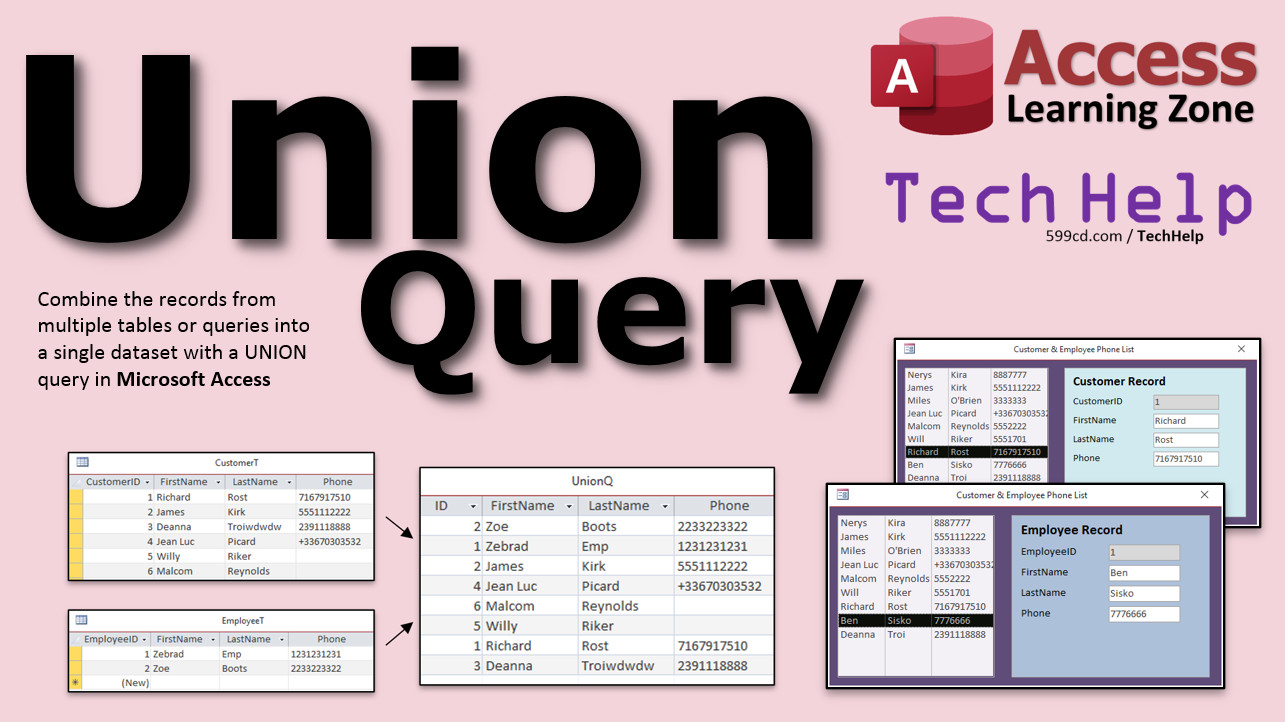
Combine Records from Multiple Tables In this video, I'm going to show you how to use a Union Query to combine the results from two tables with similar fields, such as customers and employees, into one dataset. Sara from Bar Harbor, Maine (a Platinum Member) asks: I've got a table for customers and a separate table for employees. Is there any way to join them together in a single query so that I can generate reports like mailing labels in one shot. Right now I have to do everything twice and have two separate reports for everything. MembersMembers will see how to easily edit the records in a Union Query. The results from a Union Query are not updateable, but I will show you how to create a listbox and then edit the selected record with either a popup form or a subform.
Silver Members and up get access to view Extended Cut videos, when available. Gold Members can download the files from class plus get access to the Code Vault. If you're not a member, Join Today!
Links
Keywordsmicrosoft access, ms access, ms access tutorial, #msaccess, #microsoftaccess, #help, #howto, #tutorial, #learn, #lesson, #training, #database, union query, what is a union query, how do you create a union query, union operation, union queries ms access, union queries in ms access, how to use union queries, combined results, edit union query data, not updateable, union query sort, combine two tables with same fields, edit data in union query, join
More InformationTranscriptWelcome to another TechHelp video brought to you by AccessLearningZone.com. I am your instructor Richard Rost. In today's video, I'm going to show you how to combine the records from multiple tables or queries into a single data set, a single query, using a union query in Microsoft Access. Today's question comes from Sarah in Bar Harbor, Maine, one of my platinum members. Sarah says: "I've got a table for customers and a separate table for employees. Is there any way to join them together in a single query so that I can generate reports like mailing labels in one shot? Right now I have to do everything twice and have two separate reports for everything." Well, yes, Sarah, we can certainly combine those records together. We are not going to use the word "join." Join is a special database term that we use to join related tables together, for example, customers and orders. You can see all the orders with the customer details. We're going to combine two tables. We're going to combine the customers with the employees. I've got six customers and two employees. We're going to combine those together into one query, a union query, and we'll have eight total records. The tables have to have similar fields, like first name, last name, phone number. The ID fields, as you'll see, will be different, but that's okay. We'll just call them ID in the resultant table. In this way, you can make one set of mailing labels, one set of reports, if everything's the same. How do we do this in Access? Before we get started, I'm going to strongly recommend you go watch my SQL Basics video. It's free. It's on my website and it's on my YouTube channel. Go watch it. You will need to know a little bit about SQL in order to do a union query. There is no graphical designer for union queries. You have to do it in SQL. It's not hard. I'm going to show you how to do it. Go watch this video first. There's the link. I'll put a link down below in the description below the video. Go click on that and go watch this video. Then come back when you're done. Now that you know a little bit about SQL, let's go ahead and open up my TechHelp free template. This again is a free download from my website. You can go grab a copy if you want. Again, you'll find a link down below in the link section. In this table, I already have a customer table. Customer ID, first name, last name, and so on. Let's say we want to also store our employees. We'll need to make an employee table. I know a lot of you have separate tables for things like customers, employees, managers. Personally, if I was going to design this in the beginning, I'd make a single person table. Then I would just have a person type in here, like this person's a customer, this person's an employee, this person's a manager. Just have a different field in there that indicates what they are, because we're all storing the same stuff: first name, last name, email, address, city, state, it's all the same fields. It's easier to just start with customer T when I'm teaching beginners. I know a lot of you already have your databases built this way. That's where union queries come in handy because you can join two similar tables together. If you want to send a mailing to all of your customers and your employees and your managers and your vendors, let's say it's a year-end holiday card or something, you want to put them all together in one big query and send them all out at the same time. That's where a union query comes in handy. Let's go ahead and make an employee table. Create table design. We've got an employee ID, that's our autonumber, first name (short text), last name, and let's just do a phone number too. Let's say we're making a single unified phone number list. Save that. This will be my employee table, employee T, primary key, yes. Then we can close that down and put some sample data in it. I'm a Trekkie, but I get emails that I show no love to the DS9 crew, so let's put in here: we've got Ben Sisko, we've got Kira Nerys (remember, it's backwards though, Kira Nerys), and again, let's do Miles O'Brien. Is it EN or AN? I'm not sure. I Google it, it's EN. I would do Odo and Quark but just to put them in here as Mr. I guess, since they don't use surnames. We've got a couple of employees in here. Now I want to bring customers and employees together using a union query. So let's go to Create, Query Design. This will start off like a normal query. Bring in your customer table. Bring in the fields you want like customer ID, first name, last name, and we'll do phone number. Now, here's where it gets interesting. They give you a little button up here that says "Union Query." Don't click on it. If you click on it, it will put you in SQL view and clear what you just did. It's stupid. If you go to datasheet view, see? There's nothing in there. You can't even go back to design view here. I don't like that. It's dumb. Just query, no, see, it just messed everything all up. Close this, start over. I do that to show you that button is dumb. Unless you click Union Query right from the beginning, it's meaningless. Go to Create again, Query Design. Bring in your customer table again. Bring in your fields: customer T, first name, last name, and phone number. Now don't hit the Union Query button. Instead, we're going to go to SQL view. You can either drop this box down over here and pick SQL view or you can right click on the title bar and go to SQL view. Now we've got some SQL we can work with. I'm going to zoom in so you can see this a little better. Shift F2, my font's bigger here in the zoom window. The first thing I show you in my SQL seminar is that I can get rid of the table names in here, because I only have one table here. It makes this more readable. So I'm going to get rid of the customer T everywhere. Get rid of that from customer T. That's all you need for a basic query. Get rid of the semicolon because we're going to continue this now. Semicolon means end of the statement. We're going to add more to this. Type in the word UNION. That means I'm going to join that data together with some more data. What's the more data? I'm going to go grab the stuff from employee T that matches this. Copy this. Control C. Down here paste, Control V. Now just change these fields and the table name to match. So we have employee ID here. First name, last name, phone number are the same. I named them the same intentionally. But even if they are named differently, this is FNL, you can change them here. That's OK. As long as the data types match up, you're good. They have to be in the same order. Change this to employee T. That's it. That's all you need. Hit OK. Save this. I'll call this my union query, union Q. Now run it. There you go. They're all joined together. Do you see why I told you it's handy if you know a little bit of SQL first? That little tiny bit of investment in some knowledge is good now because we can get into more advanced topics. Notice here, it called this customer ID because that was the first field it ran into. But that's kind of misleading because now we have our customer ID and our employee ID mingled together. Let's just call this ID so it's not ambiguous. Go back to SQL view. We're going to add an alias in here. Let me Shift F2 so you can see it better. Select customer ID as ID. "AS" means it's an alias. We're going to name it something else. You could say "AS BigMac" here if you want to. It would be called BigMac. Now come down here and give this guy the same name as ID. Hit OK. Then run it. There you go. Now it's just an ID. Want to know whether this is a customer or an employee? Let's add another field. Let's go back to SQL view. Let me zoom in. Right here at the end, we can add our own bit of data right in the SQL so we can indicate whether it's an employee or a customer. Let's put an E for employees and C for customers. So here's what we're going to do: comma C AS PersonType. We'll do the same thing down here. Or you can put the word employee or the word customer if you want to. E for employee, C for customer. Or you can put the full word customer in here, whatever you want. Hit OK. Save it. Now run it. Now you can see who the employees are and who the customers are. That's an employee, that's a customer. These items are not in any particular order in here. How do we sort this combined list? I will show you that in just a second. But first, a word from our sponsor. And that happens to be me. If you want to learn a lot more about union queries, check out my Access Expert Level 16 class. I cover all kinds of stuff, including union queries, but there's all kinds of other stuff in here: make table queries, backing up tables for the database, all kinds of other stuff. Every one of my levels is at least an hour long, and they always contain a bunch of stuff. So check that out, it's Access Expert Level 16. I'll put a link down below. If you really want to learn SQL, and trust me, SQL is powerful. Learning basic Access is one thing. Learning expert Access is another thing. Once you get into SQL and even VBA, then your databases become really powerful. I have this thing called the SQL seminar. It's three parts. Part one is all the basics. Check it out. Again, I'll put a link down below. So we're back in here. Let's go back into Shift F2. I'm going to sort this list. All we have to do is come down here on the bottom after all of that stuff and say ORDER BY (two words), last name, first name. If you want to be a stickler and want proper SQL, you can put your semicolon there. Someone recently asked me, do you have to have that semicolon? No, you don't. Some server applications will require it. Access does not. You don't have to put it there if you don't want to. That just signifies the end of the statement. Access usually processes one SQL statement at a time. Some servers can process multiple statements in the series. There we go. Save it and run it and you'll see that it's now sorted by last name and then first name. That's how you sort a union query. You can add WHERE BYs and all kinds of conditions and all this stuff in here too. This is just the basics. One thing you will notice, there's no new row on the bottom down here, and if you want to try changing some of this data, if you click in here and type, it says, this record is not updateable. Why? Because once you make the union query, you can't update this information. It's for display purposes only. If you want an easy way to be able to edit this information, I will show you how in the extended cut for the members. Want to learn more in the extended cut for the members? I will show you how to easily edit the records that result in that union query. Now you can't edit them in the query itself, that's impossible. You can't use a single or continuous form, but I will show you a very easy technique where we have a list box on a form that's got all of your results from the union query in it, and then the record pops up right next to it, so you can very quickly and easily edit the record right there. Here we are. Click on Jim Kirk. There he is. Customer record appears right here. You can change this: 444-1111. Come back over here and it updates. Now he was a customer. Go to an employee record. Look at that. You changed the record over here. Come over here and then it updates. Or if you're on a customer and you want to edit the full customer record, not just the first name and last name and the phone number, double click and it pops up the full customer form. That is all covered in the extended cut video, 26 minutes long, half an hour. Silver members and up get access to all of my extended cut videos, not just this one, all of them. There are about 200 of them now. Gold members can actually download these databases that I build in the videos. This video alone is worth the price of membership. How do you become a member? Click the join button below the video. After you click the join button, you'll see a list of all the different types of membership levels that are available. Silver members and up will get access to all of the extended cut TechHelp videos, live video and chat sessions, and more. Gold members get access to a download folder containing all the sample databases that I build in my TechHelp videos, plus my code vault, where I keep tons of different functions that I use. Platinum members get all the previous perks, plus access to my full beginner courses and some of my expert courses. These are the full-length courses found on my website and not just for Access. I also teach Word, Excel, Visual Basic, ASP, and lots more. But don't worry, these free TechHelp videos are going to keep coming. As long as you keep watching them, I'll keep making more. If you liked this video, please give me a thumbs up and feel free to post any comments that you have. I do read them all. Make sure you subscribe to my channel, which is completely free, and click the bell icon and select all to receive notifications when new videos are posted. Click on the Show More link below the video to find additional resources and links. You'll see a list of other videos, additional information related to the current topic, free lessons, and lots more. YouTube no longer sends out email notifications when new videos are posted. So if you'd like to get an email every time I post a new video, click on the link to join my mailing list. If you have not yet tried my free Access Level One course, check it out now. It covers all the basics of building databases with Access. It's over three hours long. You can find it on my website or on my YouTube channel. If you like level one, level two is just $1, and it's also free for all members of my YouTube channel at any level. Want to have your question answered in a video just like this one? Visit my TechHelp page, and you can send me your question there. Click here to watch my free Access Beginner Level One course, more of my TechHelp videos, or to subscribe to my channel. Thanks for watching this video from AccessLearningZone.com. IntroIn this video, I will show you how to use a union query in Microsoft Access to combine data from two separate tables into a single query. We'll walk through an example using customer and employee tables, demonstrating how to merge their records for unified reports, set up field aliases, add a type indicator, and apply sorting. If you've ever needed to generate combined mailing labels or lists from multiple similar tables, this tutorial will show you exactly how to do it using SQL in Access. QuizQ1. What is the main purpose of using a union query in Microsoft Access? A. To combine similar records from multiple tables or queries into a single dataset B. To create a backup of multiple tables at once C. To automatically create related tables using relationships D. To import data from external databases Q2. What must be true for tables to be combined using a union query? A. They must have exactly the same field names and types in the same order B. They must be related with a foreign key constraint C. They must have similar fields, preferably with matching data types and order D. They must both have an autonumber primary key called 'ID' Q3. Why would you use a union query instead of a join in this scenario? A. Because union combines unrelated tables with similar structures, not related data B. Because joins can only work in SQL Server, not Access C. Because union queries allow you to edit data directly D. Because joins require VBA programming Q4. What is required to create a union query in Access? A. You must write the query in SQL view, as there is no graphical designer for union queries B. You must use the Query Wizard C. You must use the Union Query button exclusively D. You must use macros to enable union queries Q5. What happens if you click the Union Query button after you have already created a query in design view? A. It will switch to SQL view and clear your design B. It will combine your queries automatically C. It will save your progress and prompt you to enter SQL D. It will open VBA editor for scripting Q6. How can you make the ID field from customer and employee tables less ambiguous in the result of a union query? A. Use an alias with 'AS ID' for both ID fields in the SQL statement B. Rename the tables before combining them C. Only select the first name and last name, leaving out the ID fields D. Use only one table at a time in the query Q7. How can you add a field to indicate whether each record is from the customers or employees table in the union query? A. Add a static value with 'AS PersonType' in the SELECT statement for each query part B. Add a new field to both tables before the query C. Use a WHERE clause D. Use a VBA function to classify each row Q8. What SQL clause is used to sort the results of a union query by last name and first name? A. ORDER BY last name, first name B. SORT BY last name, first name C. GROUP BY last name, first name D. STRUCTURE BY last name, first name Q9. What is true about editing data directly in a union query's result set in Access? A. You cannot update data in a union query result set; it is read-only B. You can update the customer records only C. You can update the employee records only D. All records can be edited as usual Q10. What can you do if you want to edit records displayed by a union query? A. Use a form with a list box to select the record and display its full form for editing B. Edit the records directly in the union query grid C. Use the union query as a source for an update query D. Union queries can always be updated directly in datasheet view Q11. Why does Richard recommend creating a single 'person' table when possible, with a 'person type' field? A. It makes future queries and reports easier since all similar data is in one table B. It is the only way Access allows relationships C. It prevents the need to ever use union queries D. It allows unlimited fields per record Q12. What type of data structure must match for a union query to work correctly? A. The fields selected in each SELECT statement must be the same number and data types B. The primary keys must be identical in name and type C. The tables must be in the same database file D. The tables must be related through a relationship window Q13. According to the video, what does the SQL semicolon (;) signify? A. The end of the SQL statement B. The start of a new table C. A required separator between all SQL clauses in Access D. Nothing, it is only decorative Q14. Why does Access process one SQL statement at a time and not require a semicolon always? A. Because Access only handles one SQL query per window, but some servers require semicolons for multiple statements B. Because semicolons are not part of standard SQL syntax C. Because Access queries are compiled, not interpreted D. Because semicolons increase performance Q15. What additional resources does Richard recommend if you want to learn more about union queries and SQL in Access? A. His Access Expert Level 16 course and SQL Seminar B. Only consulting the official Microsoft documentation C. Watching random YouTube tutorials D. Only practicing in Access with trial and error Answers: 1-A; 2-C; 3-A; 4-A; 5-A; 6-A; 7-A; 8-A; 9-A; 10-A; 11-A; 12-A; 13-A; 14-A; 15-A DISCLAIMER: Quiz questions are AI generated. If you find any that are wrong, don't make sense, or aren't related to the video topic at hand, then please post a comment and let me know. Thanks. SummaryToday's video from Access Learning Zone focuses on how to use union queries in Microsoft Access to combine records from separate tables or queries into a single data set. I received a question about this topic from a member who wants to know whether it is possible to merge customer and employee records into one query. This way, she could create unified reports, like mailing labels, for both groups without having to generate separate reports for each table. While there are several ways to bring together data from related tables using joins, that technique is meant for showing relationships between them, such as viewing all orders along with their respective customers. In this scenario, however, we want to stack records from two different tables with similar structures but different content. For instance, suppose I have a table of customers and a separate one for employees, each storing fields like first name, last name, and phone number but with their own distinct ID fields. If I want to produce a single list containing both customers and employees, this is exactly what a union query is designed for. Union queries in Access can combine data from multiple tables or queries as long as the selected fields match in both number and data type. The field names do not have to be identical, but the order and types do need to correspond. For example, if you have customers with customer IDs and employees with employee IDs, you can select both along with common fields such as first name, last name, and phone number, and treat the IDs collectively as a general ID field in the resulting query. Before creating a union query, if you are new to SQL, I highly recommend watching my SQL Basics video. It's free on my website and YouTube channel and will give you the basic knowledge you need because union queries in Access cannot be built using the graphical design interface. You must work directly in SQL view, which may sound intimidating if you have never done it before, but I walk through it step by step. In my TechHelp free template, which you can download from my site, I demonstrate starting with a customer table containing fields such as customer ID, first name, last name, and so on. Then, to add employees, a similar employee table is created with an employee ID, first and last names, and phone number. While my personal design preference is to create a single "person" table with a type field to separate employees, customers, managers, etc., I know many people are dealing with separate tables in their current databases. This is where union queries become especially useful, letting you consolidate multiple tables with similar structures for unified tasks such as generating mass mailings for holidays. Once the tables are set up and filled with some sample data, the next step is to build the union query. In the query design window, you begin by adding the first table (such as customers) and selecting the fields you want. However, you should not use the Union Query button in the design menu, as it can erase your work or cause confusion. Instead, after setting up your selections, switch over to SQL view. The SQL for the union query starts by selecting the necessary fields from the first table. Remove unnecessary table prefixes for clarity, especially when only using one table in a statement. Leave off the semicolon at the end because you will be adding more. After the initial SELECT statement, type "UNION" and then add a second SELECT statement for the employee table, ensuring the selected fields match in type and order with those from the customer table. When you run this union query, you will see one combined list containing both customers and employees. By default, the resulting query will use the field name from the first SELECT statement for the ID field, which could be misleading if you are combining different ID types. To make it clear, use an alias—such as "AS ID"—to standardize the field name across both parts of the query. If you want to distinguish between the sources of each record, you can add an additional field to each SELECT statement, labeling one as "customer" and the other as "employee" or with simple letters such as "C" and "E" to represent their types. This makes it easy to see in your results who is a customer and who is an employee. By default, the records will be unsorted. To organize the list, add an ORDER BY clause to your SQL statement, arranging the data by last and first names or any other combination you want. Semicolons at the end of your SQL statement are optional in Access, but they are part of standard SQL syntax and can be included for good form. It is important to be aware that the resulting union query is read-only. You will not be able to edit records directly from a union query. Editing must be performed in their respective source tables or through forms designed for editing. For those who are interested in being able to edit records resulting from a union query display, I cover a solution for this challenge in the Extended Cut for members. There, I demonstrate how to set up a form with a list box displaying the combined results from the union query. Selecting a record shows its full details in another part of the form, where you can make changes easily and see the information refresh right away. This method works for both customers and employees, and you can even open their full detail forms directly from this interface. All of these steps are included in the Extended Cut, which is available to Silver members and higher. Gold members also get access to downloadable databases used in my videos, plus my code vault full of useful functions. If you want to learn even more about union queries, my Access Expert Level 16 course explores the topic thoroughly and covers many advanced techniques. I also offer a comprehensive SQL seminar split into three sections for those looking to master SQL for Access and beyond. All the free TechHelp videos, including this one, will keep coming as long as there is interest. If you found this video helpful, I appreciate feedback and questions which you can post in the comments or on my TechHelp page where you can also submit your own questions for future videos. Those interested in building a strong Access foundation should try my free Access Level One course, which is over three hours long. This is great for beginners and is available on my website as well as YouTube. If you enjoy it, Level Two is just a dollar and free to all YouTube channel members. You can find a complete video tutorial with step-by-step instructions on everything discussed here on my website at the link below. Live long and prosper, my friends. Topic ListCombining records from multiple tables with UNION queries Creating an employee table with matching fields Designing tables for people data in Access Using SQL view to write UNION queries manually Removing table names for readability in SQL Renaming fields with AS aliases in queries Adding a field to distinguish record types in UNION queries Sorting combined query results using ORDER BY Understanding limitations of editing UNION query results in Access Primary Topicsunion queries, combining tables, Microsoft Access, SQL view, query design, mailing labels, data consolidation Secondary Topicstable design, field matching, aliases, data sorting, editing limitations |
||||||||||||||||||||||||||||||||||||||||
|
| |||
| Keywords: TechHelp Access union query, what is a union query, how do you create a union query, union operation, union queries ms access, union queries in ms access, how to use union queries, combined results, edit union query data, not updateable, union query sort PermaLink Union Query in Microsoft Access |