|
||||||
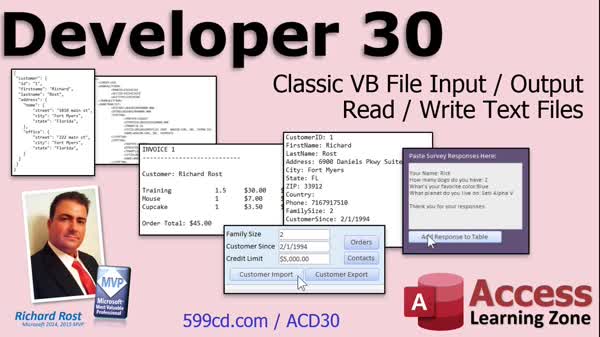
Access Developer 30Text File Import, Export, VBA File I/OWelcome to Access Developer 30. In this course you will learn how to handle file input and output in Microsoft Access using classic VB file I/O techniques, including reading from and writing to text files, and the differences between classic VB and File System Object methods. We will discuss the pros and cons of each approach, cover exporting and importing customer, invoice, and survey data, and review related topics such as folder access, recordsets, and useful VBA commands. Lessons
Database FilesAddendums
Resources
Lesson SummaryWelcome! Read & Write Text Files in VB - Welcome to Microsoft Access Developer Level 30. In this course we will focus on file input and output in Microsoft Access, specifically learning how to read from and write to text files using classic VB file I/O methods. We will discuss why file input and output is useful, the differences between classic VB and file system object techniques, and the pros and cons of each. Lessons include exporting customer and invoice data, reading text files, importing data back into tables using recordsets, and handling surveys or updates from external files. We will cover related concepts like folder access and useful VBA commands.
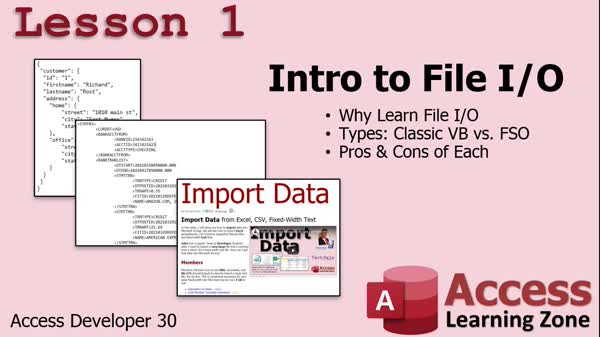
Lesson 1: Read & Write Text Files in VB - In Lesson 1, we introduce the basics of file input/output (File I/O) in Access, discuss why it is important, and explain the two main methods for working with files: classic VB functions and the newer File System Object. We will talk about the pros and cons of each approach, look at common scenarios like importing data from custom text, JSON, and QuickBooks files, and explain when to use each method. We will also cover file manipulation tasks such as moving, renaming, and deleting files, and outline what to expect in upcoming lessons.
Lesson 2: Import Excel, CSV, and Text Files - In Lesson 2, we walk through how to import data into Microsoft Access from various sources, including Microsoft Excel, CSV files, and fixed width text files. I demonstrate the process using Access's import tools, discuss how to handle column headers, data types, and importing only the fields you need. We will also talk about the challenges of working with fixed width files, what to look out for with data formats, and options for linking or appending data. This lesson provides a foundation for importing data into your Access database to prepare you for more complex scenarios.
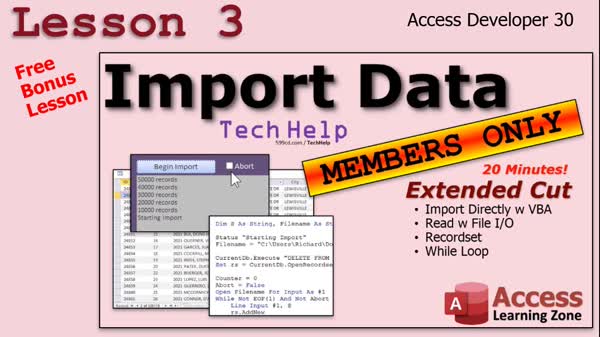
Lesson 3: Import Huge Text Files via VBA - In Lesson 3, we will walk through using VBA and file I/O to import very large text files - specifically those over 2 gigabytes, which are too large for Access's standard import tools. You will see how to read data line by line from a text file using file input/output, parse specific fields with string functions like Mid, and use a recordset to add records to a table. We will discuss setting up an abort mechanism, handling excess whitespace, and improving performance by controlling screen updates during the import process. This approach allows you to manage huge data files effectively with TechHelp's import w file I/O techniques.
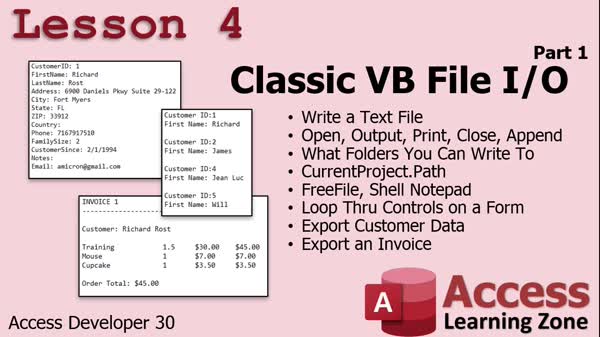
Lesson 4: VB File I/O: Export & Create TXT - In Lesson 4, we will start from the basics of classic VB file I/O by learning how to write, append, and close text files. We will discuss which folders you have permission to write to, how to use CurrentProject.Path for file locations, and why FreeFile is important for file handles. I will show you how to open exported files directly in Notepad, loop through form controls to export text box data, and export customer lists and invoices, including handling fixed-width formatting. We will also talk about handling errors with invalid paths and how to exclude specific fields when exporting.
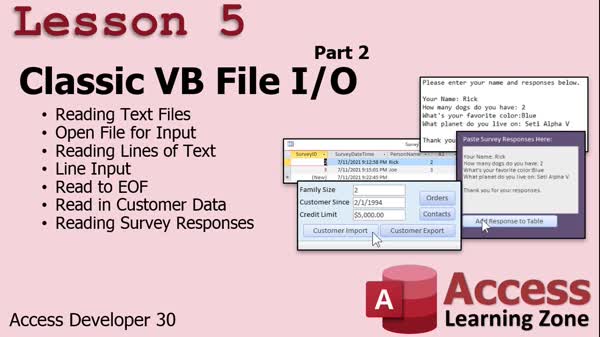
Lesson 5: Import Text Files via File I/O - In Lesson 5, we continue with classic VB file I/O, focusing on how to read text files in Access VBA. We will walk through opening a file for input, reading individual and multiple lines using the Line Input command, and processing data until the end of the file. I will show you how to import exported customer data, parse name-value pairs from text files, and update records accordingly. We will also discuss handling survey responses by exporting and importing survey data, and touch on best practices for handling file I/O errors. At the end, I mention upcoming lessons on file management and the FileSystemObject.
Lesson 6: File I/O Review & Next Steps - In this course we learned about file input and output in Access, including practical uses for working with text files and how this skill can help with various Access projects. We discussed upcoming topics such as classic VB file management commands, the File System Object, early versus late binding, Windows Scripting Host, and advanced tasks like copying entire folders. We also talked about possible lessons on importing formats like JSON and QuickBooks files, encouraged feedback and course survey participation, and reviewed the importance of ongoing learning and member resources.
NavigationKeywordsfile input output, VBA file IO, read text files, write text files, classic VB, FileSystemObject, import CSV, import Excel, fixed width files, export data, recordset import, parse text files, handle large files, Line Input, export invoices
More InformationTranscriptWelcome to the Microsoft Access Developer Level 30, brought to you by AccessLearningZone.com. I am your instructor, Richard Rost. Today's class is all about file input and output. We are going to learn how to work with text files. There are lots of reasons why, and I will go over them in a few minutes. Today, we will be focusing on classic VB file input and output, reading and writing text files. In Developer 31, we are going to get into the file system object, which is a little more powerful and has some extra features. However, I think it is important to learn classic VB file input output, too, because I still use it since it is a lot easier for basic stuff. This, of course, is Developer Level 30, so I recommend you have taken Developer 29 and everything before it. For example, in Developer 16, we learned recordsets, and in today's class we will be using recordsets when we read in text files and add that data to a table. We will use a recordset to do that. So do not jump around; take the classes in order, please, for your own benefit. I will be using Microsoft Access as part of a Microsoft 365 subscription, roughly equivalent to Access 2019. However, everything that I cover in today's class goes way back. Even if you have Access 2003, it should still work just fine. This stuff has not changed in years. If you have any questions regarding the material covered in today's class, just scroll down to the bottom of the page that you are on right now. Post your questions there. Take a minute to read through any other questions that have been posted, as your question may have already been answered. Make sure you click on that big red subscribe button and you will get notified if any other questions or comments are posted for this class. Also, do not forget to visit the Access Forum if you have questions unrelated to today's class. Now, let's take a closer look at exactly what is covered in today's lessons. In lesson one, it is an introduction to file input output or file I.O. We are going to learn why you want to learn this stuff. We are going to learn the two different types of file I.O. There is classic VB and there is file system object, which is newer. Then, we will learn the pros and cons of each. Lesson two is a free bonus lesson. One of my TechHelp videos shows how to import data from Microsoft Excel with CSV files and fixed width data, and fixed width text files. It is a good foundation for what is coming next. Lesson three is another free bonus lesson from my TechHelp videos. This one is a members-only extended cut for the previous video, where I show you how to import directly using VBA, so it is a preview of what is going to be coming up in the rest of today's class. We are going to learn file I.O. to read in a text file that is larger than two gigabytes, which is larger than the Access maximum. In lesson four, we are going to start from the beginning with classic VB file input output. We are going to learn how to write out a text file, open output, print, close, and append commands. We will talk about what folders you can write to, what folders you have access to write to, the current project.path to get the folder that the database is in, and we will learn about free file. We will learn how to use the shell command to open up Notepad to view your exported text file as soon as it is exported. We will learn how to loop through the controls on a form so you can export all of the text box data, for example, from one form. We will export customer data, a customer list, and we will export an invoice with all of its line item details. In lesson five, we are continuing with classic VB file I.O.; this is part two. We are going to learn how to read text files. We are going to learn how to open a file for input, read in lines of text using the line input command, and we are going to learn how to read in multiple lines, reading to the end of file. Then, we will take the customer data that we exported in the last lesson and learn how to read it back in. So we can send that file to someone else, like a sales rep. They can update the information, then you can read back in their responses right into their customer record in the database. Then I will show you how to send out and read survey responses. You can send out a survey to your customer, they email it back to you, copy and paste it into your database, and then export it as a text file, read it back in line by line, and save their responses in your table. There is lots of cool stuff in this lesson. IntroIn lesson 30 of Microsoft Access Developer, we will focus on classic VB file input and output, including how to read from and write to text files using Microsoft Access VBA. You will learn the basics of file I/O, the difference between classic VB and the file system object, and the pros and cons of each. We will cover practical examples such as exporting form data, customer lists, invoices, reading customer and survey responses from text files, and handling files larger than Access's 2GB limit. This lesson builds on prior developer lessons and uses recordsets to import text data directly into your database. QuizQ1. What is the main topic covered in Microsoft Access Developer Level 30? A. Advanced SQL queries B. File input and output with text files C. Creating reports and forms D. Data encryption techniques Q2. What method is the primary focus of file I.O. in this class? A. File System Object (FSO) only B. Classic VB file input and output C. Cloud storage synchronization D. ODBC database import/export Q3. Why does the instructor recommend learning classic VB file input output? A. It is more powerful than anything else B. It is easier for basic file I.O. operations C. It only works in the newest versions of Access D. It replaces macros completely Q4. What does Lesson Four in this course focus on? A. Writing text files using classic VB commands B. Advanced SQL for manipulating data C. Integrating Access with web APIs D. Creating VBA classes for forms Q5. Which command is used to open files for output in classic VB file I.O.? A. Open for Import B. Open Output C. Print Output D. Append Input Q6. What is demonstrated in Lesson Two as a foundation for file input and output? A. Writing data to encrypted files B. Importing data from Excel with CSV and fixed width files C. Exporting data directly to HTML D. Creating linked tables from SharePoint Q7. In Lesson Five, what important reading command is discussed? A. Write Line B. Line Input C. Append All D. Import Text Q8. Which type of data is specifically mentioned as being exported and then imported back in using text files? A. Invoice templates B. Customer data and survey responses C. Chart images D. Database schemas Q9. What is the maximum file size for Access, mentioned as a reason for using file I.O.? A. 10 MB B. 100 MB C. 2 GB D. 4 TB Q10. What recommendation does the instructor give about taking the Developer series classes? A. Skip around as you see fit B. Only watch the latest videos C. Take the classes in order for best understanding D. Only focus on the classes that cover VBA Answers: 1-B; 2-B; 3-B; 4-A; 5-B; 6-B; 7-B; 8-B; 9-C; 10-C DISCLAIMER: Quiz questions are AI generated. If you find any that are wrong, don't make sense, or aren't related to the video topic at hand, then please post a comment and let me know. Thanks. SummaryToday's video from the Access Learning Zone covers Microsoft Access Developer Level 30, where the focus is on file input and output using text files. I am your instructor, Richard Rost. In this class, I will guide you through working with text files in Access, specifically using classic Visual Basic file input and output methods. There are several reasons why you may want to handle text files in Access, and I will explain those as we go through the lessons. Although we will touch on the file system object in Developer Level 31, which has some advanced features, I believe it is important to understand classic VB file input and output first. Classic VB methods remain useful for basic tasks, and I continue to use them frequently because of their simplicity. As with all of my courses, I recommend that you follow them in order for the best learning experience. Developer Level 30 builds on concepts from prior classes. For example, in Developer Level 16, we covered recordsets, which will be important in today's lessons when we read data from text files and add that information into tables. Understanding recordsets will help you make the most of what we cover regarding file handling. Throughout this video, I use Microsoft Access from a Microsoft 365 subscription, which is similar to Access 2019. However, everything discussed in this class works in much older versions like Access 2003 as well. These file input and output techniques have not changed over many years, so you should have no trouble following along regardless of your Access version. If you have any questions about today's material, you can post them at the bottom of the course page. I encourage you to read existing questions first, as yours may have already been answered. Be sure to subscribe so you'll be notified when new questions or comments are posted. If you have unrelated questions, visit the Access Forum for additional help. Now, let's review what you will learn in the lessons included in Developer Level 30. Lesson one introduces the concept of file input and output, commonly referred to as file I.O. You will learn why it is useful to work with files in Access and about the two main types of file I.O.: classic VB and file system object. I'll explain the advantages and disadvantages of each. Lesson two offers a bonus lesson taken from one of my TechHelp videos. Here, I demonstrate how to import data from Microsoft Excel, specifically focusing on CSV files and fixed-width text files. This provides an excellent foundation for understanding file import concepts before moving on to more advanced topics. Lesson three is another bonus taken from a TechHelp extended cut, which previews what is coming later in the class. In this lesson, you will see how to use VBA to import data directly, including handling text files larger than two gigabytes, which exceeds the usual Access limit. In lesson four, we start with the basics of classic VB file input and output. You will learn how to write text files using commands to open a file for output, print to it, close it, and append new information. I explain which folders you can write to, and how to determine the current path of your project so you always know where your database and exported files are saved. We also look at the FreeFile function, which helps you manage file numbers. You will see how to use the Shell command to open Notepad automatically after you export a text file so you can check your results immediately. I will also demonstrate looping through the controls on a form to export data from all text boxes, such as exporting customer data or even an entire invoice with all its line item details. Lesson five builds on what you learned about writing files by teaching you how to read them back into Access. You will open a file for input and read lines of text using the Line Input command, processing text files one line at a time until you reach the end. Then, using the customer data exported previously, I show how to import that information back into your tables. This technique is especially useful if you need to send data to, for example, a sales representative who updates the information and returns it to you for import. Finally, you will learn a practical application for surveys. I demonstrate how to send out a survey to your customers, receive their responses by email, and then import those responses back into your database by reading a text file line by line and saving the answers to a table. This level contains a lot of practical and helpful content that can make your Access applications much more powerful and flexible. You can find a complete video tutorial with step-by-step instructions on everything discussed here on my website at the link below. Live long and prosper, my friends. Topic ListIntroduction to file input output (I.O.) concepts Comparison of classic VB file I.O. vs file system object Pros and cons of different file I.O. methods Importing CSV files with fixed width and text data Exporting data from Access to text files Using Open Output, Print, Close, and Append commands Determining accessible folders and using project path Understanding and using FreeFile function Using the Shell command to open Notepad automatically Looping through form controls to export text box data Exporting customer and invoice data to text files Reading text files using classic VB methods Opening files for input and reading with Line Input Reading multiple lines until end of file Importing exported customer data back into Access Processing and importing survey responses from text files Primary Topicsclassic VB file input output, reading text files, writing text files, importing data, exporting data, VBA file handling, using recordsets, working with text files in Access Secondary Topicsusing Notepad with exported files, file permissions and directories, looping through form controls, survey data handling, none |
||||||||||||||||||||||||||||||||||
|
| |||
| Keywords: file input output, VBA file IO, read text files, write text files, classic VB, FileSystemObject, import CSV, import Excel, fixed width files, export data, recordset import, parse text files, handle large files, Line Input, export invoices PermaLink How To Read and Write Text Files Using Classic VB File Input Output Techniques in Microsoft Access |