|
||||||

|
|
||||||
|
Data CollectionBy Richard Rost
 5 years ago
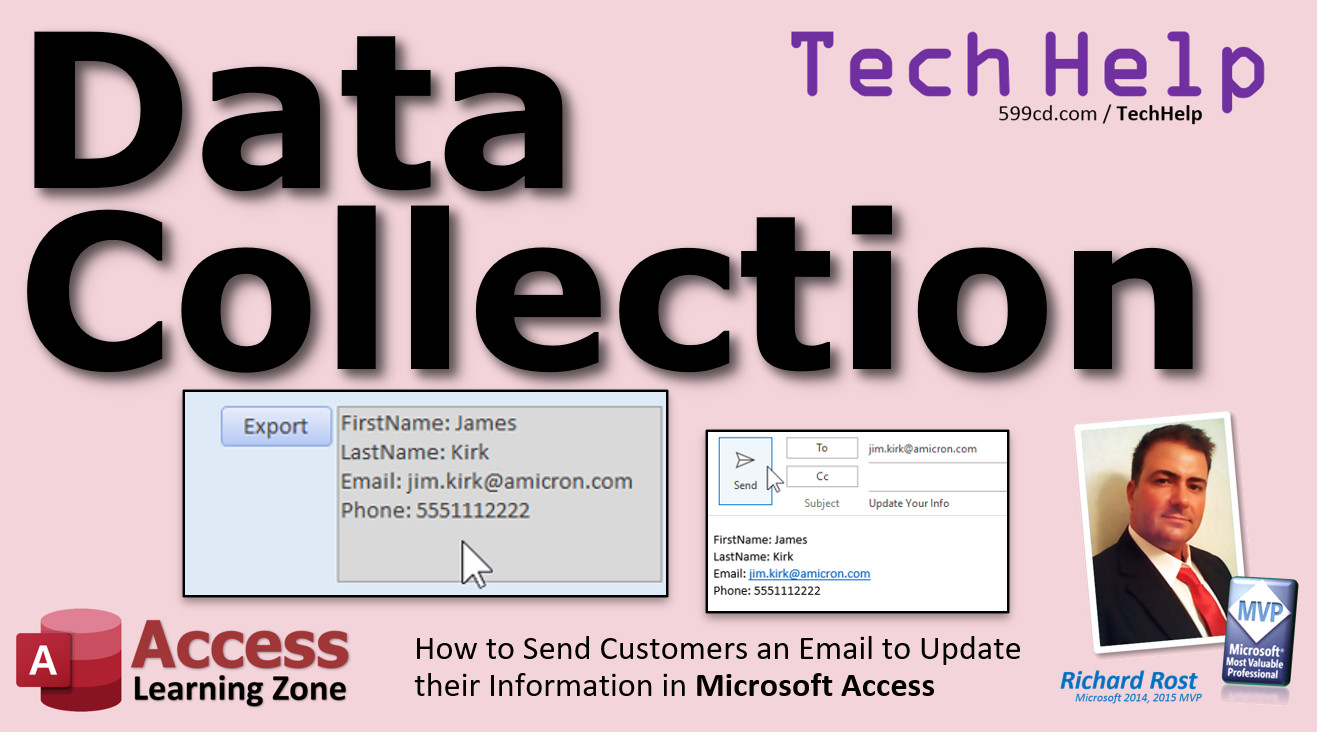
Send Customers Email to Update Information. In this video, I will show you how to email your customer a simple text-based form that they can fill out to send back to you and update their information. Adrienne from Boise, Idaho (a Platinum Member) asks: Is there an easy way that I can email a customer a form they need to fill out and then have their responses added back to my database? I have to send out information change requests all the time so customers can update their info (address, phone, email, etc.) If I could send them a form that shows what we currently have and then get their responses back into the database, that would be great. I don't even care if I have to do a little copy and paste. MembersMembers will see how to take the customer's response email, parse the data, and automatically update the fields in the database.
Silver Members and up get access to view Extended Cut videos, when available. Gold Members can download the files from class plus get access to the Code Vault. If you're not a member, Join Today!
Links
Keywordsmicrosoft access, ms access, ms access tutorial, #msaccess, #microsoftaccess, #help, #howto, #tutorial, #learn, #lesson, #training, #database, Add the data collected through e-mails to your Access database, client submit form data, data collection email, collect data, microsoft access 2016 data collection, microsoft access 2019 data collection, microsoft access 365 data collection, data collection forms, access web apps, send customer a form to fill out, collecting data, data collection, email forms, email data entry form
More InformationTranscriptWelcome to another TechHelp video brought to you by AccessLearningZone.com. I am your instructor, Richard Rost. In today's video, we're going to talk about data collection in Microsoft Access. I'm going to show you how to send customers an email to update their information in your Microsoft Access database. Today's question comes from Adrian from Boise, Idaho, one of my platinum members. Adrian says, is there an easy way that I can email a customer a form they need to fill out and then have their responses added back to my database? I have to send out information change requests all the time so customers can update their info, address, phone, email, and so on. If I could send them a form that shows what we currently have and then get their responses back into the database, that would be great. I don't even care if I have to do a little copy and paste. Well, Adrian, let's talk a little bit about data collection in Microsoft Access. Now, when it comes to sending your customer something, or your vendor, or supplier, whoever it is, you can't send them a form from your database. I get this from a lot of people. A lot of people ask me, hey, can I take one of these forms that I've built in Access and send that to someone and have them fill it out and send it back to me? No, you can't. These forms are strictly for your use in the database. If you're on a network, you can share your database and have other people, other employees in your company, use them, but that's pretty much just for you. Likewise, you can't send them a report. Those are read only. Even people on your network in your database can't modify reports, and they can't fill that out and send it back. Now, back in the day, back in Access 2007 and 2010, Access had a neat little feature called data collection. You could actually send out an email to multiple recipients that collected information. They would get it in Outlook or whatever, type in their responses, send it back to you, and Access would automatically integrate with Outlook and read those responses in and save them to a table in your database. But Microsoft got rid of it. They didn't include it in 2013. I'll be honest. I actually tried it a couple times and had some problems with it, so I get why they canceled it. Then Microsoft added this thing called Web Apps where you could actually tie your Access database into a web server like SharePoint and you could collect data there. That was pretty cool too, but then they got rid of that, so that's not an option anymore. Of course, the best way to collect this data would be to use a website. In my Access SQL Server seminar, I show you how to connect your Access database to SQL Server online. Then you can set up a form that can display all the user information when they log on. You can give them forms to change data, to update information, to submit new information, whatever. This, of course, requires the most amount of work and a lot of people don't want to go through this much trouble, especially if all you want to do is collect a few changes like what's your new phone number. So what I'm going to show you how to do in this video is to make a little email that you can send with the information that you already have in your database. Let's say you just want to send them first name, last name, email, and phone number. Hit the export button. It'll generate an email and you can send that out to them with all the information that you have in it right there. Then they can reply to that email and send you back the information that they want to update. We'll cover that in today's video. As a side note, if you're going to be collecting lots of information like surveys from a lot of different people, like you want to send out a survey about what are your interests, I actually like to use Google Forms for that. It does a really good job. It saves all the information in a spreadsheet. You can download the spreadsheet data right into Excel or Access. I'm actually going to be making a video on this very soon. It's up next or second next on my list. It's currently November 4th, 2021. I don't have it yet. That's going to be the address for it there. So if you're looking to take survey responses from a large number of people and pull those into your Access database, check my website for that page in a couple of days. That's a different thing. Before we get started, a little prerequisite for you: you should know a little VBA. It's not scary. Don't panic. This is literally a couple of lines of code. It's not going to be hard. I'm going to walk you through it. You'll do yourself a favor if you go watch my Intro to VBA video first. It's absolutely free. It's on my website. It's on my YouTube channel. Go find that. Once you learn a little bit of VBA, you can make your databases a whole lot more powerful. So that's what we're going to do in today's class. We need a little bit of VBA. And I'd recommend you watch my Send Email video. Again, free video. I'm going to show you what you need to do to send the email in today's class. In fact, I'm going to use a slightly different method, but it works just as well. But go watch that too. And while you're at it, don't forget my free level one class. Four hours long. Gives you all the basics. If you're new to Access, go watch this before trying what I'm going to show in a few minutes. So here I am in my TechHelp free template. This is a free download up on my website. You can grab a copy if you want to. We got a customer form. Let's say right here, I want to be able to send to my customer just the information that I'm interested in them updating: first name, last name, email, phone, address, that kind of stuff. We'll just pick four fields. Let's do first name, last name, email, and phone. You can do as many as you want. I'm just going to do four. Obviously, just keep doing the same thing with more fields. So let's go to design view. Right down here, let's make some room. I'm going to copy one of these buttons, copy, paste, and slide over here. This will be my export button. I'm going to call it export button, BTN. We need a big area here for the information that we're going to copy and paste out in the email to go to. Now, you don't have to put it in a form field. You could do it in a memory variable. You could demonstrate in code. But I like to see it when I'm working on this kind of stuff. We'll put it right there like that. Nice and big. I'm going to make it gray. That just signals to the user that you can't edit this. I mean, you can edit it if you want to, but it's not going to go anywhere. Let's call this just cust info, and we're going to unbind it. Right now, you see it's still bound to the country field. That means if I type something in there, it's going to get saved in country. I don't want that. Delete. Now it's unbound. That means whatever you type in that box isn't going anyplace. It's just going to stay there for temporary purposes. They're good for display or for doing things like I'm about to show you. What are we going to put in this box? That's where our data is going to go. So right click, build event. That brings up my code builder. It got really big, really big size. It fits on the screen. There it is. Actually still too big. Hold on. There you go. There we go. So what we're going to do is we're going to set cust info equal to the fields that we want to send to the customer. I'm going to start off by saying cust info equals blank. Let's just empty it out in case there is something there from the previous record because when you move from record to record, it's going to still have the last guy's stuff in there. This will just make sure it starts off blank. Cust info equals cust info and that's string concatenation. Cust name colon space and the first name field and vbNewLine. What's vbNewLine? vbNewLine is a constant that says go down a line, carriage return, line feed. Like when you hit enter in Microsoft Word. Remember the old typewriter days: carriage return, line feed means go down and then right back to the beginning of the line. Now I'm not going to type all that in again, so we are going to highlight that, copy, and paste, paste, paste for however many fields you want. We got last name, email, phone, whatever field you want to collect. Last name, last name, email, email, phone. If you want this to be "First Name," that's okay. This is what your end user, your customer, is going to see in their email. It's not really important, but I like to keep it like that. People know what you're talking about. Let's see what this does. Save that. Come back over to your form. I'm going to close it and reopen it and click the button. Boom. There you go. See that? You just put all the information right here in this little text box to collect. Now, you could at this point just select all this with your mouse, copy it, switch over to your email program, paste it, and send the email. But Access can do that for us if we're using Microsoft Outlook very easily. If you're not using Outlook, if you're using something else like Gmail, I cover how to do that in my email seminar. I cover all kinds of stuff. Everything you need to know about sending email in Microsoft Access is covered in my email seminar, including how to connect to any mail server including Gmail, how to send mass mailings, and how to read email to get it back from Outlook and pull it into your Access database. But anyway, if you're using Outlook, we can send an email with just one line of code. It's actually pretty easy to do if you're using Outlook. If you're not using Outlook, well, we can't do it. We're going to go DoCmd.SendObject. Now, you might be saying, well, Rick, I'm not sending an object. I just want to send some text in the body of an email. That's okay. We can go acSendNoObject. This command is usually used if you want to send a report because you can send a report as a PDF file attachment this way, too. It's really easy to do. I show how to do that in the other email video that I put at the beginning of the class, so go watch it if you want to send reports as attachments. It's pretty cool. But if you just want to send some email with some text in it, use acSendNoObject. I'm just sending text in an email. Comma. Object name. It's optional. The format. Now, I hate that it doesn't give you the little IntelliSense here. It should give you a list to pick from. It's just acFormatTXT. Leave it as text if you want to be able to copy and paste this back and forth. You can make it rich text. You can make it HTML if you want to make it pretty. But we're just going to do text because that's what I want for this email. The To – who's it going to? Well, we know their email, don't we? Email. You want to CC? Subject: Update your info. Then message text. What's going in the message text? You can add something to it if you want to. You can say something like: Please update your info by editing the data below. Thank you. Whatever. Then we're going to go vbNewLine and vbNewLine. That's going to put two blank lines. Then we're going to put our cust info there. Comma. Edit message is true if you want to see the email pop up so you can review it and verify it and then press send. If you just want it to go out automatically, make that false. But I want to make this true because I want to see it and I'm actually not going to send it. One more thing I'm going to add right up here: I'm going to put On Error Resume Next. That's because I know DoCmd.SendObject, if you cancel it, generates an error in Access. Access says it wasn't able to send this and it throws up an error message. So just put On Error Resume Next to it and it ignores that. Are you ready? Let's go back over to here. Ready? Here we go. Export. Make sure you got Outlook, by the way. Make sure Outlook is installed and running. Make sure your email account is set up in it properly. I'm not going through all that stuff. Hit it. There you go. There's your email. Please update your info by the name below. Now, all the customer has to do is come in here and type this stuff in. You're going to send it, they're going to receive it, and they're going to have to hit reply and then make the changes in their reply email and send it back to you. I'm not going to go through all that because I'm not actually going to send this because I don't have an email account set up in Outlook. I don't use Outlook. I use Gmail. So I'm going to cancel that. But you see how that works. Then they're going to get it, they're going to email back to you, and then you've got the updated information. So a little time goes by. You get your response back from them in an email. How do you get this data back into their form? We're going to copy it like this out of their email. I got it in Notepad now. We're going to drop it back in that same box, paste it in, and then we're going to hit import. There it goes back up into the fields. How does that import button work? That I'm going to show in the extended cut for the members. In the extended cut for members, I will show you how to copy that response text, import it directly into the form, and then we'll parse the data into the proper fields with a little more VBA. That's all covered in the extended cut for members. Silver members get access to all of my extended cut videos – not just this one, all of them. There's like 200 and some of them now. Gold members can download these databases. How do you become a member? Click on the Join button below the video. After you click the Join button, you'll see a list of all the different membership levels that are available, each with its own special perks. Silver members get access to all of my extended cut TechHelp videos, one free beginner class each month, and more. Gold members get access to download all of the sample databases that I build in my TechHelp videos, plus my code vault, where I keep tons of different functions that I use. You'll also get a higher priority if you decide to submit any TechHelp questions to me, and you'll get one free expert class each month after you've finished the beginner series. Platinum members get all the previous perks, plus even higher priority for TechHelp questions, access to all of my full beginner courses for every subject, and one free developer class each month after you finish the expert classes. These are the full-length courses found on my website, not just for Access, too. I also teach Word, Excel, Visual Basic, and lots more. You can now become a Diamond sponsor and have your name or company name listed on a sponsors page that will be shown in each video as long as you're a sponsor. You'll get a shout out in the video and a link to your website or product in the text below the video and on my website. But don't worry, these free TechHelp videos are going to keep coming. As long as you keep watching them, I'll keep making more, and they'll always be free. IntroIn this video, we'll talk about data collection in Microsoft Access and how to email customers a summary of their current information for updates. I'll show you how to create a button on your Access form that generates an email with customer details, using a bit of VBA and Microsoft Outlook to streamline the process. We'll go over exporting specific fields, composing the email automatically, and tips for collecting responses. If you're looking for ways to gather updated info from clients easily, this video will help you set up a simple and effective workflow in Microsoft Access. QuizQ1. What was Adrian's main goal in emailing customers using Microsoft Access? A. To collect updated information from customers to be added back to the database B. To generate sales reports for management review C. To invite customers to company events D. To send promotional offers and discounts Q2. Why can't you simply send an Access form to an external customer to be filled out and sent back? A. Access forms are strictly for use inside the database and cannot be sent as editable forms via email B. Access forms become corrupt when emailed C. Access forms only allow for numerical data entry D. Access forms require a web server to function externally Q3. Why are reports in Access not a solution for collecting updated information from customers? A. Reports are read-only and cannot be edited or submitted back B. Reports are only printable and cannot be viewed on a computer C. Reports require administrator privileges to open D. Reports are automatically deleted after viewing Q4. What feature did Access have in versions 2007 and 2010 to help with data collection that is no longer available? A. Data collection via email integration with Outlook B. Built-in SMS messaging C. Direct integration with Google Forms D. Automatic report sharing via the cloud Q5. What is considered the best (though most work-intensive) method for collecting updated user information online? A. Setting up a website with a form connected to SQL Server and Access B. Sending customers spreadsheets to fill out C. Using Outlook mail merge exclusively D. Distributing Access database files to customers Q6. In the video, what practical approach is demonstrated for sending customer info to update via email? A. Exporting select fields into an email using VBA and sending it through Outlook B. Exporting the database table as a CSV and attaching it to the email C. Printing the data and mailing it physically D. Sharing the entire Access database via Dropbox Q7. What field property is set when creating the unbound textbox used to prepare the customer information for export? A. The textbox is set as unbound (not linked to any table field) B. The textbox is set as required C. The textbox is made a password field D. The textbox is formatted as a date/time picker Q8. What does the VBA code use to separate lines when preparing the customer data information? A. vbNewLine B. br tag C. comma delimiter D. pipe separator Q9. What is the primary purpose of the DoCmd.SendObject method as used in the video? A. To send an email with the prepared customer information via Outlook B. To connect to a web server for data collection C. To print the customer information automatically D. To upload data to Google Forms Q10. Which argument ensures that the email message can be reviewed before sending in the demonstrated VBA code? A. The EditMessage parameter set to True B. CC field set to the user's own email C. Use of acSendReport D. Message text formatted as HTML Q11. What is the reason for adding "On Error Resume Next" before calling DoCmd.SendObject? A. To prevent Access from displaying an error if the user cancels sending the email B. To force Access to retry the operation until successful C. To skip all code following the error D. To ensure IntelliSense works in the VBA editor Q12. If the recipient is not using Outlook, which other email solution does the instructor mention for sending emails from Access? A. Gmail integration, covered in his email seminar B. Thunderbird mail addon C. Yahoo Mail plugin D. Microsoft Teams integration Q13. Once the customer responds with updated info, what is the manual process suggested to update the database? A. Copy the response from email, paste it into the form textbox, and click the import button B. Print the email and retype all information into Access C. Have the customer call in their changes D. Drag and drop the email into Access Q14. What additional method is suggested for collecting survey results from large groups for import into Access? A. Using Google Forms to collect responses and importing the resulting spreadsheet into Access B. Using email attachments containing Word documents C. Sending printed surveys and manually keying in results D. Using Access macros to generate automatic responses Q15. Before attempting the procedure shown in the video, what prerequisite knowledge is advised? A. Basic VBA programming in Access B. Advanced report generation in Access C. SQL Server database administration D. HTML coding skills Answers: 1-A; 2-A; 3-A; 4-A; 5-A; 6-A; 7-A; 8-A; 9-A; 10-A; 11-A; 12-A; 13-A; 14-A; 15-A DISCLAIMER: Quiz questions are AI generated. If you find any that are wrong, don't make sense, or aren't related to the video topic at hand, then please post a comment and let me know. Thanks. SummaryToday's video from Access Learning Zone covers data collection in Microsoft Access. In this lesson, I'm going to explain how you can email your customers to request updated information and then bring their changes back into your Access database. The question we are focusing on comes from a student who asked whether it's possible to email a customer a form to fill out so that their responses can be added back to the database. This is a common situation, especially when you often need to send requests to customers to update their information such as address, phone number, email, and so on. The idea is to send the customer a summary of the data you currently have, receive their updates by email, and then update your records accordingly, even if it involves a little copying and pasting. Let me start by addressing a frequent misconception – you cannot send Access forms to customers for them to fill out and return. Access forms are designed for use within your own database. You can share your database on a local network so other employees can use the forms, but they are not intended for external users to complete and return. Similarly, Access reports are read-only, so users can't modify these or send them back to you. Back in Access 2007 and 2010, there was a data collection feature that allowed you to send emails to gather information, which could then be automatically imported into Access through Outlook. However, Microsoft discontinued this starting with Access 2013. Although there was also a feature called Web Apps for tying Access to SharePoint servers, that's no longer available either. The most robust way to collect data is through an online web form. For example, in my Access SQL Server seminar, I show how to connect Access to SQL Server online and set up a web form where users can log in, see their data, and make updates which then synchronize into your database. However, this approach requires a fair amount of work, and not everyone wants to build an entire website just to update a few bits of information. So, what we'll focus on in today's lesson is a much simpler solution: creating an email with the customer information you have, sending it to the customer, and then getting back their updated details by email. For example, you might send them their first name, last name, email, and phone number for review. You'll prepare this in Access, generate the email, and send it to them. They'll simply reply with changes, and you can copy and paste their response back into your database. If you need to run a larger survey with lots of recipients (such as gathering interests or feedback), you might find Google Forms is a better solution. Google Forms collects responses in a spreadsheet, which you can then import into Excel or Access. I'll be creating a video on this topic soon, so check my website for details. To follow along with this tutorial, you should have some basic familiarity with VBA (Visual Basic for Applications). Don't worry if you're new to VBA. The code involved is quite simple, and I'll guide you step by step. If you're completely new, I recommend you watch my free Intro to VBA video, which is available both on my website and my YouTube channel. Learning some VBA skills will really help you unlock more of Access's power. Additionally, it helps to watch my video on sending email from Access. That tutorial is also free and explains the different ways to send email through Access. The method we'll use today varies slightly but works just as well. For this example, I'm using my free TechHelp template, which you can download from my website. Open the customer form, and decide which pieces of information you want to include in the email – for instance, first name, last name, email, and phone number. You can certainly include more fields if you want. To set this up, switch to design view on the form, and add a new button labeled "Export". This button will trigger the process. In your form, add a large text box (I like to make it gray to indicate it's just for display) to hold the customer's details. Make sure this box is unbound, meaning its contents are not saved to a particular field in the database – it's just there to display information on the form. The goal is for this text box to display the data you want to send to your customer – the output will be a nicely formatted text block with their current information. You can program this using a short VBA event that builds the text from your database fields and places it in the box. Start by clearing the box in case it still contains information from a previous record. Then join the field labels and contents together, separated by line breaks, so each piece of information appears on its own line. Once that's set up, you can view the form, click the Export button, and see the formatted data in the text box. At this point, you could manually select the text, copy it, switch to your email client, paste it, and send it to the customer. But with a little more VBA, Access can do this automatically if you use Microsoft Outlook. If you use Outlook, Access has an easy function to create and send an email with your chosen message. If you use other email providers like Gmail, I cover how to handle this in my email seminar, including how to connect to different mail servers, send mass emails, and even receive email to import back into Access. In Access, you can use a built-in function to send an email directly from your database without attaching a report – just send the text we've generated. Specify the recipient's email, set a subject like "Update Your Info," and include your message body. You can allow the email to open for review before sending if you wish, or send it instantly. Also, bear in mind that if this function is cancelled by the user, Access will report an error, so it's wise to add standard error handling to your code. When you click the button, Outlook will create a new email with the customer's information already in the body. The customer receives it, reviews their details, and simply replies with any corrections or updates. They will email you back their corrected data. Once you receive the response, you can highlight their updated information and paste it right back into your form's text box. Then, by clicking an Import button, you can push the new values back into the correct fields in your database. In the extended cut for members, I'll show you exactly how to build this import function. This process involves copying the customer's reply text and running some VBA to parse the information and update the appropriate fields on your form. We'll look at how to automate this so you don't have to enter each piece of information manually. Silver members get access to all my extended cut TechHelp videos. Gold members can download the sample databases I use in these lessons, and Platinum members get even more benefits like higher priority for TechHelp questions, access to all beginner courses for every subject, and free developer level courses after completing the expert series. I also teach Word, Excel, Visual Basic, and more. If you are interested in becoming a member, just click Join below the video for a comparison of the different levels and their perks. Regardless, these TechHelp videos will always remain free as long as you keep watching. You can find a complete video tutorial with step-by-step instructions on everything discussed here on my website at the link below. Live long and prosper, my friends. Topic ListOverview of data collection options in Access Limitations of sending Access forms or reports via email History and removal of Access data collection features Exporting customer information fields from a form Creating an unbound text box to display export data Using VBA to concatenate form field values for export Formatting data with vbNewLine in VBA for emails Adding an export button to a form in design view Using DoCmd.SendObject with acSendNoObject for Outlook Setting up message body and subject for email export Enabling email preview with the EditMessage argument Using On Error Resume Next to handle cancellation errors Requirements for sending email via Outlook from Access Workflow for copying and pasting email replies back into Access Primary TopicsMicrosoft Access data collection, sending emails from Access, using VBA in Access, exporting customer data, updating customer records Secondary TopicsAccess form design, Outlook integration, Google Forms as survey alternative |
||||||||||||||||||||||||
|
| |||
| Keywords: TechHelp Access Add the data collected through e-mails to your Access database, client submit form data, data collection email, collect data, microsoft access 2016 data collection, microsoft access 2019 data collection, microsoft access 365 data collectio PermaLink Data Collection in Microsoft Access |