|
||||||

|
|
||||||
|
Link to ExcelBy Richard Rost
 5 years ago
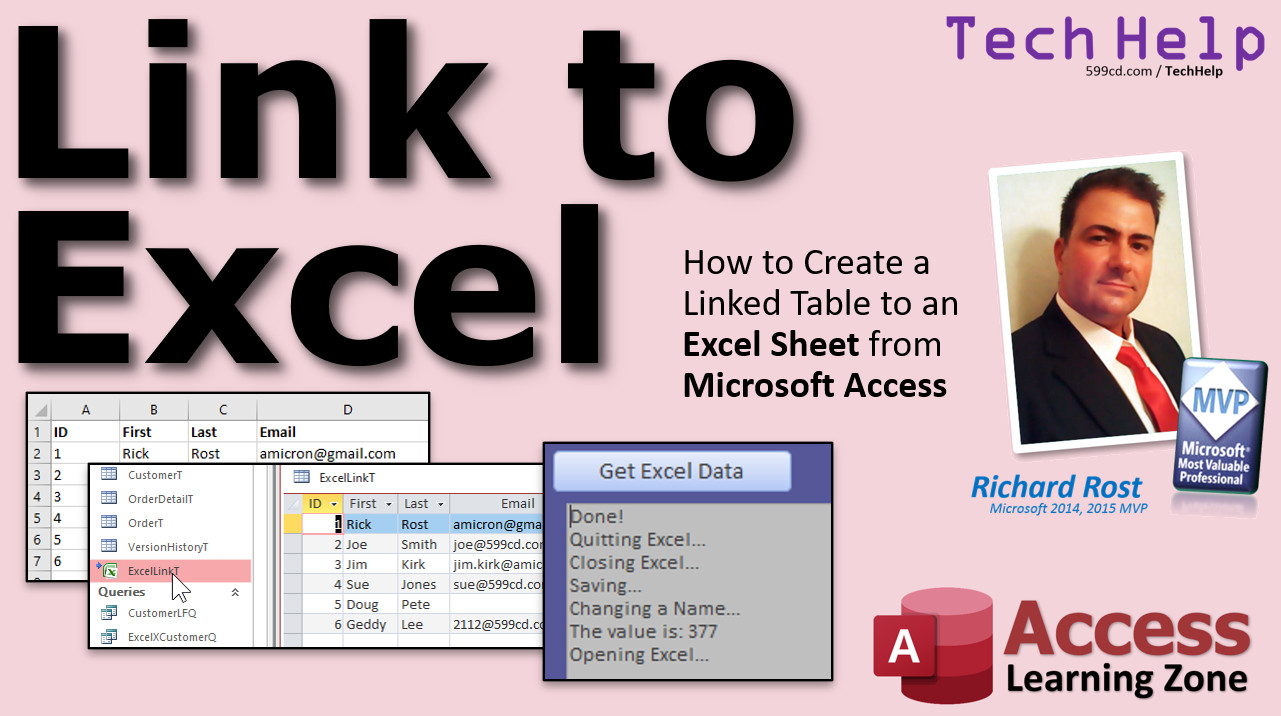
Link Access to an Excel Sheet to Read Live Data In this video, I will show you how to have Microsoft Access create a linked table to a Microsoft Excel worksheet. This will allow you to read data from the sheet and is continuously updated in real-time when changes are made to that sheet. Ronnie from Olympia, Washington (a Platinum Member) asks: My sales department keeps a spreadsheet on the network that contains all of the new customers for the month. Is there any way I can open that sheet up from Access to view their data? I'd like to query that against my existing data I have in Access, but I don't want to have to keep importing their sheet over and over again. UpdateThere is now a method to edit or add data in linked Excel sheets. Still can't delete, but it's better than nothing: MembersMembers will see how to get a value from a specific cell on a specific sheet in a specific workbook without linking to the sheet as a table. We will use VBA and automation to get the value of whatever cell you want (even named cells). Brent from Tracy, California (a Gold Member) asks: Is it possible to link to one cell in an Excel workbook which has multiple sheets? For example, the first sheet we will call TAB1 and the second TAB2. I would like to link to a value that is in cell B6 on TAB2. Would this be possible?
Silver Members and up get access to view Extended Cut videos, when available. Gold Members can download the files from class plus get access to the Code Vault. If you're not a member, Join Today!
Links
Keywordsmicrosoft access, ms access, ms access tutorial, #msaccess, #microsoftaccess, #help, #howto, #tutorial, #learn, #lesson, #training, #database, link access to excel, Can Access and Excel work together, link access to excel read/write, access write to excel sheet, How do you link Excel spreadsheets in Access, How do I get Excel to automatically update Access database, link to data in an Excel workbook, Linking Access Database Tables To An Excel Workbook, How to Link an Excel Spreadsheet to MS Access
More InformationTranscriptWelcome to another TechHelp video brought to you by AccessLearningZone.com. I am your instructor, Richard Rost. In today's video, I'm going to show you how to create a linked table to an Excel sheet from Microsoft Access. Today, we've got two questions. The first one comes from Ronnie in Olympia, Washington, one of my platinum members. Ronnie says, "My sales department keeps a spreadsheet on the network that contains all the new customers for the month. Is there any way that I can open that sheet up from Access to view their data? I'd like to query that against my existing data I have in Access, but I don't want to have to keep importing their sheet over and over again." Well, Ronnie, we can certainly do that by linking to the Excel spreadsheet as a linked table. I'll show you how to do that in just a few minutes. And then, later on in the extended cut for members, another question from Brent from Tracy, California, one of my gold members and an Access veteran on my site. Brent says, "Is it possible to link to one cell in an Excel workbook which has multiple sheets, for example? The first sheet we will call tab one and the second tab two. I would like to link to a value that is in cell B6 on tab two. Would this be possible?" Yes, Brent, it's going to require a little bit of VBA coding, but it's definitely possible and I'll show you how to do that in the extended cut. But first, let's get to Ronnie's question. Now, before I show you how to link to an Excel spreadsheet, I want you to know how to import data from Excel first. So if you have not watched this yet, go watch my import data video. I'll show you how to grab data out of an Excel worksheet and pull it into Access into a new table. That's the first step. So go watch that and then come on back here. Now, linking to an Excel spreadsheet is very similar to importing except you're not actually pulling a copy of the data into Access. All you're doing is telling Access, "Hey, see that spreadsheet over there? I want you to go read that guy and keep a live connection to it." So any changes that are made in that spreadsheet, I want to see those in Access automatically without having to constantly pull that stuff in. So here's a little simple spreadsheet I got. All right, it's got ID, first, last, and email. And I want to link to this from my Access database. Switch over to my database. This is my TechHelp free template. You can grab a copy. This is off my website if you want to. For your free download, you'll find the link down below in the links section in the description under the video. To create a link, we're going to go to External Data, New Data Source from File, and then Excel, very similar to importing. But now we're going to come down here and pick "Link to the data source by creating a linked table." Access will create a table that will maintain a link to the source data in Excel. Changes made to the source data in Excel will be reflected in the linked table. However, the source data cannot be changed from within Access. This is a read only connection. OK, so you'll be able to read any changes made to the Excel spreadsheet by other people. Or you yourself can open up that spreadsheet in Excel to make changes. But you can't change it from inside of Access. That's one limitation of a linked table. I'm going to browse to where my file exists. Mine's right here in my drive. Hit open. Then hit OK. Now Microsoft Access can use your column headings as field names for your table. Does the first row contain column headings? Yup, it does in this case. And there are the different fields. It's pretty good at getting these fields right. Next, what do you want your linked table name to be? Let's call this ExcelLinkT. And then hit Finish. There you go. There's your ExcelLinkT. Open it up, and there's the data just like it is in the spreadsheet. Now, you can make little design changes as far as layout stuff. That's fine. But you can't actually modify this table, and you can't modify the data in it. I try typing right now, it says this recordset is not updateable. But if you want to compare these records to the people in your database, if you want to check this against your customer list, you could certainly do that. Now, this might or might not be a customer ID. Probably isn't. So we can link them by email address. Just make a query joining the two together. Watch this. Let's go to Create, Query Design. I'll bring in my ExcelLinkT. It's under Links. Go to Tables now and bring in your customer table. OK. Now we've got an email over here, we've got an email over there. Let's join these together. Now I'm going to bring in email address, and then first and last over here, and let's bring in first name and last name on this side. If I run the query now, there you go. You can see there's two people that matched. I've got a total of four people in here. Two of these are not. If you want to see all of the people in the Excel table, and just the customer info that matches, make this an outer join. I have another video on outer joins that shows all the records over here and the ones that happen to match over there. Now you can see those two people are not customers. That's called an outer join. I've got a free video on outer joins too. I'll put a link down in the link section below. That's pretty powerful stuff. All right. I'll save this as my ExcelXCustomerQ. Excel versus the customers. You can see here who's new and who's not. You can run any other reports and stuff that you want to based on this linked table. It acts just like a linked table or just like a regular table in Access. You can make forms off of it, of course, they're read only. You can make reports off of it. Do whatever you want to it. If you want to learn a lot more about importing, exporting, and linking to Excel, I cover that in my Access Expert Level 20 class. Lots of stuff covered in this class, but importing, exporting, linking, and so on. Now here's the nice part. The next day, they come in here and they add a few more people. We got Doug Pete, and no email address for him, let's say. They add Geddy Lee at [email protected]. I hate that. I always undo those hyperlinks. All right. Save that. Close it. Now, let's take a look. Look at that. There's the new people. So that is a live link to that spreadsheet. These changes won't show up until that person saves their work. So if they've got the spreadsheet open on their computer and they're typing in a bunch of data and they haven't saved it in a while, you won't see it until it's saved. That's one of the benefits of having everybody work in Access because, in Access, each record is saved as soon as you leave it. So if you're typing in rows like this into a table, as soon as she leaves Doug Pete's record, that gets saved to the table. Everybody else in the database will see the updates. With Excel, the updates only save once the file is saved. So they can have it open all day on their computer. You'll never see any of the updates. You have to tell them to save frequently. But if this is something where once a week or so, you just want to go in and grab that and see who the new customers are and do a reporting and stuff like that, this works just fine. Now, if you do want to pull all this data in and make changes to it, you can import it like I show you in the other video, make the changes, and then export it back out to the same Excel file. I cover that in my full courses. Now, what if you've got over here something like Sales, like how much has each customer purchased? Now, you've got a column of numbers over here, and down here, you've got the total like this: equals the sum of this stuff. Now, Brent's question is, what if you just want to get that value? You don't want to import this whole sheet. And this isn't really real records down here. You just want to get whatever is in cell E9 on sheet 1. How do you do that? Well, I will cover that and answer Brent's question in the extended cut for members. In the extended cut for members, we'll use a little VBA Excel automation to open up a copy of Excel in memory. We'll then be able to read and write a value from any cell on any sheet in that book. I'll also show you how to do it with a named range as well. That will be covered in the extended cut for the members. Silver members and up get access to all of my extended cut videos, and there's like 200 of them now. Gold members can download these files. How do you become a member? Click on the Join button below the video. After you click the Join button, you'll see a list of all the different membership levels that are available, each with its own special perks. Silver members and up will get access to all of my extended cut TechHelp videos, one free beginner class each month, and more. Gold members get access to download all of the sample databases that I build in my TechHelp videos, plus my code vault, where I keep tons of different functions that I use. You'll also get a higher priority if you decide to submit any TechHelp questions to me, and you'll get one free expert class each month after you've finished the beginner series. Platinum members get all the previous perks, plus even higher priority for TechHelp questions, access to all of my full beginner courses for every subject, and one free developer class each month after you've finished the expert classes. These are the full-length courses found on my website, not just for Access, too. I also teach Word, Excel, Visual Basic, and a lot more. You can now become a diamond sponsor and have your name or company name listed on a sponsors page that will be shown in each video as long as you are a sponsor. You'll get a shout-out in the video and a link to your website or product in the text below the video and on my website. But don't worry, these free TechHelp videos are going to keep coming. As long as you keep watching them, I'll keep making more, and they'll always be free. IntroIn this video, I will show you how to create a linked table to an Excel spreadsheet from Microsoft Access. We will talk about the benefits and limitations of linking versus importing, walk through the steps for setting up a live connection to an Excel file, and see how you can use linked data in queries to compare information with your existing Access tables. I will also discuss common scenarios for using this feature, like keeping track of new customers added to a shared Excel sheet. QuizQ1. What is the key difference between importing data from Excel and linking to an Excel spreadsheet in Access? A. Importing copies the data into Access; linking creates a live connection. B. Importing creates a live connection; linking copies the data into Access. C. Both importing and linking copy the data into Access. D. Both importing and linking create a live connection to Excel. Q2. What is a notable limitation of a linked Excel table in Access? A. You can only view the first 10 records. B. You cannot edit the data from within Access. C. You cannot open the table in Access. D. You must import the table before linking to it. Q3. When creating a linked table from Excel, what should you ensure if you want Access to use field names automatically? A. The first row in Excel should contain column headings. B. The last row in Excel must be empty. C. The Excel file must be in .csv format. D. There must be at least 100 rows of data. Q4. If someone updates the Excel spreadsheet but does not save it, what happens in Access? A. Access sees the updates immediately. B. The updates can be seen after restarting Access. C. The updates are only visible in Access once the spreadsheet is saved. D. The data will be automatically imported as new records. Q5. How does Access treat linked Excel tables in terms of queries and reports? A. Linked tables cannot be used in queries or reports. B. Linked tables work just like regular tables, except they are read-only. C. Linked tables can be edited directly like regular tables. D. Linked tables can only be used for printing. Q6. What is an "outer join" used for when querying Excel and Access tables together? A. To combine all records from both tables regardless of matches. B. To show only records that match between both tables. C. To display all records from one table and only matching records from the other. D. To exclude all matching records. Q7. According to the video, when would a linked Excel table be most useful? A. When you need to edit Excel data directly from Access. B. When you want to maintain a live, read-only view of frequently updated Excel data. C. When you only ever need to access data in Excel once. D. When Access and Excel have the same table structure. Q8. How can you match new customers in Excel with customers in Access within a query? A. By linking them through their email addresses. B. By using their unique Access table IDs. C. By matching them by first name only. D. By importing the customer list into Excel. Q9. What must users working in the Excel file do for their changes to appear in Access? A. Disconnect and reconnect their computer. B. Close the Access database. C. Save the Excel spreadsheet. D. Reboot their network drive. Q10. Is it possible to link individual cells from Excel, such as cell B6 on a specific sheet, directly as a linked table in Access? A. No, not at all. B. Yes, with VBA coding and Excel automation. C. Yes, with standard Access linking features. D. Only if the cell is formatted as a number. Answers: 1-A; 2-B; 3-A; 4-C; 5-B; 6-C; 7-B; 8-A; 9-C; 10-B DISCLAIMER: Quiz questions are AI generated. If you find any that are wrong, don't make sense, or aren't related to the video topic at hand, then please post a comment and let me know. Thanks. SummaryToday's video from Access Learning Zone focuses on connecting Microsoft Access to an Excel spreadsheet by creating a linked table. I'm Richard Rost, your instructor. We start with a question from Ronnie, whose sales department keeps an Excel spreadsheet on a network drive containing all new customers for the month. Ronnie wants to know if there is a way to view and query that Excel data alongside existing Access data, without having to repeatedly import the spreadsheet. To accomplish this, Access allows you to create a linked table to an Excel file instead of importing it. Linking means Access maintains a live connection to the Excel spreadsheet. Any changes made in the spreadsheet by others will appear in Access automatically, as long as the file is saved after those changes. This is different from importing, where you take a snapshot of the data at a point in time. With a linked table, anything changed in Excel will show up in Access the next time you open the table, without needing to re-import. To set this up, you start by going to the External Data tab in Access. From there, select New Data Source, choose File, then Excel. Instead of importing, choose the option to link to the data source by creating a linked table. Access will use the column headings in your Excel file as the field names for your table. You get to name this new linked table as you wish, for example, ExcelLinkT. The resulting linked table in Access displays the data from your Excel spreadsheet. However, this connection is read-only. You cannot change the data from Access; all edits must be made in the Excel file directly. Once this is set up, you can query and compare this Excel data with other tables in your Access database. For example, if you want to find which new customers from Excel already exist in your Access customer database, you might join the two using a field like Email Address. You can create a query joining the linked Excel table to your customers table based on the email field. By doing this, you can identify records present in both locations, or use an outer join to see all records from Excel, along with their matching records from your customer list. You can also use this linked data as the basis for reports or forms in Access, bearing in mind these results remain read-only. It's a convenient way to keep your database synchronized with a spreadsheet that may be maintained by another department, as any updates made and saved in Excel will show up instantly in Access. If, however, you need to make changes to the Excel data within Access, you would need to import the data instead. You can then make changes in Access, and, if necessary, export it back to Excel. This process is covered in my full Access courses. Now, if the Excel spreadsheet is updated–for example, if new customers are added and the file is saved–the linked table in Access will reflect the additions immediately. However, data entered into Excel will not appear in Access until the spreadsheet is saved. This is a key difference from Access tables since, in Access, each record is saved as you finish entering it, making updates visible to all users right away. Another question comes from Brent, who asks about obtaining the value from a specific cell in an Excel workbook with multiple sheets, specifically from cell B6 on the second tab. While linking to a full sheet as a table is straightforward, accessing a single cell value from a specific sheet requires more advanced steps and involves some VBA automation. In the extended cut for members, I will demonstrate how to use VBA code to open an instance of Excel in memory and read from any cell or named range in any worksheet. Members will see step-by-step how to handle this kind of task. If you're interested in more advanced importing, exporting, and linking features, those are covered extensively in my Access Expert Level 20 class. Remember, Silver members and above get access to all of my extended cut TechHelp videos, and Gold members can download the sample databases used in these tutorials, as well as access my code vault. Platinum members gain even more benefits, including access to all beginner courses and one free developer class each month after completing the expert series. Free TechHelp videos will always be available, so feel free to watch and learn at your own pace. You can find a complete video tutorial with step-by-step instructions on everything discussed here on my website at the link below. Live long and prosper, my friends. Topic ListCreating a linked table to an Excel sheet in Access Browsing and selecting an Excel file to link Using column headings as field names in linked tables Understanding the read-only limitations of linked Excel tables Querying linked Excel data against Access tables Joining tables using email addresses Creating and running queries with linked tables Making outer joins to show unmatched records Viewing live updates from the linked Excel sheet Recognizing the need for saving in Excel for updates to appear in Access Building forms and reports based on linked Excel tables Renaming and organizing linked tables in Access Primary TopicsMicrosoft Access, linking tables, Excel integration, live data connection, querying linked data, read-only limitations Secondary Topicsouter joins, reporting based on linked tables, comparison with importing, tips on record saving differences, membership content |
||||||||||||||||||||
|
| |||
| Keywords: TechHelp Access link access to excel, Can Access and Excel work together, link access to excel read/write, access write to excel sheet, How do you link Excel spreadsheets in Access, How do I get Excel to automatically update Access database, link to data PermaLink Link to Excel in Microsoft Access |