|
||||||
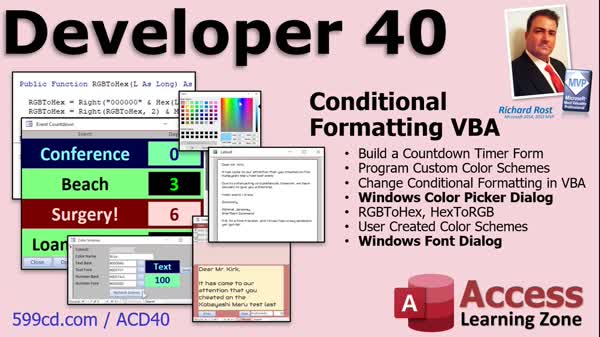
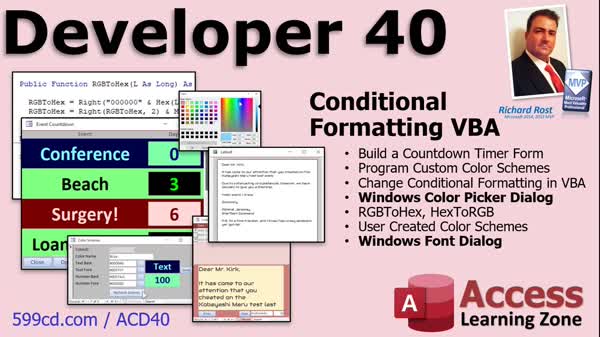
Access Developer 40Conditional Formatting, Color Picker, FontsWelcome to Access Developer 40. In this course you will learn how to use VBA to change conditional formatting, color schemes, and fonts in Microsoft Access. We will cover building an event countdown form, working with the Windows Color Picker and Font dialog boxes, managing FormatCondition objects, applying custom formatting to form controls, using user-defined types, and saving user settings in a table. You will also see how to extend these techniques to reports and a letter writer so each item can have its own custom font and color settings. Lessons
Database FilesNotes
TechHelp Links
D40 Links
Resources
Lesson SummaryWelcome! Format, Colors, Fonts via VBA - Welcome to Microsoft Access Developer Level 40. In this course we will focus on changing conditional formatting using VBA, building an event countdown form with custom fonts and color schemes, working with the Windows Color Picker and Font dialog boxes, applying conditional formatting to form controls, managing FormatCondition objects, using user defined types in VBA, and saving user settings in a table. We will also discuss extending these techniques to reports and a letter writer so each item can have its own custom font and color settings.
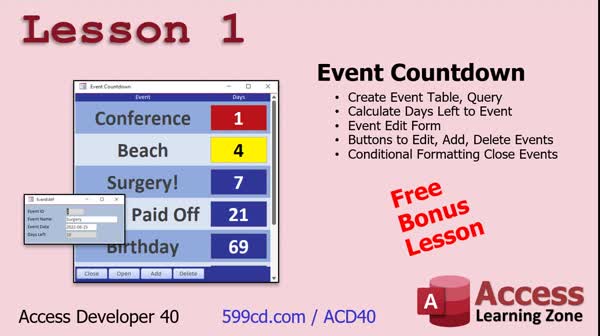
Lesson 1: Event Countdown w Conditional Format - In Lesson 1, we will walk through building an event countdown form in Microsoft Access that displays upcoming events and the number of days left until each one. We will create the events table, build a query with a calculated field for days remaining, design a continuous form to display the countdown, add buttons to close, add, edit, and delete events, and apply basic conditional formatting to highlight items occurring soon. We will also discuss techniques for form focus, handling additions and deletions, and ensuring the event countdown form automatically appears when the database opens if events exist.
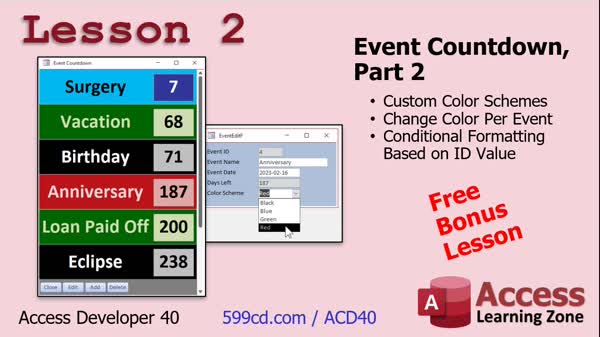
Lesson 2: Custom Color Countdown Tips - In Lesson 2, we continue building the Event Countdown form by adding conditional formatting that allows users to select from different color schemes, such as red, blue, black, or green, for their events. We will walk through creating a color table, updating the event table to store color choices, and adding a combo box to the event form for color selection. I will also demonstrate how to apply conditional formatting based on the chosen color, discuss common issues and troubleshooting tips, and explain why some design decisions are made in this process for the Event Countdown system.
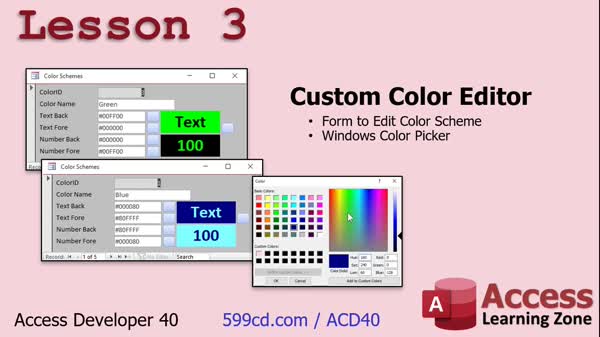
Lesson 3: Custom Color Editor: Hex & RGB - In Lesson 3, we will build a custom color editor form that lets you edit your color schemes by selecting and saving colors using the Windows Color dialog. I will show you how to work with both hex and RGB values, including converting between them, and discuss storing color information in a table for conditional formatting in your forms. We will set up default color values, integrate color selection buttons with VBA code, add live color previews, and create a feature to swap background and foreground colors.
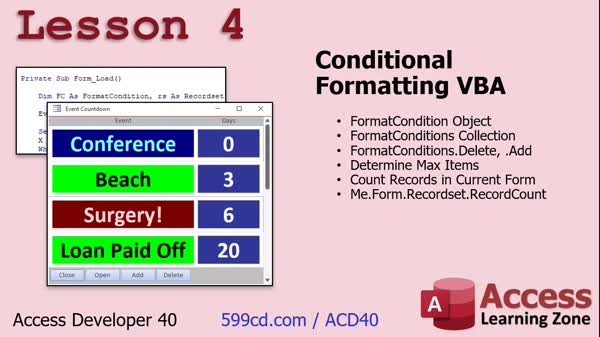
Lesson 4: VBA: Conditional Formatting Tips - In Lesson 4, we will begin working with conditional formatting VBA code in Access. We will discuss the FormatCondition object and the FormatConditions collection, including how to add and delete them. I will show you how to set formatting conditions programmatically, determine the maximum number of conditional formatting items allowed, and use a form's Recordset property to count records and prevent too many formats from being added. We will walk through applying color palettes to form controls on load and explore techniques for setting formatting properties such as back color, forecolor, and font styles using conditional formatting VBA.
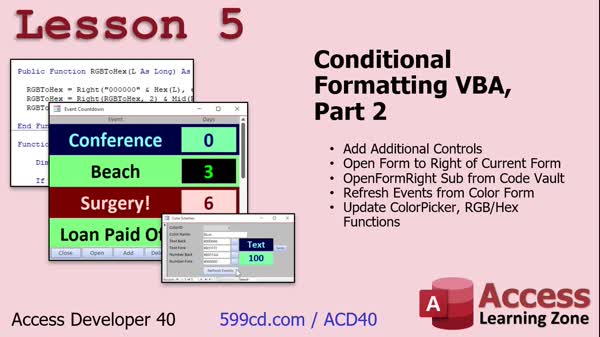
Lesson 5: Format VBA, Color Picker, & Forms - In Lesson 5, we are continuing with conditional formatting VBA by adding more controls on the form into the formatting loop, such as the number box and background box. We will discuss how to open a form to the right of another form regardless of its position using code from the code vault, and walk through updating the color picker and associated RGB and hex functions. I will show you how to refresh the events form from the color form to see updates in real time, and we will make small optimizations and organizational improvements to the code for better efficiency.
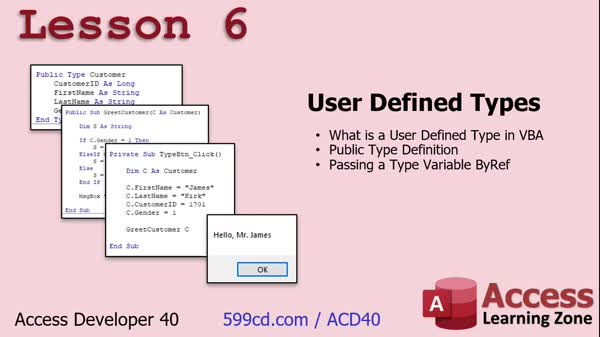
Lesson 6: User Defined Types for Data - In Lesson 6, we will explore user-defined types in VBA, sometimes called structures, and see how they allow you to bundle multiple related fields together, such as creating a customer type with ID, first name, and last name. I will show you how to define a user-defined type in a global module, how to use it in procedures, and how to pass it as a parameter, noting that user-defined types always use ByRef. We will also briefly discuss how user-defined types will be useful in later lessons, particularly for selecting fonts using the Windows font dialog box.
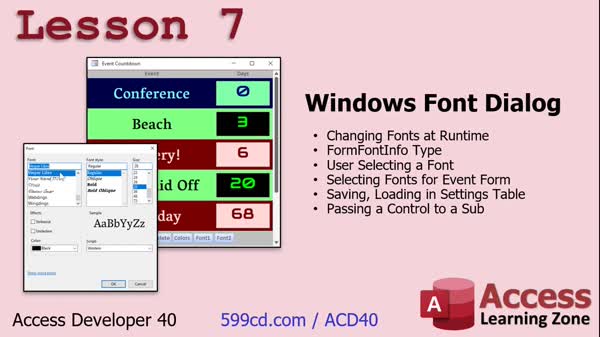
Lesson 7: Use Font Dialog & Save Settings - In Lesson 7, we will learn how to use the Windows Font dialog in Access to let users pick fonts for event names and days left fields at runtime. We will walk through how to implement the font dialog code, set and update font choices, and store those preferences in a settings table so they load automatically with the form. We will also discuss handling user-defined types, why we generalize repeated code, and how to update and retrieve font settings for multiple controls on the form.
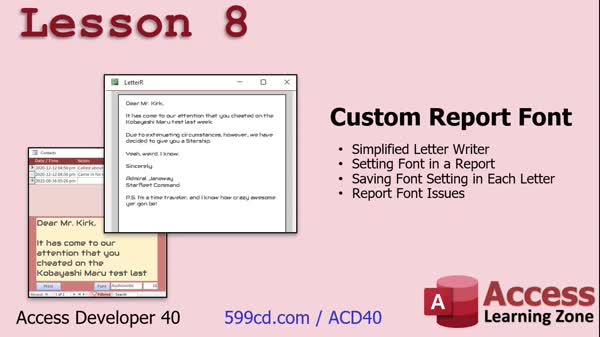
Lesson 8: Custom Fonts & Sizes in Forms - In Lesson 8, we will build on what we learned about fonts by allowing users to specify a custom font and size for each letter in our letter writer application. I will show you how to store these font settings in the table, update them using the form, and ensure they are applied correctly when printing or previewing reports. We will discuss issues unique to applying custom fonts in a report, including making fields invisible but present, and handling After Update events to keep everything in sync. This provides an alternative to rich text for setting custom fonts in a report.
Lesson 9: Next Steps & More Tutorials - In this lesson, we will discuss what is next after completing Microsoft Access Developer Level 40, including information about the upcoming Developer 41 course and how to join the waiting list. We will talk about submitting topic requests and course surveys, how to find previous topics using the Access Topic Index, and where to access additional resources like the TechHelp video series, Fast Tips videos, and the mailing list on AccessLearningsOn.com.
NavigationKeywordsconditional formatting VBA, event countdown form, color schemes, Windows color picker, FormatCondition object, custom font settings, RGB hex conversion, font dialog, user defined types VBA, saving user settings, continuous forms, color table
More InformationTranscriptWelcome to Microsoft Access Developer Level 40 brought to you by AccessLearningZone.com. I am your instructor Richard Rost. Today's class is going to focus on changing conditional formatting using VBA. Now, this might not sound very impressive, but you can have your user set up custom color schemes for things on forms and even reports. We will learn how to work with the Windows Color Picker dialog where you can click a button that will open up the color palette. You can select the color and save that in your table. We will learn how to work with the Windows Font dialog box as well. We are going to build a countdown timer form which shows you how many days you have left until certain events are coming up. That is how we will give the user the ability to set the custom fonts and the custom colors for each of their custom color schemes. Lots of cool stuff in this lesson. This lesson follows Access Developer Level 39. I strongly recommend you have finished all of my previous classes: beginner, expert, advanced, and developer levels before continuing with today's class. My lessons are really designed to be followed one after the other. For example, this one relies heavily on recordsets which is covered in Developer 16. So make sure you have that one under your belt as well. This class is recorded with Microsoft Access as part of a Microsoft 365 subscription which I strongly recommend. It's currently August of 2022. Also, if you're using the retail version, this is roughly equivalent to Access 2021. However, the lessons covered in today's class should work with any version of Access going back to 2007. If you have any questions regarding the material covered in today's class, just scroll down to the bottom of that page and post a question on the page that you're on. Make sure you take a minute to read through any other questions that have been posted as your question may have already been answered. Be sure to click the subscribe button to get notified if any other questions or comments are posted for this class. If you have any questions not related to today's class, but they are about Access in general, feel free to post them in my Access forum. Now, let's take a closer look at exactly what is covered in Access Developer Level 40. In lesson one, we are going to build an event countdown form. So, if you have some events coming up - conferences, beach days, surgery, whatever - this will pop up whenever your database loads to remind you that you have this conference coming up tomorrow. Or you have to go to the beach in four days. We will create the display form and add a little conditional formatting for if things are coming up soon. One day is red; less than five days will be yellow. We will make buttons to add, edit, or delete events using code. We will make a little form to edit those events, a pop-up form, and more. In lesson two, we are continuing with our event countdown form. We are going to add some conditional formatting and let the user pick a color scheme, so they can choose red, blue, black, green, and that will be applied for each of the events, whichever one they want. In lesson three, we are going to build a custom color editor. It's a form to edit our color scheme. We will learn how to work with hex and RGB values and convert between them and use the Windows Color dialog so the user can select the color and then save it in our color scheme form. In lesson four, we are going to begin working with the conditional formatting VBA code. We will learn about the Format Condition object, the Format Conditions collection, and how to delete and add them. We will determine the maximum number of conditional formatting items that you can have. Then we will count the records in the current form so we do not add too many of them and generate errors, and I will show you how to do that with something other than DCount. In lesson five, we are continuing with the conditional formatting VBA. We will add the additional controls on the form to the conditional formatting loop, including the number box and the background box. We will add some code to open up a window to the right of another form. For example, we always want the event countdown form opening up to the right of the main menu form no matter where it is. That is pretty cool code. Then we will do the refresh events from the color form. If you have the color form open and you refresh that, it will close and reopen the event countdown form so you can see the updates in real time. Then we are going to see some updates to the color picker and the RGB and hex functions, and we will explore those in the code vault. In lesson six, we are going to learn about user defined types. We will learn what user defined types are in VBA, how to define them, how to pass a variable around that is a user defined type, and how it always uses ByRef. In lesson seven, we are going to learn how to use the Windows font dialog so that we can change fonts at runtime, so the user can pick the font for the event and for the days left. You can use the same technique to pick the font in a report, for example. We will learn how to use the Windows font dialog, how to save those changes in a settings table, and then load them back up when the form loads. In lesson eight, we are going to apply the font features that we learned in lesson seven and apply them to our letter writer. We will be able to specify a custom font for each letter. Each letter can have a different font if you want. You can save that in the letter settings in its record. There are some issues when applying these fonts to reports, and we will cover that in lesson eight. IntroIn this lesson, we will work with Microsoft Access VBA to change conditional formatting, allowing users to set up custom color schemes and fonts for forms and reports. We will build an event countdown form, use the Windows Color Picker and Font dialogs, edit and save color schemes, handle hex and RGB values, and manage conditional formatting with VBA. You will also learn about user defined types and how to save and apply font selections for individual records and reports. This is Access Developer Level 40. QuizQ1. What is the primary focus of Microsoft Access Developer Level 40? A. Learning about new database relationships B. Changing conditional formatting using VBA C. Working with Macros and automation D. Integrating Access with Excel Q2. Which dialog boxes will you learn to work with in this class? A. File open and save dialogs B. Date picker and filter dialogs C. Windows Color Picker and Font dialog boxes D. Print and export dialogs Q3. What will the event countdown form in lesson one display? A. A list of recent records added B. Days left until certain events occur C. User login activity D. Backup schedules for the database Q4. What is the purpose of allowing users to pick custom color schemes? A. To organize the records by category B. To set different backgrounds for different databases C. To let users customize the appearance of events and reports D. To improve database security Q5. When adding conditional formatting using VBA, what concepts will be covered? A. Working with the Format Condition object and collection B. Sorting and filtering forms C. Designing new queries D. Creating new tables automatically Q6. What numerical systems will you learn to work with in the color editor form? A. Binary and octal B. Hex and RGB C. Roman numerals and decimal D. Binary and base64 Q7. How will users be able to save their font choices for events? A. By saving them in a macro group B. By saving them in a settings table C. By emailing preferences to the admin D. By printing out their choices Q8. What advanced VBA concept is introduced in lesson six? A. Named parameters in queries B. User defined types C. Loop optimization D. Data validation rules Q9. How can users see updates to the event countdown form after changing colors? A. By restarting Access B. By clicking a special refresh button on the desktop C. By refreshing the color form, which closes and reopens the countdown form D. By recompiling the VBA project Q10. What is a possible issue covered when applying custom fonts to reports? A. Dates not displaying correctly B. Missing fonts not displaying as expected C. Summaries not calculating correctly D. Automatic emailing not functioning Answers: 1-B; 2-C; 3-B; 4-C; 5-A; 6-B; 7-B; 8-B; 9-C; 10-B DISCLAIMER: Quiz questions are AI generated. If you find any that are wrong, don't make sense, or aren't related to the video topic at hand, then please post a comment and let me know. Thanks. SummaryToday's video from Access Learning Zone covers Microsoft Access Developer Level 40. In this lesson, the main topic is working with conditional formatting through VBA. While that might sound simple at first, what we are actually going to do is much more interesting for your applications. We'll give users the ability to customize the color schemes for forms and reports. They will be able to select colors using the Windows Color Picker dialog and have those preferences stored in the database. We will also cover how to use the Windows Font dialog so users can select their preferred fonts as well. One of the main projects in this class is building a countdown timer form, which will help users track the days left until certain events occur. This application will showcase how users can select custom fonts and colors for their own color schemes. There is quite a lot to learn in this lesson, and it all builds on skills from the previous Developer classes. This class picks up right after Access Developer Level 39. If you have not completed the earlier classes, including all of the Beginner, Expert, Advanced, and prior Developer levels, I strongly suggest you review those before starting here. My courses are designed to be followed in order. For example, this lesson makes significant use of recordsets, first taught in Developer 16, so you want to be comfortable with that before proceeding. The recording uses Microsoft Access as part of a Microsoft 365 subscription, which I highly recommend. As of August 2022, this is similar to Access 2021, but everything in today's class should work fine in versions as old as Access 2007. If questions come up about the material in today's class, scroll to the bottom of the appropriate page on my website and post your question there. Please spend a moment to check if your question has already been answered. If you want notices about new questions and answers for this class, make sure to subscribe to that page. If your question is general and not specifically related to today's class, you are welcome to bring it to the Access Forum on my website. Let me provide an outline of what we cover in Access Developer Level 40: Lesson one centers on building the event countdown form. This form notifies users about upcoming events when the database opens, such as conferences, deadlines, appointments, or any key dates you want to track. It displays how many days are left for each event. If an event is just one day away, it highlights it in red, and if it's less than five days away, it highlights it in yellow. We will program buttons so users can add, edit, or delete events, all through code. We will also create a pop-up form for editing events. In lesson two, we extend the event countdown form by including custom conditional formatting based on the user's preferences. Users will be able to choose color schemes such as red, blue, black, or green for their events, and those choices will be reflected in the display. Lesson three is about building a custom color editor. Here, users can edit their color schemes in a dedicated form. You will learn how to work with hex and RGB values, convert between them, and use the Windows Color dialog so colors can be selected intuitively and saved to the color scheme. Lesson four introduces writing VBA code for conditional formatting. We discuss the Format Condition object and the Format Conditions collection, exploring how to add and delete these formatting conditions. We will look at the maximum number of conditional formatting rules Access allows and learn how to count form records in a safe way to avoid errors, using an alternative to DCount. Lesson five continues the conditional formatting logic. We add extra controls to the formatting loop, such as number boxes and background boxes. We also write code that ensures when the countdown events form opens, it always appears to the right of the main menu form, no matter where that window is situated. We discuss refreshing events from the color form, so when you update color choices, the countdown form will automatically reflect the changes right away. There are also improvements to the color picker and conversion functions, all of which we will review in the code vault. Lesson six introduces user defined types in VBA. We explore what user defined types are, how to define them, and how to pass these types as variables, noting that they always use ByRef. Lesson seven focuses on integrating the Windows font dialog into our forms. This allows users to select custom fonts at runtime for their events and event countdowns. These chosen fonts are saved to a settings table and reloaded the next time the form loads. The same method can be extended to reports or other areas of your database. Lesson eight takes the new font features and applies them to the letter writer tool. This gives you the ability to set a different font for every letter, with the font saved in each letter's settings. We also cover some issues you may encounter when applying these custom fonts to reports and how to address them. You can find a complete video tutorial with step-by-step instructions on everything discussed here on my website at the link below. Live long and prosper, my friends. Topic ListBuilding an event countdown form in Access Adding conditional formatting to event forms Creating buttons to add, edit, and delete events with VBA Designing a pop-up form to edit countdown events Allowing users to select custom color schemes per event Building a custom color editor form Converting between hex and RGB color values Using the Windows Color Picker dialog in Access Saving selected colors in a table for color schemes Working with the FormatCondition object in VBA Managing the FormatConditions collection in Access Adding and deleting conditional formatting items with VBA Determining maximum allowed conditional formatting rules Counting records in a form without DCount Looping through controls for conditional formatting Synchronizing color scheme changes between forms Updating color pickers and RGB/hex functions Using user defined types in VBA Passing user defined type variables ByRef Integrating the Windows font dialog in Access forms Saving and loading font selections from a settings table Allowing runtime font selection for different form elements Applying custom fonts to a letter writer form Saving individual letter font settings Handling issues when applying fonts to reports Primary Topics
VBA-driven conditional formatting, user-defined color schemes, Windows Color Picker dialog integration, Windows Font dialog integration, countdown timer form creation, user-defined types in VBA, saving settings to tables, applying custom fonts to forms a Secondary Topics
hex and RGB value conversion, controlling form positioning, error handling for conditional formats, refreshing forms after updates |
||||||||||||||
|
| |||
| Keywords: conditional formatting VBA, event countdown form, color schemes, Windows color picker, FormatCondition object, custom font settings, RGB hex conversion, font dialog, user defined types VBA, saving user settings, continuous forms, color table PermaLink How To Create Event Countdown Timers, Custom Color Editors, and Conditional Formatting in Microsoft Access |