Link Master Fields
By Richard Rost

 4 years ago
Link Master Fields, Link Child Fields in Subforms
In this Microsoft Access tutorial, I'll teach you about the Link Master Fields and Link Child Fields properties in a subform control, what they are, how to use them, and what happens if you don't use them properly.
Pre-Requisites
Recommended Course
Keywords
access 2016, access 2019, access 2021, access 365, microsoft access, ms access, ms access tutorial, #msaccess, #microsoftaccess, #help, #howto, #tutorial, #learn, #lesson, #training, #database, #fasttips, link master fields, link child fields, subform, subform control, SubForm.LinkMasterFields, How to Create Subform links to Main Form
More InformationTranscript Welcome to another Fast Tips video brought to you by AccessLearningZone.com. I am your instructor Richard Rost. In today's video, we're going to talk about Link Master Fields and Link Child Fields, what these properties mean, what they do, and how to use them.
If you have a database with a subform in it, like my invoicing database here, go into Design View and look at the properties for the subform. Do not click inside the subform; what you want is that border right around it. See the little border? Double-click on that. That will bring up the properties for the subform. This also works for sub-reports too, but mostly I use this with subforms.
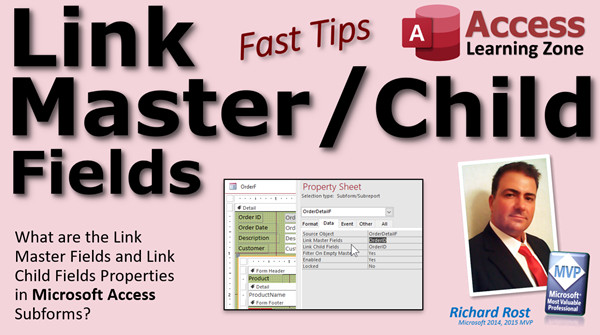
There are two properties right here under the Data tab. There's Link Master Fields and Link Child Fields. What does that mean? That is the field that links the record on the parent form with the records on the subform. In this particular case, it is the Order ID. One Order ID has many line items, and each of these line items or order details also has to have the Order ID to link to the parent order.
If you want to learn how this database was built, go watch my invoicing video. I cover it step by step.
Now, what happens if you don't have these properties set? Let's come in here and delete these, delete the Order ID from there and from the child fields. Save it, close it, and open it back up again. Look, I'm seeing all of the order details in the entire table because Access doesn't know how to make a relationship between this form and this form. That's what those properties are for.
That's usually the number one complaint that I get when people say, my subform's not working. When you create your subform control, when you drag it in and put it in the parent form like I show you in the invoicing video, if your fields are named correctly, then Access will make that relationship automatically for you.
Let me show you an instance where it doesn't. This is the number one thing that people complain about when their stuff isn't working. I'm going to delete the subform and save it. Let's close down the order form.
Now, this happens a lot. I see this all the time. Let's say when you made your order detail table, you didn't call this Order ID. That's what makes the relationship. That's the foreign key that links it back to the order table. Let's say instead of calling it Order ID, you called it Order Number. People do this all the time. It's perfectly understandable.
So let's close this and go into our order detail form. Now, when this was designed, here's our Order ID, Order Detail ID. This would have been called Order Number and you could see Access changed the control source for me, but it didn't change the name. So that would have also been Order Number when you made this. That's how the order detail form would have come out.
Now you go to make your subform. You edit this guy, design view. You take your order detail form, you drop it in there, and get rid of that label. These are basically the steps that I took in the invoicing video. Save it, close it, open it up, and there you go. The subform's not working. Why? Because Access didn't know how to make that relationship. It doesn't know that Order ID and Order Number are the same field. You just didn't name them correctly.
So the best thing to do is to go back and fix your naming in your tables. Any fields that are related to each other generally should be named the same thing. There are some exceptions, like I've got some databases where on an order, you've got a sales rep, you've got a service technician, and you might have one other employee that's customer service related. So you might have three different employee fields on an order for a customer, and those are all related back to your employee table. So there are exceptions to the rule, but generally you want to make sure they're named the same.
Now, if that's the case, you can come in here into the properties and manually set these fields, Link Master Fields and Link Child Fields. They're called fields, by the way, because yes, you can have multiple fields that link these together. You could have a double relationship, for example: show me all the records that are related to both the order and the customer. It is rare, but it happens. It is possible. Usually it's only one. I think in my 30 years of building databases, I've only had to do that maybe once.
So we'll just come in here and set these. You can type them in if you know what they are or just use the little dot dot dot button. This brings up this screen. What's the master field? The master field is the Order ID, and that relates to what child field? Order Number. See? Draw Order Detail Q. I'm using a query for each record in Order T using Order ID. There it puts them in for you, and now it'll work. There we go.
But I strongly recommend in this case to go back and fix it. If you've got a big database that you built years ago, I get it. I've been there. You have a big database that's got lots and lots of moving parts. You do not want to break something by changing a field name because you don't know how many other queries and forms and reports and whatever are based on it. Usually Access is pretty good about automatically renaming stuff like that. It just did with me, but it doesn't get everything, especially your VB code. If you have a lot of programming in there, you have to manually do a search and replace. It's a pain, so make sure your stuff is named properly up front.
If you want to learn more about this, I cover the subform control with the Link Master Field and Child Fields, referential integrity, normalization, and all kinds of stuff in Access Expert Level 2. I'll put a link to this down below. You can click on it and watch this if you want to.
That is your Fast Tips video for today. I hope you learned something. I'll see you next time.
How do you become a member? Click on the Join button below the video. After you click the Join button, you will see a list of all the different membership levels that are available, each with its own special perks. Silver members and up will get access to all of my extended cut TechHelp videos, one free beginner class each month and more. Silver members get access to download all of the sample databases that I build in my TechHelp videos, plus my Code Vault where I keep tons of different functions that I use.
You'll also get a higher priority if you decide to submit any TechHelp questions to me, and you'll get one free expert class each month after you finish the beginner series.
Platinum members get all the previous perks, plus even higher priority for TechHelp questions, access to all of my full beginner courses for every subject, and one free developer class each month after you finish the expert classes. These are the full-length courses found on my website, not just for Access. I also teach Word, Excel, Visual Basic, and lots more.
You can now become a Diamond Sponsor and have your name or company name listed on a sponsors page that will be shown in each video as long as you're a sponsor. You'll get a shout out in the video and a link to your website or product in the text below the video and on my website.
Don't worry, these free TechHelp videos are going to keep coming. As long as you keep watching them, I'll keep making more, and they'll always be free. Intro In this video, we will talk about the Link Master Fields and Link Child Fields properties in Microsoft Access, what they mean, how they work, and how to use them to properly link subforms to their parent forms. We will look at common issues that occur when these properties are not set correctly, demonstrate why field naming is important for relationships, and show how to manually set these properties if needed. This tutorial is especially helpful if your subform isn't displaying the correct related data in your Access database. Quiz Q1. What is the primary purpose of the Link Master Fields and Link Child Fields properties in a subform?
A. To link records between the main form and subform based on related data
B. To format the appearance of the subform
C. To sort records alphabetically in the subform
D. To filter records by date in the main form
Q2. What commonly causes a subform not to display the correct related records?
A. Incorrect font size settings on the form
B. Link Master Fields and Link Child Fields are not correctly set
C. The subform has too many fields
D. The main form is using macros
Q3. If field names in the parent and child tables do not match (e.g., Order ID versus Order Number), what is likely to happen when you add a subform?
A. Access will not create a relationship automatically
B. Access will merge the fields together
C. All related records will disappear from the database
D. Access will rename both fields to the same thing
Q4. What is the recommended approach when you realize that related fields have different names?
A. Rename the related fields in the tables to match each other
B. Delete all records and start over
C. Change the color scheme of the form
D. Add duplicate fields with matching names
Q5. If you cannot rename fields (for example, in a large established database), what should you do to link subforms correctly?
A. Manually set the Link Master Fields and Link Child Fields in the subform properties
B. Ignore the linking and use filters instead
C. Only use standalone forms, not subforms
D. Use a different database application
Q6. Under what tab can you find Link Master Fields and Link Child Fields in the property sheet?
A. Data tab
B. Format tab
C. Event tab
D. Layout tab
Q7. What happens if you remove the Link Master Fields and Link Child Fields properties and open the subform?
A. All records from the child table are displayed without filtering
B. The subform will not open
C. Only records matching the first record in the parent form are shown
D. The main form crashes
Q8. Why is it typically recommended that related fields have the same name in both parent and child tables?
A. Access can easily recognize and create the relationship automatically
B. It prevents data from being entered
C. It increases the database size
D. Access will not allow different field names in any case
Q9. In which scenario might you need to link on multiple fields between the master and child forms?
A. When records are related by more than one field, such as both order and customer
B. When creating a report with summary totals
C. When formatting controls on the form
D. When using lookup fields exclusively
Q10. What extra steps must you consider if you change a field name in a large, complex database?
A. You may need to update queries, forms, reports, and possibly VB code referencing the old field name
B. No extra steps are needed; Access handles everything automatically
C. Only update the table, nothing else
D. Delete all forms and recreate them
Answers: 1-A; 2-B; 3-A; 4-A; 5-A; 6-A; 7-A; 8-A; 9-A; 10-A
DISCLAIMER: Quiz questions are AI generated. If you find any that are wrong, don't make sense, or aren't related to the video topic at hand, then please post a comment and let me know. Thanks. Summary Today's video from Access Learning Zone explores the Link Master Fields and Link Child Fields properties in Microsoft Access, focusing on what they mean, how they function, and the best ways to use them.
When working with a database that includes a subform, such as in an invoicing scenario, you should always check the properties of that subform from Design View. Make sure you select the subform control itself, not the content inside. The goal is to view the properties specific to the subform control, which also applies to sub-reports, though most often, I use this technique with subforms.
On the Data tab of the property sheet, you'll find Link Master Fields and Link Child Fields. These properties define which fields connect the main record on the parent form with related records on the subform. In an invoicing database, for example, Order ID is the connecting field—one order can have many line items. Each line item, or order detail, also uses Order ID so that Access knows which order it belongs to.
If you're interested in how to build this kind of database from scratch, I have a full invoicing tutorial that covers every step in detail.
Now, what if you delete the values from Link Master Fields and Link Child Fields? If you do this and re-open the form, you will see all the details from the entire table, not just those related to the current order. This is because Access no longer knows how to connect the record on the main form to the related subform records. This situation is one of the most common problems people encounter: they say their subform is not working, but it's almost always due to these properties not being set correctly.
When you create a subform by dragging it into the parent form, Access tries to set up this relationship automatically, provided the fields have matching names. If the field names match, Access links them for you.
However, if the fields do not have the same name, Access cannot make the link automatically. For example, if you named the foreign key in your order detail table "Order Number" instead of "Order ID," Access will not recognize that these fields are meant to be connected. This naming mismatch prevents the subform from showing the correct records.
The best practice is to ensure that related fields in your tables have the same name. While there are exceptions, such as when an order might reference several employees through different roles, using consistent naming will save you a lot of headaches later. If you encounter a mismatch situation, you can manually specify the linking fields in the subform's property sheet. You just need to enter the correct field names for Link Master Fields and Link Child Fields so Access knows how to relate the records. Occasionally, you might even join subforms using more than one field, like linking by order and customer, though this is rare.
If you find yourself needing to go back and rename fields in a large, established database, be cautious. Changing field names can lead to problems if other forms, reports, or especially your code, rely on the old names. While Access often handles these updates automatically, it does not always catch everything, particularly in VBA code. Planning your field names properly from the beginning is crucial to avoid these issues.
For anyone wanting a deeper exploration, I cover topics like the subform control, Link Master and Child Fields, referential integrity, normalization, and more in my Access Expert Level 2 course. The link to this course can be found below.
If you're interested in becoming a member, there are several levels available, each with its own benefits. Silver members get access to all extended cut TechHelp videos, a free beginner class each month, and can download all the sample databases demonstrated in TechHelp sessions. You also gain access to my Code Vault and enjoy higher priority when submitting questions to me. After completing the beginner series, you will get a free expert class each month.
Platinum membership includes all previous perks, plus even higher priority on questions, access to my complete beginner courses for various software subjects, and a free developer class each month once you finish the expert material. These courses go beyond Access, covering Word, Excel, Visual Basic, and more.
Free TechHelp videos will continue as always, so keep watching and I'll keep creating new tutorials. You can find a complete video tutorial with step-by-step instructions on everything discussed here on my website at the link below.
Live long and prosper, my friends. Topic List Explaining Link Master Fields and Link Child Fields properties
Demonstrating how subforms link to parent forms using fields
Identifying issues when Link Master and Child Fields are not set
Showing what happens when field names do not match
Manually setting Link Master Fields and Link Child Fields
Linking subform and parent form using different field names
Discussing best practices for naming related fields
Setting up multiple fields as relationships in subforms
Using the field selector dialog to set field links in subforms Primary Topics Link Master Fields, Link Child Fields, Access subforms, form relationships, subform properties, parent-child linking, database design
Secondary Topics field naming conventions, foreign keys, multi-field linking, handling legacy databases, Access queries
|





