Blocked!
By Richard Rost

 4 years ago
The New Security Risk Warning in Microsoft Access
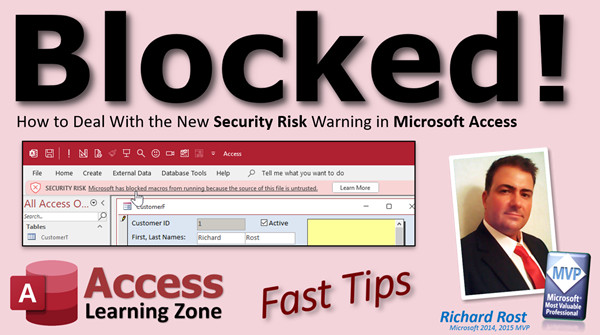
In this Microsoft Access Fast Tip video, I'm going to show you how to deal with the new security risk warning message that appears whenever you try to open a database that you have downloaded from the web or received in an email.
Links
 Keywords Keywords
access 2016, access 2019, access 2021, access 365, microsoft access, ms access, ms access tutorial, #msaccess, #microsoftaccess, #help, #howto, #tutorial, #learn, #lesson, #training, #database, #fasttips, unblock file, unblock folder, security warning, security risk, microsoft has blocked macros from running because the source of this file is untrusted, this file came from another computer and might be blocked to help protect this computer
 Subscribe to Blocked!
Get notifications when this page is updated
More InformationTranscript Welcome to another Fast Tip video brought to you by AccessLearningZone.com. I am your instructor, Richard Rost.
In today's video, we are going to talk about the new - or sort of new - warning message that comes up: the security risk warning message when you open up a database that you have downloaded or got from someone else in Microsoft Access.
I have recently started getting emails from people about this. They go to my website, download my free template, or any of the files for that matter. The file downloads just fine. You go to open up your downloads folder, there it is. You extract the files. Go ahead and extract them. There they are. Now you go to open it up, and you get this lovely message:
"Security Risk: Microsoft has blocked macros from running because the source of this file is untrusted."
Basically, the database opens up. You can look at stuff and open up tables and such, but none of the code works, none of the buttons work, none of the macros will run. That is because Microsoft has blocked it for you. Anything you download from a website or get sent through email is going to have what is called the Mark of the Web, which means Microsoft is doing you a favor by blocking it.
There are a couple of things you can do very easily to get around this. The first thing you can do is manually unblock that file. How do you do that? It is pretty straightforward.
Right click, go to Properties. Right here, you will see Security. "This file came from another computer and might be blocked to help protect this computer." All you have to do is click Unblock and Apply. Now you can open up that database. You will still get the old security warning. To get rid of that, you can click on Enable Content and now it is open. Now it will run, now it will work.
Or you can put the database in a trusted folder. A trusted folder will also get around that Mark of the Web. How do you set up a trusted folder, a trusted location? I have a whole separate video on how to do that. It is really easy. Watch this video. I will put a link down below that you can click on.
If I go back to my database, there were two files in there. I unprotected this one; I unblocked that one. Blank here is still blocked. But if I move this to a trusted folder, then I should be able to open it right away.
I have my desktop set up as a trusted folder, which I do not recommend you do, by the way. I do not recommend the average user set up their desktop as a trusted folder, but I use this machine for teaching and I drop everything on the desktop when I'm doing classes and such. So I can just do this: click, drag, drop. My desktop is trusted, and if I open this database now, you can see I get no warning message.
Just make a trusted folder and this problem goes away.
One other thing that I noticed is that I did not notice this for the longest time because I use a different program called WinRAR. WinRAR is a different compression program that has been around for years. It supports lots of different types like RAR and all those, but it does not associate that Mark of the Web. So I have been extracting files forever and they just open up because WinRAR does not see that. You still get the security warning, but it does not have that Mark of the Web. Only Windows built-in extraction will extract those files with that Mark of the Web. You can get yourself a copy of WinRAR if you do not want to have to deal with that, too.
I do not know if they are going to include it in future versions. It has been a little while since I have upgraded, but as of right now, my version does not do it.
This works for most of us. The average user, if you are just getting some databases or pulling stuff off my website, whatever, you can manually go and turn off that blockage or you can put it in a trusted folder.
But if you are the kind of person who makes databases and sends them out to a bunch of people and you do not want them to have to deal with this, if they are newbies and you want an automated way to get rid of that Mark of the Web, there are some things you can do to automate the process.
I am not going to reinvent the wheel. What you are going to do is go watch Daniel Pineault's video. He put together an awesome video that includes instructions on how to get a utility that can unblock your databases for you, and he has some VB code that will do some stuff too. Very, very helpful information. I strongly recommend it.
Daniel is a really smart guy. I have been following him for years - MVP, knows his stuff. Here is a link to his YouTube video. I will put a link down below in the description. You can click on it. Go watch this yourself. Make sure while you are there, you subscribe to his channel, give him a thumbs up, post a comment, and let him know that I sent you. He has all kinds of step-by-step instructions on exactly what you have to do, how this thing works, how the utility works, and all that.
You know his stuff is good because his videos are coming up in my suggested videos on my YouTube account, in addition to some Rush stuff, of course. I always watch Rush. I am surprised there is no Star Trek stuff over here.
That is your Fast Tip for today. I hope you learned something, and I hope this helped someone. I will see you next time. Intro In this video, we will talk about the security risk warning that appears when you open a database downloaded from the internet or email in Microsoft Access. I will explain why Microsoft blocks macros in these files, what the "Mark of the Web" is, and show you how to manually unblock your database or use a trusted folder to resolve the issue. I will also discuss how using third-party extraction tools like WinRAR affects this behavior and share resources for automating the unblocking process for those who distribute databases to others. Quiz Q1. What is the main reason Microsoft Access might block macros in a downloaded database?
A. The database file has the Mark of the Web indicating it came from an untrusted source
B. The database was created with an older version of Access
C. The file is too large for Access to scan
D. The user's version of Access is not up to date
Q2. What does the Mark of the Web do in the context of Microsoft Access databases?
A. Enables advanced features for web apps
B. Identifies files downloaded from the internet as untrusted sources
C. Prevents files from being copied to other computers
D. Increases the speed at which the database opens
Q3. Which of the following is a method to unblock a downloaded Access database file?
A. Lightly tapping the Shift key while opening the file
B. Right clicking the file, going to Properties, and clicking Unblock
C. Opening it directly from the email attachment
D. Changing the file extension to .unblocked
Q4. What is the result of manually unblocking a downloaded database file in Windows?
A. The database will always open without any warning
B. The database will operate normally after clicking Enable Content
C. The file is deleted from the system for safety
D. Database tables become read-only
Q5. How can placing a database in a trusted folder help?
A. It encrypts the file for protection
B. It allows the database to run macros and code without security warnings
C. It makes the file invisible to other users
D. It compresses the file for faster loading
Q6. What is a trusted folder in the context of Microsoft Access?
A. A folder that only administrators can access
B. A folder marked by Access settings where files are considered safe
C. A folder where only text files can be stored
D. A folder on an external hard drive
Q7. Why does the instructor not recommend setting the Desktop as a trusted folder for most users?
A. The Desktop cannot be set as a trusted folder
B. It requires advanced permissions not usually available
C. It increases the security risk by trusting all files placed there
D. Windows will block database files on the Desktop anyway
Q8. What is one difference between extracting files with Windows built-in extraction and WinRAR?
A. WinRAR automatically sets extracted files as read-only
B. Windows assigns the Mark of the Web, while WinRAR does not
C. WinRAR always blocks macros regardless of file source
D. Windows does not allow files to be extracted to the Desktop
Q9. What resource does the instructor recommend for automating the unblocking process for those distributing databases?
A. Using a built-in Access function
B. Watching Daniel Pineault's video with step-by-step instructions and a utility
C. Contacting Microsoft Support directly
D. Downloading more templates from AccessLearningZone.com
Q10. If a user wants to avoid the Mark of the Web while extracting files, what does the instructor suggest?
A. Use WinRAR to extract files
B. Save files in PDF format only
C. Extract files directly to a USB drive
D. Open files only after scanning with antivirus software
Answers: 1-A; 2-B; 3-B; 4-B; 5-B; 6-B; 7-C; 8-B; 9-B; 10-A
DISCLAIMER: Quiz questions are AI generated. If you find any that are wrong, don't make sense, or aren't related to the video topic at hand, then please post a comment and let me know. Thanks. Summary Today's video from Access Learning Zone explains the new security risk warning message that appears when you try to open a Microsoft Access database that you have downloaded from the web or received from someone else. This is something I have been getting a lot of emails about lately, especially from people who have downloaded my free templates or other files from my website.
When you download an Access database and try to open it, you might see a message that says: "Security Risk: Microsoft has blocked macros from running because the source of this file is untrusted." What happens is the database opens, and you are able to look at tables, but none of the code or buttons work because all macros are blocked. The reason for this is something called the Mark of the Web. When a file is downloaded from the internet or received via email, Microsoft blocks macros from running as a safety feature.
There are some easy solutions to this issue. One way is to manually unblock the file. You can do this by right-clicking the file, going to Properties, and then you will see a security message that says the file might be blocked because it came from another computer. You simply check Unblock and then click Apply. After doing this, the database will open, but you will still see the older security warning. From there, you can enable the content and everything will start working as expected.
Another option is to put the database file into a trusted folder. Any files stored there do not get blocked the same way, and you will not have to deal with the Mark of the Web. Setting up a trusted folder is straightforward, and I have a separate video demonstrating this process. You will find a link to that video on my website.
I want to point out that in my demonstration, I have my desktop set as a trusted folder. This is not something I recommend for the average user, because of the added security risks, but since I use my desktop for teaching and temporary work, I have set it up this way. Once a database file is moved into a trusted folder, it can be opened without any warning messages or macro blocking.
Another thing worth mentioning is that extraction tools behave differently. The built-in Windows extraction tool adds the Mark of the Web, so files you extract with it will trigger the security warning. However, third-party tools like WinRAR do not add this mark, so files extracted using WinRAR do not get blocked in the same way. This is something to consider if you do not want to deal with unblocking files every time.
These solutions work well for most users who are simply downloading and using a database. However, if you are a developer distributing databases to others, and you want to avoid having your users go through these steps, there are ways to automate removing the Mark of the Web. Daniel Pineault has created a very thorough tutorial on this topic, including a tool to unblock databases and some helpful VB code. I highly recommend checking out his video and instructions, which are very detailed and make the process much easier for developers. You can find the link on my website.
That covers today's Fast Tip. I hope this information helps you understand and deal with the security warnings you might encounter when opening Access databases from outside sources. You can find a complete video tutorial with step-by-step instructions on everything discussed here on my website at the link below. Live long and prosper, my friends. Topic List Understanding the Microsoft Access security risk warning
Manually unblocking a downloaded Access database file
Locating and using the Unblock option in file Properties
Enabling content after unblocking a database
Using trusted folders to bypass macro blocking
Moving database files to a trusted location
How file extraction methods impact Mark of the Web
Difference between WinRAR and Windows extraction for Mark of the Web
Recommendation for automating unblocking with Daniel Pineault's utility Primary Topics Microsoft Access, security warning, Mark of the Web, blocking macros, unblock files, trusted folders
Secondary Topics WinRAR extraction, automation utility, macro security, file properties
|




