Split Forms
By Richard Rost

 4 years ago
MS Access Split Forms & Why I Don't Like Them
In this Microsoft Access tutorial, I'm going to teach you about split forms: how to use them, what the pros and cons are, and why I don't like them.
Pre-Requisites
Links
Recommended Courses
Keywords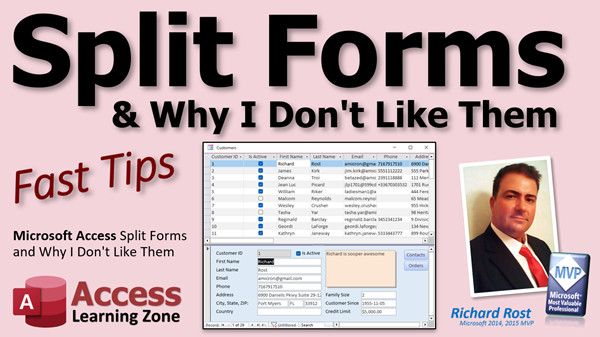
access 2016, access 2019, access 2021, access 365, microsoft access, ms access, ms access tutorial, #msaccess, #microsoftaccess, #help, #howto, #tutorial, #learn, #lesson, #training, #database, split form, splitter bar, SplitFormOrientation, acDatasheetOnBottom, subform, continuous form, single form, header, footer
 Subscribe to Split Forms
Get notifications when this page is updated
More InformationTranscript Welcome to another Fast Tips video brought to you by AccessLearningZone.com. I'm your instructor Richard Rost. In today's video, we are going to talk about split forms and why I personally do not like them.
On my website, I have this big long list of evil Access stuff. There are things in Access I do not like. You should either never use them or be extremely cautious, such as putting spaces in your object names. Do not put spaces in your table names, your field names, or similar items.
Be careful of reserved words. Never use attachment data types. Some things, like split forms, are on this list as well. Maybe I should move split forms down to the things that are frowned upon, but I have had some real problems with split forms in the past.
I will be completely honest. A lot of my bias against certain features stems from the fact that they were not around in Access when I started learning it back around 1994. Access version 2.0 is when I started learning. Throughout the years, as new features came into Access - split forms, multi-valued fields, hyperlinks, attachments - there were lots of bugs with a lot of these features.
The tab controls, for example, were the worst when they first came out. I had nothing but problems with them. I spent many nights pulling my hair out. There is not a lot left now because of some of these features.
To this day, I still hate some of these things. Even though Microsoft has fixed many of the problems, most of it is my bias. A lot of it is because I have better ways of doing things than these features provide. Some features, like storing attachments, were just added to make things you should not do easy to do. I have whole videos on why not to use attachments.
Split forms were introduced, I believe, in Access 2007. At the time, I had tons of problems with them. Split forms containing subforms, for example, were notorious for crashing the entire database. If you had a form with a subform and then opened it as a split form, your whole database would crash.
I remember trying to build this for a client, and at the time, I could not get it to work at all. Now they seem to work okay.
In the interim years, Microsoft appears to have fixed that problem, but at the time, there were tons of problems with it.
For those of you who are not familiar with what a split form is, let's take a quick look at what a split form is, how you set one up, and what some of the benefits are. Then I will talk more about what I do not like.
Here is my standard TechHelp free template, a free database you can grab a copy of on my website if you want to. If you have a form, like a customer form, and you also want to be able to see a list of the customers in this form, you could turn this into a split form.
I go into the form's properties, go to the Format tab, and then change the Default View to Split Form.
Save it, close it, open it back up, and voila, there is your split form.
It has a little slider bar in the middle.
You can move through the records by simply clicking on them up top.
It is kind of handy, kind of nice.
It has some properties you can change. In Design View, you can come back over here.
You can change the form size, change the orientation where the datasheet goes, set it to top or bottom, left or right.
That is kind of interesting; datasheet on the left looks kind of neat.
But you have to design the rest of your form that way.
If you are going to design it this way, you have to arrange these fields accordingly, maybe make the form more vertical.
That is not too bad.
I prefer top and bottom myself.
Go back to datasheet. Let's do it on the bottom.
Do you want to see the splitter bar?
Split form datasheet now - there is Allow Edits, and there is Read Only.
If you do not want users to be able to edit the records in the split area, in the datasheet area, you can set that to Read Only.
Then, see, this thing is always moving around too.
If I come down here and try typing, it is locked.
You cannot do anything down here, but you can still come up here and type; the top is still editable, but the bottom is locked.
Some of these properties you can change in VB code, for you developers out there, like the position of the splitter (top, bottom, left, right). You can change it, but the user has to switch over to Design View to do it.
Forget doing it in an ACCDE file.
One of the reasons I do not really care for split forms is that you really cannot do much formatting with them.
You are stuck with this simple, table-looking view.
You cannot apply a lot of formatting, you cannot do colors, and while you can move the fields around and change sizes, you have limited options.
One thing I do not like is that it is very easy to accidentally delete one of these fields down here.
You see the bar around that column, like in Layout View. If you click on something and accidentally hit delete, you might not even realize it, but you just deleted the field off the form.
For example, if I deleted the address field, look up here - the label's gone. Now, if I close this form, am not paying attention, and hit Save Changes, yes, then come back in, address is gone.
If your users are working with a locked database in ACCDE, they cannot do that.
But as the developer, I have had this happen to me a couple of times.
I am making some changes, flipping between Design View and Form View, not realizing I accidentally clicked on a field, switch over to my VB window and back, and accidentally hit delete.
Now, if I save that and come back in, that field is gone.
It is just little quirks like that I do not like.
I do not want to be in Form View working with data, typing in data, doing stuff, and still accidentally make a design change.
At least with a normal form, I have to go to Design View to make design changes.
That is one of the reasons I do not like the split form; it is too easy to accidentally make a design change while you are working with data.
Also, split forms tend to have a mind of their own when it comes to size and position.
For example, say I resize the form, move it, and save it. When I open it again, it stretches back out.
A normal form, if I move it and resize it, save it, close it, and open it, its dimensions are preserved.
If I then shrink it again, save it, close, and re-open, it stays in position, whereas split forms do not.
If I make the split form smaller where I want it, save it, close it, and open it, it resizes itself again.
I just do not like it; I am not a fan. I want control over exactly where my forms are on the screen.
Also, keep in mind if you are working over a network or over the internet and your data is on SQL Server, I like to have it so the form opens up one record at a time.
If I do a search or whatever, I want to see only one record.
A split form now has to load multiple records in the datasheet area.
If you have thousands of records and you are pulling them over a network, this form will open slower.
It is just like continuous forms; a continuous form has to open with however many records are in it, plus some more.
So, going from a single form that only loaded one record, now it is loading many at once. You lose that efficiency.
I am not even going to bother going into the problems I have had with VB code and split forms.
GoToControl, SetFocus, and similar functions - I have had notorious problems with them in the past.
Maybe many of them have been fixed now; I do not care. I do not like split forms, and I am not going to use them.
So what do I recommend if you want a form that looks like this - a list of customers, and the data for the one you click on?
You can very easily do something like this with just a continuous form.
You do not need a split form.
Let me show you what I mean.
I am going to turn this back into a regular single form.
So, set it to Single or Continuous, that is it.
I never use Datasheet because they are ugly, and I never use split forms.
Maybe once in a while, if I want something for just myself to do some quick data entry, but I want a little bit of code behind it, maybe an event here or there, because you cannot really put events in tables and queries.
I say 'cannot really' because, yes, there are data macros and such, but we are not going to get into those.
So, back to a single form.
Now I have this looking like a single form and a continuous form.
If you are not sure how to set either one of these up, go watch my Access Beginner 1 class.
Watch the video for my blank template, my contact management template, or my continuous forms video.
These are all free videos, by the way; they are on my website.
I will put links to them down below if you do not know how to set up either one of these.
What you can do is make a combination of both by simply taking the controls off the single form and putting them in either the header or footer of the continuous form.
If you look at the continuous form, you have a Detail section where your records go, but the Form Header and Form Footer are still connected to the table.
In those areas, you will see fields for whatever record you are on.
For example, if I go to Design View, take the Notes field, copy it, and paste it up here, now these forms are both based on the Customer table.
If I close this and open the table, you can see the notes down here change for whichever record you are on.
If you want more data at the bottom, just put the fields there.
Delete anything you do not want to get some room, then open up the continuous form, paste in the fields from the customer form into the footer.
Close, reopen, and now, as I move through these records, it behaves just like a split form.
The benefit is that you cannot accidentally delete the columns.
You get complete formatting control, colors, backgrounds, and all your events will still work just fine.
This looks a lot better than a split form.
There is no separator bar or slider bar, but you can do this with a little VB code.
You can easily adjust the size and control how many records are displayed above.
If you really want to see how to do this, I can make a separate video.
As you resize the form, it has a similar effect, and you can move, size, save, close, and reopen it, and it will stay where you put it, unlike a split form.
One thing to keep in mind, though, is that if you have duplicate fields, the names will change.
For example, this is the original first name field, but a pasted one might be called text18.
If you want to use it with a GoToControl or SetFocus command, you might want to rename these, such as FirstNameList, LastNameList, or similar, so you know which one you are dealing with.
They are still bound to the same control, though. The control source is still FirstName, so both of those text boxes are bound to that field.
I just think this is a much better solution than working with split forms.
If you like split forms, go ahead and use them.
Do not send me questions, though, when your split forms aren't working.
If something weird happens, I will tell you I warned you not to use split forms.
It is like when people send me problems with attachments.
Nope.
I am going to do a video for my developer students soon to show you how to get the attachments out of your database and store them the correct way, which is storing them in your file system, outside your database, and just store a link.
But if you do not listen to Uncle Ricky, then Uncle Ricky cannot help you.
It is like when you go and play in traffic after your dad says not to, and then you get hurt.
If you are new to Access, do not use split forms, do not use attachments, and don't put spaces in your field names.
Read my evil Access list for more information.
I will put a link to that down below as well.
If you have any more questions, let me know.
This has been your Fast Tip for today.
I hope you learned something, and I will see you next time. Intro In this video, we talk about split forms in Microsoft Access - what they are, how to set them up, and some of the common features and properties you can adjust. I will share my reasons for avoiding split forms, discuss some of the issues and limitations they can cause, and show you alternative methods for achieving similar results using single and continuous forms. If you are considering using split forms or want to understand their pros and cons, this video will help you make an informed decision. Quiz Q1. What is one of the main reasons the instructor does not recommend using split forms in Access?
A. Split forms are always read-only
B. Split forms are prone to formatting issues and accidental design changes
C. Split forms require SQL Server to function
D. Split forms cannot display any data
Q2. Where should you avoid putting spaces, according to the instructor's Access "evil list"?
A. In your VBA code
B. In object names such as table and field names
C. In your form captions
D. In report headers
Q3. What was a big problem with split forms containing subforms when they were first introduced?
A. They would not save any changes
B. They would crash the entire database
C. They could not display any records
D. They required macros to run
Q4. What is a split form in Access?
A. A form divided into two views: a form view and a datasheet view
B. A table with multiples pages
C. A form that splits data by user role
D. A chart embedded inside a form
Q5. Which Access version introduced split forms?
A. Access 2.0
B. Access XP
C. Access 2007
D. Access 2016
Q6. What is a significant formatting limitation of split forms compared to continuous forms?
A. You can only use black and white colors
B. You have limited formatting options and cannot fully customize appearance
C. You cannot resize split forms at all
D. You can only show one field
Q7. What happens if you accidentally delete a field (column) in the datasheet area of a split form and save the form?
A. The field will reappear automatically
B. That field is removed from the form until manually restored
C. Only the label will be deleted
D. The entire form becomes corrupt
Q8. Which property can restrict users from editing records in the datasheet area of a split form?
A. Allow Edits set to No
B. Record Source property
C. Datasheet Merge property
D. Tab Order is locked
Q9. Why can split forms slow down if your database has a large number of records and is accessed over a network?
A. Split forms only display sorted data
B. Split forms only load one record at a time
C. Split forms must load multiple records in the datasheet area, which can be slow
D. Split forms compress the data
Q10. What does the instructor recommend as a superior alternative to split forms for displaying a list of records and a detailed view?
A. Use a datasheet view only
B. Use a combination of a continuous form and controls in the header or footer for details
C. Use a report instead of a form
D. Use a macro to switch between form and datasheet
Q11. What is a key benefit of using the combined continuous form method instead of split forms?
A. You cannot move fields around
B. You are forced to use default formatting
C. You have full formatting control and avoid split form quirks
D. You cannot display more than five records
Q12. If you copy a field into the header or footer of a continuous form, what happens to its control source?
A. It becomes unbound
B. It remains bound to the same field in the table
C. It is removed from the record source
D. It creates a new field in the table
Q13. What advice does the instructor give to new Access users regarding features like attachments and split forms?
A. Use them as much as possible
B. Avoid them and do not use them in your database
C. Only use them for reports
D. Always use attachments for images
Q14. When is the only situation the instructor admits he may use split forms?
A. For every production database
B. For quick personal data entry tasks, not for distributed or complex uses
C. For professional deployment
D. For networked databases
Answers: 1-B; 2-B; 3-B; 4-A; 5-C; 6-B; 7-B; 8-A; 9-C; 10-B; 11-C; 12-B; 13-B; 14-B
DISCLAIMER: Quiz questions are AI generated. If you find any that are wrong, don't make sense, or aren't related to the video topic at hand, then please post a comment and let me know. Thanks. Summary Today's video from Access Learning Zone focuses on split forms in Microsoft Access, and I want to share my perspective on why I generally avoid using them.
On my website, I maintain a comprehensive list of Access features and practices that I consider problematic or "evil." These are things that you should either never use or only use with extreme care. For example, I strongly recommend against using spaces in your object names, whether those are tables, fields, or anything similar. Another major point is to avoid reserved words, and I never use attachment data types. Split forms are included in that list as well, although perhaps they belong more in a "use with caution" category rather than being outright forbidden. My negative experiences with split forms have left a lasting impression.
A lot of my preferences and aversions come from the fact that I have been using Access since version 2.0, which dates back to around 1994. Back then, many of these features, such as split forms, multi-valued fields, hyperlinks, and attachments, did not exist. As Microsoft introduced new features over time, I encountered a lot of bugs and frustration. The early implementation of tab controls, for instance, gave me endless headaches. I spent many late nights troubleshooting and, honestly, lost plenty of hair over it.
To this day, I am not fond of certain features, partly because of these early challenges, and partly because I have found better ways to accomplish the same tasks. Some features, particularly attachments, were added to make things easier for end users but end up promoting practices that are not ideal for database design. I have dedicated entire videos to explain why I never use the attachment data type.
Split forms arrived with Access 2007, and my initial attempts to work with them were discouraging. They were especially unstable when combined with subforms, often causing the entire database to crash. I remember trying to build something for a client that simply would not work as intended. Although it appears Microsoft has addressed some of those problems in recent versions, my reservations persist.
For those who might not be familiar, a split form in Access is a type of form that displays both a single record in form view and a list of records in datasheet view, separated by a horizontal or vertical splitter. Setting one up is straightforward: open a form, set its default view to Split Form, save, close, and reopen it. You now see both the form view and a datasheet listing, with a slider bar in between. This can be helpful for navigating records, and you can adjust properties like the datasheet orientation or its position on the form.
There are a few customizable aspects, such as choosing whether the datasheet appears on top, bottom, left, or right; and whether it is editable or read-only. This provides some convenience, and for the casual user, it can be handy.
However, my main criticism of split forms is the lack of flexibility in terms of formatting and behavior. You are limited to the look and feel of a basic datasheet, with only minimal options for colors and positioning. Managing field layouts is also cumbersome. For example, it is all too easy to accidentally delete a field from your form. If you are working in Form View and remove a column by mistake, that field may disappear from your design entirely without you even noticing, especially if you save the form before realizing what happened.
Though this is less of a concern for end users working in an ACCDE file, as a developer, I have accidentally deleted fields myself just by clicking and hitting the delete key without realizing the impact. Unlike a normal form where design changes require switching to Design View, split forms blur the line between viewing and editing, increasing the risk of unintentional design mistakes.
Another issue I have with split forms is their unpredictable behavior when it comes to size and position. If you resize a split form and save it, when you reopen it, it often ignores your settings and returns to its default dimensions. In contrast, traditional forms retain their size and position as you left them.
Performance is another factor, especially for those working with remote databases or SQL Server backends. A single form can be set to load a lone record at a time, ensuring quick performance even with large data sets. Split forms, like continuous forms, must load multiple records at once, which can slow things down significantly if your table holds thousands of records and you are pulling data across a network.
Additionally, in my past experience, writing VB code for split forms has been challenging. Standard Access functions like GoToControl and SetFocus have presented a lot of problems when used with split forms. Although these quirks may have been addressed in newer versions, my lack of trust remains.
Given all these issues, I recommend a different approach if you want to display a list of records alongside detailed information. Instead of using a split form, consider combining regular single forms and continuous forms. Here's how you might do that: set your main form to Single or Continuous mode (I never use Datasheet mode because it is unattractive and, as I've said, I do not like split forms). For more advanced needs, you can modify a continuous form by placing the essential controls for your detailed view in the form header or footer. These areas are still connected to the table, so fields there will automatically update as you move through records.
You can copy fields like Notes from a single form to the header or footer of your continuous form, providing a similar effect to a split form but with greater control. As you navigate through records, the detailed information updates dynamically. You have full flexibility over formatting, background colors, and event handling. There is none of the accidental field deletion or formatting restrictions found in split forms.
The only nuance with this method is that if you duplicate fields, you will need to pay attention to the names of those controls, especially if you plan to reference them in your VB code. Renaming the controls (for instance, FirstNameList or LastNameList) will help with readability and ensure your GoToControl or SetFocus commands work as intended.
Overall, this approach provides all the functionality of a split form without any of the risk and with much more design control.
If you enjoy using split forms and they work for your needs, you are welcome to use them. Just be aware of their quirks. If you run into problems, do not be surprised if I remind you that I warned you about using them in the first place. The same advice applies to attachments and reserved words. If you want best practices, check out the evil Access list on my website.
You can find a complete video tutorial with step-by-step instructions covering everything discussed here on my website at the link below.
Live long and prosper, my friends. Topic List What a split form is in Microsoft Access
How to create a split form from an existing form
Changing Default View to Split Form
Navigating records in a split form
Adjusting split form orientation (top, bottom, left, right)
Setting Allow Edits and Read Only properties in split forms
Limitations of split forms regarding formatting
Risks of accidentally deleting fields in split forms
Difference between split form and standard form design safety
Issues with split form resizing and position persistence
Performance concerns with split forms over a network or SQL Server
Problems with VB code interactions in split forms
Alternative to split forms using continuous forms
Customizing continuous forms with header and footer for details
Binding controls in headers/footers to display selected record data
Improving formatting and control with continuous forms
Naming duplicate controls for easier coding
Comparing split forms and continuous forms for usability and reliability Primary Topics split forms, Microsoft Access, form design, Access best practices, continuous forms, design pitfalls, user errors Secondary Topics VB code issues, performance concerns, ACCDE files, developer recommendations, data macros, attachments, object naming conventions |




