Replication ID
By Richard Rost

 3 years ago
What is a Replication ID & When Would I Use One?
In this Microsoft Access tutorial I'm going to teach you what a Replication ID is and when you would ever possibly use one. Replication IDs come up a lot for my students in Access Beginner 3, and today, we'll cover what they are and when you might use them. Generally, it's not something most people use, but it's handy for setting up a replicated database, especially useful in areas with little or no Internet service. In this video, I show how to set up a Replication ID for a contact table to ensure no conflicts arise when merging data from two different databases. Although Microsoft removed the replicas feature, you can still use this method with a little bit of code. I also asked ChatGPT about the probability of generating two identical GUIDs, and it turns out to be negligible.
Links
Recommended Courses
Keywords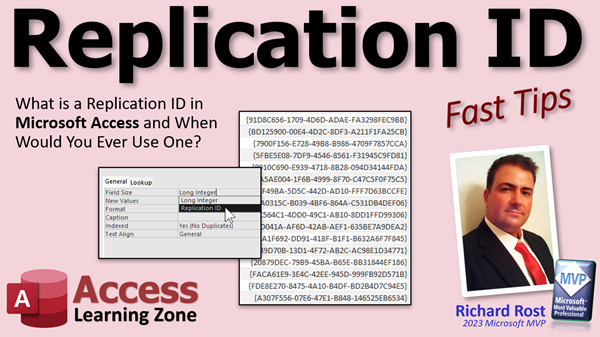
access 2016, access 2019, access 2021, access 365, microsoft access, ms access, ms access tutorial, #msaccess, #microsoftaccess, #help, #howto, #tutorial, #learn, #lesson, #training, #database, GUID, Globally Unique Identifier, Replication ID, Replica, UUID, PK Long Integer vs Replication ID, AutoNumber fields and replication in a database, StringFromGUID, GUIDFromString
 Subscribe to Replication ID
Get notifications when this page is updated
More InformationTranscript Welcome to another Fast Tips video brought to you by AccessLearningZone.com. I am your instructor Richard Rost. In today's video, we're going to talk about replication IDs. What is a replication ID, and when would you ever use one?
This one comes up a lot from my students who take my Access Beginner 3 class, because I cover field sizes. If you look at an AutoNumber, it's got two field sizes. It's got Long Integer, which is the default, and another one called Replication ID. I always tell people not to worry about it – we'll talk about it in a future class. I go over it a little bit, but I don't really talk about it in depth in my course, because quite honestly, it's something that most people will never use. In my 30 years – or nearly 30 years – of working with Access, I've used it maybe twice.
Generally, you use this to set up a replicated database. Access used to have a feature where you could replicate a database, and it was designed for remote workers in a time before everyone had internet access everywhere and you could pull up stuff on your phone. If you had a worker, you could replicate the database and they could take a copy of it on their laptop. They could work on the plane or at the client's site, add contacts, add orders in, bring it back to the office, and then you'd sync those two databases together.
I actually do have a TechHelp video that I put together a few years ago that shows you how to do this – how to sync a remote database. Let me just give you the basics on how this works right now.
Needless to say, Microsoft removed replicas from Access a few versions back. But let's say you have a database. I'm going to call it DB1. Let's open it up.
Here's my basic database. I've got a customer form. Here are all my customers. Every customer has contacts and orders. Now, the way the database is right now, if I want to copy this, I would copy this one here and call it DB2. Now I'm going to take this on my laptop and go on a plane ride somewhere and do some work on this.
If I open up DB1 – this is the copy back in the office – Richard Rost, go to contacts, add some stuff. I'm just going to minimize this. If I open up DB2 on my laptop, and I also come into Richard Rost and add some other stuff, guess what happens if you go into the contact table? That other stuff was assigned contact ID 15, so close that. Now look in the other database, the original one – that one also has contact ID 15. That's a problem. If we bring them back to the office, they're going to cause a conflict. You can't merge them back together.
This is where the replication ID comes into play. Let me delete database 2 and go back into database 1. Now we're going to set this up so you can do replication. I'm just going to do it on one table. We're just going to do it on the contact table in design view. Go to that AutoNumber, change the Field Size to Replication ID. Once you do this, there's no going back. Are you sure? Back up your stuff first.
Here's my warning slide: back up your data before doing this. Make copies. You should be doing regular backups. If not, go watch this video here.
So, are you sure you want to do this? Save it, close it. Now, let's open up that contact table again. Look what we have in here. It's a weird looking number. What is that? Well, it's a replication ID. If you add new records down here, they look like that. They're really weird looking. That's a 120-bit number. It's a number, it's in hexadecimal, it's called a GUID – a Globally Unique Identifier, or a UUID – Universally Unique Identifier, whatever you want to call it.
Basically, it assumes that no two of these in your database will ever duplicate, ever, and you can copy it and bring them back together again. Let me delete these now. All of your existing IDs, the contact IDs, will get basically a simple number like that, but they've changed. If I go into my account now and go to contacts, new contact one, close it, take a look at what you have in here. You have a number like that, starts with 965. That's new contact one.
Now, I'm going on vacation, so I'm going to copy this over here like I just did a minute ago. Copy here, and we're going to come in here and change this to DB2 again. Now, in DB2, I open up DB2 and while I'm on vacation I come in here and I put in two new contacts: vacation contact one, vacation contact two, whatever. Those are getting unique identifiers like that. There's vacation contact one, vacation contact two.
Meanwhile, back at the office while I'm on vacation, those don't show up there, obviously, but if people come in here and add contacts, say, office contact one, office contact two, those are getting their own unique identifiers, too. The chance of those duplicating is nil – well, not nil, it's not zero, but it's close to zero. We'll talk about that at the end of class, what the odds are.
The bottom line is: here's the office database. I come back from vacation, and all you really have to do is merge any records in here that don't match in here. You can do that with an import and an update query, and I show how to do that in my Sync Remote Database video. You just bring the records from this database, where this ID doesn't match, into here. Since it's a primary key, you can just copy and paste, but again, I show you how to do that properly in this video. Go watch it if you want to learn how to do this.
Of course, in today's world, generally most people have internet access everywhere, so this isn't something that happens a lot, and that's probably why Microsoft deprecated this feature. You can still do it yourself with a little bit of code. If you're on an airplane or something and you have no Wi-Fi – even though most airplanes nowadays have Wi-Fi – you can connect to the office database and you don't need to do it replicated.
But I have heard from students of mine who do work out in remote locations, like the jungles of the Amazon, and they have zero internet out there. Satellite internet isn't an option because of budget or whatever, so this is handy if you're on a budget and you have no internet.
If you've been following my videos for any length of time, you know I've got a fascination with this new AI stuff, including ChatGPT. So, I decided to ask ChatGPT, "What are the odds of two GUIDs being duplicated?" It gave me some info here about generating two identical GUIDs – it's intentionally made as close to zero as possible – and then it said it's so low that it's generally considered negligible.
But then I pressed and said, "Mathematically, what are the odds?" It actually gave me a way to calculate it. It said if you generated one billion GUIDs, the probability of two of them being identical would be one in 6.7 times 10 to the 17th power. That's a six with 17 zeros after it. So, as you can see, it's not zero, but it's pretty close. I would say for your Access database, if you are doing replication, the GUIDs are safe. You're not going to get duplicates.
There you go. I like to make little videos for this not only for you all on YouTube, but for my students. When I mention something in class, people sometimes ask when I'll cover it again. I say we're going to talk about this more in a future class. Some things that are more difficult – like if I mention combo boxes or something, I say to the beginners, we're going to discuss combo boxes in Access Expert 2. But something like this, which is a feature that almost no one uses, I'm not going to waste time in my full course covering this. That's what the tip videos are for.
There you go. There's your Fast Tip video for today. I hope you learned something. Live long and prosper, my friends. I'll see you next time. Intro In this video, we will talk about what a replication ID is in Microsoft Access, why you might use one instead of a standard AutoNumber, and how replication IDs were used to help merge data from multiple copies of a database in the days before widespread internet access. You'll learn how to set up a replication ID field, see how it generates unique GUIDs for each record, and discuss the practical chances of duplicate IDs occurring. Quiz Q1. What is the primary purpose of a replication ID in Microsoft Access?
A. To allow remote copies of a database to be synchronized without primary key conflicts
B. To reduce database file size
C. To improve database performance
D. To encrypt sensitive data in AutoNumber fields
Q2. What is a GUID in the context of Access replication IDs?
A. A Globally Unique Identifier that ensures uniqueness of records during replication
B. A type of password used to protect the database
C. An Access macro for automatic backups
D. A calculated field for filtering data
Q3. Why were replication IDs especially useful before widespread internet access?
A. They allowed remote workers to merge changes without key conflicts when syncing databases later
B. They provided real-time data updates across the cloud
C. They helped enforce table-level security permissions
D. They automatically generated reports for offline users
Q4. What happens if two databases use Long Integer AutoNumber fields during replication?
A. There is a risk of duplicate primary keys, causing merge conflicts
B. Access will automatically resolve duplicate IDs
C. The database will automatically convert Long Integer to Replication ID
D. Both databases will reject new records
Q5. What field property must be changed to enable replication-friendly keys in Access?
A. AutoNumber's field size set to Replication ID
B. Data type set to Text
C. Indexed property set to Yes (Duplicates OK)
D. Data type set to Currency
Q6. What is the recommended precaution before converting an AutoNumber field to a Replication ID?
A. Back up your database
B. Change all form layouts
C. Compact and repair the database
D. Switch all tables to text primary keys
Q7. After converting to Replication ID, how are new IDs formatted?
A. As 120-bit hexadecimal number strings (GUIDs)
B. As plain sequential integers
C. As date and time strings
D. As random letters only
Q8. According to the video, what is the probability of generating duplicate GUIDs?
A. Extremely low, considered negligible for practical purposes
B. Higher than using simple integers
C. A significant risk when over 1,000 are created
D. Guaranteed to occur eventually
Q9. Why has Microsoft deprecated the replication feature in Access?
A. Most users now have constant internet access and do not need offline replication
B. Replication IDs are too difficult to use
C. GUIDs are unreliable for databases
D. The feature caused frequent data corruption
Q10. If a user adds records in a replicated database while offline, how should these be merged upon returning?
A. Use an import and update query to add unique records based on their GUIDs
B. Manually copy the data into a spreadsheet
C. Replace all records with the most recent version
D. Delete duplicates and re-enter data by hand
Answers: 1-A; 2-A; 3-A; 4-A; 5-A; 6-A; 7-A; 8-A; 9-A; 10-A
DISCLAIMER: Quiz questions are AI generated. If you find any that are wrong, don't make sense, or aren't related to the video topic at hand, then please post a comment and let me know. Thanks. Summary Today's TechHelp tutorial from Access Learning Zone focuses on replication IDs in Microsoft Access. Many of my students first encounter this topic in my Access Beginner 3 class when we discuss field sizes for AutoNumber fields. Usually, you will see two options for the field size: Long Integer, which is the default, and Replication ID. I tend to tell students not to worry about it right away since most people will never need to use replication IDs in their everyday databases. In fact, in nearly three decades of working with Access, I have only personally used them a couple of times.
Replication IDs were originally designed for use in replicated databases, a feature that is now deprecated in newer versions of Access. To understand why these were useful, think back to a time before unlimited internet access and cloud computing. If you had employees working out in the field, you could create replicated copies of your database. A worker could bring a copy on a laptop, add data while traveling or at a client site, and then return to the office to merge their changes into the main database.
In my earlier TechHelp video, I went over how to sync a remote database, but let me explain the core idea here. Let's say you have a database called DB1. Inside, you have a customer form and each customer has related contacts and orders. If you just make a file copy of DB1 and name it DB2 to take with you on your laptop, you'll run into a major problem. Suppose you add a contact in both databases while you are away. Both might end up assigning the same AutoNumber, say 15, to different contacts. When you try to merge the two back together, you get conflicts because of duplicate primary key values.
Replication ID solves this by generating a special kind of unique value for each new record, instead of just incrementing a number. If you switch the AutoNumber field's size to Replication ID, Access will prompt you that this is a major change and you should definitely back up your data first. Once you make this change, all new records in this table will use a Replication ID rather than a Long Integer.
A Replication ID is a 120-bit number typically shown as a long string of hexadecimal characters. This is known as a GUID (Globally Unique Identifier) or UUID (Universally Unique Identifier). The idea is that the odds of two databases ever generating the same GUID are infinitesimally small, so when you merge your two databases, records will most likely have completely different primary key values, avoiding any conflict.
For example, if you set your contact table to use a Replication ID and then take a copy of your database on vacation, new contacts added in the office while you are away will get their own GUIDs, and any you add while traveling will receive different GUIDs. When you come back, you can identify and import records that do not already exist in the main database by matching these unique IDs. You can do this with an import and an update query, a process I cover in detail in my Sync Remote Database video tutorial.
Of course, most people today have some form of internet access almost everywhere and can often stay connected to the office database directly. This is probably why Microsoft retired the official replication feature. But, if you are in a situation where there is truly no connectivity — such as working in very remote areas — switching to Replication ID can still be a practical workaround.
Some students ask if there is any real risk of GUIDs duplicating. To put this into perspective, I asked ChatGPT to calculate the odds. It explained that if you created a billion GUIDs, the chance of two matching would be about one in 6.7 times 10 to the 17th power. That is an incredibly small chance, so for all practical purposes, GUIDs are safe and collision-free in ordinary use.
I make these videos to help clarify topics that come up frequently in class, especially those that are a bit more obscure or not included in the core curriculum. Features like Replication ID are rarely needed for most users, so I do not cover them in detail in my main courses, but it is useful to have a resource to refer to when you need it.
You can find a complete video tutorial with step-by-step instructions on everything discussed here on my website at the link below. Live long and prosper, my friends. Topic List Explanation of what a replication ID is
Differences between AutoNumber field sizes
Use case for replication IDs in remote databases
How database replication worked in older versions of Access
Problems with merging databases using Long Integer AutoNumbers
How to change a field to Replication ID in Access
Warning to back up data before changing field size
Appearance and structure of replication ID (GUID/UUID)
How GUIDs ensure uniqueness across replicated databases
How to create and use a Replication ID as a primary key
Demonstration of adding records in replicated databases
Low probability of GUID duplication explained
Importing and merging data using GUIDs after replication Primary Topics replication ID, AutoNumber field, GUID, database replication, merging changes, data synchronization, Access field sizes, remote work scenarios Secondary Topics probability of GUID collision, deprecated Access features, best practices for backups |




