Startup Form
By Richard Rost

 3 years ago
How to Load a Form on Startup in your Database
In this Microsoft Access tutorial I'm going to show you how to open a form automatically when your database starts up. We'll also learn about the Autoexec macro, how to bypass the startup routine, and I'll show you how to get additional commands to run after your startup form loads.
Links
Recommended Courses
Methods
- File > Options > Current Database > Startup Form
- AutoExec Macro > OpenForm > Form Name
Bypass Key
- Hold down the Shift Key when starting your database
Keywords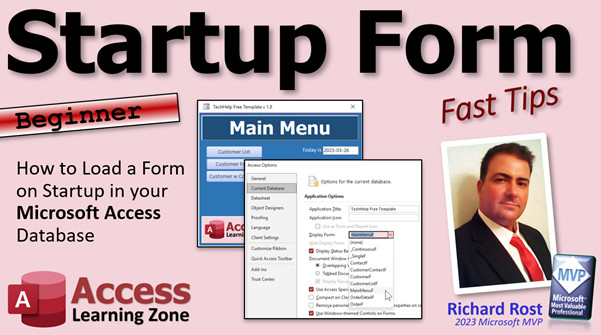
access 2016, access 2019, access 2021, access 365, microsoft access, ms access, ms access tutorial, #msaccess, #microsoftaccess, #help, #howto, #tutorial, #learn, #lesson, #training, #database, startup form, autoexec macro, bypass startup, startup menu, shift bypass key, open automatically, Database Form Startup Options, Automatically open a form, How to Set Basic Startup Options
 Subscribe to Startup Form
Get notifications when this page is updated
More InformationTranscript Welcome to another Fast Tips video brought to you by AccessLearningZone.com. I am your instructor, Richard Rost.
In today's video, I'm going to show you how to load a form when your database starts up.
Beginners, I have not forgotten about you. I know a lot of my tip videos lately have been for the advanced developer students, but I'm still going to continue to make the beginner lessons for you as well. By far, most of the feedback that I get is from my advanced students who want more developer-level content, but I know I have a lot of beginners out there watching videos, too. So here we go.
Now, if you have a database that you want to open up and start right off with a main menu form - something to tell the user "here's where you go next" - this is how you do it. Normally when you start your database, you just get this: you get the database pane over here with all your objects in it, and nothing over here. So how do we set that startup form?
Well, it's under File and then Options. On the Current Database tab, you'll see Display Form. Drop this down and pick whatever form you want to start up when your database loads. Hit OK. You have to close down the database and restart it, and when it opens now, you'll get that startup form.
Now, how do you make this startup form? This is just a form with buttons on it that opens other forms. I teach you how to build that form in my Blank Template video, which is free, and I also show it in my Access Beginner Level 1 class, which is four hours long and is free as well. You can find these on my website and on my YouTube channel. I'll put links down below you can click on.
I get asked this enough, even though I cover this in two other beginner videos, but I still get emails from people asking, "How did you get this form to start up?" Well, that's how you do it.
Now, what if you don't want that form to start up when you open your database? What if you want to go right to the database pane without the startup form? There's a bypass key. If you hold down the Shift key, right-click on your icon, hold down the Shift key, and now double-click to open it, you will see that Access will load up without the startup form. That's the startup key bypass.
Lots of people ask me about that, too, and that's usually when you're a little more advanced and you have maybe some code that runs - some VBA code that runs in your startup form and it's causing an error or your database is locking up. You can bypass the startup form this way.
If you're running a really old version of Access, like before 2007, you will not have that option under File, Options. You have to create what's called an autoexec macro. Yes, I know this was for beginners and beginners are done. You can stop now if you're running a newer version of Access. But back in the day when I started working with Access, we had to create something called an autoexec macro in order to get our forms to open.
I don't have the older versions of Access installed, but it's essentially the same thing. If you inherit some older databases and you try to import them in the newer versions, you might find an autoexec macro, so I'm just bringing it up for you. You basically create a macro, and your action is going to be "OpenForm" - open form.
What's the form name? Well, you can type it in or you can pick it from the list over here. Open up my main menu form. That's pretty much it. You're going to save this (Ctrl+S), save it with the special name "AutoExec" (A-U-T-O-E-X-E-C).
Now close that. When you run the autoexec macro by just double clicking here, it does what you want it to do. Make sure you don't have anything in the Form Startup options. I've deleted it so it says none. Now, if I close my database and open it back up again, you'll see the autoexec macro runs and opens that form.
If you know how to build macros, you can put other commands in there after that. You can open this form, open a second form, run a query, do whatever you want. I don't do a lot with macros myself because, honestly, I prefer VBA programming, but if you don't want to be a programmer and you want to learn how to automate your database a little bit, I do have some advanced-level courses where I cover building macros to enhance your database. Check that out. I'll put a link down below.
If you don't like macros and you want some extra stuff to happen when the database opens, you can put that in the Form Open event for your form. Again, I know I said this is for beginners, but I have to show you this little trick.
Go to your form's properties, go to Events. You're going to go to either the On Load event or On Open event - either one of these. Click the ellipsis (...). You might be asked which builder you want; pick the Code Builder. In here you can put a command like MessageBox "Hi there" and that will run when the form opens.
We're going to save that, close it, close the whole database down. Now when you open the database, your autoexec macro is going to run, which is going to open up that form, and the first thing the form does, even before the form draws itself, is it says "Hi there". There you go.
Sometimes I can't help but sneak in a little bit of VBA programming even in the beginner lessons because I just love programming, and I know that once you learn a little bit of programming, you're going to see just how powerful your Access databases can become.
If you want to learn a little VBA, go watch this. It's about 20 minutes long and teaches you everything you need to know to get started programming in VBA. Even if you're a beginner, it's not that hard. Don't be scared of it.
So there you go. That's how you create a startup form, that's how you create an autoexec macro, that's how you can bypass both of those things with the Shift key, and how you can get some more additional code to run in your form's Open event. Pretty cool stuff.
Well, that's your Fast Tip for today. I hope you learned something. Live long and prosper, my friends. I'll see you next time. Intro In this video, I will show you how to set up a startup form in Microsoft Access so your main menu or welcome form loads automatically when your database opens. We'll take a look at setting this option in newer versions of Access, explain how to bypass the startup form using the Shift key, and cover how older versions use the AutoExec macro to accomplish the same task. I'll also talk briefly about running additional code in the form's Open event for extra functionality. Quiz Q1. What is the main purpose of setting a startup form in an Access database?
A. To display a main menu or guide for users when the database loads
B. To add password protection when opening the database
C. To control database backups automatically
D. To speed up the database opening process
Q2. How do you set a startup form in recent versions of Access?
A. Use an AutoExec macro
B. Open the form manually every time
C. Go to File, Options, Current Database, and select the form under Display Form
D. Edit the Access system tables directly
Q3. What must you do after choosing a startup form in Access options for it to take effect?
A. Run Compact and Repair
B. Close and reopen the database
C. Reboot your computer
D. Add the form to the navigation pane
Q4. Why might an advanced user want to bypass the startup form when opening the database?
A. To save space in the database
B. To avoid automatic backups
C. To fix errors caused by code in the startup form or to troubleshoot
D. To increase the number of tables
Q5. What is the method called to bypass the startup form when opening a database?
A. Holding down the Ctrl key and opening the database
B. Holding down the Shift key when opening the database
C. Clicking "Cancel" during startup
D. Double-clicking while holding down the Tab key
Q6. In versions of Access before 2007, how could you specify which form opens at startup?
A. By setting a hidden property on the form
B. By creating an AutoExec macro with the OpenForm action
C. By renaming the form to "Startup"
D. By placing the form in a special folder
Q7. What must an AutoExec macro be named in order to run at startup automatically?
A. StartupMacro
B. FormOpen
C. AutoExec
D. RunOnLoad
Q8. Where can you add code to make something happen when a form loads?
A. In the form design view only
B. In the On Load or On Open event of the form's properties
C. In the Access table settings
D. In the database navigation pane
Q9. What tool does Access provide when you want to add code to a form event?
A. Object Explorer
B. Query Builder
C. Code Builder
D. Macro Recorder
Q10. What is one simple task you can perform in the form's event code when it opens?
A. Display a message box to the user
B. Compress the database
C. Change the default printer
D. Update Windows registry entries
Q11. Why might you still encounter AutoExec macros in current versions of Access?
A. AutoExec macros are faster than options settings
B. Older databases imported into new Access versions may still use them
C. Access automatically converts all startup forms to macros
D. They are required for all new databases
Q12. What can you do in an AutoExec macro besides opening forms?
A. Only open tables
B. Run queries and other actions
C. Reset user passwords
D. Format reports
Q13. If you want to automate tasks in Access but do not want to learn VBA, what should you use?
A. Access Templates
B. Macros
C. Custom navigation pane
D. SQL only
Answers: 1-A; 2-C; 3-B; 4-C; 5-B; 6-B; 7-C; 8-B; 9-C; 10-A; 11-B; 12-B; 13-B.
DISCLAIMER: Quiz questions are AI generated. If you find any that are wrong, don't make sense, or aren't related to the video topic at hand, then please post a comment and let me know. Thanks. Summary Today's TechHelp tutorial from Access Learning Zone shows you how to set up a form to load automatically when your Microsoft Access database starts. My focus here is on beginners, since I know many of you are just getting started with Access. Although a lot of feedback lately has come from advanced users who want deep-dives into developer topics, I am still committed to providing clear instructions for new users as well.
If you have a database and you want it to open directly to a main menu form, rather than just showing the Navigation Pane with all of your database objects, there is a straightforward way to do it. Setting a startup form gives users immediate direction, like a dashboard or a welcome screen.
Here's how it works in the more recent versions of Access. First, open the File menu and then go to Options. In the Access Options dialog, select the Current Database tab. Here, you'll see a setting labeled Display Form. Open the dropdown menu and select the form you want to display when the database opens. Click OK, close out of the database, and then open it again. You should now see your selected startup form as soon as the database loads.
This startup form is typically just a regular form with buttons or menu options that users can click to open other forms or reports. If you are not sure how to build a basic menu form, I cover this in detail in my Blank Template tutorial, which you can watch for free. My Access Beginner Level 1 course, also free and about four hours long, goes over this as well. Both resources can be found on my website and YouTube channel.
Although I discuss this process in those beginner videos, I still get questions from people asking how to configure a startup form. That is the method you need to follow.
Some users might want to open their database without the startup form appearing. For example, you might want to work directly with tables or run database maintenance. To bypass the startup form, hold down the Shift key while opening your database. Right-click the database icon, hold Shift, and then double-click to open. Access will launch without loading the startup form. This is called the Startup Key Bypass and is especially useful if your startup form contains VBA code that's causing errors or making it difficult to troubleshoot issues.
For anyone running much older versions of Access, such as those from before 2007, the option to choose a startup form from the Options menu does not exist. Instead, you need to create an autoexec macro. Back in the early days of Access, this was the standard procedure. You set up a new macro with the action to open your desired form, name this macro "AutoExec," and Access will automatically run this macro every time the database opens. If you ever inherit an older Access database and notice an autoexec macro, you'll know what it is for.
Macros can be used to go beyond simply opening a form. They allow you to run queries, open multiple forms, or perform other startup actions. Personally, I prefer using VBA for advanced automation, but macros are a good option if you do not want to write code. I do offer advanced courses on automating your database with macros if you are interested in pursuing that.
If you would rather skip macros and have more control over what happens when the form opens, you can put code in the form's Open or Load event. Open the form's property sheet, go to the Events tab, and select either the On Open or On Load event. If you choose to use the Code Builder, you can write commands like displaying a welcome message with a MessageBox. When the form opens, this code runs before anything else.
Even though this guide is aimed at beginners, I like to throw in a bit of programming because VBA is a powerful tool and learning just a little can really enhance your Access databases. If you are interested in learning more about VBA, I offer an introductory video that lasts about 20 minutes and covers everything you need to get started, even if you have never programmed before.
So to summarize, today I showed you how to set a form to load automatically at startup, how to use an autoexec macro in older Access versions, how to bypass these startup routines using the Shift key, and how to use your form's Open event to add even more customization when your database starts. I hope you learned something useful.
You can find a complete video tutorial with step-by-step instructions on everything discussed here on my website at the link below. Live long and prosper, my friends. Topic List Setting a startup form in Access via Options
Using the Display Form setting in Current Database
Restarting the database to enable the startup form
Bypassing the startup form with the Shift key
Creating an autoexec macro to open forms
Saving a macro with the AutoExec name
Opening a form using the OpenForm macro action
Adding multiple actions to an autoexec macro
Adding code to the form On Open or On Load event
Displaying a message box in the form Open event Primary Topics Access startup form, Access options, AutoExec macro, bypass startup form, form Open event
Secondary Topics VBA programming, form events, macros, legacy Access versions
|




