Double-Entry
By Richard Rost

 3 years ago
Double-Entry Accounting in Microsoft Access
In this Microsoft Access tutorial I'm going to teach you how to track double-entry accounting records in your database. We'll talk about what double-entry accounting is, why you use it, and I'll show you how to properly store this information in your Microsoft Access database.
Ethan from Boulder, Colorado (a Platinum Member) asks: I enter in all of my daily transactions in my Access database using the Check Register template that you created in a previous video. It's very helpful. Thank you. How would I track transactions using double-entry accounting in multiple accounts? For example if I pay my Discover Card can I put a credit on that account and have a debit show up for my checking account?
Members
Members will learn how to create a form where we can specify the credit account, which will then select the debit account based on our defaults. Then we can type in the amount, click a button, and have both transactions entered into the register for us automatically with a little VBA and a little SQL.
Silver Members and up get access to view Extended Cut videos, when available. Gold Members can download the files from class plus get access to the Code Vault. If you're not a member, Join Today!
Pre-Requisites
Links
Recommended Courses
Keywords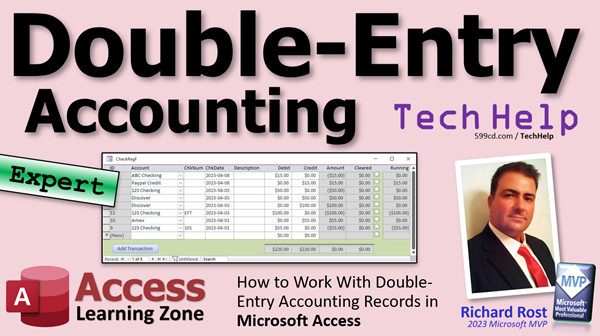
access 2016, access 2019, access 2021, access 365, microsoft access, ms access, ms access tutorial, #msaccess, #microsoftaccess, #help, #howto, #tutorial, #learn, #lesson, #training, #database, Double Entry Accounting System, General Journal Accounting System, Accounting Database, How do you create a double entry accounting system, Double entry accounting, How to work with double entry accounting records
 Subscribe to Double-Entry
Get notifications when this page is updated
More InformationTranscript Welcome to another TechHelp video brought to you by AccessLearningZone.com. I am your instructor Richard Rost.
In today's video, I'm going to teach you how to track double entry accounting records in your database. We'll talk about what double entry is, why you should use it, and I'll show you how to properly store this information in your Microsoft Access database.
This is an expert level video. Expert is a level that I put between beginner and developer, so there is no VBA programming required, but it's going to have to look a little bit more than the basics. So there are some functions and moving parts and molecular structures and things like that. It's not for the absolute beginners, but you don't have to be a developer either.
Today's question comes from Ethan in Boulder, Colorado, one of my platinum members. Ethan says: I enter in all of my daily transactions on my Access database using the Check Register template that you created in a previous video. It is very helpful. Thank you.
You're welcome.
How would I track transactions using double entry accounting in multiple accounts? For example, if I pay my Discover card, can I put a credit on that account and have a debit show up for my checking account?
Well yes, Ethan, that's definitely possible. We'll have to add accounts, an account ID, and an account table to the database, and then I'll show you how to put the transactions in properly.
Now, for those of you who don't know what double entry accounting is, it's basically a bookkeeping system in which every transaction gets recorded in two accounts. I didn't know anything about this when I started my first business. I figured you got a checking account. That's an account. But in double entry, you've got two transactions for each transaction. You got an entry in your debit account and an entry in your credit account. One's your assets, one's your liability, and they should always be in balance.
Let's talk prerequisites. The database that I'm going to use for this video is my check register database. It's from the free TechHelp database, so you don't have to pay for anything - it's completely free. If you're a gold member, you can download this database from my website. If not, you'll have to build it yourself. That's how it works.
The idea for the database is absolutely free. You can watch me, and you can build along with me. If you're a gold member, you can download the file. But honestly, you'll learn this stuff better if you build the database along with me, so it's actually a benefit that I'm making you build it. But if you haven't built it, here's the link right down here. I'll put it right down in the description below the text. You can go click on it and watch this, and then come on back.
And it goes without saying: if you're building that database, you should know relationships. Go watch my relationship video if not. We're going to build a relational combo box, so watch this video as well. These are all free videos. I'll put them on my website and through my YouTube channel. If you don't know how to do any of this stuff, go watch this stuff first, then come on back.
Since I am a gold member on my own website, which is a good thing, I'm going to download the template and drop it on my desktop, which is a trusted folder. I'm going to open it up. Now this is a standard version of my TechHelp database that I've been using for the last couple of years. This one's a little older so we don't have the main menu and all that good stuff in it, but we've got the one form, the check register form.
Now, this only works with one account, so the first thing we have to do is add another account to the database. We have to add the ability to track multiple accounts. So what does that tell you? We need an account table.
We're going to create table design. Let's do account ID - that'll be our autonumber - and an account name, short text. Not just "name" - remember, name is a reserved word. You could put whatever other information you want in here: your account number, the bank's address, phone number, your account rep. The purpose is on class; that's all you need.
Save this as accountT, my account table's primary key. Yeah, sure. Okay.
Let's put some data in it. You're going to put both your debit and your credit accounts in here. For example, your credit accounts might be like Amex, PayPal Credit, Discover. Actually, you should put PayPal Credit because I also have a PayPal debit account and regular PayPal account. PayPal has a lot.
So those are the credit accounts. Now, keep in mind, these accounts can also be used for debits too. For example, if you pay a vendor, let's say your vendor is your electrician, and you pay him with your Amex, then the Amex gets the debit and the electrician gets the credit. So it doesn't really matter which one's which. Just remember, one account is going to be for debits, one's going to be for credits. You can take one from one account and put it in the other account.
Then let's say we have ABC Checking and maybe 123 Checking, different checking accounts. Doesn't matter. Save it. Close it.
Now we need a way to pick an account for each of these transactions. In fact, I'm going to start from scratch, so whatever transactions are in the check register right now, let's just delete them. If you have ones you want to keep, then you can just go through and put accounts on all of them. I'm going to start over from scratch.
So in the check register table, we have to put an account ID in here, and that's going to be a number of type long integer. That's our foreign key. Just as a matter of style, I like to keep all of my IDs up toward the top, so that's going to go right there.
Save it. Close it. Now if you open up the account table - or the check register table, excuse me - you'll see there's our account ID, and it defaults to zero. That's fine. You don't necessarily have to have an account for everything, but it's a good idea. You can make that required or any other value, whatever you want to do.
Let's add this account ID as a combo box on the check register form. We're going to come out here. I'm going to slide this stuff over to the right. In fact, let's make this smaller so I've got some room to work here. We'll move that over like that.
We're going to grab all of this. Actually, check number. I almost never use check number. I almost never write checks anymore, electronic stuff. Slide that over so we've got some room in here to drop the account.
Where's my combo box? There. Combo box. Drop it in the detail section. The wizard starts up. This is a good wizard. I want the combo box to get the values from the table or query.
This is a relational combo box. That's why I want you to watch that video. The table has the list of values - my accountT table. Bring over both of those fields. That's our bound column. That's what we want to see in the box.
Next. We're going to sort it by the account name. Next. That's what it's going to look like. Our key column is hidden. Remember, if this is based off a query, you don't see that. You have to manually restrink it. We're going to hide it. Next. I just set the width equal to zero.
We're going to pick that value and store it in the accountID. So this combo box is now bound to the accountID field in the check register table.
Next. What label would you like? Doesn't matter. We're going to delete it anyway. Hit OK. There's the label. Click delete. You're gone. I made that sound effect myself.
We're going to slide this over like that. We're going to bring all these guys back to the left a little bit. Bring that bottom up.
We're going to copy this label or you can cheat. You can do my little cheat - just make this label bigger and go space, space, space, space, space, space, space, space, space, and go "Account." That's up to you. I cheat a lot.
Let's fix our tab order while we're at it because remember that's the last object added to the tab order, so it's going to be last. It's going to go tab, tab, tab. Just click here, put it tab order, go to auto order, and it's right about this point every time I build a form that I realize that that's combo16. That's okay. Hit OK. Come in here. Double click. The wizard doesn't ask you for a name. It's one of my pet peeves in Access. I hate that.
Change this to "accountCombo." I don't call this accountID. I like to call it accountCombo because sometimes in code it makes a difference if it's a text box with an ID in it versus a combo box. You want to know you can handle it differently. Again, it's just a preferential style of mine.
Save it. Close it and reopen it. Let's put a couple transactions in.
First, let's say we paid our Amex bill. Amex, tab. No check number, it's electronic. The check date - we could have this default to today if you want. That's not a bad idea. Let's go in here in design view. Check date.
Now, one thing I did notice when I built this earlier, I used the MDYY format. I don't do that anymore. This template is three years old. I'm going to put "Short Date" in there. I use the ISO date standard. If you haven't watched this yet, go watch this. I use year, month, day now. It's universal.
I've got clients and students all over the world, so in a lot of my examples, especially those that are US-based where you go month, day, year, the code gets messed up. If everybody's on the same date format... I have a mission in life to make everybody in the world use this date format. It's better for computers. It's better for people. I started writing this on my checks and stuff. People look at me. Go watch this video if you want to learn more. It's a Windows setting, actually.
We're going to set that to Short Date. We're going to make the default value =Date(). If you want Now in there, that's fine. Now will give you the date and time.
Close that back up. I'll put up the check register again. Notice this one didn't get a date. Why? Because the record already existed. Default value only goes into new records.
Let's say this one was 4-01. The nice thing about this is you can just type in the month and year or month and day right here. OK, so $150 was the debit. Actually, this is the Amex. We're paying our Amex, so this is going to be a credit of $150 on our Amex account.
That comes out of 123 Checking on 4-01, and that's going to be $150 debit. As you can see down here in the bottom, they balance out: $150 of the credits, $150 of the debits, zeroes over here. Of course, with this, you can mark them clear when they clear. That's all covered in the other video.
Next up, let's say you pay your Discover bill. Same thing, credit 250, and that came out of ABC Checking. 250. There you go.
One more. Let's say you pay PayPal Credit for $700. $700. And that's also out of 123 Checking for $700.
You can see with double entry, you have to type in everything twice. I'm going to show you in the extended cut how to get around that. But if you want to see just all of one particular account, just filter based on that account. Come over here and click on 123 Checking, right click, equals 123 Checking, and boom, there's all the transactions just for that account.
You want to sort based on the date, right click, sort newest to old. You'll see your newest ones on the top.
For more about filtering, I cover a lot more in this video. I've got lots of videos. When you're all done, you want to go back to all of them, just turn off the filter. There you go.
That, in a nutshell, is double entry accounting. For each debit, there is a credit, and this should equal out to zero down here when you're all done.
Now, instead of having to type everything in twice, wouldn't it be nice if you could click a button, pick the debit account, pick the credit account, type in the amount, hit go, and have the database put both of those records in there for you? That would be pretty sweet, wouldn't it? Well, that is what we're going to do in the extended cut for the members. We're going to automatically add that second entry. We're going to enter the credit, the debit, we're going to put in the amount, hit add transactions, and boom, it will put both of those records in there for us.
That's in the extended cut for silver members and up. You get access to all of my extended cut videos. There's a lot of hundreds of them. There's lots and lots of stuff to watch. Gold members can download these databases, and you get access to my code vault with lots of cool stuff in it.
That is your TechHelp for today. I hope you learned something.
Live long and prosper, my friends. I'll see you next time, and don't forget the extended cut if you want to learn more about double entry accounting.
Bye bye. Intro In this video, I will show you how to track double entry accounting records in your Microsoft Access database. We will talk about what double entry accounting is, why it's important, and how to add multiple accounts to your database using account tables and combo boxes. I'll walk you through updating the check register template to support multiple accounts, setting up relationships, and entering transactions using both debit and credit accounts. This video is aimed at users with some experience in Access, but you do not need to know VBA. Quiz Q1. What is double entry accounting?
A. A system where every transaction is recorded in two accounts, ensuring assets and liabilities are balanced
B. A system that only records transactions in a checking account
C. A method of backing up your accounting data twice
D. A style of accounting that tracks expenses but not income
Q2. Why is it necessary to add an Account table when tracking double entry accounting in Access?
A. To provide a way to identify and manage multiple accounts involved in transactions
B. To track user logins and security permissions
C. To prevent users from making duplicate entries
D. To generate tax reports automatically
Q3. In the database design described in the video, which field is used as the primary key in the Account table?
A. Account Name
B. Account ID (autonumber)
C. Transaction Amount
D. Check Number
Q4. What is the purpose of using a combo box for account selection in the transaction form?
A. To allow users to select from a list of valid accounts for each transaction
B. To automatically generate new accounts
C. To prevent users from entering transaction dates
D. To sort transactions by amount
Q5. In the context of the video, what does it mean for the accountID in the check register table to be a foreign key?
A. It uniquely identifies each account from the Account table used in transactions
B. It is used to store foreign currency amounts
C. It holds the names of the users entering the transactions
D. It acts as an alternate primary key for the transaction table
Q6. In a double entry transaction, such as paying a credit card bill, how are the accounting entries recorded?
A. One account records a debit, and another records a credit for the same amount
B. Both accounts record a credit entry
C. Both accounts record a debit entry
D. Only the credit card account is updated
Q7. What is the main benefit of filtering transactions by account in Access, as demonstrated in the video?
A. It allows you to view only the transactions relevant to a specific account
B. It deletes irrelevant transactions from the database
C. It sorts the accounts alphabetically
D. It hides the transaction amounts
Q8. According to the video, why is it recommended to use the ISO date format (year-month-day) in the database?
A. It is universally recognized and less prone to errors across different regions
B. It is the only format supported by Microsoft Access
C. It makes it harder for users to enter incorrect dates
D. It is required for double entry accounting
Q9. What is the purpose of adjusting the tab order in the form after adding a new control like a combo box?
A. To ensure users move logically from one control to the next when entering data
B. To make sure the combo box appears at the top of the screen
C. To prevent users from editing existing data
D. To hide the combo box from plain view
Q10. What improvement is discussed for the extended cut that simplifies entering double entry transactions?
A. Automating the creation of both the debit and credit entries with one form action
B. Importing transactions directly from a bank
C. Printing checks directly from the database
D. Disabling manual entry to prevent errors
Answers: 1-A; 2-A; 3-B; 4-A; 5-A; 6-A; 7-A; 8-A; 9-A; 10-A
DISCLAIMER: Quiz questions are AI generated. If you find any that are wrong, don't make sense, or aren't related to the video topic at hand, then please post a comment and let me know. Thanks. Summary Today's TechHelp tutorial from Access Learning Zone focuses on tracking double entry accounting records in your Microsoft Access database. My goal in this lesson is to explain what double entry accounting is, why you should consider using it, and how to configure your tables and forms to properly store this information without the need for any VBA programming. This material is intended for users who are comfortable with the basics and are ready to work with some intermediate features, but you do not need to be an advanced developer.
Double entry accounting is a bookkeeping system where every financial transaction is recorded in at least two accounts: a debit to one and a credit to another. Many people new to accounting might think of their checking account as a single record, but true double entry keeps every account in balance by making sure that each action is paired with an equal and opposite one. For example, when you pay your credit card bill, you record a credit to your credit card account and a debit to your checking account for the same amount. This ensures your assets and liabilities are always in sync.
I am going to use the check register database for this demonstration. If you have already followed my previous videos and built this database from scratch, that's perfect. If you are a gold member, you can download the template directly from my website. Even if you are building the database yourself, I urge you to follow along. You will get much better at understanding the underlying concepts by putting it together with your own hands.
As a refresher, if you are new to relationships in Access, or if you do not know how to build relational combo boxes, you should check out my other free videos on those topics before proceeding. These foundation skills will be important for this lesson.
Now, let's get into setting up double entry accounting in the database. The original check register template only supported a single account, so the first step is to give your database the ability to work with multiple accounts. This means creating an account table. The account table should have an autonumber primary key (AccountID), an account name (short text), and any other information you want to store, like the account number, bank, or contact information. Just be sure not to use the word "name" by itself, since that is a reserved word in Access.
Once you have your account table set up, enter all the accounts you want to track. These could include credit accounts like Amex, PayPal Credit, Discover, or checking accounts like ABC Checking and 123 Checking. Remember, any account can act as a debit or credit account during transactions. What is important is that every transaction involves two entries, one in each affected account.
Next, your check register table needs to be updated to include a field for AccountID, which should be a long integer and function as the foreign key to the account table. As a general best practice, I like to keep all of my ID fields at the top of the table structure for clarity. After adding the field, save and close the table.
To make it easy to select which account goes with each transaction, add an account combo box to the check register form. This combo box will pull its values from the account table. Using the combo box wizard, set it up to display account names, but have the bound column be the AccountID. Make sure the combo box is bound to the AccountID field in your check register table. If you have a preferred naming convention, like I do, change the name of the combo box to "accountCombo" to distinguish it from standard ID fields or text boxes.
After adding the combo box, adjust the form layout as desired. Also, remember to update the tab order so users can move through your form logically.
Now, let's record some sample transactions. For example, if you pay your Amex bill for $150, you would enter a credit for $150 in your Amex account. At the same time, you would enter a matching debit for $150 from your checking account. This creates two records, keeping both accounts accurate and balanced. Repeat this process for any other transactions, such as paying your Discover bill or paying down your PayPal Credit balance.
You can filter the transactions for a single account by selecting the account in the combo box and applying a filter. You can also sort the transactions by date to see most recent activity at the top. When you are finished, clear any filters to return to the full list.
The basic idea is simple: for every debit, there must be a matching credit, and everything should balance out to zero at the end of the day. This approach gives you a much clearer picture of your finances across multiple accounts.
You may have noticed that entering each transaction twice can get tedious. In the extended cut of this lesson, I will show you how to automate this process so that you can simply select the debit and credit accounts, enter the amount, and let the database create the two matching records for you automatically with the click of a button. This saves time, reduces the chance of error, and keeps your records accurate. If you are a silver member or higher, you can watch that extended video as well as many more advanced tutorials and access downloadable templates and code samples.
You can find a complete video tutorial with step-by-step instructions on everything discussed here on my website at the link below.
Live long and prosper, my friends. Topic List Introduction to double entry accounting in Access
Explanation of double entry accounting system
Creating an account table for multiple accounts
Adding accountID field to the check register table
Populating the account table with example data
Adding a relational combo box for account selection
Binding the combo box to the accountID in the form
Customizing the form layout for the new field
Setting the tab order for form controls
Renaming form controls for clarity
Setting date fields to use the ISO short date format
Setting default value for date fields to the current date
Entering transactions using double entry method
Filtering transactions by account in the form
Sorting transactions by date in Access forms
Balancing debits and credits with double entry
Viewing transactions for specific accounts Primary Topics double entry accounting, Microsoft Access, relational table design, account tables, foreign keys, combo boxes, transaction tracking
Secondary Topics date formatting, sorting and filtering, user interface design, default values, form tab order
|




