MCA Loan Calculator
By Richard Rost

 3 years ago
Calculate Merchant Cash Advance Loan in Excel
In this Microsoft Excel tutorial, I'm going to teach you how to calculate the completion date of a Merchant Cash Advance (MCA) loan.
Zane from Denver, Colorado (a Platinum Member) asks: I recently took out a merchant cash advance loan where the lender takes 30% of my daily sales until the loan is paid off. Can you show me how to calculate what the end payment date would be?
Prerequisites
Links
Members
There is no extended cut, but here's my workbook file:
Silver Members and up get access to view Extended Cut videos, when available. Gold Members can download the files from class plus get access to the Code Vault. If you're not a member, Join Today!
Recommended Courses
Want More Excel?
Most of what I do is Microsoft Access, so if if you want to see me post more Excel videos, make sure to comment below: "I want more Excel!"
Keywords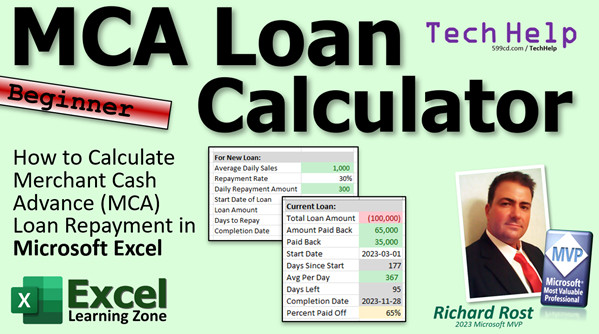
excel 2021, excel 2016, excel 2019, excel 365, microsoft excel, ms excel, ms excel tutorial, #msexcel, #microsoftexcel, #help, #howto, #tutorial, #learn, #lesson, #training, #database, #techhelp, excel mca loan calculator, Merchant Cash Advance (MCA) Calculator
More InformationTranscript In today's video, I'm going to teach you how to calculate a merchant cash-advance loan repayment in Microsoft Excel. We're going to figure out how long it's going to take, based on your average sales per day, to pay off that loan.
Today's question comes from Zane in Denver, Colorado, one of my Platinum members. Zane says, I recently took out a merchant cash-advance loan where the lender takes 30 percent of my daily sales until the loan is paid off. Can you show me how to calculate what the end payment date would be?
Yes, Zane, of course. I've taken out these kinds of cash-advance loans myself in the past. In fact, I currently have one out with PayPal. They have something called a working capital loan. Since most of my sales get transacted through PayPal, they'll just automatically take a daily percentage of your sales, which is a great way to get cash up front. Then it's just paid by whatever sales come in, which is good because if your sales are low, your repayment is low, and if your sales are high, they get more.
For those of you who don't know what an MCA is, I'm referring to a merchant cash-advance loan. With a traditional loan, like a car loan or a mortgage, you specify a loan amount - let's say you're borrowing $90,000 - an interest rate that's fixed, 7 percent. You pick a term: 10 years, 20 years, 30 years, whatever. Then they give you the monthly payment, and you know exactly how much you're paying every month and exactly when the loan is going to be finished.
These kinds of loans are fairly straightforward to calculate. I cover them in my Excel Expert Level 6 class, but I get asked about this one a lot. It's a very popular topic, so I'll probably put a TechHelp video on this subject together in the future. But I do cover a lot of different stuff, including a full amortization schedule in this class.
Now, when you take out an MCA loan, you know the loan amount and you know what percentage of sales are going to be put toward paying the loan back. But you have no idea what the term is. Like I said, your sales can go up and down. Now, if you know roughly what your average sales are every month, every week, or whatever, you can figure out ahead of time roughly how long it will take you to pay back the loan.
For example, if your average daily sales are, let's say, $1,000, you have a $30,000 loan, and a 30 percent return rate, you're repaying $300 a day. So if your loan starts on, let's say, August 25th, with a $100,000 loan, it's going to take you roughly 333 days to pay it back, which turns out to be July of the following year. This is pretty easy to put together.
The tricky part is tracking the loan in the middle, because you know the total amount of the loan, you know how much you paid back since then, you know how much you still have due, and you know when the loan started. So now you can calculate how many days it has been since the start of the loan to today. Knowing that, we can figure out what our average per-day payback has been, in this case $367. Knowing that we're paying back an average of $367 and that we still have $35,000 to go, we can divide that and figure out, okay, we've got around 95 days left. Add that to today's date and then we can figure out what our estimated completion date is.
It's just some math; there are no crazy functions we have to use. It's just putting it all together in the right way, and that's what we're going to do in today's video. That's why I labeled this as a beginner video. We're just going to be doing some simple math, nothing crazy. We're going to use a couple of functions like to figure out the current date, but nothing you can't handle.
If you have not yet watched my free Excel Beginner 1 lesson, go watch that first. Get a basic understanding of Excel before starting today's class.
Okay, so here I am in Excel in a brand new sheet. Let's figure out how to calculate what the estimated completion date would be for a brand new loan that we haven't taken out yet, or that we just started. Let's say "new loan" here in A1.
Let's assume we know our average daily sales. I'm going to widen that column out a little bit. Let's say our average daily sales are $1,000, and your repayment rate is going to be 30 percent. That means your daily repayment rate is going to be equals your daily sales times your repayment rate. Basic math. So we're repaying $300 a day.
Start date of the loan: you can type in whatever you want here. I'll put in 2023-08-25, which is today's date. For those of you who don't know, I use the ISO date standard in all of my videos. That's a universal date format for everybody, no matter where you are; it goes year-month-day. It's a whole lot more logical. I'm on a mission to change the world. I want everyone to use this format because it doesn't matter if you're in the USA or Australia or whatever. And it's great for computers too because it sorts perfectly easily.
Check out this video here that explains how it works.
Okay, what's the loan amount? Let's say it's $100,000. Now, I like to get everybody in the habit of putting in loan amounts as negative values, because some things, like some of the financial functions, work better that way. If you get in the habit of typing those in as negative numbers, you owe that money to someone else.
Now, the number of days to repay that loan. We know the loan amount. We know how much we're going to repay, on average, every day. So that's going to be equal to this divided by this. That's going to come in as a negative number because that one's a negative, so we're going to flip this thing as negative times negative one. That will fix that. I don't like to see fractions, so we're just going to reduce the number of decimals. We'll leave the actual value in there; we're not going to round it, but we're just going to show it as a full number of days. So 333 days from this date to repay that loan. That seems about right.
Now we know how many days and we know the start date. So the completion date is going to be equals this date plus this many days. The nice thing about Excel, and Access, and VB, and a lot of different languages, is that a unit of one is equal to one day. So if you want 333 days after a specific date, you just simply add it, and there's your date. So our completion date should be right around there. That's for a new loan. Let's make that a great new loan.
Now, that's the easy part. Let's say we're five months into our loan. So let's come over here and we'll see a current loan, a little bit down the road.
The loan amount again is negative $100,000. Let's make this a little bigger. Now, how much have you paid back? Let's say we paid back $65,000.
By the way, let's throw a little formatting on these because I can see I typed this one in wrong too. I like to see the commas in my big numbers. I like negative numbers to have parentheses around them. I'm an accountant, so I love that one. I like to see them as red. Just pick this guy here, drop this box down. I don't like currency or accounting. I like to go to number, more number formats. Under custom, I like this guy right there. That's my preferred one. You can pick whatever you want. Basically, negative numbers will be in parentheses, it will show you the commas, and negative numbers will also be red. We don't have to see anything after the decimal point. That's my favorite one right there. That's what it looks like. Now, I can easily see that's a million dollars and not a hundred thousand. There we go.
Now we'll just use the format painter and copy that format on the other guys, so we don't have to do all those steps again. Right-click on this. Here's the format painter right there. Double-click on it and it will stick on. Now we just click on that one, and all the other dollar amounts, daily sales, daily repayment rate, loan amount, and that's it for that. Turn that back off again. You can make these green if you prefer green. I'm fine with that. I know I made them green here in the slide for the beginning. Whatever you want to do. I'll go back to it.
So the start date: let's say we started this loan on 2023-03-01. Again, if you don't type in a year, you get that format. So I'm going to go back to this guy, format paint my date that I like.
Now, how many days has it been since this loan started? Days since start. We need to know what today's date is, and for today's date we can use the Excel function that's =TODAY(). Which is different from Access and VBA. I don't know why they use TODAY. It's probably from backward compatibility, but =TODAY().
Then we're going to subtract the start date. If you take two dates and subtract them from each other, you get the difference in the number of days. There you go. Now, that's formatted as a date. We don't want it formatted as a date; we want it formatted as a basic number. So I'm just going to pick one of these numbers over here. Let's pick this date, that's not a currency value, and format paint over that. There we go. 177 days. Or you can just drop this down to pick number. So there have been 177 days between today and this date.
Now, we can figure out what the average per day repayment has been because we know how many days and we know how much we've paid back in that time. That's an easy one. That's going to be the total amount divided by the days since the start. There we go. That's a currency value, so we'll click on this guy, format painter, click on that guy. We've been paying back an average of $367 per day, which is about what our ahead-of-time calculations were.
In fact, let's set this start date to the same as this guy. I want to copy and paste and see how close our numbers come. We'll say they both started on March 1st. We know the average per day that we're paying back. Now we've got to figure out how many days are left. To do that, we know how much we're paying back per day. We've got to figure out how much we still owe, then divide that by the average per day.
To do that, I'm actually going to put in here how much is due. Let's move it up top here. Let's slide all this stuff down. Balance still due is going to be equals. Now, this guy is a negative number, so we're going to take this and multiply it by negative one to get a positive number and then subtract how much we paid back. So we've got $35,000 left to pay.
Now I can say, days left is going to be equal to whatever the balance due is divided by how much I'm paying back per day. I still owe $35,000, and it's taking me this long to do it. I'm paying back $367 a day. Therefore, I've got 95 days left at this rate until it's paid back.
What is 95 days in the future? Completion date, or just completion, is equal to today's date plus how many days we have to go. Let's format it. There we go. We should be done paying in November, and that's not too bad because we're paying back more than we anticipated originally.
Here we figured out just $300 a day, and here we're figuring that our average so far is $367. If I change this to $367, look at that, it comes out exact. Let's put that back there. Of course, it's always nice to see the percent paid back, which is going to be equal to this divided by that times negative one. We paid 65 percent back. Let's make that a percentage. There we go.
So that's pretty much it. There's all the math. There's all the numbers. That's how you do it.
Like I said, I know I made mine a little prettier for the title slide. If you want to learn how to put conditional formatting on so negative numbers are red, positive numbers are green, I do have a free video where I walk you through how to do that. There's a link. You'll find a link down below.
If you like my videos and you want to learn more, I've got tons more Excel videos on my website. There's the link right there. I cover everything from functions and conditional formatting to that PMT function to calculate loans, all kinds of stuff. You name it, check it out.
Now, those of you who know me and follow my channel know that most of what I do is Microsoft Access, the database application. So in tomorrow's video, I'm going to show you how to do these same calculations in Access. We're going to put it into the account balances database that I built before, so we'll have a loan account in our database. Like I said, I've got an MCA loan myself right now. I've got a PayPal working capital loan. I want to put this in my account balances database so I can tell when I'm going to be done paying off this loan. That will be in tomorrow's Microsoft Access video.
Don't forget, most of what I do is Access. If you want more Excel videos, you need to pipe up. You need to put a comment down below and say, I want more Excel please. Squeaky wheel gets the grease, and if a lot of you are in Excel, or Word, or whatever, I'll start doing more of those types of videos.
But that is going to be your Excel TechHelp video for today. I hope you learned something, my friends. Live long and prosper. I'll see you next time.
How to become a member: click the Join button below the video. After you click the Join button, you'll see a list of all the different membership levels that are available, each with its own special perks.
Silver members and up will get access to all of my extended cut TechHelp videos, live video and chat sessions, and other perks. Gold members get access to download all of the sample spreadsheets that I build in my TechHelp videos, plus my code vault where I keep tons of different functions that I use and more. Platinum members get access to all of the previous perks, plus all of my beginner full courses and one new expert course every week. These are the full-length courses found on my website and not just for Excel. I also teach Word, Access, Visual Basic, ASP, and lots more.
Now, when you do sign up to become a member, I need you to email me and tell me that you want more Excel. The vast majority of my videos are for Microsoft Access because that's been my focus for the past few years. However, I'm happy to add more Excel videos if I get more Excel members, so make your voice heard and I'll make lots more TechHelp lessons for Excel.
But don't worry, these free TechHelp videos are going to keep coming. As long as you keep watching them, I'll keep making more, and they'll always be free. Intro In this video, I will show you how to use Microsoft Excel to calculate the repayment schedule of a merchant cash-advance (MCA) loan. We'll work through real-world examples to figure out how long it will take to pay off the loan based on your average daily sales and repayment rate, determine your estimated completion date, and see how to track your progress if you've already started making payments. This video is designed for beginners and uses basic math and simple Excel functions to help you build a clear, easy-to-use MCA loan calculator. Quiz Q1. What is a Merchant Cash-Advance (MCA) loan?
A. A loan where repayment is based on a percentage of daily sales
B. A traditional loan with fixed monthly payments and fixed interest
C. A type of loan only for purchasing merchandise
D. A credit card with revolving debt
Q2. How does an MCA loan differ from a traditional loan such as a car loan or mortgage?
A. MCA has a fixed repayment schedule; traditional loans do not
B. MCA requires repayment based on daily sales, not fixed amounts
C. Traditional loans fluctuate with sales; MCAs do not
D. MCAs have a fixed interest rate determined at the outset
Q3. If you have an MCA loan for $30,000, daily sales of $1,000, and the lender takes 30 percent of sales, what is your daily repayment amount?
A. $3,000
B. $300
C. $900
D. $30
Q4. In the Excel example, why does the instructor recommend entering the loan amount as a negative number?
A. It looks better aesthetically
B. Some financial functions in Excel work better with negative values for amounts owed
C. Excel does not accept positive numbers
D. Negative numbers add decimals automatically
Q5. Which of the following formulas would calculate the estimated number of days to repay an MCA loan, assuming loan amount and daily repayment rate are known?
A. Loan amount divided by daily repayment rate
B. Daily sales multiplied by repayment rate
C. Loan amount plus average sales per day
D. Daily sales divided by 30
Q6. When calculating remaining days on a current loan, what information do you need?
A. Average per-day repayment and the remaining balance to pay
B. Just the start date of the loan
C. Only today's date
D. Only the repayment percentage
Q7. In Excel, what is the benefit of using the ISO date format (YYYY-MM-DD)?
A. It is the only format Excel accepts
B. It is universally recognized and sorts easily
C. It shows US date settings by default
D. It reduces file size
Q8. If you want to calculate the number of days remaining on your MCA loan, which operation would you use?
A. Divide the balance still due by the average per-day repayment
B. Multiply the amount paid back by the repayment rate
C. Subtract the start date from today's date
D. Multiply the daily sales by the repayment rate
Q9. What does the =TODAY() function do in Excel?
A. Returns the current date
B. Returns the first day of the month
C. Sets the date to zero
D. Returns the loan completion date
Q10. How is the estimated completion date for the loan calculated in Excel?
A. Start date plus number of repayment days
B. Today's date minus days since the start
C. Start date plus percentage paid back
D. Today's date divided by repayment rate
Q11. Which of the following best describes conditional formatting as used in the video?
A. Changing font size based on row height
B. Using number formatting to display negative numbers in red and with parentheses
C. Hiding columns automatically
D. Changing worksheet names based on conditions
Q12. What is an advantage of MCA loans discussed in the video?
A. Requires collateral from the borrower
B. Repayment amounts adjust automatically based on sales volume
C. Fixed monthly payments regardless of sales
D. Payments are made only at the end of the year
Q13. Why would you use the format painter tool in Excel while tracking your loan repayment?
A. To copy cell values across multiple sheets
B. To apply consistent formatting to monetary and date values
C. To sum columns automatically
D. To convert dates into percentages
Q14. What do you need to calculate the average daily amount paid back on a current loan?
A. Total amount paid back and the number of days since the loan started
B. The loan's interest rate
C. The repayment percentage only
D. The completion date and start date
Q15. If you want to show the percentage of a loan paid back in Excel, what formula would you use?
A. (Amount paid back / loan amount) times -1
B. (Loan amount / amount paid back) times 1
C. (Amount paid back + loan amount) times 100
D. (Loan amount - amount paid back) times 10
Answers: 1-A; 2-B; 3-B; 4-B; 5-A; 6-A; 7-B; 8-A; 9-A; 10-A; 11-B; 12-B; 13-B; 14-A; 15-A
DISCLAIMER: Quiz questions are AI generated. If you find any that are wrong, don't make sense, or aren't related to the video topic at hand, then please post a comment and let me know. Thanks. Summary Today's video from the Excel Learning Zone covers how to calculate the repayment period for a merchant cash-advance (MCA) loan using Microsoft Excel. The topic comes from a question about determining how long it will take to pay off such a loan when the lender collects a fixed percentage of daily sales.
To begin, let me explain what a merchant cash-advance loan is. Unlike a traditional loan, where you have a set loan amount, a fixed interest rate, and a defined term, an MCA works differently. With an MCA, you receive a loan amount and repay it by giving the lender a set percentage of your daily sales. There is no fixed payment schedule or loan term since the amount repaid each day depends on your daily sales. If your sales go up, the repayment goes up; if they go down, the repaid amount decreases as well.
Now, these sorts of loans are common for businesses that process daily transactions, and many payment processors like PayPal offer them. I have experience with these loans myself. They can be helpful since repayment adjusts based on sales, so you are not locked into a rigid monthly amount.
For most loans, calculating the payoff date is straightforward. For example, with a fixed $90,000 loan at 7 percent over 10 years, you know exactly what your monthly payment will be and when the loan will be paid off. I demonstrate how to work with traditional loan calculations including building full amortization schedules in my Excel Expert Level 6 class.
Calculating MCA repayments is a bit different since the term is not fixed. However, if you have a good idea of your average daily sales, you can estimate how long the repayment will take. Let's consider an example: if your average daily sales are $1,000 and the lender takes back 30 percent per day, you are paying back $300 daily. For a $100,000 loan, it would take about 333 days to repay, assuming consistent sales.
Tracking the progress of paying off the loan while in the middle of repayment requires knowing how much you have paid so far, how much you still owe, and how many days have passed since you took out the loan. Suppose the average repayment per day is $367 and the remaining balance is $35,000. Dividing the balance by the daily repayment gives an estimate of how many days remain. Adding that number of days to today's date provides an estimated completion date.
These calculations only require basic math. The main Excel functions needed are simple arithmetic and the function to get today's date. There is nothing overly complicated, which is why this lesson is designed for beginners.
If you are new to Excel, I recommend starting with my Excel Beginner 1 lesson to familiarize yourself with the basics before moving ahead.
In Excel, setting this up is quite straightforward. You start by entering your average daily sales and the loan repayment rate as a percentage. Just multiply those to calculate the daily repayment amount. Enter the loan's start date using the ISO date format (year-month-day), which is logical and works universally for sorting and organizing data.
Enter the loan amount and, as a personal tip, always input loan amounts as negative numbers. This practice is helpful, especially when dealing with certain financial functions in Excel that expect loans to be negative values.
To estimate the number of days needed to repay the loan, divide the loan amount by the daily repayment. Since the loan amount is negative, be sure to adjust the sign appropriately. For presentation, you can reduce the decimals to show a whole number for the days. The completion date is simply the loan start date plus the number of repayment days. Excel's date system supports this easily, with a unit of one equaling one day.
Next, consider tracking an ongoing loan a few months in. You can create a section for a current loan and input the current repayment details. Assume the loan amount again, perhaps $100,000 negative, and enter the total paid back so far. Apply formatting for clarity, such as using parentheses and red font for negative numbers to follow standard accounting rules. This makes your spreadsheet easier to read.
Copy the start date and use the Excel function TODAY() to determine the current date. Subtracting the loan start date from today gives you the number of days elapsed, formatted as a simple number. Calculate your average daily repayment by dividing the paid amount by the number of days. This tells you how much, on average, you pay back each day. If you want, set the start date to match another example to compare calculations.
To determine how much is still owed, subtract the amount paid back from the original negative loan amount, adjusting for the sign so you get a positive unpaid balance. Estimate the number of days remaining by dividing the balance due by the average repayment per day. Add this to today's date for your estimated completion date.
You can also calculate the percentage of the loan you have paid back by dividing the amount paid by the total loan and converting it to a percentage for easy reference.
These are the essential calculations you need to track and forecast MCA loan repayments in Excel. You can tweak the spreadsheet's appearance with features like conditional formatting to highlight negatives and positives in different colors. For more guidance, I have a dedicated video on using conditional formatting in Excel.
If you are interested in learning more, you'll find a wide range of Excel tutorials on my website, covering everything from basic functions and formatting to more advanced financial calculations.
Most of my content traditionally focuses on Microsoft Access, but if you'd like to see more Excel videos, make sure to let me know by leaving a comment or sending an email. The more requests I receive, the more Excel content I'll produce in the future.
Tomorrow I will demonstrate how to perform similar calculations in Microsoft Access, integrating these repayments into a database, which is useful if you want a more automated way to track your loan accounts over time.
That concludes this Excel TechHelp video for today. You can find a complete video tutorial with step-by-step instructions on everything discussed here on my website at the link below.
Live long and prosper, my friends. Topic List Explanation of merchant cash-advance loans in Excel
Calculating daily repayment amount based on sales percentage
Inputting loan start date using ISO date format
Entering loan amount as a negative value in Excel
Calculating number of days to repay the loan
Adding days to start date to determine completion date
Formatting cells for currency and negative numbers
Using Excel's TODAY() function to get current date
Calculating days elapsed since loan start
Determining average daily repayment based on payments made
Calculating remaining loan balance
Estimating days left to repay the remaining balance
Projecting loan completion date for an ongoing loan
Calculating percentage of loan paid back
Applying number and date formatting for clarity Primary Topics merchant cash-advance loans, Excel calculations, loan repayment estimation, average daily sales, repayment rate, date arithmetic, remaining balance calculation, tracking loan progress
Secondary Topics Excel formatting, ISO dates, financial best practices, conditional formatting
|






