Database Server 3
By Richard Rost

 3 years ago
Transform Access into a Database Server, Part 3
This is Part 3 of my series on transforming Microsoft Access into a makeshift database server. This can be a handy solution for small-scale applications and proof-of-concept projects. We will pass SQL statements to an Access back-end database that will process our requests and send only the data we need back to the front-end. This is much like what a real database server, such as SQL Server, does.
Members
There is no extended cut, but here is the database download:
Silver Members and up get access to view Extended Cut videos, when available. Gold Members can download the files from class plus get access to the Code Vault. If you're not a member, Join Today!
Prerequisites
Links
Up Next
Keywords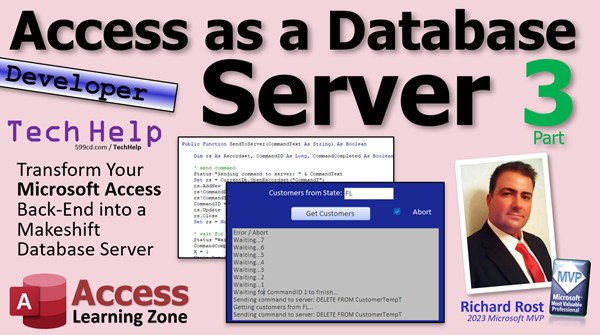
access 2016, access 2019, access 2021, access 365, microsoft access, ms access, ms access tutorial, #msaccess, #microsoftaccess, #help, #howto, #tutorial, #learn, #lesson, #training, #database, database server, sql server, back-end, front-end, split database, linked tables, pass-thru query, timer loop
More InformationTranscript Today is part three of my using Access as a database server. If you have not watched parts one and two yet, go watch them now and then come on back. You will find links to them down below. They are both free. They are on my website and on my YouTube channel. Go watch them, then come back.
Next up, we need a way to send commands to the server. We are going to do that by writing records in this command T, and the server will sit there looping until it sees a command.
I am going to just move these fake run report buttons over here, and we are going to make this bigger over here too so we can see it. We want to see what is going on, using the status box.
This is going to involve some looping because we are going to write a record to that command table to tell the server to do something, and we are going to sit and wait until it is done. We cannot just fire off one command after another. I like to put a little checkbox on here that the user can use to abort if they need to. If something happens and they need to get out of here, we are going to throw a little checkbox on here. We are going to call this little guy abort and slide it maybe over here.
That way if the loop seems like it is stuck and the server is not responding or for whatever reason, we will call this guy abort.
Now for our get customers button. Previously, we did the commands here locally, so we are just going to get rid of this stuff here, but we are going to slide it down so we can keep it for now. Let us tackle these one at a time. I am going to throw an Exit Sub here so it does not get down this far.
We are still getting customers from customer state, but we are not going to do that. We are going to tell the server to do that. So instead of CurrentDB.Execute, I am going to say SendToServer that same command. What is SendToServer? We are going to write our own function.
Ready?
Public Function SendToServer
And text is going to be sent to it as a string, and it is going to return a true or false value if it is successful or not, as a Boolean. The reason being is because we want to be able to check to see if it was successful or failed, because if there are multiple commands down here, then we want to be able to abort.
Down here, we are going to say
If Not SendToServer that stuff.
Parentheses because it is a function now, then Exit Sub. You can put a warning message or an error message or whatever right there, but essentially, we do not want to continue on with more commands if this one failed. That is why it is a function. It is public because eventually we are going to move it to a global module so anybody in the database can use it.
Now, in here, we are going to need some variables. We are going to need a recordset, so
Dim rs As Recordset.
We are going to need CommandID because we are going to look up IDs later on. We are going to need a CommandCompleted because we are going to look up to see if the command is completed, as a Boolean, and x As Long for just a counter variable.
We are going to say Status "Sending command to server" and CommandText. For now, I want to see the actual SQL go into the server just while I am developing it. Later on you can hide this kind of stuff, but for now, it is nice to see to make sure everything is going to get up and running and working.
We are going to open a connection to the command table.
Set rs = CurrentDB.OpenRecordset("commandT")
We are going to say rs!CommandDateTime = Now
We are going to say rs!CommandText = whatever the command text was sent to the function, so CommandText.
Now I want to know which specific ID this one was assigned so I can look it up in a minute and make sure that it is finished. So
CommandID = rs!CommandID
This is a nice feature of recordsets. While you are adding a record, you can get the ID of the record that has been assigned, the autonumber that has been assigned to this record already.
Then
rs.Update
rs.Close
Set rs = Nothing
We have now added a command to the table. Now, on the other end, the server is going to see that and it is going to now process it.
We are going to say Status "Waiting for Command ID" CommandID "to finish." We are going to wait for the server at this point.
"Wait for server."
"Send command." I like using comments for me personally because the different color makes it easy to see the blocks of code.
We are going to say CommandCompleted = False, initializing our variables. x = 1 for our counter loop.
While Not CommandCompleted And Not Abort. In other words, we are going to loop until either the command is completed or the user checks the abort box.
How do we know when this command is completed? CommandCompleted = DLookup("CommandCompleted", "commandT", "CommandID=" & CommandID). We should not need a Nz here because that record should exist. We just added it to the table and the server will not be deleting it. It just marks it completed. So we are going to check to see if the server processed this item.
If not CommandCompleted, we are going to hang around and wait. Then we are going to say Status "Waiting" and put the x there so you see a 1, 2, 3, and so on. x = x + 1, of course, and then SleepSec 1. SleepSec is my own Sleep Second function and of course, I did a video on it, so I will put a link down below. For those of you who want to see it, right click Definition and there is the code right there. This is public, and there is my SleepSec function. It just basically sleeps for however many seconds you tell it to sleep.
Now, by the time we exit this loop, CommandCompleted will be either true or false. We are going to say
If CommandCompleted Then
Status "Completed"
Else
Status "Error or Abort"
End If
Then
SendToServer = CommandCompleted
In other words, I want you to return a value indicating whether or not you successfully completed.
At this point, we can test to see if this thing is going to actually get put in that table. Let us come down here.
One more thing I want to set is right here at the top of this. I am going to say Abort = False just to make sure that the checkbox gets set to false when you start running this. Nothing worse than running it from a second time and the box is already checked and it just aborts.
Ready? Let us give it a spin. Save it. Come out here. Close it. Close it. Open it back up again.
Move in. I am going to uncheck the box just to make sure.
Ready. Get Customers. Go. Updater Cancel. Who wants to get some? The mayor is not here.
I forgot a line. That is what happens when I copy text from another. I ran through a sample of this earlier. I forgot to rs.AddNew. I do that all the time. In order to start off the record, you have to either add new or edit an existing one. We have to AddNew. My bad.
Try it again. Ready. Go. It sent the command and now it is waiting for the server to finish it. Let me abort.
See? Sent a command to server and then it is just waiting now. Now the server is not doing anything. It is not even running. We have not coded any of that yet. Let us take a look.
What is in the command table? Look at that. Command and then there is a command text. Now our system is going to sit there and wait for the server to process it and mark it completed.
I am going to delete this for now because the server is not there to do anything. So far our code is working, just putting a command in the table and waiting for the server to process it.
We will get to that part of the code in tomorrow's video, so come on back tomorrow, same bat time, same bat channel for part four.
That is going to be it for your TechHelp video for today, for part three. Hope you learned something.
Live long and prosper, my friends. I will see you next time. Intro In this video, we continue building an Access-based database server system using Microsoft Access. I will show you how to send commands to the server by writing records to a command table, implement a looping mechanism to monitor command completion, and add an abort feature for user control. We will create a new SendToServer function, work with recordsets, update command status, and use a custom SleepSec function to manage waiting periods. You will also see how to use a status box for better feedback during processing. This is part 3. Quiz Q1. What is the main purpose of the SendToServer function described in the video?
A. To execute all commands locally in Access
B. To send commands to the server by writing records into a command table
C. To open and close forms automatically
D. To create new user accounts in the database
Q2. Why is the SendToServer function designed to return a Boolean value (True or False)?
A. To indicate the command's status to an external application
B. To ensure that the server does not process multiple commands simultaneously
C. To indicate whether the command was successfully completed or not
D. To track the number of commands processed by the server
Q3. What mechanism is used in the code to check if a server-side command has finished processing?
A. A timer based on the system clock
B. Monitoring the server's CPU usage
C. Checking the CommandCompleted field in the command table for the given CommandID
D. Sending a stop signal to the server after a fixed duration
Q4. Which feature allows the user to stop waiting for the server if something goes wrong?
A. Exiting the Access database
B. Clicking the Abort checkbox
C. Restarting the server service
D. Deleting the command record manually
Q5. Why is it important to reset Abort to False at the start of the SendToServer function?
A. To keep the checkbox always visible
B. To ensure that the command loop does not exit prematurely if the checkbox was already checked
C. To clear out the command table before adding a new command
D. To signal the server to flush completed commands
Q6. What mistake did the instructor realize during the demonstration?
A. Forgetting to use rs.Edit
B. Forgetting to use rs.AddNew before saving the new record
C. Forgetting to close the database connection
D. Forgetting to increment the command counter
Q7. What is the role of the SleepSec function in the SendToServer loop?
A. To prevent the server from executing commands too quickly
B. To give the user time to read the status messages
C. To introduce a delay between each check of the CommandCompleted status
D. To log the elapsed time for each command
Q8. How does the client know which command in the command table it should monitor for completion?
A. By querying for the most recent command based on timestamp
B. By storing the CommandID of the newly inserted record
C. By asking the user which command to check
D. By looking for commands with a pending status
Q9. What happens after a command is successfully completed by the server?
A. The server deletes the command record from the table
B. The CommandCompleted field for that CommandID is set to True
C. The client automatically closes the database
D. The user is prompted to enter another command immediately
Q10. Why is it preferable to use a function rather than a subroutine to send commands to the server in this context?
A. Because functions require fewer lines of code
B. Because only functions can modify database tables
C. Because functions can return a value indicating command success or failure
D. Because subroutines are not supported in Access
Answers: 1-B; 2-C; 3-C; 4-B; 5-B; 6-B; 7-C; 8-B; 9-B; 10-C
DISCLAIMER: Quiz questions are AI generated. If you find any that are wrong, don't make sense, or aren't related to the video topic at hand, then please post a comment and let me know. Thanks. Summary Today's TechHelp tutorial from Access Learning Zone will continue with part three of my series on using Access as a database server. If you have not yet watched parts one and two, I highly recommend you start there. Both are free to view and available on my website and YouTube channel.
In this next stage, we need to establish a way to send commands to the server. This is going to be accomplished by writing records to a table called commandT, where the server will be continuously monitoring for new instructions.
To make this work, I will start by rearranging some elements on the form. For clarity, I am moving aside the existing "run report" buttons and adjusting the layout so the status box is more visible. It's important to track what the system is doing via status updates.
This approach will rely on looping. We will write a record to the command table, instructing the server to perform a task, then wait until it finishes before proceeding. It is not possible to issue a series of commands all at once without waiting for each to complete in sequence. To give users a way out in case a process stalls, I am also adding an abort checkbox to the form. This allows the user to break out of the loop if the server does not respond or another issue comes up.
Now, focusing on the "get customers" function, up to this point this command was being handled locally. I am updating the design so that instead of executing the commands locally, the system sends a command to the server. This means replacing any use of CurrentDB.Execute for this task with a new function called SendToServer. This function will take the command text as a string argument and return a Boolean value to indicate whether the operation succeeded.
The function will also be made public because eventually this is intended to be accessible from anywhere in the database. Inside the function, we will declare a recordset, a CommandID to track the specific command, and a variable to determine if the command has completed. For development and debugging purposes, I like to display the actual SQL command being issued to the server, so that will be visible in the status box for now.
Within the function, a new record is added to the command table. The function records the current date and time, the command text, and immediately after, grabs the unique CommandID assigned to the new record. Access makes it convenient to retrieve the autonumber while the recordset is still open, which is very helpful for this process.
After updating and closing the recordset, the server can now detect and process the new command. On the client side, the status box will indicate that the system is waiting for the server to finish handling that specific CommandID.
At this stage, the function enters a loop. The loop continues until either the server marks the command as completed or the user aborts the operation using the checkbox. To check the progress, the function uses DLookup to see if the CommandCompleted field for that CommandID is true. There is no need for null handling here, because the record will always be present until processed.
If the command is not complete, the loop pauses for a second, updates the status box to show each attempt (including a running counter), and continues this process until either the command completes or the abort checkbox is ticked. The SleepSec subroutine is used to introduce these pauses. I have a separate video explaining the SleepSec function if you are interested in the details.
Once the loop exits, the function checks if the command was completed. Depending on the outcome, it updates the status to "Completed" or "Error or Abort" and returns the corresponding Boolean value.
One important step is to ensure that the abort variable is reset to false at the start of the function, so a previously checked abort box does not unintentionally cancel a new command.
Now, testing this out, the form is saved, reopened, and the abort box is unchecked to start fresh. When the "Get Customers" button is pressed, the system tries to write the command. Early attempts may reveal mistakes - for example, it's easy to miss the requirement to call AddNew before adding data to a new record. After a correction, the command is successfully written to the command table, and the system waits for the server to mark it as completed.
At this moment, the server itself is not yet running, so nothing will process these commands. However, you can inspect the command table and see the pending instructions, confirming the client side of this system is working correctly so far.
In the next lesson, I will show how to create the server component that processes these commands and marks them completed. That wraps up part three of our series today, and I hope you picked up some helpful techniques.
You can find a complete video tutorial with step-by-step instructions on everything discussed here on my website at the link below. Live long and prosper, my friends. Topic List Creating the SendToServer function
Writing command records to the command table
Obtaining the CommandID immediately after record creation
Using a status box to display process updates
Implementing an Abort checkbox for user intervention
Looping to wait for server-side command completion
Using DLookup to check CommandCompleted status
Employing a counter and SleepSec to pause between loops
Returning success or failure from the SendToServer function
Resetting the Abort flag at function start
Correctly adding a new record to the command table with AddNew Primary Topics Access database as server, command table usage, command queue, VBA function creation, process synchronization, recordset manipulation, user abort handling Secondary Topics status feedback implementation, SleepSec function usage, debugging practices |






