Title Case
By Richard Rost

 2 years ago
Convert Text to Title Case for Movies, Books, Songs
In this Microsoft Access tutorial, I will show you how to convert text to title case for movies, books, and songs using VBA. We'll cover proper case, the Dlookup and NZ functions, for-next loops, and arrays. By the end, you'll know how to automate the capitalization of titles without manual editing.
Landon from Mount Prospect, Illinois (a Platinum Member) asks: How can I change all the text in my database to have the first letter of each word capitalized, like the titles of movies, books, and songs? I have a list of titles in Microsoft Access, but they are all in lowercase or random cases, and I want to make them look nice. What's the best way to do that without having to manually edit each one?
Members
There is no extended cut, but here is the database download:
Silver Members and up get access to view Extended Cut videos, when available. Gold Members can download the files from class plus get access to the Code Vault. If you're not a member, Join Today!
Prerequisites
Links
Recommended Courses
Up Next
Keywords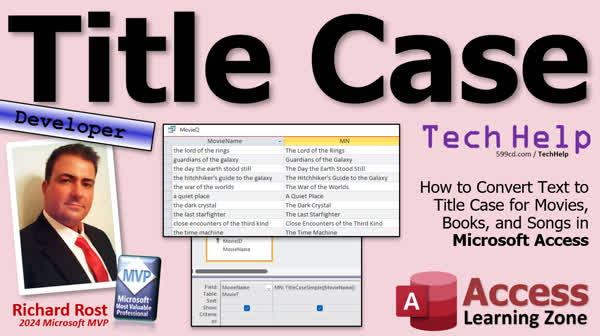
TechHelp Access, convert text to title case, Microsoft Access title case, title case movies Access, title case books Access, VBA title case function, Access proper case conversion, string manipulation Access, lowercase to title case Access, automated title case conversion Access, Access query design title case
 Subscribe to Title Case
Get notifications when this page is updated
More InformationTranscript Today we're going to talk about title case, converting titles so that the right words in the title are capitalized. You'll find this with movies, books, songs, and stuff like that. Today's question comes from Landon in Mount Prospect, Illinois, one of my platinum members.
Landon says, how can I change all the text in my database to have the first letter of each word capitalized? Like the titles of movies, books, and songs. I have a list of titles in Microsoft Access, but they are all lower case or random cases. I want to make them look nice. What's the best way to do that without having to manually edit each one?
Well Landon, there's a couple things to do. I've got some previous videos where we talked about changing the case of letters and words. In my Change Case video, go watch this video first. We learned about uppercase, lower case, and proper case. We used U-case to convert to uppercase, L-case to convert to lower case, and there's a proper case where it converts the first letter of each word to capital and the rest of it to lower case.
We also in the extended cut made a MyProper function where it left words alone if it saw mixed case already. We're going to focus on proper case right now. In a title, you don't always want every word to be capitalized. For example, Lord of the Rings. "Of" and "the" should not be capitalized. There's a certain list of short words that you don't want capitalized in titles, like "the," "of," "a" and those kinds of things.
So today we're going to take that proper case stuff that we did before, and we're going to kind of tweak it. We're going to break each one of these guys up into the individual component words and then see if that word should be capitalized or not.
This is, of course, a developer level video. If you've never done any programming before, go watch "Intro to VBA." It'll get you started. Make sure you understand how to use dlookup. We're going to need it today. And of course, there's dlookup's partner in crime, the NZ function (null to zero). We need that. We're going to need a for-next loop. We're going to use arrays today.
This isn't a lot of code. It's only about maybe, I don't know, seven or eight lines of code, but it uses a lot of cool stuff. Go watch this too.
Finally, go watch the split function. We're going to split a long string, which is our title, up into an array of words. All right, these are all free videos. They're on my website. They're on my YouTube channel. Go watch all of these first and then come on back.
Here I am in my TechHelp free template. This is a free database. You can grab it from my website if you want to, but we're going to just be working with any old tables today. So you don't really need this database. The first thing we need is a list of titles.
So I'm going to make a movie table. Create table design. We're going to call it movie ID. Oops, someone's beaming in. That'll be my auto number and then the movie name.
That'll be text. Do we ever use the name "name" as a field name? No, because it's a reserved word. Don't use "name." Don't use "date." Don't use those kinds of words. Save this as my movie table.
I'm going to put a list of movies in here, and I'm going to make sure that they're either all lowercase or capitalized. I'll be honest, this is exactly the kind of thing that ChatGPT is perfect for. I told it to give me a list of 10 sci-fi/fantasy movie titles that include small words like "a" or "the." It gave me a great little list. Then I told it to please put them all in lowercase.
Now I have a list here. I can just copy this. Come back to my database. Click on this column. Paste them in. And there we go; this is my list of movie titles.
Now to proper case those using the techniques in the Change Case video. Let's create a query. Create query design. I'll bring in the movie table and then close this thing. Right. Bring in the ID, movie name. Now over here, let's zoom in so we can see better, shift-F2. I'll create a new field. We'll call it movie proper.
This is going to be string convert. Convert movie name, comma, 3. Remember, 3 is for VB proper case. But you have to use a 3 here in a query because the query doesn't know what VB proper case is. You can use VB proper case in your VB, but not in your queries. I think we talked about this in the last video.
Okay. I'm going to save this as my movie query. Then when I run it, there we go. Looks like it's pretty good. It's not that bad. It would pass for government work. Just kidding. Just kidding. Just kidding. But notice the "of" and the "the" and all those things are still capitalized. We don't want those to be capitalized.
So what we're going to do is write our own function. Let's come down here. We can do it in our global module if you want to. We're going to say, give me a public function called title case. Now I'm going to send into it some value by val s as a string. Why by val? With this by val and by ref, normally by ref is the default. That means that you can modify that value that's sent in, which we don't want that. So I'm going to specify by val s. We get a copy of the value. It's a long explanation. I have a whole separate video on by val versus by ref. I'll put a link to that down below if you want to learn more.
We're going to return a value. We're going to return a string. We're going to take some string in, and then we're going to return a string back to the user that has what we wanted in it. Now the first thing I'm going to do here once I get it is I am going to proper case the whole thing. Then we're just going to go through each of the words in the string and determine if they should be reconverted to lower case.
Make sense? I'm going to say s equals string convert. I can't type today. String convert s to here. We can type in VB proper case. It works in here. It just doesn't work in queries. Its value is 3. Now, at this point, if I just said title case equals s, the function is going to return that, right? So let's do that real quick. Say that.
Come back out here. Let's go back to our query. The next one over here, if we just made this one TC, let me zoom in. If this is TC, we'll say it's title case of movie name. We should get the same thing as the proper case, right? Save it. Run it. There we go. We got the same thing. These are exactly the same. All we did is proper case it in our own function.
But now the next step is we need a list of the words not to capitalize. You could hard code this in your VBA if you want to. But this is Microsoft Access. I'm not going to hard code a list. Where do lists of stuff belong? They belong in a table. So let's create a table. This way you can easily add stuff in the future, delete words, and you can have your users change things if you want.
Let's call it the small word table. Small word ID, not small world, we're not going to Disney. No, no, no, no. It's right across from Pirates of the Caribbean. No, no, no. All right, and then small word. Save this as my small word table. I just got some new speakers. If you hear them beep in the background, I don't know what's going on there. We'll figure that out.
I am going to save us some time. I already got a list of these again. I bugged ChatGPT for it. I'm just going to paste it in here. There we go. A, an, and, as, at, but, by, or whatever. There's a whole list of words that are in titles that you normally wouldn't capitalize.
What we are going to do is look each word up in that title. We're going to say, hey, if it shows up in this list, don't capitalize it. Convert it back to lowercase unless it's the first word of the title. "The Lord of the Rings" should be capital. There are some rules we still have to deal with. We'll get there.
The next step is breaking up this string s into an array of words so we can identify each individual word. We're going to need a variable for that. We'll need word array. I get made fun of all the time. Whatever, the minus array. That's going to be a string. It's going to be an array of strings. We're going to need something to count through it as we loop through that list of words. So I'm going to say L as a long. We'll need to identify the current word, which is the item in the array that we're on. We'll call it current word as a string.
After we've done this, let me get rid of this. We don't need that anymore. We've converted to proper case. Convert whole title to proper case. Now we're going to split the string into an array of words using that split function, which is why I wanted you to watch the split video. So word array equals split s, which is our string. What are we splitting it on? The delimiter is a space. Split up into array of words. So that whole title now is going to be an array, which is going to have each element of the array as a specific word. So "lord of the rings" is going to be five items - "the lord of the rings."
Now let's just loop through that array and see what we got. How do you loop through an array? Well, we're going to say for L equals zero. Remember, arrays start with zero. The first element of an array is usually zero. To find out how many items are in an array, use the U-bound function, the upper bound of word array.
We're going to loop through the words. Right in here, we're just going to message box them, or you know what, let's use the immediate window. Let's debug print them. We're going to go up here and go to view immediate window. We don't do this often, but why not? We'll debug.print word array L, so whatever item we're currently on. Start at zero, then one, two, three, four, five for each word. We're going to debug print it down here.
That's all we're going to do for now. Save it. Come down here now in the immediate window. We're going to test it by saying, question mark. That's how you get the value from a function. Title case, and then in parentheses, "the lord of the rings." Then press enter. Boom. Look at that. It's too small. Let's make it bigger. Look at that. See what it did. It took "the lord of the rings," converted it to proper case so all of the words are capitalized. It then split them up into an array, and there are five items in it. It split it on the space. So this becomes one, this becomes one, this becomes one, and so on. That's how it knows how to make each element of the array. Then we just looped from L equals zero, the first item, to the U-bound, the last item, and we printed it out.
Is everybody with me so far? This is more advanced stuff. I don't cover arrays like this until Access Developer 21. This is more advanced stuff. Now we still have more to do. Because now we have to check to see if a word belongs capitalized or not. If not, we're going to convert it back to lowercase. Then we're going to rebuild our string and send the string back as the result.
We'll do that tomorrow in part two. So tune in tomorrow, same bat time, same bat channel. Or if you're a member, you can keep watching right now because I'm going to continue to record. There's a lot more to come in part two.
This is going to be your TechHelp video for today. I hope you learned something. Live long and prosper, my friends. I'll see you tomorrow for part two.
A special thank you and shout-out to our diamond sponsors. First, we have Juan Soto with Access Experts software solutions. Manufacturing experts specializing in Access and SQL Server. Juan is a 13-time Microsoft Access MVP. You can check them out at accessexperts.com.
Another shout-out to Sammy Shama from Shama Consultancy. Sammy is a certified Microsoft Office Specialist, and he not only offers Access application development but also provides one-on-one tutoring services. If you need someone to hold your hand and help you with your Access project, Sammy is your guy. Check them out at shamaconsultancy.com.
TOPICS:
Title case in database entries
Proper case conversion technique
List of words to avoid capitalizing
Creating a movie table in Access
Using the UCase and LCase functions
Setting up a query for proper case conversion
Writing a custom title case function
Using ByVal in VBA functions
String conversion in VBA
Returning values from VBA functions
Creating and using a small word table
Using the Split function in VBA
Looping through arrays in VBA
Using the Immediate Window for debugging
Identifying and handling non-capitalized words in titles
COMMERCIAL:
In today's video, I'll show you how to convert titles to proper title case in Microsoft Access. Brought to you by a question from Landon in Mount Prospect, Illinois, we'll explore how to automatically capitalize the right words in movie titles, books, and songs without manual editing. I'll walk you through using functions like Ucase, Lcase, and Proper to handle mixed cases. You'll learn how to build a VBA function that recognizes which words should remain lowercase, set up Dlookup and NZ functions, and use arrays and loops. Finally, I'll split titles into arrays and ensure proper capitalization, making your database entries look clean and professional. You'll find the complete video on my YouTube channel and on my website at the link shown. Live long and prosper, my friends. Intro In this video, I will show you how to convert a list of titles to proper title case in Microsoft Access, making sure common small words like "of" and "the" stay lowercase where appropriate. We'll talk about using built-in functions like UCase, LCase, and Proper, set up a movie table, create a list of small words to ignore in capitalization, and walk through building a custom VBA function. I'll also demonstrate how to use the Split function, loop through arrays, and debug with the Immediate Window to ensure your titles look clean and consistent. This is a standalone TechHelp video. Quiz Q1. Which built-in function in VBA is used to convert a string into proper case, where the first letter of each word is capitalized?
A. UCase
B. LCase
C. StrConv
D. Split
Q2. What is the primary goal when converting titles to title case in Microsoft Access as discussed in the tutorial?
A. To capitalize every word in the title
B. To lowercase every word in the title
C. To capitalize the first letter of each word except for certain small words
D. To reverse the order of words in the title
Q3. In the tutorial, which VBA function is mentioned as necessary for looking up database values?
A. DSum
B. DLookup
C. DMin
D. DMax
Q4. When defining a function in VBA that you do not want to modify the argument being passed, which keyword is used?
A. ByRef
B. Static
C. ByVal
D. Public
Q5. According to the video, which function does not properly handle small words (like "the" or "of") and capitalizes everything?
A. UCase
B. LCase
C. Proper Case in queries using StrConv
D. Split
Q6. In the context of title case conversion, what should be avoided when naming fields in Microsoft Access to prevent conflicts?
A. Reserved words like Name and Date
B. Names longer than 10 characters
C. Numeric-only names
D. Names that start with a special character
Q7. What is the advantage of keeping the list of small words that should not be capitalized in a table rather than hardcoding them into your VBA code?
A. Easier readability
B. Better memory management
C. Convenient for future updates and changes
D. Faster code execution
Q8. Which VBA function is used to split a string into an array of substrings based on a delimiter?
A. Join
B. Concatenate
C. Split
D. Mid
Q9. When looping through an array in VBA, which function is used to determine the upper bound of the array?
A. LBound
B. UCase
C. UBound
D. StrConv
Q10. According to the tutorial, which character is used as the delimiter for splitting titles into words in the VBA code?
A. Comma
B. Period
C. Space
D. Hyphen
Answers: 1-C; 2-C; 3-B; 4-C; 5-C; 6-A; 7-C; 8-C; 9-C; 10-C
DISCLAIMER: Quiz questions are AI generated. If you find any that are wrong, don't make sense, or aren't related to the video topic at hand, then please post a comment and let me know. Thanks. Summary Today's TechHelp tutorial from Access Learning Zone focuses on how to correctly convert titles to proper title case in your Microsoft Access database. This comes from a common need, especially when dealing with entries like movies, books, and song titles where only certain words should be capitalized for a polished appearance.
One of my students, Landon, asked how to automatically capitalize the first letter of each significant word in his list of titles, which are currently in lowercase or random cases. He wants to achieve this without the tedium of editing each title by hand.
First, let's review some basics. I've covered changing the case of text in previous tutorials. We learned about using functions to convert text to uppercase, lowercase, and what's often called proper case. The proper case function capitalizes the first letter of every word while converting the rest of the letters to lowercase. However, for title case, this approach does not consider that small words like "of," "the," or "a" should not be capitalized unless they start the title.
Today, we'll improve upon the basic proper case concept. The plan is to break each title into its individual words, determine which words should be capitalized according to title case rules, and then reconstruct the title accordingly.
Before we start coding, you should have some experience with VBA programming in Access. If you're new to this, I recommend starting with my "Intro to VBA" video. You'll also want to be familiar with using Dlookup, the NZ function, and for-next loops. We'll also be working with arrays, and if you're not comfortable with splitting strings or using arrays in VBA, make sure to check out my videos on these topics first. These resources are all freely available on my website and YouTube channel.
Now, let's get hands-on. Although I often use my TechHelp free template for demonstrations, these techniques will work with any table. We begin by creating a table to hold our list of movie titles. Be sure to avoid using reserved words like "name" or "date" as your field names. Once the table structure is ready, you can populate it with some sample data. For this, you could use a tool like ChatGPT to help generate a list of titles in all lowercase, which you can then paste directly into your Access table.
After you have your data, the first step is to apply a basic proper case transformation via a query. By using the StringConvert function with the argument 3, you can convert each title so the first letter of each word is capitalized. Note that in queries, you have to use the numeric value 3 because the textual constant is not recognized.
At this point, you'll notice that the transformation is still not perfect. Words such as "the" and "of" remain capitalized, which is not what you'd want for proper title case. To fix this, it is necessary to write a custom VBA function.
I recommend placing such a function in a general module. This function will accept a string argument, and I use ByVal to make sure we're working with a copy of the value, not the original string. The function first converts the entire string to proper case. It then examines each word individually to determine if it should stay capitalized.
To manage which words should not be capitalized, don't embed the list directly into your VBA code. Instead, store them in a dedicated table in your database. This makes the list easy to update and manage. I call this the "small word table," and you can prepopulate it with words like "a," "an," "and," "at," "but," "by," and similar. Having this as a table gives you flexibility in the future without having to modify your VBA code.
Next, the function splits the title into an array of words, which lets you process each word separately. The Split function, using a space as the delimiter, breaks the string into its component words so you can loop through them and examine each one. For now, I like to check my progress using the Immediate Window in the VBA editor, printing out each element of the array to verify that it's working as intended.
In the current stage, the function simply performs a proper case transformation and splits the result into words, looping through them for display. This foundational logic prepares us for the next step, which is to identify which words should remain lowercase according to our small word table, unless they are the first word in the title, which should always be capitalized.
This approach is more complex and suitable for those comfortable with advanced Access development concepts such as arrays and VBA functions. In Access Developer 21 and later materials, I discuss arrays and these kinds of manipulations more thoroughly.
In the next session, we'll build on this, adjusting our function so it looks each word up in the small word table, converts those words to lowercase where appropriate, and finally reconstructs the title according to correct title case rules.
If you want step-by-step instructions and to see the process in action, I encourage you to watch the complete video tutorial on my website at the link below. Live long and prosper, my friends. Topic List Title case in database entries
Proper case conversion technique
List of words to avoid capitalizing
Creating a movie table in Access
Using the UCase and LCase functions
Setting up a query for proper case conversion
Writing a custom title case function
Using ByVal in VBA functions
String conversion in VBA
Returning values from VBA functions
Creating and using a small word table
Using the Split function in VBA
Looping through arrays in VBA
Using the Immediate Window for debugging
Identifying and handling non-capitalized words in titles Primary Topics title case conversion, proper case in Access, VBA custom functions, handling small words in titles, string manipulation, arrays in VBA, Access queries, table setup for exceptions
Secondary Topics dlookup usage, byval vs byref in VBA, debugging with Immediate Window
|




