Count
By Richard Rost

 7 months ago
How To Use The Count Function In Microsoft Access In this video, we will walk through how to properly use the count function in Microsoft Access queries. I will explain common mistakes, demonstrate how to create aggregate queries using the count function, and show how to troubleshoot issues that often occur, such as calculation errors and working with multiple tables. We will also discuss the importance of using aggregate queries and how aliases can help with naming counts in your results. This lesson is aimed at helping you get accurate counts and better understand how Access processes aggregate functions. MembersThere is no extended cut, but here is the file download: Silver Members and up get access to view Extended Cut videos, when available. Gold Members can download the files from class plus get access to the Code Vault. If you're not a member, Join Today!
PrerequisitesLinksRecommended Courses
Keywords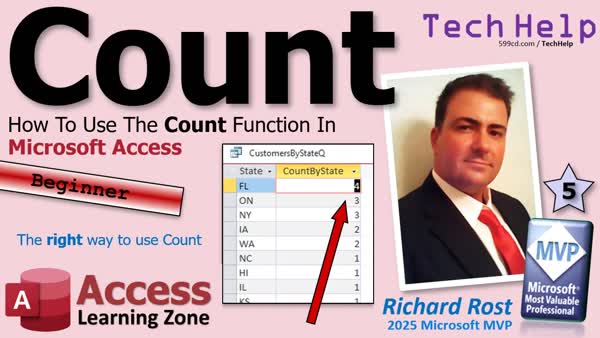 TechHelp Access, count function in query, aggregate query, group by, count records, alias in query, totals row, customer ID count, count null values, count by state, sort count descending, count orders per customer, enter parameter value error, calculated field aggregate, form footer totals, sum average max min functions
 Subscribe to Count
Get notifications when this page is updated
More InformationTranscript If you've ever tried to use the count function in a Microsoft Access Query and ended up with numbers that make no sense, you're not alone.
Welcome to another TechHelp video brought to you by AccessLearningZone.com. I'm your instructor, Richard Rost. Today we're going to talk about how to properly use the count function in Microsoft Access Queries.
I'm going to show you what count is supposed to do, what people often get wrong, and how to get the correct result every time using something called aggregate queries.
Today we're going to look at how to use the count function in Microsoft Access Queries, and I'm making this video because I recently saw another tutorial on YouTube that claimed to teach count, but it was completely wrong. If you want to learn more, you can read all about that in my captain's log.
Now, I've done a ton of other videos on counting records, including how to use a count function in a form, footer total, in a continuous form, how to use the dcount function, and how to use the record count in a recordset.
I have covered the count function that we're going to use today in an aggregate query, but since most people who are looking how to do a count don't know the term aggregate query, and that's what this video shows up under a search on YouTube or Google as, is aggregate query, we're doing this video specifically on count, so you guys that are looking for count will know that you need to use an aggregate query.
I could just tell you to go watch this video, but that wouldn't be any fun, so let's go over this a little bit and do some more fun stuff with it.
Here I am in my TechHelp free template. This is a free database; you can grab a copy up on my website if you want it.
The first thing with doing a count in a query is that you have to understand that count is an aggregate function. That means it works on a group of records, not individual rows by themselves.
Let's say you go to create a query, create query, and I bring in my customer table. In here, I've got a field called first name. Let me bring first name down into the query, and if I run it right now I just get a list of first names.
If I come over here and type in something like count: first name, and then run the query, all I've done is set up what's called an alias. That is not counting anything, and that's what this other video shows. We've set up an alias; it's like calling first name fn. We just set up a query to call first name count, so that's not what we want at all.
If you do decide to try to type in, let's say, make C a new variable, an alias, right? C, make that the count of first name, just like that. Let me zoom in so you can see it better too. Here I'll click shift F2. Shift F2 lets you zoom into any field. C, that's an alias, let's call it the count of first name. Let's see what happens when we try to run that.
Your query doesn't include the specified expression first name as part of an aggregate function. In order for that to work, you have to make this query an aggregate query, and how do you do that? Under query design, you click on this guy. That's the sigma button or the totals button, click on that.
Now look, this is a little bit different now. This little totals row shows up and it says group by, group by. That's interesting.
Let's run it now and see what we get. Cannot have an aggregate function in a group by, what does that mean? This here is where you specify what you want to do. Group by means I want to group by this field. In other words, group all of the like items together.
In this case, all you have to do, instead of this whole thing here, is just put first name and change this from group by to count. Now it will group by first name and also count the first names that match that first name group.
If I run it, you're getting mostly ones. You might see right there, there's a three next to Mr. That's because there are three Mr's in my table. If you look at the customer table directly, there's Mr. Spock, Mr. Worf, and Mr. Data. It grouped by first name and then it also counted first name and gave you this new field here called count of first name.
If you want to see how many Malcolms you have, or how many Julians you have, or how many customers you have from the state of Florida, that's a more useful way to do this. I think that is what I show in the other video.
If you take a field like state, bring it down here twice, change this guy to count, now you're getting a count of each of your states. See that? Then you can do meaningful things like you can sort this descending and now you'll see the most populous states up top. That's one way to use the count function as part of an aggregate query.
Some other things you could do, let's get rid of this. If you want to get a count of all the records, bring down the customer ID field because that's an autonumber, so you're guaranteed that every record will have a customer ID. Now you can just change this to count. When you run it, there's a count of all the records, if you want to know how many records you have.
You could also count a different field where you're not sure if you've got data. Let's take a peek at the customer table here. Some of these fields don't have all the data, like state doesn't always have a record. You could also count the states. When I run this, now you can see 28 out of 33 records. That tells you you've got five records that don't have states. Those have null values, so that won't show up in your count. This is a great way to find missing information.
Sometimes you might not want this field being called count of state. You could change that name if you want to. You could change this to, let me zoom in for you again, shift F2, Customers with states:. Now when you run it, that field is now called customers with states. That's where that alias is useful because you can change the field name. When you use this in reports or in forms, that shows up.
If you're liking this video, hit that like button. Make sure you subscribe to my channel. You can also use multiple tables in here. Let's say you've got customers and you've got orders. Bring them in here like that. You've got a relationship between customer ID there and customer ID there. Now you put customer ID on the left and order ID on the right and change this to count. Now you'll get a list of each customer and how many orders they have. This guy here has two orders, and that is now the count of order ID. Same, group it by customer, so all the same customer grouped together, and then count up the orders that they have.
Here's a popular gotcha. This one gets a lot of people in trouble. Let's say you want to do some math on that value, this value here, this one or two, or it could be more. Let's say you want to double that number. Just hypothetically, I know it's a silly example, but I'm just trying to teach you something. A lot of times people will have valid counts in here, like how many kids they have or how many, whatever.
Now the name of this field, remember, is count of order ID. Let's make that easier to use in our calculations. Let's come in here and give it an alias. Let's call it C. That's why people usually use aliases: to make things easier. So C is going to be the count of the order ID. When I run it now, it's just C. Great. Nice and short to use in our calculations.
Now I'm going to come over here and make another value. Let's make it X, and that's going to be C times 2. Normally, in regular queries, you can do this just fine. But if I do it now, enter parameter value. What does that mean? I have a whole separate video on the nuances and the ins and outs of enter parameter value. Basically, what it means is Access is saying, I have no idea what you're talking about. In this case, it's saying, I don't know what C is. Just cancel.
Why doesn't it know what C is? C hasn't been calculated yet. When this query first starts to run, for every row, it's got to figure out what C is, so it doesn't know what C is to be able to multiply C times 2.
The point I'm trying to teach you is you can't do math or any other calculations based on that aggregated value inside this query. The key is, the solution is, don't do it here. Save this query. Let's call it order count Q. Close that query, make a second query. For this query, we're going to use that order count Q as our record source. Now this, see, there's two fields in there. Now you can bring in customer ID and the C. Now you can come over here and say X is C times 2. Now it knows what that is, because when this query runs, it has C as a calculated value already.
That's a little more advanced, but I see this happen to people all the time. You can't do calculations in the query until the query is finished running, so you have to make a second query for it.
I hope that helps someone. If you want to learn more about this stuff, in my Access Expert Level 3 class, I start covering all of the aggregate functions: sum, average, max, min, count. We put those in the form footer totals. I think that's easier to learn for a lot of people than working with queries directly. We put them down here in the form footer totals, all the different aggregate functions.
Then in Access Expert Level 11, we start going over aggregate queries, which are a lot more powerful. You go over all kinds of cool stuff: sum, average, max, min, the stuff I just showed you, lots of cool things.
The big takeaway today is that count only works correctly in an aggregate query. If you're not using totals, you're not actually counting anything.
Post a comment down below. Let me know how you like today's video and how you plan to use count in your database.
That's going to do it for your TechHelp video for today, brought to you by AccessLearningZone.com. I hope you learned something. Live long and prosper, my friends. I'll see you next time.
If you enjoyed this video, hit that thumbs up button right now and give me a like. Be sure to subscribe to my channel, which is completely free, and make sure you click that bell icon and select all to receive notifications whenever I post a new video.
Do you need help with your Microsoft Access project? Whether you need a tutor, a consultant, or a developer to build something for you, check out my Access Developer Network. It's a directory I put together personally of Access Experts who can help with your project. Visit my website to learn more.
Any links or other resources that I mentioned in the video can be found in the description text below the video. Just click on that show more link right there. YouTube's pretty good about hiding that, but it's there. Just look for it.
If you have not yet tried my free Access Level 1 course, check it out now. It covers all the basics of Microsoft Access, including building forms, queries, reports, tables, all that stuff. It's over four hours long. You can find it on my website or my YouTube channel. I'll include a link below you can click on. Did I mention it's completely free?
If you like Level 1, Level 2 is just one dollar. That's it. It is free for members of my YouTube channel at any level.
Speaking of memberships, if you're interested in joining my channel, you get all kinds of awesome perks. Silver members get access to all of my extended cut TechHelp videos, and there's hundreds of them by now. They also get one free beginner class each month, and yes, those are from my full courses.
Gold members get the previous perks plus access to download all of the sample databases that I build in my TechHelp videos. Plus, you get access to my Code Vault where I keep tons of different functions and all kinds of source code that I use. Gold members get one free expert class every month after completing the beginner series.
Platinum members get all of the previous perks plus they get all of my beginner courses, all of them from every subject, and you get one free advanced or developer class every month after finishing the expert series.
You can become a diamond sponsor and have your name listed on the sponsor page on my website.
That's it. Once again, my name is Richard Rost. Thank you for watching this video brought to you by AccessLearningZone.com. I hope you enjoyed it. I hope you learned something today. Live long and prosper, my friends. I'll see you next time. Intro In this video, we will walk through how to properly use the count function in Microsoft Access queries. I will explain common mistakes, demonstrate how to create aggregate queries using the count function, and show how to troubleshoot issues that often occur, such as calculation errors and working with multiple tables. We will also discuss the importance of using aggregate queries and how aliases can help with naming counts in your results. This lesson is aimed at helping you get accurate counts and better understand how Access processes aggregate functions. Quiz Q1. What is the main purpose of the COUNT function in a Microsoft Access query?
A. To count the total number of fields in a table
B. To count the number of records that meet certain criteria
C. To group records based on identical values
D. To calculate the sum of all numbers in a field
Q2. Which type of query in Access is required for the COUNT function to work correctly?
A. Action query
B. Aggregate query (Totalse query)
C. Crosstab query
D. Union query
Q3. What button do you need to click in query design to turn a regular query into an aggregate query?
A. Append button
B. Make Table button
C. Totals (Sigma) button
D. Delete button
Q4. What does the "Group By" option in an aggregate query do?
A. Sums every field
B. Groups identical values together in the specified field
C. Deletes duplicate records
D. Filters only records with non-null values
Q5. If you just write "count: firstname" in a query field, what does Access treat this as?
A. An aggregate function
B. A filter expression
C. An alias for the field
D. A calculated value
Q6. Why do you often get mostly "1"s when grouping by a field like First Name and using the COUNT function?
A. Because most names are duplicated
B. Because there is only one record in the table
C. Because each name is unique except for those that are duplicated, which show higher numbers
D. Because COUNT only works on numeric fields
Q7. How can you find the number of records with missing information in a field using COUNT?
A. Use COUNT and compare the result with the total number of records
B. Filter for records with empty fields only
C. Use SUM instead of COUNT
D. Count the total length of the field
Q8. What does the COUNT function ignore when counting a field?
A. Text values
B. Null (empty) values
C. Duplicate values
D. Numeric values
Q9. What is a use of an alias in a query field?
A. To rename the table
B. To use a shorter or more descriptive name for the field in results
C. To join two tables together
D. To sum the values in a field
Q10. Why might you need a second query to perform calculations on the result of a COUNT aggregate?
A. Because Access does not allow calculations on aggregate fields within the same query
B. Because aggregate queries cannot have more than one field
C. Because calculations make the data unreadable
D. Because you can only use calculations in tables
Q11. What happens if you try to reference an alias for an aggregate (like C) in another field in the same aggregate query?
A. Access will calculate it just fine
B. You will get an "Enter Parameter Value" prompt because Access does not know what the alias is yet
C. The query will delete your data
D. The query will only show blank values
Q12. When using COUNT in a query with two tables (e.g., Customers and Orders), what does counting OrderID grouped by CustomerID give you?
A. The number of customers in each order
B. The total value of all orders
C. The number of orders each customer has
D. The number of items in each order
Q13. What is a key takeaway from the video regarding the use of COUNT in queries?
A. COUNT works correctly only in aggregate queries with the Totals row enabled
B. COUNT can be used in any query without any special setup
C. COUNT automatically filters out duplicates
D. COUNT cannot be used with text fields
Q14. What will COUNT(FieldName) return if some records in the field are Null?
A. The total number of records in the table
B. Only the records with Null values
C. The number of non-null records in the field
D. The sum of all field values
Q15. Which of the following actions is suggested when you want to sort your COUNT results to see the most frequent group first?
A. Use the filter tool only
B. Sort the count descending within the query design
C. Delete records with lower counts
D. Create a form to view the data
Answers: 1-B; 2-B; 3-C; 4-B; 5-C; 6-C; 7-A; 8-B; 9-B; 10-A; 11-B; 12-C; 13-A; 14-C; 15-B
DISCLAIMER: Quiz questions are AI generated. If you find any that are wrong, don't make sense, or aren't related to the video topic at hand, then please post a comment and let me know. Thanks. Summary Today's video from Access Learning Zone focuses on how to correctly use the count function in Microsoft Access queries. Many people run into problems when they try to use count and end up with results that just do not make sense, so I am going to clarify exactly how it should work and how to get the results you want every time.
To start with, the count function in Access is what is called an aggregate function. That means it operates on a group of records rather than on individual rows. It is important to know this because if you simply drop count into a regular query column, you are not really counting anything. For example, if you just rename a column as "count" it does nothing but set an alias, which is just giving the column a different label in your results. This is a common mistake I have seen in other tutorials.
To use count properly, you need to turn your query into an aggregate query. In query design view, there is a button for totals, which adds a new row in the grid where you can specify aggregate functions for each field. When you use this, you can set one field to "group by" and another field to "count." For example, if you want to count all the records with the same first name, you would set "first name" to "group by" and add another column with "count" selected. This will give you a list of first names and show you how many times each one appears in your table.
If you are more interested in finding out how many customers you have in each state, you can bring the state field into the query twice, set the first one to "group by" and the second to "count." This will give you a list of states along with how many customers you have in each. You can even sort by the count to show the most common states at the top of your results.
Another useful way to use count is to determine how much data you are missing. For example, some fields like "state" might be empty for certain records. If you count the non-null values in the state field, you can quickly see how many records are incomplete.
As you work with aggregate queries, you may want to rename your calculated fields to something more meaningful. This makes your reports and forms easier to read and use.
Compound queries are also possible. If you have two tables, such as customers and orders, you can count how many orders each customer has. Join the two tables in a query, group by customer, and use count on the order ID. This gives you a useful summary of customer activity.
A common issue people encounter with aggregate queries is when they try to do further calculations inside the same query, such as multiplying a counted value by another number. Access does not allow you to refer to calculated fields in the same query row, so if you want to perform additional calculations, you need to save your aggregate query first, and then create a new query based on that saved one. In the new query, you can reference your aggregate values and do whatever calculations you need.
If you want to explore this topic further, I go over all aggregate functions like sum, average, maximum, minimum, and count in my Access Expert Level 3 course, where I include examples in form footers and reports. Then, in Access Expert Level 11, I dig deeper into aggregate queries with all sorts of useful tricks.
The key lesson today is that count only works whether you use it in an aggregate query. If you do not use the totals row, it is not actually counting records. Be sure to post a comment to let me know how you plan to use the count function in your own database projects.
You can find a complete video tutorial with step-by-step instructions on everything discussed here on my website at the link below. Live long and prosper, my friends. Topic List Explanation of the count function in Access queries
Difference between aliases and aggregate functions
Creating aggregate queries using the totals/sigma button
Grouping records using aggregate queries
Counting records grouped by a field
Counting total records using autonumber fields
Counting records with non-null values in a field
Renaming count fields using aliases
Counting related records from multiple tables
Common errors using count in queries
Limitations of performing calculations on aggregate values
Solution using a subquery to perform further calculations Article Many people run into trouble when they try to use the COUNT function in a Microsoft Access Query and end up with results that just do not make sense. Understanding how to use the COUNT function correctly can save you a lot of confusion and help you create powerful, useful queries in Microsoft Access. Let me walk you through the process and clear up some common misconceptions.
First, it is important to understand that COUNT is an aggregate function. Aggregate functions, like COUNT, SUM, AVG, MIN, and MAX, operate on groups of records rather than on individual records. This means that if you want to use COUNT in a query, you need to set up your query as what Access calls an aggregate query, which is commonly referred to as a totals query.
Let's start with a simple example. Suppose you have a Customer table with a field called FirstName. If you just drag the FirstName field into a new query and run it, all you will get is a straight list of first names. If you try to create a calculated field in the query grid, like this:
count: [FirstName]
and run it, all you have done is created an alias (a different label) for the FirstName field. Access will simply show the same data, now labeled "count," and it will not actually count anything. This is a very common mistake.
If you try to use the aggregate function syntax directly, such as:
C: Count([FirstName])
you will get an error stating that your query does not include the specified expression as part of an aggregate function. This happens because Access needs to know how to group the records before it can count them.
To set up an aggregate query, go to the Query Design view and click the Totals button, which looks like a sigma (Σ). When you click this, a new row appears in the query grid called "Total." By default, fields you add will have "Group By" in this row. "Group By" tells Access to collect all records with the same value together.
If you want to count how many times each first name appears in your table, add the FirstName field to the query twice. Leave the first as "Group By," and change the second to "Count" in the Total row. Now when you run the query, you will see each unique first name along with the number of times it appears in your table. For example, if "Mr" appears three times, you will see a count of 3 next to "Mr," reflecting three records with that value.
You can do the same with any field, like the "State" field. Drag "State" into the query grid twice, leave the first as "Group By" and set the second to "Count." This will show you how many customers you have in each state. You can even sort the results, for example, by the count in descending order to see the states with the most customers at the top.
If you are interested in counting all records in your table, use a field that is never null, such as an AutoNumber primary key field like CustomerID. Put that field in the query grid and change the Total row from "Group By" to "Count." Access will show you the total number of records in your table. If you use a field that sometimes has empty values, such as "State," the COUNT function will only count records where there is actually data in that field. So if you have 33 customer records, but only 28 have a value for "State," COUNT([State]) will return 28.
You can also change the name of the calculated field using an alias. For example, instead of accepting Access's default field name like "CountOfState," you can write:
CustomersWithStates: Count([State])
Now the result column is neatly labeled "CustomersWithStates," making your query results easier to read and use in reports or forms.
Another important aspect is using COUNT with multiple tables. Say you have a Customers table and an Orders table related by CustomerID. You can create a query that groups by CustomerID and counts the OrderID from the Orders table to find out how many orders each customer has. In the query design, add both tables, join them on CustomerID, add CustomerID from the Customers table, add OrderID from the Orders table, set CustomerID to "Group By" and OrderID to "Count." When you run this query, you will see each customer and the number of orders they have placed.
There is a common pitfall to be aware of when you start doing calculations with aggregate values. If you create an alias for your count value, for example:
C: Count([OrderID])
and then try to create a calculated field in the same query, like:
X: [C]*2
Access will pop up a parameter prompt, asking you to enter a value for "C." This happens because, during the query's execution, Access does not calculate "C" until after all the aggregated data has been grouped, so it does not yet know what "C" is when it is building the calculated field in that same query. The solution is to save and close your aggregate query first, then create a new query that uses your aggregate query as its data source. In the new query you can use the field [C] in any calculation you want, such as [C]*2 for a doubled value, and Access will know what you mean.
Understanding how the COUNT function works in aggregate (totals) queries is crucial for accurate results in Access. If you are not using the Totals button, you are not actually counting anything with the COUNT function. Using aggregate queries gives you powerful ways to summarize, group, and analyze your data meaningfully.
If you want to keep learning, there are many other aggregate functions in Access like SUM, AVG, MAX, and MIN, and they all use the same basic principle in totals queries. Counting and aggregating data is one of the best ways to get business insights from your database. With the right approach, queries in Access become powerful tools for tracking customers, sales, inventory, and much more. Primary Topics
count function, aggregate queries, Microsoft Access, query design, grouping records, query errors, SQL aggregates
Secondary Topics
aliases, parameter errors, multi-table queries, missing data detection
|




