Customize Ribbon
By Richard Rost

 4 months ago
Customizing the Microsoft Access Ribbon In this lesson, we will walk through how to customize the ribbon in Microsoft Access to better suit your workflow. I will show you how to add your own tabs and groups, rename them, select and organize commands for quick access, and hide tabs you do not use. We will discuss the difference between main, tool, and all tabs, importing and exporting ribbon settings, and important considerations about how these changes are stored. Customizing the ribbon can make your most-used commands easier to find without writing any XML. LinksRecommended Courses
Keywords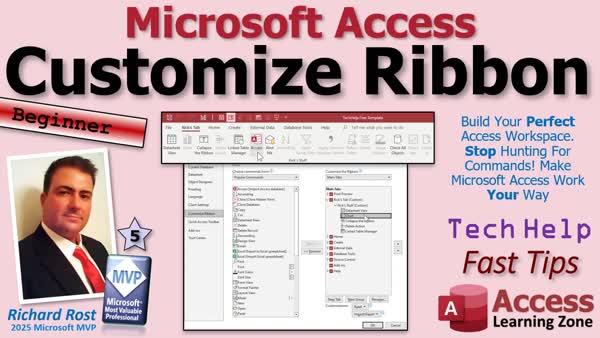 TechHelp Access Fast Tips, customize the ribbon, custom tabs, custom groups, hide tabs, macros, main tabs, tool tabs, command not on ribbon, create data macros, cross tab, insert columns, indexes, quick access toolbar, reset ribbon, import export ribbon, backup ribbon settings, ribbon xml
More InformationTranscript Ever wish your Microsoft Access ribbon had all the commands you use all the time right where you want them? Good news! You can customize the ribbon without writing a single line of XML.
If you right-click anywhere on the ribbon and pick Customize the Ribbon, Access opens up the Customize the Ribbon window. This is where you can add your own tabs, create custom groups, hide tabs you do not use, and generally make Access work the way you want.
On the left side is the Choose commands from dropdown. Popular Commands shows the most commonly used commands. The Commands Not on the Ribbon includes commands that Microsoft does not put on the ribbon by default, but you can add if you want to. All Commands shows everything. Macros let you add your own macros.
For example, I have a macro on my Quick Access Toolbar that opens my main menu. Macros are a little more advanced, but I have different videos to show you how to build those. Then you get the File tab, All Tabs, and a bunch of other stuff down here.
Now, on the right side is where you pick where those commands go. The Main Tabs are the tabs you normally see every day - Home, Create, Database Tools, and so on. The Tool Tabs are the contextual tabs that only appear when you are designing something, like a form or a report. There is Form Layout, Form Design, and so on. And of course, the All Tabs shows both. Let's just go back to the Main Tabs for now.
I am going to come down here and click on New Tab, and it puts a new tab down here at the bottom. Let's click on it and move it up to the top, all the way up here, so it shows up all the way to the left side of the ribbon. Let's give it a name. You can click on that, right-click and go to Rename, or you can click the Rename button down below. Let's call this Rix Tab. Call it whatever you want.
Now, every tab can have multiple groups inside of it, or you can just use one group. I pretty much stick to one group. Right-click, rename that guy, and look - you can give it a picture too. Let's give it a smiley face. And this will be Rix Group.
So, let's pick All Commands over here. This will give us everything. This can be overwhelming; there are lots of commands in here. But pick the ones that you like to use on a regular basis that you do not feel like digging through menus to find. I will just pick a couple. Create Data Macros. Hit Add. It puts it over here in your group. Cross Tab. Add. Insert Columns. Add. And so on.
The hard part is finding all the commands you want. Indexes. Add. And again, you can move these up and down with these little buttons here if you want that one up top. This way, you can put your most used tools exactly where you want them.
When you are done, make sure you hit OK. And now there is Rix Tab. Look at that. These are all grayed out right now because none of these are available at the moment. But if I was, for example, designing a table, now on Rix Tab, these are now available. Indexes and Create Data Macros are now available because you can create or access those things when you are designing a table. So they are still context sensitive.
Let's go back into here. Right-click. Customize the Ribbon. Now, if there is stuff you do not use at all and you do not want to see it, you can hide them by turning these checkboxes off. If you never use Source Control, Database Tools, External Data, hit OK, and those disappear. Do not worry. They are not gone. They are just hidden. Put them back. There they are.
Another thing worth noting is that you cannot add stuff to the existing groups here. So if you go into Create, Templates, whatever, or if you go into Home, View, whatever, you cannot add stuff in here. It will not let you. You can only add stuff to a custom group, which is what we created.
On the bottom, you will find a Reset option in case you mess up and you want to go back to the default Office settings. I am not going to do that because I do not want to reset my Quick Launch Toolbar. I use that every day.
If you want to learn more about customizing the Quick Access Toolbar or the Quick Launch Toolbar, sometimes called it, I have a whole separate video that covers that. I will put a link down below.
On here, you will find an Import and Export option. These are great for backing up your customizations. If you are going to get a new machine and you want to save your current custom ribbons, you can do that. You can export them and then re-import them again.
One important thing to remember is that these changes you make to the ribbon are personal settings for your machine. They do not travel with your database. So if you want a custom ribbon that gets stored inside the database and appears for every user, you will have to build a custom ribbon with ribbon XML. I teach you how to do that starting in my Access Developer Level 44 class. Again, I will put a link down below.
So now you know how to customize the Access ribbons. Your favorite commands are always right where you need them. Post a comment down below, let me know how you liked today's video, and what tools you are going to add to your ribbon.
That is going to be your TechHelp Fast Tips video for today brought to you by AccessLearningZone.com. I hope you learned something. Live long and prosper my friends. I will see you next time. Intro In this lesson, we will walk through how to customize the ribbon in Microsoft Access to better suit your workflow. I will show you how to add your own tabs and groups, rename them, select and organize commands for quick access, and hide tabs you do not use. We will discuss the difference between main, tool, and all tabs, importing and exporting ribbon settings, and important considerations about how these changes are stored. Customizing the ribbon can make your most-used commands easier to find without writing any XML. Quiz Q1. What is the primary benefit of customizing the Microsoft Access ribbon described in the video?
A. It allows you to add or remove users from the database
B. It lets you put all your most-used commands where you want them, without XML
C. It automatically optimizes your database for faster performance
D. It enables collaboration between multiple users
Q2. What do you access by right-clicking anywhere on the ribbon in Access?
A. Ribbon Color Options
B. Command History
C. Customize the Ribbon window
D. Macro Security Settings
Q3. What can you do in the Customize the Ribbon window? (Select the BEST answer)
A. Only add new commands to existing groups
B. Create custom tabs and groups, hide tabs, and rearrange commands
C. Change the color of the ribbon
D. Import external data from Excel
Q4. Where do you find commands not already shown on the ribbon, which can be added to custom tabs?
A. In the Source Control menu
B. In the Commands Not on the Ribbon list
C. In the Macro Settings tab
D. Only through VBA code
Q5. What are 'Main Tabs' in the ribbon customization window?
A. Tabs that only appear when designing objects
B. Tabs created by third-party add-ons
C. Tabs seen every day like Home, Create, etc.
D. Tabs hidden by default
Q6. What is the difference between Main Tabs and Tool Tabs?
A. Main Tabs cannot be customized, but Tool Tabs can
B. Tool Tabs are always visible, Main Tabs are contextual
C. Main Tabs are regularly visible; Tool Tabs appear contextually (e.g., when designing objects)
D. There is no difference
Q7. What is required before you can add commands to a tab?
A. The tab must be set as the default
B. The tab must have at least one custom group
C. The database must be encrypted
D. No steps are required
Q8. Can you add new commands to existing built-in groups (such as Home or Create groups)?
A. Yes, you can add as many as you want
B. No, you can only add commands to custom groups you create
C. Only using VBA
D. Only if you have Microsoft Office 365
Q9. If you want to change the order of tabs or commands, what can you do?
A. Only rearrange them using XML
B. Click and drag the tab or use the up/down arrows to move them
C. Change their color and icons
D. You cannot rearrange tabs or commands
Q10. What happens when you hide a tab in the customization window?
A. The tab is deleted permanently
B. The tab is hidden but can be shown again by rechecking its box
C. The tab is visible to admins only
D. The tab moves to the end of the ribbon
Q11. What does the Import and Export option do in the ribbon customization window?
A. It shares your settings online with other users
B. It backs up and restores your ribbon customizations
C. It exports database data to Excel
D. It saves a printed copy of the ribbon
Q12. Are ribbon customizations stored with the Access database and visible to all users?
A. Yes, they transfer with the database file
B. No, they are personal settings for your local machine only
C. Yes, but only for users with admin rights
D. Only if you use macros
Q13. How can you create a ribbon customization that appears for everyone using the database?
A. By saving your settings to OneDrive
B. By building a custom ribbon with ribbon XML inside the database
C. By exporting a PDF of your ribbon
D. It is not possible
Q14. What should you click if you want to undo all your ribbon customizations and restore default settings?
A. Import
B. Export
C. Reset
D. Help
Answers: 1-B; 2-C; 3-B; 4-B; 5-C; 6-C; 7-B; 8-B; 9-B; 10-B; 11-B; 12-B; 13-B; 14-C
DISCLAIMER: Quiz questions are AI generated. If you find any that are wrong, don't make sense, or aren't related to the video topic at hand, then please post a comment and let me know. Thanks. Summary Today's video from Access Learning Zone focuses on customizing the Microsoft Access ribbon, allowing you to place your most-used commands exactly where you want them without having to write any XML.
To start, if you want to tailor the ribbon to your needs, you can access the customization options by right-clicking the ribbon and choosing to customize it. This opens up the Customize the Ribbon window. Here, you have full control to create new tabs, make your own groups within those tabs, hide any tabs that you do not use, and arrange everything so Access is set up to match your workflow.
On the left side, you'll see a dropdown called "Choose commands from." You can select from Popular Commands, which shows what people use most often, or Commands Not on the Ribbon, which includes commands Microsoft leaves out by default but you may find useful. If you want the complete list, choose All Commands. There is also an option for Macros, which lets you add your own macros if you've set any up.
For example, I have a macro on my Quick Access Toolbar that opens my main menu. Setting up macros is a bit more advanced, but I cover that in separate tutorials. Along with macros, the window includes options to choose commands from the File tab, All Tabs, and more.
The right side of the window is where you decide the placement of your commands. Main Tabs covers the standard tabs you normally see, such as Home, Create, and Database Tools. Tool Tabs are the contextual tabs that only appear when you are doing tasks like designing a form or report. All Tabs simply displays every available tab. For general customization, Main Tabs is usually the place to start.
If you want to add your own tab, just create a new one. I tend to move my custom tab to the very top so it appears all the way on the left of the ribbon. Renaming it is simple. You can give it any name you want, such as "Rix Tab." Within that tab, you can create one or more groups. I usually work with just one group and give it a custom name and even a unique icon, like a smiley face.
Selecting "All Commands" from the list on the left gives you access to every available command in Access. With so many options, it can be overwhelming, but simply add the commands you use frequently. For example, you might add commands like Create Data Macros, Cross Tab, Insert Columns, or Indexes. You can also arrange these commands within your group so your favorites appear at the top.
Once you've organized everything to your liking, remember to click OK. You'll now see your custom tab with your chosen commands. Some commands may be grayed out depending on the context, but, for example, when you are designing a table, options like Indexes or Create Data Macros will become available.
If there are built-in tabs you never use, such as Database Tools or External Data, you can simply uncheck them in the customization window to hide them. They're only hidden and can be brought back at any time.
It is important to note that you can't add new commands into existing groups within the default Access tabs. You are only able to add commands to your own custom groups, which you create yourself.
At the bottom of the customization screen, there's a Reset option if you want to return everything to the original Office setup, although this will also reset your Quick Access Toolbar so use it with caution.
If you're interested in more advanced options for customizing the Quick Access Toolbar, I have a separate video dedicated to that topic. Also, you'll find Import and Export buttons that allow you to back up your ribbon settings. This comes in handy if you're moving to a new machine or want to save your configuration and transfer it.
One very important thing to keep in mind is that these ribbon customizations are only for your local machine. They don't save inside the database, so other users won't see your custom ribbon when they open your database elsewhere. If you want a truly universal custom ribbon stored inside the database, you'll need to build it using ribbon XML, which I explain thoroughly in my Access Developer Level 44 class.
Now you have the tools to tailor your Access ribbon to suit your needs so your most-used features are always handy. I'd love to hear about which commands you plan to add to your ribbon, so leave a comment and let me know your favorites.
You can find a complete video tutorial with step-by-step instructions on everything discussed here on my website at the link below. Live long and prosper, my friends. Topic List Opening the Customize the Ribbon window in Access
Adding a new tab to the Access ribbon
Renaming custom tabs and groups
Reordering custom tabs in the ribbon
Adding commands to custom ribbon groups
Selecting commands from All Commands list
Moving commands within a custom group
Understanding context-sensitive (Tool Tabs) commands
Hiding default ribbon tabs using checkboxes
Restoring the ribbon to default settings with Reset
Importing and exporting ribbon customizations
Limitations of customizing existing ribbon groups
Difference between personal and database-wide ribbon changes Article If you have ever wished your Microsoft Access ribbon put your favorite commands front and center, you are in luck. Access lets you customize the ribbon without needing to write any XML code. This makes it easy to tailor Access to your workflow, putting important tools within quick reach.
To start customizing your ribbon, just right-click anywhere on the ribbon itself and select "Customize the Ribbon" from the context menu. This launches the Customize the Ribbon window, which is your control center for tweaking the tabs, groups, and commands shown in the ribbon.
On the left side of this window, you will see a dropdown called "Choose commands from." This lets you browse through lists of commands that you can add to your custom ribbon. "Popular Commands" shows the ones most people use frequently. "Commands Not on the Ribbon" gives you access to options that are not part of the default setup, but are available for you to add. "All Commands" shows you the complete list, and you can even add your own macros if you want them on the ribbon.
For instance, if you have written a macro that opens your main menu, you can add it here. While working with macros is a bit more advanced, it is a useful way to extend the ribbon with your own automated tasks.
On the right side of the window, you can see the current structure of your ribbon. This area is divided into "Main Tabs," like Home, Create, or Database Tools, which are always visible, and "Tool Tabs," which appear contextually depending on what you are working on, such as form or report design. "All Tabs" merges both, but for most setups, you will focus on the Main Tabs.
To create your own tab, click the "New Tab" button. This will add a new, empty tab at the bottom of the list. You can move this new tab wherever you want in the order, such as moving it to the top so it appears at the far left in the ribbon. Rename it to something meaningful for your use, such as "My Tab," by right-clicking it and choosing Rename. You can also rename the group inside your tab and even assign an icon, such as a smiley face. For example, you might call your group "Custom Tools."
Once you have your tab and group set up, you can start adding commands. Switch the left dropdown to "All Commands" to see everything you can add. Scroll through the list and pick out commands you frequently use but do not want to dig for. For example, you might add "Create Data Macros," "Cross Tab," "Insert Columns," or "Indexes." Click each command and hit the "Add" button to include them in your custom group. You can arrange the order of these commands using the up and down arrows next to your list.
When you finish assembling your custom tab, hit OK to apply your changes. Now, your new tab will appear in the ribbon with all your chosen commands. Some options may be grayed out depending on what you are working on, because certain commands are only available in specific contexts, such as when you are designing a table.
You can also hide built-in tabs you never use. Go back to the Customize the Ribbon window and simply uncheck the tabs you want to hide, such as Source Control, Database Tools, or External Data. When you click OK, those tabs disappear from your ribbon, but you can always bring them back by checking them again. This is a non-destructive way to declutter your interface.
It is important to note that you cannot add commands to existing groups in the built-in tabs, only to groups you create. For example, you are not allowed to put a command into the standard Home or Create group, but you can always make your own group within any tab, including your custom ones.
If you ever want to undo your customizations and return to the default ribbon, look for the Reset option at the bottom of the Customize the Ribbon window. Use this with caution because it erases all your custom tabs and groups, reverting everything back to how it was when you first installed Office.
Microsoft Access also lets you import and export your ribbon customizations. This is handy for backing up your custom setup or transferring it to a different machine. Use the Import and Export buttons at the bottom right of the Customize window to save your layout to a file or import an existing one.
One key thing to remember is that these ribbon customizations are personal to your computer. They do not follow your database file if you open it elsewhere or send it to someone else. If you need a ribbon that is part of the database itself and appears for everyone who opens the file, you will need to create a custom ribbon using XML. That is a more advanced process, but for most users, customizing the ribbon through the built-in interface should cover day-to-day needs.
With this knowledge, you can make your Access workspace more efficient by collecting your favorite commands in one spot. Take a few minutes to experiment with the options, and you will soon have a ribbon that matches the way you work. Primary Topics
Access ribbon customization, adding custom tabs, creating custom groups, adding/removing commands, hiding tabs, importing/exporting ribbon settings, ribbon context sensitivity
Secondary Topics
Quick Access Toolbar, limitations of customization, resetting ribbon, macros, backup of settings
|





