Form Zooming
By Richard Rost

 5 months ago
New Access Feature! Zoom Forms, Tables & Queries In this lesson, we will discuss the new form zooming feature in Microsoft Access, which allows you to zoom in and out on forms, tables, and queries for better readability. I will show you how to use the zoom controls, set default zoom levels, and explain which views and versions support this feature. We will also talk about update rollout issues, what to do if the feature does not appear after updating, and some current limitations like lack of support for Design view and pop-up forms. This lesson covers practical tips for using form zooming and managing Office updates. Links
Keywords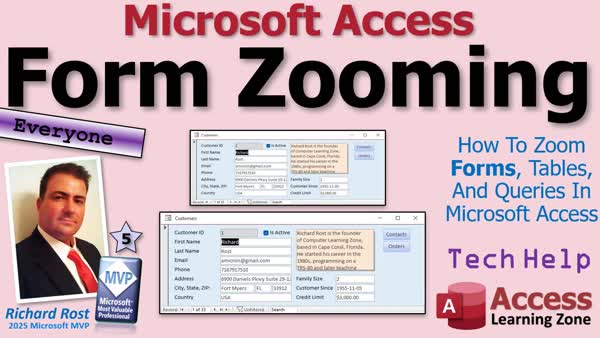 TechHelp Access, form zooming, zoom controls, zoom forms, zoom tables, zoom queries, default zoom, datasheet view, design view, version 26.05, current channel, beta channel, keyboard shortcuts, control mouse wheel, ribbon zoom, status bar slider, activeX controls, large monitor support, windows zoom, report zooming, office updates
 Subscribe to Form Zooming
Get notifications when this page is updated
More InformationTranscript Tired of squinting at tiny Access forms on a giant monitor? What about the other way? You have forms designed for your big office monitor and now you cannot get them to fit on your travel laptop. I have that problem.
Welcome to another TechHelp video brought to you by AccessLearningZone.com. I am your instructor, Richard Rost, and today we are going to talk about a new form zooming feature in Microsoft Access. You will learn how to zoom forms, tables, and queries, where to find the new zoom controls, and what to do if you update Office but the feature does not show up right away.
Microsoft just released a brand new feature for Access: the ability to zoom in and out on forms, tables, and queries. This is another great reminder that yes, Access is still alive and well. Microsoft is still working on it. They are still adding new features, and this is one that people have been asking for for years.
I am going to walk you through the new features. Stick around to the end of the video because I am also going to talk about Office update issues. I updated one of my machines to the correct version, version 2605 on the current channel, and I still did not get the feature right away on my regular computer. We will talk about why that happens, what you should check before updating, and why I normally keep Office updates turned off. We will talk about that later.
Access now lets you zoom in and out when you are working with forms, tables, and queries in Form view or Datasheet view. It does not work in Design view yet. This is great for readability. You can zoom in if you want a closer look at your data, or you can zoom out if you want to see more records and more controls on the screen at once. This is, like I said before, especially useful for people using large monitors, 4K monitors, laptops with high DPI screens, or anyone who just does not want to squint at their database all day.
I am now at an age and a vision quality where I appreciate this kind of thing a lot more than I used to.
There are a couple different ways to zoom in on a form. You can use the little new slider down here. Just go plus like this, and minus to zoom back out. There is also a zoom box up here.
You can zoom in, you can zoom out, you can use the keyboard. It is Control-Alt-plus and Control-Alt-minus. You can also use the scroll wheel on your mouse. Hold down the Control key and use the scroll wheel. Although I cannot demonstrate that one because I am remoting into this machine. Like I said, this is my other machine that has the beta version installed. We will talk about that a little bit later.
It also works if you switch to Datasheet view. You can also zoom in and out. I do not do a lot of work in Datasheet view myself. I prefer Continuous forms, and unfortunately Continuous forms do not have this feature yet. They are going to be adding it, and again, we will talk about that in a few minutes.
With most regular forms, single forms, you can zoom in all the way to 500 and all the way out to 50. You will notice the form does not resize with it. That is one thing I suggested at Access Day and at the MVP Summit, so maybe they will add that. We will see.
Note that this does not change the design of your form. It is just zooming in and out on what is actually there.
Speaking of design, it does not work in Design view. Again, that is on their roadmap list. Hopefully they will have that out soon, because that is one thing that I need. I need it more in Design view than I do in Form view. I want to be able to zoom in so I can get these guys right on the exact little grid dots that I need them on. That is my thing. I use the Windows Zoom for that all the time.
You should find that this is pretty close to what we have in Word and Excel already.
If you want this particular database to always be zoomed in, for example if you designed it for your office and you have a copy on your travel laptop, you can set the default zoom. Close everything, go to File, and then Options. Under Current Database, you will find the default zoom here.
Let us say you are on your giant monitor now and you want to make sure that this always opens up forms smaller than normally designed. Set this to something else, like 70. Click OK. Now notice when you open up forms, they are opening up smaller. These will normally open at that zoom rate. All of your forms will.
Or vice versa, if you are on a machine where you want them bigger, or you have that one person in the office with really horrible eyesight, even with their bottle glasses on like me, and you want to make all of their forms open bigger, just go into File, Options, and set this to something bigger, like 120. Now they will all open bigger. That way you do not have to individually zoom in each time. I am going to put mine back to 100.
This feature also works with tables and queries. You can open up a table, you can zoom in and out. Although this is for us, the developers. We never let our end users poke around in tables. Queries maybe, but I still keep them in just forms and reports. I do not let them poke around in my tables or my queries.
As far as reports go, we have had report zooming for Print Preview forever. You can come in here and zoom in and out, change it over here on the slider bar. It is not supported yet in just regular Report view, although I never use regular Report view, so I am not too worried about that. That is something that is also on the roadmap that they are going to be adding.
There are some other limitations. Pop-up forms do not work with zooming just yet, and that is another one that they have listed on the Microsoft roadmap. It is slated for release in June, 2026, so we will see.
Keep in mind if you are using any ActiveX controls (those little controls you can plug in that are not really part of Access), those will not zoom as well, like the old TreeView control for example. As you guys who have been following my channel for any time know, I try to avoid those ActiveX controls as often as I can.
Bottom line: you can zoom your forms, tables, and queries. You can use the ribbon, you can use the status bar slider, you can use the keyboard shortcuts, you can use Control and mouse wheel, and you can set the default zoom level. That makes Access much easier to work with and read on modern displays. It is a great new feature, and I am very happy to see the Access team continuing to improve the product.
Now, for developers, there is good news too. At Access Day and during the MVP Summit, there was some discussion about exposing this feature to VBA. That means in the future, we might be able to set the form's zoom level directly in code. Something like Me.Zoom = 150 or something. It is not available yet, but it is on their roadmap. You can change the zoom level of reports with the DoCmd.RunCommand, and I have covered that in some other videos. Again, that is one of those features I almost never use. Reports are to be printed or made into PDFs, that is about it.
Now let's talk about updating.
Before you run out and update Office, here is my advice. First, take note of what version of Office you are currently running. You can do that under File, then Account, then go into About Access and you will see it right here. This is my machine that I have in the Beta channel, which is where you get all the newest features as soon as they are released to Beta. This is the one I play around with, because I went to update my main computer (the one that I do all my work and my recording and videos on) and it did not update with this new feature.
That is because Microsoft rolls out these features gradually. Two people can have the exact same version and build, and one will get the feature before the other. Microsoft does this so they can enable the feature for a small group first, watch for problems, and then expand the rollout over several days. So if you update to version 26.05, which is the version that is supposed to have it (like I said, this is the Beta version, so I am actually ahead), here is the version on my regular computer that I just updated: it is 26.05, which has the Form Zooming in it. But if you update to this version and you do not see Form Zooming, you did not do anything wrong, it is just simply not enabled for your installation yet, so you might have to wait a couple days. The feature is on the way, but Microsoft has not flipped the switch for your machine yet.
First of all, make sure you are running Microsoft 365. If you have the perpetual version like a 2024 or whatever, you are not going to get it. You have to have a 365 subscription to get these new features. That is one of the benefits of the subscription model.
Make sure you have 26.05, build 16, or later. Make sure you are in the Current Channel. There is Current Channel and Beta Channel, and some other enterprise channels. You have to be in the Current Channel or the Beta Channel.
Even if you have done all that and you still do not have it, you might have to wait a few days. That is what happened to me. I am still waiting on this machine to get Form Zooming.
Why do I also say to make sure you take note of the version, your older version, the one that you know was working just fine? Just in case any problems are introduced when you upgrade, you know what version you need to roll back to. I have actually had to do this several times. In fact, I have had to do it so many times, I made a video about it in case you have to as well.
What I normally recommend you do is install the update on a PC that is not necessarily critical. If you have a couple machines in your office like I do, install the new version on one that you do not need to use. Make sure everything works, your databases that you use on a regular basis. If that is okay, then update everything else.
There is nothing worse than installing an Office update and then all of a sudden it breaks something. Something does not work right. Even if it is just a little bug, it can still cause you to lose precious productivity time. This is one of the reasons I normally keep updates off for both Windows and Office. I do not let my system automatically update on its own. There is nothing worse than coming in on a Monday morning and hearing, by the way, last night we installed a new version of Office and now nothing works.
So I install updates manually and I do it when I know I have got a few hours just in case. I am like, all right, I am going to install the update now and I have got till two o'clock to roll back if I have to. So I do it manually myself. That is just my recommendation.
If you install the new update and it does not show up right away, just give it a couple days. If you want to update again, sometimes that has to happen because I usually leave this off. I am going to turn it back off in a minute and I always keep coming in here and checking to see if it says you are up to date. I know I am not up to date. I do not have the new feature installed. I will be patient.
That is it. That is the Form Zooming. It is a great addition. It makes Access easier to read and helps with modern monitors. They are going to be rolling out large monitor support soon, too. I cannot wait for that because I have got a giant monitor and I can only make these little teeny tiny forms. What is it? 21 inches is the limit. This is a great new addition, and once again, it proves that Access is still very much alive and well in 2026.
For everybody who keeps saying that Access is dead, well, somebody forgot to tell Microsoft because the Access team is still cranking out new features.
If you found this video helpful, give it a thumbs up. Post any questions you have down below. Let me know if you have the new zoom feature yet. I am curious to hear what version you are running and whether or not it showed up right after updating, because I am still waiting for it on my machine and I am a little sad.
But that is going to do it for your TechHelp video for today. I hope you learned something. Live long and prosper, my friends. I will see you next time. Intro In this lesson, we will discuss the new form zooming feature in Microsoft Access, which allows you to zoom in and out on forms, tables, and queries for better readability. I will show you how to use the zoom controls, set default zoom levels, and explain which views and versions support this feature. We will also talk about update rollout issues, what to do if the feature does not appear after updating, and some current limitations like lack of support for Design view and pop-up forms. This lesson covers practical tips for using form zooming and managing Office updates. Quiz Q1. What new feature did Microsoft recently add to Access?
A. The ability to zoom in and out on forms, tables, and queries
B. The ability to add 3D charts to reports
C. Automatic data backup on close
D. Cloud sync between multiple databases
Q2. Which views currently support the new zoom feature in Access?
A. Form view and Datasheet view
B. Design view only
C. Report view only
D. Layout view only
Q3. How can you zoom in and out on an Access form?
A. Slider in the status bar, ribbon controls, keyboard shortcuts, and mouse wheel with Control key
B. Only by resizing the window
C. Only through VBA code
D. By installing a third-party add-in
Q4. What is the keyboard shortcut for zooming in and out on Access forms (as of this feature)?
A. Control-Alt-plus and Control-Alt-minus
B. Alt-Z and Alt-X
C. Shift-plus and Shift-minus
D. Control-F and Control-G
Q5. Where can you set the default zoom level for a database in Access?
A. File > Options > Current Database
B. Database Tools > Zoom Settings
C. View > Zoom Default
D. Table Design > Zoom
Q6. Does the zoom feature change the design of your form?
A. No, it only changes the view zoom level temporarily
B. Yes, it changes the size of controls in design mode
C. Only if saved after zooming
D. Yes, but only for tables
Q7. Which scenario would likely benefit from setting a default zoom level larger than 100?
A. Users with poor eyesight using small monitors
B. Developers adding new tables
C. Users printing reports to PDF
D. Those editing VBA code in the editor
Q8. Why might the zoom feature not appear immediately after updating Office to the required version?
A. Microsoft gradually enables new features for different users
B. Hardware incompatibility
C. Corrupted database files
D. Only available in the perpetual versions of Office
Q9. If you want to ensure everything works after an update, what does Richard recommend?
A. Install it first on a non-critical PC
B. Install updates automatically on all machines at once
C. Avoid all updates forever
D. Only use the Beta channel
Q10. On which Access items does the zoom feature NOT currently work?
A. Pop-up forms and continuous forms
B. Tables and single forms
C. Queries in datasheet view
D. Print Preview of reports
Q11. What version of Office is required to receive the new Access features like zooming?
A. Microsoft 365 subscription-based versions in the Current or Beta Channel
B. Any version from 2010 onward
C. Only perpetual licensed Office 2024
D. Office Web apps
Q12. Why should you take note of your current Office version before updating?
A. So you can revert back in case of any new bugs or issues
B. To qualify for a Microsoft rebate
C. To activate backup features
D. To track how often you use Access
Q13. Does the new zoom feature work with ActiveX controls?
A. Not reliably, such controls may not zoom properly
B. Yes, it fully supports all ActiveX components
C. Only with new ActiveX controls
D. Only in Beta channel
Q14. Is zooming in report Print Preview a new feature in Access?
A. No, report zooming in Print Preview has been available for years
B. Yes, it was just introduced
C. Only available for A4 page size
D. Only in the cloud version
Q15. Is there currently a way to set form zoom through VBA code?
A. Not yet, but it is on the Microsoft roadmap
B. Yes, using Me.Zoom
C. Only in Access 2010
D. Only with ActiveX commands
Answers: 1-A; 2-A; 3-A; 4-A; 5-A; 6-A; 7-A; 8-A; 9-A; 10-A; 11-A; 12-A; 13-A; 14-A; 15-A
DISCLAIMER: Quiz questions are AI generated. If you find any that are wrong, don't make sense, or aren't related to the video topic at hand, then please post a comment and let me know. Thanks. Summary Today's video from Access Learning Zone covers a helpful new feature in Microsoft Access: the ability to zoom in and out on forms, tables, and queries. I'm Richard Rost, and if you've ever struggled with the size of your database objects, either squinting at tiny forms on a large monitor or trying to squeeze everything onto a smaller travel laptop screen, you will find this update especially useful.
Microsoft has rolled out a zoom feature for Access that lets you enlarge or shrink the view in forms, tables, and queries in both Form view and Datasheet view. This does not affect the actual design of your forms but changes how they're displayed, making it much easier to read and work with your data on any size screen. If you're using a high-resolution display, a 4K monitor, or just prefer larger text for comfort, you now have several options to customize your experience.
To use the zoom feature, there are multiple options. You can adjust a slider on the status bar, use the zoom control on the ribbon, or rely on keyboard shortcuts such as Control-Alt-plus to zoom in and Control-Alt-minus to zoom out. There's also support for Control plus your mouse's scroll wheel; though, because I remote into my test machines, I'm not able to demonstrate that one directly. This functionality applies when you switch to Datasheet view as well, though it doesn't support Continuous forms just yet. Microsoft has listed extending zoom to Continuous forms as a planned enhancement.
The zoom range is quite flexible. With regular forms, you can scale from as large as 500 percent down to 50 percent. It's worth noting, however, that resizing only affects what you see on the screen - the forms themselves don't physically resize. This is something I've suggested for future improvement when speaking at Access Day and the MVP Summit, and hopefully it will be addressed in upcoming updates.
The zoom feature isn't available in Design view yet, even though that's where I would personally find it most useful - getting right onto those precise grid points is a big help in design work. For now, I still rely on the Windows Zoom tool for that. Still, this aligns Access with similar features already found in Word and Excel.
If you want all forms in a particular database to open at a specific zoom level, there's a way to set a default. After closing all objects, go to File, then Options, and under the Current Database section, set your desired default zoom level. This is a great way to ensure consistent viewing for databases that travel between different-sized monitors, or for users who need larger text by default. Just update the setting accordingly, whether you want forms to open smaller on a big monitor or larger for visibility.
You can use zoom in tables and queries as well, which is particularly helpful for developers like us. Still, remember that it's best practice not to let end users poke around inside tables. For reports, zooming has been available in Print Preview for a long time, but not yet in regular Report view. Again, that's another planned addition according to Microsoft's roadmap.
There are some current limitations. Pop-up forms do not support zoom yet, but this should be changing in a future update scheduled for June 2026. ActiveX controls, like the old TreeView control, also do not zoom along with the rest of the Access interface. Personally, I avoid ActiveX controls whenever possible for this and other compatibility reasons.
For developers, there's good news ahead. At the recent Access Day and MVP Summit, there was talk about exposing zoom settings to VBA. In the future, we may be able to control the zoom level of a form directly through code, though this feature does not exist yet. For reports, you can already control zoom with certain commands, though I rarely use this since reports are typically generated to print or as PDFs.
Now, let's discuss updating Office to access this feature. Before updating, I recommend taking note of your current Office version. You can check under File, Account, and then About Access. The new zoom feature is available starting with version 26.05 on the Current Channel or Beta Channel for Microsoft 365 subscribers. If you have a perpetual license like Office 2024, you will not get these new features. Even after updating, you may not see the zoom controls immediately. Microsoft releases new features in phases, rolling them out to some users before others to monitor for any issues. So, you might have the correct version and still need to wait a few days for the feature to appear.
If you are managing updates, I suggest updating a non-critical PC first to check for possible compatibility issues in your regular databases. This way, if an update causes any problems, you know which version to roll back to. I always update manually when I can set aside enough time to handle any potential issues, rather than letting updates run overnight and being surprised by problems the next day.
If the new feature doesn't appear right away after updating, just be patient - it should show up soon. Keep in mind that frequent updates can sometimes introduce unexpected bugs, so knowing how to revert to a previous version is always a smart practice.
In summary, Access now lets you quickly and easily adjust how you view your forms, tables, and queries, making it a much more flexible tool for modern hardware and individual needs. Microsoft continues to enhance Access, proving the platform remains alive and well even as we move toward 2026.
You can find a complete video tutorial with step-by-step instructions on everything discussed here on my website at the link below. Live long and prosper, my friends. Topic List Overview of Access form zooming feature
How to zoom in and out on Access forms
Using the status bar slider for zooming
Using the ribbon zoom controls
Keyboard shortcuts for form zooming
Zooming with mouse wheel and Control key
Limitations on zooming in Design and Continuous forms
Setting the default form zoom level in database options
Zooming tables and queries in Datasheet view
Zooming limitations with reports and Report view
ActiveX controls and zoom compatibility
Office version requirements for form zooming
Verifying Office channel and build for new features
Understanding gradual feature rollout in Microsoft 365
Best practices for Office updates and testing
Rolling back Office updates if issues occur Article If you find yourself struggling to work with Microsoft Access forms that either look tiny on a large monitor or overwhelmed on a small laptop screen, you are not alone. This has been a common challenge for many Access users. Thankfully, Microsoft has now introduced a zoom feature in Access that allows you to easily adjust the size of forms, tables, and queries in both Form and Datasheet view. This feature is especially useful for improving readability on high-resolution monitors or smaller, high-DPI screens, and it is a great enhancement for users who spend a lot of time working with data in Access.
Using the new zoom controls in Access is very simple. When you open a form, table, or query in Form view or Datasheet view, you will notice a slider at the bottom of the screen. You can adjust this slider to zoom in by increasing the plus side or zoom out with the minus side. There is also a zoom percentage box in the ribbon where you can set a specific number. If you prefer keyboard shortcuts, use Control-Alt-plus to zoom in and Control-Alt-minus to zoom out. Another handy method is to hold down the Control key and use your mouse scroll wheel to adjust the zoom, just like in Word or Excel.
Keep in mind that this zoom feature is currently not available in Design view or on continuous forms. It only works for single forms and in regular Datasheet view. Microsoft is planning to add zoom support to additional views and form types in upcoming updates, so you can expect even more flexibility in the future. Right now, you can zoom from as low as 50 percent up to 500 percent. However, zooming does not actually resize your form; it simply enlarges or shrinks what you see on screen. The underlying design of your form does not change.
For those who use Access forms in different environments, such as a large desktop monitor at work and a small laptop on the go, you can set a default zoom level for the entire database. To do this, close your forms, go to File, then Options, and under Current Database, you will find an option for Default Zoom. Set this to your desired zoom level, such as 70 or 120, depending on whether you want your forms to open smaller or larger. Every form you open will then appear at this default zoom percentage, which is especially helpful if you have users with different eyesight needs.
The zoom feature is also available when viewing tables and queries. While most developers prefer not to let end users access tables directly, this can still be useful if you are working with data as a developer. Queries support zooming too, although the same best practices apply. For reports, zooming has been available in Print Preview mode for a long time, but this new zoom feature is not yet available for regular Report view. Microsoft plans to add this in the future as well.
There are a few limitations to be aware of. Currently, pop-up forms do not support zooming. If your forms use ActiveX controls, such as the old TreeView control, these elements may not zoom correctly. In general, it is best to avoid ActiveX controls in Access where possible for the sake of compatibility and stability.
This zoom feature makes Access much more comfortable to use on modern displays, and I am glad to see Microsoft investing in improvements. It works similarly to what you may already be used to in other Office applications like Word and Excel, so the learning curve is minimal. You now have multiple ways to access zoom controls: through the status bar slider, the ribbon, keyboard shortcuts, or the mouse wheel.
Developers have even more to look forward to. Microsoft has shared that they plan to eventually allow you to set zoom levels with VBA code, such as with a property like Me.Zoom. Although this is not yet available in Access for forms, you can already control zoom for reports using the DoCmd.RunCommand method. This future capability will allow deeper customization and provide more control for developers writing database applications in Access.
Before you rush to enable this feature, it is important to note some caveats with updating Office. The new Zoom feature requires Microsoft 365, so those with perpetual licenses like Office 2021 or 2024 will not receive it. Make sure you are on version 26.05, build 16, or later, and that your update channel is set to Current Channel or Beta Channel. Microsoft rolls out new features gradually, even to users with the right version and channel, so you may find that the Zoom feature does not appear immediately after updating Office. This staggered rollout helps Microsoft monitor stability, but it means you might need to wait a few days before the feature activates on your device.
To check your current Office version, open Access, go to File, then Account, and then click About Access. Take note of your current version before updating, in case the new update causes any problems and you need to revert to your previous version. It is a wise practice to first install updates on a non-critical PC, verify that your databases work as expected, and only then roll out all updates to your most important machines. Unexpected problems from updates can occur, and having a working setup to fall back on is always good insurance.
Personally, I recommend turning off automatic updates for Access and Windows, and updating manually when you have extra time to troubleshoot any issues or roll back to an older version if necessary. This avoids surprises like coming in to work and discovering that an overnight update has broken crucial functionality.
If you have upgraded and the zoom feature still is not visible, just be patient. Microsoft will enable it for your installation soon. In the meantime, keep checking for updates and monitor your version information.
In summary, Microsoft Access now allows you to zoom in and out on forms, tables, and queries, making it much easier to use across different screen sizes and resolutions. Although there are currently some limitations, Microsoft is continuing to enhance this feature, demonstrating that Access is still an actively developed and supported product. If you use Access regularly, you will likely appreciate how much this new zoom feature can improve your workflow and comfort, especially if you spend a lot of hours in front of your database. Stay tuned for additional improvements as Microsoft continues to roll out more enhancements for Access in the future. Primary Topics Access form zooming, zoom controls, Office update issues, Access version requirements, zoom methods, default zoom settings, feature limitations Secondary Topics roadmap features, report zooming, ActiveX controls, update recommendations |




