Power Apps
By Richard Rost

 3 months ago
Build a Power Apps Mobile Front End for SQL Server In this lesson, we will explore how to use Microsoft Power Apps to build a simple mobile front end for your existing Microsoft Access database by moving your data into SQL Server. We will discuss different methods for accessing Access data remotely, reasons for choosing SQL Server over SharePoint or Dataverse, and walk through setting up a Power Apps canvas app connected to your SQL Server database. I will show you how to start a new phone-size canvas app in Power Apps and connect it to your SQL Server tables, preparing your app to view and edit data on mobile devices. LinksUp Next
Keywords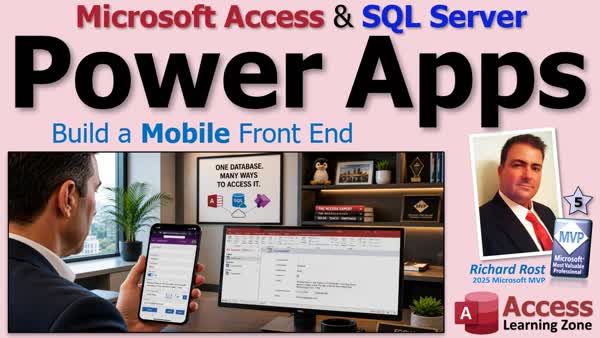 TechHelp Access, Power Apps, SQL Server, connect Access to SQL Server, mobile database app, Power Apps mobile, Access SQL migration, Power Apps SQL connector, Access web app, Power Platform, Dataverse, cloud database, database front end, remote database access
 Subscribe to Power Apps
Get notifications when this page is updated
More InformationTranscript I wish you could pull up your Microsoft Access database on your phone without rebuilding your whole application.
Welcome to another TechHelp video brought to you by Access Learning Zone. I am your instructor Richard Rost. Today we are going to learn how to use Microsoft Power Apps to build a simple mobile front end for your existing Microsoft Access database.
Now before anybody panics, no, we are not replacing Access. In fact, we are going to do the exact opposite. Access is still going to be your desktop front end. We are just moving the data into SQL Server so it can also be used by Power Apps, your website, and other applications. When we are done, you will have a working Power App on your phone while still using the same Access database you have already built on your Windows desktop.
Now before we get started, I know what some of you are thinking. Being Richard, are you not supposed to be working on your SQL Server course or the next Access Developer class? Well yes, but today I had some work being done in my office, so I grabbed my laptop, headed out to the kitchen table, made some coffee, and I figured I would finally spend some time playing with Microsoft Power Apps.
I get emails all the time from people asking how can they take their Access database, move the data into SQL Server, and then have something simple they can use on their phone or in a web browser while they are on the road. I figured this would be the perfect opportunity for me to put together a simple little Power Apps app to show you guys how to connect Access to SQL Server, and then put that on your phone with a Power App. It is real easy, you can do it in an afternoon just like I did.
Now this is not going to be an in-depth Power Apps course, it is just a first look from the perspective of an Access Developer, but if you guys want to see more, let me know and I will make more Power Apps videos.
Now before we talk about Power Apps, let us take a step back and look at the different ways you can connect to your Access database when you are away from your office.
If your goal is simply to use your existing Access database remotely, you do not necessarily need to convert anything or build a web application. One option is just to use Remote Desktop, like Chrome Remote Desktop, and that is actually what I do. When I am on vacation or away from the office, I just leave my computer running, you can connect to it over the internet, and it is just like I am sitting right at my desk. I can use Microsoft Access exactly the way I always do.
Now not everyone wants to leave their computer running 24 hours a day, seven days a week, especially when they are gone for a week. So that is where hosted solutions like Access Database Cloud come in. Instead of running Access on your machine in your office, your database and Microsoft Access simply run on a virtual Windows computer in the cloud on one of their computers. So you and your users simply connect to that remote machine, and again, you are using the same Access application you are already familiar with with little to no changes, and it is a great option if you want to keep using Access without worrying about maintaining your own hardware and leaving your computer running all the time.
Oh, and of course I have to mention do not use file sharing services, Dropbox, OneDrive, Google Drive, unless it is just you. Do not use those for sharing your Access Database. Big no no, watch this video for more.
Alright, so if you do not want to connect directly to your Access Database remotely, the next option is to move your data into the cloud. There are lots of places you can put it, but these are the three that I recommend looking at.
The first is SharePoint. Now SharePoint works well for small teams, and I have got a whole seminar on using it. But personally I find SharePoint a little limiting, and the only time I recommend SharePoint is if your organization is already heavily invested in the SharePoint ecosystem. I have got a whole seminar on connecting Access to SharePoint so you can check this out for more information.
Now second is my preferred solution, which is SQL Server. I have got several courses on SQL Server because I believe it is the best long term home for your Access data. Once your tables are in SQL Server, you can continue using Microsoft Access as your Windows front end, connect to your own websites and applications, use reporting tools, and as we are going to see today, build Power Apps that let you access your data from a phone or a tablet, and this gives you the most flexibility going forward.
Now the third option is Dataverse, Microsoft's cloud database that is designed specifically for the Power Platform. Now if you are building a solution entirely around Power Apps, Dynamics 365 or the rest of Microsoft's Power Platform, then Dataverse is definitely worth considering. My preference however is still SQL Server because it is an industry standard relational database that works with just about everything.
Once your data is in SQL Server, you can continue using Microsoft Access, you can build your own web applications, you can connect reporting tools, or you can use Power Apps like we are going to do today. SQL Server gives you the flexibility to choose the best front end for your application instead of committing to just one platform.
Now I may do a future video on Dataverse, but for today we are going to use SQL Server because that is the approach I recommend for Access developers. If you would like to see some videos on Dataverse, post a comment down below and maybe I will make some.
Alright, so you have got your data online, now what? Now it is assumed you have moved your data up to SQL Server, like I recommend. The next question is, how do you get that data onto your phone or your tablet when you are away from your PC? As always, you have got a couple options.
The first option is to build your own web application. That is what I do. I have been writing web applications since the 1990s using HTML, CSS, JavaScript, and classic ASP active server pages. It is certainly not the only way to do it, but it gives you complete control over the user interface and exactly how your application works. It is literally writing code, nitty gritty. It is old school, but that is me, I am old school.
If you are interested in that approach, I do have a complete course on using active server pages. My colleague, Alex, has also put some ASP.NET lessons on the website as well, the newer version. But that is if you want to do hardcore programming.
Now the second option, which is the one that we are going to focus on today, is Microsoft Power Apps. Think of Power Apps like a graphic application designer that is somewhat similar to the form builder in Access. You drag and drop controls onto a form, connect them to your SQL Server tables, and with surprisingly little code, you can build a simple little web and mobile application.
It is definitely a different way of thinking than Access development, but for straightforward business applications, it is a solid option. Like I said, you could put something simple together in an afternoon.
Finally, there are a bunch of third party low code application builders that can connect directly to SQL Server and build you a web interface. Lots of products - Retool, Appsmith, Tooljet, there are lots of them. They all have their fans. I have not spent enough time with all of them to recommend one over the other, but they are worth knowing about if you are evaluating other options. If you have got a favorite, post a comment down below, let me know what you are using.
For today though, we are going to stick with Power Apps because it is Microsoft's solution. It integrates very well with SQL Server. It is the one that I get asked about most often.
Now I do want to point out one important limitation. Power Apps is designed for internal business applications, not public websites. Each person who uses your app will need a proper Microsoft account, permission to access the app, and the appropriate Power Apps license if you are using premium features like the SQL Server connector that we will talk about later.
If your goal is to build a public facing website where anyone can browse your data without signing on, Power Apps is probably not the right tool. But if you are building an internal application for employees or other authorized users, it is an excellent option that is well integrated with the Microsoft ecosystem.
So if you want something where maybe your sales reps, your secretary, whatever, can get access to your contact data, order information, whatever when they are on the road, employees, that is what Power Apps is good for.
For today's lesson, here is the game plan. We are going to assume you have already moved your data from Microsoft Access into SQL Server. I will talk more about this in a few minutes. We are going to use a simple customer table and then we are going to use Microsoft Power Apps to build a lightweight mobile application that lets us view and edit the data from a phone or tablet.
But I want to emphasize one very important point before we continue. Power Apps again is not replacing Microsoft Access. Once your data is in SQL Server, your Windows users can continue to use Access just the way they always have. This of course, in my opinion, is still the best desktop front end for Windows applications period. I do not see that changing anytime soon.
What SQL Server gives you is flexibility. Your Access users continue working in Access. Your mobile users can use Power Apps. You can connect reporting tools, Excel, or just about anything else that speaks to SQL Server.
That is the real goal here. One database, multiple front ends, with each user working in the application that is best suited for the job. Then later on, if you want a public facing website for customers or clients, you can build your own web application like I do using ASP or just about any other web development platform that can connect to SQL Server.
The important thing is not the front end. It is having all of your data in one central, reliable database. So SQL Server becomes the backbone of your entire application. From there, you can build whatever front end best fits your user's needs.
Alright, now before we go any further, I am going to assume you have already completed one very important step: getting your Access tables into SQL Server. If you have not done that yet, do not worry, I have got you covered.
In my Access SQL Server online seminar, the first three lessons explain how to do that and they are completely free. They walk you through the entire process from start to finish.
In these lessons, we will create an account with my preferred hosting provider, Winhost, where you can get SQL Server hosting for like five bucks a month. It is not expensive. I will show you how to create your database, find all of the connection information that you need - your server name, database name, username, and password - and then migrate your Access tables up to SQL Server.
Oops, someone's beaming in.
Finally, we will relink those tables back to your Access database so your existing forms, reports, and queries continue working just as they always have, but now your data is in the cloud.
That is going to be the foundation for everything we are doing today. Once your data is in SQL Server, you are ready to build all kinds of different front ends, including the Power Apps application that we are about to create.
So if you have not watched those lessons yet and you have not migrated your data up to SQL Server, what are you still doing here? Go watch them. Go on, they are free. Seriously, I will wait. Well, not really. I am going to keep going, but go, get out of here and then come back to this later after you have got it all set up.
Alright, so if you followed all the instructions in those other videos, you have got your SQL Server all set up. You have got your server address, your database name, your username, and your password to connect to it. No, you are not getting my password. You should know how to connect to it using SSMS and then make a simple query. Like I am going to select all from customer T and then execute it. There is my record. So I am connected, so my connection information is solid.
Alright, so the next thing to do is we are going to head over to Microsoft's website. Go to powerapps.com or specifically it is make.powerapps.com. Get rid of all that extra stuff on the end there. You will need a Microsoft login, which if you do not have one, set one up now, and then it will eventually bring you to this page.
There are all kinds of different startup options and things you can do. We are just going to keep it simple and streamlined today.
So let us come over here and click on create. Then there are all kinds of different options in here, split screens, headers, and you can start from data and work backwards. We are just going to go with the first one, create from blank.
This is a canvas app. You can think of a canvas app like a blank Access form. You start with the empty page and then you decide where everything goes. Your text boxes, buttons, labels, all that stuff. You drag them around just like you are designing an Access form. If you are an Access developer, this will feel the most familiar.
If you have watched any of my Access videos, you know how I feel about having Access just automatically build stuff for me, like with the automatic layouts and stuff. No, I prefer going into design view and just putting stuff where I want it. That is why I like building stuff by hand. I like the canvas app.
Alright, so let us start from blank. Click on app. Now there is responsive tablet size and phone size. Responsive is the one where it kind of fits to the platform. You can have it on desktop, on tablet, on phone.
For today's video, I am going to pick phone size instead of responsive. Responsive apps are designed to automatically adapt to the screen size. That is a powerful feature, but it also introduces layout, containers, and other concepts that are a little more advanced than I want to cover in this intro lesson.
By choosing the phone size canvas, we can design for a single screen size, much like designing a form in Microsoft Access. The app will still run on larger devices like tablets and desktop browsers, it just will not automatically expand to fill that extra space.
Once you are comfortable with the basics of Power Apps, if you guys want to see more videos, we will come back and explore the responsive layout. For today, I will just pick phone size. Nice and easy.
Alright. Getting things ready, getting some stuff, it is crunching. Here we go. As soon as it is done doing its churning and bubbling, we have got our little phone screen kind of thing here. We have got some properties over here. We have got some navigation over here, very Access-like, somewhat.
You might also see some wizards pop up. I already turned them off. So if you get the little pop up that says, hey, we can do this and show you that, just cancel it for now. I am going to show you what you need.
Now the next thing we are going to do, and I am going to actually resize it just a little bit because we do not need to see all my buttons up top here in my browser. That is a little better.
The next thing we are going to do is connect our data source. Our SQL Server.
So I am going to come over here and click on data. It says there is no data in your app. Alright, let us add some data. Select the data source. Now we have not put any data sources in our Power Apps project at all.
So right here, go to search and type in SQL. We are looking for this guy right here, SQL Server. Click on that.
Now you get a sidebar over here saying this is premium. What does that mean? That means that Microsoft considers SQL Server a premium connector, so you will need to have the appropriate Power Apps license to build and run apps that connect directly to SQL Server.
The licensing changes from time to time. As of right now, it is July of 2026. The cost is about 20 bucks a month. So if you are building line of business applications for your employees on top of SQL Server, it is definitely worth the money if it is something you are going to be using a lot. But just keep that in mind.
Now if you are just kicking the tires and want to learn Power Apps, Microsoft offers a free Power Apps developer plan, which lets you experiment with it, but you cannot actually deploy it. There is also a free 30 day trial, which is what I am using right now. The nice thing about the free trial is they do not bug you for a credit card until your free 30 days are up. So that is pretty cool too. It gives you a chance to play with it, get everything set up, see if you like it, and then you can decide if you want to keep paying for it.
Alright, so let us connect to our SQL Server. I am going to drop this down and pick SQL Server Authentication. We are going to connect directly to cloud services. Now here is where we need the stuff that we got from Winhost or whoever your provider is.
Here is your server name, that SQL Server name. Here is my database name. Here is my username. Then I will go grab my password from my other screen. Once you have got all that in there, hit connect.
It will say it is a premium feature, requires users to have a premium license. Okay, do not kill this again. Got it. Your browser comes up asking if you want to save that password. No thanks.
After some churning and bubbling, you are going to get this. It is going to say, oh, what tables do you want in this app? For today, I just want one table, my customer table, but notice in your available options here under tables, you will see Ts and Qs.
If you have taken my Access classes, you know that I end all of my table names in T and my queries in Q. When I created the SQL Server database, I created some views on the server. I know view ends in V, but I still use Q because old habits die hard. Here you can see your tables and your views.
I am going to find my customer table. That is the only one that I want for today. I am going to hit connect. Then you will see the data source customer T was added to your app. Now we are good to go.
So now we have got our app all set up. We have got our data source in here. Now we are all set and ready to start adding fields into our, let us call it form. We will do that in tomorrow's lesson.
So tune in tomorrow, same bat time, same bat channel. Or if you are a member, you are going to watch it right now because I am going to keep recording and I am going to finish this tonight.
There you go. Now you know why we are using SQL Server and Power Apps. You have got your SQL Server online. You have got at least one table up there and now we have got that table connected to our Power App.
We are going to finish all this up in tomorrow's video. That is going to be your TechHelp video for today. I hope you learned something.
Live long and prosper my friends. I will see you tomorrow for part two. Intro In this lesson, we will explore how to use Microsoft Power Apps to build a simple mobile front end for your existing Microsoft Access database by moving your data into SQL Server. We will discuss different methods for accessing Access data remotely, reasons for choosing SQL Server over SharePoint or Dataverse, and walk through setting up a Power Apps canvas app connected to your SQL Server database. I will show you how to start a new phone-size canvas app in Power Apps and connect it to your SQL Server tables, preparing your app to view and edit data on mobile devices. Quiz Q1. What is the main purpose of the video tutorial?
A. To show how to build a mobile front end for an Access database using Power Apps and SQL Server
B. To replace Microsoft Access with a new application
C. To demonstrate advanced web application development with JavaScript
D. To teach how to use Dropbox with Access databases
Q2. According to the instructor, what remains the desktop front end after migrating data to SQL Server?
A. Microsoft Power Apps
B. Microsoft Access
C. Dataverse
D. SharePoint
Q3. Why does the instructor recommend using SQL Server for storing Access data?
A. It provides the most flexibility for using multiple front ends
B. It is the only cloud option available
C. It automatically creates web applications
D. It is cheaper than all other solutions
Q4. What is a key advantage of moving your Access tables into SQL Server?
A. You can connect multiple front ends to the same data source
B. You cannot use Access anymore
C. You must only use Power Apps after that
D. Your data cannot be reported on
Q5. What is NOT recommended for sharing Access databases with multiple users?
A. Hosted solutions like Access Database Cloud
B. SQL Server
C. File sharing services like Dropbox or OneDrive
D. Remote Desktop
Q6. What are some valid ways to connect to an Access database remotely, according to the instructor?
A. Remote Desktop and using Access Database Cloud
B. Only by emailing database files back and forth
C. Using PowerPoint to display forms
D. Printing records and mailing them
Q7. What is Microsoft Power Apps described as?
A. A graphic application designer that is similar to the Access form builder
B. A replacement for SQL Server
C. A file sharing tool
D. An email client
Q8. Who is Power Apps designed for, according to the instructor?
A. Internal business applications with authenticated users
B. Public websites accessible by anyone
C. Only for home users to store photos
D. For building games
Q9. What licensing consideration did the instructor mention about using the SQL Server connector with Power Apps?
A. It is a premium feature requiring appropriate Power Apps licenses
B. It is always free for all users
C. It only works with SharePoint
D. It only requires a Microsoft email address
Q10. What are alternatives mentioned to Power Apps for building web front ends on SQL Server data?
A. Retool, Appsmith, Tooljet
B. Notepad
C. Microsoft Word
D. Excel only
Q11. What should you do before trying to build a Power App linked to your data, as recommended by the instructor?
A. Migrate your Access tables to SQL Server and verify your connection
B. Connect Power Apps directly to your ACCDB file in Dropbox
C. Skip data migration and start building
D. Use Google Drive to host your Access tables
Q12. What type of Power App does the instructor create for this tutorial?
A. A canvas app with a phone-sized screen
B. A responsive model-driven app
C. A SharePoint-integrated app
D. An app for Mac computers only
Q13. Once your data is in SQL Server, what can you do?
A. Continue using Access on Windows, build Power Apps, connect websites, or use reporting tools
B. Only use Power Apps for all users
C. Only use Excel to manage data
D. Must delete Access from your system
Q14. Why does the instructor suggest not to use file sharing services like Dropbox or OneDrive for Access databases?
A. They can corrupt multi-user Access databases
B. They protect databases better
C. They sync faster than SQL Server
D. They are Microsoft recommended
Q15. What hosting provider is recommended in the video for affordable SQL Server hosting?
A. Winhost
B. GoDaddy
C. Dropbox
D. Google Cloud
Answers: 1-A; 2-B; 3-A; 4-A; 5-C; 6-A; 7-A; 8-A; 9-A; 10-A; 11-A; 12-A; 13-A; 14-A; 15-A
DISCLAIMER: Quiz questions are AI generated. If you find any that are wrong, don't make sense, or aren't related to the video topic at hand, then please post a comment and let me know. Thanks. Summary Today's video from Access Learning Zone focuses on a common request from Access users: how to get your Access database available on your phone without having to rebuild your whole application. My goal is to show you how to use Microsoft Power Apps to create a simple mobile interface for your existing Microsoft Access database.
Let me be clear right away: this does not replace Access. Instead, Access remains your desktop application, and we simply move the data into SQL Server. This opens up the ability to use other tools, like Power Apps for mobile access, websites, and more. When we finish, your Access application keeps working as it always has on your Windows desktop, but you will also have a mobile app on your phone accessing the same data.
I know some of you might be wondering about my upcoming SQL Server or Access Developer courses. I am working on those, but today I had some time away from my usual workspace, so I decided to take my laptop to the kitchen, make some coffee, and finally experiment with Microsoft Power Apps. I have received a lot of questions about moving Access data to SQL Server and making it accessible via phone or browser, and this seems like a great time to put together a practical tutorial.
This walkthrough is not a deep dive into Power Apps, but rather a first look at it from the perspective of an Access developer. If you want to learn more about Power Apps after seeing this, just let me know and I can create additional videos on the topic.
Let us first review your options for connecting to your Access database remotely. If your only need is to use your existing Access database while away from the office, you do not have to convert anything or create a web application. You can use Remote Desktop software such as Chrome Remote Desktop, which is what I prefer myself. As long as you leave your computer running, you can access your machine from anywhere and it feels just like you are at your desk.
However, not everyone wants to leave their computer running nonstop. That's where cloud solutions like Access Database Cloud become helpful; your database and Access application run on a virtual Windows computer hosted in the cloud. You and your users connect to this server, so you do not have to manage hardware or keep your personal computer on all the time. You just use Access as usual, with little or no changes.
A word of warning: do not use file sharing services like Dropbox, OneDrive, or Google Drive to share your Access database unless you are the only user. Using these for multi-user Access databases is a bad practice.
Now, if you do not want to connect to your database directly, your next best option is to move your data to the cloud. There are three main solutions to consider.
First is SharePoint. SharePoint can be useful for small groups and if your organization already invests in SharePoint, it is worth considering. Personally, I find its limitations make it less desirable unless you are already heavily invested in the platform. I have a full seminar on using Access with SharePoint if this fits your needs.
My recommended approach is SQL Server. I have several courses on it, because I think it is the ideal long-term platform for Access data. Once your tables are in SQL Server, you can keep using Microsoft Access as your Windows front end, but now you can also connect websites, mobile apps, and reporting tools such as Power Apps. This gives you maximum flexibility.
The third option is Dataverse, Microsoft's cloud database designed specifically for the Power Platform. If your solution relies only on Power Apps, Dynamics 365, or other Power Platform applications, Dataverse is a good choice. My preference remains SQL Server, since it is an industry-standard relational database that connects to almost anything.
Once your data is in SQL Server, you have a lot of options: keep using Access, build custom web apps, hook up reporting tools, or use Power Apps for mobile access. SQL Server future-proofs your data and allows you to pick the best application front end for each job, instead of being tied to a single platform.
Today, we are staying with SQL Server because it is my strongest recommendation for Access developers. If you want to see coverage on Dataverse in the future, let me know.
Now that your data is online in SQL Server, how do you access it from your phone or tablet while away from your PC? There are a few possibilities.
One is to build your own web application. That is my personal route. I have been writing web apps since the 1990s using HTML, CSS, JavaScript, and classic ASP. This option gives total control over your user interface and app behavior, but it means coding everything by hand. If you want to get into building web apps, I have a full course on using active server pages. My colleague Alex has added lessons on ASP.NET as well.
The second option, and the one we will cover today, is Microsoft Power Apps. Think of Power Apps as a graphical designer much like Access' form builder. You can drag and drop controls onto a form, tie them to your SQL Server tables, and create simple mobile and web apps with little code. The approach and mindset are different from Access development, but for straightforward business tasks, Power Apps offers a great solution. You can have something working in an afternoon.
In addition to Microsoft tools, there are other third-party low-code platforms that work directly with SQL Server; examples include Retool, Appsmith, and Tooljet. These can build a web interface quickly and easily. I have not experimented with all of them enough to make a specific recommendation, but they are worth considering if you are evaluating your options.
For today though, we are focusing on Power Apps, since it is part of the Microsoft ecosystem, works well with SQL Server, and is one of the most requested topics.
I do want to mention an important limitation: Power Apps is meant for internal business applications, not open public websites. Each user must have a Microsoft account, proper app permissions, and the correct Power Apps license, especially for premium connectors like SQL Server. If you need a public website anyone can access, Power Apps is probably not for you. If you need internal apps for employees or approved users, then Power Apps fits quite well.
So if you have staff who need access to customer contacts, orders, or other business data while on the go, Power Apps can provide an effective solution.
Here's the plan for today's lesson: we will assume you have already migrated your Access data from local tables into SQL Server. I will focus on a simple customer table, and I will show you how to use Power Apps to build a lightweight mobile application that lets you view and edit data from your phone or tablet.
One key reminder before we move forward: Power Apps does not replace Microsoft Access on the desktop. With your data in SQL Server, your Access users will continue working as they always do. In my opinion, Access still offers the best desktop Windows front end, and I do not see that changing any time soon.
SQL Server is all about flexibility. Access users stay in Access. Mobile users get Power Apps. You can add reporting tools, Excel, or just about any other tool that connects with SQL Server.
Centralizing your data in SQL Server means you can support multiple front ends tailored to different user needs. If you want to build a public website for customers or clients later on, you can create your own web application linked to SQL Server.
The most important thing is maintaining your data in a single, reliable database. SQL Server becomes the foundation, and you can build whichever front ends fit your users best.
Now, I am assuming here that you have already migrated your Access tables into SQL Server. If you have not, do not worry. I have a complete Access SQL Server online seminar, and the first three lessons are completely free. These take you through setting up an account with my preferred hosting provider, Winhost, which offers affordable SQL Server hosting. I show you how to create your database, find your server and login information, and move your Access tables into SQL Server.
Finally, you relink the tables in your Access front end so all your forms, reports, and queries still work, now against SQL Server in the cloud.
This step is crucial. Having your data in SQL Server is the foundation for everything else we are doing, including building the Power Apps application today.
If you have not yet moved your data, please go through those free lessons and set up your cloud database first.
Assuming you have set up your SQL Server and have your database server address, name, username, and password, you should already know how to connect with SQL Server Management Studio and run basic queries, such as selecting from your customer table to confirm your connection works.
Now, you are ready to start working with Power Apps. From here, go to the Power Apps website and sign in with your Microsoft account. The platform offers various app templates and layout options. For now, I recommend keeping it simple.
We will create a Canvas App from blank. This is similar to starting with a blank Access form: you decide where the controls go and how things look. If you are used to working in Access design view, this approach will feel familiar.
For this initial lesson, select the phone size option for the app interface. Responsive layouts are available, which automatically adjust to the device screen size, but they add complexity by introducing layout containers and other advanced concepts. I suggest starting simple by designing for a phone-sized canvas; you can always explore responsive layouts later.
Once the app builder opens, your next step is to connect the app to your data source, which in our case is SQL Server. In Power Apps, add a new data source and select SQL Server. You will see a notice that SQL Server is considered a premium connector; this means you need the appropriate Power Apps license to use it.
Licensing can change, but as of July 2026, connecting an app to SQL Server costs about 20 dollars per month per user. This is a worthwhile expense for mission-critical business applications, but it is something you need to be aware of. If you just want to try out Power Apps, there is a free developer plan for learning purposes, and a 30-day free trial that does not require a credit card upfront.
To connect, use SQL Server authentication and enter your server name, database, username, and password. Once connected, Power Apps will display a list of tables and views from your database. For our example, just select your customer table to keep things straightforward. Power Apps will add this table as a data source in your app.
Now you are ready to start building your app by adding fields and controls connected to your data. I will cover form creation and user interface design in more detail in the next lesson.
So to sum up, we discussed why SQL Server and Power Apps make a smart choice for extending your Access applications. You get the best of both worlds: Access for the desktop and Power Apps for mobile and web use, all sharing the same cloud-hosted data. You now have your SQL Server database set up and at least one table moved over, and it is connected to your Power App.
We will finish building out the app in the next video lesson. As always, you can find a complete video tutorial with step-by-step instructions on everything discussed here on my website at the link below.
Live long and prosper, my friends. Topic List Accessing your Access database on your phone without rebuilding
Using Microsoft Power Apps as a mobile front end
Keeping Access as the desktop front end
Moving data from Access to SQL Server
Using SQL Server as a backend for multiple front ends
Remote use of Access databases via Remote Desktop
Cloud hosting solutions for Access databases
Limitations of file sharing services for Access databases
Overview of cloud database options: SharePoint, SQL Server, Dataverse
Advantages of SQL Server for Access data
Connecting Power Apps to SQL Server data
Difference between building web apps and using Power Apps
Power Apps as a low-code mobile/web application builder
Limitations and licensing for Power Apps and SQL Server connector
Process for connecting Power Apps to SQL Server
Selecting tables and views in Power Apps from SQL Server
Adding a SQL Server data source to Power Apps Canvas app Article If you have ever wished you could easily access your Microsoft Access database from your phone, without having to rebuild your entire application, there is a great solution available. By using Microsoft Power Apps, you can quickly build a simple mobile front end for your existing Access database. The process is straightforward, and fortunately, you do not need to replace Access or redesign your whole system. Instead, you simply move your data into SQL Server, which allows Power Apps, your website, and other software to use the same data all at once. That way, you still use Microsoft Access as your reliable Windows desktop front end, but you also get the ability to work on your data from mobile devices.
You may be wondering why SQL Server is involved if you just want Access data on your phone. The reason is that, by default, Access databases are not designed for remote or mobile access. However, once your data is in SQL Server, you unlock the ability to connect from many different platforms securely and reliably, including Power Apps on your phone or tablet. Moving your tables to SQL Server means both your familiar Access forms and your new mobile tools can work together without any major changes to your existing desktop Access environment. Your workflow on Windows stays the same, but you gain new options for when you are on the road.
It is possible to access your existing Access database remotely without converting anything by using a remote desktop solution, such as Chrome Remote Desktop. With this method, you leave your computer running and connect to it from any other device over the internet. You see and use Access exactly as you normally do. However, not everyone wants to keep a computer running all the time, especially if they are away for extended periods. For those cases, you can use hosted solutions where your database and Access itself run on a virtual Windows computer in the cloud. You and your team can login remotely, and again, everything works like your office desktop Access but without local hardware concerns. It is important to remember not to use file sharing services to share your Access database with others, since this can easily corrupt your data unless you are the only user.
If you decide to put your data online so you can access it from different devices and apps, you have a few options. The first is SharePoint, which can work well for small teams if your organization already uses it extensively. However, SharePoint can be limiting outside its intended use cases. The second option, and the preferred one for most Access developers, is to use SQL Server. SQL Server is a powerful, industry-standard relational database that supports many front ends, including Microsoft Access, websites, reporting tools, and Power Apps. Once your data resides in SQL Server, you have the flexibility to connect whatever tools or apps your business needs. The third option is Dataverse, which is Microsoft's cloud database designed for the Power Platform and is ideal if you are building everything around Power Apps. However, SQL Server often offers greater compatibility with a wide variety of applications, which is why it is the recommended choice for most Access developers.
Once your data is in SQL Server, you have several paths to get it onto your phone or tablet. One option is to build your own web application. This approach gives you complete control over the user interface and functionality, but it does require experience with web development using HTML, CSS, JavaScript, and server-side scripting. If you are comfortable with programming and want a truly custom solution, building your own web app is an excellent choice.
If you prefer a simpler, faster way, Microsoft Power Apps is a powerful alternative. You can think of Power Apps as a visual application designer that is similar, in some ways, to the form designer in Access. You drag and drop controls onto a screen, connect them to your SQL Server tables, and create a working mobile or web application with very little code. For many business applications, this is more than enough, and you can have something usable in just a few hours.
It is important to note that Power Apps is intended for internal business applications. Each user who uses your app must have a Microsoft account and the correct permissions, including a Power Apps license if you use premium features like the SQL Server connector. If your goal is to build a public-facing app or website that anyone can access, Power Apps is not the right tool. But for apps intended for staff or internal users, especially those already using Microsoft accounts or Office, Power Apps fits well and is tightly integrated with the Microsoft ecosystem.
Now, to start building your Power App front end, you must first move your Access tables into SQL Server. This is the foundation that allows all your front ends and devices to connect to the same data. Moving your tables is a straightforward process. First, you set up a SQL Server database using a hosting provider. You collect your server name, database name, username, and password. Then you migrate your Access tables to the SQL Server database. Once your data is in SQL Server, you link your Access front end to these tables so all of your forms, reports, and queries continue to work as before. Your Windows Access users will not notice any difference except that your data now lives in the cloud, making it accessible to other apps as well.
After you have set up SQL Server and confirmed you can connect to your data, you are ready to start building your Power App. Begin by going to the Microsoft Power Apps website and logging in with your Microsoft account. When you start a new app, you will usually see options to create different kinds of projects. For simplicity, you should choose to create a blank canvas app in "phone" layout. A canvas app gives you a blank screen very much like starting a new Access form. You decide where controls like text boxes and buttons go, and you have control over the layout.
The next step is to connect your new Power App to your SQL Server database. Click on the data icon in the app maker and choose "add data." Search for SQL Server as the data source and select it. You will be prompted to enter your SQL Server details, such as the server address, database name, username, and password. You may see a notice that using SQL Server as a data source is a premium feature, which requires the appropriate Power Apps license. There are trial and developer options you can use for evaluation, or you can subscribe if you want to deploy the app for users.
Once connected, you will be asked which tables or views you want to bring into your app. Select the customer table or whichever tables you want to work with. Now your app can see this data and you can begin building the user interface by adding controls onto your canvas that display and edit the data from SQL Server.
At this point, you have everything in place to design your app. You can now drag and drop fields and controls onto the screen, arrange them as you like, and connect them to your SQL Server table, the same one your Access users are still using on the desktop. In future steps, you would continue customizing your Power App's interface and behavior until you have a mobile tool that suits your needs.
Remember, the big advantage is that all your data stays in one central place. Access users keep their familiar workflow with no disruption, and you gain a new, modern app for mobile use that reads and writes to the same SQL Server database. This approach gives you flexibility as your business grows and your needs evolve. The key point is that SQL Server becomes the reliable backbone, and you can add, change, or update your front ends without ever worrying about splitting or duplicating your data.
With your data in SQL Server, you can connect different front ends, such as Access, Power Apps, Excel, reporting tools, or even web applications, all working together to suit each user's needs. The important thing is having all your information in a secure, trusted database so you can focus on building the best tools for your users, whether they need a desktop, mobile, or web solution. Primary Topics Microsoft Access, SQL Server, Power Apps, migrating Access data, mobile app development, connecting databases, cloud data access Secondary Topics SharePoint, Dataverse, Remote Desktop, web application alternatives |




