Chop Off Decimals
By Richard Rost

 2 months ago
Hide Decimal Places Without Rounding - Here's the Fix In this lesson, I will show you how to chop off decimals in Microsoft Access without rounding the stored value. We will create a query that uses the Fix function to display only the whole-number portion of a currency or numeric field, while keeping the full value in the table. You will also see how to use the Got Focus and Lost Focus events to switch a textbox between the editable original field and the truncated calculated field. Daniel from Portland, Maine (a Gold Member) asks: I have an Access form with account balances that need to keep their exact cents in the table, but I don't want to see pennies all the time. When I set the display to zero decimal places, 299.99 shows as 300. Can I normally show 299, but still click the field to see and edit the full 299.99? MembersIn the extended cut, we will learn how to make the Fix-display swap reusable for multiple numeric fields by creating a generic function, so you do not need separate Got Focus and Lost Focus procedures for every textbox. Silver Members and up get access to view Extended Cut videos, when available. Gold Members can download the files from class plus get access to the Code Vault. If you're not a member, Join Today!
PrerequisitesLinksRecommended Courses
Keywords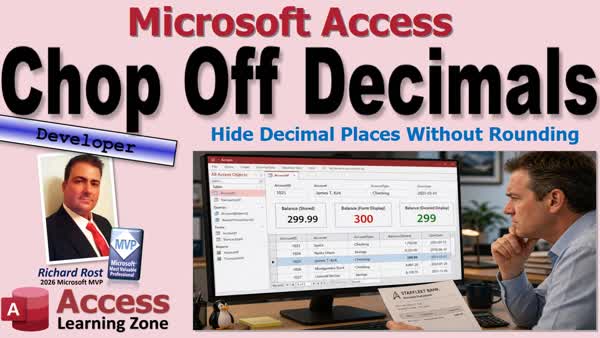 TechHelp Access, Access truncate decimals without rounding, Access Fix function, Access textbox ControlSource, Access Got Focus event, Access Lost Focus event, editable calculated field, Access continuous form, truncate currency cents, Access calculated query field, decimal places rounding
More InformationTranscript Do you want to hide those distracting pennies on big account balances? But you don't want Access rounding the number on you? Maybe you want to see $299 instead of $300 when the actual value is $299.99. Welcome to another TechHelp video brought to you by Access Learning Zone. I'm your instructor, Richard Rost.
Today we're going to see a handy little Access display trick. We're going to keep the exact value safely stored in the table, but show just the whole number portion on your form. And we'll do it without rounding. Then, when you click on the field, you'll be able to see the exact value and edit the complete value right there. You'll get a cleaner form without losing a single penny or a fraction of a widget, or whatever it is you're tracking.
Today's question comes from Daniel in Portland, one of my Gold members. Daniel says, "I have an Access form with account balances that need to keep their exact cents in the table. But I don't want to see pennies all the time. When I set the display to zero decimal places, $299.99 shows as $300. Can I normally show $299 but still click the field to see and edit the full $299.99?"
Well, yes, Daniel. That's a problem I deal with myself all the time in my account balances database. Let's take a closer look at exactly what's happening.
All right, so here's the situation. You've got a money value, an account balance, an inventory quantity, whatever it happens to be. And you want to keep the exact value in your table. So if the balance is $15,098.98, which, by the way, the only time you ever say "and" is for a decimal point. You don't say $15,100 and $98. The correct way to say that is $15,098.98, for those of you who didn't know that.
Now, you absolutely don't want to throw away that 98 cents, but when you're looking at a form with a bunch of big balances, you don't want to stare at all those pennies all day long. We've all had those giant spreadsheets with all those pennies and cents, tons of numbers. It makes sense to drop off those pennies. You don't want to lose those values in the cells, but you don't want to see more numbers than you need to look at, especially when you're dealing with values in the thousands of dollars.
Now, the problem is that Access normally rounds those when you tell it to show zero decimal places, so $299.99 becomes $300, which is mathematically correct, but maybe not what you want. Usually, when I'm comparing my bank balances to what's on the web page and I see on the web page a transaction for $174.99, and I look at my spreadsheet and I see $175, my brain doesn't sometimes make that connection that that's the same transaction.
So instead of rounding, I just want to truncate. I want to just chop that off.
So today, I'm going to show you a neat little trick. Normally, the form will show the value with the decimal portion chopped off, but when you click into the textbox, you'll be able to see the full stored amount and be able to edit it normally. You'll get the best of both worlds, just like that Star Trek episode. One of the best.
Now, the first thing most people try to do is to set the decimal places property to zero, or they'll use a custom format property like that one I show you right there.
Pound sign, comma, pound sign, pound sign, pound sign, zero.
Normally, that's exactly what you should do if you want rounding. Access sees $299.99 and it rounds it to the nearest whole number and displays $300.
Now, there isn't a magic Access number format that says hide the decimal portion but don't round, and conditional formatting won't solve it either. Conditional formatting can change colors, fonts, and similar display settings, but it doesn't give us a special no-rounding number format. So if you want $299.99 to appear as $299, we need to give Access a different value to display.
Now, rounding asks for the nearest whole number. So $299.01 rounds to $299. $299.49 also rounds to $299. $299.50 rounds to $300. $299.99 rounds to $300.
Now, truncating is different. Truncating just drops off everything after the decimal point. So $299.01 becomes $299. $299.49 becomes $299.
And if you're looking at a website that says $299.99 and your Access database shows $300, it makes your brain pause for a second because you can't translate that. At least that happens to me. I don't know about you guys.
So rounding is useful when you want an approximation, but truncating is useful when you want less visual clutter without changing the whole number portion that you're comparing.
Now, VBA and Access give us a function called Fix, and I've done videos on Fix before. I'll give you a link in just a minute.
So if I say the Fix of $15,098.98, I get $15,098. I don't get $15,099.
Now, that sounds perfect. You might be tempted to set the textbox's control source equal to Fix of that number, and for a report or a read-only form, that's perfectly fine.
But here's the catch. The textbox now becomes a calculated control, meaning it's showing the result of an expression, meaning that you can no longer edit it. So we don't want to solve this by just changing the control source equal to that Fix value.
So here's the trick. We're going to give the form two versions of the same value. The first one is the real field, Credit, and that contains the complete stored value, such as $15,098.98.
The second is a calculated field in the query underneath the form. We'll call it CreditFix, and we'll use the Fix function on the Credit field. CreditFix gives us $15,098.
Now, normally our textbox will be connected to CreditFix. So when we're just looking at the form, we get a nice, clean truncated display. Then, when we click into the textbox, we're going to use a tiny bit of VBA code to switch its control source from CreditFix back to Credit.
At that point, the box is directly bound to the real field again, and we can see the full amount, including the cents, and edit it if necessary. Then, when we leave the textbox, we'll switch it back to CreditFix.
We're doing a little wardrobe change. Same textbox, same underlying record, but it switches from its casual outfit to the full business attire when you're editing.
Before we get into the code, if you haven't watched my rounding video, go watch this. It explains Int, Fix, Round, and bankers rounding. I almost said baker's rounding. What's a baker's rounding? Is that when you're making muffins? No, not muffins. Those little dough balls. They've got to be round.
Go watch this video on calculated fields. Format Currency is handy. That's where we can get the little red without having to use conditional formatting.
Now, we will use a teeny tiny little bit of VBA code for this. So if you've never done any VBA programming before, go watch this video. It'll teach you everything you need to know to get started in about 20 minutes.
To make our little wardrobe change, we're going to use the On Got Focus event and also the On Lost Focus event. Both are covered in this video.
These are all free videos. They're on my YouTube channel. They're on my website. Go watch those and come on back.
And if you like my videos, don't forget to hit Like and Subscribe. It helps me. It helps the channel. It helps other people find me. Do it. Do it.
All right, let's get to the walkthrough.
Alrighty, this is my TechHelp free template. You can grab a copy of this off my website if you want to. And on here, I've got a customer list. And on my customer list, I've got a big, long list over here of credit limits. You can pretend this is bank balances, order totals, whatever you want.
Now, what a lot of people do, if you don't want to see all these pennies in here, which, if you've got lots and lots of numbers, multiple columns of numbers, it just makes the data less cluttered.
You can come in here and turn those pennies off by going to the Format tab and setting decimal places to zero. That's the easiest way to do that.
Now, when you come back in here and take a look at it, you've got no pennies. Makes it much easier to read all these numbers.
The problem is, now notice, this $500.99 is now rounded to $501. And I know that if I'm comparing a list of numbers, and I see a column of numbers here in my database and then a column of numbers over on my spreadsheet, I see 501 and 500, and my brain doesn't make that connection. I don't know about you.
So I'd like this to just truncate those $0.99 for the display and just show me $500.
Now, this is based on my customer table. So let's make a query that has the fields in it that we want to display on this form.
So let's go to Create Query Design, and I'm going to go to my customer table, bring that in over here, and I'm just going to bring in the fields that I need.
By the way, a lot of times, this is a side note. A lot of times when I'm building forms for the first time, I'll bring in the star. Did you just bring in everything in here? But later on, you should go back through your queries and just put in the fields that you need. Don't put everything in there, especially if you're dealing with SQL Server, pulling stuff over the web, that kind of stuff.
Because the more fields you've got in here, the slower these queries are going to run when they get really, really, really big. For small local databases, that's not a big deal. But the bigger your databases get, the more you want to keep that in mind.
So I need the CustomerID, FirstName, LastName. What do we got? State, CustomerSince. Where are you? CustomerSince and CreditLimit.
Now, I'm going to add another field over here. We're going to call this CreditLimitFix, and we're going to set that equal to here. I'll zoom in so you can see it better. Shift F2. Oh, that got really big. Hold on. Let me resize that.
We're going to set that equal to the Fix of CreditLimit. Remember, from the other video, Fix will just truncate those pennies.
And now if I run this, there you go. There's your fixed value. Notice that $500.99 is now just $500.
I'm going to save this as my CustomerListQ, my customer list query.
Now I can use this as the record source for the form. So we'll go to Design View, open up the properties. We'll change this to the CustomerListQ. Where are you? Right there.
Save it. And then we'll change this guy so he's getting his values from CreditLimitFix.
Save it. Close it. Close it. Open it. Oh, that looks so much better. And I'm seeing $500 there instead of $501.
Now I want to make a change. So I'm going to click here, and I'm going to put in 01. Oh, I can't. It becomes a read-only field at this point because it's based on a calculation. So it's a calculated field.
So what we need to do is, when the user clicks on that field, we need to swap that control source back to the regular CreditLimit field.
So we can do that with On Got Focus and On Lost Focus.
We'll click Design View, find this guy, open up the properties, go to Events, On Got Focus. Ta-da, that brings up my code builder, which also got really, really big. Sometimes when I'm working on stuff not in class, I have a much larger monitor than I record the little video window on, and I resize stuff. And I forget to put it back. Sorry, my bad.
Now this is real simple stuff. It's just one thing. It's going to be CreditLimit.ControlSource equals. Now, when CreditLimit gets focus, we want to set it back to CreditLimit. That's the field that actually is editable and has the right value in it.
Now, when CreditLimit loses focus, we can drop this down and find Lost Focus. There it is. We're going to set it back to the fixed version.
CreditLimit.ControlSource equals "CreditLimitFix".
Save it. Debug Compile once in a while.
Close it. Close it. Close it. Open it.
I'm still seeing my 500, which is what I want. But now, when I click on it, it swaps the control source back, and I can come in here and make a change. See?
You might also notice some of these other fields change just slightly. Like if I click here, look, see that 3,001 up there changes. That's because when we switch back to the regular CreditLimit, it's doing the rounding thing again. But if I click off of it, notice it turns back.
So remember, with a continuous form, changing one field changes all of them. But in this particular case, it's not a big deal.
Some of these other ones might have pennies in them as well. Let's see what we've got. I think someone else, there's one with 45 cents. See? But you still get the visual look that you want. It doesn't round the value. It still shows you that truncated value, but you can still edit it with a teeny tiny little bit of VBA code.
So those two little event procedures do all the heavy lifting. When the textbox gets the focus, meaning you click on it or tab into it, the Got Focus event runs. And then when you leave it, the Lost Focus event runs.
And we're just swapping from the actual CreditLimit value. Yes, I know it says Credit in the screenshot. It's CreditLimit. I made the slides before I recorded the video. Sorry.
And then it switches it to CreditLimitFix when you lose the focus, so you just see the truncated value.
Most importantly, the cents don't disappear from the table. We just stop staring at them.
Now, is this something you need to do in every database? No, I only do it in a couple of mine. I use this especially when I've got a big, long, continuous form with tons and tons of numbers in it that I don't want to stare at all those pennies.
Now, if you want to learn more in the extended cut, we're going to take this even further. The basic version that I showed you works great: CreditLimitFix in the query, swap between CreditLimitFix and CreditLimit when the textbox gets and loses focus.
But what if you've got CreditLimit, Balance, Pending, Available, StatementBalance, a whole bunch of other fields where you want the same behavior? I don't want to have to write separate Got Focus and Lost Focus procedures for every single textbox. If you've got 10 or 15 fields you want to do this to, it gets old fast and it gets ugly fast, and there's lots to maintain and update if you want to make a change.
So in the extended cut, we're going to make this more reusable with a generic function. And then we're going to have to put that little swap with Fix once for all your fields. And that, again, is going to be covered in the extended cut for my members.
Silver members and up get access to all of my extended cut videos, not just this one, all of them. And, of course, Gold members can download these databases that we build in the TechHelp videos, and everybody gets some free training. So click that blue Join button today for more information.
So there you go. The key lesson is setting decimal places to zero is rounding, not truncating. That's why $299.99 becomes $300. So if you want $299 instead, use Fix to create a calculated version of your field that's truncated.
But don't replace your real data with that value. Keep the exact amount, including the cents, in the table and let the calculated field handle the normal display.
And if you need a textbox to remain editable, switch its control source to the real field using the Got Focus event and then switch it back with the Lost Focus event.
Now you can browse the form without looking at a bunch of distracting pennies, and you can click into whatever field you want and still be able to edit it. It's nice, clean, and practical Access, and that's what we're after.
And that is going to be your TechHelp video for today. I hope you learned something. Live long and prosper, my friends. I'll see you next time, and members, I'll see you in the extended cut. Intro In this lesson, I will show you how to chop off decimals in Microsoft Access without rounding the stored value. We will create a query that uses the Fix function to display only the whole-number portion of a currency or numeric field, while keeping the full value in the table. You will also see how to use the Got Focus and Lost Focus events to switch a textbox between the editable original field and the truncated calculated field. Quiz Q1. What happens when you set a numeric textbox to display zero decimal places in Access?
A. Access truncates the decimal portion
B. Access rounds to the nearest whole number
C. Access permanently removes cents from the table
D. Access prevents the field from being edited
Q2. Why might displaying $299.99 as $300 be undesirable in a form?
A. It causes the table to store text instead of currency
B. It prevents the record from being saved
C. It can make it harder to visually compare the value with an unrounded source
D. It automatically changes all values in the table to $300
Q3. What does the Fix function do to a value such as 15098.98?
A. Returns 15098
B. Returns 15099
C. Returns 15098.98
D. Returns 0
Q4. Why should you not set an editable textbox Control Source directly to an expression such as =Fix([CreditLimit])?
A. Fix cannot be used in Access queries
B. The textbox becomes a calculated control and cannot be edited
C. The field will always display two decimal places
D. The table value will be permanently truncated
Q5. What is the purpose of creating a calculated query field such as CreditLimitFix: Fix([CreditLimit])?
A. To replace the original CreditLimit field in the table
B. To create a truncated value for normal display
C. To calculate interest on the CreditLimit field
D. To convert the CreditLimit field to text
Q6. During normal browsing of the form, what should the textbox Control Source be set to?
A. CreditLimitFix
B. CreditLimit
C. =Round([CreditLimit],0)
D. =[CreditLimit] & ".00"
Q7. Which event is used to switch the textbox back to the real editable field when the user clicks or tabs into it?
A. On Current
B. On Click
C. On Got Focus
D. On Before Update
Q8. Which event is used to switch the textbox back to the truncated calculated field after the user leaves it?
A. On Lost Focus
B. On Open
C. On Change
D. On Delete
Q9. What code action is performed when the CreditLimit textbox gets focus?
A. Set CreditLimit.ControlSource = "CreditLimit"
B. Set CreditLimit.ControlSource = "CreditLimitFix"
C. Set CreditLimit.Value = Fix(CreditLimit)
D. Set CreditLimit.DecimalPlaces = 2
Q10. What code action is performed when the CreditLimit textbox loses focus?
A. Set CreditLimit.ControlSource = "CreditLimit"
B. Set CreditLimit.ControlSource = "CreditLimitFix"
C. Set CreditLimit.Value = Round(CreditLimit, 0)
D. Set CreditLimit.DecimalPlaces = 0
Q11. What happens to the actual cents stored in the table when this technique is used correctly?
A. They are deleted when the form is opened
B. They are rounded to the nearest dollar
C. They remain safely stored in the original field
D. They are moved into the calculated field
Q12. What should you expect in a continuous form when the Control Source of one displayed textbox is changed?
A. Only the selected row can use the new Control Source
B. All instances of that textbox can reflect the Control Source change
C. The form automatically creates a separate textbox for every record
D. The query stops returning records
Answers: 1-B; 2-C; 3-A; 4-B; 5-B; 6-A; 7-C; 8-A; 9-A; 10-B; 11-C; 12-B
DISCLAIMER: Quiz questions are AI generated. If you find any that are wrong, don't make sense, or aren't related to the video topic at hand, then please post a comment and let me know. Thanks. Summary Today's video from Access Learning Zone covers a useful display technique for Microsoft Access forms. Sometimes you need to store exact currency amounts, quantities, or balances in your table, including cents or decimal fractions, but you do not want to display all of those decimal places while browsing records. This is especially helpful on continuous forms or datasheet-style lists containing many large values.
For example, suppose an account balance is $299.99. You want to retain the full $299.99 in the table, but you would prefer the form to normally display $299 rather than $300. Setting a textbox to display zero decimal places will not accomplish that because Access rounds the value. A value of $299.99 becomes $300, which is mathematically correct, but it can make comparing values more difficult when you are looking at another system that shows the original amount.
The goal is to truncate the decimal portion for display without changing the actual stored value. Truncation removes everything after the decimal point. Therefore, $299.01, $299.49, and $299.99 would all display as $299. The original data remains unchanged, including every penny or fractional quantity.
Access does not provide a standard number format that hides decimal places without rounding. Setting Decimal Places to zero rounds the number, and custom number formats behave the same way. Conditional formatting is not the solution either, because it can change colors, fonts, and other visual settings, but it cannot create a no-rounding numeric display format.
To handle this, I use the Fix function. Fix truncates the decimal portion of a number rather than rounding it. For instance, applying Fix to $15,098.98 results in $15,098 instead of $15,099. This makes it ideal for creating a display-only version of a field.
However, there is an important limitation. If you set a textbox Control Source directly to an expression using Fix, the textbox becomes a calculated control. Calculated controls are read-only, so users can no longer edit the actual stored value. That approach works well for reports and read-only forms, but it does not work when the field must remain editable.
The solution is to include two versions of the value in the query that supplies the form. The first version is the real field, such as CreditLimit, which contains the complete stored amount. The second is a calculated query field, such as CreditLimitFix, which uses Fix to provide the truncated version of the same value.
The form's textbox is normally bound to the calculated CreditLimitFix field. This gives you a clean display without pennies and without rounding. A stored value of $500.99 appears as $500, not $501.
When the user enters the textbox, a small VBA event procedure changes the textbox Control Source from the calculated field back to the actual field. At that point, the textbox displays the complete stored value, including the cents, and it can be edited normally. When the user leaves the textbox, another event procedure switches the Control Source back to the truncated calculated field.
The Got Focus event handles the switch to the real field. The Lost Focus event handles the switch back to the Fix-based display field. This gives you the best of both worlds: a simplified display while browsing the form and full precision while editing.
This technique is particularly useful in continuous forms with many rows of financial values. You may have balances, credit limits, pending amounts, available amounts, statement balances, quantities, and other fields where seeing every decimal place creates unnecessary visual clutter. The actual data is never altered. The table still stores the precise values, but the form only displays the whole-number portion until the user needs to edit a value.
One detail to keep in mind is that changing the Control Source of a textbox in a continuous form affects the display of that control for all visible records. While the active textbox is bound to the real field, Access may show rounded values in the other rows because the real field is being displayed with zero decimal places. Once the textbox loses focus and switches back to the calculated Fix field, the truncated display returns.
Also, in today's Extended Cut, we will make this technique more reusable for forms that contain many fields requiring the same behavior. Rather than creating separate Got Focus and Lost Focus procedures for every textbox, I will show you how to build a generic routine that can handle the Control Source swap for multiple fields. This makes the form easier to maintain when you have ten or fifteen numeric controls that need truncated displays and full-precision editing.
The key point is that setting Decimal Places to zero rounds values. If you want to display $299 instead of $300 for a stored value of $299.99, create a calculated query field using Fix. Keep the original field in the table so no cents or decimal fractions are lost. Then, if the control needs to be editable, use the Got Focus and Lost Focus events to temporarily switch between the calculated display field and the real underlying field.
You can find a complete video tutorial with step-by-step instructions on everything discussed here on my website at the link below. Live long and prosper, my friends. Topic List Truncating decimal values with the Fix function
Why zero decimal places rounds values in Access
Creating a query field with a truncated value
Using a calculated field for form display
Switching textbox Control Source on Got Focus
Restoring the truncated display on Lost Focus
Editing full currency values while hiding cents Article When you store money, quantities, measurements, or other decimal values in Microsoft Access, you may want to keep the exact value in the table while showing a cleaner whole-number display on a form. For example, you might store an account balance of $299.99 but prefer to see $299 while browsing a long list of balances.
The important distinction is between rounding and truncating. If you set a textbox to display zero decimal places, Access rounds the value. A value such as $299.99 will display as $300, while $299.49 will display as $299. This is mathematically correct, but it may not be useful when you are visually comparing values against another system that shows the original cents.
Truncation works differently. It removes everything after the decimal point without changing the whole-number portion. With truncation, $299.99 displays as $299, $299.50 displays as $299, and $299.01 also displays as $299. The original stored value remains unchanged.
Access does not provide a standard numeric format that hides decimals without rounding. Setting Decimal Places to zero will round, and custom number formats do not solve the problem either. To display a truncated value, Access needs to be given a separate calculated value to show.
The best approach is to keep the original field in your table exactly as it is. For example, if your table contains a field named CreditLimit, it should continue storing the full value, including cents. Do not replace that field with a truncated value, because doing so would permanently discard information.
Instead, create a query that includes both the original field and a calculated version of it. The calculated field should use Access's Fix function to remove the decimal portion. You might name this calculated field something like CreditLimitFix. If CreditLimit contains 15098.98, CreditLimitFix will return 15098.
Use that query as the record source for your form. Normally, set the textbox on the form to display the calculated field, such as CreditLimitFix. This gives you the clean display you want. Values with cents will show only their whole-number portion, and no rounding will occur.
There is one limitation: a textbox bound to a calculated query field is read-only. Since CreditLimitFix is the result of a calculation, users cannot type directly into it to change the underlying CreditLimit value.
To make the field editable when needed, use the textbox's focus events. When the user clicks into the textbox or tabs into it, the code should temporarily change the textbox's Control Source from the calculated field back to the original field. At that point, the textbox displays the full stored value, including the cents, and the user can edit it normally.
When the user clicks away from the textbox or tabs to another control, the code should switch the Control Source back to the calculated Fix field. The form then returns to its normal truncated display.
This gives you two views of the same data in one textbox. When the control is not being edited, it shows a simplified whole-number value. When the user selects it, it shows the complete value stored in the table.
This technique is particularly useful in continuous forms that display many records at once. Long columns of balances, account amounts, inventory quantities, or measurements can be much easier to scan without decimal clutter. At the same time, you do not lose the exact data, and users can still edit the precise amount when necessary.
Keep in mind that in a continuous form, changing a textbox's Control Source affects that control across the form. While the active field may temporarily display rounded formatting when it is switched back to the original numeric field, it will return to the truncated display when focus leaves the control. In many practical situations, this is an acceptable tradeoff for a cleaner browsing experience.
The key idea is simple: formatting zero decimal places causes rounding, while the Fix function truncates. Store the real value unchanged, calculate a truncated display version in the form's query, and temporarily switch to the real field only while the user is editing it. Primary Topics Access form textbox display, truncation versus rounding, Fix function, calculated query fields, editable bound controls, Got Focus event, Lost Focus event Secondary Topics decimal places property behavior, continuous forms, query performance field selection, calculated controls are read-only |







