|
Free Lessons Courses Seminars |
TechHelp Fast Tips Templates |
Topic Index Forum ABCD |
|
||||||
|
|
Accounts Receivable By Richard Rost 
 5 years ago
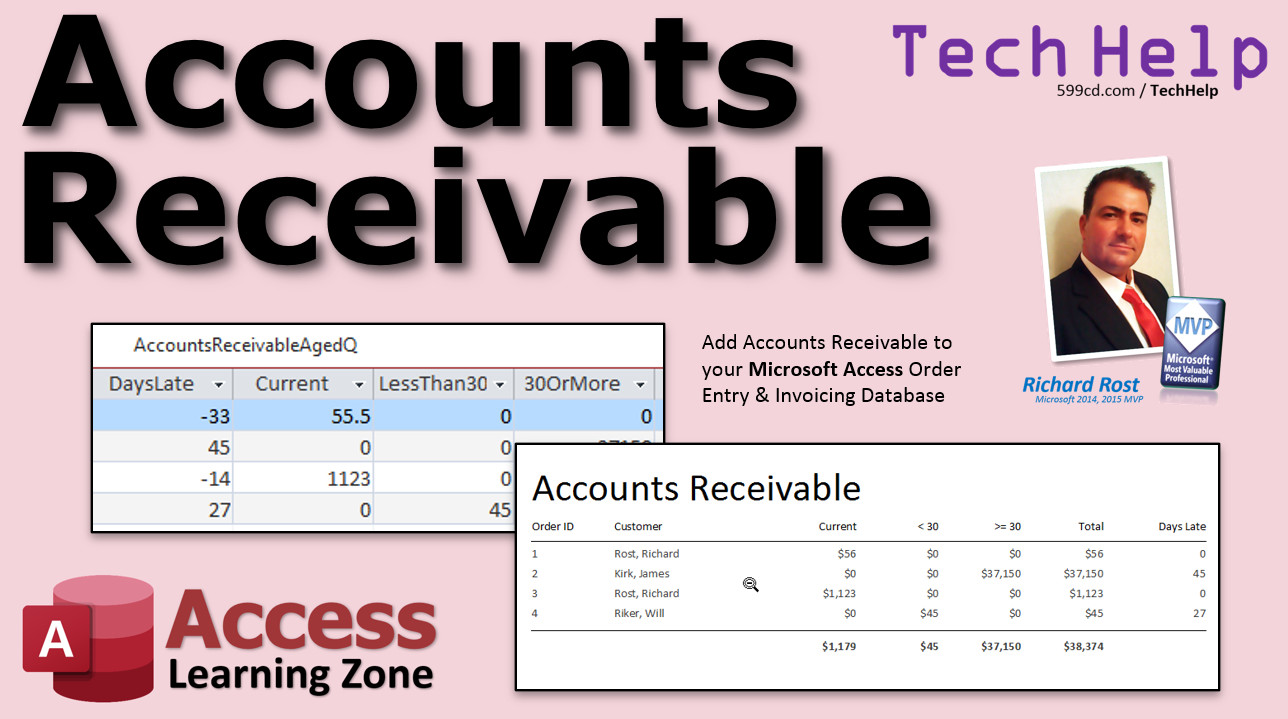
Accounts Receivable for Invoicing Database Find out who owes you money! In this video, we'll add an Accounts Receivable list to the FREE Microsoft Access Invoicing Order Entry Template. I'll also show you how to calculate how many days late the payment is. Jamarcus from Reno, Nevada (a Gold Member) asks: I have been using your Invoicing template for a while now. It's very helpful. Thank you. How can I generate an Accounts Receivables list based on the data in here? MembersMembers will see how to create an Aged Accounts Receivable list where we can show who is current (not due yet), less than 30 days late, and 30 days or more late.
Silver Members and up get access to view Extended Cut videos, when available. Gold Members can download the files from class plus get access to the Code Vault. If you're not a member, Join Today!
Links
Keywordsmicrosoft access, ms access, #msaccess, #microsoftaccess, #help, #howto, #tutorial, #instruction, #learn, #lesson, #training, #database, accounts receivable, accounts recievable, receivables, accts, rcv, aging accounts receivable, aged accounts receivable, invoicing, small business, finance, financial, books, general ledger, accounting, ledger
IntroIn this video, I will show you how to generate an accounts receivable report in Microsoft Access using an order entry and invoicing database. We will walk through creating a query to list unpaid orders, calculate due dates using net 30 terms, sort out which orders are currently due, and display the number of days late for each outstanding invoice. This tutorial will also cover handling aggregate queries, adding calculated fields, and working with query criteria, all using the free TechHelp template.TranscriptWelcome to another TechHelp video brought to you by AccessLearningZone.com. My name is Richard Rost, your instructor.In today's lesson, I'm going to show you how to generate an accounts receivable report for your Microsoft Access order entry and invoicing database. Today's question comes from Jamarkas from Reno, Nevada, one of my Gold members. Jamarkas asks, I've been using your invoicing template for a while now. It's very helpful. Thank you. How can I generate an accounts receivable list based on the data in here? Well, Jamarkas, an accounts receivable list is a fancy word for saying, who still owes you money? In a lot of businesses, you have a cash system where I give you something, you give me money. But for business to business transactions, sometimes you have net terms, like net 20 or net 30. So payment is due within 30 days of receiving your invoice. An accounts receivable list is basically who is due and has not paid yet. You can get a little fancier, and I'll cover this for you in the extended cut. You can also see who's current - in other words, they're not due yet, so you know the money's coming in. Who's late but less than 30 days late, less than 60 days, less than 90 days, and so on. I cover that in my full Access Expert Level 27 course. But in the extended cut, I'll show you how to do a simple, aged accounts receivable list. Right now, for the rest of the world, let me show you how to generate a simple accounts receivable list so you can see who's due that hasn't paid yet. Here I am in the TechHelp free template. It's a free download, by the way. You can grab this from my website if you want to. I'll put a link down below in the links section. Go get a copy. Now, in here, we've got our customers, and each customer can have orders. In here, we only have an order date. If you have customers with different terms, you might also want to put a due date in there. So if you give, let's say, net 30 terms, you know how that goes in there, and then 30 days in the future, you'd have your due date. For the purposes of this class, though, I'm not going to add a separate field for due date. We'll just simulate it with a query. So let's go to Create, and then we'll go to Query Design. I'm going to turn this property sheet off. Here's my blank query. Let's bring in the Order table. Just so I can see the customer's information, let's link it to the Customer table. If you've never done this before, I've got other videos on relationships. For the first time, I'll put a link down below. For accounts receivable, I want the order ID. Let's bring in the customer ID. Just to see it here, we'll bring in the first name and last name so we can see who the customer is. Now, we don't actually have the order total saved in the Order table. It's a combination of items from the Order Detail table. So let's go over to our queries and bring in the Order Detail query. This has, right down here, the extended price, so we need that. If you don't know what this is, go watch my invoicing videos where I built this template in. That's all free. Let's close down Add Tables. Go ahead and save this with Control S. Let's call this "Accounts Receivable Query." All right. My Accounts Receivable Query. If I run it at this point, you'll see each order with the customer information and the extended price. This is the total of each line going across. To get an order total, we have to create an aggregate query. Again, if you've never made an aggregate query before, I've got videos on that. I'll put links down below. Go watch the aggregate query video first. It's also called a total query. Click the little totals button. Now this stuff is all the same. We want it all grouped by order ID. Change the extended price to "Sum." We want to group these all together and then give me a sum of the extended price, which gives me the order total. Run it now. There you go. I've only got three orders in here, two of them for me. Let's go put some stuff in this third order. Let's save changes, go to the customer form, go to Orders. I've got an order three here, but there's nothing in it. Let's put some data in here real quick. OK. So there's some stuff in there now. Let's take a look at our query now. There we go. All right. Three orders, two from me, one from Jimmy Kirk. There's a sum of extended price. Now, in your accounts receivable, you only want to see orders that are not paid. Go back to design view. Bring down "IsPaid." I like to keep the stuff that's grouped together all together here. For criteria, turn that back on. For criteria, set that equal to no or false. That's a query criteria. Again, if you don't know query criteria, go watch my criteria video. Run it now. You still see those same three orders because all of them are paid. Let's mark one of them as paid. This guy here is paid. We can't change this. Notice I'm clicking, and nothing's happening. It's a not-updatable record set, and this happens sometimes, especially with an aggregate query. Once you aggregate stuff, you can't edit the values in there. You can see there's no row down here to add a new record. If you're curious to learn more about that, I also have a video on why some record sets are not updateable. I'll put a link to that down below, too. It's pretty fascinating. To mark that record paid, we're going to have to close the query, save changes, go into the order, which is right there, and we'll mark it paid. That one's paid. Now if we go back to our accounts receivable, it doesn't show up there. What's the next factor to take into consideration? Whether it's due yet or not. Go back into design view. Let's add the order date. I'm going to bring that over here. We're going to simulate the due date by just giving everybody net 30. So the due date colon is going to be order date plus 30. That's how you add days in Access. A day is 1, so plus 30 means take this date and add 30 to it. This is a calculated query field. If you don't know what that is, I have videos on that. Go watch the calculated query field video. If I run this now, I can see there is the due date, which is 30 days after the order date. Now, today is March 30. Technically, only this one is due, because this one was - excuse me, I got them backwards. This one is due. This one is not due yet. Let's put a query criteria on due date. It has to be less than today's date, so just date like that. Date with open and close parentheses. Let me zoom in so you can see that better. There it is. Usually, you don't need the open and close parentheses because it's a reserved word in Access. Date has a special meaning. It's a function, but I like to put that out there because technically it's a function, so you should have it there. Now if I run the accounts receivable query, there you go. I'm only seeing that one order that has a due date before today. If you want to make that less than or equal to today's date, you can, although technically it's not late if it's due right now. Whatever you want. Save that. There's your accounts receivable query. Open that up. Let's put one more order in the system just to have more data in here. Let's go to Will Riker. Put an order in. Some stuff. What did he order? He ordered a triple food. Three of those at $15. He placed this order on February 1st. Let's say that's not paid yet. Close that. And now let's check our accounts receivable query. There it is. Want to see just how late this is? How many days it's late? Let's widen this out. Now, days late. You think you could just take today's date and subtract the due date. Watch what happens, though. Look at that. It's asking you for due date. Why is that? It doesn't know what due date is yet. Due date is a result of the aggregate, and the aggregate doesn't figure this out until after it runs. You can't ask for this ahead of time. You could do it this way in a second query. You could take all this and load it into a second query, and then you could very easily calculate days late. But you can't do this before due date is generated. Does that make sense? I hope that makes sense. It's going to calculate this first. Once that runs, you could feed accounts receivable into an accounts receivable 2, and then you can calculate days late that way. But since we know that due date is basically order date plus 30, we just do this: order date plus 30 there. This is the same calculation that's performed over here, so that should work. That one's 45 days late. That one's 27 days late. I wanted to show you that because if you see that pop-up message, it's the same thing you'll see if you do that. Anytime you see this little pop-up message, that means Access doesn't know what that field is. Chances are one of two things happened. Either A, it doesn't know what it is because it hasn't calculated it yet, or B, you spelled something wrong. Usually it's spelling. But in an aggregate query like this, it can't figure out what order date is yet because it hasn't calculated it. So you have to either substitute that with something that it does know or feed this into a second query. Now, there's my days late. Want to learn more? In the extended cut for members, we do aged accounts receivable. We put together a nice, pretty printable report where we've got current items, items that are due but not due yet, less than 30 days old, 30 days old or more, and the total. That's covered in the extended cut, 20 minutes long for members. Silver members and up get access to all of my extended cut videos, as well as over a hundred of them now, so there's plenty of stuff to watch. If you really want to learn more, in my Access Expert Level 27, I cover aged accounts receivable in much more detail, and we do multiple columns, for example, less than 30, 30 to 60, more than 60, and so on. I'll put a link to this down below in the links section. How do you become a member? Click the Join button below the video. After you click the Join button, you'll see a list of all the different types of membership levels that are available. Silver members and up get access to all of the extended cut TechHelp videos, live video and chat sessions, and more. Gold members get access to a download folder containing all the sample databases that I build in my TechHelp videos, plus my code vault, where I keep tons of different functions that I use. Platinum members get all the previous perks, plus access to my full beginner courses and some of my expert courses. These are the full length courses found on my website, and not just for Access. I also teach Word, Excel, Visual Basic, ASP, and lots more. Don't worry, these free TechHelp videos are going to keep coming. As long as you keep watching them, I'll keep making more. If you liked this video, please give me a thumbs up, and feel free to post any comments that you have. I do read them all. Make sure you subscribe to my channel, which is completely free, and click the bell icon and select All to receive notifications when new videos are posted. Click on the Show More link below the video to find additional resources and links. You'll see a list of other videos, additional information related to the current topic, free lessons, and lots more. YouTube no longer sends out email notifications when new videos are posted, so if you'd like to get an email every time I post a new video, click on the link to join my mailing list. If you have not yet tried my free Access Level 1 course, check it out now. It covers all the basics of building databases with Access. It's over three hours long, you can find it on my website or my YouTube channel. If you like Level 1, Level 2 is just one dollar, and it's also free for all members of my YouTube channel at any level. Want to have your question answered in a video just like this one? Visit my TechHelp page, and you can send me your question there. Click here to watch my free Access Beginner Level 1 course, more of my TechHelp videos, or to subscribe to my channel. Thanks for watching this video from AccessLearningZone.com. QuizQ1. What is the main purpose of generating an accounts receivable report in Microsoft Access?A. To show which customers have not paid their due invoices B. To display a list of all orders C. To summarize products in inventory D. To compare sales between customers Q2. In a business context, what do "net 30" terms mean? A. Payment is due within 30 days of receiving the invoice B. Payment must be made in cash only C. A 30% discount is applied D. Payment is made twice a month Q3. In the sample database, why is there no dedicated due date field for orders? A. The example simulates the due date using a query calculation B. Due dates are irrelevant for invoicing C. All payments are received immediately D. The due date is stored in the customer table Q4. Why is the "extended price" from the Order Detail query used in the accounts receivable query? A. To calculate the total value of each order B. To find the weight of each item C. To determine the shipping cost D. To list the number of orders Q5. What must you do in the query to show only orders that have not yet been paid? A. Set the IsPaid field criteria to No or False B. Exclude the Order Date field C. Group by Customer instead of Order ID D. Set the extended price to greater than zero Q6. What does an aggregate (or total) query allow you to do in Access? A. Combine records to calculate sums or perform other calculations grouped by a field B. Update values in all records at once C. Delete duplicate data across tables D. Automatically send payment reminders Q7. Why can't you edit values directly in the results of an aggregate query? A. Aggregate queries are not updateable in Access B. You lack permission on the database C. The data is read-only due to network issues D. Access locks all queries by default Q8. How can you simulate a due date for orders using a query in Access? A. Add 30 days to the order date in a calculated field B. Enter the due date manually for each order C. Subtract 30 days from the order date D. Use the current date as the due date Q9. Which query criteria would you use to display only orders with due dates before today? A. DueDate < Date() B. DueDate = "Today" C. DueDate > Date() D. DueDate >= Date() Q10. If you want to calculate days late for unpaid orders, what should you consider regarding query design in Access? A. The calculation must reference fields that exist in the current query or use a second query B. You can only calculate days late in a report, not a query C. Days late must be set as a static value in the order table D. You must have a macro to perform this calculation Q11. What is a likely cause if Access prompts you to enter a value when running a query calculation? A. The field referenced does not exist or is spelled incorrectly B. The database is corrupted C. There are too many records in the table D. The user is not an administrator Q12. How can you extend the accounts receivable functionality discussed in this video to group receivables by how late they are (e.g., less than 30 days, 30–60 days, etc.)? A. By creating an aged accounts receivable report with grouping logic B. By deleting all paid orders C. By sorting orders alphabetically D. By limiting the query to current month only Answers: 1-A; 2-A; 3-A; 4-A; 5-A; 6-A; 7-A; 8-A; 9-A; 10-A; 11-A; 12-A DISCLAIMER: Quiz questions are AI generated. If you find any that are wrong, don't make sense, or aren't related to the video topic at hand, then please post a comment and let me know. Thanks. SummaryToday's video from Access Learning Zone focuses on creating an accounts receivable report for a Microsoft Access order entry and invoicing database. My name is Richard Rost, and I am your instructor.This lesson was inspired by a question from one of our Gold members who has been using the invoicing template available on my site. He wanted to know how to produce an accounts receivable list based on his current data. To start, let me explain what accounts receivable means. In simple terms, it represents a list of customers who still owe you money. In some businesses, everything is paid for immediately, but it is common, especially in business to business transactions, to offer payment terms such as net 30, where payment is due within 30 days of the invoice. The accounts receivable report shows which invoices have not been paid and are currently due. For those looking for more advanced functionality, such as aging your receivables by how overdue they are (for example, how many are less than 30, 60, or 90 days late), I cover that in my full Access Expert Level 27 course. In today's extended cut, I will also demonstrate how to build a simple aged accounts receivable list. However, for this lesson, we are going to focus on creating a straightforward report showing who is currently due but has not paid yet. To build this report, I use the TechHelp free template, which you can download from my website. In this template, each customer can have multiple orders. Normally, the order table has an order date, but if your business offers different payment terms for each customer or order, you might want to add a due date field. For this demonstration, I will keep things simple and simulate the due date using a query. I begin by creating a new query in design view and adding the Orders table. To display customer information along with each order, I also connect it to the Customer table. If you are unfamiliar with setting up table relationships, I have other resources on this topic. For the accounts receivable query, I include fields such as Order ID, Customer ID, and customer names. The actual order total is calculated from the Order Detail table, which contains the individual items for each order along with their prices. I connect the necessary order detail query, which provides the extended prices. After setting up the query, I save it as the "Accounts Receivable Query." When I run the query, I can see each order, the associated customer, and the total extended price per order. However, to summarize the total per entire order, I need to convert this to an aggregate (or total) query by grouping by Order ID and summing up the extended prices. If you have not worked with aggregate queries before, I recommend checking out my tutorial on that topic. At this point, the query shows a list of all orders along with their total amounts per customer. Next, I need to filter only those orders that are unpaid. This is accomplished by adding the IsPaid field to the query and setting its criteria to false. Now, only the unpaid orders are displayed. Sometimes, with aggregate queries, you cannot edit the resulting data directly. If you need to mark an order as paid, do this in the Orders form or table itself, not in the query result. The next step is determining whether an order is due. I accomplish this by adding the order date to the query and creating a calculated field to simulate a due date by adding 30 days to the order date (representing net 30 terms). This calculated due date lets me compare it to the current date; if the due date is before today, that invoice is due. By setting a criteria in the query to filter for due dates less than today, the final result lists only those orders that are unpaid and whose payment is due. If you want to add more test data, you can create additional orders in the system with varying order dates and payment statuses and observe how the query updates to display only the outstanding balances that are due. To go a step further, you may want to see how many days late a payment is. In practice, you might think you could simply subtract the due date from today's date, but if you attempt this directly in the same query, Access may prompt you for a value because it calculates the aggregate fields after building the initial result set. The solution is either to reconstruct the calculation using known fields or to create a secondary query based on the results from the first one, where you can safely compute the number of days late. In this demonstration, since we know the due date is always order date plus 30, I simply repeat that calculation to get the days late. If you see a pop up asking for a field, it usually means that Access does not recognize the field name either because it has not been calculated yet or there is a spelling error. In the extended cut for members, I demonstrate how to make an aged accounts receivable report, creating a printable version that organizes balances by current, due soon, 30 days late, 60 days late, and more, summing totals for each age group. If you are interested in more comprehensive aging solutions, in Access Expert Level 27, I go into even greater detail and build columns that handle multiple aging periods. Membership benefits start with Silver level, where you get access to all extended cut TechHelp videos, plus live sessions and more. Gold members receive downloadable sample databases and access to my code vault with useful functions. Platinum members get everything previously mentioned, plus my full beginner and selected expert courses for Access, Word, Excel, Visual Basic, ASP, and other subjects. I will continue to produce these free TechHelp videos as long as you keep watching. If you enjoyed this lesson, I encourage you to like the video, leave your comments, and subscribe to my channel for free updates. Also, make sure to check out the resources section for additional lessons and my mailing list, which you can join to receive email notifications of new videos. If you are new to Microsoft Access, my free Access Level 1 course is an excellent place to begin and is available both on my site and on YouTube. The next Level 2 course is just one dollar, or free for any member. If you have a question you would like answered in a future video, be sure to visit my TechHelp page and submit your question. A complete video tutorial with step-by-step instructions on everything discussed here is available on my website at the link below. Live long and prosper, my friends. Topic ListGenerating an accounts receivable list in AccessLinking Order, Customer, and Order Detail data Creating an aggregate query for order totals Filtering orders by unpaid status Simulating due dates using calculated fields Applying date criteria to show only due items Calculating days late for overdue invoices Troubleshooting calculated fields in aggregate queries |
||||||||||||||||
|
| |||
| Keywords: TechHelp Access accounts receivable, accounts recievable, receivables, accts, rcv, aging accounts receivable, aged accounts receivable, invoicing, small business, finance, financial, books, general ledger, accounting, ledger PermaLink Accounts Receivable in Microsoft Access |