First Day of Year
By Richard Rost

 4 years ago
Find the First Day of the Year in Microsoft Access
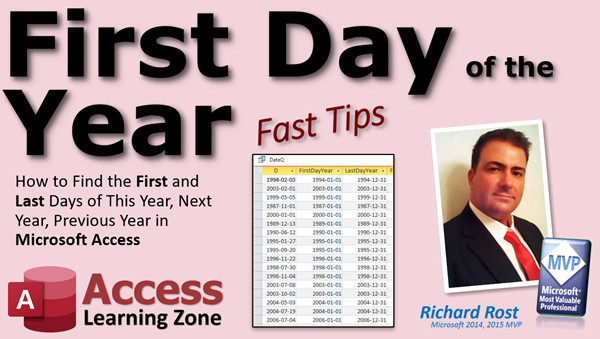
In this Microsoft Access tutorial, I will show you how to calculate the first day of the year for any given date. We'll also learn how to calculate the last day of that year, the first and last days of the previous year, and the following year.
Pre-Requisites
Recommended Courses
Usage
- D = Date() or any date you choose
- FirstDayYear: DateSerial(Year(D), 1, 1)
- LastDayYear: DateSerial(Year(D), 12, 31)
- FirstDayPrevYear: DateSerial(Year(D) - 1, 1, 1)
- LastDayPrevYear: DateSerial(Year(D) - 1, 12, 31)
- FirstDayNextYear: DateSerial(Year(D) + 1, 1, 1)
- LastDayNextYear: DateSerial(Year(D) + 1, 12, 31)
Keywords
access 2016, access 2019, access 2021, access 365, microsoft access, ms access, ms access tutorial, #msaccess, #microsoftaccess, #help, #howto, #tutorial, #learn, #lesson, #training, #database, #fasttips, first day of the year, last day of the year, first day of previous year, last day of previous year, first day of next year, last day of next year, first day of year, last day of year, First day of current year
More InformationTranscript Welcome to another Fast Tips video brought to you by accesslearningzone.com. I am your instructor, Richard Rost.
In today's video, I'm going to show you how to find the first and last days of this year, next year, and the previous year in Microsoft Access. By "this year," I mean any year. Give it a date and it will give you the first and last days of that year.
Before we get started, some prerequisites: you should know what calculated query fields are, and you should know how to use the DateSerial function. This is important. If not, go watch this video. It's on my YouTube channel. It's on my website. It's free. It will show you how the DateSerial function works.
You should know how to use the Year, Month, and Day functions, especially the Year function, since in this video we're going to be figuring out the first day of the year. Go watch this. And one more: you should know how date math works. You add one to a date and it goes up one day. Watch that video too if you're not sure how that works. All of these are free. Go watch them now, and then come back. We'll talk about the year thing.
Here I am in my TechHelp free template. You can grab a copy of this off my website if you want. You will find links to all this stuff in the description below the video window. You can use any database you want. We're just going to be making a query.
I have customers in my database, and each of them has a "Customer Since" field - how long they've been a customer. We're going to use that date as our guinea pig date and figure out what the first day and the last day of that year are.
Let's make a query. We are going to create a query design. I'm going to bring in that customer table. Close that. Let's just bring down the "Customer Since" field.
Now, I don't want to keep typing "Customer Since" in all my calculated fields, so we're going to alias this field. I'm going to put "D:" in front of that. What does that do? Well, that turns "Customer Since" into just D. That's called an alias. It's really easy to do. Here, I'll zoom in so you can see it better. Shift+F2. There you go. There's "Customer Since." It's now called D. If I run this now, that's just D. That's the name of that column, that field. Access uses fields, Excel uses columns.
Next up, I want to find the first day of whatever year that date falls in. I already have these on my notepads, so I'm just going to copy and paste them instead of making you watch me type. Paste. There it is. Let me zoom in and I'll explain it to you.
We're going to make a new field called "First Day Year." It's going to be DateSerial. If you watched the DateSerial video, DateSerial takes three numbers: it takes the year, so it would be like 2022 for example, then the month, then the day.
We want the year of whatever D is. So if that falls in 1990, it's going to give it 1990 there - the year of D. Then we want the first day, so it's always going to be January 1.
Run the query, and there you go. There's the first day of each of those years: 1999 January 1, 1985 January 1, and so on.
Unlike months, which are tricky because the last day can fall on a variety of different days, the end of the year is always December 31. That makes this nice and easy for us.
Last day of the year is going to be - I'll paste it again, Ctrl+V paste, and I'll zoom in for you so you can see it. Same thing. Last day of the year, DateSerial, always the same D, and then 12, 31. Years are nice and simple. Run it, and there's the last day of that year. Piece of cake.
For the previous year, it's nice and simple also. Paste it in. We just subtract one from the year. That's all. There's no tricks we have to play. Run it, and there's the first day of the previous year. So if this row falls on 1990, there's the first day of the previous year: January 1, 1989.
We'll do the same thing with the last day. Let me grab that off my notepad here. Copy, paste it in, run it, and there we go. 12, 31. Same as this one. Year of D minus one. Sometimes Access throws a little brackets in there for you. You don't need them with a simple name like that.
Remember, we don't use spaces in our field names. That's a no-no. Watch my Access Beginner 1 class for my reasons why.
Let me resize this so we have some room down here. Shrink these up.
We have two more. We have the next year, and that's just simply adding one to the year. Same thing we did before, just adding one to it. Let's take a look: same, D plus one. Then the last day of the following year: right there, add one, 12, 31. Run it. There you go.
If for any reason you don't want the date in the table - you want the actual current date - you can come down here and replace "Customer Since" with Date. Be careful, because if you just put in "Date" here, look at that, it's in square brackets. Anything in square brackets, Access tries to treat as a field. So if you run that now, it's going to give you that "Enter Parameter Value" thing. It will ask you to type in the date. I don't want that. I want the Date function. So in this particular case, type "Date()" with parentheses. That will make D the current date.
Then these are all the same, because that's the same driver field.
If you want to learn more about date and time functions and stuff like that, I have a two-part series in my expert series of classes, Expert 27 and 28. I cover lots of different stuff with dates and times. If you really want to get in there, I have a Date Time Seminar where I cover lots more. Head on over to my website if you want to learn more about dates and times.
This is your fast tip for today. I hope you learned something. I'll see you next time. Intro In this video, I will show you how to calculate the first and last days of the current year, previous year, and next year for any given date using Microsoft Access. We will use calculated query fields along with the DateSerial and Year functions, and I will demonstrate how to apply these techniques using a "Customer Since" date in a sample database. This fast tip will help you get accurate yearly date ranges quickly and easily in your Access queries. Quiz Q1. What is the purpose of using the DateSerial function in Microsoft Access as shown in the video?
A. To convert numbers into a formatted string
B. To create a new date from separate year, month, and day values
C. To extract the month from a date
D. To format a date for printing
Q2. In the video, what does aliasing a field accomplish?
A. Deletes the original field from the table
B. Copies the field to a new table
C. Assigns a short alternative name to a field for easier reference in queries
D. Encrypts the field values
Q3. What formula is used to find the first day of the same year as a specified date in Access?
A. DateSerial(Year(D), 1, 1)
B. DateSerial(Month(D), 1, 1)
C. DateSerial(Day(D), 1, 1)
D. DateSerial(1, Year(D), 1)
Q4. What value is always set for the month and day when finding the last day of any year using DateSerial?
A. 1, 1
B. 1, 31
C. 12, 30
D. 12, 31
Q5. How do you modify the query to calculate the first day of the previous year?
A. Subtract one from the day in DateSerial
B. Subtract one from the month in DateSerial
C. Subtract one from the year in DateSerial
D. Add one to the year in DateSerial
Q6. If you want to use today's date instead of a field from the table, which expression should you use in the query design?
A. Date
B. [Date]
C. Date()
D. "Date"
Q7. What happens if you put [Date] as a field in an Access query?
A. Access formats the date automatically
B. Access displays an error about invalid format
C. Access asks you to input a date value
D. Access uses the current date
Q8. When finding the first and last days of next year, what adjustment do you make to the year value?
A. Subtract 1
B. Add 1
C. Set it to zero
D. Divide by 2
Q9. Why is December 31 always used for finding the last day of a year?
A. Because months always end on the 31st
B. Because all years end on December 31
C. Because Access requires it
D. Because January 1 is reserved
Q10. Why should you avoid spaces in field names in Microsoft Access?
A. They slow down performance
B. They make field names longer
C. They can cause query errors or require brackets
D. They encrypt the field names
Answers: 1-B; 2-C; 3-A; 4-D; 5-C; 6-C; 7-C; 8-B; 9-B; 10-C
DISCLAIMER: Quiz questions are AI generated. If you find any that are wrong, don't make sense, or aren't related to the video topic at hand, then please post a comment and let me know. Thanks. Summary Today's video from Access Learning Zone focuses on how to determine the first and last days of the current year, the next year, and the previous year in Microsoft Access. When I refer to "this year," I mean any year you specify with a given date – the tutorial will show you how to calculate the first and last days for the year of any provided date.
Before we begin, there are a few things you should feel comfortable with: calculated query fields and the DateSerial function. If you are not familiar with DateSerial, I recommend watching my explanatory video available for free on both my website and YouTube channel. You should also have an understanding of the Year, Month, and Day functions, particularly how to use the Year function. Basic date math is important as well – such as knowing that adding one to a date advances it by one day. If you need a refresher on any of these, you can find free videos covering each topic on my website. Once you are up to speed, you will be ready to tackle this lesson on years.
For this demonstration, I am working in my TechHelp free template, which you can download from my website if you wish. Links to all resources mentioned are available below the video window. However, you can use any database you prefer, since we are primarily working with queries.
The sample data I am using includes customers, each with a "Customer Since" field that records the date when they became a customer. We will use this field as our example date and walk through how to find the first and last days of that year.
First, you need to set up a query in design view, bringing in your customer table and adding the "Customer Since" field to the query grid. To make things easier when writing our calculated fields, I suggest giving "Customer Since" an alias. Simply add "D:" in front of the field name – this renames it to "D" within the query, which makes referencing it simpler throughout the rest of our expressions. When you run the query now, the date will appear under the D column.
To find the first day of the year for each date, we use a calculated field called "First Day Year." The DateSerial function comes in handy here. DateSerial expects three numbers: the year, the month, and the day. Passing it the year of D, 1 for January, and 1 for the day, gives us January 1 of the correct year. Running this in the query displays the first day of the year for every record.
Finding the last day of the year is just as straightforward. Since the last day of any year is always December 31, you simply use DateSerial with the year from D, 12 for December, and 31 for the day. This yields December 31 of the appropriate year every time.
To get the first or last day of the previous year, you offset the year by subtracting one. The structure stays the same, but you simply use the year of D minus one, followed by the relevant month and day. Access might add brackets to your field names in some cases, but with a simple alias like D, this is not necessary.
Make sure not to use spaces in your field names, as this can cause issues in Access. I explain the reasons for this in detail in my Access Beginner 1 class.
Next, finding the first and last days of the following year involves adding one to the year. The calculation mirrors what we did before but increments the year instead of decrementing it.
If you want to use the current system date instead of a specific date from your table, replace "Customer Since" with the Date function, making sure to use parentheses. Typing Date without parentheses makes Access look for a field called Date instead of the built-in function, which can result in an error prompting you to enter a parameter.
All these techniques use the same basic structure, just change the year as needed.
If you want to learn more about ways to work with date and time functions in Access, I cover these topics in depth in my Expert 27 and 28 classes, as well as my Date Time Seminar which takes you deeper into date and time calculations. These resources are available on my website if you are interested in expanding your knowledge.
This concludes today's fast tip. If you want to see the full video tutorial with step-by-step instructions covering everything discussed here, visit my website at the link below. Live long and prosper, my friends. Topic List Aliasing fields in Access queries
Calculating the first day of a given year using DateSerial
Calculating the last day of a given year using DateSerial
Finding the first day of the previous year
Finding the last day of the previous year
Finding the first day of the next year
Finding the last day of the next year
Using the Date function as a query field input
Avoiding parameter prompts by using Date() with parentheses Primary Topics Access queries, calculated fields, date functions, DateSerial, Year function, date math
Secondary Topics field aliases, handling current date, Access field naming conventions
|





