Lookup Wizard
By Richard Rost

 2 years ago
Avoid Lookup Wizard & Fields in Access Tables In this Microsoft Access tutorial, I will show you how to correctly replace Lookup Wizard fields with a more efficient method, ensuring changes to your product codes only need to be made in one place. Cameron from Chapel Hill, North Carolina (a Platinum Member) asks: I started building my database before I found your tutorials. I know that you don't like the Lookup Wizard, but I have lookup fields in a lot of my tables, and now I need to get rid of them. I can see why you don't like them. One of the lookup tables that I have is for product codes, and instead of making a separate table for that, I used the lookup field that I copied into four different tables. Now, every time I need to change one of those product codes, either add or delete one, I have to do it in four different places. Are there any tips you can give me for how to set this up properly, and how to easily take my list of a few hundred product codes and put that into a table properly? PrerequisitesLinksRecommended Courses
Keywords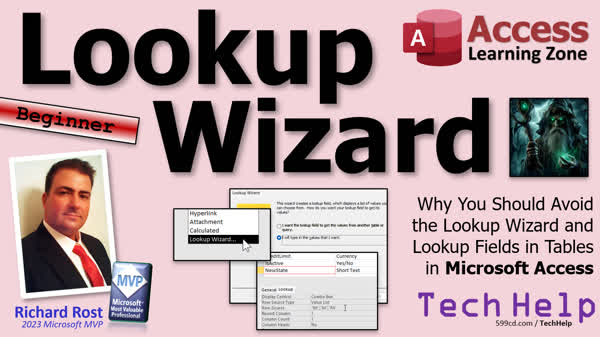 TechHelp Access, Lookup Wizard replacement, efficient product codes, avoid Lookup Wizard, relational database setup, fix multiple table updates, normalization in Access, manage product code changes, Access design view, update queries in Access, avoiding multi-value fields, SQL Server transition, proper Access table setup, relational database principles, junction table in Access
 Subscribe to Lookup Wizard
Get notifications when this page is updated
More InformationTranscript Today we're going to talk about the Lookup Wizard. He's an evil wizard. Evil wizard, very, very bad. I'm going to tell you why you shouldn't use the Lookup Wizard and what to do if you have used the Lookup Wizard previously and how to fix it.
Today's question comes from Cameron in Chapel Hill, North Carolina, one of my Platinum members. Cameron says, "I started building my database before I found your tutorials. I hear that a lot. I know that you don't like the Lookup Wizard, but I have lookup fields in a lot of my tables, and now I need to get rid of them. I can see why you don't like them. One of the lookup tables that I have is for product codes. And instead of making a separate table for that, I used the lookup field that I copied into four different tables. Now, every time I need to change one of those product codes, either add or delete one, I have to do it in four different places. Are there any tips you can give me for how to set this up properly and how to easily take my list of a few hundred product codes and put that into a table properly?"
Yes, Cameron, let's talk about lookup fields, the Lookup Wizard, why you shouldn't use them, and I'll show you how to fix what you've got there.
Alright, so if you're not familiar with what the Lookup Wizard does, if you're making a table, let's say you're working on your customer table. Let's go to design view, and let's say down here you want to have a list of supervisors, and right now you're starting off, you're a small company, you've only got maybe three supervisors. So supervisor. Okay, now over here, you want to have a list of supervisors for people to pick from. And this is where people go wrong. They pick a Lookup Wizard here. Okay. And, you know, starting off, you might not have a table of supervisors, so I'm just going to type in the values that I want. That makes more sense. Okay. I'll put the list of supervisors in here. Let's see. We got Jim. We got Pat. And we got Bill. Okay. Next. And what label would you like? That's fine. You want to limit it to the list? That's okay, or not. You can let people type new ones in as you go. That's fine. Multiple values is also another sticking point that I have. I don't like multivalued fields. I got a whole separate video on multivalued fields. I'll put a link to it down below. Don't use them, all right? And then we'll just hit finish.
Okay, so now what do we got here? We got a short text field that's going to actually store that name, a text field in the table, but where does it get the list from that you've typed in? Well, we'll come down here, look for this lookup tab. Uh... area here's my row source: Jim, Pat, okay and now if you save the table and you go into regular table right, Data Sheet view, come over here, supervisor, you can pick that list. And if you make a form out of this, you'll also be able to, you know, it'll put a combo box on the form.
The problem is, and this is what Cameron's running into, is that if this list gets bigger, Cameron's using product codes, so I can see that getting very long very fast. It's difficult to update it because you have to come into table design to update it as opposed to just having that data in another table. And if you copy this information to other tables, let's say you got a customer table, you've got maybe, and order table, who's the supervisor for the order, right? You copy the same field over that. Now you gotta update it in two or three places, and in Cameron's situation, she got it in four places. It is not considered a must, database nerds like me, it is not considered best practice to have lookup fields like this and lists stored directly in tables. This list should be in a separate table of its own. You could either use a supervisor table, right, or what I prefer is, alright, you got customers and supervisors. Now you might also have employees; these are all people, rights on the same type of data, so you may want to put that in a person table and specify what kind of person it is. Is it a customer? Is it an employee? Is it a supervisor? Right, as another option. If you're just getting started out with Access, that's fine. You can make a supervisor table and put that list in there. This causes problems, especially down the line.
Microsoft added this feature to Access relatively recently. I'm not exactly sure when, but it was to allow beginners the ability to put lookup lists inside of tables. Even though it's bad database practice, they figured, okay, it's just for the beginners, it's fine. But as you get more and more in-depth with your database, as you learn more, and you learn how it should probably be set up, now you've got these lookup lists in there that shouldn't be in there, and if you want to upscale your database later on to something like a SQL Server, you're going to have to remove them. Uh... Lots of problems can be caused by these. Again, they were a band-aid for beginners that cause problems later on. It's like putting training wheels on your bike. Once you learn how to ride a bike, they go through the hassle of taking the training wheels off.
So what should you do? How should you set this up? Well, the way that you should do this is, again, I mentioned earlier, create yourself a supervisor. Let's have a supervisor ID with an auto number, and a supervisor name. You could be first and last in separate fields if you want to. Don't use just "name" ever. "Name" by itself is a reserved word; that'll get you into trouble. Okay? Save this as your supervisor table.
Now, how do you get your data in here if you've already got it in a lookup field in another table? Well, just come over here, design view, what you look up, which is on this field. There it is, right there. And if you want to get a list of this without all the quotes and stuff, as if you look at it, it's in SQL formatted list, right, with a little syntax in there. If you come over here and click the little dot dot dot, it'll give it to you like that, one per line. Just copy that stuff to the clipboard, Ctrl+C, and then come on over to your supervisor table, highlight this column, and go paste. There you go. That's a nice quick way to get that list if you've got, like, a hundred you've got, like, five hundred products in your table. That will get you out of there.
Now that you've got it in a separate table, what you can do is you can go into the customer table here, and you can replace that supervisor with a Supervisor ID. That's going to be a number of type Long Integer. Okay, that's going to be an ID referencing this guy. Alright, that's Supervisor ID right there. Okay. And now what you do is, right now you're going to store that ID in this Supervisor ID field. Okay, and if you've got a whole bunch of these text values in here, and you want to put them as the IDs in this based on what they are in the table, you can use an update query for that. I got a whole separate video on update queries. I'll put a link to that down below as well.
Alright, once you put these in here, right, one, two, three, and so on, then you can go back and get rid of the supervisor name, and then you can create a regular relational combo box, so that your users can pick the supervisor from a list, a combo box on the form. That's where that list should be. But this data now is just a number referring to a value in this table. Okay, that's the right way to set that up.
I got lots of other videos for you to check out related to this. First up, watch my video on data types. I go over all the different data types and basically tell you what each one of them are. Watch this video on relationships to see a lot of relate multiple tables together. Like customers and supervisors'well, you probably wouldn't have customers and supervisors; I'd put supervisor in there as my example. It probably would be employees and supervisors, or customers and sales reps, or whatever. This video will show you how to make that relational combo box where you can pick from a list in a different table.
You can also use value list combo boxes in some places. They have their use. In this particular video, I show you how to do it with a small list of states. But again, in most cases, that's something that should be stored in a table. I show you how to do it. Once in a blue moon, I'll use a value list combo box, but it's almost always a relational combo box. Here's that video I mentioned on multivalued fields. These are something that you put right in a table, and you can pick from multiple options. Again, this is the wrong way to do it. Microsoft added this to Access as a crutch for beginners, but it's bad, it's bad, bad, bad. This video will show you the right way to set it up with a many-to-many relationship in something called a junction table.
Here's my update queries video, so when you add that ID, and you want to copy over all the IDs from the supervisor table, you can use this to do just that. That's an update query. These are all free videos, by the way. I'm not selling anything here. This is all free stuff. Tons of free learning on my website and on my YouTube channel. You could spend hundreds of hours learning for free. I just hope that if you do like my stuff, maybe you'll consider becoming a member. Membership costs a couple of bucks a month, and it helps to keep me making these free videos too.
And one more page you should check out is my evil Access stuff page. If you want all the other things you shouldn't do in Access, I've got them all listed on this page. The things that are bad, like spaces in your object names. This is, you know, how many times people want me to look at their database; they send me screenshots and stuff, and it's like spaces everywhere. They can't figure out why they're having problems because of the spaces. Simple things like that too. Watch for reserved words like "date," "name," don't use attachments, don't put pictures in your tables, that kind of stuff, right. Lookup values are right here. I'm a link to this in a minute, but the video you're watching right now is all kinds of other stuff on here. I'll put a link to this and all of those other free videos down below.
But that's it. That's going to be your TechHelp video for today. I hope you learned something. Live long and prosper, my friends. I'll see you next time. Intro In this video, we will talk about the Lookup Wizard in Microsoft Access, why using lookup fields directly in your tables is not considered best practice, and the potential problems that can result. I will explain how to identify if you have used the Lookup Wizard in your tables, show you how to move your data from lookup fields into proper related tables, and demonstrate the steps to set up a relational combo box instead for better database design. Quiz Q1. What is the main reason the Lookup Wizard is discouraged in Access databases?
A. It makes databases run slower
B. It leads to bad database design and data management problems
C. It is incompatible with importing data from Excel
D. It makes queries impossible
Q2. When is it appropriate to use a value list combo box in an Access form or table?
A. For any list that may change frequently
B. For large lists of codes, like product codes
C. For very small and rarely changing lists, like states
D. For storing images
Q3. If you have a supervisor field in multiple tables using the Lookup Wizard, what problem does it cause?
A. It makes the database read-only
B. You have to manually update the list in each table every time it changes
C. It causes Access to crash
D. It lets users enter any data they want
Q4. What is considered best practice when you have a list of possible supervisors for employees?
A. Store supervisor names directly in every related table
B. Store supervisor IDs that relate to a separate supervisors table
C. Only allow manual entry
D. Use a shared Excel worksheet
Q5. Why did Microsoft originally add the Lookup Wizard and multivalued fields to Access?
A. To improve database performance
B. To help beginners easily create lookup lists, even though it violates best practices
C. To enable advanced SQL Server migration
D. To help with image embedding
Q6. What is the preferred method for allowing users to select supervisors in forms?
A. Multivalued field in the table
B. Relational combo box referencing a supervisors table
C. Free text entry on forms
D. Directly entering supervisor ID numbers
Q7. Which tool can help you convert a list of supervisor names from a lookup field into a separate table?
A. Update Query and copy-paste from the field's value list
B. Macros only
C. Adding each supervisor manually one by one
D. Inserting records by hand in SQL View
Q8. When normalizing tables, why should you avoid using reserved words like "name" as field names in Access?
A. It makes databases run faster
B. Reserved words can cause conflicts and errors in queries and VBA code
C. It helps with lookup field performance
D. It is only important when using macros
Q9. What is a junction table used for, according to the video?
A. To connect lookup fields with value lists
B. To store many-to-many relationships between entities like employees and supervisors
C. To hold only image data
D. For creating update queries
Q10. What is the recommended data type for a foreign key field, such as SupervisorID, in a related table?
A. Short Text
B. Long Integer (Number)
C. Date/Time
D. Attachment
Q11. Why is storing lists, like product codes, directly in multiple tables using lookups a bad idea?
A. It reduces space efficiency by duplicating data
B. It creates sync and consistency problems whenever you update or add codes
C. It makes data more secure
D. It is recommended by Microsoft for normalization
Q12. If you want to replace text entries for supervisors in your table with the corresponding SupervisorID from a new supervisors table, which Access tool should you use?
A. Update query
B. Select query
C. Delete query
D. Crosstab query
Q13. What is one example of "evil" practices in Access besides using the Lookup Wizard, according to the video?
A. Using spaces in object names
B. Using only numbers as identifiers
C. Normalizing tables
D. Creating too many relationships
Answers: 1-B; 2-C; 3-B; 4-B; 5-B; 6-B; 7-A; 8-B; 9-B; 10-B; 11-B; 12-A; 13-A
DISCLAIMER: Quiz questions are AI generated. If you find any that are wrong, don't make sense, or aren't related to the video topic at hand, then please post a comment and let me know. Thanks. Summary Today's TechHelp tutorial from Access Learning Zone tackles the Lookup Wizard in Microsoft Access, which I often refer to as the "evil wizard." In this lesson, I will explain why you should avoid using the Lookup Wizard when designing your tables, the problems it can create, and how to repair your database if you've already made use of it.
This topic comes up frequently. For example, Cameron from Chapel Hill explained that after starting to build a database, she realized she used Lookup fields in several tables for things like product codes. Every time she needs to update a product code, she finds herself having to change it in multiple locations because she copied the lookup field into different tables. She wants to know the best way to set this up now and how to import her hundreds of product codes into a table the right way.
First, if you are not familiar with how the Lookup Wizard works, here is a quick overview. When you are designing a table, you may want to give users a set of options to choose from in a particular field, such as supervisors. Instead of creating a separate supervisors table, it might seem easier to use a Lookup Wizard and enter those names right into the field definition. Access then embeds these values as a list within the table so that users can pick from those names either in the datasheet view or when using a form. On the surface, this seems convenient.
However, this setup quickly turns problematic. If your business grows and you need to update or expand the list, you must return to table design view and manually adjust the list everywhere it appears. If you reused this approach in multiple tables, as Cameron did with product codes, you are forced to update the list in every single location. This approach is not only inefficient but also goes against best practices in database design. As a result, databases end up harder to manage, and any future migration to a more advanced database engine like SQL Server will require these lookup lists to be removed.
Instead of storing these value lists directly inside your tables, you should keep the selectable values in a separate table. For example, rather than a supervisor name lookup list, you should create a Supervisors table with an auto-number ID and the supervisor's name (broken into first and last name fields if possible). Never use fields simply called "Name" because it is a reserved word in Access and can cause conflicts.
Now, if you already have a lookup field storing values as a value list, getting those items into a separate table is fairly straightforward. In design view, you can open the lookup source and copy the items, each on a separate line, straight into the new supervisor table. This method works for long lists, whether you have a handful or several hundred items to transfer.
Once your list is inside a dedicated table, return to your original table, remove the lookup field, and add a new field to hold the Supervisor ID as a number (Long Integer). This field will reference the Supervisor table. If you already have entries in your original supervisor field and you want to replace those names with the correct Supervisor ID values, you can use an update query to match the names and transfer the IDs accordingly. I have a separate video devoted to update queries for this very purpose.
After your tables are structured correctly, you can create a proper combo box in your forms. This combo box will be linked through a relationship to the Supervisors table, providing an up-to-date list sourced from one central location. This is the recommended way to create lookup lists in relational databases.
There are videos covering related topics that you should consider watching. My video on data types walks you through each commonly used field type. Another lesson covers relationships and how to set up linked tables, such as customers and supervisors or employees and supervisors. You will also find guidance on making relational combo boxes, which source their lists from another table. I do touch on value list combo boxes in rare situations, like picking U.S. states, but even then, see if a table makes more sense in the long run.
If you have questions about multivalued fields, I have a video specifically addressing why these can cause even more issues, especially as your needs grow and you need to implement more complex relationships. Implementing many-to-many relationships should be done with a junction table instead.
You will also find a lesson on update queries, showing you how to update related records efficiently after restructuring your tables. All of these resources are available for free and can be found both on my website and my YouTube channel.
If you want to avoid additional pitfalls in Access, check out my page on "evil Access stuff." There, I list common mistakes to avoid, such as using spaces or reserved words in object names, storing attachments or images in tables, or adding lookup value lists directly in tables.
That sums up today's lesson on why you should steer clear of the Lookup Wizard in Microsoft Access and how to remedy the issue if you have already used it. You can find a complete video tutorial with step-by-step instructions on everything discussed here on my website at the link below.
Live long and prosper, my friends. Topic List What the Lookup Wizard does in Access
Problems caused by using lookup fields in tables
Why maintaining lookup field values in multiple tables is problematic
How to properly set up related data using a separate table
Creating a supervisor table with an autonumber ID and name field
Copying lookup field values from an existing table to a new table
Replacing lookup fields with foreign key ID fields
Using update queries to convert text values to ID references
Setting up a relational combo box to select data from another table
Why multivalued fields in tables should be avoided
How to paste multiple lookup values into a new table column
Explanation of reserved words issues in Access (such as 'name')
Limiting value lists versus allowing new entries
Data entry in forms after restructuring lookup fields
Why Microsoft added lookup fields for beginners and the resulting issues
Brief handling of value list combo boxes versus table-driven combo boxes Primary Topics Access Lookup Wizard, lookup fields, relational table design, normalization, removing lookup fields, supervisor tables, update queries
Secondary Topics Access combo box controls, value list fields, multivalued fields, reserved words, general database best practices
|




