VBA Bookmarks
By Richard Rost

 2 years ago
Quick Jump Between Bookmarks in Access VBA Editor In this Microsoft Access tutorial, I will show you how to create and manage VBA bookmarks, enabling easy navigation within your myriad VBA code modules. PrerequisitesLinksRecommended Courses
Keywords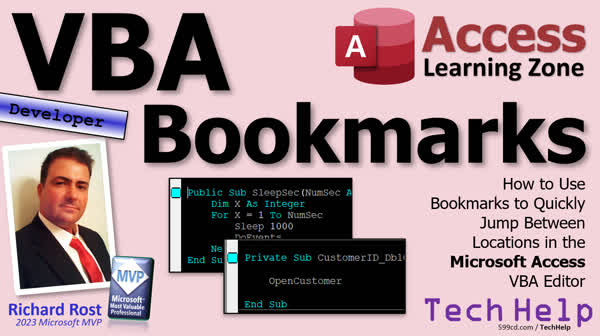 TechHelp Access, VBA editor bookmarks, toggle bookmarks in Access, Access VBA editor tools, set bookmarks, VBA editor shortcuts, manage VBA code, cycle through bookmarks, Access VBA development, VBA code editing, bookmarking in coding, VBA bookmark features, efficient VBA coding, Edit toolbar
 Subscribe to VBA Bookmarks
Get notifications when this page is updated
More InformationTranscript In today's video, we're going to talk about bookmarks in the VBA editor and how to quickly jump between multiple locations while you're working on your database. This is a developer-level video for all my VBA peeps. Yeah, I said "peeps." I'm cool with the lingo and down with it.
If you've never done any VBA programming before, you'll want to watch this video first and then come on back. So, yesterday's video, when I did the VBA editor colors - how to customize your colors, right - we did this yesterday. Add the link for this one down below. It's so much easier on the eyes, by the way. It brought up a memory of a tool that I used to use years ago, and by years, I do mean a long time ago, that for some reason or other, I just stopped using. But it's very handy. It's called bookmarks.
You can see them if you go into Tools > Options, like we did yesterday, on the Editor Format. There's one of these settings way down here called "Bookmark" text. In yesterday's answer, I said I've got my video on this coming up. Well, this is that video. What a bookmark is - and what it is is - what bookmarks are, are a way, I don't know how to say that, to quickly jump between different locations in your code.
Have you ever had a situation where, let's say, you're working on a form? Alright, let's say you're working on your main menu form, alright, and right here you're doing something. Okay, you've got other code that's related to this, maybe in a global module function, right, in your global mod. And you've got to quickly jump, and you're going back and forth between these. It's sometimes hard to like, okay, let's go back here and then find where we were in this code, and then okay, we've got to go back here and then find where we were in here. And these are short, little, tiny modules.
This is a bad example for this. But I've got modules that have thousands of lines of code in them. So that's what bookmarks are - they're really easy to use and really easy to set up. First thing is, in the VBA editor, if you don't have this toolbar on, which is the Edit toolbar, okay, let's go ahead and turn that on. So on any of these toolbars, right-click and pick "Edit." It's not normally on by default. Here it is, and if it comes in like over here, right - grab that little handle right there and click, and you can drag it down here, like to keep it, or you can make it floating if you want, like little bars. Okay, the bookmark stuff is right here.
Right, that's even on these menus up here that I can find. Let's see bookmarks anywhere up here...? No, no, I looked before, did not see them. But anyway, you've got to use them off this menu, and they don't even have shortcut keys associated with them. So that's a note to the Access team: add some shortcuts to these. It'd be really nice to be able to hit like shift whatever, control-shift, to jump between these.
Anyways, first you set your bookmarks. Let's say we're working with the Sleep function. Click anywhere on this line and hit that guy. And you see the little blue doohickey there over in the margin. So we got that. Let's go over to the Customer form. Let's say we're also working with this guy. We're going to set a bookmark there. So now I've got two bookmarks set.
Now you want to jump between them? You use this little arrow here, click "Next Bookmark," "Next Bookmark," to quickly jump between those. You can set a bunch of them if you want to. They're also working with the Contact form, the Customer list. Say we're working with this guy. Set a bookmark, and you get three of them. You can cycle between. It's very simple.
It's one of those features like I said I used to use this way back in the day, but I really haven't touched this feature in at least ten years. Now, if you want to get rid of a bookmark, just toggle it again with this guy. Toggle this toggles it on and off. So, we'll turn that one off. Let's go to the next one. If you've got a bunch of bookmarks set up, and you want to clear all of them, that's this guy. It says "Clear All Bookmarks." If you click on that one, they all go by by.
Okay, that's pretty much how bookmarks work. It's one of those tools that you don't realize how helpful it is until you begin using it for a little bit, and then you realize it's awesome. And, unlike me, you forget about it, and then you stop using them for a while. And then you think, "Wait a minute."
But that's going to be a TechHelp video for today. Have a good weekend everybody. Hope you learned something today. Live long and prosper, my friends. I'll see you next week. Intro In this video, we will talk about how to use bookmarks in the VBA editor for Microsoft Access. You will learn how to set, toggle, and clear bookmarks, and how to jump quickly between different locations in your code using the Edit toolbar. This tutorial is great for developers working with large modules who need an easy way to navigate their VBA code. Quiz Q1. What is the main purpose of bookmarks in the VBA editor?
A. To quickly jump between different locations in your code
B. To add comments to your code
C. To highlight syntax errors
D. To change the color scheme of the editor
Q2. Where can you enable the Edit toolbar in the VBA editor?
A. By left-clicking on the toolbar and selecting Edit
B. By double-clicking the code window
C. By right-clicking on any of the toolbars and picking Edit
D. By navigating to File > New Toolbar
Q3. What visual indication shows that a bookmark has been set on a line in the code?
A. The line turns yellow
B. A star appears next to the line number
C. A blue icon (doohickey) appears in the margin
D. The text becomes bold
Q4. If you want to remove a bookmark from a specific line, what should you do?
A. Delete the line of code
B. Select the line and press the Delete key
C. Toggle the bookmark icon on that line again
D. Click Clear All Bookmarks
Q5. What should you do if you want to remove all bookmarks from your project?
A. Right-click each bookmark and select Remove
B. Use the "Clear All Bookmarks" button on the Edit toolbar
C. Restart the VBA editor
D. Press F5 to refresh bookmarks
Q6. According to the video, are there default shortcut keys available for using bookmarks in the VBA editor?
A. Yes, they are enabled by default
B. Only for toggling bookmarks, not for navigation
C. No, there are currently no shortcut keys
D. Only in the latest version of Access
Q7. Why are bookmarks especially useful if you are working with large modules?
A. They help you import and export code efficiently
B. They allow quick navigation between multiple important lines without losing your place
C. They optimize the performance of your VBA code
D. They automatically organize your modules alphabetically
Q8. What is the suggested method for accessing bookmarks if you do not see bookmark commands in the main menus?
A. Through the Tools > Options dialog box
B. By enabling the Edit toolbar where bookmark commands are found
C. By writing custom VBA functions
D. By using the View menu
Q9. If you set multiple bookmarks in different modules, how can you navigate between them?
A. By clicking the "Next Bookmark" icon on the Edit toolbar
B. By pressing Control + Tab
C. By selecting from a bookmarks dropdown menu
D. By scrolling manually through each module
Q10. What general advice does the video give about using bookmarks?
A. Bookmarks are rarely useful and can be ignored
B. Start using bookmarks regularly to experience their full benefit
C. Only use bookmarks in small projects
D. Bookmarks only work in the newest versions of Access
Answers: 1-A; 2-C; 3-C; 4-C; 5-B; 6-C; 7-B; 8-B; 9-A; 10-B
DISCLAIMER: Quiz questions are AI generated. If you find any that are wrong, don't make sense, or aren't related to the video topic at hand, then please post a comment and let me know. Thanks. Summary Today's TechHelp tutorial from Access Learning Zone covers how to use bookmarks in the VBA editor to help you quickly navigate between multiple locations in your code while working on your database projects. This is a feature that is especially helpful for those of you who are more experienced with VBA, but it is worth learning no matter your skill level.
If you are new to VBA programming, I recommend watching my introduction to VBA video first. That will give you a good foundation before coming back to learn about bookmarks.
Yesterday, I covered how to customize the color scheme for your VBA editor, which makes working with your code much easier on the eyes. Thinking about the VBA editor settings brought back memories of another tool built into the editor that I used to rely on a lot but somehow stopped using: bookmarks.
Bookmarks are referenced if you go into the VBA editor's Tools menu and then Options. On the Editor Format tab, you will notice a setting for "Bookmark" text. Bookmarks allow you to quickly move between different places in your code, which can be extremely useful if you are working on several related sections at once.
To give an example, imagine you are working on your main menu form code as well as some related logic in a global module. If you do not have an easy way to jump back and forth, it can get frustrating, especially as you try to remember exactly where you left off in each module. This issue is even more pronounced if your modules are large, possibly stretching to thousands of lines. Bookmarks make this a lot easier by letting you mark and revisit exact spots in your code without searching manually.
Before you can use bookmarks, you need to turn on the Edit toolbar in the VBA editor. If you do not see this toolbar already, just right-click on any of the existing toolbars and select "Edit" from the list. Once enabled, the Edit toolbar can be docked or left floating anywhere you find convenient. On this toolbar, you will find all of the bookmark controls.
You will not find bookmark commands in the standard menus at the top of the VBA editor, and there are no built-in keyboard shortcuts for them. This is something I would love to see improved, as shortcut keys would make bookmarks even handier.
To set a bookmark, click anywhere in the code where you want to mark a spot, then use the bookmark button on the Edit toolbar. A small blue marker will appear in the margin next to the line you selected. You can repeat this process in any other section of code where you need a bookmark. For example, if you are also working with code in the Customer form and the Contact form, you can set bookmarks in each place. The result is several marked locations you can easily jump between.
To move from one bookmarked location to another, use the "Next Bookmark" button on the toolbar. Each click moves you to the next spot you have marked, cycling back through all your bookmarks. You can set as many as you need, and the navigation works the same.
If you want to remove a bookmark, simply toggle the marker off with the same button you used to set it. If you need to clear all bookmarks at once, there is a separate button for that as well.
Bookmarks are the kind of tool you might overlook until you start using them regularly, then realize how effective they are in speeding up your workflow. They make it far less tedious to switch between various parts of your code, especially when you are deep into complex projects.
That wraps up today's lesson on bookmarks in the VBA editor. If you want step-by-step video instructions for everything discussed here, you can find the complete tutorial on my website at the link below.
Live long and prosper, my friends. Topic List How to enable the Edit toolbar in the VBA editor
Identifying bookmark controls on the Edit toolbar
Setting a bookmark on a line of code
Navigating between bookmarks using the toolbar
Setting multiple bookmarks in different modules or forms
Removing a single bookmark by toggling it off
Clearing all bookmarks at once Primary Topics VBA editor, bookmarks, code navigation, Edit toolbar, productivity tools Secondary Topics toolbar customization, shortcut keys, Access VBA quirks |




