ANSI 89 v 92
By Richard Rost

 2 years ago
Access ANSI 89 vs. 92: Wildcards & Compatibility In this Microsoft Access tutorial, I will show you how to manage ANSI 89 and ANSI 92 SQL syntax settings to prevent issues with the "Like" and "ALike" functions in your queries. We'll explore wildcard differences, compatibility with SQL Server, and provide solutions to fix this common problem. Amber from Torrance, California (a Silver Member) asks: I'm using Microsoft Access, and every time I type Like in my query, it automatically changes to ALike. This is really frustrating, and I can't figure out how to stop it. Why is this happening, and how can I make it stop? Recommended Courses
Keywords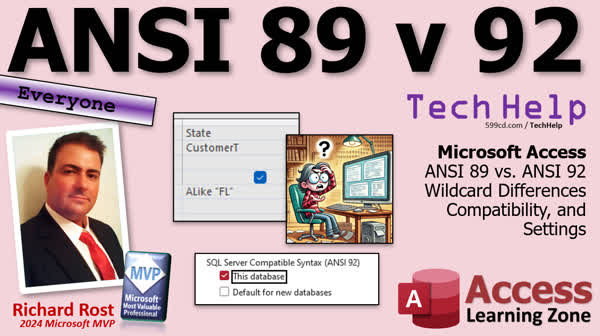 TechHelp Access, ANSI 89, ANSI 92, wildcard differences, MS Access SQL syntax, wildcard compatibility, ALike issue, ANSI settings, query design, Access options, SQL compatible syntax, wildcard query problem, Access ANSI format, Access SQL query fix, ANSI 92 setting modification
 Subscribe to ANSI 89 v 92
Get notifications when this page is updated
More InformationTranscript Welcome to another TechHelp video brought to you by AccessLearningZone.com. I'm your instructor, Richard Rost. Today we're gonna talk about one of those problems. It comes up once in a while; you may never see it. Hopefully, you'll never see it. But every now and then, someone asks about it in the forums, and a few people have, and let's talk about it.
We're gonna talk about the difference between ANSI 89 and 92, what that means, wildcard differences, compatibility, and how to fix it if you have run into this problem. It'll be easier once you understand the question. Here, let's see the question.
Today's question comes from Amber in Torrance, California, one of my silver members. Amber says, "I'm using Access, and every time I type 'like' in my query, it automatically changes to 'all like.' This confused me the first time I saw it too, years back. This is really frustrating. I can't figure out how to stop it. Why is this happening, and how can I make it stop?"
Let me show everybody what's happening, Amber.
All right, so you're working in your database. You're plugging along happily, and you go to make a query. Great. Where you design, right, you bring in your customer table, and you want to see the customer ID and the first name, and you want to see where the first name is "like," and then we'll do a star. It should show me all the first names that start with the letter 'a,' right? If I hit tab, what happened? Look at that. It's switched to 'all like.' What's going on here? Let me zoom in. It's 'all like.' That's not right, and then, of course, if you run it, it doesn't work.
Right, assuming I have some customers in here with the first name 'a,' let's see, do I have any? Yeah, I got one. There's Alex Life, and so what gives?
Well, there are two different syntaxes that Access can work through when it comes to SQL. There's ANSI 89 and ANSI 92. ANSI stands for the American National Standards Institute, one of those bodies that puts standards and stuff together, like those ISO dates that I love, right, the International Standards Organization. Anyways, this one's just American, so 'Murica. Anyways, ANSI 89 is the one we know and love, right, that uses an asterisk for a wildcard character and a question mark for a single wildcard character, right?
And here's what it looks like: select star from customer T where first name like 'a*,' and that'll give you what we're looking for, and Access allows you to use double or single quotes, okay? ANSI 92 is more compatible with SQL Server, and it uses a percent symbol for a wildcard character and an underscore for a single wildcard character, right? And you've got to use single quotes for your criteria, and that's what the same thing looks like, right, 'a%' sign. Why they're different is a long story. Not going into it. I wish Microsoft would unify them. I would tell Sammy to put it on the list, but there's no way. But yes, if you're working with SQL Server, this is the standard you have to use for queries.
In fact, some users work almost exclusively with SQL Server because Access makes a great front end, right? Access is a great rapid application development tool. You can build your queries in your forms and reports and make a beautiful desktop interface and then put all your data in SQL Server so it can be secured and even online, right? So lots of people, myself included, work with SQL Server's back end. I still do a lot of my queries locally, though.
And you can switch between them. There are certain things you can do with pass-through queries, and there are tricks you can play. But if you're not using SQL Server, you've got to make sure that your database is set to ANSI 89. Now I'll show you how to do that in just a minute. One of the problems you have is that 'like' gets switched to 'all like.' That's one of the issues.
Another one of the issues just came up in the forums yesterday, or today, a couple of days ago. Carolyn from Hamburg, Germany, mentioned it in the forums. She's working with my ABCD database, and there's one of the forms in there that filters records. She'd import mine right into her database, and it would work, and then she'd close the database and reopen it, and it would stop working. And this is the problem; in fact, Carolyn figured it out on her own. Very proud of you, Carolyn. Yep, she's got a nice little database here. She pulled in my filter form, and it would work, and then she'd reboot it, and it wouldn't work. And then she figured this out on her own, and I'm going to show you where this is right now, and I know this is in German, that's okay.
All right, so how do you fix it? You go to File, Access Options, Object Designers, Query Design, and make sure the checkboxes are off under SQL Compatible Syntax ANSI 92. All right, so close this. Changes? No. Let's go File, Options, Object Designers, and it's right there, okay? Now I just checked on the one for this database to get it to work, but if you accidentally check this guy on default for new databases, all the new databases you create will be in that format. Okay, I'll hit OK. Now it tells you you gotta reboot the database, but usually, you don't.
All right, now if I go to Create and then Query Design and I do the same thing, oh, I do that, bring in this guy, bring in that and that, and I come down here, and I type in 'like a*,' and it works fine. So we fixed that problem.
Now I have seen this setting change by itself. Okay, sometimes you can import objects from another database, and if Access sees that it's an ANSI 92 query, for example, it might change that setting on its own. I've had that happen. Usually, someone else modifies it, or maybe you open up a template that modifies it. Okay, so just be careful and just recognize that if your queries are acting weird, then check this setting. And I'm gonna add this to my troubleshooter.
If you're not familiar with it, it's on my website. I got a big long list and a video of all kinds of things you can check in your database to make sure if something weird's going on. You can't figure it out: reboot the PC, rename the object, try another computer, all this stuff, right, the big, big long list of stuff to try. I'm gonna put this on here because I've seen this come up a couple of times, and who knows? Kudos to Carolyn for figuring it out because that's one of those things where if I can't really see the database, it's hard to troubleshoot. So good thing she caught it.
All right, so that's gonna do it. Nice short one for today, folks. That's your TechHelp video for today. Hope you learned something. Live long and prosper, my friends. I'll see you next time.
TOPICS:
Difference between ANSI 89 and ANSI 92
Wildcard differences in Access
SQL compatibility with SQL Server
Using like in Access queries
Switching ANSI SQL modes in Access
Access Options to fix wildcard issue
Troubleshooting database query issues
COMMERCIAL:
In today's video, we're exploring a peculiar challenge in Microsoft Access: the difference between ANSI 89 and ANSI 92, which impacts wildcard usage in queries. You might encounter your 'like' queries suddenly turning into 'all like', causing frustration when results don't appear as expected. We'll discuss how to fix this by adjusting Access settings and ensure your queries run smoothly. Learn how to switch between SQL syntaxes and avoid unexpected query issues. You'll find the complete video on my YouTube channel and on my website at the link shown. Live long and prosper my friends. Intro In this video, we'll talk about the differences between ANSI 89 and ANSI 92 SQL syntax in Microsoft Access, focusing on how wildcard characters work in queries and why your 'like' criteria might automatically change to 'all like'. I'll show you how to fix this issue by adjusting the proper settings in Access, explain compatibility with SQL Server, and offer troubleshooting tips if your queries stop working as expected. Quiz Q1. What problem does Amber encounter in Microsoft Access when using the 'like' keyword?
A. The keyword 'like' automatically changes to 'all like'
B. The keyword 'like' is not recognized by the database
C. The keyword 'like' returns incorrect query results
D. The keyword 'like' causes the query to crash
Q2. What does ANSI stand for?
A. American National Software Institute
B. American Numerical Standards Institute
C. American National Standards Institute
D. American Network Standards Institute
Q3. Which wildcard character does ANSI 89 use for matching any series of characters?
A. Percent sign (%)
B. Asterisk (*)
C. Underscore (_)
D. Question mark (?)
Q4. Which wildcard character does ANSI 92 use for matching any single character?
A. Asterisk (*)
B. Percent sign (%)
C. Question mark (?)
D. Underscore (_)
Q5. What should be checked in Access Options to fix the problem with 'like' being switched to 'all like'?
A. SQL Compatible Syntax ANSI 89
B. SQL Compatible Syntax ANSI 92
C. Enable Wildcard Conversion
D. Default Query Syntax
Q6. Which type of database is more compatible with ANSI 92 syntax?
A. Microsoft Access only
B. Microsoft SQL Server
C. Oracle Database
D. MySQL Server
Q7. If you accidentally check the option for SQL Compatible Syntax ANSI 92 as the default for new databases, what will happen?
A. All existing databases will be converted to that format
B. No new databases can be created
C. All new databases will use ANSI 92 syntax by default
D. The queries in new databases will not run
Q8. Why is Microsoft Access often used as a front end for SQL Server according to the video?
A. It's cheaper than using SQL Server directly
B. It can work offline and provides advanced reporting features
C. It's a great rapid application development tool to build interfaces
D. It's the only software compatible with SQL Server data
Q9. What did Richard suggest about why the setting might change unexpectedly?
A. Due to a bug in Microsoft Access
B. Importing objects from another database
C. Installing a new version of Access
D. Adjusting screen resolution
Q10. What does Richard recommend doing if queries are acting weird in Access beyond checking the ANSI setting?
A. Delete all queries and recreate them
B. Check the troubleshooter on his website
C. Contact Microsoft support
D. Reinstall the Access software
Answers: 1-A; 2-C; 3-B; 4-D; 5-B; 6-B; 7-C; 8-C; 9-B; 10-B
DISCLAIMER: Quiz questions are AI generated. If you find any that are wrong, don't make sense, or aren't related to the video topic at hand, then please post a comment and let me know. Thanks. Summary Today's TechHelp tutorial from Access Learning Zone covers an issue you might encounter in Microsoft Access. I haven't come across it often, but it does come up occasionally. In this session, we'll discuss the differences between ANSI 89 and 92, what these distinctions mean regarding wildcard characters and compatibility, and how to resolve the problem if you face it. Understanding the query issue will make it easier to address.
Amber from Torrance, California, wrote in with a query issue. She mentions that when she types 'like' in her Access query, it automatically changes to 'all like.' This is a common confusion, and I faced it myself years ago. Amber wants to know why this is happening and how to stop it.
Let me explain what's happening in Amber's scenario. While working on a query with a customer table, the goal might be to filter the first names starting with 'a' using the 'like' operator with a wildcard. However, upon entering the query and pressing tab, the query changes unexpectedly to 'all like,' which causes the query to fail. This problem likely arises from the use of different SQL syntax standards, specifically ANSI 89 and ANSI 92.
ANSI, the American National Standards Institute, sets various technical standards similar to those by the International Standards Organization. ANSI 89, preferred by many Access users, utilizes the asterisk and question mark as wildcard characters. On the other hand, ANSI 92, which is more compatible with SQL Server, uses a percent symbol and an underscore for its wildcard characters. Also, different quoting conventions exist in the two standards.
If you are mostly using SQL Server, it's the ANSI 92 standard with which your queries need to comply. Many users utilize Access as a rapid development tool and connect to SQL Server as a secured data back end. However, if you're not using SQL Server, it's essential to ensure your database uses ANSI 89.
I will now guide you on how to change the settings if you're facing problems like Amber's. Go to the Access Options under File, then Object Designers. Make sure to uncheck the boxes under SQL Compatible Syntax ANSI 92 to revert to ANSI 89. If your database defaults to the incorrect setting, any new database you create will use that format. You might not even need to reboot the database for changes to apply.
Once you've set this up correctly, you can create queries using the ANSI 89 format without issues. This solution should resolve the switching to 'all like' problem. I have observed the setting changing by itself sometimes, possibly due to importing objects or other modifications, so be sure to check this setting if your queries behave unusually.
I'll add this troubleshooting step to a resource on my website, which includes various methods for diagnosing database issues, such as trying different computers or renaming objects.
Thank you to Carolyn in Germany for figuring out a related issue. Such community insights help us all troubleshoot more effectively.
That's our tutorial for today. I hope this was helpful. For more detailed, step-by-step video tutorials on this topic, visit my website linked below. Live long and prosper, my friends. Topic List Difference between ANSI 89 and ANSI 92
Wildcard differences in Access
SQL compatibility with SQL Server
Using like in Access queries
Switching ANSI SQL modes in Access
Access Options to fix wildcard issue
Troubleshooting database query issues Primary Topics ANSI 89 vs ANSI 92, Access wildcards, SQL syntax compatibility, query design problems, Access Options settings, wildcard character differences, troubleshooting query issues Secondary Topics SQL Server integration, importing database objects, default database settings |




