File Options Menu
By Richard Rost

 3 months ago
Using File Options Menu Settings for Beginners In this video, we will walk through the Microsoft Access File Options Menu and focus on the settings that are actually useful in day-to-day work. I will show you where to find key options like application title, custom icons, startup forms, navigation pane settings, and compact on close. We will also discuss settings for datasheets, proofing, client preferences, and Trust Center security. Advanced and rarely-used settings are mentioned only to note when you can safely leave them alone. Links
Keywords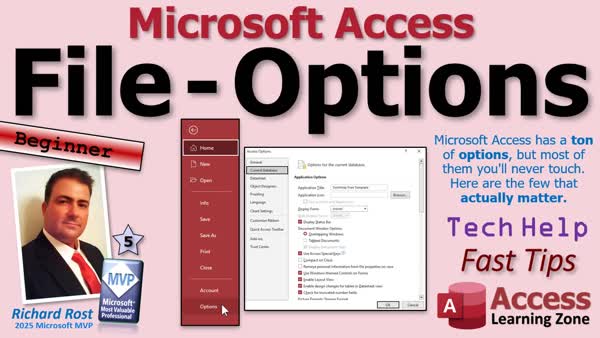 TechHelp Access Fast Tips, Office theme, dark mode, application title, custom application icon, display form, startup form, overlapping windows, tabbed documents, compact on close, display navigation pane, ribbon, full menus, Name AutoCorrect, event procedures, Quick Access Toolbar, Trust Center, trusted location
More InformationTranscript Microsoft Access has a ton of options, but most of them you'll never touch. Here are the few that actually matter.
Today, we're going to take a quick tour through the Microsoft Access options, and I'm only going to show you the stuff you'll actually use. I'm skipping all the advanced settings that most people will never touch, and I'll tell you when that's the case.
You can find the Access options under File, and then Options, and there's the Access options.
Starting on the General tab: honestly, the only thing I ever use on here is the Office theme. You've got colorful, which is the red across the top, dark gray, black, and white. I use colorful, and then I use black at night if I want to go into dark mode. Here's more about dark mode. I'll put a link down below to all the videos I'm going to mention.
Next up is Current Database. This is one of the more important sections. This is where you can set your application title, so it doesn't say Microsoft Access at the top of your window. You can also set a custom application icon and choose whether that icon shows up on forms and reports.
A big one on here is Display Form. This is the form that will open with your database. For example, in this database, you can see I've got a main menu here. I'm using an AutoExec macro to load this, so I'm not using the startup form, but an easy way to get a startup form is just to pick it from this list. This video explains that in more detail.
Under Document Window Options, I personally prefer overlapping windows over tabbed documents. That's more of a personal preference. The default is tabbed documents, but in all my videos you'll see overlapping windows. I like the classic Windows feel.
You'll also see Compact on Close in here. I don't recommend turning that on. You should compact your database regularly, but not every single time you close it. See this video for more on that.
Drilling down you'll see Display Navigation Pane. That can be turned off if you're giving your database to users and you don't want them poking around on your tables and queries. This is the navigation pane over here. Same thing with the ribbon and full menus. Those are more for locking things down in a finished app. The shortcut menus are those right-click menus on things.
Name AutoCorrect or AutoCorrupt as we call it. This is one to be careful with. It tries to automatically fix things if you rename objects, but it's not perfect and a lot of developers turn that off.
Datasheet is mostly personal preference. Do you want to see grid lines? Do you want flat, raised, or sunken? Those kinds of things.
Object Designers: I recommend leaving all the defaults as they are in here. One exception is down here that says always use event procedures. If you're programming in VBA, turn that on. It'll save you a ton of clicks. See this video for more on that.
Proofing again is mostly personal preference, autocorrect options, changing words, and uppercase, that kind of stuff.
Language is obviously for multi-language support. I only speak English, so I can't help you with this one.
Down in Client Settings, these are mostly personal preference. For example, Move After Controls, where your cursor goes when you press Enter, that kind of stuff.
The Confirm section down here is important. I turn off confirmations for record changes and action queries, but I leave document deletions on so I don't accidentally delete something important. See this video for more on that.
Something else on here is especially down under Advanced. I would leave this alone unless you have a very specific reason to change it. Things like OLE timeouts and refresh intervals are for advanced or SQL Server scenarios. If you need them, you'll know.
Customize the Ribbon and the Quick Access Toolbar. I've got videos on these. Here's the Quick Access Toolbar one. I don't really use add-ins much, so we're going to skip that one.
Under Trust Center settings, you want to make sure your database is in a trusted location so you don't get security warnings. Here's a more detailed video on that.
So that's it. Those are the Access option settings you'll actually use. Everything else you can safely ignore unless you know exactly why you need it.
Live long and prosper, my friends. Intro In this video, we will walk through the Microsoft Access File Options Menu and focus on the settings that are actually useful in day-to-day work. I will show you where to find key options like application title, custom icons, startup forms, navigation pane settings, and compact on close. We will also discuss settings for datasheets, proofing, client preferences, and Trust Center security. Advanced and rarely-used settings are mentioned only to note when you can safely leave them alone. Quiz Q1. Where can you find the Access Options in Microsoft Access?
A. Under File, then Options
B. On the Home tab
C. On the Insert tab
D. By right-clicking the database window
Q2. What is the primary useful setting on the General tab mentioned in the video?
A. Setting default font size
B. Changing the Office theme
C. Configuring macro security
D. Setting column width
Q3. What does the Application Title option in the Current Database section do?
A. Changes the title of forms
B. Sets the text at the top of the Access window
C. Renames all your objects
D. Changes the background color
Q4. Why might you want to set a startup Display Form in the Current Database options?
A. To show a welcome message whenever Access opens
B. To automatically open a specific form when the database is launched
C. To change the layout of tables
D. To enable dark mode
Q5. What personal preference does the speaker mention regarding Document Window Options?
A. Prefers tabbed documents
B. Prefers overlapping windows
C. Prefers hidden windows
D. Prefers only one window open
Q6. What is the recommendation for the Compact on Close option?
A. Always keep it on
B. Turn it off and compact manually when needed
C. Only use it once per year
D. Never compact a database
Q7. What does turning off the Navigation Pane do for users?
A. Makes the database faster
B. Prevents users from browsing tables and queries
C. Enables access to hidden features
D. Turns off all forms
Q8. What is the concern with Name AutoCorrect in Access?
A. It always speeds up your workflow
B. It can sometimes cause errors, so many developers turn it off
C. It changes the layout of reports
D. It is required for VBA programming
Q9. What does "always use event procedures" in Object Designers help with?
A. Creating new tables automatically
B. Saves time for VBA programmers when coding events
C. Automatically generates queries
D. Changes field data types
Q10. Which confirmation settings does the speaker recommend turning off in Client Settings?
A. Document deletions confirmation
B. Record changes and action queries confirmation
C. Macro security confirmation
D. Navigation pane confirmation
Q11. What should you do with the settings under the Advanced section?
A. Change them frequently for best results
B. Only change them if you have a specific and informed reason
C. Reset them every time you open Access
D. Uncheck all options
Q12. Why is it important for your database to be in a trusted location according to the Trust Center settings?
A. To improve performance
B. To prevent security warnings
C. To reduce file size
D. To enable macros automatically
Answers: 1-A; 2-B; 3-B; 4-B; 5-B; 6-B; 7-B; 8-B; 9-B; 10-B; 11-B; 12-B
DISCLAIMER: Quiz questions are AI generated. If you find any that are wrong, don't make sense, or aren't related to the video topic at hand, then please post a comment and let me know. Thanks. Summary Today's video from Access Learning Zone covers the essential Microsoft Access options that most users will actually need. Microsoft Access offers a wide array of settings, but the majority are not relevant for daily tasks or beginner to intermediate users. In this guide, I will walk you through the core options that you should be familiar with, and I'll point out which settings you can safely ignore unless you have a very specific use case.
To open the options menu in Microsoft Access, go to File and then select Options. This brings up the Access Options window.
Start on the General tab. The main setting here is the Office theme, which lets you choose the color scheme for Access. You can go with colorful, dark gray, black, or white. I personally like the colorful theme, but I switch to black when I want to use dark mode at night. I have more information about dark mode available in another video, and I'll provide a link to additional resources on my website.
Moving on to the Current Database section, this is one of the more important areas. Here, you can set your application title so it displays something other than "Microsoft Access" at the top of your window. You can also assign a custom application icon, and decide whether the icon should appear on forms and reports.
Another key option in this section is the Display Form setting. This determines which form opens automatically when your database starts. For example, many people set a main menu form as their startup form. While I often use an AutoExec macro to handle this, picking a startup form from the list is a straightforward way to achieve the same result. I have another tutorial available that explains this process in more detail.
The Document Window Options allow you to choose between overlapping windows and tabbed documents. This comes down to personal preference. Overlapping windows give you a more classic Windows look, which I use in all of my videos. The default is tabbed documents, so you might want to change it depending on your workflow.
Compact on Close is another option you'll see here. I do not recommend enabling this. While regular compaction of your database is important, you do not need to do it every single time you close Access. For a deeper explanation, I have an entire video devoted to database compaction.
The Display Navigation Pane setting is useful when distributing your app to users who should not have direct access to your tables and queries. Hiding the navigation pane, as well as limiting the ribbon and full menus, are ways to lock down your application for end users. Disabling shortcut menus, which are those right-click pop-ups, is another method for restricting access in a finalized application.
Pay attention to the Name AutoCorrect option, sometimes jokingly called AutoCorrupt. This feature attempts to fix object names when you rename them, but it is not always reliable. Many developers prefer to turn this off to avoid complications.
The Datasheet section is all about personal preference, letting you choose whether to display gridlines and whether you want flat, raised, or sunken effects.
Under Object Designers, most defaults are fine to leave as-is. However, if you frequently program with VBA, enable the setting for always using event procedures. This change saves time by reducing the number of clicks you need to write code in your forms and reports. I provide more details about this in a separate video.
The Proofing settings allow you to change how autocorrect and spelling features behave, such as correcting words and controlling capitalization. Again, these are a matter of personal preference.
Language options support users who work in multiple languages, but I can only speak to the English configuration, as that's the only one I use.
In the Client Settings, most options come down to how you want Access to behave. For example, you can set how the cursor moves after pressing Enter, and other small workflow preferences.
One area to pay close attention to is the Confirm section. I usually turn off confirmation prompts for record changes and action queries to streamline my workflow, but I keep document deletion confirmations active. This helps prevent accidental deletions of important objects. I cover this topic in more depth in another video, which you can find on my site.
Under the Advanced settings, it is best to leave these alone unless you have advanced needs. Most of the settings here, like OLE timeouts and refresh intervals, are more relevant for advanced multi-user setups or SQL Server backends. If you need to adjust these, you probably already know your way around Access.
The last two customization options are for the Ribbon and the Quick Access Toolbar. I have specific tutorials available for both of these if you want to personalize your workspace. I rarely deal with add-ins, so I skip that area.
Finally, check your Trust Center settings to ensure your database is in a trusted location, which will help you avoid unnecessary security warnings. More detailed instructions on setting up trusted locations can be found in a related video on my website.
To summarize, the options I covered are the ones you are most likely to use in Microsoft Access. The other settings can be left alone unless you have a particular reason for changing them.
You can find a complete video tutorial with step-by-step instructions on everything discussed here on my website at the link below.
Live long and prosper, my friends. Topic List Changing the Office theme in Access
Setting the application title and icon
Configuring the Display Form for startup
Choosing overlapping windows vs tabbed documents
Managing Compact on Close setting
Hiding the Navigation Pane for users
Disabling the ribbon and full menus
Controlling shortcut menus (right-click)
Turning off Name AutoCorrect (AutoCorrupt)
Customizing datasheet appearance (grid lines, etc.)
Enabling always use event procedures for VBA
Proofing and autocorrect preferences
Adjusting Move After Controls in Client Settings
Managing confirmation prompts for actions
Ensuring database is in a trusted location (Trust Center) Article Microsoft Access offers an extensive range of options in its settings menu, but most users only need a handful of these for day-to-day work. In this tutorial, I will guide you through the important Access options you should know about, what they do, and how they can help you customize your database experience. When you open Access, you can find the settings by clicking File, then Options. This brings up the Access Options dialog, where most of the customization happens.
Starting on the General tab, the primary setting most people use is the Office Theme. This controls the overall look of the Access interface. You have options like Colorful, Dark Gray, Black, and White. Personally, I prefer Colorful during the day, and sometimes switch to Black at night if I want a dark mode look. Everything else on the General tab is not usually changed unless you have a specific need.
The Current Database tab is much more useful and central for customizing your individual database. Here, you can set the application title so that the title bar of your Access window displays your database name instead of just Microsoft Access. You can also specify a custom application icon - this can be a company logo, for example - and you have the option to show that icon on all forms and reports so your app feels more personalized.
Another important option here is the Display Form setting. This determines which form will open automatically every time your database opens. For instance, if you want your users to land on a main menu or dashboard form, just select it from the dropdown list for Display Form. Some people might use an AutoExec macro to control startup behavior, but for most cases, setting a startup form right here is simple and effective.
You will also notice Document Window Options. By default, Access uses tabbed documents so forms and reports line up as tabs in the interface. However, I prefer overlapping windows, which gives Access the appearance of classic Windows programs, with each form and report floating in its own window. This choice is largely personal preference, but it can affect how easy it is to compare or arrange multiple forms at once.
Compact on Close is a checkbox you will see in this section. Compacting your database is important for performance and health, as it reduces file size and fixes minor corruption, but I do not recommend turning on Compact on Close. Instead, compact your database manually at regular intervals, or set up a routine, rather than every single time you close it.
You will also find settings here to display or hide the Navigation Pane. If you are delivering a database to users and want to prevent them from accessing tables or queries directly, you can hide the Navigation Pane. Similarly, you can disable the Ribbon and full menus for a locked-down user interface, and remove right-click shortcut menus if you want to limit user access even further.
Name AutoCorrect, which some developers call AutoCorrupt, is a feature you should be aware of. It tries to automatically rename and update related fields and controls if you change table or field names, but it can also cause issues and is not foolproof. Many experienced Access developers recommend turning this off unless you have a specific reason to use it.
The Datasheet section controls how datasheet views in tables and queries look. For example, you can choose toolbar appearance, enable or disable gridlines, and set the cell border style. These are mostly cosmetic and up to your own preference.
In the Object Designers section, the default settings work well for most users. However, if you write a lot of VBA event handling code, you should turn on the option called Always Use Event Procedures. This will save you time when assigning logic to form controls, as it will default to creating events in VBA rather than in macros.
Proofing options cover things like autocorrect and spellcheck. These are similar to what you find in other Office apps, mostly dealing with word options and automatic capitalization. Adjust them as you like.
The Language tab allows you to set up multi-language support. Unless you work in a multilingual environment, you probably will not change anything here.
Client Settings also contains mostly personal preference items. For instance, you can set where the cursor moves after you press Enter in a datasheet or form, as well as various navigation and editing options. The Confirm section here is worth some attention. I recommend turning off confirmation prompts for record changes and action queries, which speeds up workflow, but leaving document deletion confirmations on to help safeguard against accidental deletion of important objects.
The Advanced section has controls for special scenarios, such as OLE timeouts and refresh intervals. These settings are only necessary if you are integrating with SQL Server or doing very advanced database work, so most users can safely ignore this section.
Customizing the Ribbon and the Quick Access Toolbar is done from their respective tabs. These settings let you add your most-used commands to areas of the interface for quick access, helping to create a more efficient workflow. If you do not use add-ins, you can ignore that tab altogether.
Finally, under the Trust Center settings, be sure to add your database folder to Trusted Locations. This prevents Access from showing security warnings every time you open your database, making it easier and faster to work.
In summary, these are the Microsoft Access settings you will actually use. Everything else is designed for very specific or advanced cases and can be left alone unless you know exactly what you are changing and why. With these essential options in place, your Access experience will be more streamlined and user-friendly. Primary Topics
Access Options menu, General tab, Current Database settings, Display Form, Compact on Close, Navigation Pane, Name AutoCorrect, Object Designers, Proofing, Client Settings, Confirm section, Advanced settings, Trust Center
Secondary Topics
Ribbon customization, Quick Access Toolbar, application icons, language settings, none
|





