|
||||||
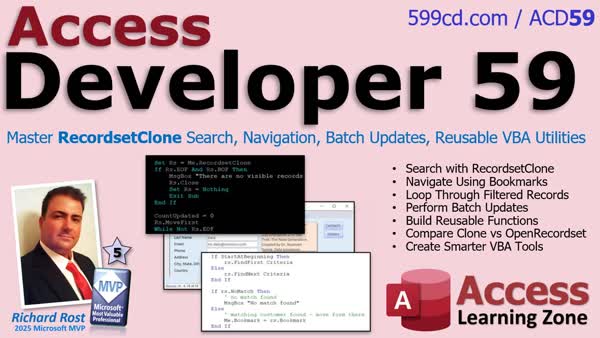
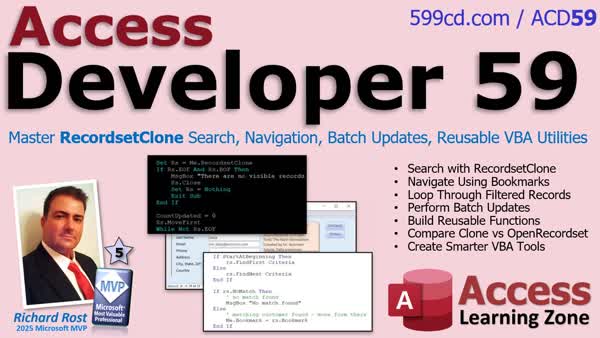
Access Developer 59RecordSet Clone: Search, Filter, Batch Update TipsIn Access Developer 59 we will learn how to master Record Set Clone in Microsoft Access, understand how it differs from commands like Find Record, and explore how to search and navigate records using Find First, Find Next, No Match, and Bookmark without changing the user's view. We will walk through looping through filtered records, counting only visible records, and performing batch updates while respecting user-applied filters. We will also talk about building reusable search functions, compare Record Set Clone with Open Record Set, and discuss when to use Bookmarks versus opening a form with a Where condition. Lessons
ResourcesNavigationLesson SummaryWelcome! Batch Recordset Clone & Search - Welcome to Access Developer 59. In this lesson, we will learn what a Record Set Clone is in Microsoft Access, how it works behind the scenes, and why it is a valuable tool for developers. We will discuss searching and navigating records without interrupting the user interface, looping through filtered records, and building reusable VBA routines using Record Set Clone. We will also cover the prerequisites you should know before starting, such as DAO Record Sets, and give an overview of the lessons ahead, which will include search functions, batch processing, and Bookmark navigation.
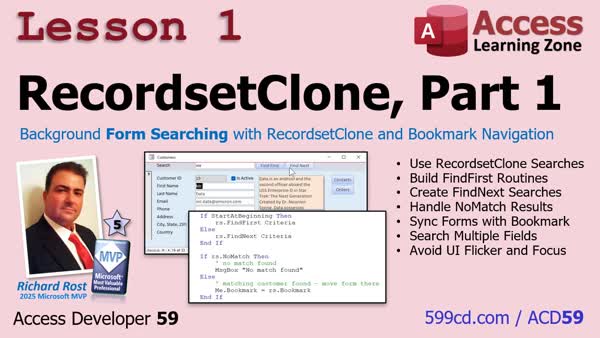
Lesson 1: RecordsetClone Search, Bookmark - In lesson one, we will learn how to use a RecordsetClone in Access to search and navigate records behind the scenes without moving the form on the screen. We will discuss using FindFirst, FindNext, NoMatch, and Bookmark to create cleaner, faster, and more reliable search routines compared to FindRecord. Over the next few lessons, we will explore recordset clones in detail so you can use them effectively as a professional Access developer. For those who have not seen my previous TechHelp video, we will be building on that material with a more comprehensive approach.
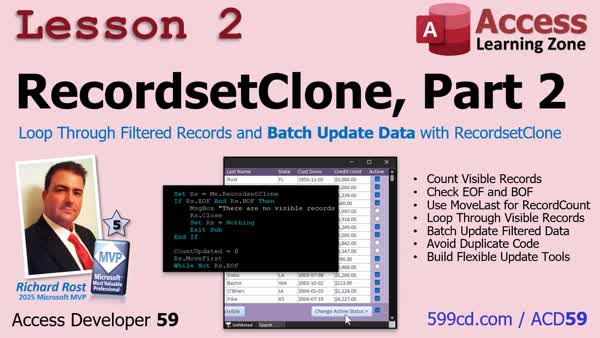
Lesson 2: Batch Update Filtered Records - In lesson two, we will build on using RecordsetClone by learning how to loop through filtered records on a form to count, process, and update them in bulk. I will show you how to check for empty recordsets, count the current filtered records, and update fields such as making visible customers active or inactive, all while preserving any filters the user has already set. We will discuss best practices like initializing variables, handling dirty records, and demonstrate making dynamic routines that work with any current filter using RecordsetClone.
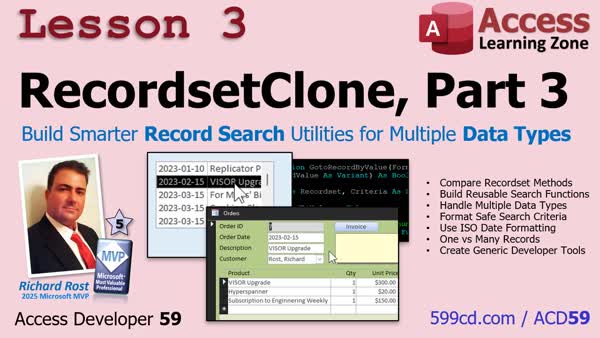
Lesson 3: Smarter Record Search for All Data Types - In lesson three, we will walk through building reusable search utilities using RecordsetClone that can work with any form in your database. You will learn how to create a generic function to find records by numeric ID, text, or date values, and how to use Bookmarks to locate a single record. We will discuss when to use a WHERE condition versus a bookmark for finding records, and see step-by-step how to update the function to handle different data types so it can be used anywhere in your Access projects.
Up Next: Review & What's Coming Up... - In this course we learned how to use a recordset clone to search records, navigate forms with bookmarks, process filtered recordsets, perform batch updates, and build reusable VBA utilities in Microsoft Access. We also discussed how these tools can help save time as your database projects expand. Coming up, we will talk about making search functions smarter with enumerations and data type controls to improve reliability and maintenance.
KeywordsAccess Developer, Record Set Clone, VBA code, batch updates, filtered records, continuous form, reusable developer tools, generic search functions, Bookmarks, Open Record Set, navigation routines, batch processing routines, search routines, form filters
More InformationTranscriptHi, this is Richard Rost with Access Learning Zone. I just released Access Developer 59 where we are going to master Record Set Clone and learn how to use it to build cleaner, faster, and more reusable VBA code in Microsoft Access. We will start by learning what Record Set Clone really is, how it differs from commands like Find Record, and how to search and navigate records behind the scenes using Find First, Find Next, No Match, and Bookmark without disrupting the user's view. Then we will put Record Set Clone to work by looping through filtered records, counting only the records currently visible on the form, and performing batch updates that automatically respect whatever filters the user has already applied. You can take a continuous form, your user can filter it, sort it, do whatever they want, and the Record Set Clone lets us work with just that data. Then we will build reusable developer tools by creating generic search functions that work with any form. We will compare Record Set Clone with Open Record Set, and learn when to use Bookmarks versus opening a form with the Where condition. By the end of this course, you will have a solid understanding of Record Set Clone along with practical search, navigation, and batch processing routines that you can use in just about every Access application you build. For more information, visit my website, or drop a comment down below if you have any questions. Live long and prosper my friends. I will see you in class. IntroIn <B>Access Developer 59</B> we will learn how to master Record Set Clone in Microsoft Access, understand how it differs from commands like Find Record, and explore how to search and navigate records using Find First, Find Next, No Match, and Bookmark without changing the user's view. We will walk through looping through filtered records, counting only visible records, and performing batch updates while respecting user-applied filters. We will also talk about building reusable search functions, compare Record Set Clone with Open Record Set, and discuss when to use Bookmarks versus opening a form with a Where condition. QuizQ1. What is the primary advantage of using Record Set Clone in Microsoft Access VBA? A. It allows working with the data behind the form without disrupting the user's view B. It automatically edits table relationships C. It sorts records by default D. It exports data directly to Excel Q2. How does Record Set Clone differ from Find Record in Access forms? A. Record Set Clone operates behind the scenes, while Find Record interacts with the user interface B. Record Set Clone permanently deletes records, while Find Record only hides them C. Find Record is used only in reports, Record Set Clone only in tables D. Find Record filters data, Record Set Clone cannot Q3. Which of the following commands can be used with Record Set Clone to search through records? A. Find First and Find Next B. Filter On and Filter Off C. Sort Ascending and Sort Descending D. Group By and Sum Q4. Which scenario best demonstrates the use of Bookmarks with Record Set Clone? A. Keeping track of the current record position while searching through records B. Creating new tables C. Merging two databases D. Designing new forms Q5. What is a common use for looping through filtered records using a Record Set Clone? A. Performing batch updates that respect the user's filters B. Renaming fields in bulk C. Exporting reports as PDFs D. Setting default values for new records Q6. Why would a developer create reusable generic search functions using Record Set Clone? A. To make search tools that can work with any continuous form B. To restrict form access to certain users C. To automatically create backup copies of forms D. To encrypt the data in the form Q7. When should you use Open Record Set instead of Record Set Clone? A. When you need a recordset based on a different data source than the current form B. When working only with the currently visible form data C. When sorting columns in a datasheet D. When exporting data to a Word document Q8. What is the main benefit of using Record Set Clone for batch processing routines? A. It automatically works with whatever filters and sorts the user has applied B. It upgrades the database format C. It prevents accidental deletion of records D. It creates automatic backup files Answers: 1-A; 2-A; 3-A; 4-A; 5-A; 6-A; 7-A; 8-A DISCLAIMER: Quiz questions are AI generated. If you find any that are wrong, don't make sense, or aren't related to the video topic at hand, then please post a comment and let me know. Thanks. SummaryToday's video from Access Learning Zone focuses on mastering the Record Set Clone feature in Microsoft Access. I'm excited to share Access Developer 59, where we will examine how Record Set Clone works and discover how it can help us write cleaner, faster, and more reusable VBA code. We will begin by exploring exactly what Record Set Clone is and how it differs from commands like Find Record. I will show you how to search and navigate records behind the scenes using techniques such as Find First, Find Next, No Match, and Bookmarks. The key advantage here is that you can work with data without disturbing what the user currently sees on the screen. Once we cover the basics, I will show you how to apply Record Set Clone in real-world scenarios. You will learn how to loop through records that have been filtered, count just the records that are visible on the form, and carry out batch updates that automatically respect whatever filters your users have already set up. This means that if a user takes a continuous form and filters or sorts it however they like, you can use Record Set Clone to work with just those shown records. Next, we will move on to building developer tools that can be reused. We will create generic search functions that can be plugged into any form you design. I will also explain the differences between Record Set Clone and Open Record Set, helping you understand when to use each one. You will learn when to rely on Bookmarks as opposed to opening a form with the Where condition option. By the time you finish this course, you should have a clear understanding of how to use Record Set Clone to handle search, navigation, and batch processing routines that you'll find useful in almost any Access database project. For all the details and a complete video tutorial with step-by-step instructions on everything I have discussed here, head over to my website at the link below. Live long and prosper, my friends. Topic ListWhat Record Set Clone is in Access Differences between Record Set Clone and Find Record Navigating records with Find First and Find Next Detecting No Match and using Bookmarks Searching records behind the scenes without changing user view Looping through filtered records with Record Set Clone Counting records visible on a form using Record Set Clone Batch updating filtered records based on user filters Building generic search functions for any form Comparing Record Set Clone with Open Record Set When to use Bookmarks versus Where condition in opening forms Practical routines for search, navigation, and batch processing using Record Set Clone Primary Topics
Recordset Clone, searching records, batch updates, navigation methods, reusable VBA code, filtered forms, Bookmarks Secondary Topics
difference between Recordset Clone and OpenRecordset, reusable search functions, comparison with Where condition |
||||||||||||||
|
| |||
| Keywords: Access Developer, Record Set Clone, VBA code, batch updates, filtered records, continuous form, reusable developer tools, generic search functions, Bookmarks, Open Record Set, navigation routines, batch processing routines, search routines, form filters Page Tag: whatsnew PermaLink How To Use RecordSet Clone for Searching, Filtering, and Batch Updates in Microsoft Access |