Form Open Time
By Richard Rost

 46 days ago
Track How Long a Form Was Open Without Timer In this lesson, we will walk through how to track form open time in Microsoft Access using just a few lines of VBA, without relying on a timer event. I will show you how to record the time when a form opens, use TempVars to store that information, and then calculate and display the duration when the form closes. We will also discuss using the On Open and On Close events, working with variables and string formatting, and explain why TempVars are useful for this purpose. This simple method can help you monitor how long you spend on various tasks in your database. Russell from Rochester, Minnesota (a Gold Member) asks: How can I tell how long I spend working in one part of my database? Every morning I open a form with my customer follow-up list and work my way through it until I'm done. I'd like to know about how much time that takes, but I don't want some clock or timer constantly running on the screen. Is there an easy way to see how long I had that form open after I'm finished? MembersIn the extended cut, we will turn this technique into a reusable framework that works with any form, without having to put code in each form's module. I will show you how to use event handler functions, log the open and close times in a table, and track form usage by username so you can run totals on how much time is spent in different forms. Silver Members and up get access to view Extended Cut videos, when available. Gold Members can download the files from class plus get access to the Code Vault. If you're not a member, Join Today!
PrerequisitesLinksRecommended Courses
Keywords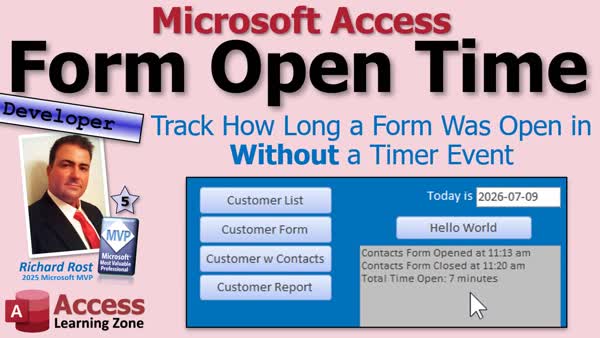 TechHelp Access, track form open time, VBA, TempVars, DateDiff, On Open event, On Close event, form duration, log form usage, status box, user time tracking, event handler functions, save open close timestamps, database productivity, minimize timer events
 Subscribe to Form Open Time
Get notifications when this page is updated
More InformationTranscript Have you ever wondered how much time you are actually spending working in one part of your database? Welcome to another TechHelp video brought to you by Access Learning Zone. I am your instructor Richard Rost.
Today we are going to learn how to track how long a form was open in Microsoft Access without using a timer event. We will save the time when the form opens, calculate the difference when it closes, and display the results with just a few lines of VBA. It is a simple, practical technique you can use to keep track of all kinds of everyday tasks in your database.
Today's question comes from Russell in Rochester, Minnesota, one of my Gold members. Russell says, How can I tell how long I spend working in one part of my database? Every morning I open a form with my customer follow-up list and I work my way through it until I am done. I would like to know about how much time that takes but I do not want some clock or timer constantly running on the screen. Is there an easy way to see how long I had that form open after I am finished?
Yes, Russell, I understand exactly what you are looking for. I do the same thing myself. I have my customer service form. It has got all the emails that came in. I like to know how long that takes me every morning. I have a couple of other forms where I want to track how long that form was open for doing different things, like when I post them on social media every morning. You know, the classes that I have done. I like to know that it took 35 minutes to do something.
So yes, we could definitely do that. And I also do not like having clock timers running. For a couple of reasons: one, I find them distracting to see a timer counting down. I feel like I am being watched. Another thing is whenever you have got a timer event running, that actually has the potential to steal focus from something else that is going on. So I do not like to use timers whenever possible. I have done dozens of videos on timers over the years, so if you want to learn about that, just search for timers and access, and I am sure you will find my videos.
But for today, we are going to avoid that. But we will need a little bit of VBA. So this is a developer level video. What does that mean? Well, that means if you have never done any VBA programming before, go watch this video. It is about 20 minutes long. It will teach you everything you need to get started. We will also be using an If Then block, so go watch this video. We are going to use tempvars. So if you do not know tempvars, go watch this. It is Adam's favorite.
To display the message, I am going to use my status box. Every now and then I get comments on YouTube like, "What is the Status function?" Well, it is the status box that I made in this video. It is just a little box here on the main menu where we can put stuff instead of MessageBox. I like this better. So go watch this. We are going to use DateDiff to display the difference between two date time values - how many minutes, for example. We are going to use the On Open and On Close events to track when a form was opened and closed.
If you are not familiar with those, go watch this video. We are going to work with some variables and some string concatenation. I know there are a lot of prerequisites. I like to be thorough and tell you guys all the stuff we are going to use because then someone is not going to be posting down below, "What is this?" Well, go watch the prerequisite videos.
That is one of the nice things about my full courses, that I know what we have already covered. So when people skip levels, I am like, "Oh, yeah, skipped the Access Expert 13, did not you? That is why you do not know what this stuff is."
Anyways, here is my TechHelp free template. This is a free database you can grab off my website if you want to, or you can put this stuff in any database that you want.
So the first thing we are going to do is, let's say I want to track how long my customer list form is open for. I am going to move this over here so we can see the status box over here.
Let's pretend this is my callback list or whatever. Actually, we have a contact form in here too. Where is the contact form? This thing could be a list of follow-ups as well. We will use this guy because it is easier and there is a button for it right here already. So let's pretend I open this up. I call this guy. I call that guy. I call this guy. Then when I am done for the day, when I close this, I want to know how long that form was open for. Pretty straightforward.
So in the customer list, let's go to design view. Let's open up the properties for this form by double clicking right there. Under Events, you can use On Load or you can use On Open. It does not matter for this particular example. Let's go dot, dot, dot. That will bring up my code builder. Let me resize this so it fits.
Right here in the form open event, I want to track the time that this form was opened. I am going to stick that in a TempVar. Now why TempVars? Well, if you watch the TempVars video, you know that TempVars will survive any kind of errors or anything else that might crash in your database. I know personally when I am developing, I always throw in errors on stuff. So TempVars survive that. If I use a regular form variable, then I would lose it. So that is why I like to use TempVars for stuff like this.
Alright, so TempVars. We are going to call this FormOpenTime. That is the name of the TempVar. We are going to set it equal to Now. I am also going to status that. Status, right? Let's call it, "Customer List opened now."
Save it. Debug, compile once in a while. Close it. Close it. Close it. Open it. There it is. Look at that: "Customer List Opened" and there it is. You can reformat that if you want to, just to show the time; it is up to you.
You can come in here and just for the format part, you could say format that as, let's do "hh:nn am/pm". And now you will just see the time. You want to store the actual time. Do not store the formatted time, but you can display this. Remember, once you use the Format function, then this turns it into text. It is no longer time. I know I was not planning on covering Format so it was not in the prerequisites. There is a video if you want to go watch this.
But now if you do it, like here you come in and you open it up again, there, see, now it just says "Opened at 4:59 PM".
Now that is half of the equation. Now the system knows when this form was open. Now I need to figure out what to do when it is closed.
Let's go back into here. Go back to properties. Let's find the On Close event.
In order for Form Close to fire, Form Open would have had to have fired first. So there is no way that this does not have a value in it, because TempVars do not get reset unless the database closes.
In here, we can simply take the difference in whatever you want: seconds, minutes, hours. Take the difference between that FormOpenTime and right now, when the form actually closes. If you want to easily calculate the difference between those two things, we are going to put it in a variable.
So I am going to Dim, let's call MinOpen. How many minutes was it open, as a Long? Let's have some fun with it. Let's make a string that will say, if it is less than one minute, we will say "less than one minute." Or we will say "minute" or "minutes." I always like that little added touch. When you see "Form was open 1 minutes," I hate that. So we are going to fix that. So as a String.
It is the little things that make your users' experience just so much better.
Now MinOpen equals the DateDiff in minutes. Remember, the minute is "n" because "m" is month, so you have to use "n" in Access.
What is the start date? Well, that is our TempVar, TempVars!FormOpenTime. What is the end date or time? Well, that is right now.
So MinOpen will have the number of minutes between the time the form was open and the time the form was closed. Now we make it fancy.
We say, if MinOpen is less than one, then S equals "less than one minute." Else if MinOpen equals one, then S equals "one minute." Otherwise, this means it has been open more than one; it is going to say S equals MinOpen and "minutes." End If.
Now we can Status: "Customer List open for S" (less than one minute, one minute, six minutes, or whatever).
Now it is a good habit once you are done with a TempVar to remove it. TempVars!Remove "FormOpenTime." You do not have to. It will stay open, and that TempVar will exist for the life of the database. If you are using a lot of them, make sure that you remove them. I almost never remember to, but it is good code, so I should teach you guys to do that. Do as I say, not as I do.
Hit Debug, Compile once in a while, close it, close it, close it, say Yes.
Let me clear this. I am just going to delete what is in there.
Ready? We are going to go Customer List. Open 5:03, dum dum dum, close it. It was open for less than a minute.
Now, I am going to open it up and I am going to go grab some coffee and I will be back. You can just sit here and watch. I am going to hit pause on the record and I am going to go see what my dogs are doing and I will be back in a few minutes.
I am back. My dogs are just laying around being lazy. It has been a couple of minutes. Let's find out how long was this open for. Close it. Two minutes. I was gone for two minutes.
So there you go. That is the nuts and bolts of how to do it.
One of the nice things is this is incredibly lightweight. There is no timer running in the background every second. We are not constantly updating a label or checking a clock. We just simply remember the time when the form opened, and then when it closes, we do a little math. That is it.
This might sound like a silly little project, but it is actually, you know, surprisingly useful. I have been using this myself for years. I like to know, like I said before, how long does it take me to go through my custom emails every morning, or reconcile my bank accounts a couple of times a week. I open up this other database where I have got all my account balances in it. For you, maybe processing invoices, things like that, whatever you want to know how much time you are taking to do every day or every couple of days. Just knowing how long certain tasks take can help you spot bottlenecks and become a little more efficient.
Sometimes I kind of race the clock because I like "time to beat." Like when I do my social media posts, I have to open up Facebook and then Twitter and copy and paste, copy and paste. Sometimes I know it takes like 12 or 13 minutes. It is the time to beat. So subconsciously, even though I am not looking at a clock, I am trying to do it faster than I did yesterday. It kind of turns it into a fun game.
Of course, now this version only works for this one form because the code is hard coded right into the form itself. What if you want to do this for a bunch of different forms in your database without copying and pasting the same code over and over again? This is where things start to get interesting.
In the extended cut for the members, I am going to show you how to turn this into a reusable framework that works with any form. You do not even have to put code in the form's module. We are just going to use event handler functions. So in On Open, you will put "NoteTimeOpenedForm" and then the Close event, "NoteTimeClosedForm". You do not have to go drop in code into each form module.
Then we will log it in a table: time open, time closed. We will log it by username, the form. So then you could do totals after the end of a week: how much time did you spend on the customer form? How much time did you spend on the main menu, whatever forms you want to track? This will all be in the extended cut for the members.
Silver members and up get access to all of my extended cut videos, not just this one. There are hundreds of them. Gold members get to download these databases and everybody gets a free training class every month and everybody is happy.
For more information, click that blue Join button and become a member. It is real easy to do.
That is going to be your TechHelp video for today. I hope you learned something. Live long and prosper my friends. I will see you next time and members, I will see you in the extended cut. Intro In this lesson, we will walk through how to track form open time in Microsoft Access using just a few lines of VBA, without relying on a timer event. I will show you how to record the time when a form opens, use TempVars to store that information, and then calculate and display the duration when the form closes. We will also discuss using the On Open and On Close events, working with variables and string formatting, and explain why TempVars are useful for this purpose. This simple method can help you monitor how long you spend on various tasks in your database. Quiz Q1. What is the main objective described in this video?
A. Tracking how long a form is open in Microsoft Access without a timer event
B. Using a timer event to track user activity
C. Learning basic VBA syntax
D. Importing data between databases
Q2. Why does the instructor prefer not to use a timer event for this purpose?
A. Timers can be distracting and may interfere with other events
B. Timer events are required for form navigation
C. Timers are necessary for status updates
D. Timer events are easier to implement
Q3. Which object is used to store the time the form was opened?
A. TempVars collection
B. A table in the database
C. A label on the form
D. A message box variable
Q4. What VBA function is used to record the current date and time?
A. Now
B. DateAdd
C. TimeSerial
D. DateDiff
Q5. How is the difference in time calculated when the form is closed?
A. Using the DateDiff function between the open time and the current time
B. Subtracting minutes by hand
C. Using a running timer on the form
D. By looking up a previously saved value in a table
Q6. Why are TempVars used instead of regular form variables?
A. TempVars survive errors and database crashes
B. TempVars are required by Access to store all variables
C. Regular variables are faster
D. TempVars are slower but easier to read
Q7. What is the purpose of formatting the Now value before displaying it in the status box?
A. To display only the time in a user-friendly way
B. To store the time as text for later calculations
C. To make the Time value sortable in tables
D. To generate a unique key for the form
Q8. What logic is used to display "less than one minute," "one minute," or "x minutes" upon closing the form?
A. Test the value of the number of minutes elapsed and set the string accordingly
B. Always display total seconds open
C. Use an external table to determine the phrasing
D. Display the time in hours regardless of duration
Q9. Why is it good practice to remove the TempVar after the form is closed?
A. To free up memory and keep the list of TempVars clean
B. To make the form close faster
C. To prevent database corruption
D. To back up variables to text files
Q10. What is one benefit of this technique compared to using a constantly running timer?
A. It is lightweight and does not distract the user
B. It requires more code and processing
C. It updates the form every second
D. It automatically creates a log file for every event
Q11. What suggestion is given for implementing this tracking method on multiple forms?
A. Create reusable event handler functions that can be called by any form
B. Manually copy and paste the code into each form
C. Only use the tracking code for customer forms
D. Set up a macro to start and stop timers on every form
Q12. What is a possible next step shown in the extended cut of the video?
A. Logging form open and close events into a table for each user and form
B. Automating email reports with time logs
C. Creating pop-up reminders for every tracked form
D. Building a web integration for the tracking system
Answers: 1-A; 2-A; 3-A; 4-A; 5-A; 6-A; 7-A; 8-A; 9-A; 10-A; 11-A; 12-A
DISCLAIMER: Quiz questions are AI generated. If you find any that are wrong, don't make sense, or aren't related to the video topic at hand, then please post a comment and let me know. Thanks. Summary Today's video from Access Learning Zone is all about tracking how much time you spend working in a specific part of your Microsoft Access database, specifically by tracking how long you have a form open, and doing so without using a timer event. This is a practical method that allows you to keep an eye on the time spent on various tasks in your database, and it is especially handy if you do not want a timer constantly running or distracting you on the screen.
For context, I received a question from one of my members who wanted to know how he could determine the amount of time he spends handling customer follow-ups each day. He mentioned that he opens a form with his customer list, works through his callbacks, and then finishes. He just wants to know roughly how long that task takes, but he does not want a real-time clock visible.
I completely understand this need because I like to track how much time I spend on my own daily customer service lists and other tasks. I have a form for handling emails, and there are times when I want to see exactly how long it takes to get through everything. Sometimes I also have projects like posting on social media, and I enjoy knowing, for example, whether it took me 35 minutes to complete a certain task that morning.
Timers are typically used for tracking time, but they can be distracting and sometimes cause interference in the background of Access. Timer events can sometimes steal focus from your work, so I prefer to avoid them if possible. Instead, in this lesson, we will use a lightweight and simple approach that only requires a little bit of VBA. If this is your first time working with VBA, I encourage you to check out my beginner video on the basics of VBA programming, as well as lessons on If Then statements, TempVars, and string concatenation if you need a refresher.
The method involves saving the time when the form opens and then checking the difference when the form closes. When the form opens, we write the current time to a TempVar. This is important because TempVars are robust; they hold their value reliably, even if the database encounters errors elsewhere. I like to use a TempVar rather than a standard variable because it will remain intact during the session and is accessible anywhere in the database.
To make the process user-friendly, I display messages using a status box on the main menu instead of a traditional MessageBox. I also use the Format function to show just the time in a readable format, but always make sure to store the unformatted value, since formatting turns your date/time value into plain text.
After capturing the open time, we then move to the form's On Close event. Here, we simply calculate the difference between the open and close times using the DateDiff function. You can choose to display the time difference in minutes or however else you prefer. I even recommend refining your message so that if a form is open for less than a minute, it will state "less than one minute," or if it is exactly one minute, it will say "one minute," and so on, for a cleaner user experience.
It is also good practice to remove the TempVar once it is no longer needed, to keep things tidy and avoid unnecessary clutter in your session.
The beauty of this technique is that it is lightweight and does not require any background timers to be running. You are simply storing the current time on open, then doing the math on close, and displaying the result. This method is surprisingly useful for daily productivity tracking. For example, you can apply it to processing invoices, reconciling accounts, or handling emails. Tracking how long routine tasks take can help identify bottlenecks or inspire you to become more efficient.
If you want to apply this to more than one form, the approach can be adapted further. In the extended cut of this lesson, I show you how to turn this functionality into a reusable framework that works with any form in your database. Instead of pasting the same code everywhere, we use event handler functions. It becomes as simple as entering the handler function name into the On Open and On Close events for the form, so you do not have to deal with code individually for each form. You can also set it up to log open and close times, by username and form name, into a table, making it easy to review time spent on different parts of your database across a day, week, or longer.
If you are interested in the extended cut, remember that Silver members and up get access to all extended lesson content, as well as hundreds of other in-depth tutorials and downloads.
You can find a complete video tutorial with step-by-step instructions on everything discussed here on my website at the link below.
Live long and prosper, my friends. Topic List Tracking form open duration in Microsoft Access
Storing form open time with TempVars
Calculating time difference using DateDiff
Displaying results with a custom status box
Using On Open and On Close form events
Formatting time display with the Format function
Handling string pluralization for minutes
Removing TempVars after use
Avoiding use of timer events for tracking time Article Have you ever wondered how much time you actually spend working in a specific part of your Access database? Maybe you are curious about how long it takes you to go through your daily customer follow-up list or process emails and would like an easy way to track this, but you do not want a timer constantly running on your screen. Fortunately, there is a straightforward technique you can use in Microsoft Access to track how long a form is open, and it only requires a small amount of VBA code. You do not need to set up a timer event or deal with any distracting clocks ticking away in the background.
The key idea is to remember the exact time when your form opens and then, when you close it, calculate how much time has passed. This can tell you, for example, how many minutes you spent looking at your customer list, without needing to see or manage a running timer. This approach is not only simple but also very lightweight, so it will not affect your database's performance or distract you while you work.
Here is how it works. The first step is to record the current time the moment the form opens. Typically, you would do this using a temporary variable, known as a TempVar, which will reliably store the value until you need it again. TempVars are especially useful here because they will not be lost if some other error or event occurs in your database. When your form's open event fires, simply save the current date and time into a TempVar. For display purposes, you can also show a message somewhere in your application saying when the form was opened so you know that your time tracking has started.
Once this is set up, you do whatever you usually do with your form. Call your customers, process your lists, or review your data. When you are finished and close the form, the code should then retrieve the original time from the TempVar and compare it to the current time. The purpose here is to calculate the difference between the form's opening and closing moments. You can choose to measure this in minutes, seconds, or hours, depending on what is most useful to you.
To make this more user-friendly, you might want your message to say things like "less than one minute" if you closed the form quickly, "one minute" for exactly sixty seconds, or "[x] minutes" for anything longer. This way, the feedback is clear and easy to understand. Once you are done with your calculation, it is a good practice to remove the TempVar you used so it does not fill up the list of temporary variables for the rest of your database session, although Access will do this automatically when the database closes.
What is especially nice about this method is that it does not require any running timers or constant checks in the background. You simply store the open time, and do one quick calculation when the form closes. This simplicity makes it suitable for tracking time on any form with minimal impact. It is surprisingly useful for keeping track of your workflow and can help highlight parts of your process that take up more time than you expect. Maybe you want to improve efficiency or just satisfy your curiosity about how long certain tasks actually take.
If you want to apply this technique to multiple forms, you would make your time-tracking routines generic, rather than hard coding them into each form separately. You could even enhance the system to record all these time entries in a table, tracking when any form is opened and closed, by whom, and for how long, so you can later analyze your usage patterns across the entire database.
In summary, tracking the amount of time a form is open in Access can be accomplished in a straightforward way without timers. Start by saving the open time to a temporary variable when the form opens. When the form closes, calculate the elapsed time by comparing the current time to your saved value, and display the results however you like. Not only will this help you measure and improve your workflow, but it is easy to implement and does not disrupt your work with any unnecessary distractions. Primary Topics Microsoft Access, form events, VBA, TempVars, tracking duration, user activity logging Secondary Topics status box, DateDiff, string concatenation, error handling, interface design |




