Free Lessons
Courses
Seminars
TechHelp
Fast Tips
Templates
Topic Index
Forum
ABCD
 
Home   Courses   TechHelp   Help   Contact   Merch   Join   Order   Logon   Forums   
 
Back to Dymo Labels    Comments List
Upload Images   @Reply   Bookmark    Link   Email   Next Unseen 
Customer Printer
Jorgen Kjaergaard 
     
14 months ago
Hello, if I have a database frontend and need to print to a customer printer but it is not the same on every computer, is there a way to manage that without having to change it on each computer? It cannot be the default printer.
Sami Shamma  @Reply  
             
14 months ago
Printer selection, assuming what you have is an Access database sitting on a PC, is not dependent on your front-end; it is a Windows function, and each user can choose the printer that he wants to print on.
Jorgen Kjaergaard OP  @Reply  
     
14 months ago
I would like to do as in 'Printing to a Dymo LabelWriter 450 in Microsoft Access - EXTENDED CUT MEMBERS ONLY' where there is a button to print, so you don't have to choose but print every time.
Donald Blackwell  @Reply  
        
14 months ago
Jorgen,

As long as that printer is installed/available on the workstation that the frontend app is running on, you can have a report print to it automatically.

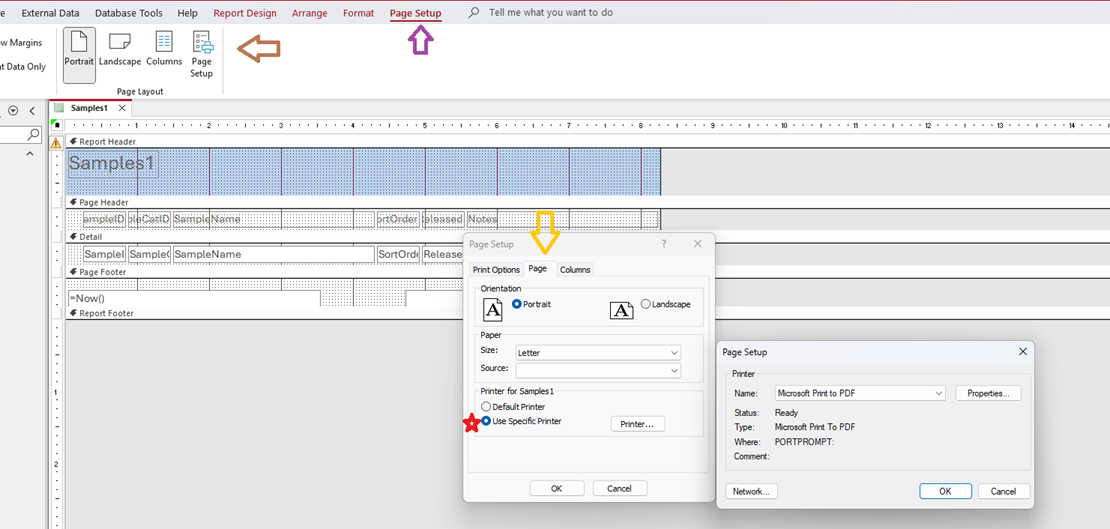
In the Design view for the report, click on the "Page Setup" tab.

When the page setup window pops up, click on the "Page" tab.

On that tab, you have to select the "Use specific printer" option and then click the "Printer" button to choose the printer you want it to print to. Once you've done that, that report will always print to that printer by default. Unless you tell the button to go straight to the printer, the user will have the option of changing to a different one.
Donald Blackwell  @Reply  
        
14 months ago

Donald Blackwell  @Reply  
        
14 months ago
You would have to setup for each frontend however, if they don't all use the same printer address
Richard Rost  @Reply  
          
14 months ago
Access should just pick the default printer unless you specifically design a report to go to a specific printer.
Jorgen Kjaergaard OP  @Reply  
     
14 months ago
hi Donald, it was exactly what I wanted to avoid, I was well aware of the first thing you wrote.                                                Richard,
isn't there a way to do it with vba?
Donald Blackwell  @Reply  
        
14 months ago
I haven't tried it, but here is some code from Co-Pilot:


Public Sub PrintToSpecificPrinter(reportName As String, printerName As String)
    Dim rpt As Report
    Dim objPrinter As Printer
    Dim intPaperSize As Integer

    ' Find the printer
    For Each objPrinter In Application.Printers
        If objPrinter.DeviceName = printerName Then
            ' Open report in design view
            DoCmd.OpenReport reportName, acViewDesign, , , acHidden
            Set rpt = Reports(reportName)

            ' Save current paper size
            intPaperSize = rpt.Printer.PaperSize

            ' Assign new printer
            rpt.UseDefaultPrinter = False
            Set rpt.Printer = objPrinter
            rpt.Printer.PaperSize = intPaperSize

            ' Save and close
            DoCmd.Save acReport, reportName
            DoCmd.Close acReport, reportName
            Exit For
        End If
    Next objPrinter
End Sub


Important Notes:
- Saving printer changes via DoCmd.Close with acSaveYes may not always persist due to an Access bug. Use DoCmd.Save explicitly before closing.
- You can also loop through Application.Printers to list available printers in a combo box for user selection.


Donald Blackwell  @Reply  
        
14 months ago
The one thing is that you would still have to specify the printer name somewhere... I would suggest a settings table or something so at least the user would only need to set it up once or if the printer is changed, renamed, or replaced.
Donald Blackwell  @Reply  
        
14 months ago
The other problem with this method is that it requires the ability to go into "design" mode, which you can't do if your frontend is running in a runtime edition and/or if your frontend is an accde file.
Richard Rost  @Reply  
          
14 months ago
By default, Access just prints to whatever the default printer is on that user's PC. If you don't assign a specific printer to the report in Page Setup, it uses whatever Windows says is the default.

If you do need to print to a specific printer (like a label printer that's not the default), then yeah, you'll either need to:

1. Set that report to always use a specific printer (but that's hard-coded and not ideal across multiple workstations),

2. Or, use VBA to dynamically assign a printer at runtime, like the code Donald posted.

Personally, I usually just let it print to the default unless there's a very good reason not to. Otherwise, you're juggling settings across frontends and environments, which can get messy fast.
Jorgen Kjaergaard OP  @Reply  
     
13 months ago
That's because I'm making a lot of updates at the moment and I would like to avoid having to change the frontend for each workstation every time, but just send out a new frontend.

But thank you for your response.I'm on vacation right now, so I'll try it when I'm back at the office.
Richard Rost  @Reply  
          
13 months ago
Sami Shamma  @Reply  
             
13 months ago
Jorgen Access Updater truly amazing. I have it installed on all my own as well as my customers' systems.
Joseph Bergman  @Reply  
     
13 months ago
I had a similar problem for my office. We print reports and Labels automatically when certain actions are done. We did not want to use the print dialog to slow down the process.

How I solved was to. Create a list of all available printers on the Computer and allow the user to select a "Report" Printer and a "Label" Printer then I saved them to the local drive where the Front end is stored. "C:\NCF\Database\" & Username & "\printers.txt"

We now set the printer before every print using a sub to retrieve the printer name

Set Application.Printer = Application.Printers(ReportPrinter)

If you are intrested I could share some of the code. If someone has a better solution would love to hear about it.
Joseph Bergman  @Reply  
     
13 months ago
Another solution that is simpler and worked for us till we started using Remote Desktop Services was just to name All the printers the same on each computer.  ie. "Report"  and "Label"  then set the default printer in the report itself to that name.
Richard Rost  @Reply  
          
13 months ago
If you have the label printer connected to a database server that's already running Access - like mine, which runs in a continuous loop handling tasks like sending emails - you can offload printing to that machine. I have my label printer plugged into the server because my main laptop is already bogged down with other stuff. The idea is simple: instead of printing directly, just queue the job by writing a record to a table dedicated to label printing. As the server loop runs, it checks that table, and if it finds a new record, it prints the label. When you walk over to the server, the label is already sitting there. It's basically a homemade print queue.

This thread is now CLOSED. If you wish to comment, start a NEW discussion in Dymo Labels.
 

Next Unseen


What's This?


The following is a paid advertisement
Computer Learning Zone is not responsible for any content shown or offers made by these ads.
 

Learn
 
Access - index
Excel - index
Word - index
Windows - index
PowerPoint - index
Photoshop - index
Visual Basic - index
ASP - index
Seminars
More...
Customers
 
Login
My Account
My Courses
Lost Password
Memberships
Student Databases
Change Email
Info
 
Latest News
New Releases
User Forums
Topic Glossary
Tips & Tricks
Search The Site
Code Vault
Collapse Menus
Help
 
Customer Support
Web Site Tour
FAQs
TechHelp
Consulting Services
About
 
Background
Testimonials
Jobs
Affiliate Program
Richard Rost
Free Lessons
Mailing List
PCResale.NET
Order
 
Video Tutorials
Handbooks
Memberships
Learning Connection
Idiot's Guide to Excel
Volume Discounts
Payment Info
Shipping
Terms of Sale
Contact
 
Contact Info
Support Policy
Mailing Address
Phone Number
Fax Number
Course Survey
Email Richard
[email protected]
Blog RSS Feed    YouTube Channel

LinkedIn
Copyright 2026 by Computer Learning Zone, Amicron, and Richard Rost. All Rights Reserved. Current Time: 9/3/2026 10:21:06 AM. PLT: 1s