Free Lessons
Courses
Seminars
TechHelp
Fast Tips
Templates
Topic Index
Forum
ABCD
 
Home   Courses   TechHelp   Forums   Help   Contact   Merch   Join   Order   Logon  
 
Back to Account Balances 2    Comments List
Upload Images   @Reply   Bookmark    Link   Email   Next Unseen 
Extended Cut
Rudolpho Galicia 
       
10 months ago
This is Rudy G. from Bakersfield, CA. My question is once you have used the Conditional Formation feature for the Color Scheme in your AccountF, can you change the color? Or do you have to build a table? Just Wondering. Thank you
Raymond Spornhauer  @Reply  
          
10 months ago
Rudolpho

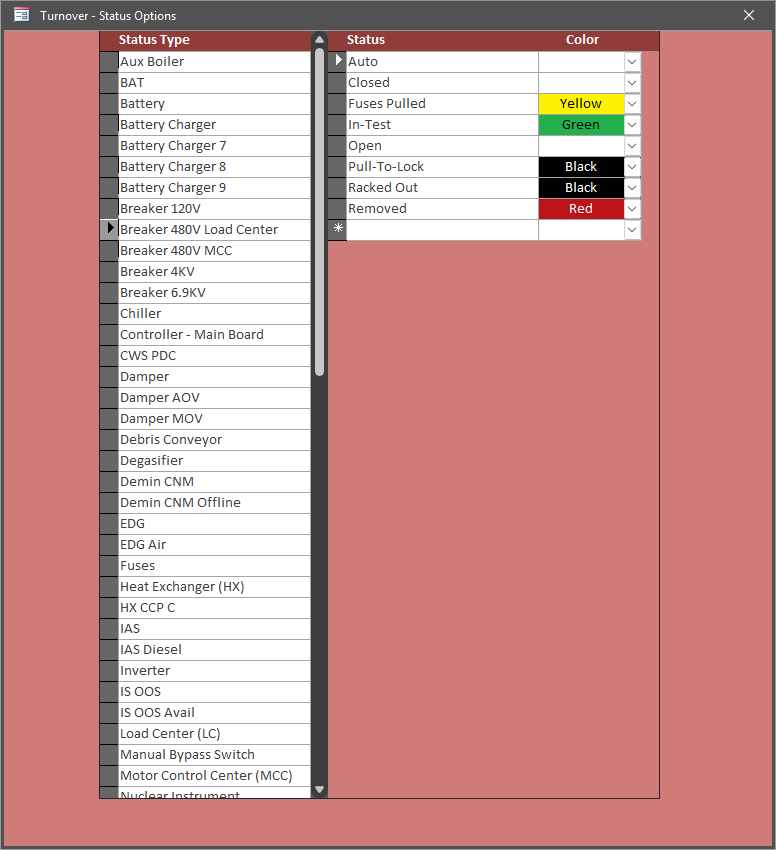
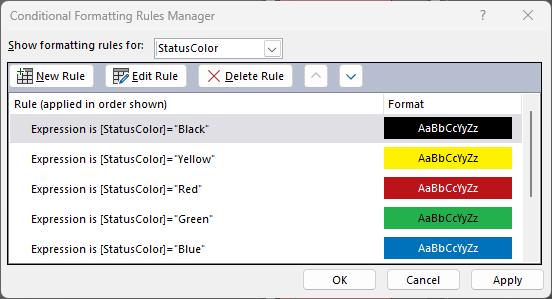
I'm not sure I understand what you're asking.  In this video Rick talks about this being kinda built in to the database, so not something that can be changed by the end user.  You as the developer can change the colors... you'll have to update the conditional formatting in all the places you want the change.

Another way of doing this is using a table, you'll have to make sure you define all the colors you want ahead of time, then set the conditional formatting for each of those colors.

Example:
ComboID (AutoNumber)
ComboValue (Number)
ComboColor (ShortText)

The colors I used:
Red
Orange
Yellow
Green
Blue
Purple
Black
Gray

For the Conditional Formatting, you'll make an expression for each of these:
If [ComboColor] = Red (Set the background to Red)
If [ComboColor] = Orange (Set the background to Orange)
etc....

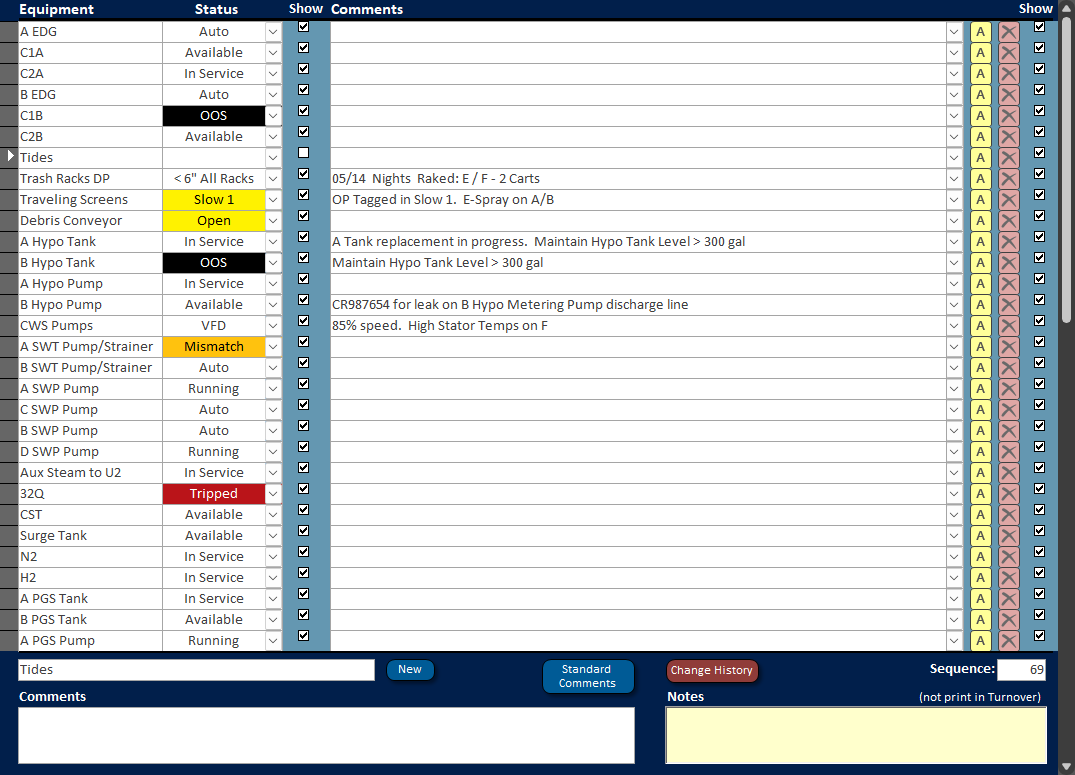
The trick to get this to work on a continuous Form:
You have to put 2 combo boxes right on top of each other.
1. The one if the front will need a row source that has all values.  This will be on top.
2. The second will be in the back ground.

In VBA you'll need to do the following:
If they click on the combobox (this will be the one in front that they see)
Set Focus to the second box ( the one they don't initially see)
Update the row source for the options you want them to have for this selection.
The use the combobox.dropdown for them to make their selection.

Then use an afterupdate to set the focus back on the first combobox.

=======================================
This is necessary because the row  source on a combo box on a continuous form is for all combo boxes on the form.  You need one in front with a row source of "everything" so the rest of the combo boxes will work with their options.

Hope this helps,

-Raymond
Raymond Spornhauer  @Reply  
          
10 months ago

Raymond Spornhauer  @Reply  
          
10 months ago

Raymond Spornhauer  @Reply  
          
10 months ago

Raymond Spornhauer  @Reply  
          
10 months ago
For my 2 Combo Boxes
The Front Combo Box is named: cboStatusDisplay (This is the one the users see.  It's Row Source is all values)
The Second Combo Box is named: cboStatusSelect (This is the one used to select values for this record. It's Row Source gets updated when selected)


Here is the code I use on my Continuous Form:

Private Sub cboStatusDisplay_GotFocus()

    'Update Combobox based on Status Type
    'cboStatusDisplay is in front of cboStatusSelect.  As the recordsource for cboStatusSelect changes, the display will not be affected.

    If IsNull(StatusTypeID) Then
        cboStatusSelect.RowSource = "SELECT StatusID, Status FROM Tbl_TOStatus WHERE StatusTypeID = 0"
    Else
        cboStatusSelect.RowSource = "SELECT StatusID, Status, StatusColor FROM Tbl_TOStatus WHERE StatusTypeID = " & cboStatusType & " ORDER BY Status;"
    End If

    cboStatusSelect.SetFocus
    cboStatusSelect.Dropdown

End Sub


Private Sub cboStatusSelect_AfterUpdate()

    StatusDT = Now()
    Me.Refresh  'This will put the cboStatusDisplay back on top.

End Sub

This thread is now CLOSED. If you wish to comment, start a NEW discussion in Account Balances 2.
 

Next Unseen

 
New Feature: Comment Live View


The following is a paid advertisement
Computer Learning Zone is not responsible for any content shown or offers made by these ads.
 

Learn
 
Access - index
Excel - index
Word - index
Windows - index
PowerPoint - index
Photoshop - index
Visual Basic - index
ASP - index
Seminars
More...
Customers
 
Login
My Account
My Courses
Lost Password
Memberships
Student Databases
Change Email
Info
 
Latest News
New Releases
User Forums
Topic Glossary
Tips & Tricks
Search The Site
Code Vault
Collapse Menus
Help
 
Customer Support
Web Site Tour
FAQs
TechHelp
Consulting Services
About
 
Background
Testimonials
Jobs
Affiliate Program
Richard Rost
Free Lessons
Mailing List
PCResale.NET
Order
 
Video Tutorials
Handbooks
Memberships
Learning Connection
Idiot's Guide to Excel
Volume Discounts
Payment Info
Shipping
Terms of Sale
Contact
 
Contact Info
Support Policy
Mailing Address
Phone Number
Fax Number
Course Survey
Email Richard
[email protected]
Blog RSS Feed    YouTube Channel

LinkedIn
Copyright 2026 by Computer Learning Zone, Amicron, and Richard Rost. All Rights Reserved. Current Time: 6/12/2026 4:55:43 PM. PLT: 1s